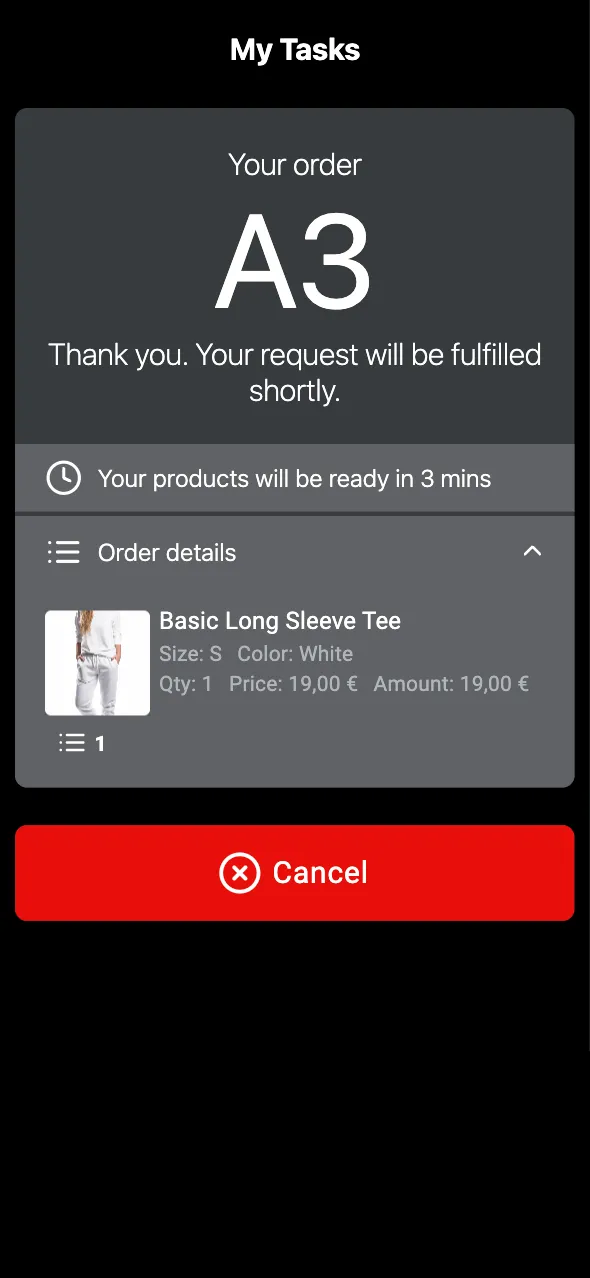
How to open the staff board
-
On the staff device, such as a tablet or phone, open the Tasks staff board. Its address has this form, where your PhyGrid contact can tell you the region and your organisation’s name:
https://tasks-<region>.omborigrid.com/<organization>/queues/<Tasks installation ID>/admin -
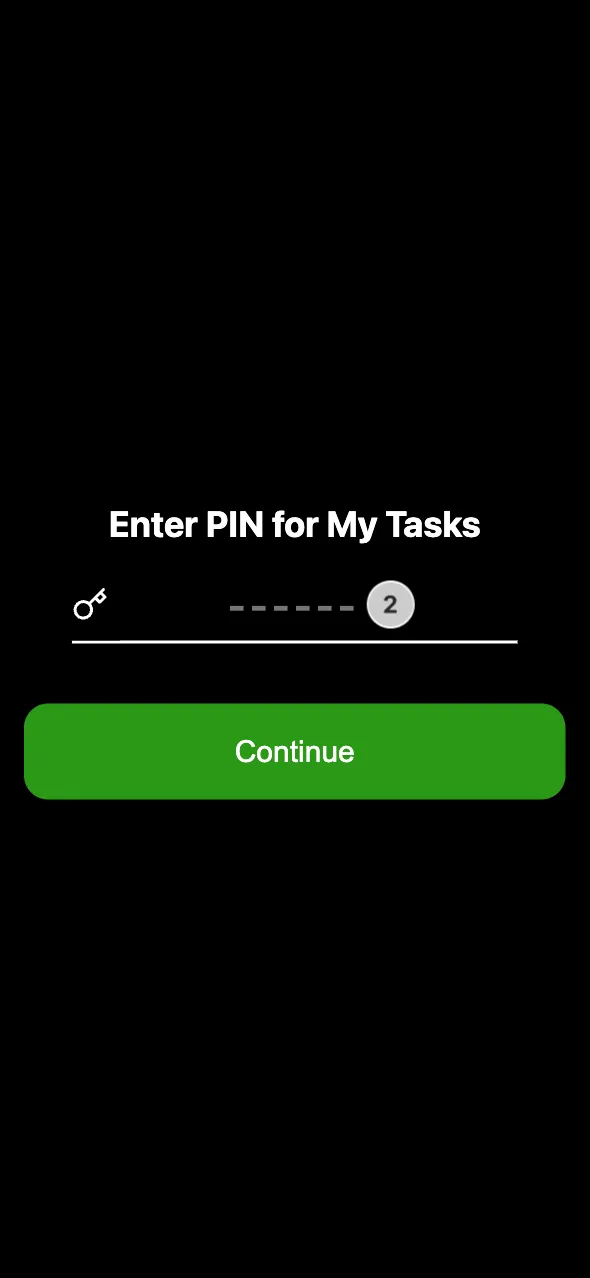
Sign in with the PIN or your PhyGrid account, depending on the Tasks Login method
-
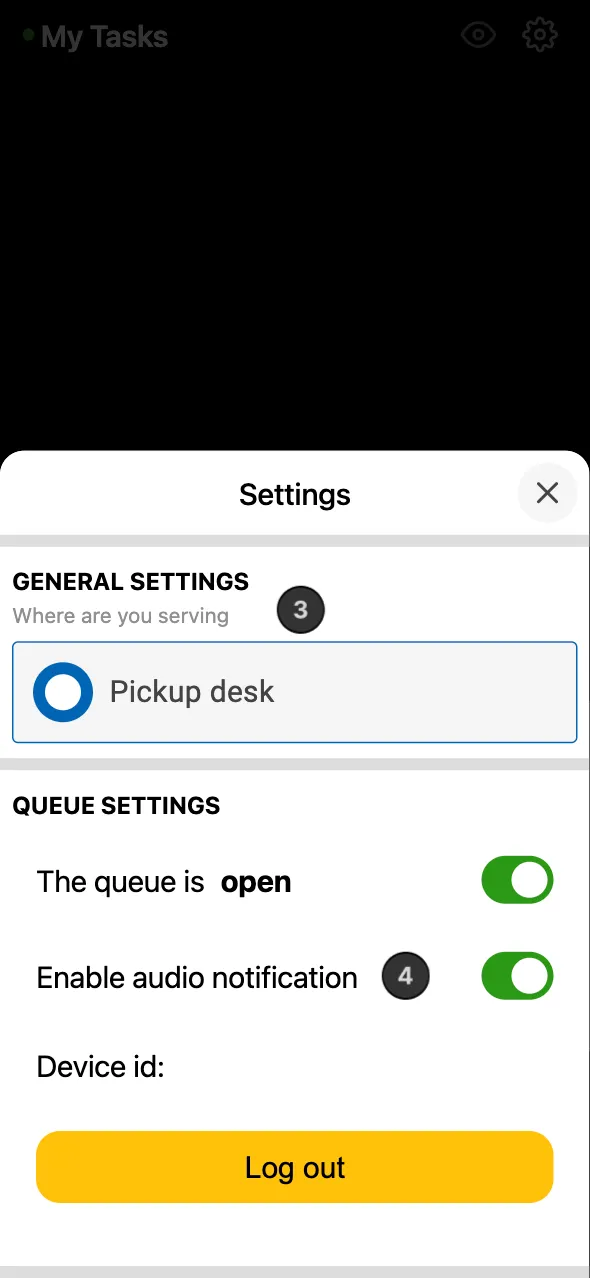
Optionally, open Settings and choose Where are you serving if Tasks has stations
-
Optionally, turn on Enable audio notification to hear a sound for each new request. It’s off by default, and only plays while the board is open
Use the address that ends in /admin. Without it, the address opens the customer page and creates an empty request.
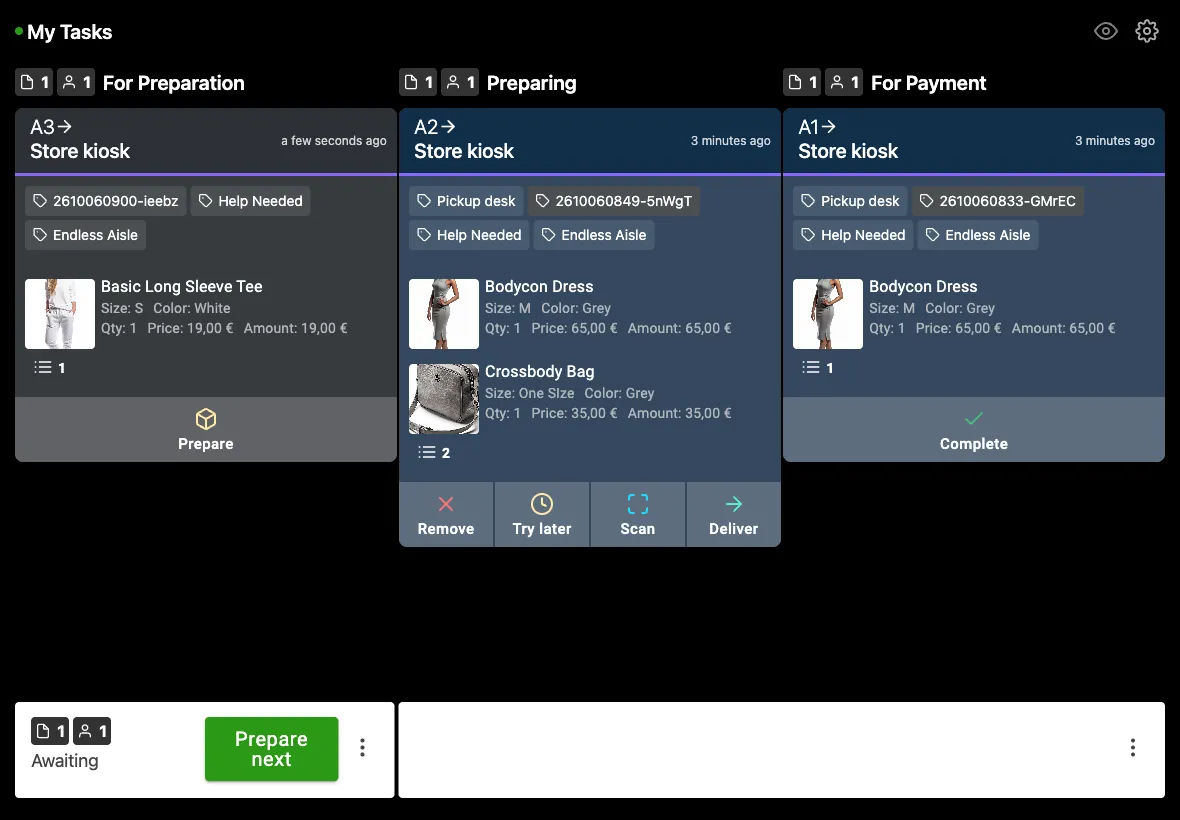
How requests move through the board
| Column | Meaning | Actions |
|---|---|---|
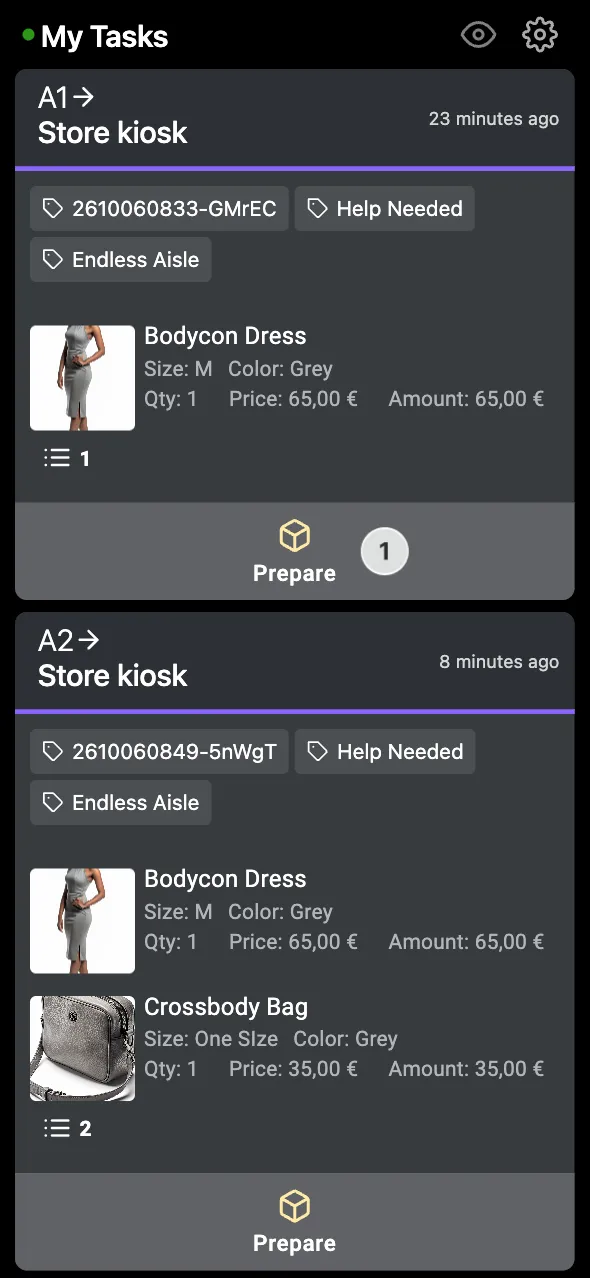
| For Preparation | New requests, oldest first | Prepare assigns the request to you |
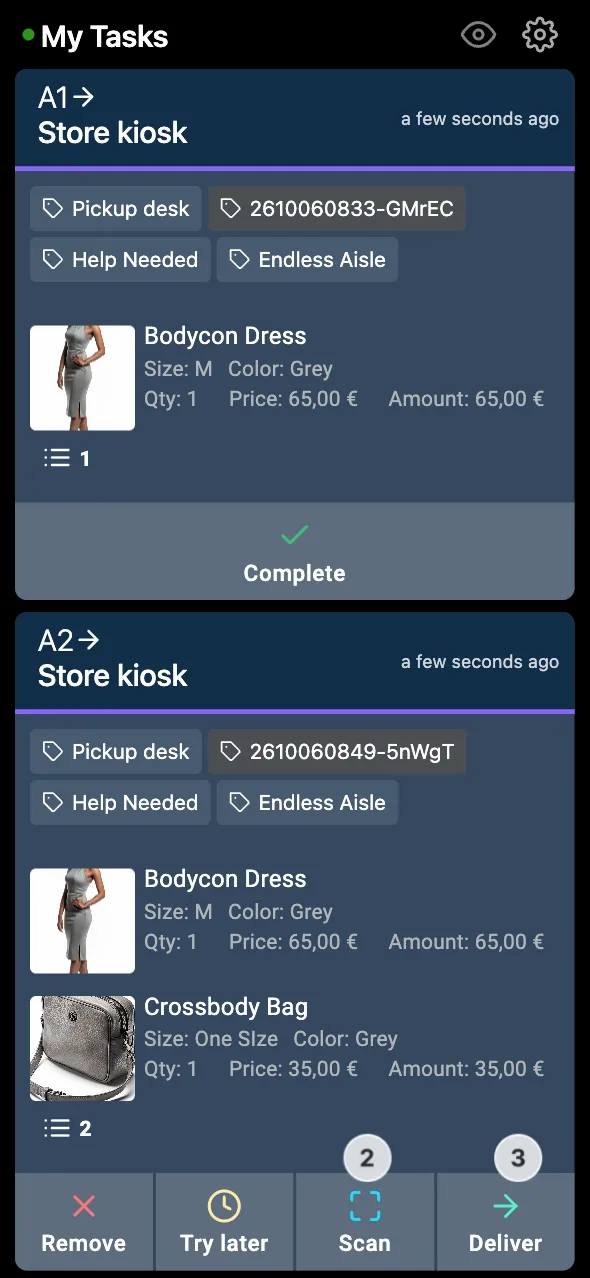
| Preparing | Requests being picked | Scan, Deliver, Try later, Remove |
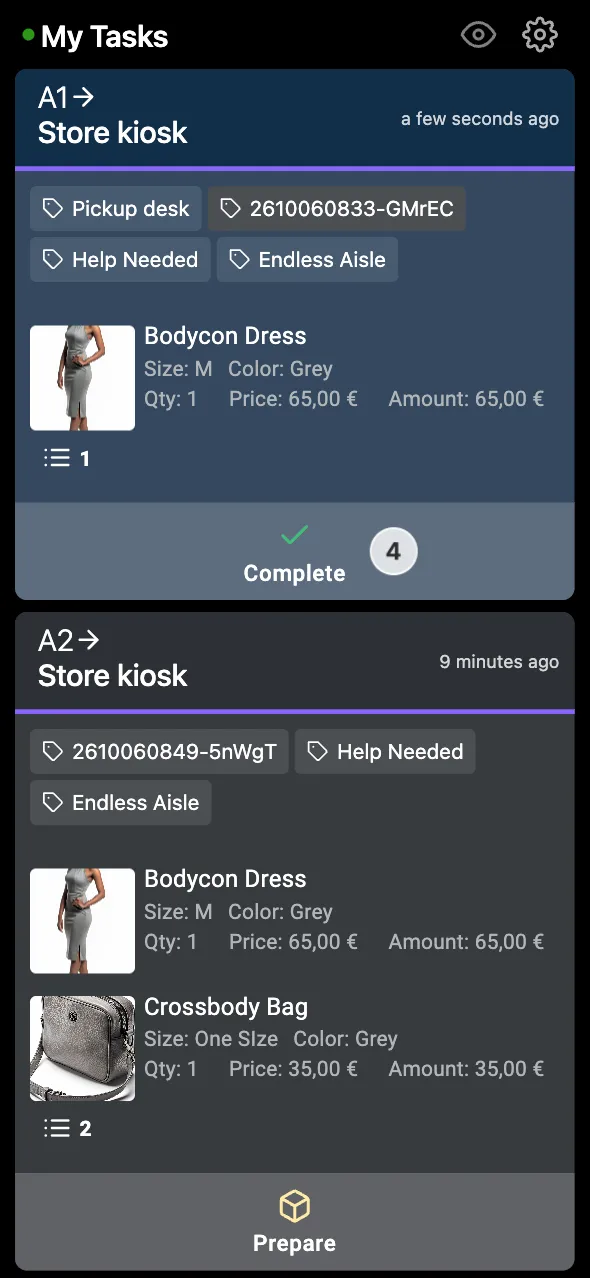
| For Payment | Requests handed over, waiting to be finished | Complete |
For Payment only appears when Show serving tab (Enable ticket check out) is on in the Tasks settings. On a phone, the board shows one list instead of columns.
What a request shows
- The request number, the device that sent it, such as a kiosk or fitting room screen, and how long ago it came in
- Tags that show where it comes from, such as “Endless Aisle” or “Bring Me”, and the short order reference from Endless Aisle
- The products, with image, name, size, colour, brand, quantity, price, and barcode
- For Endless Aisle orders with customer info: the customer’s name, email, phone number, address, and the order totals. Open them with the person icon
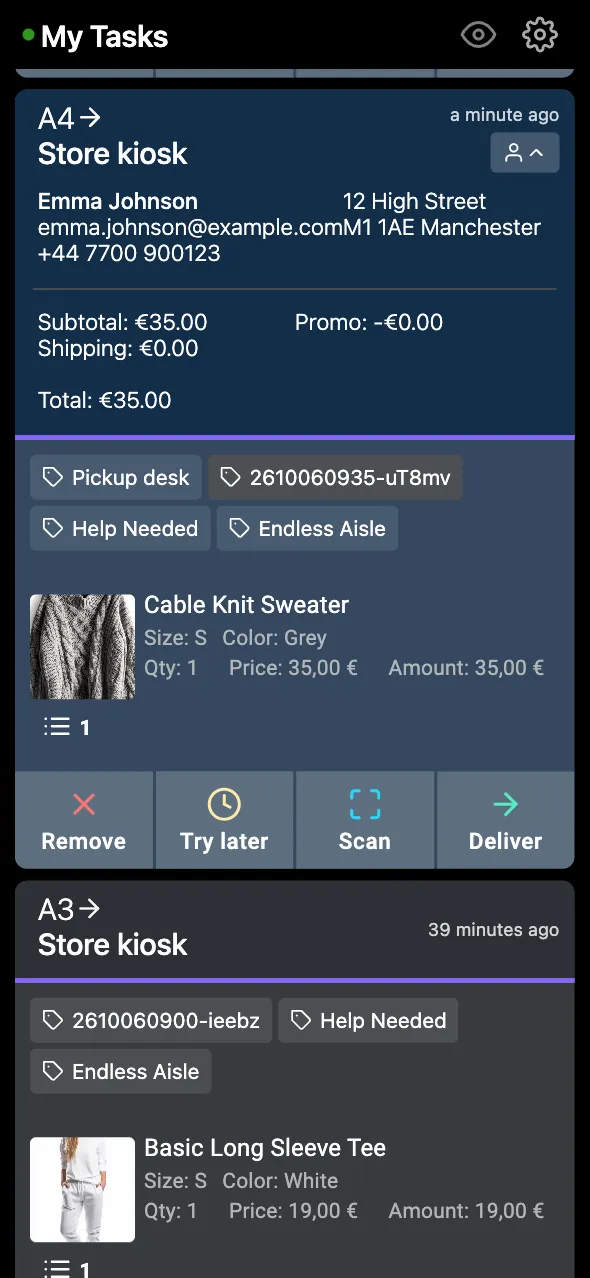
How to handle a request
- Tap Prepare on a request, or Prepare next at the bottom of the board to take the oldest one
- Pick the items, and tap Scan to scan each item’s barcode with the device camera. Each item is marked available, partly available, or not available
- Tap Deliver when the items are handed over or waiting at the pickup point
- Tap Complete when the request is finished, for example when the customer has paid at the till
To put a request back in the queue, tap Try later. To cancel it, tap Remove.
What the customer sees
- Endless Aisle: the QR code on the kiosk opens a page on the customer’s phone that shows the order number, the status of each product, and when the order is ready to collect. While the order waits, the customer can cancel it if Customer can cancel ticket is on
- Smart Fitting Room: the fitting room screen shows that the item was requested, then that it’s on its way once staff tap Prepare