

What is Queue Management?
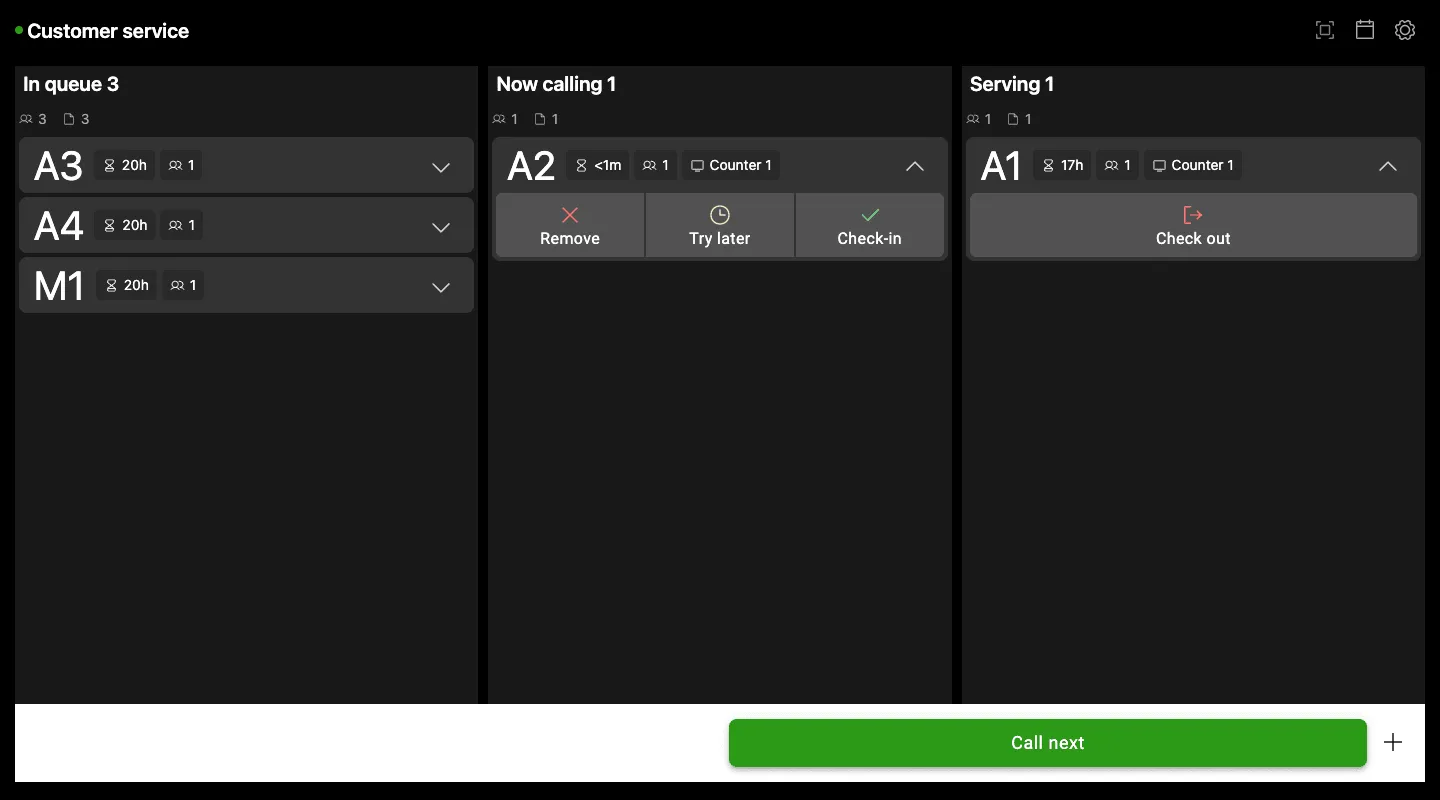
PhyGrid Queue Management lets customers wait their turn without standing in line. They take a ticket on their phone or at a kiosk and follow their place in the queue. Staff call the next customer from the Queue Manager app. Queue Management comes in three variants, which you can use on their own or together.
Solution variants
Queue Management: Walk-in queues. Customers join on their phone by scanning a QR code, or take a printed ticket at a Queue Kiosk. Staff call them from the Queue Manager app. A queue can have several stations and categories. Staff can transfer a ticket to another station, category or queue. Customers can add their ticket to Apple Wallet and get updates by SMS, email or web push.
Appointment Booking: Adds booked visits to a queue. Customers book a date and timeslot, and get a confirmation and reminders. They can cancel or reschedule from the confirmation page. You set the timeslot duration and capacity, the booking hours and the registration fields. Bookings and walk-in tickets can share the same queue.
Occupancy Control: Counts how many people are inside a space, with sensors or by hand in the Occupancy Manager. You set the space capacity. When the space is full, the entry signage turns red and new visitors can join a virtual queue. Occupancy Control includes the features of Queue Management and Appointment Booking.
Optional screen apps
These apps run on kiosks and displays in your store:
Queue Kiosk: A touchscreen where customers pick a queue or category and get a printed ticket. It can also show a QR code for a phone ticket, promotional banners and a background playlist, in several languages. Set up Queue Kiosk
Ticket Signage: A waiting-area display that shows the tickets being called across all stations. It can play a bell or read out tickets in up to two voices, show a QR code to join the queue, and play images or videos. Set up Ticket Signage
Counter Display Signage: A screen at one counter that shows the ticket being called to it. Set up Counter Display Signage
Occupancy Signage: An entrance display that shows the number of people inside against the capacity. It tells visitors to enter or wait, with optional spoken prompts. When the space is full, it can show a QR code to join the queue. Set up Occupancy Signage
What customers and staff can do
Customers
- No app to install: Customers open their ticket in the phone’s browser
- Live position: The ticket shows their place in the queue as it changes
- Notifications: SMS, email, web push and Apple Wallet tell customers when it’s their turn
- Several languages: Set the languages your customers can choose from
- Feedback survey: After the visit, the ticket can ask customers to rate it
Staff
- Queue Manager app: Staff call the next customer and manage tickets on a computer, tablet or phone
- Stations and categories: Each staff member picks their station, and you can route categories to selected staff
- Staff notifications: Selected staff get an email when the average waiting time or the number of people waiting passes a limit you set
Quick setup
- Install Queue Management from the Marketplace
- Configure a basic queue and its settings
- (Optional) Add Appointment Booking for booked visits
- (Optional) Add Occupancy Control with people counters
- Set up screen apps (Queue Kiosk, Ticket Signage, Counter Display Signage, Occupancy Signage)
- Open Queue Manager on your staff devices