
Console settings
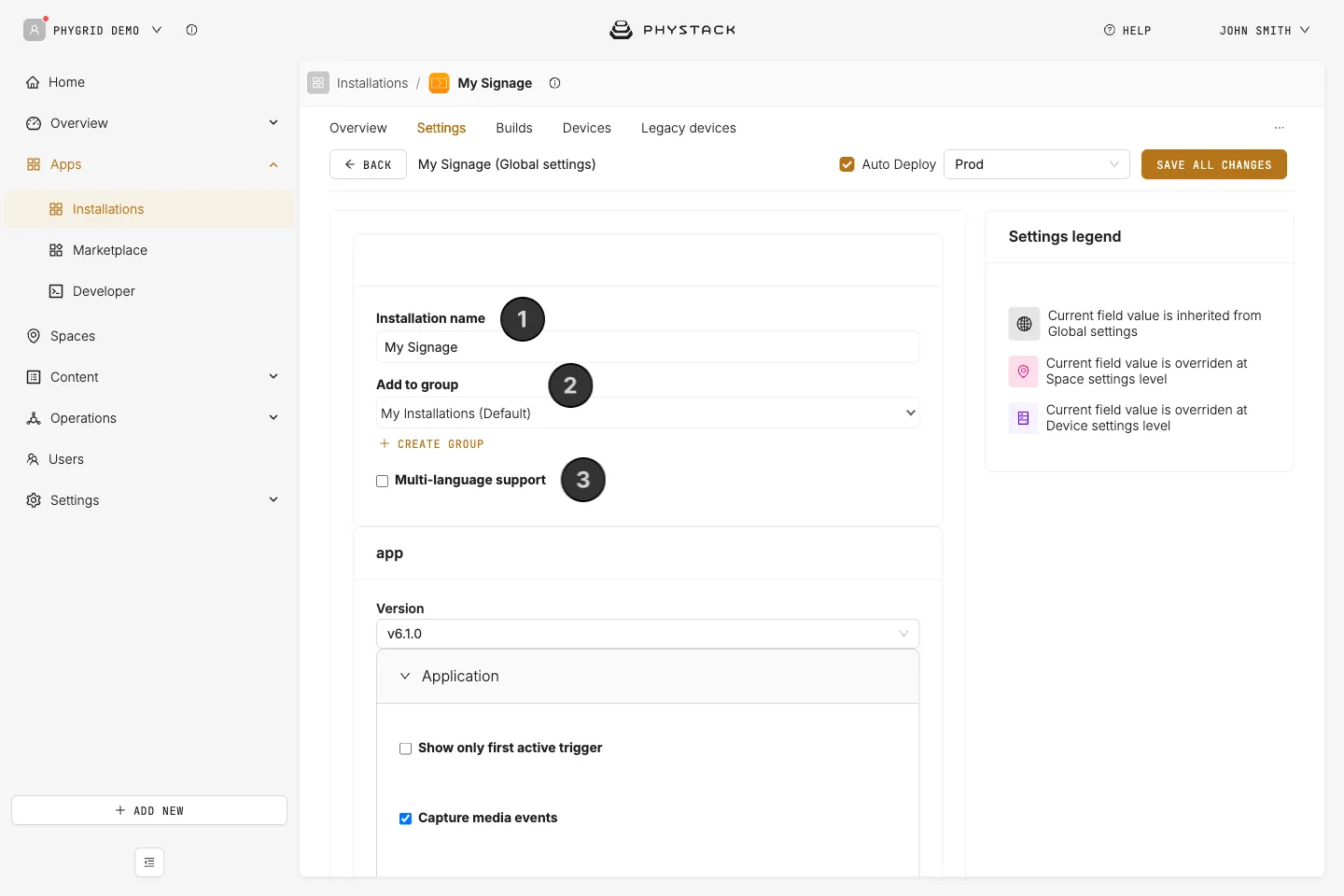
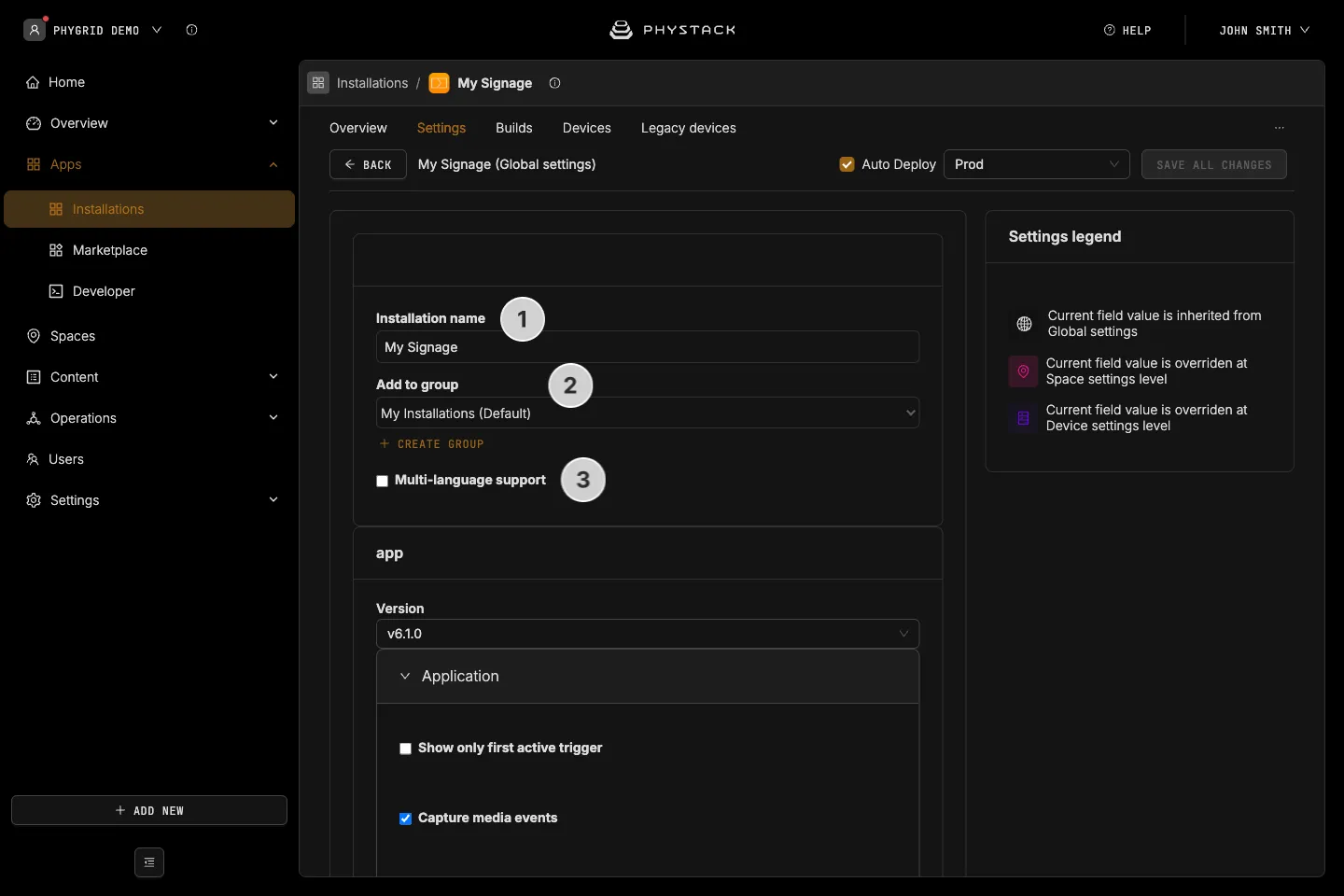
- Installation name: Edit the installation name that will be displayed in Apps → Installations
- Add to group: Change the installation group it belongs to and will be shown in Apps → Installations
- Multi-language support: Lets you set multiple languages, not relevant for Signage Playlist
App settings
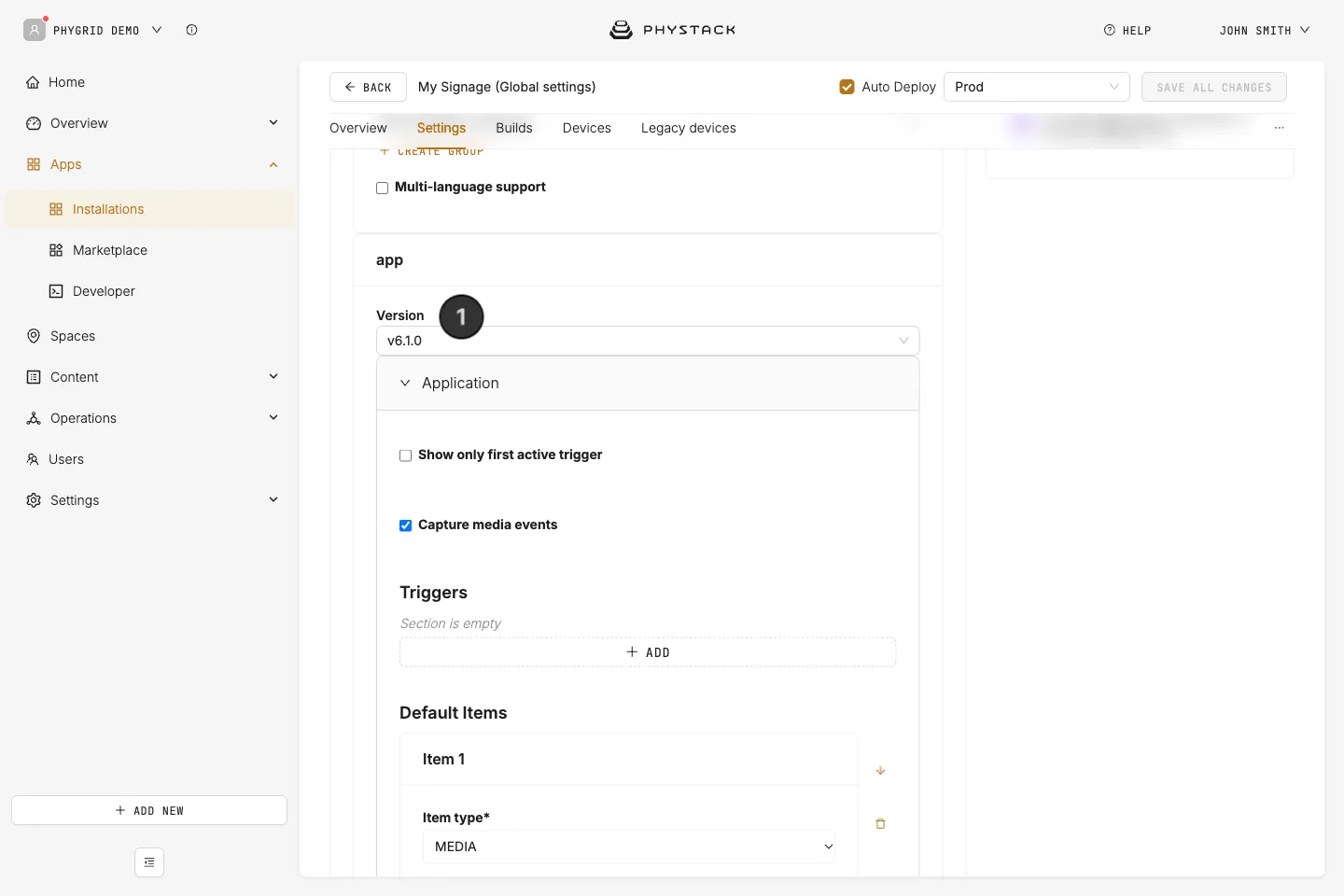
Changing the app version can add or remove certain options related to the specific version
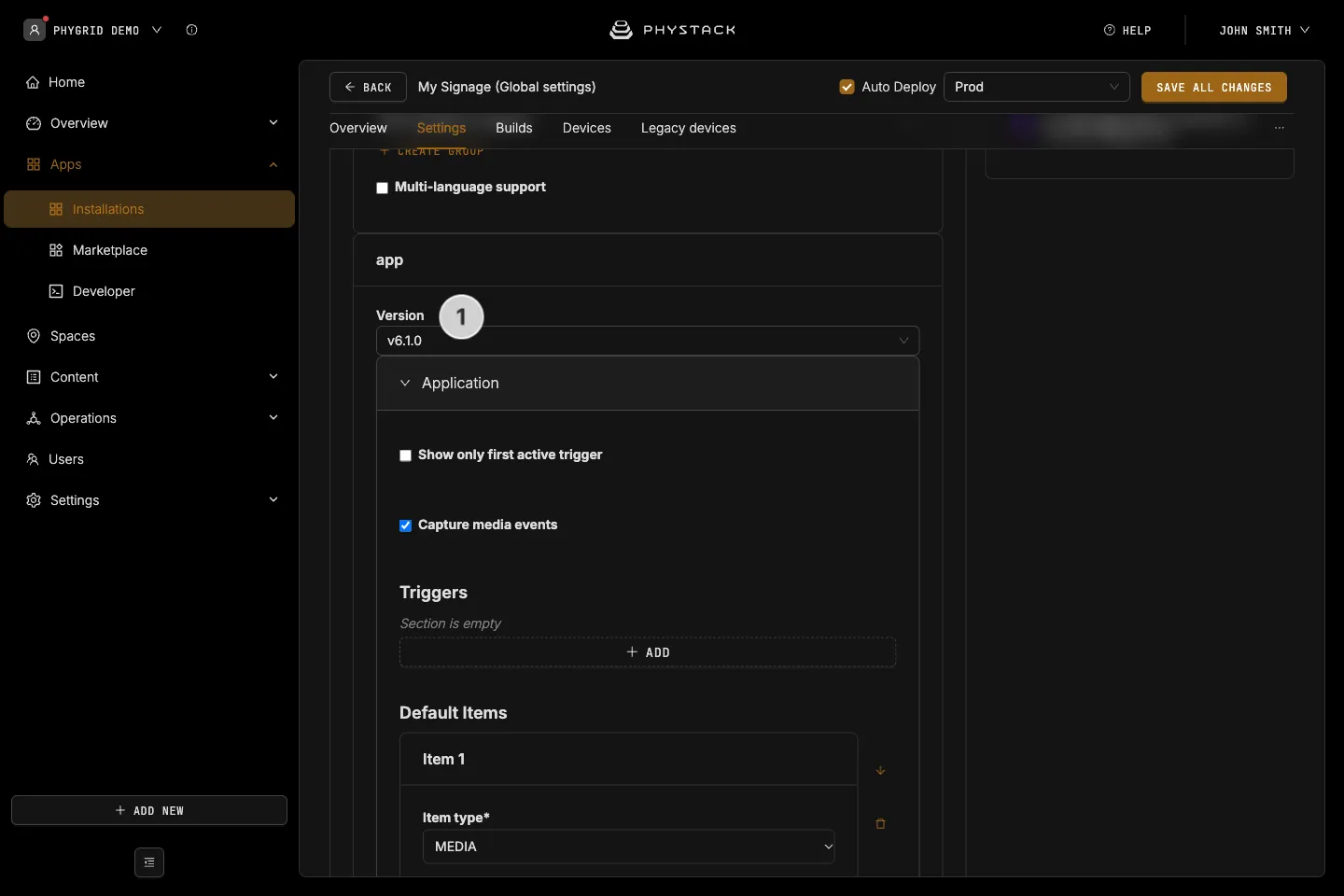
- Version: Select a specific app version for your installation
General settings
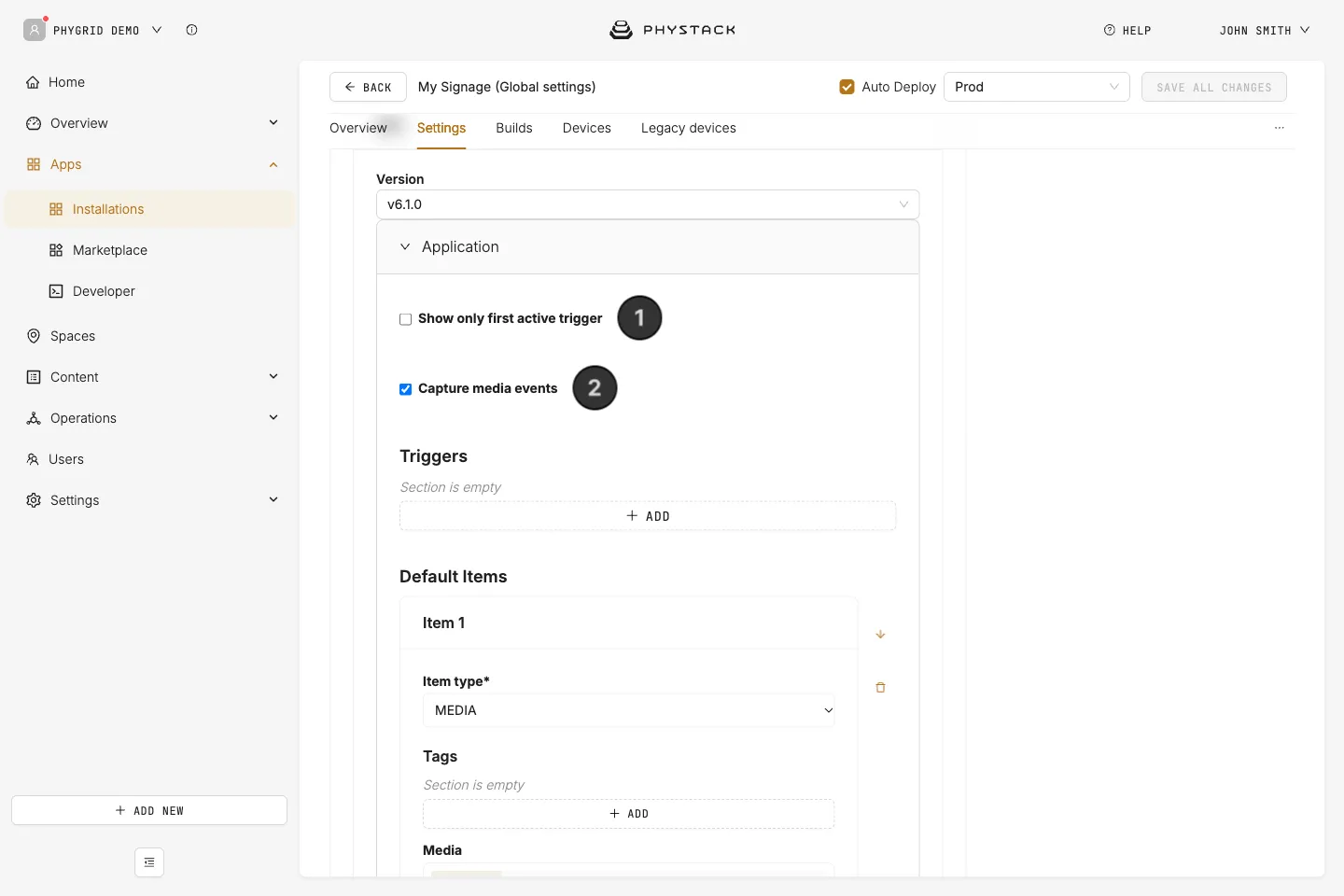
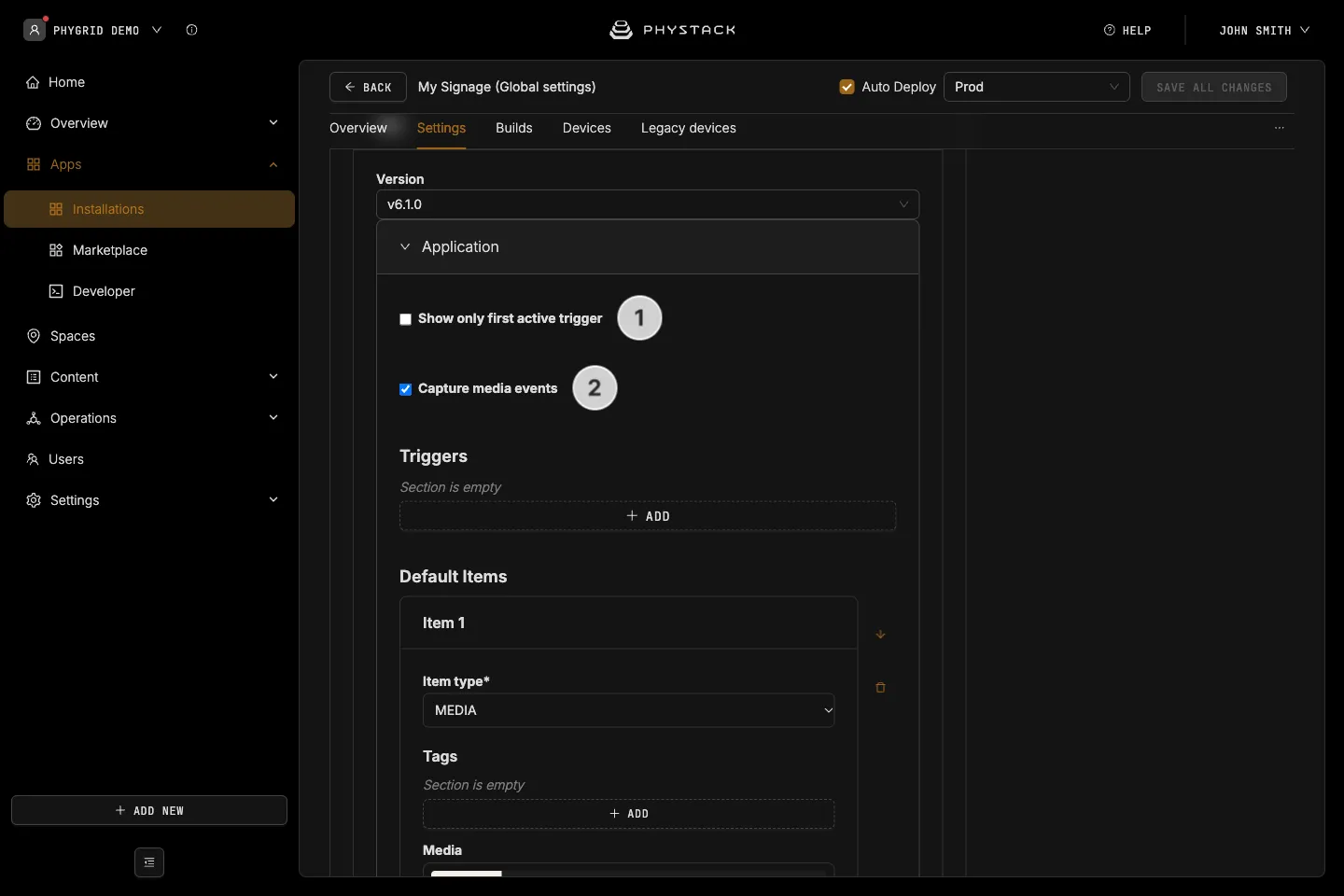
- Show only first active trigger: By default, if multiple trigger conditions are met at the same time, the content for each trigger will be combined into a single playlist. If you select this option however, only the first active trigger in the list order will play its content.
- Capture media events: Treats media plays as events and logs them in analytics. Logged media events counts against your Signals consumption.
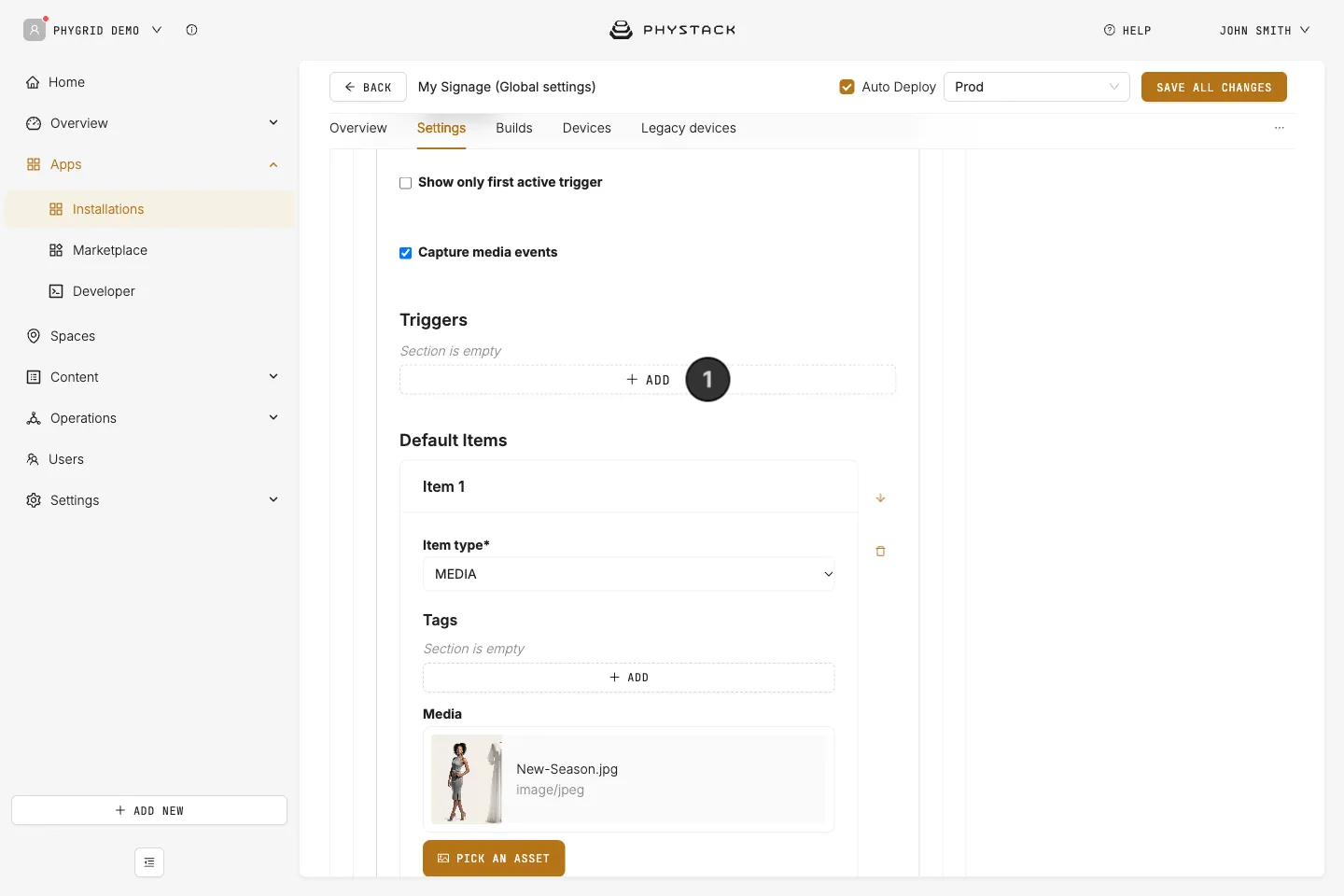
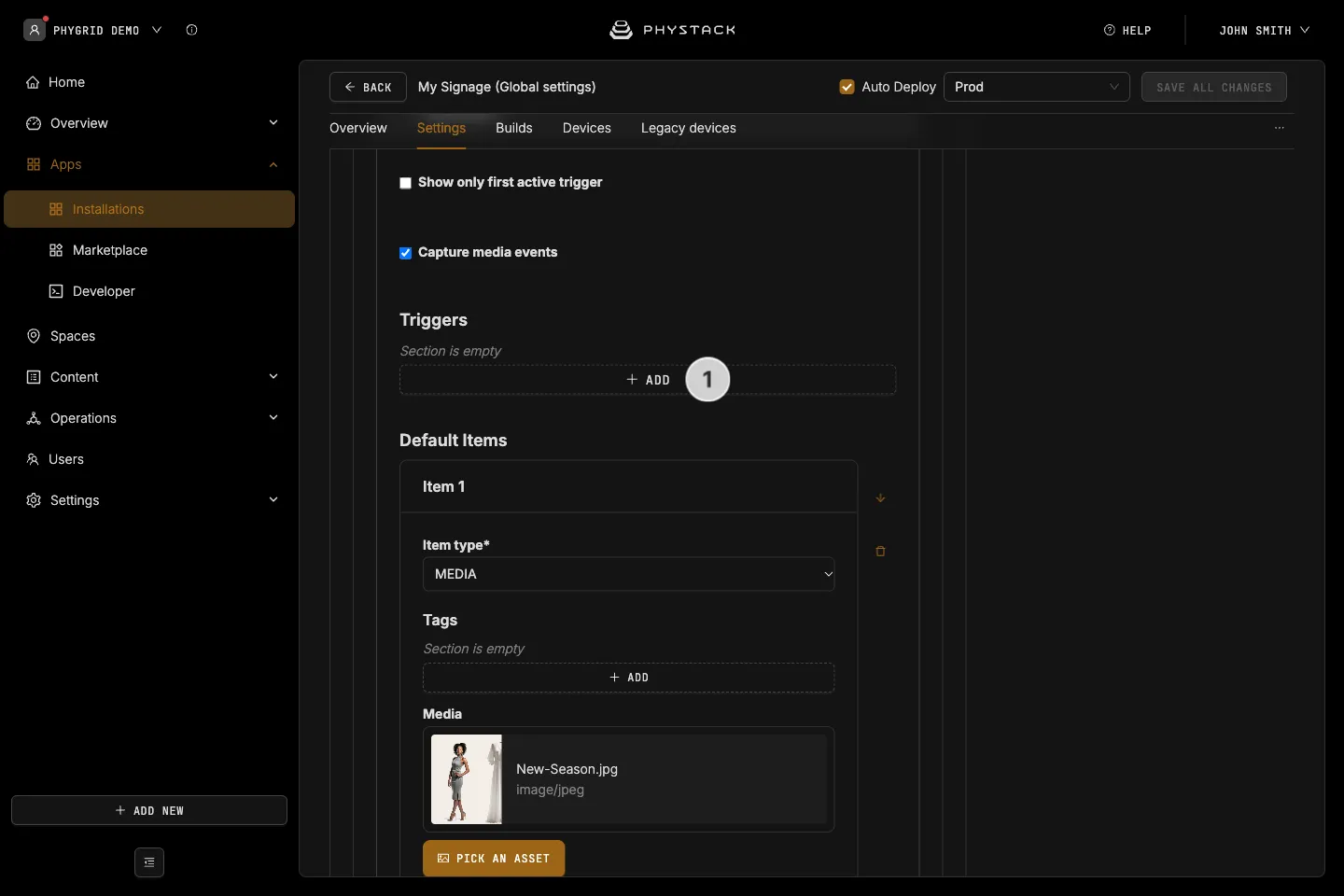
Triggers
- Add: Creates a new trigger for your playlist. A trigger will have its own content that will play only if the conditions of the trigger are met. While any trigger is active, its items replace the default items
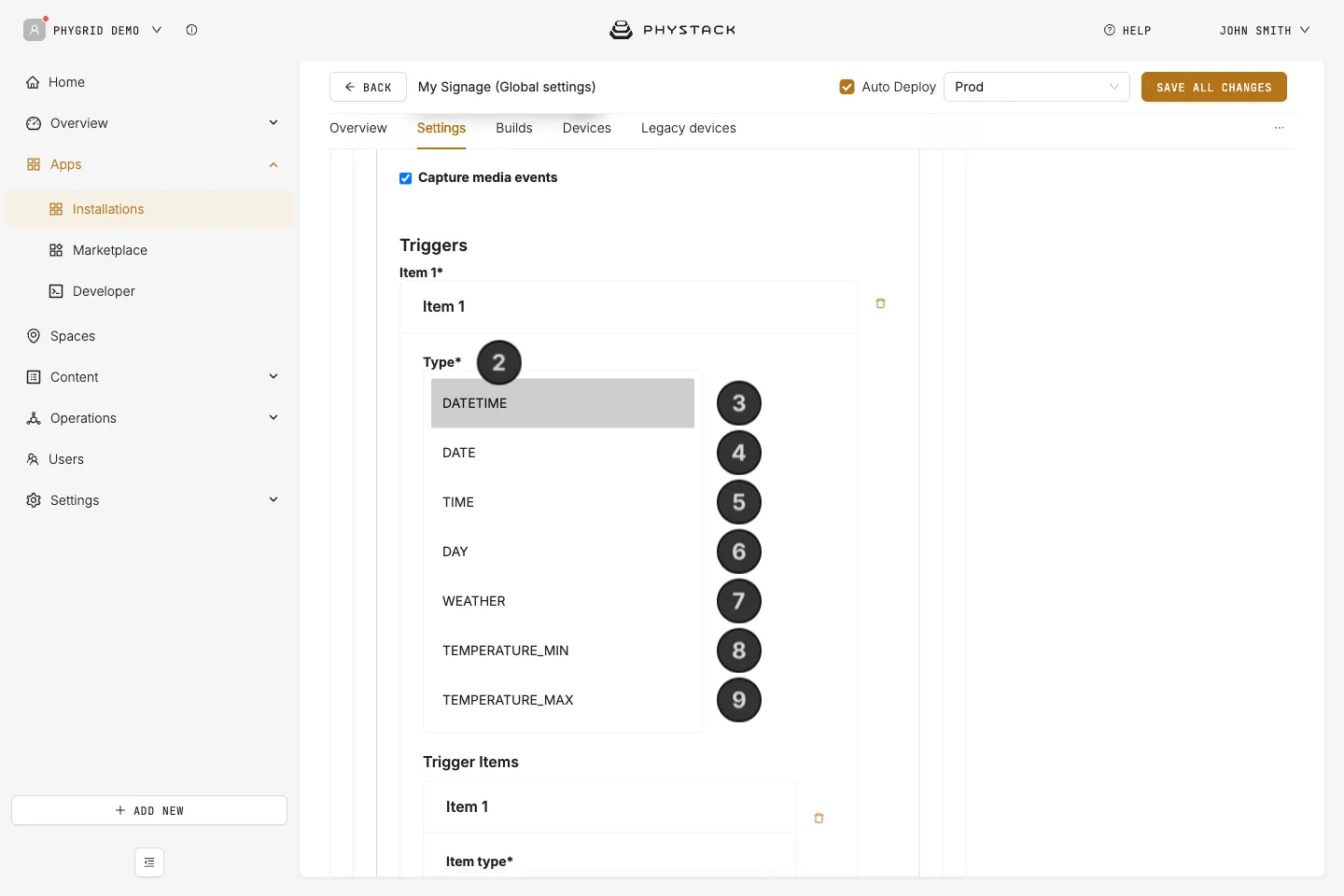
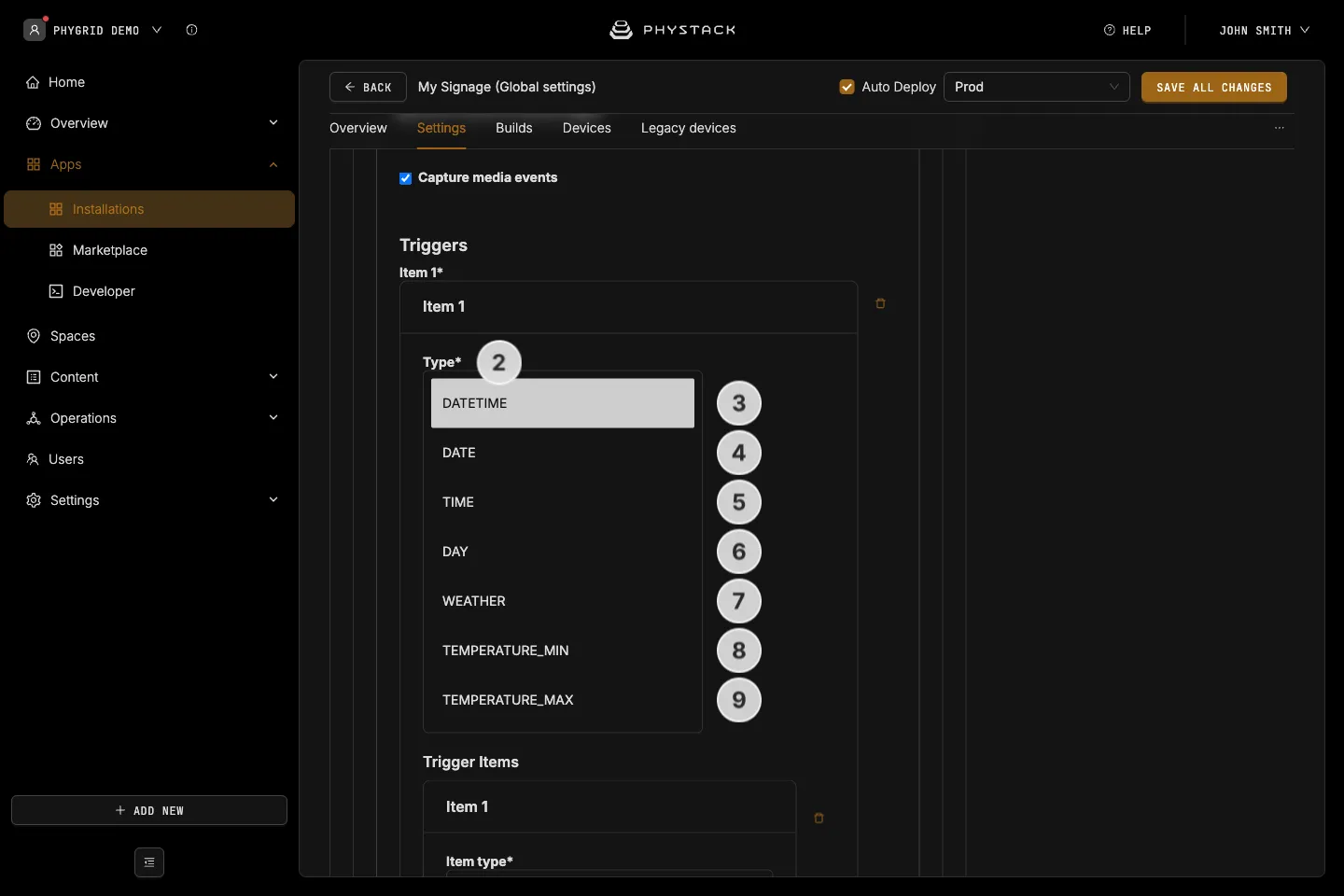
- Type: Select the condition that will trigger the content to play
- Datetime: Set start and end date and time during which selected content will play
- Date: Set start and end date during which selected content will play
- Time: Set start and end time during the day for the content to play
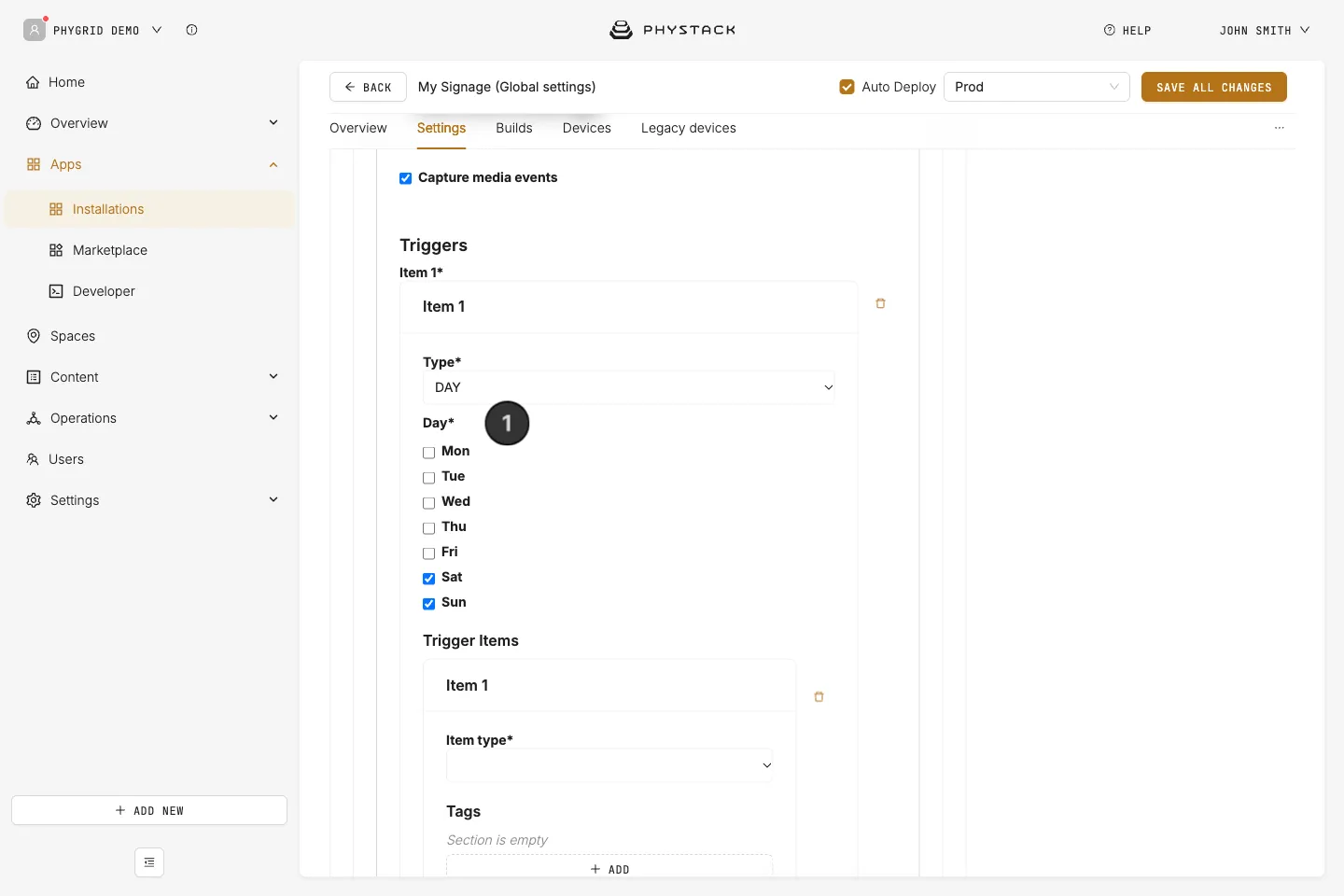
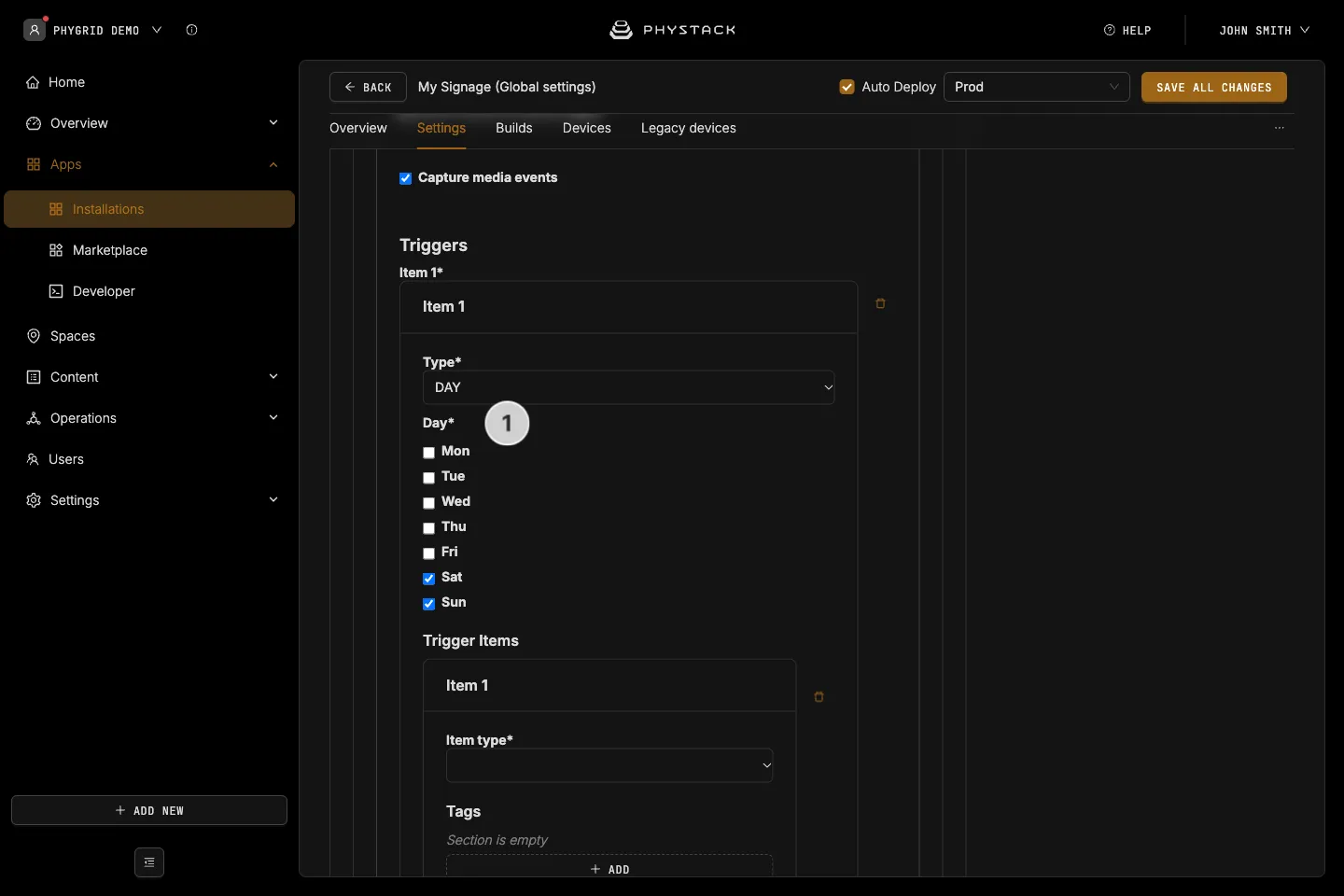
- Day: Select specific days of week to play the content
- Weather: Select weather conditions that will trigger the content
- Temperature minimum: Content will play only if the temperature is above the defined temperature
- Temperature maximum: Content will play only if the temperature is below the defined temperature
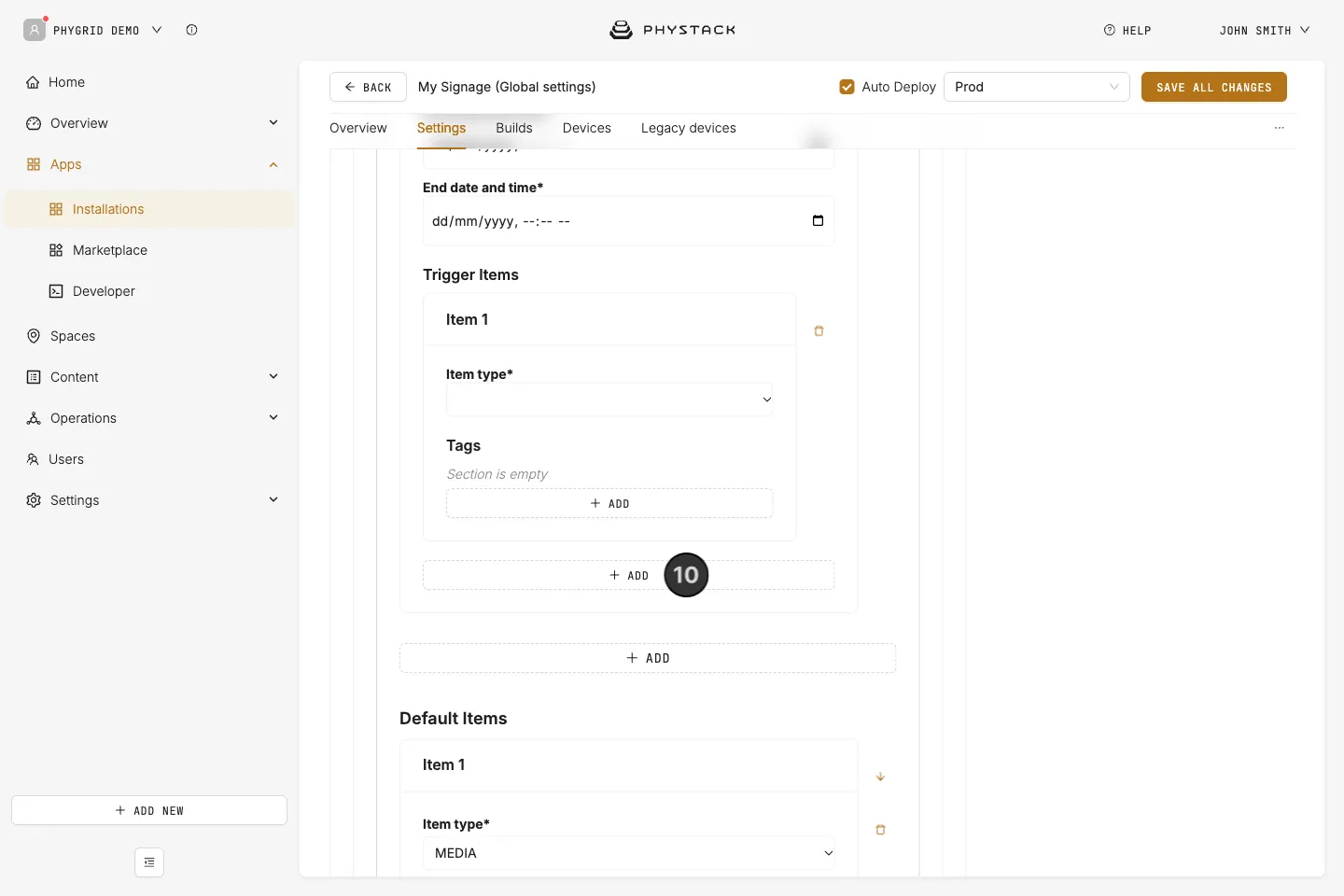
- Add: Add trigger items (content) to your Trigger, and create a dedicated playlist of content that will run during the defined conditions
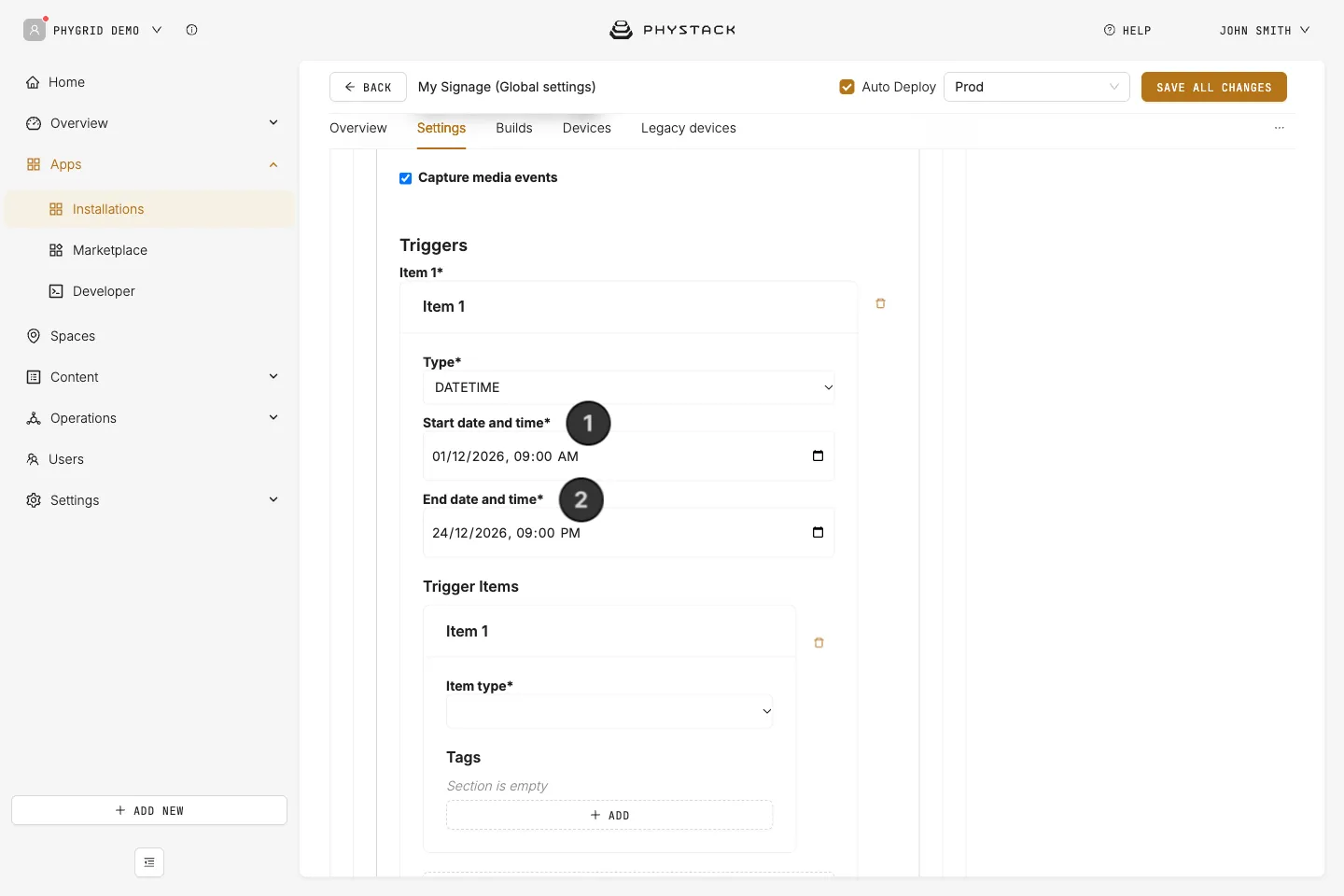
Datetime trigger
- Start date and time: Set the start date and time when the content within this trigger will play
- End date and time: Set the end date and time when the content within this trigger will play
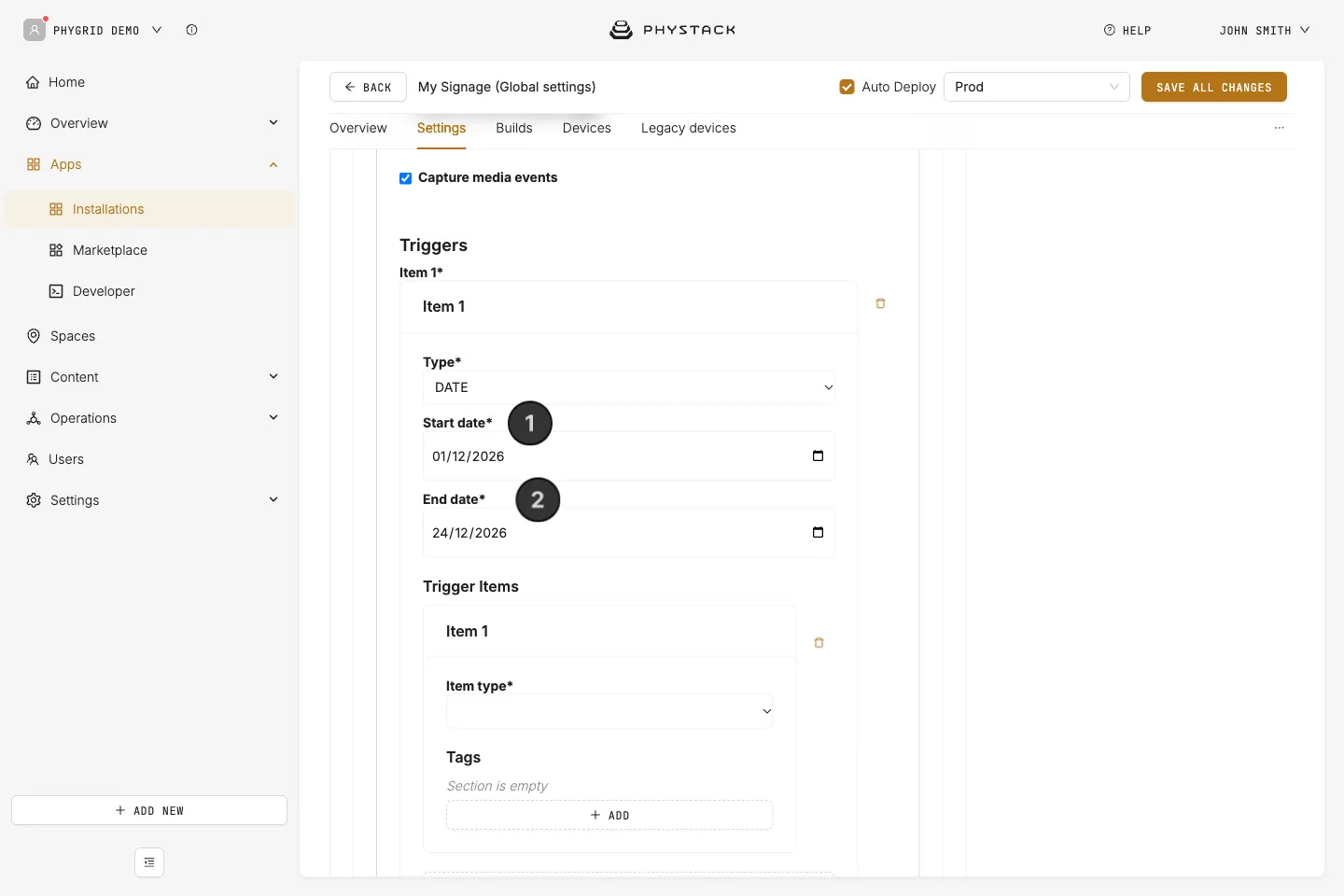
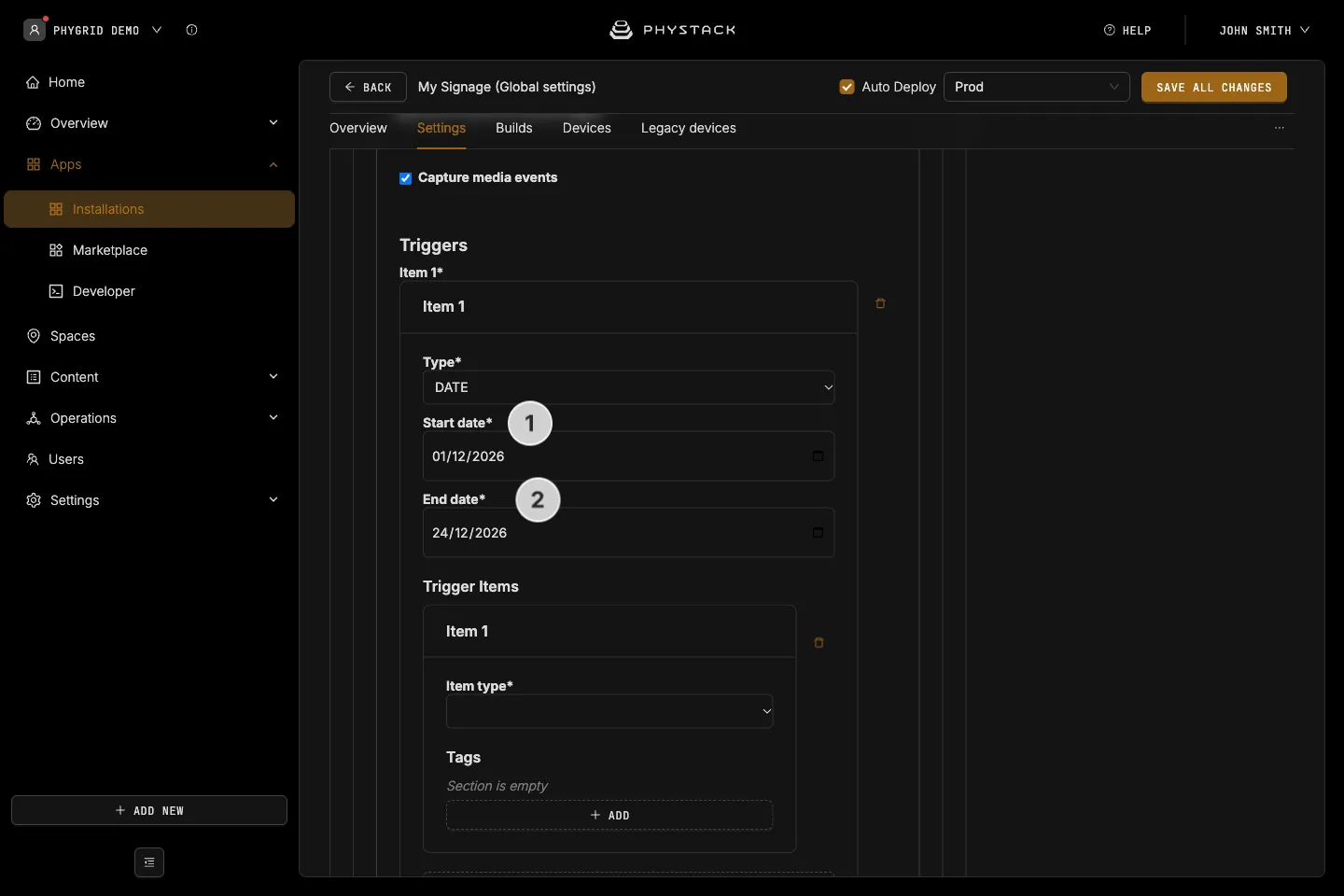
Date trigger
- Start date: Starting with this date, the content under this Trigger will play
- End date: The content added to this Trigger will stop playing on set date
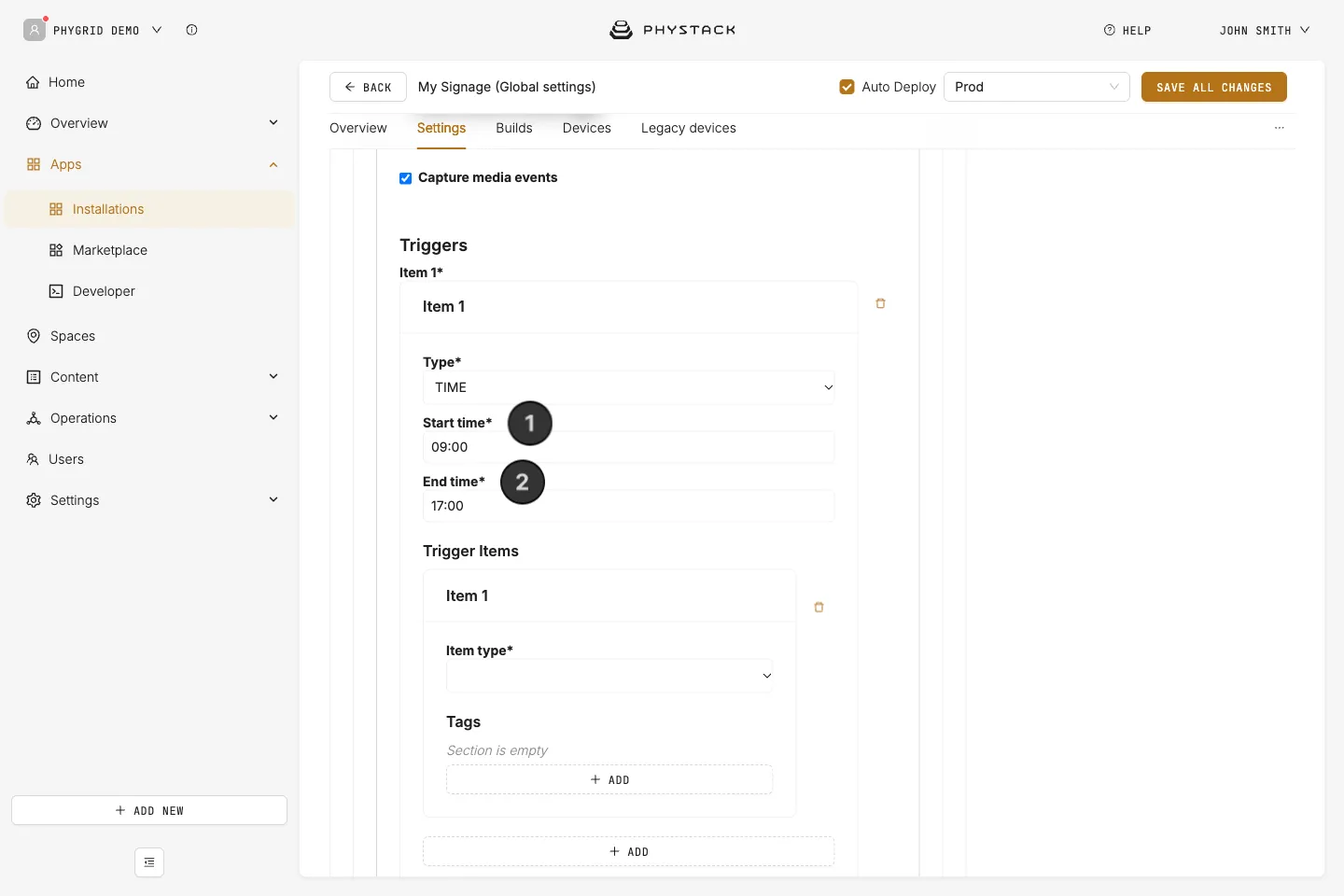
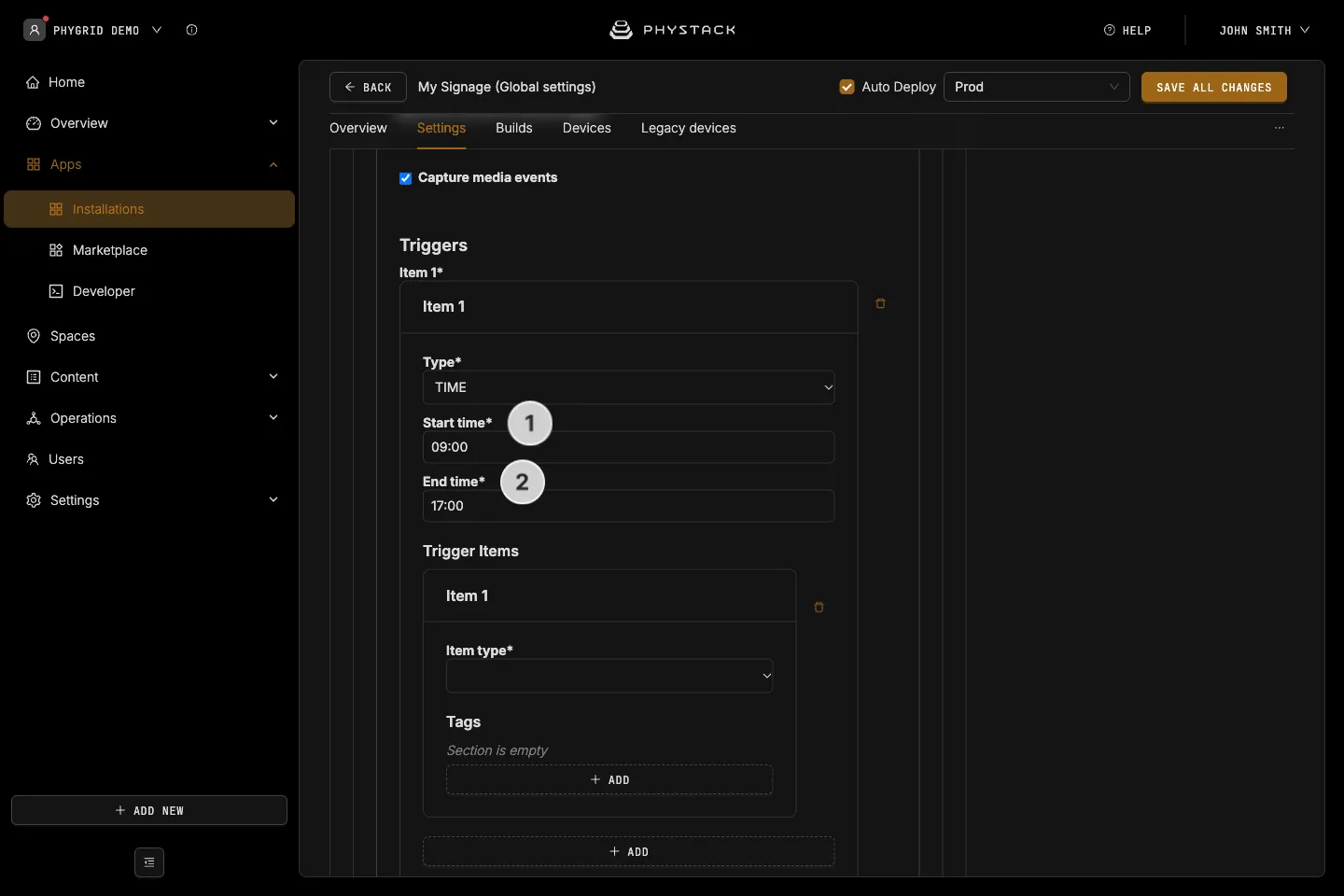
Time trigger
- Start time: Start time during the day when the content added to this trigger will play
- End time: This time defines the end point for the playtime of the content in this trigger
Day trigger
- Day: Select one or more days of the week, during which custom content will play
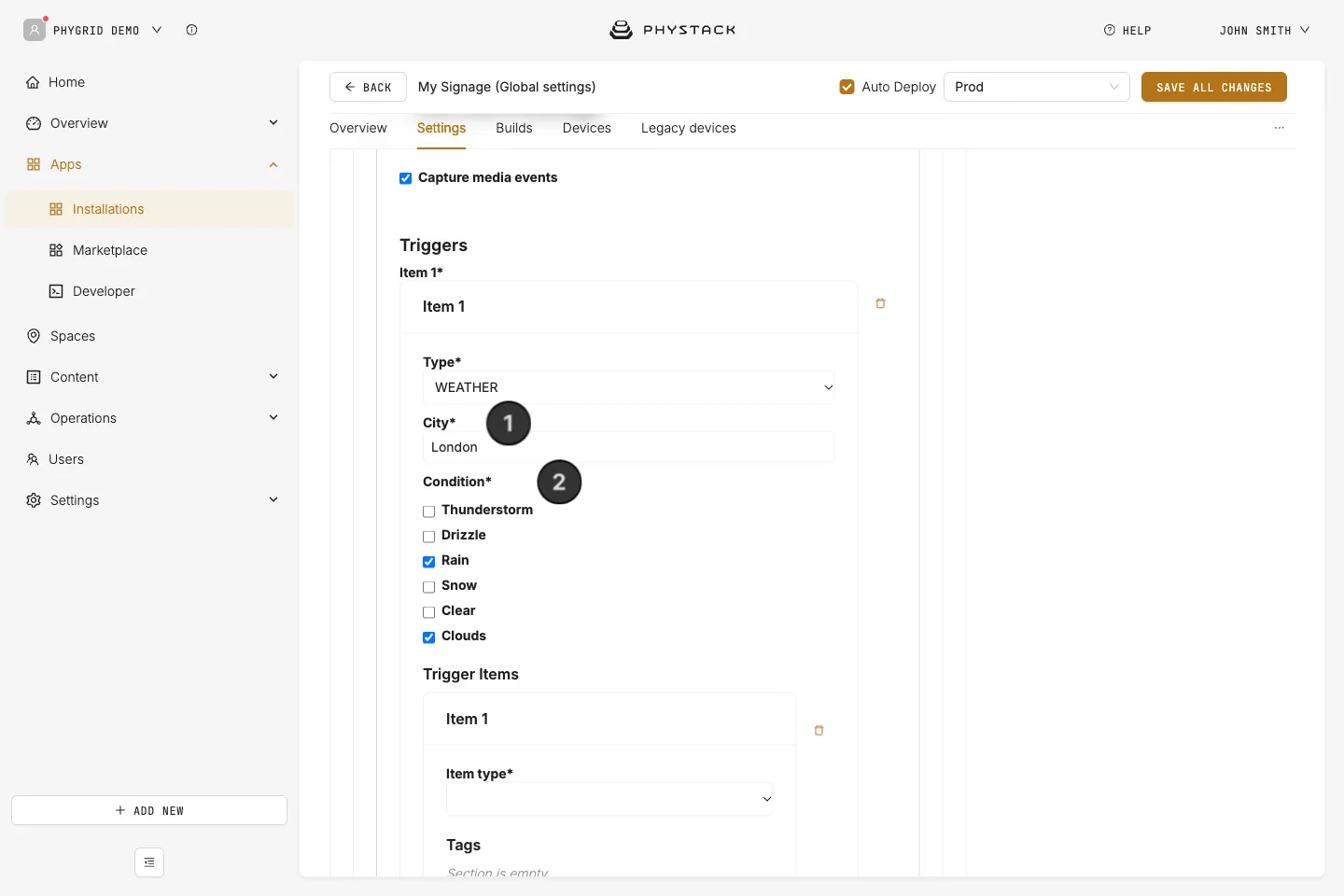
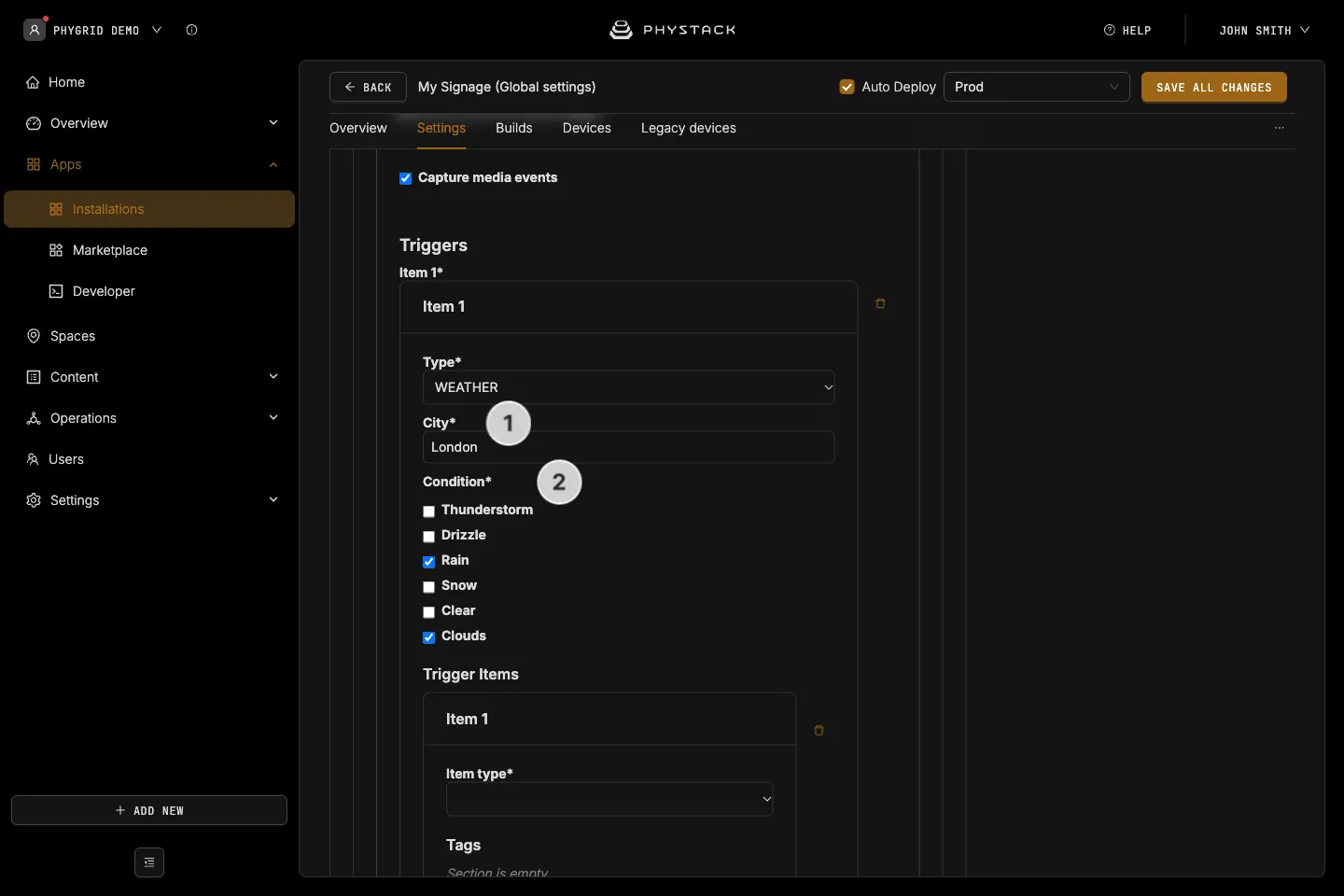
Weather trigger
- City: Set the location for weather information
- Condition: Set one or more weather conditions
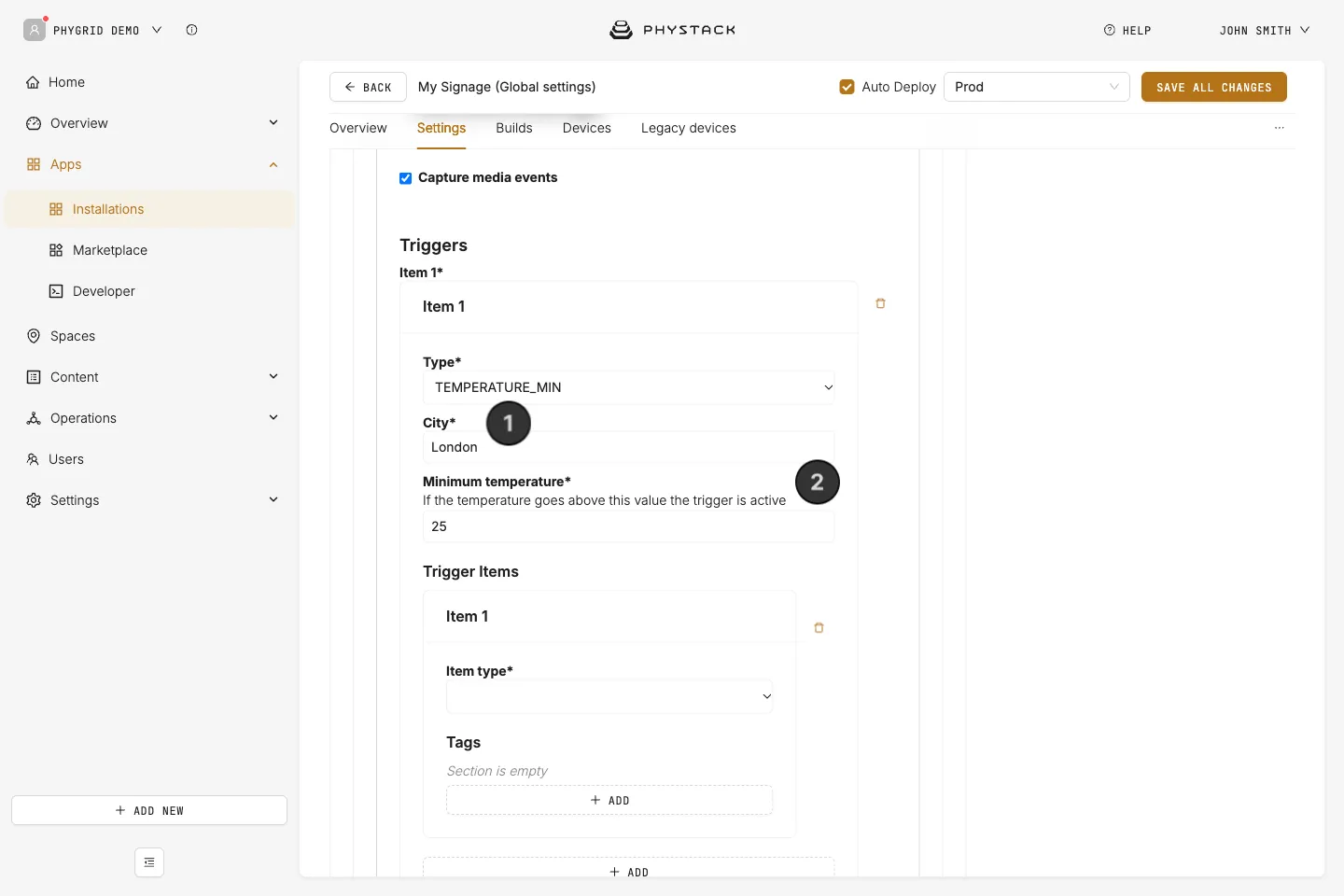
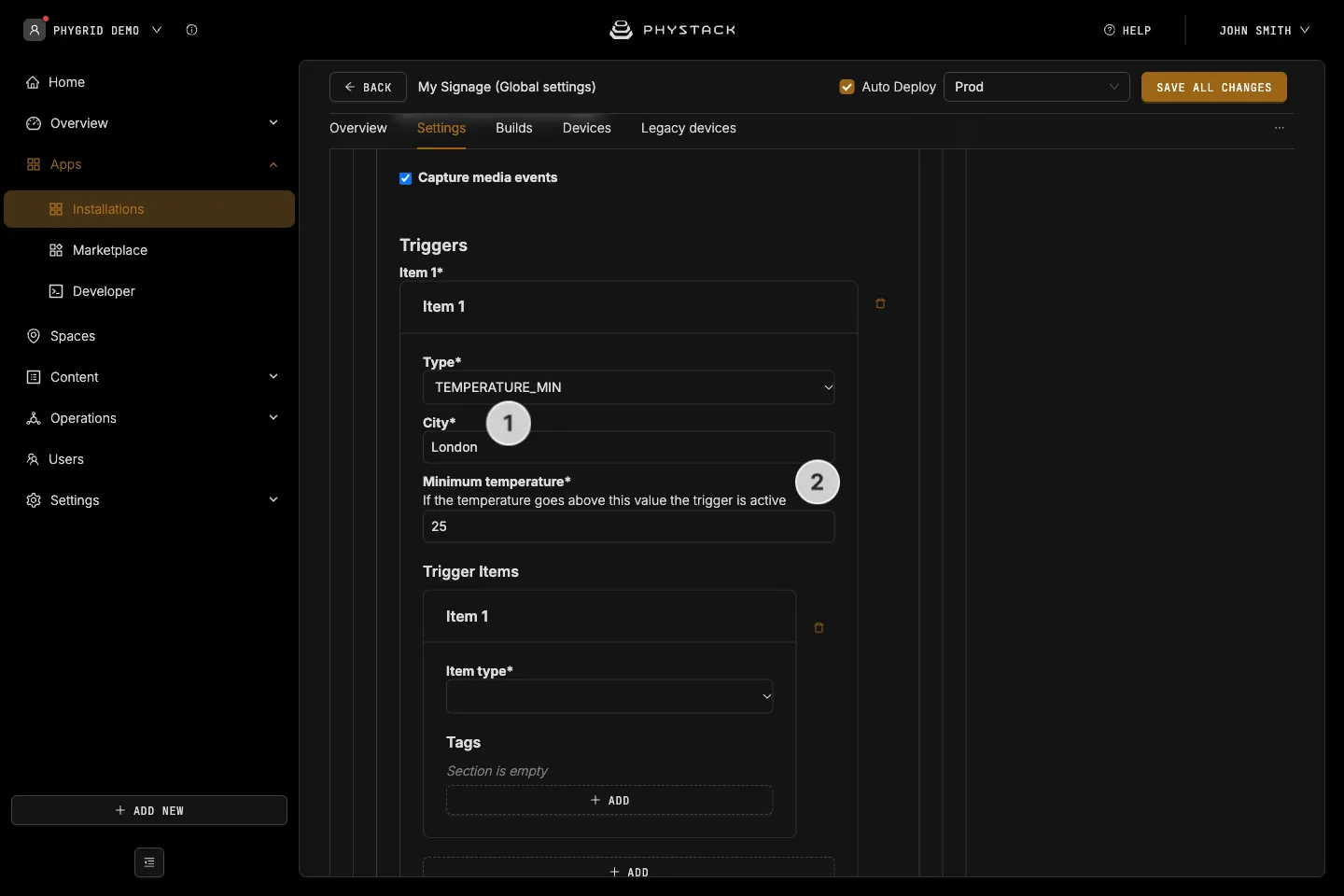
Minimum temperature trigger
- City: Set the location for weather information
- Minimum temperature: If the temperature goes above this value, the trigger is active
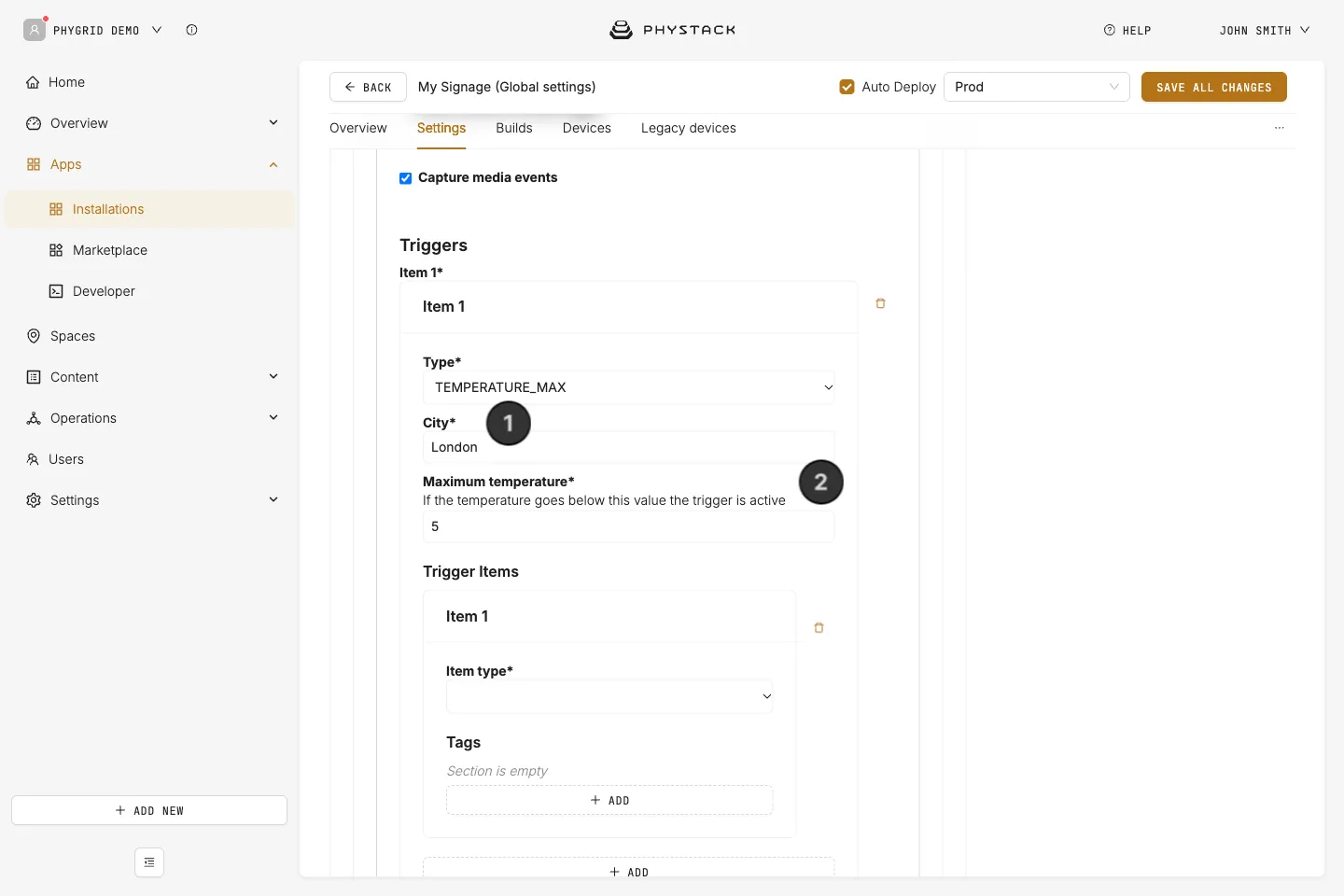
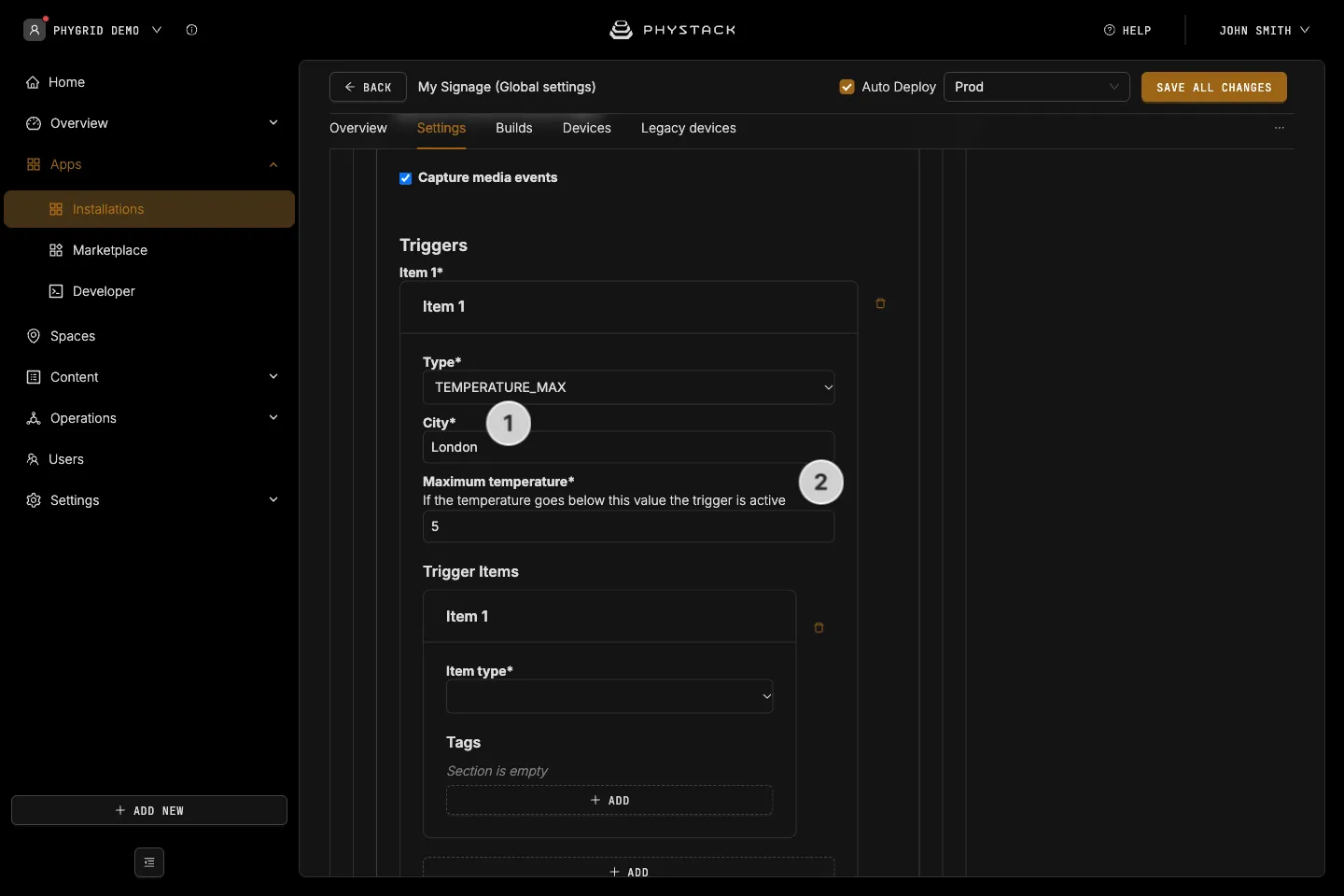
Maximum temperature trigger
- City: Set the location for weather information
- Maximum temperature: If the temperature goes below this value, the trigger is active
Default items
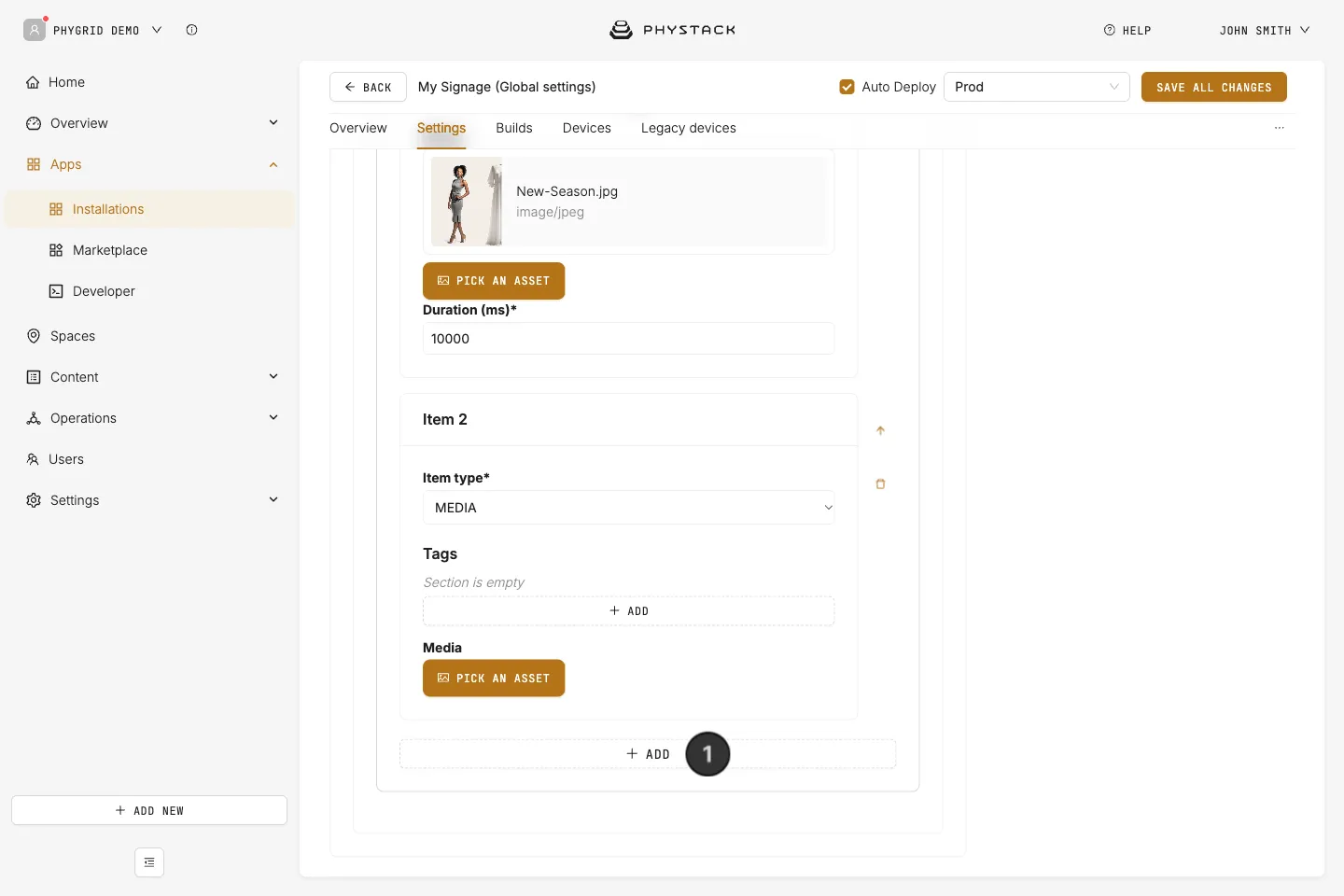
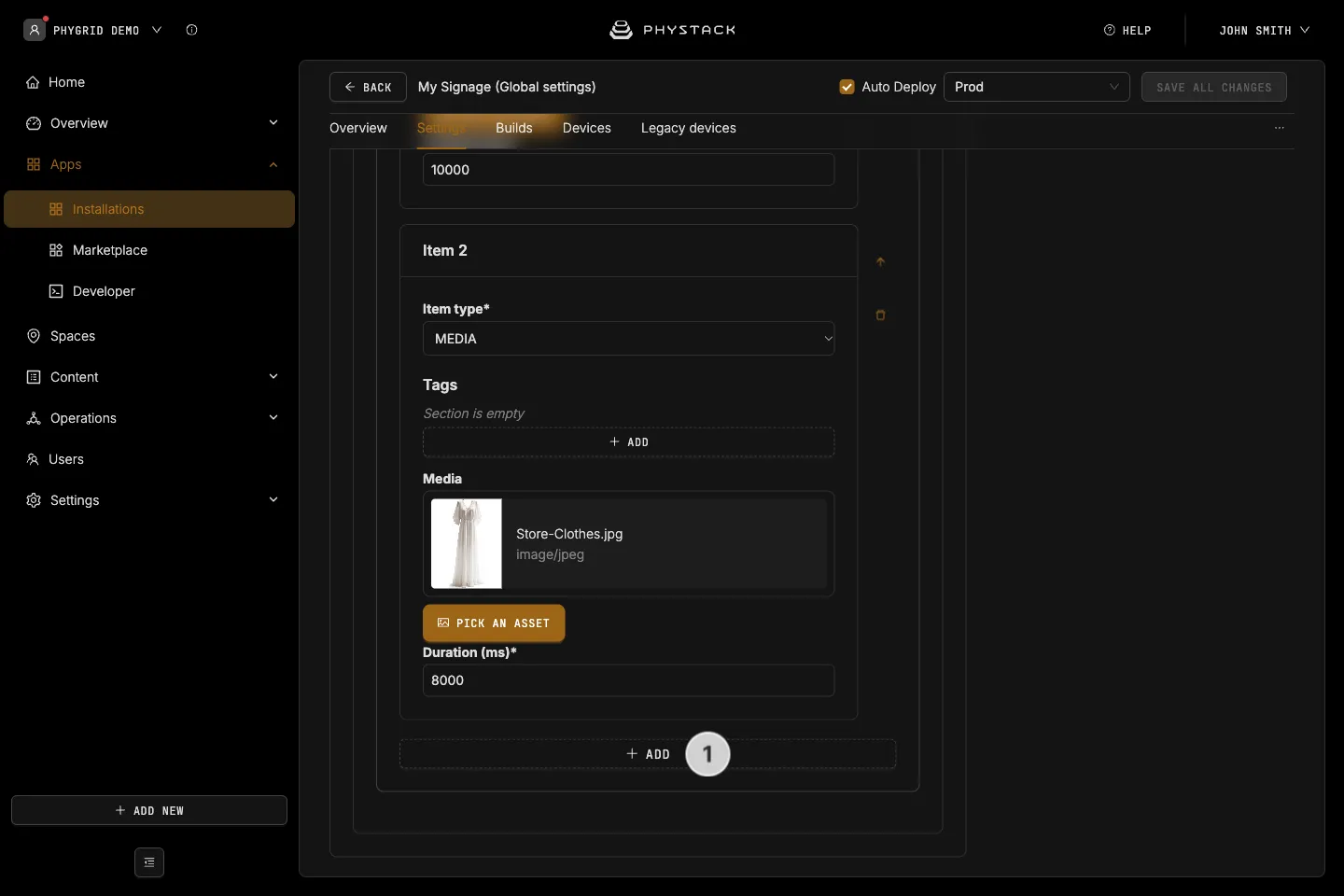
- Add: Creates a new default item for your playlist. A Signage Playlist needs to have at least one default item set up in order to work correctly.
Content
If you select GridApp as a playlist content item, consult the Settings documentation for that particular app.
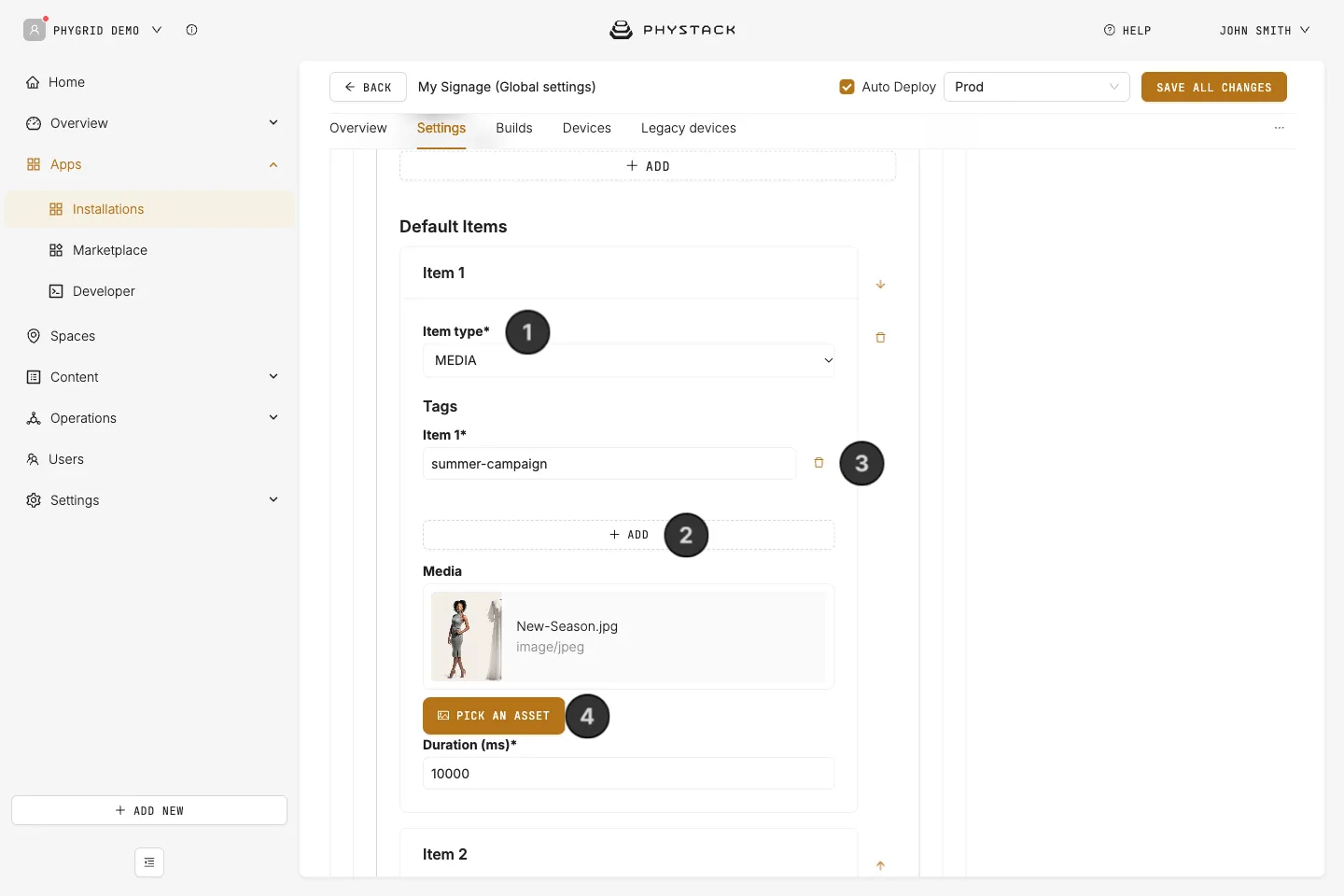
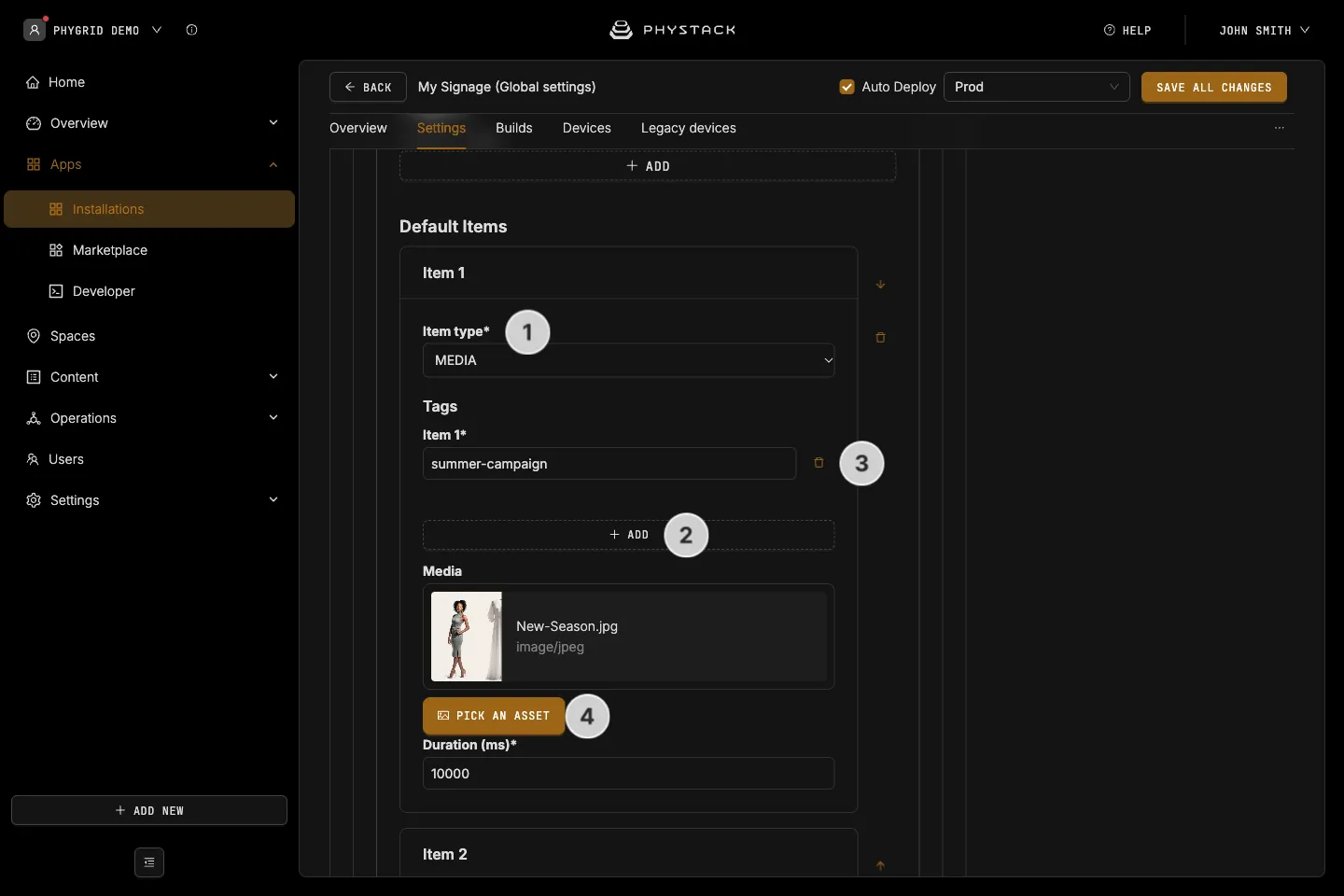
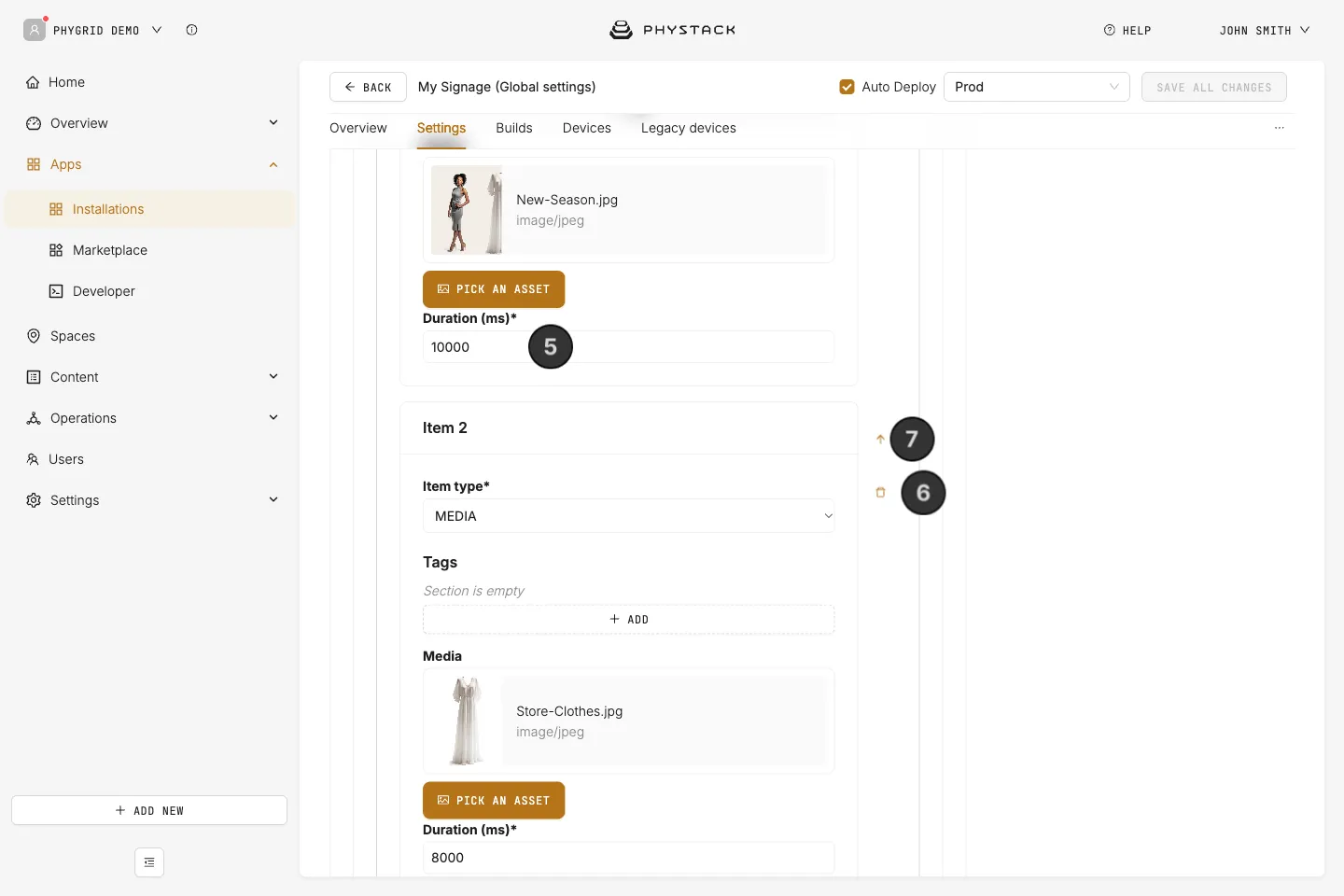
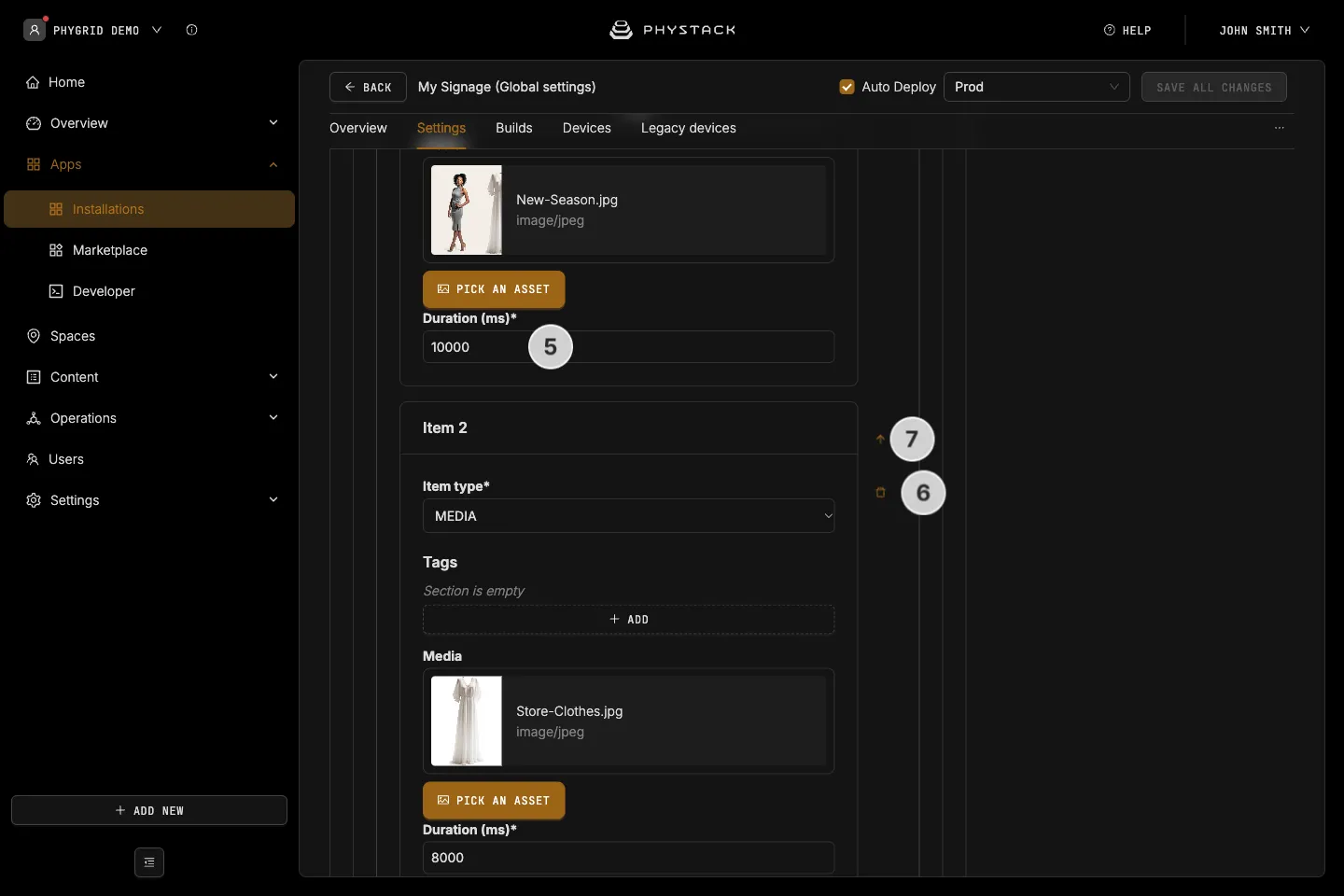
- Item type: You can select media (images, videos) or have a GridApp application as part of your Signage Playlist installation
- Add tag: Optional label on a media or GridApp item. It is added to the item’s analytics events, so you can compare content performance by the categories that matter to your business. It is not the same as a Console tag
- Remove a tag: Click the trash bin icon to remove a tag
- Pick an asset: Set or replace an existing media item
- Duration (ms): If you select an image file or a GridApp as a playlist content item, you need to set the duration in milliseconds, which determines how long it stays on the screen before the next content item plays. For example,
10000is 10 seconds. Required for images and GridApps; the field starts empty - Remove an item: Click the trash bin icon to remove an item
- Reorder items: Click the up or down arrows to reorder items in a playlist
Save options
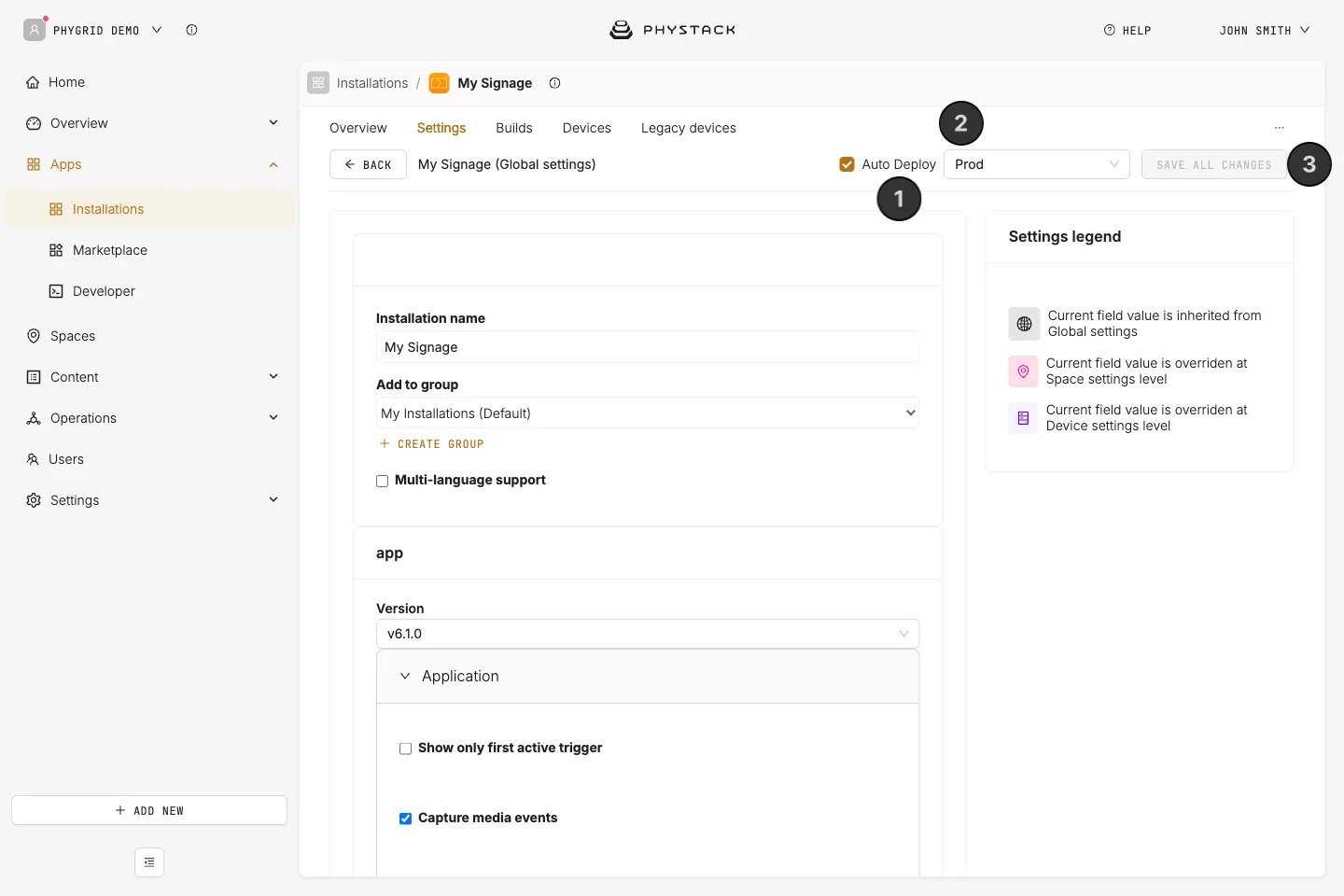
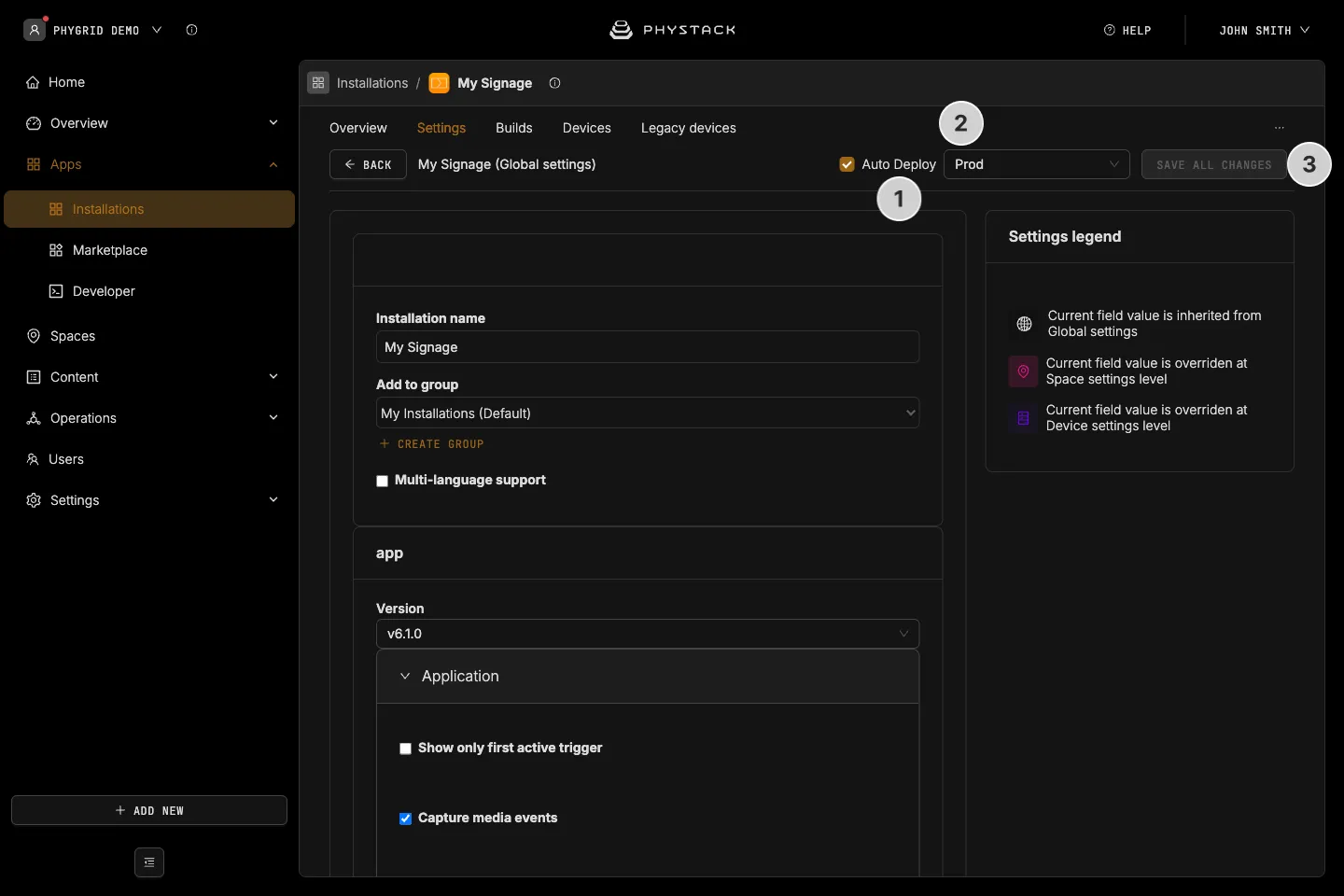
- Auto Deploy: If selected, changes are saved, and a build is created and deployed to connected devices (see Glossary)
- Environment: Shown while Auto Deploy is selected. The environment the new build is deployed to. Defaults to Prod
- Save all changes: Save your current configuration