
How to install RFID reader peripheral edge app
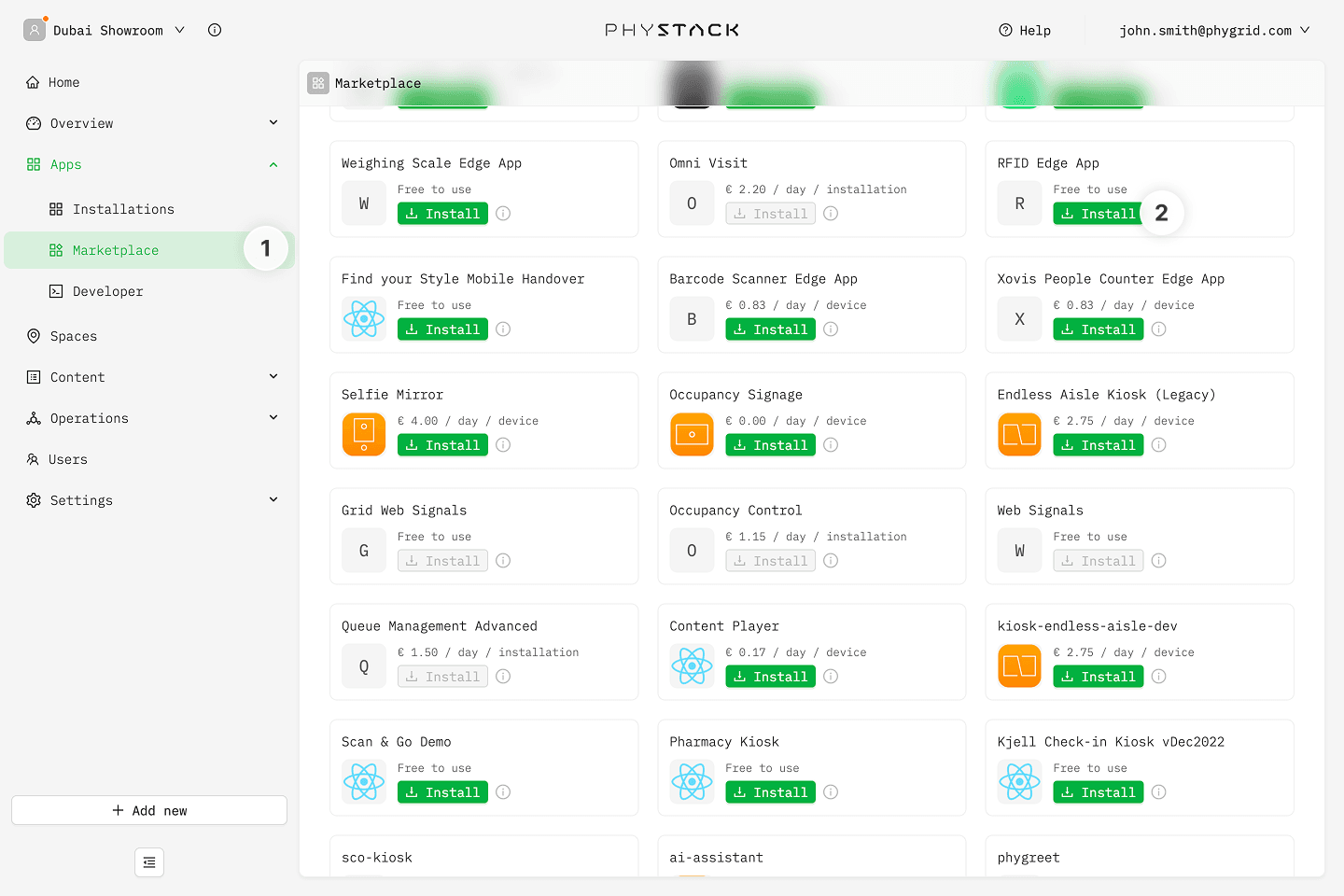
- In the sidebar, navigate to Apps → Marketplace
- Look for RFID Edge App in the list of applications and click on the Install button to open the installation dialog
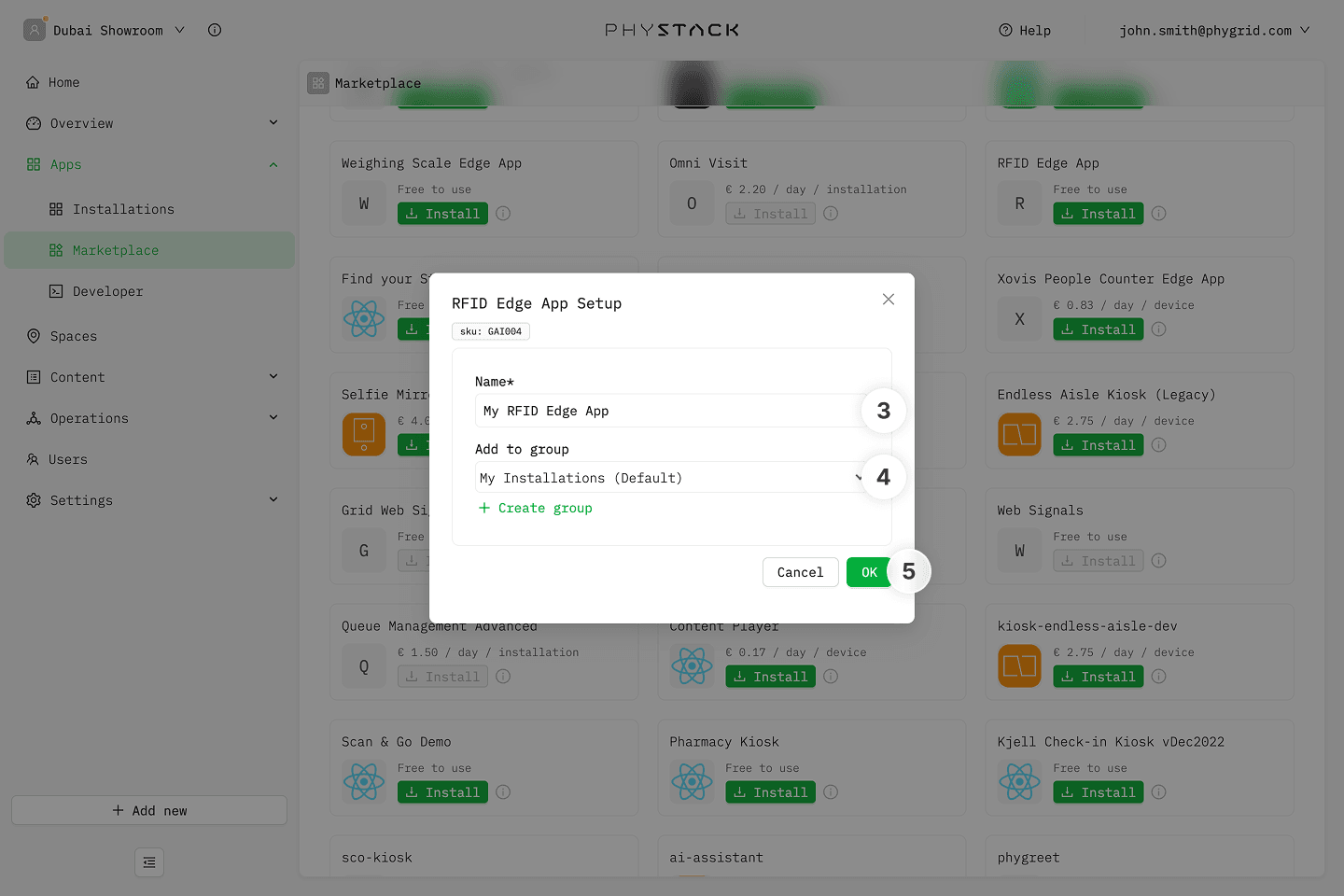
- In the installation form, enter a Name for your installation
- Optionally, select a Group to organize your installations
- Click OK to create the RFID reader peripheral installation
How to verify the installation
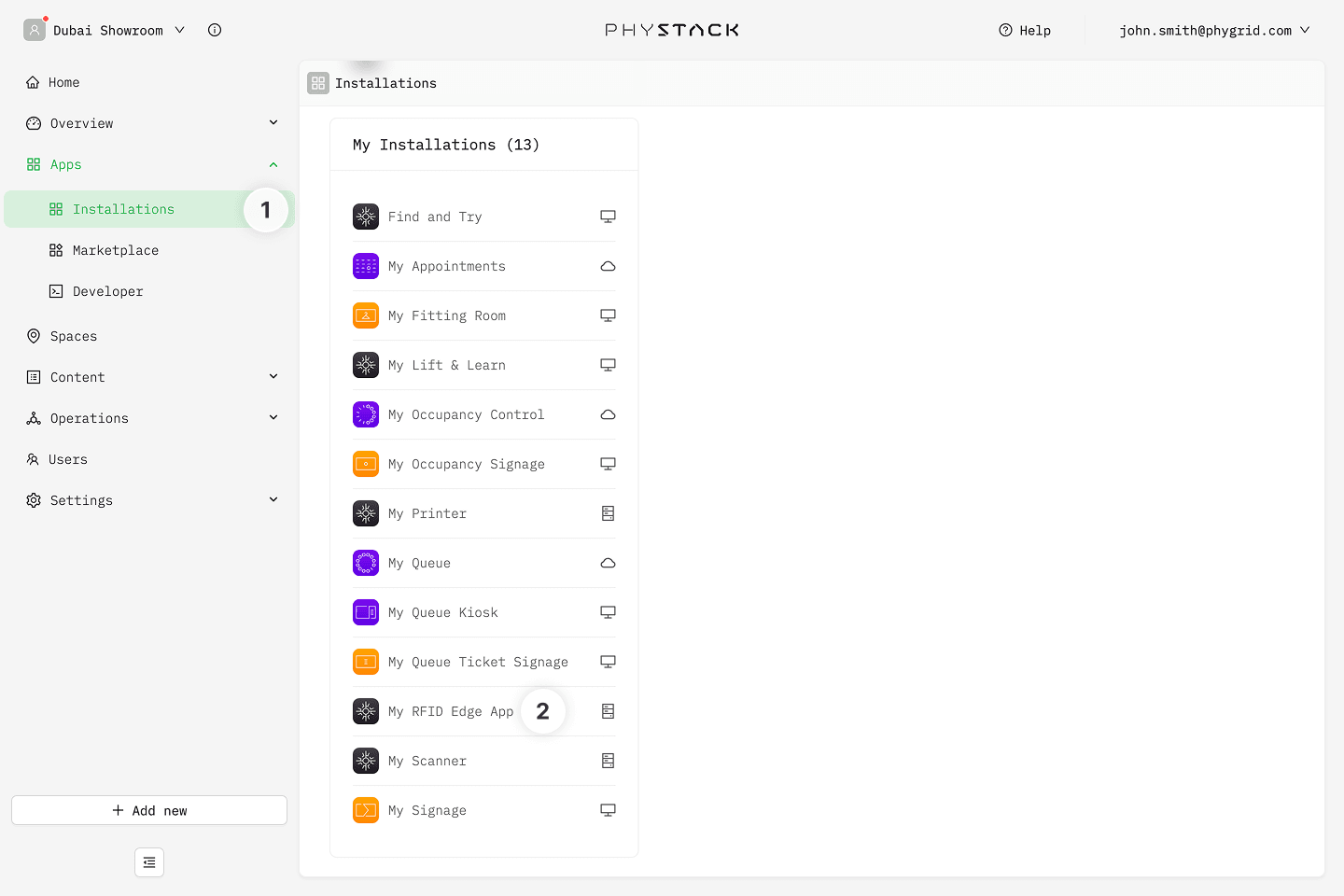
- Your new installation will be available in the sidebar under Apps → Installations
- Open the installation to configure it and connect it to the device
How to configure the RFID reader edge app
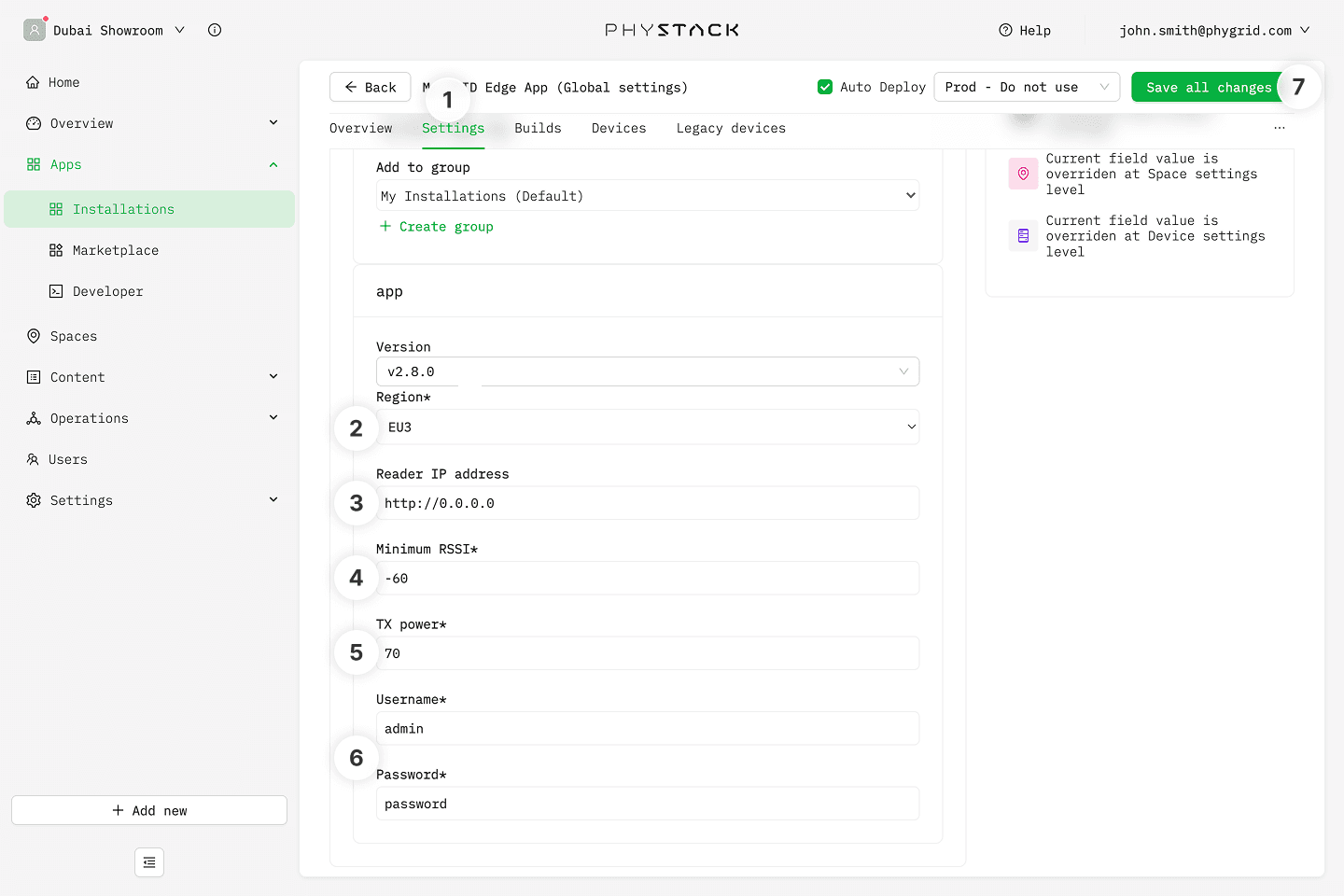
- Open the peripheral edge app and go to the Settings tab
- Set the Region to match the frequency range of the region selected on the physical reader
- Set the Reader IP address to match the IP address of the physical RFID device
- Set Minimum RSSI to only log tags above this signal strength threshold
- Set TX power to configure transmit power
- Enter the Username (admin) and Password you set to access the RFID reader
- Click Save all changes
How to connect RFID reader edge app to a device
The RFID reader edge app needs to be connected to the same PhyGrid device that the RFID reader is connected to, and the same application that the Smart Fitting Room screen app will be running on:
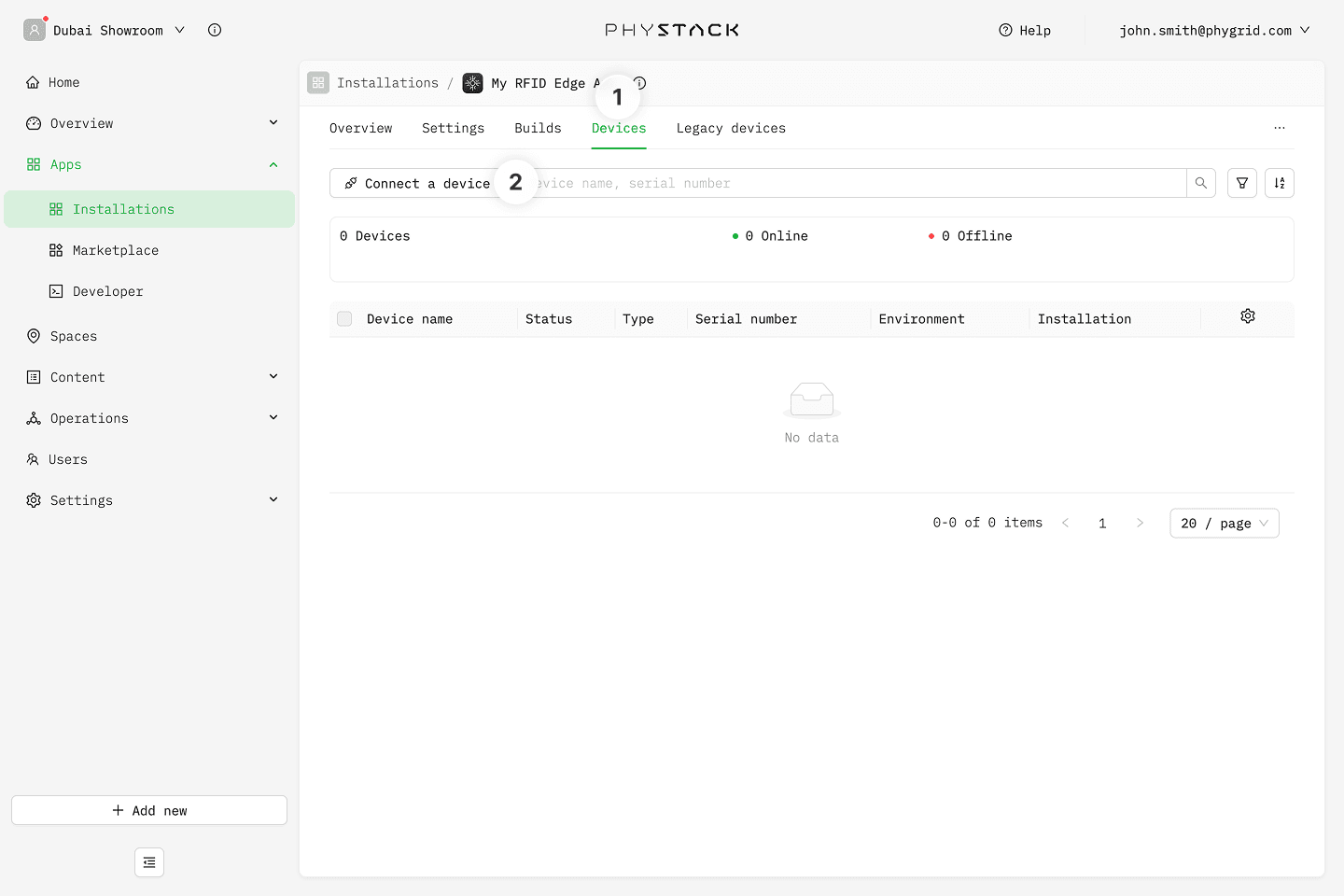
- Go to the Devices tab in the RFID reader edge app
- Click on Connect a device
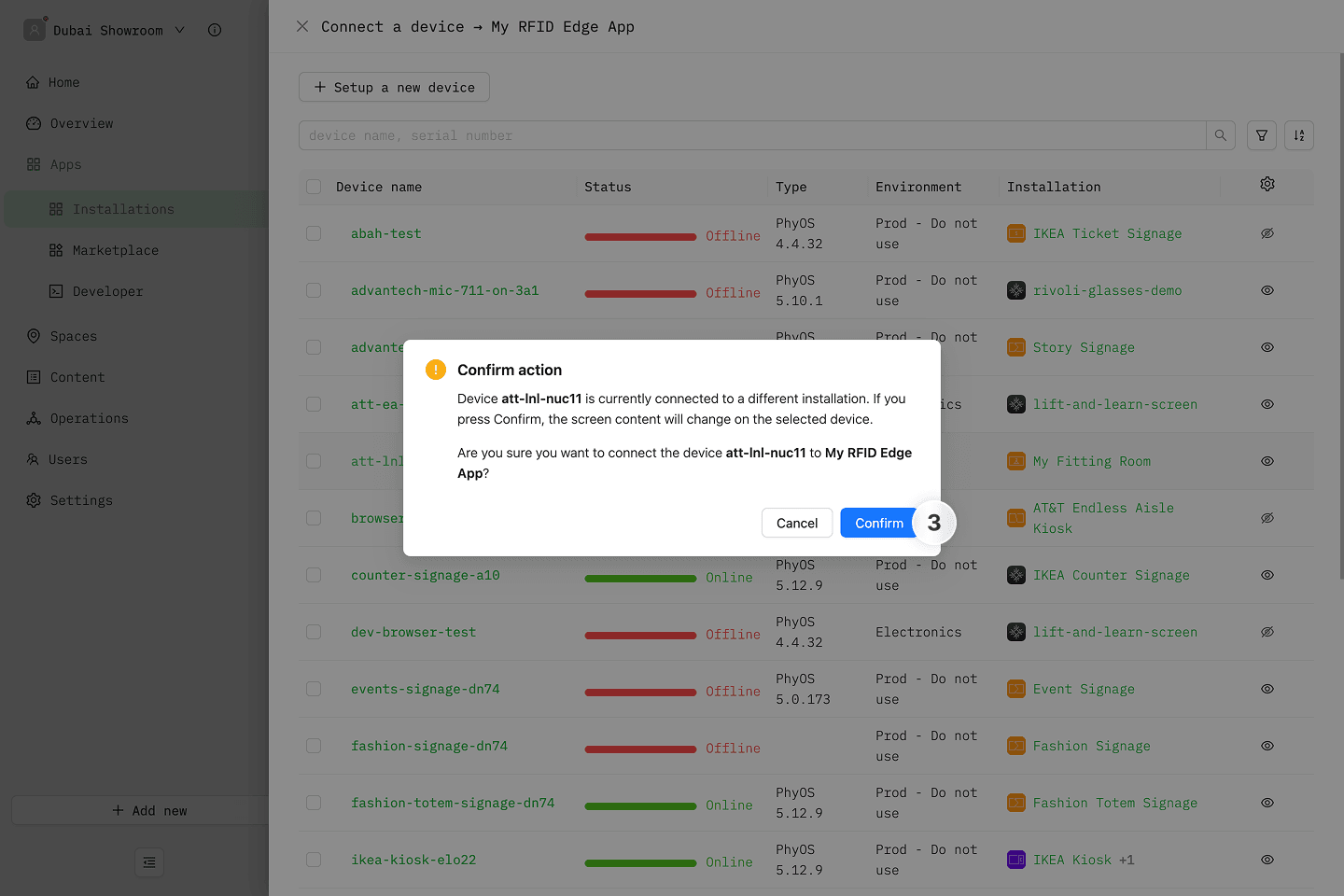
- Select the device and confirm that you want to connect it to the peripheral edge app
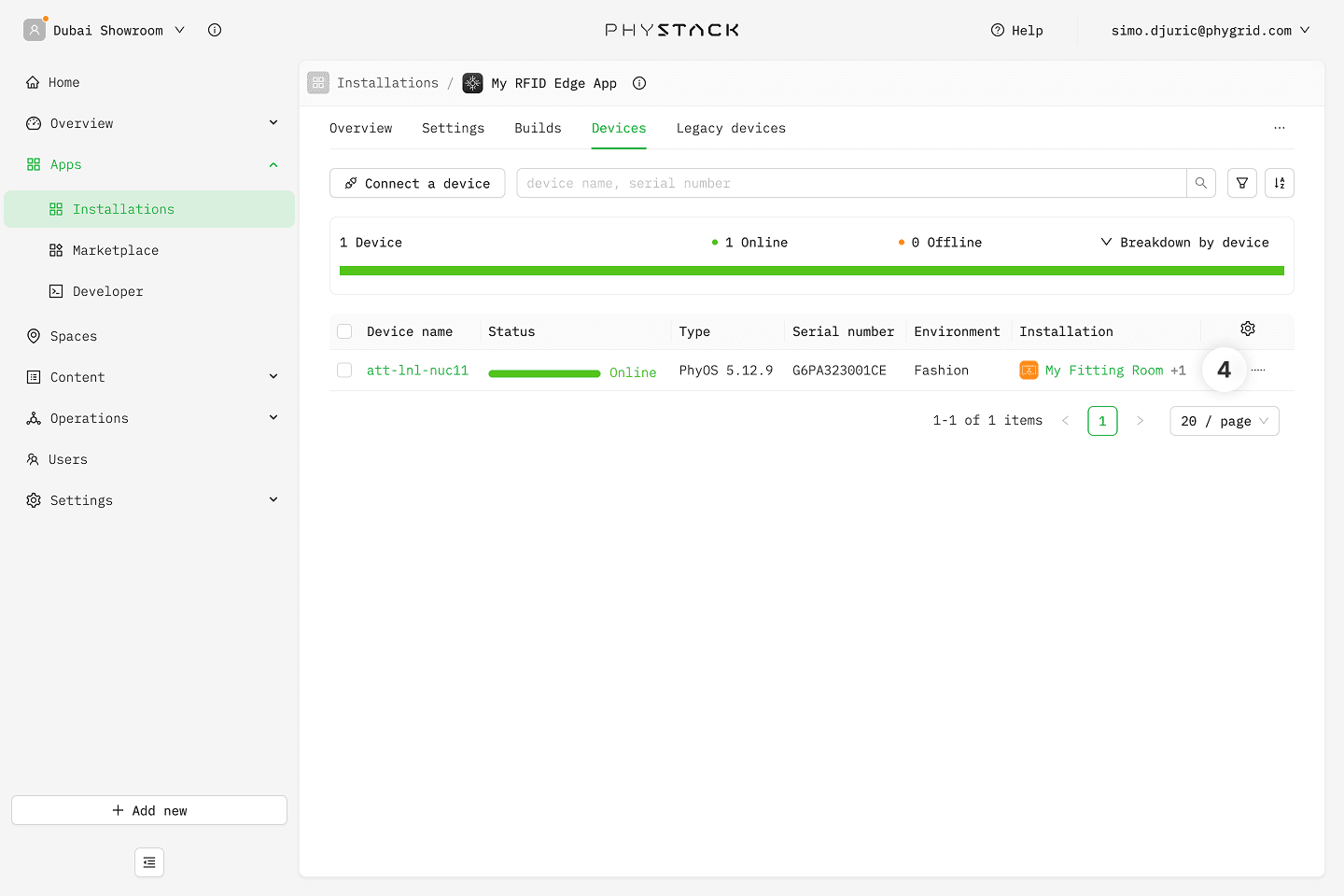
- The RFID reader edge app is now connected to the device and the reader will be available as a peripheral for this device
How to verify RFID module logs
Console device RFID module logs can be verified by running:
- From device level:
docker logs rfid - From CLI level:
phy dev logs --follow --timestamps <dev> rfid