

Before you proceed
PhyGrid solutions send events to the PhyStack platform as customers and staff use them. Events include kiosk sessions, product views, tickets created and served, and products lifted. The PhyGrid Console shows these events in analytics dashboards at four levels:
- Tenant: every installation and device in your tenant together
- Space: the installations and devices in one store or location
- Installation: one solution, with the KPIs that solution defines (for example product views, scans and purchases for Endless Aisle)
- Device: one device and the solutions it runs
Each dashboard shows the selected date range and compares it with the period just before it. Each solution sends its own events. A solution shows data only once its installation is connected to a device and in use.
How to view tenant analytics
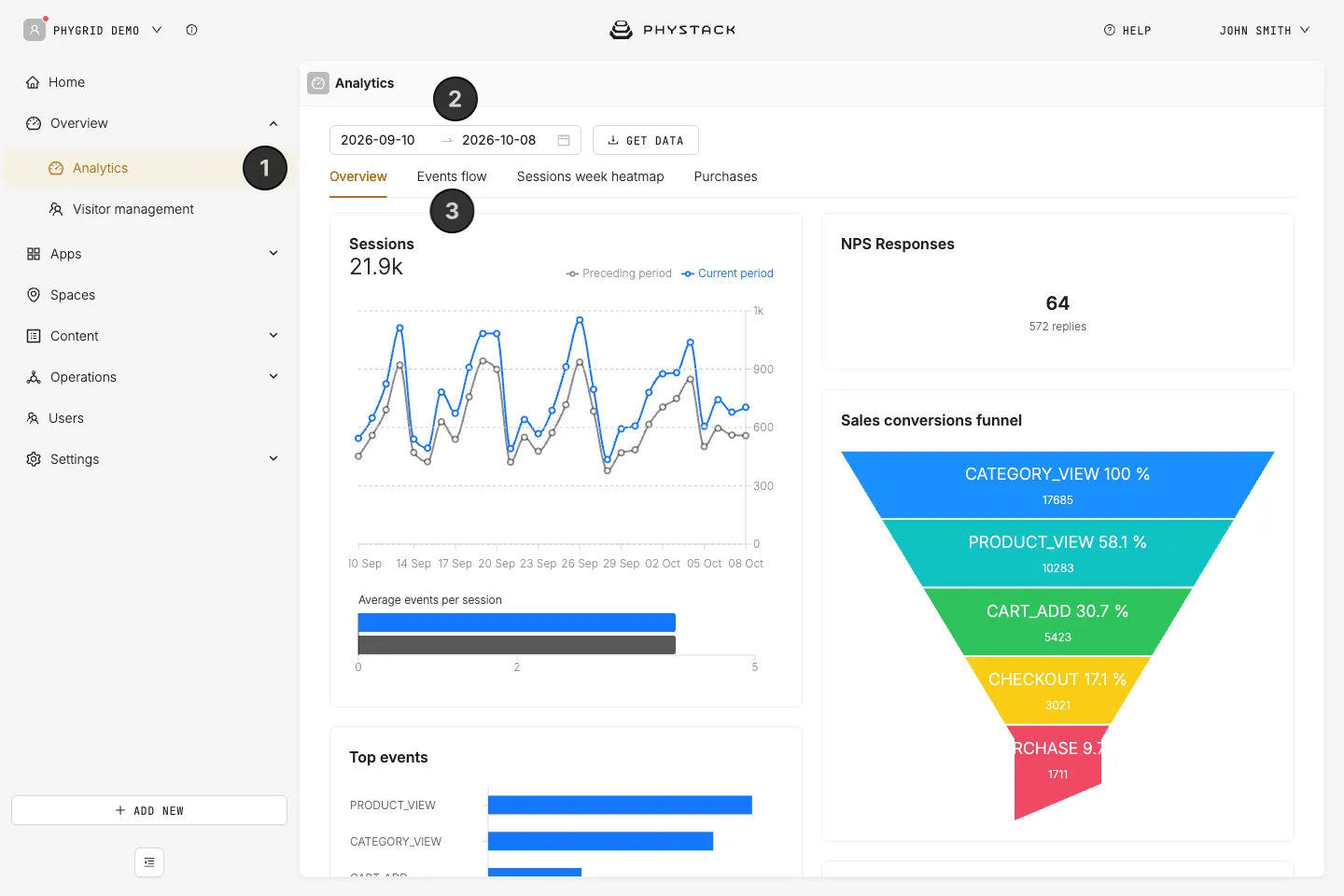
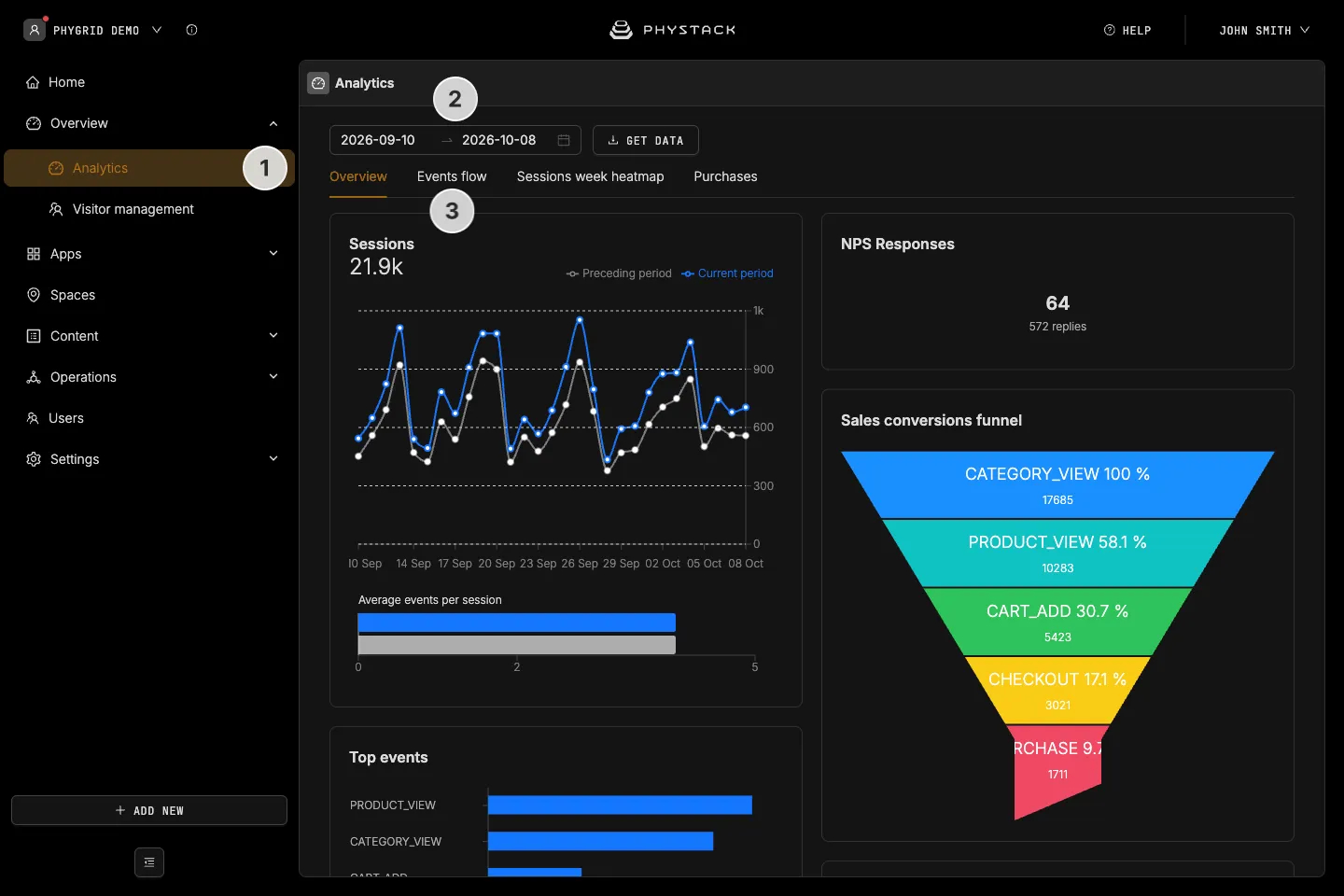
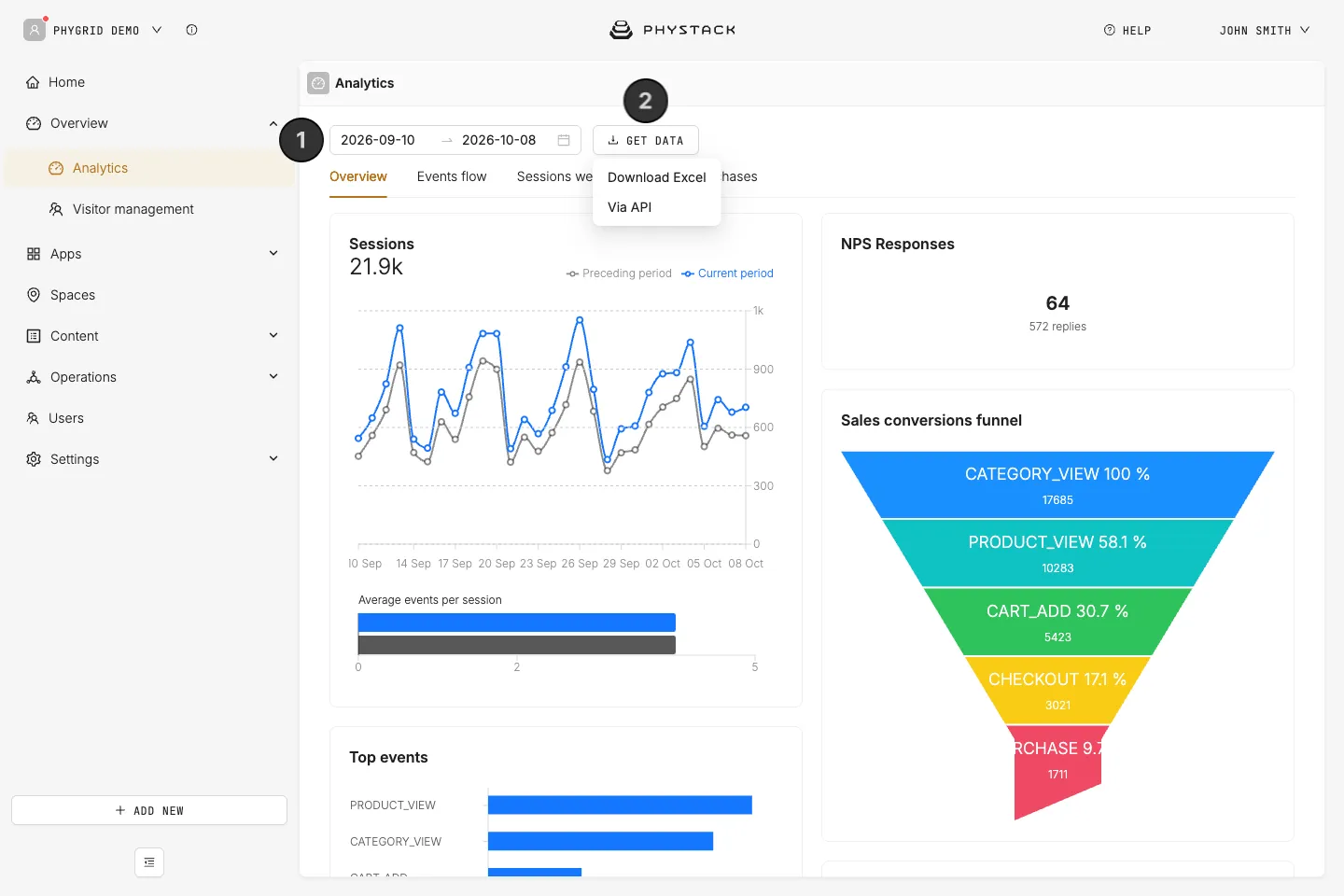
- In the sidebar, go to Overview → Analytics
- Pick the date range at the top of the page: Today, Past 7 days, Past 30 days, Past 60 days, or your own dates (up to 60 days)
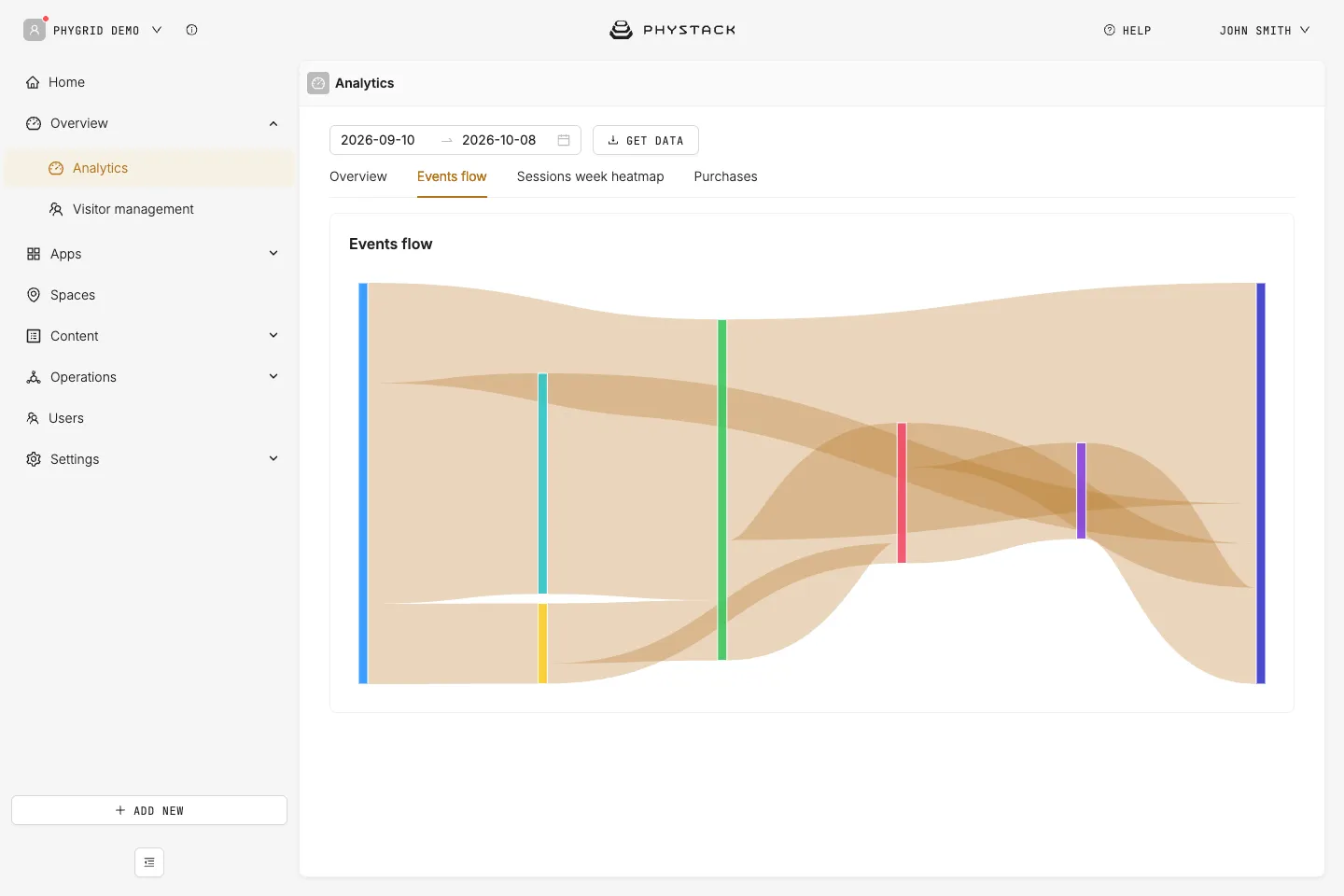
- Use the tabs to switch between the dashboards. The tabs depend on the solutions installed in your tenant, so yours may differ. For example:
- Overview: sessions, top events, product views, media performance, NPS responses and performance by location and installation
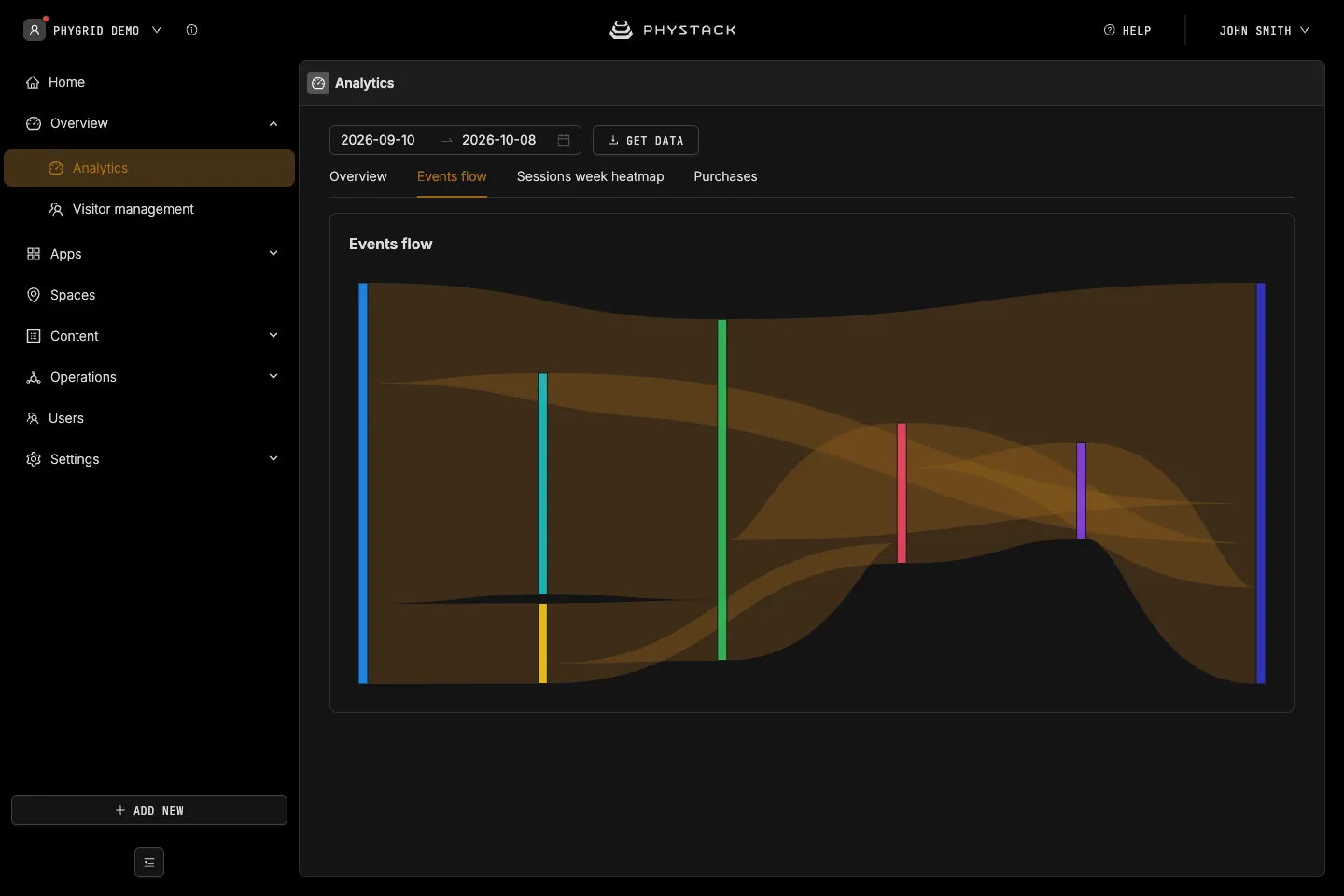
- Events flow: how visitors move from one event to the next
- Sessions week heatmap: the busiest days and hours
For more about the tenant dashboard, see Tenant analytics.
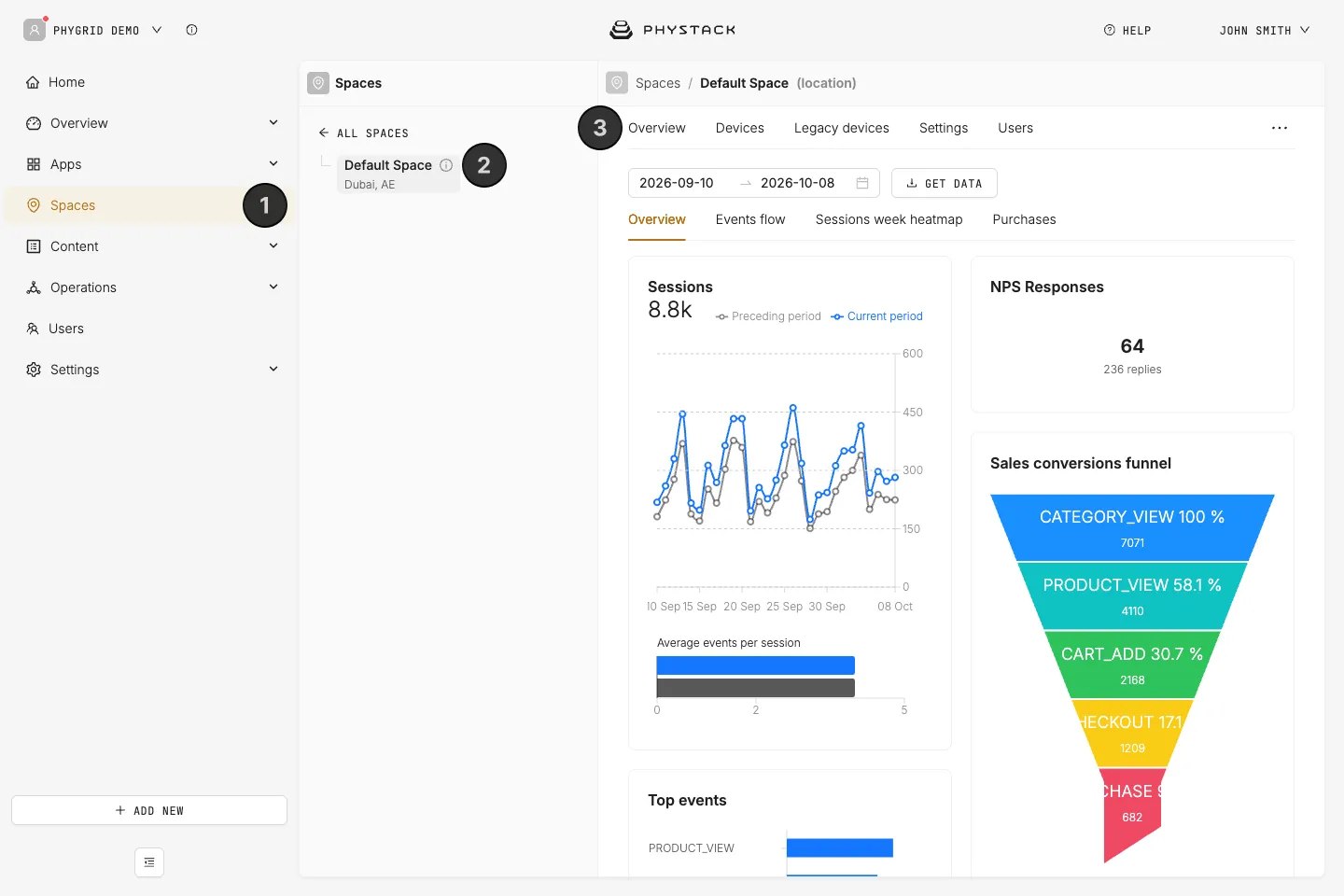
How to view space analytics
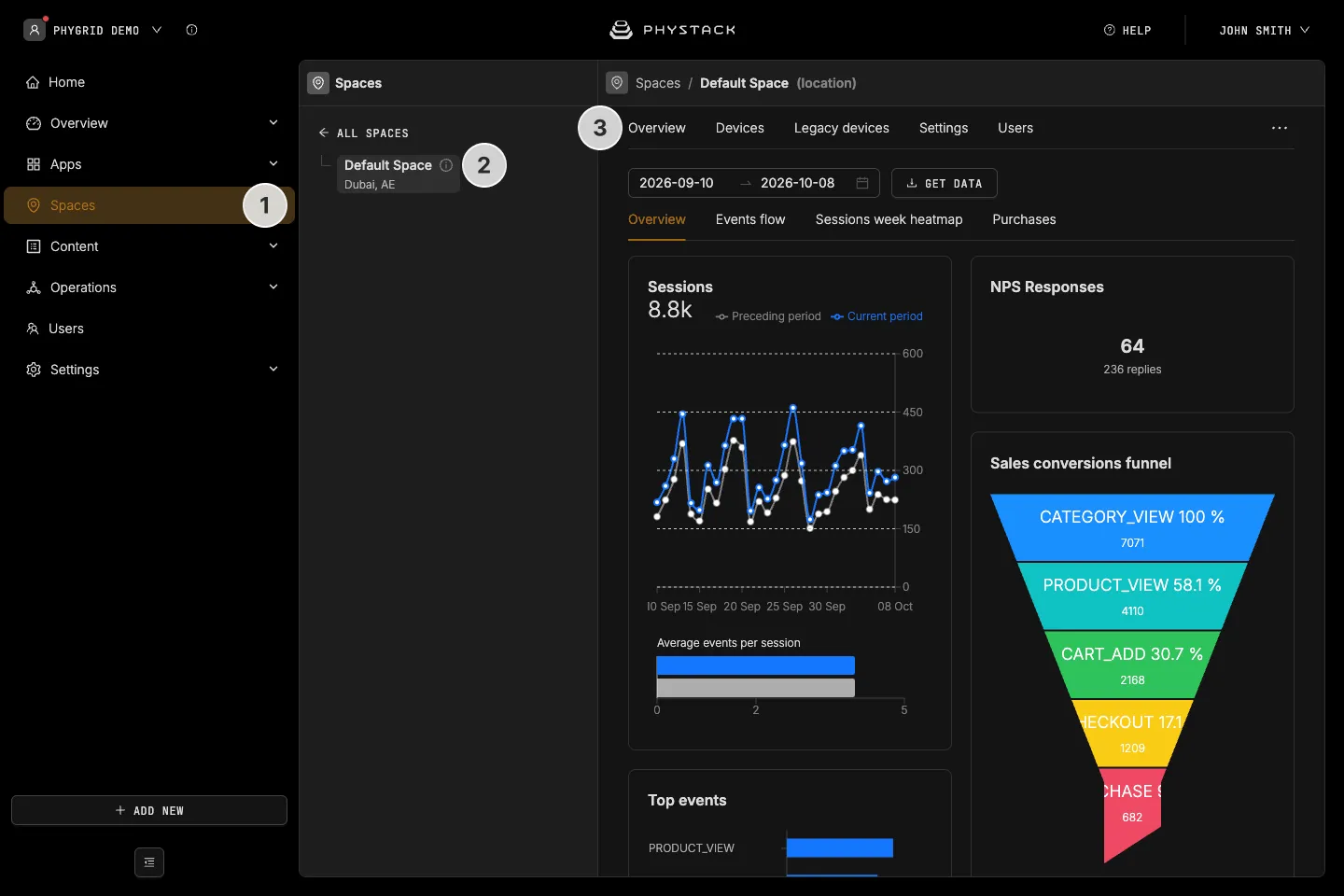
- In the sidebar, go to Spaces
- Select a space in the tree, or search for it
- Open the Overview tab to see the space’s analytics, with the same date range as the tenant dashboard, plus performance by device. Its tabs also depend on the installed solutions
See Manage a space.
How to view installation analytics
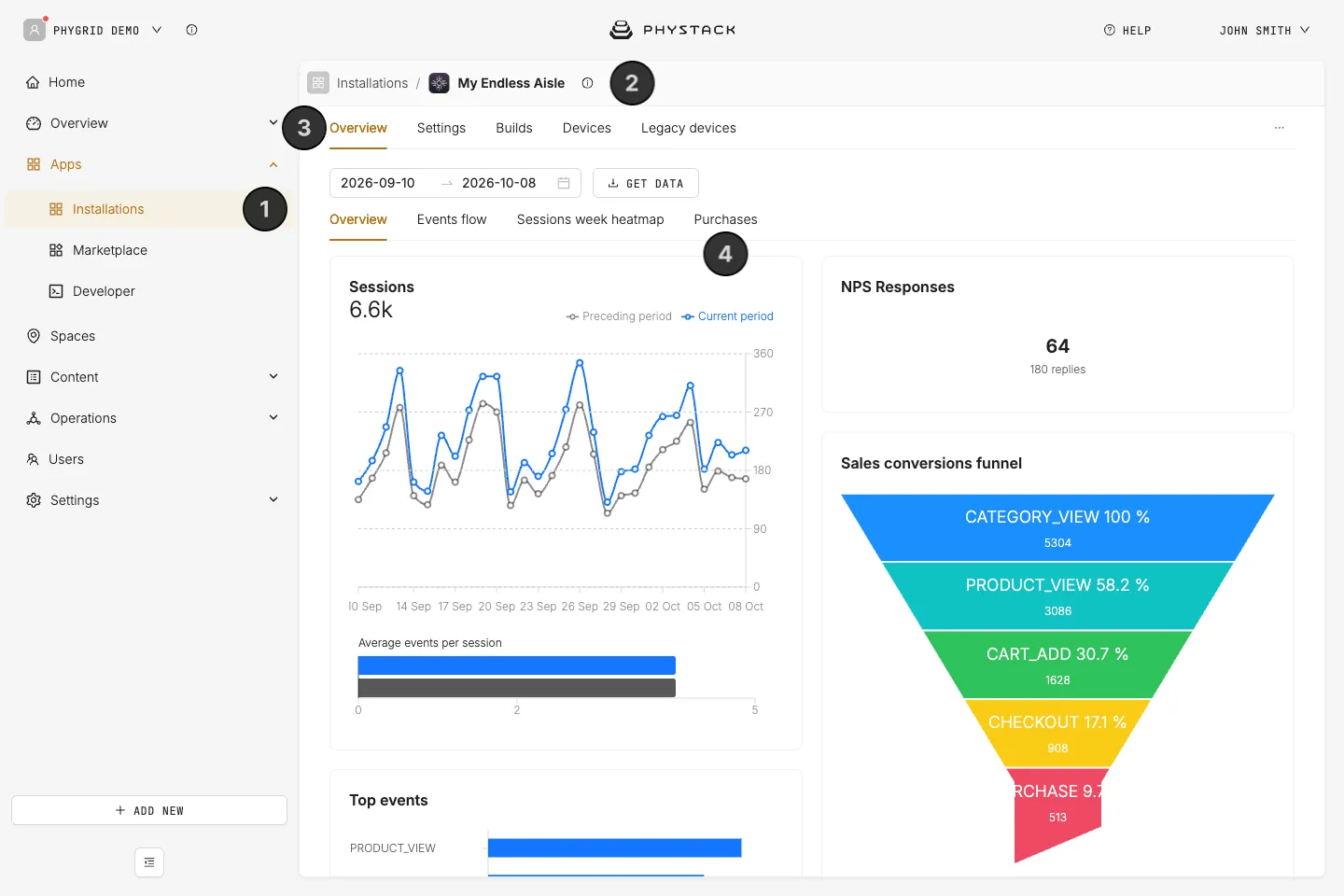
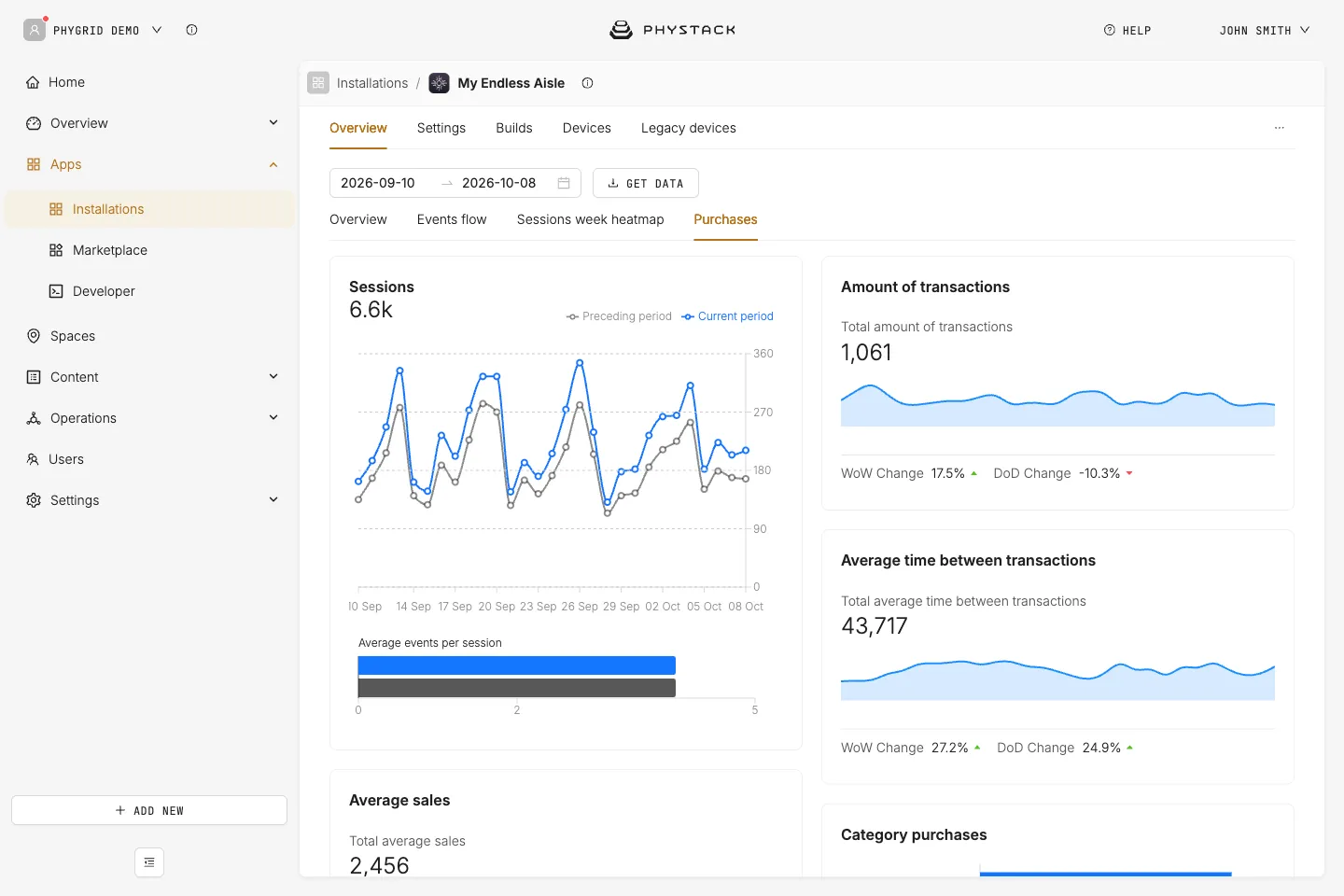
An installation’s dashboard is defined by its solution, so its tabs and KPIs differ from one solution to the next.
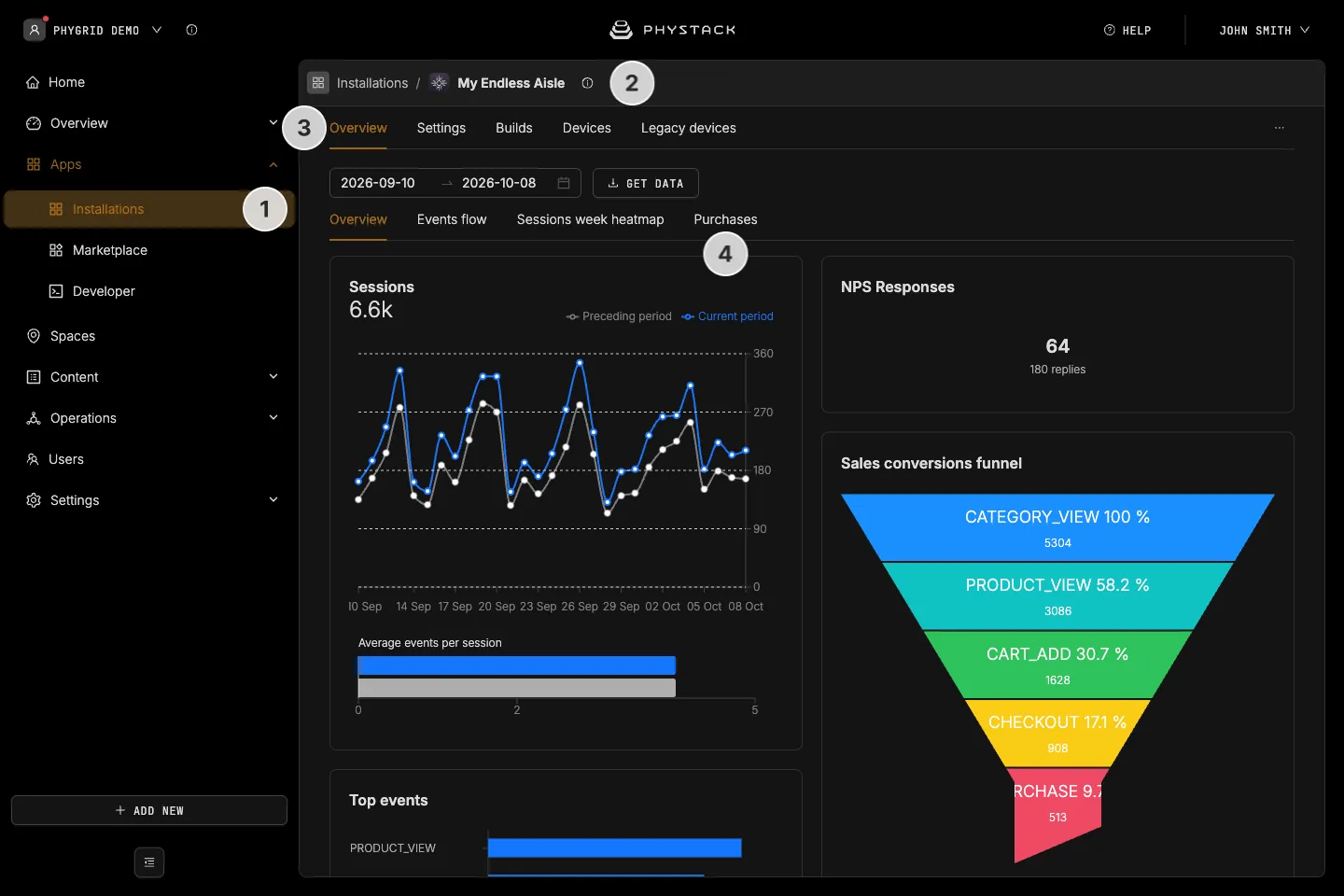
- In the sidebar, go to Apps → Installations
- Open the installation
- Open the Overview tab and pick the date range
- Use the solution’s tabs
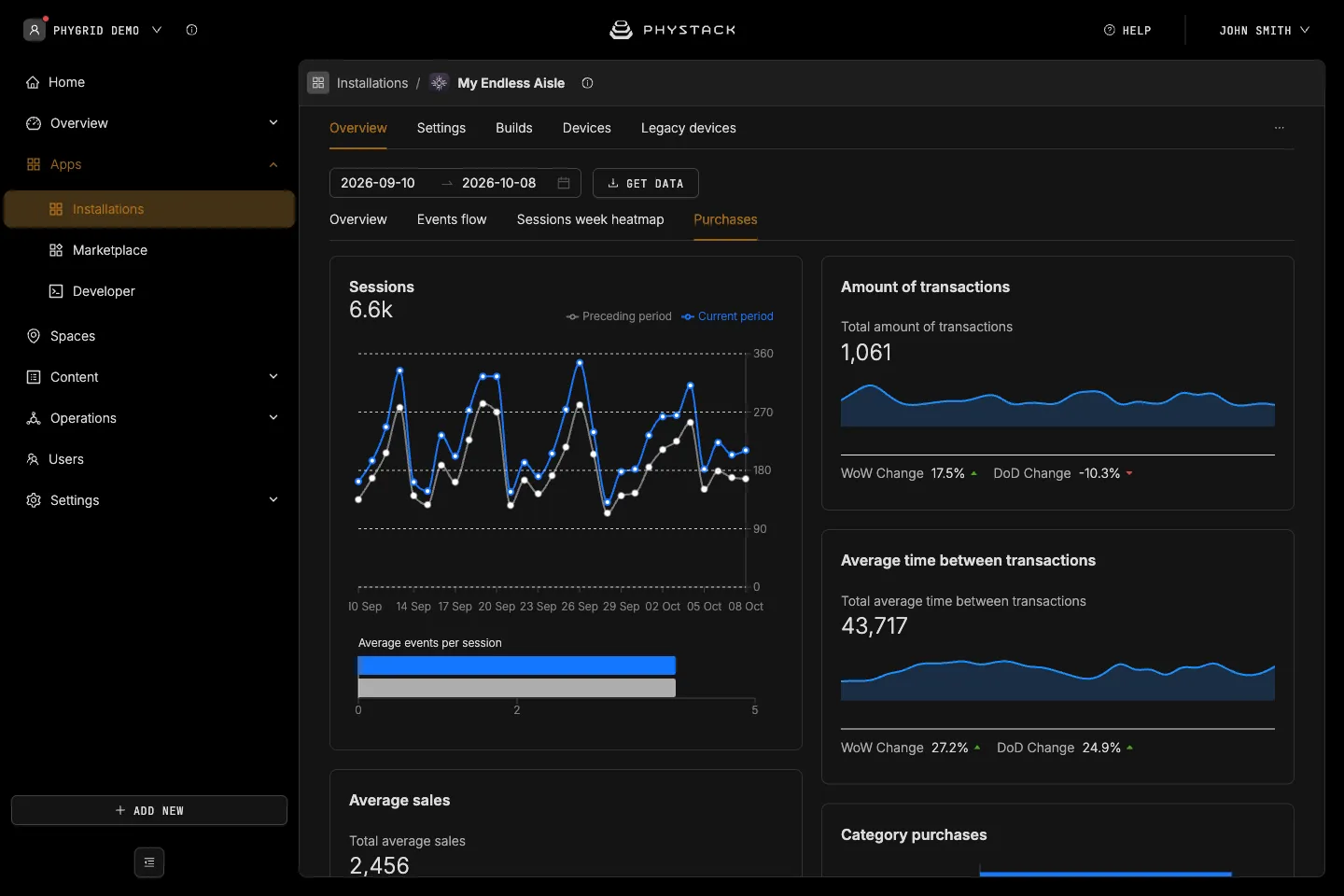
For example, Endless Aisle shows sessions, product views, scans, bag activity and a sales funnel. Its Purchases tab shows transactions and average sales.
How to view device analytics
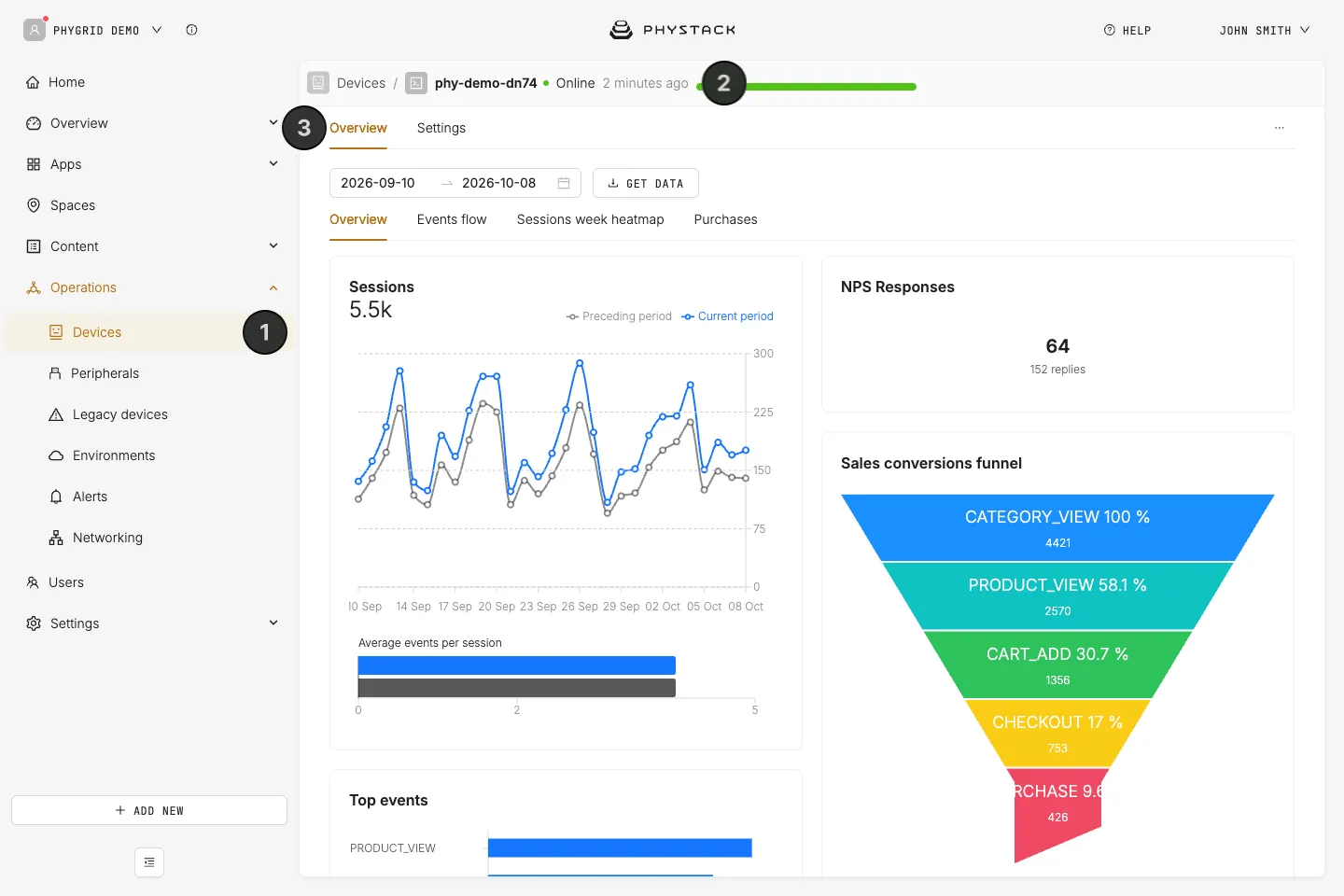
- In the sidebar, go to Operations → Devices
- Open the device
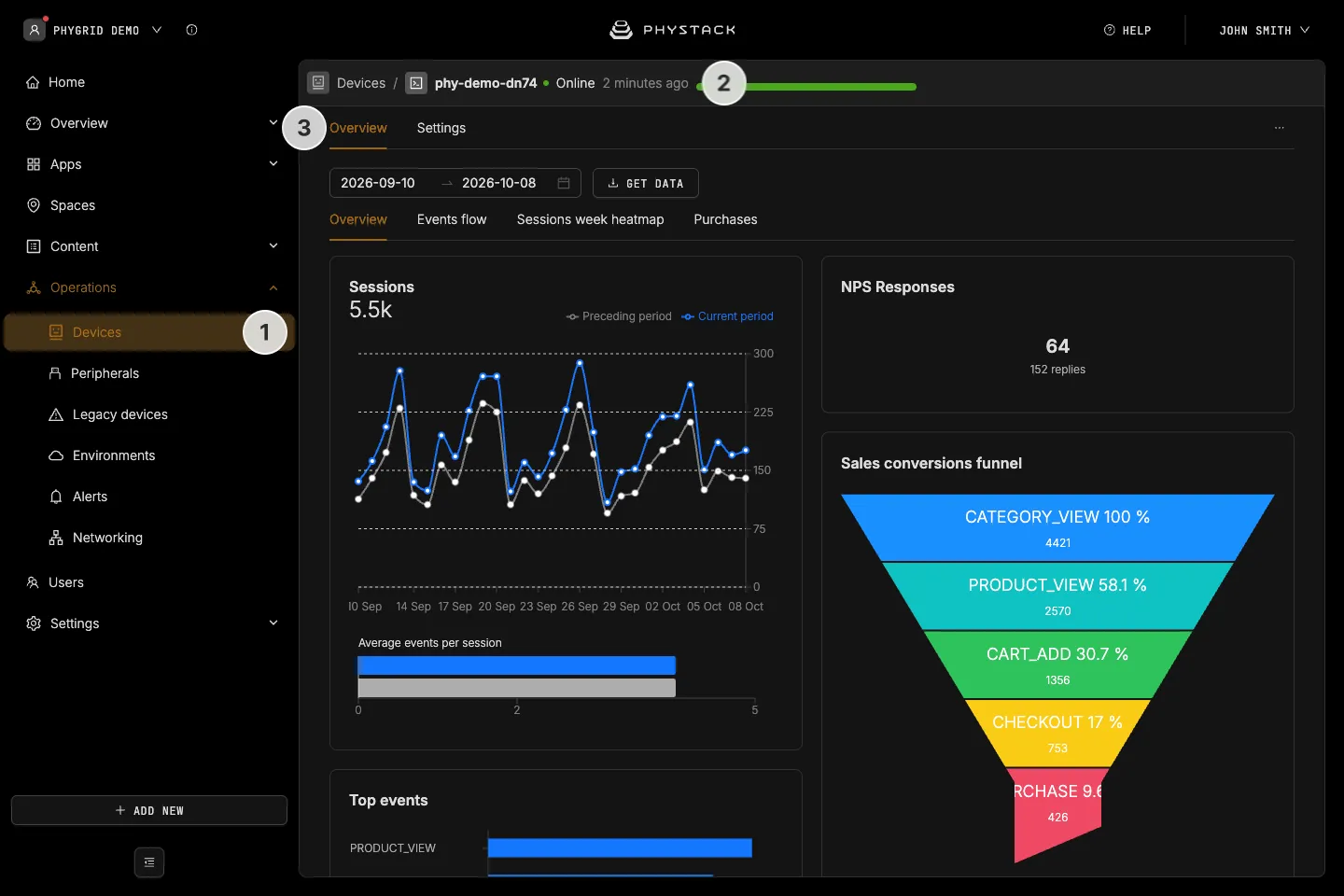
- Open the Overview tab to see the analytics of everything the device runs
How to export analytics and create reports
You can export any analytics page for the selected date range:
- Open the dashboard you want to export (tenant, space, installation or device) and pick the date range
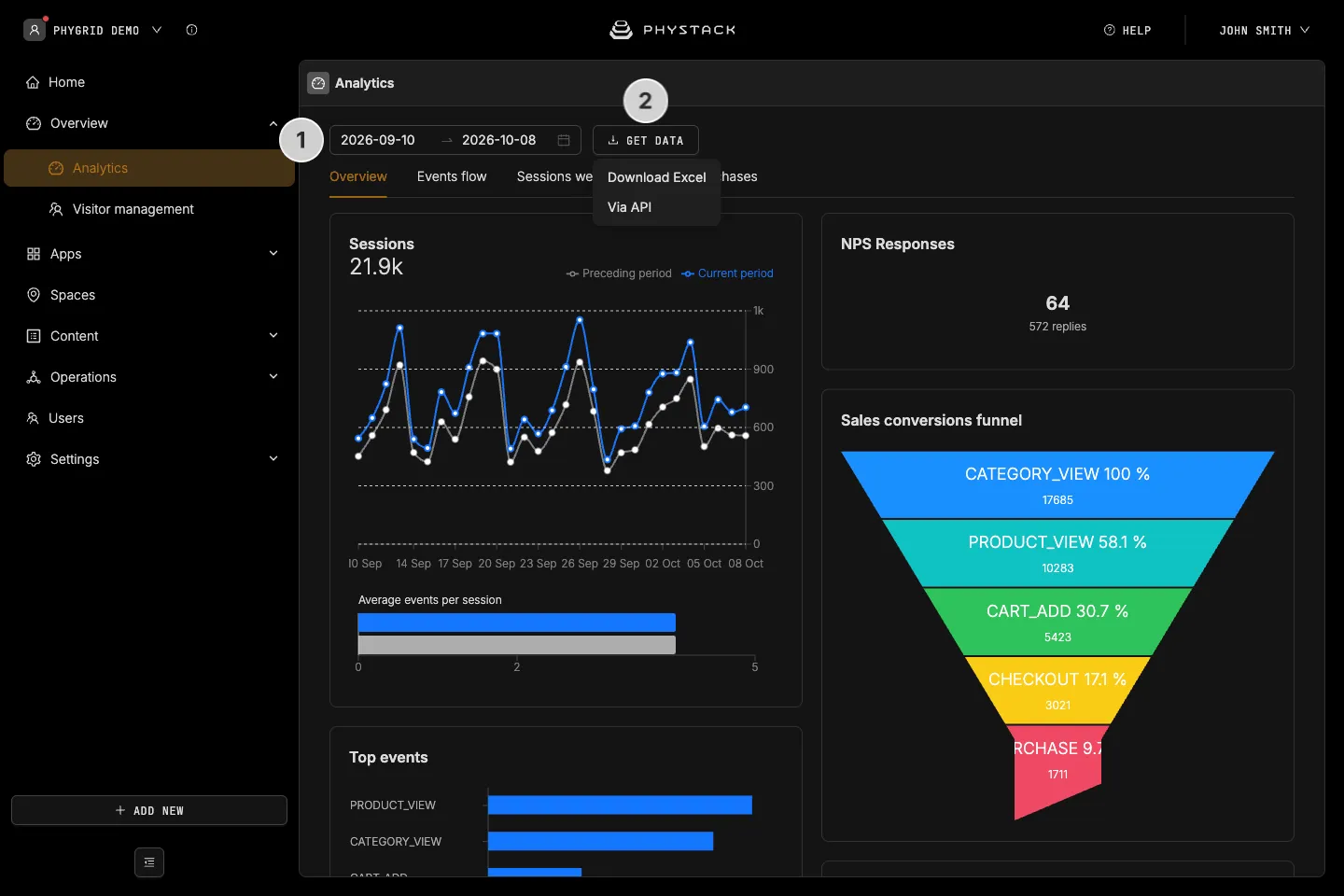
- Click Get data at the top of the page and choose Download Excel. You get one Excel file with a sheet per card. Stay on the page until the download finishes
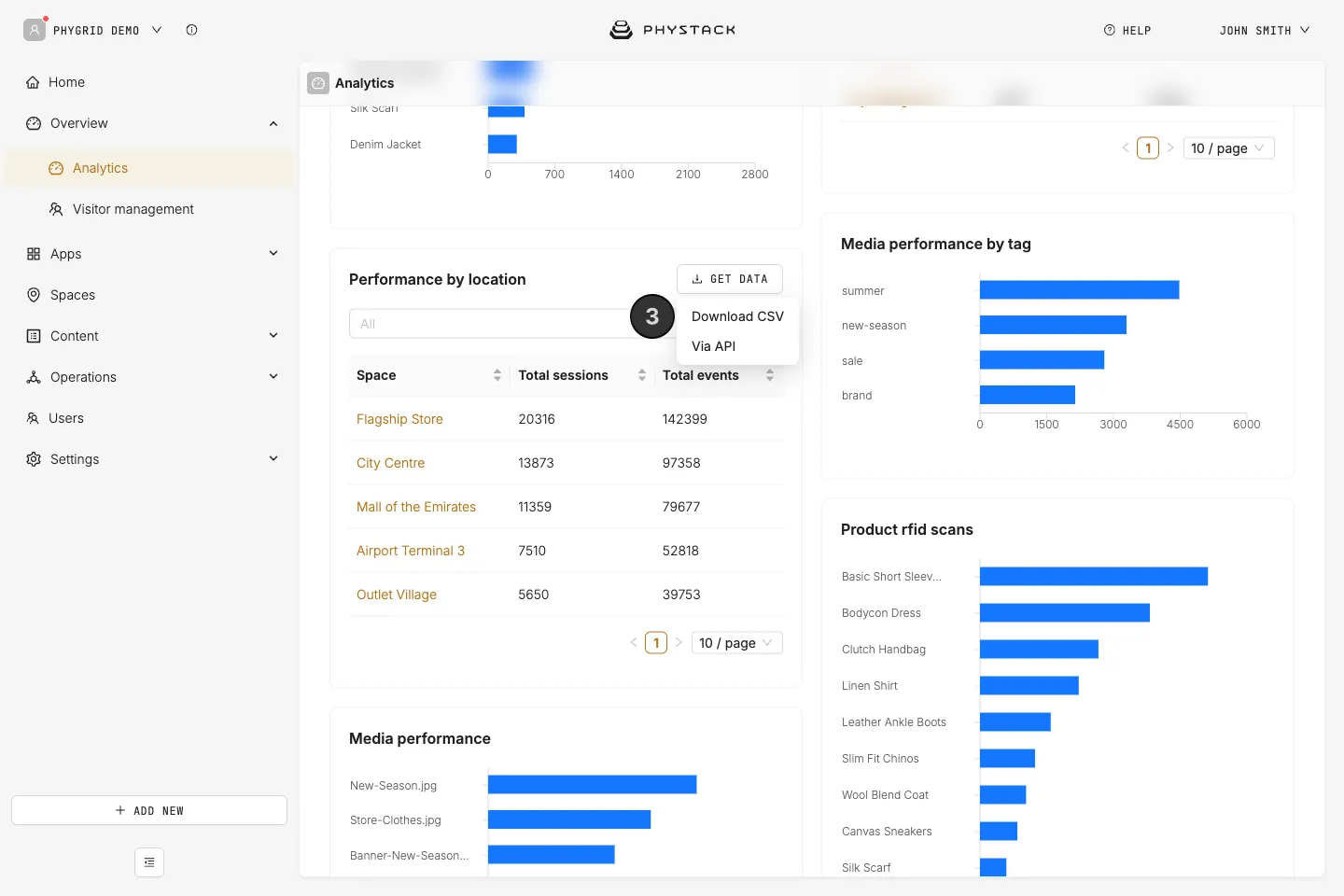
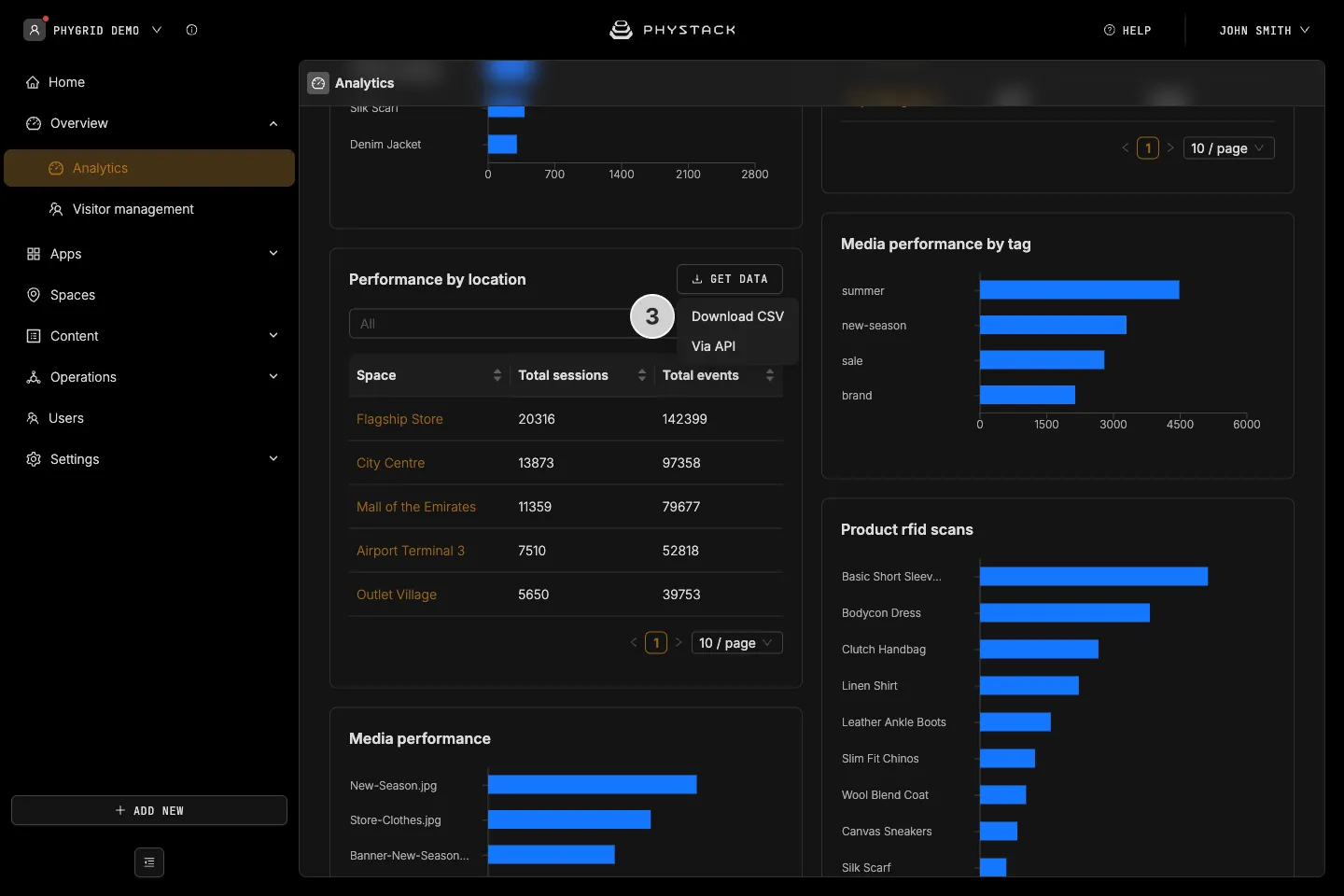
- To export a full table, such as performance by location, open the table’s own Get data menu and choose Download CSV
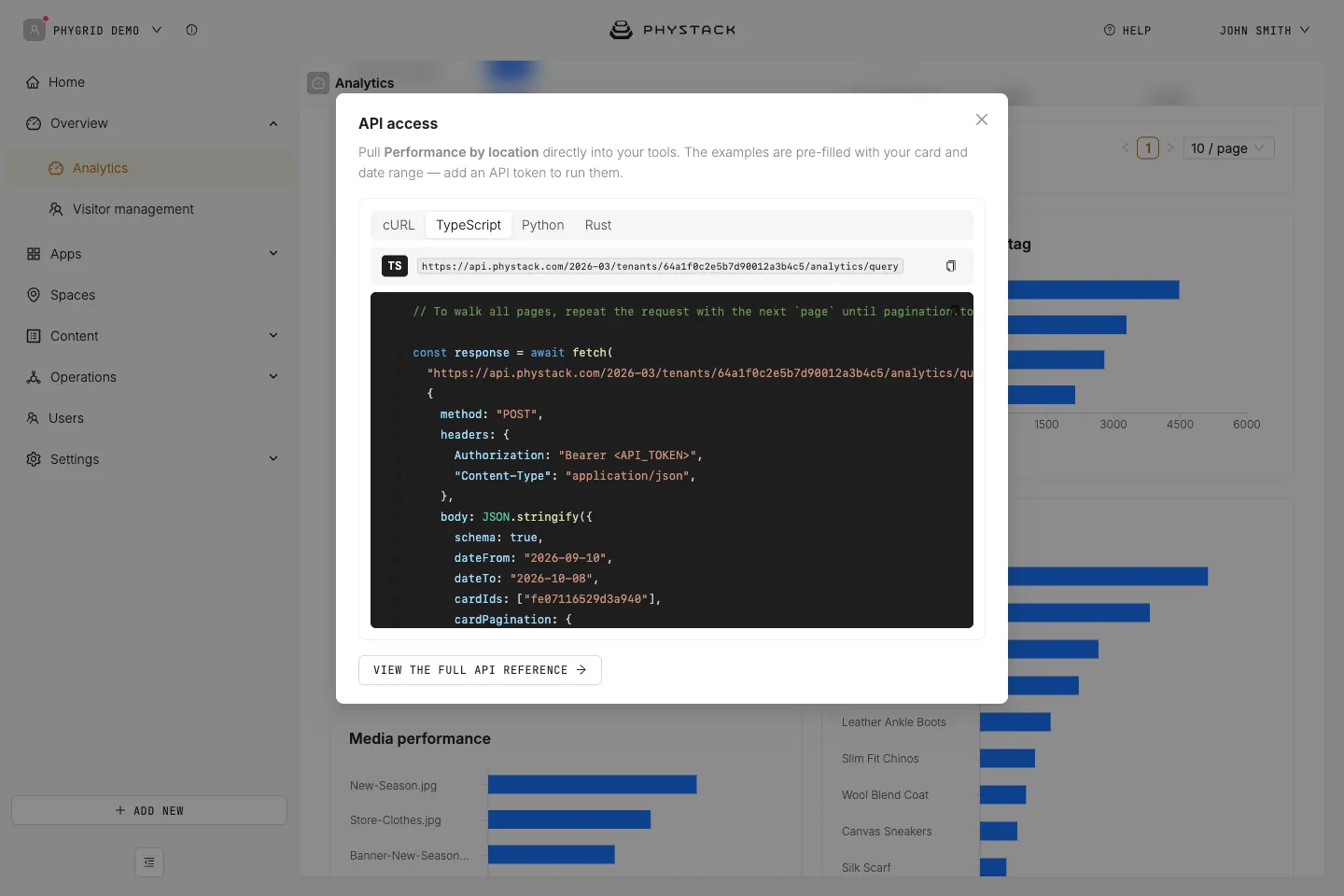
To get the same data automatically, choose Via API in either menu. The API access dialog shows ready-to-run examples in cURL, TypeScript, Python and Rust, filled in with the card and date range. Add an API token to run them.
To be notified when a metric goes above or below a limit, set up an analytics alert.
Build your own dashboards
You can read the same analytics through the PhyStack API and build dashboards in your own tools, such as Power BI or Looker Studio. The Via API examples in the Console are a good starting point.
- PhyStack API reference
- Reports in the PhyStack developer documentation, to define the installation dashboard of a solution you build on PhyStack