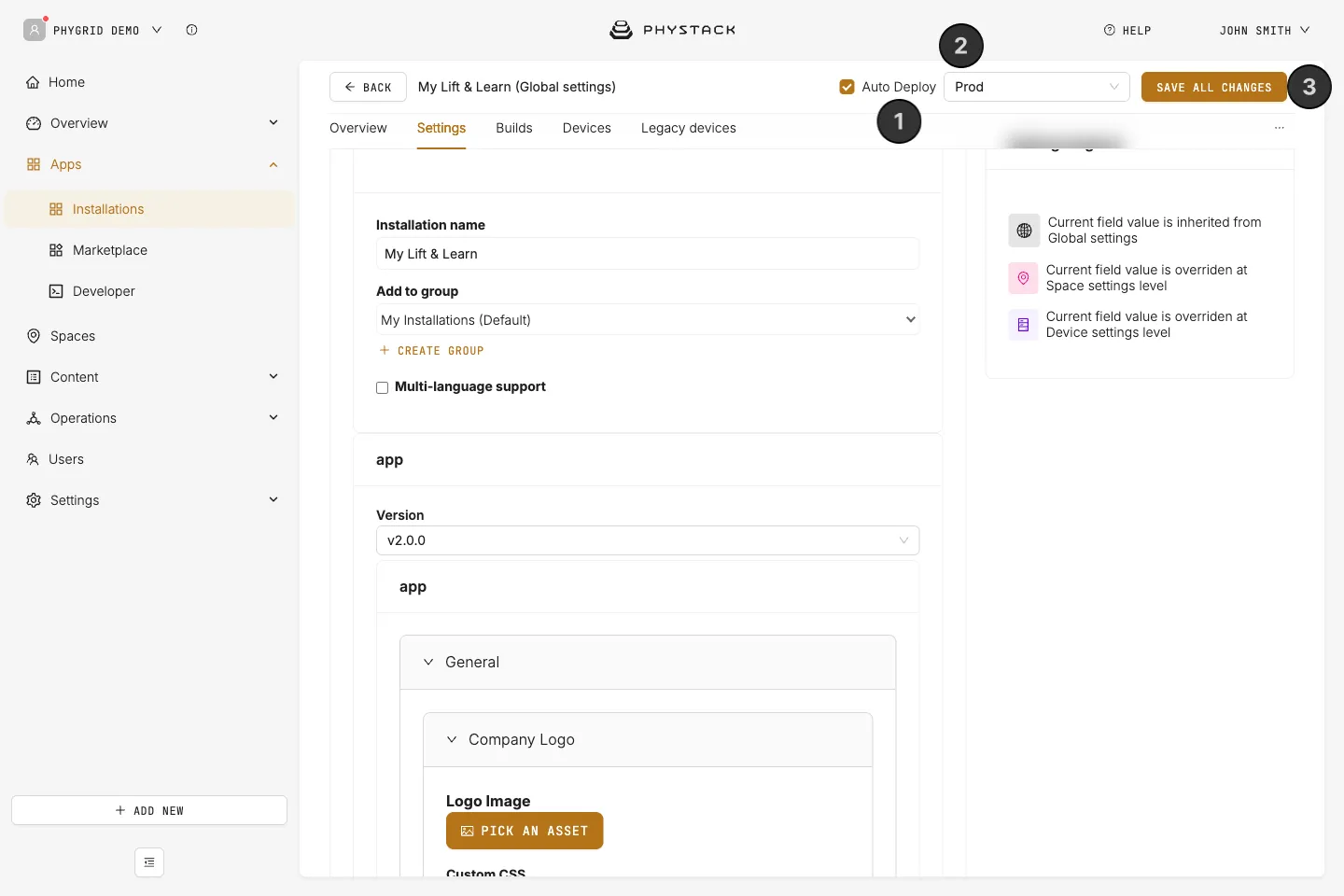

Console settings
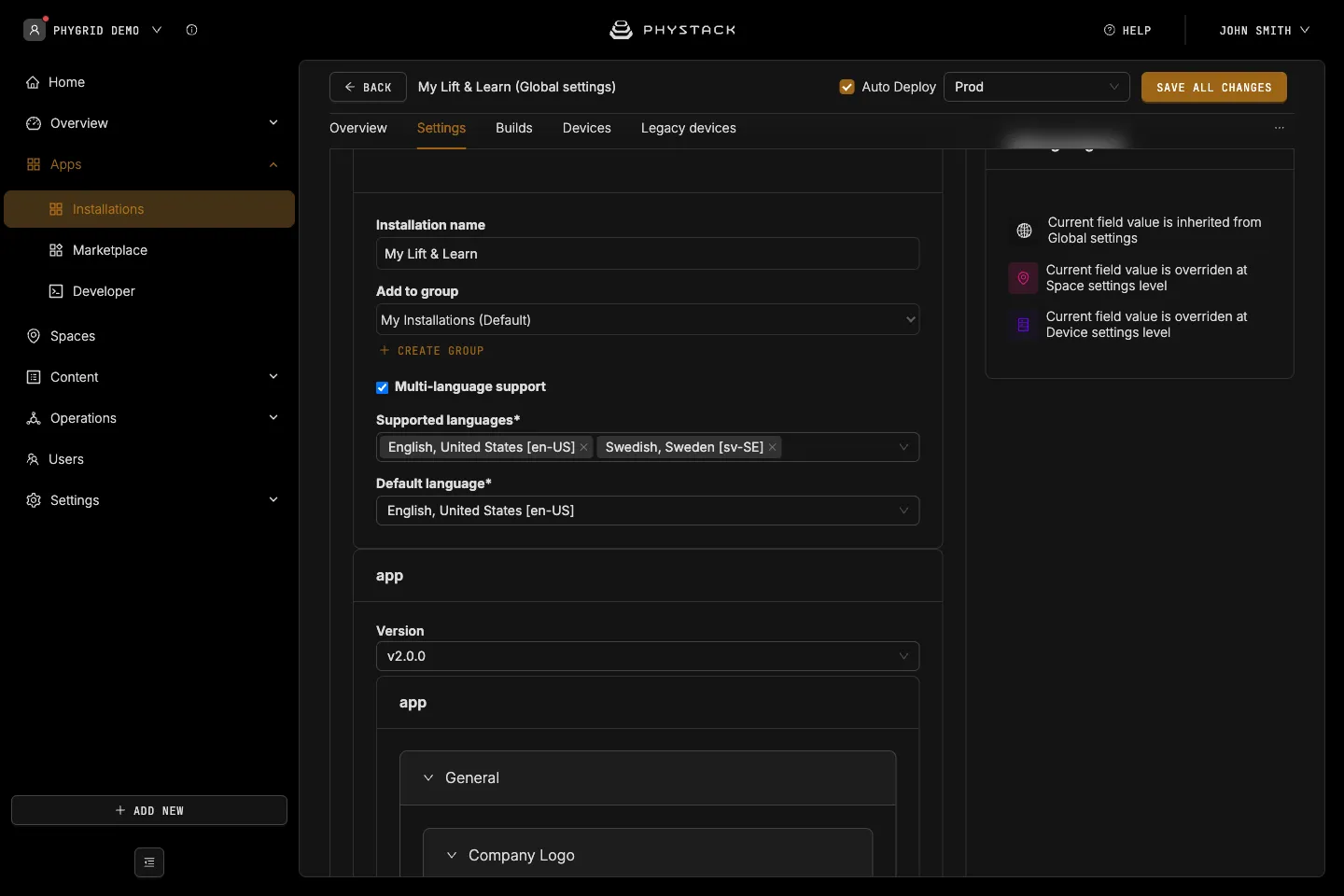
- Installation name: The installation name shown in Apps → Installations
- Add to group: The installation group it belongs to in Apps → Installations
- Multi-language support: The languages you can write texts in, such as omnibar, promo, and QR code texts. Product texts are shown in the default language. For the app’s own texts (omnibar, promo and QR code texts) the screen shows the first language entered, not the default language (see Glossary)
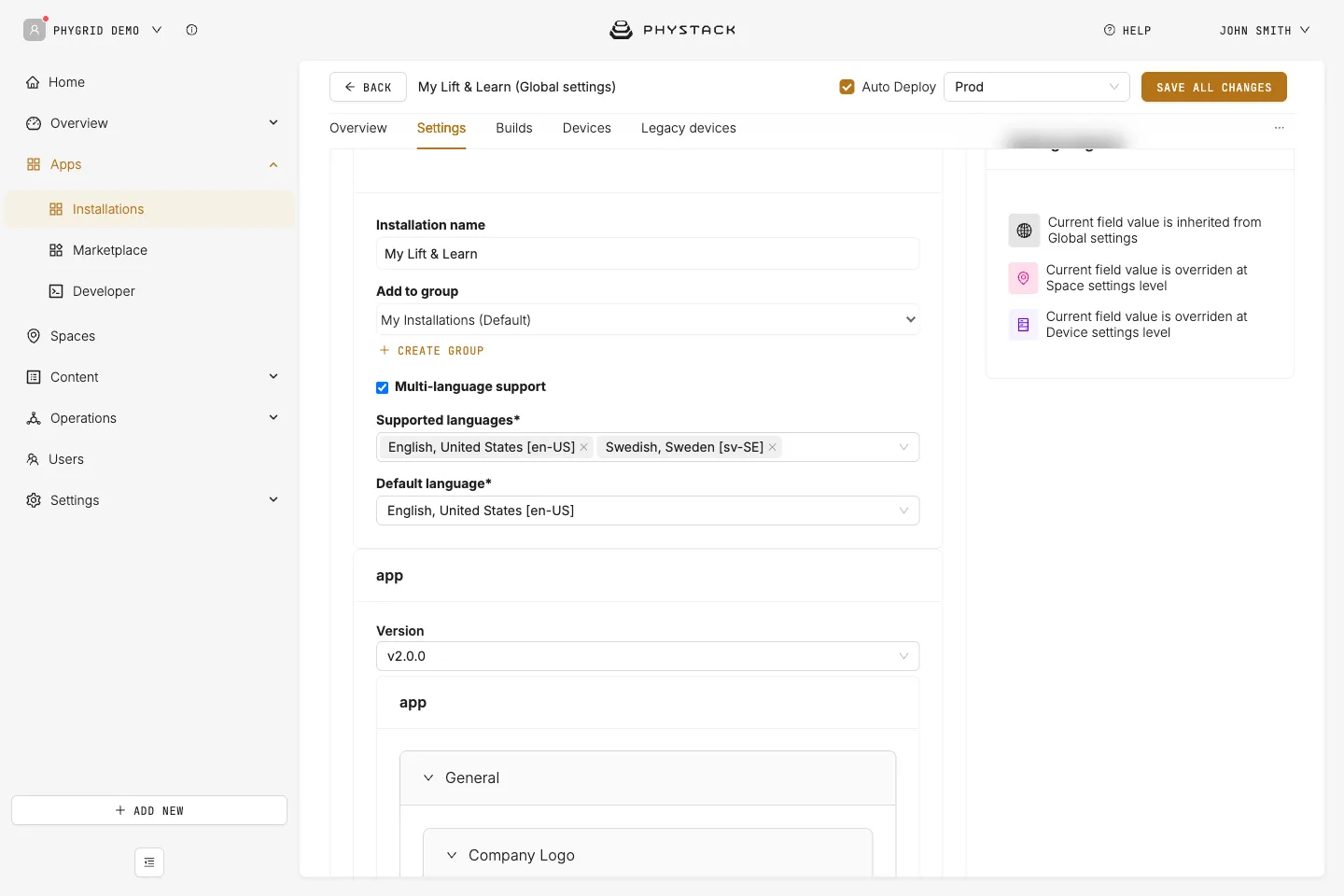
App settings
Changing the app version can add or remove certain options related to the specific version.
- Version: The app version used by your installation
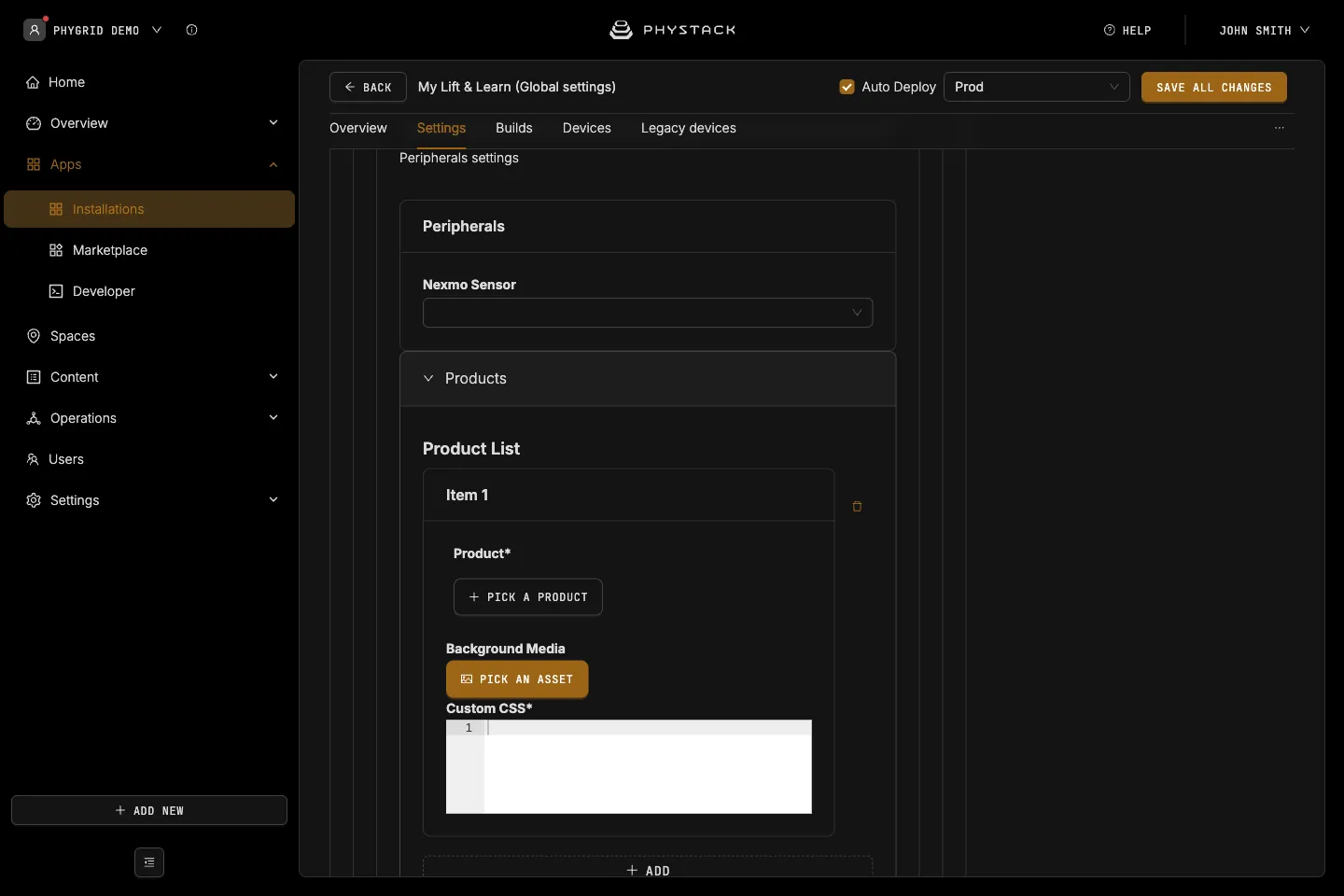
Peripherals
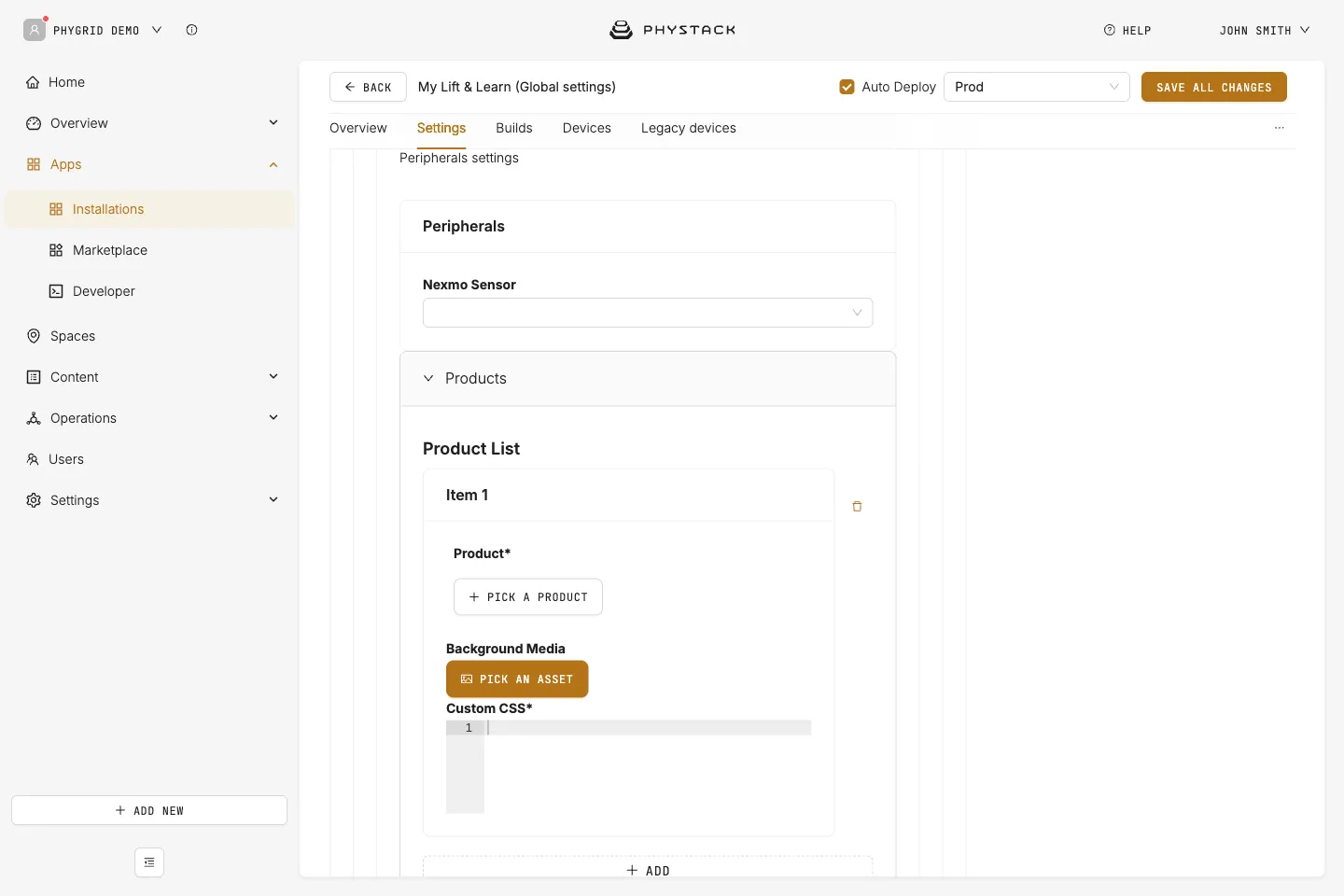
- Nexmo Sensor: The Nexmosphere sensor connected to the device. The list shows sensors reported by the Nexmosphere peripheral edge app. See Install and configure Nexmosphere peripheral
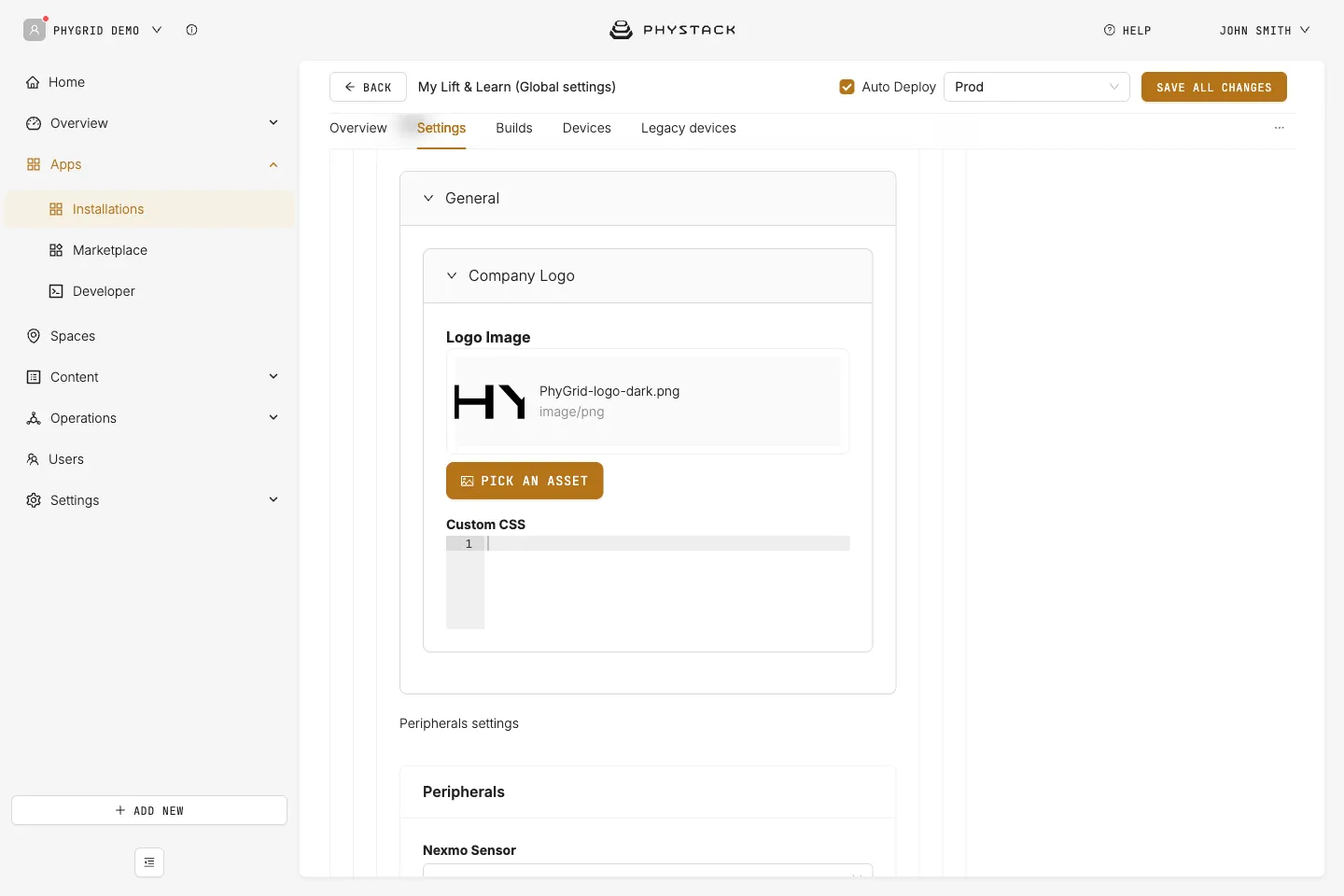
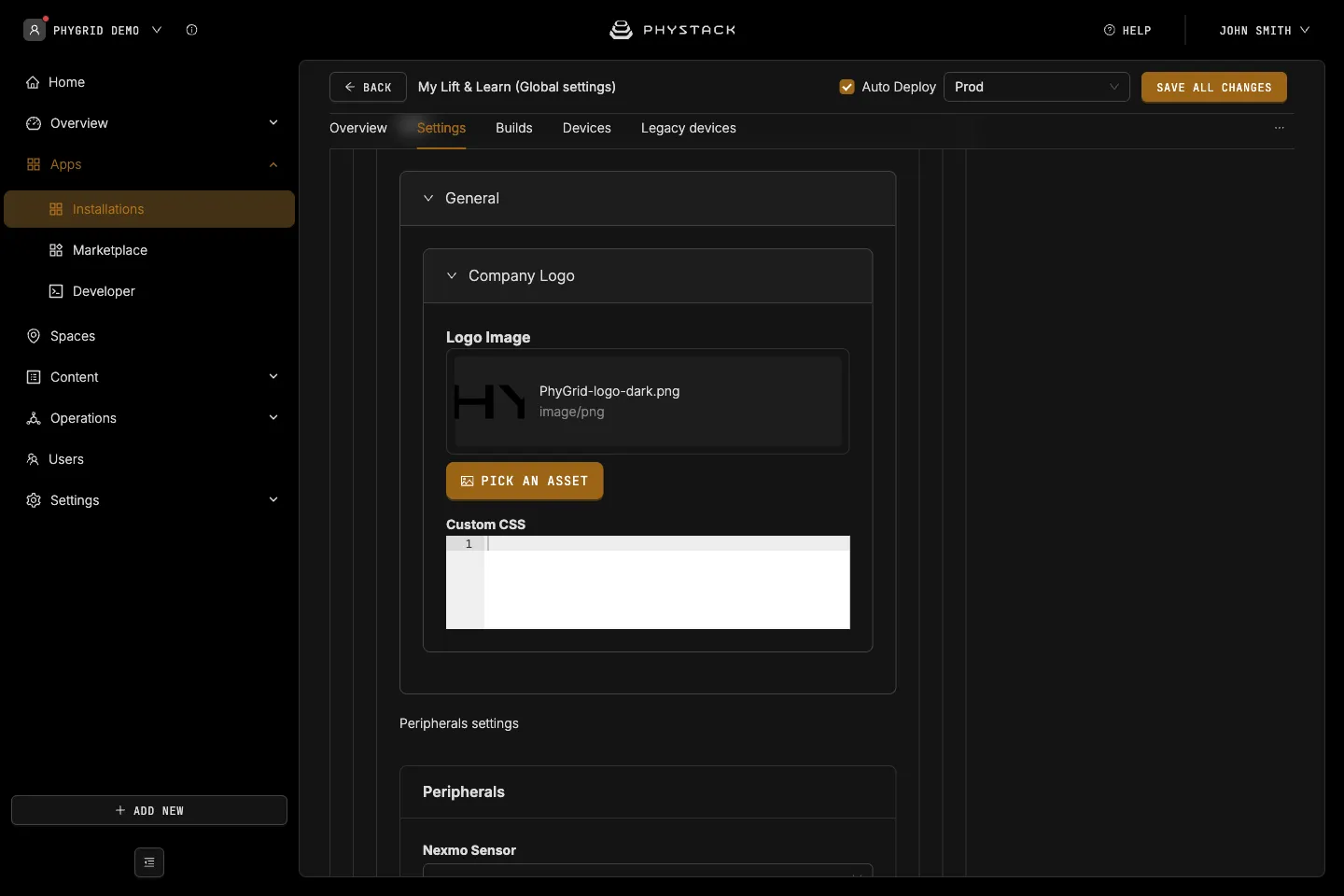
General
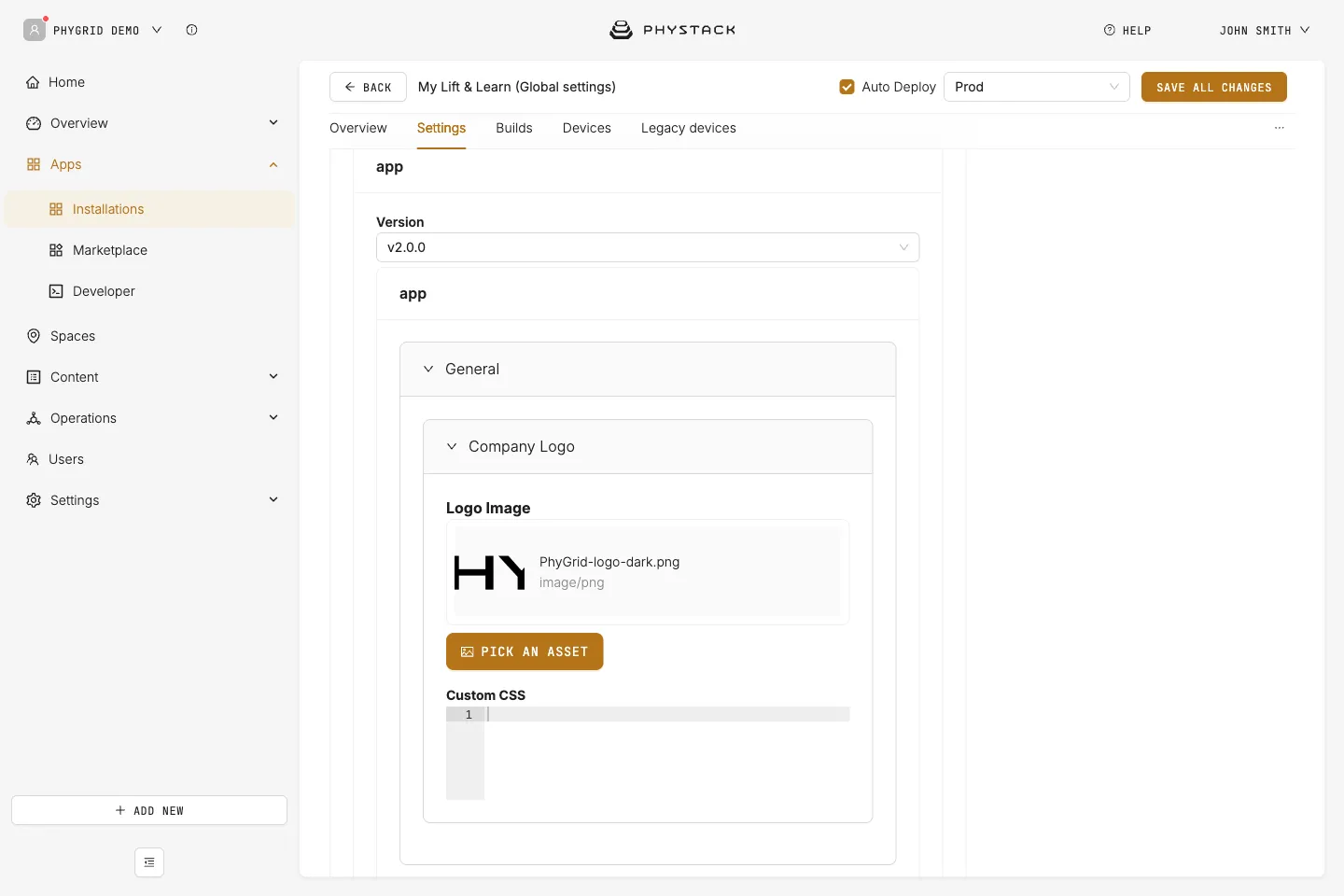
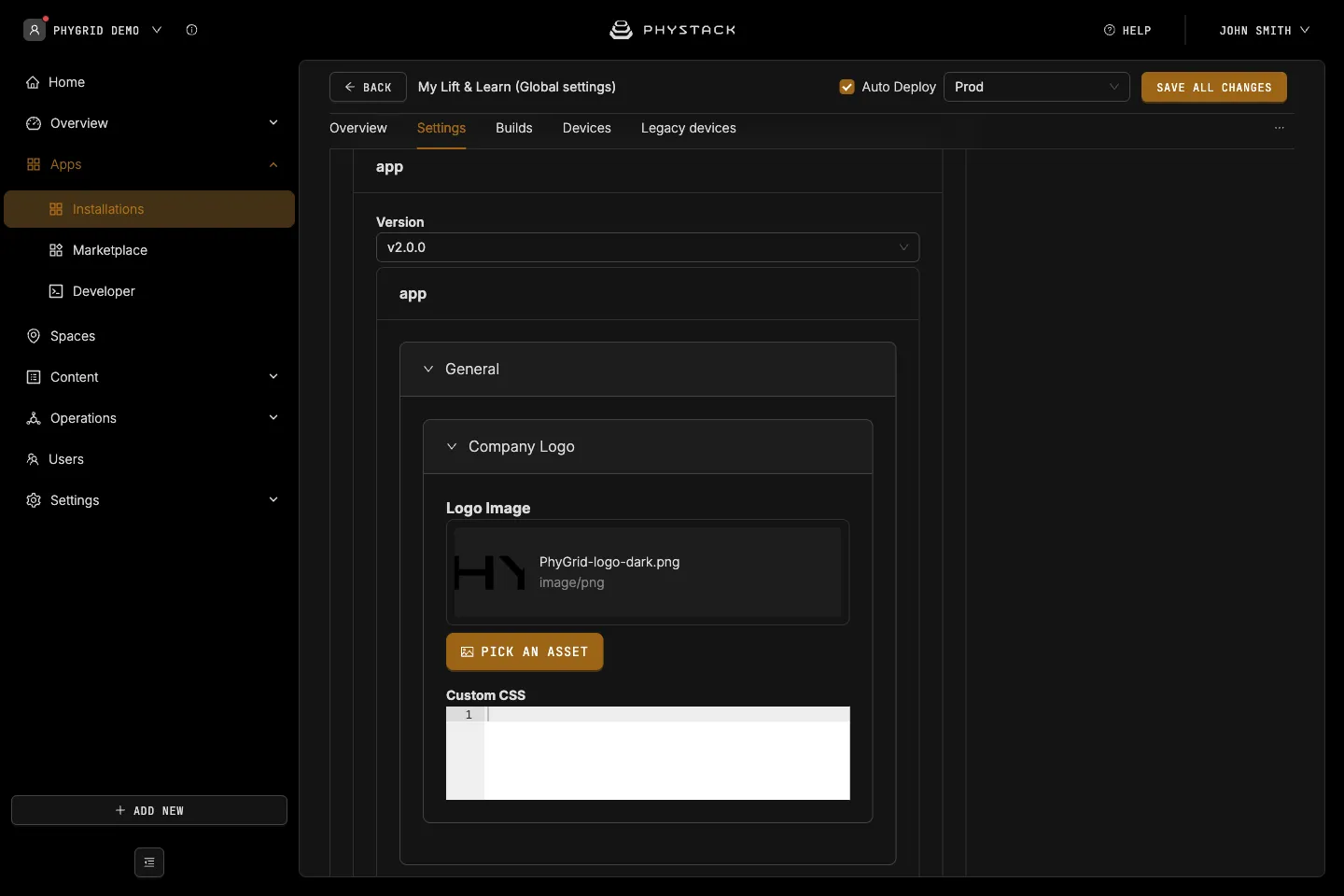
- Company Logo → Logo Image: The logo shown on the product details screens (PNG, JPEG, or SVG). Style it with the
.company-logoclass in Advanced Settings → Custom CSS - Company Logo → Custom CSS: Not used by the current app version
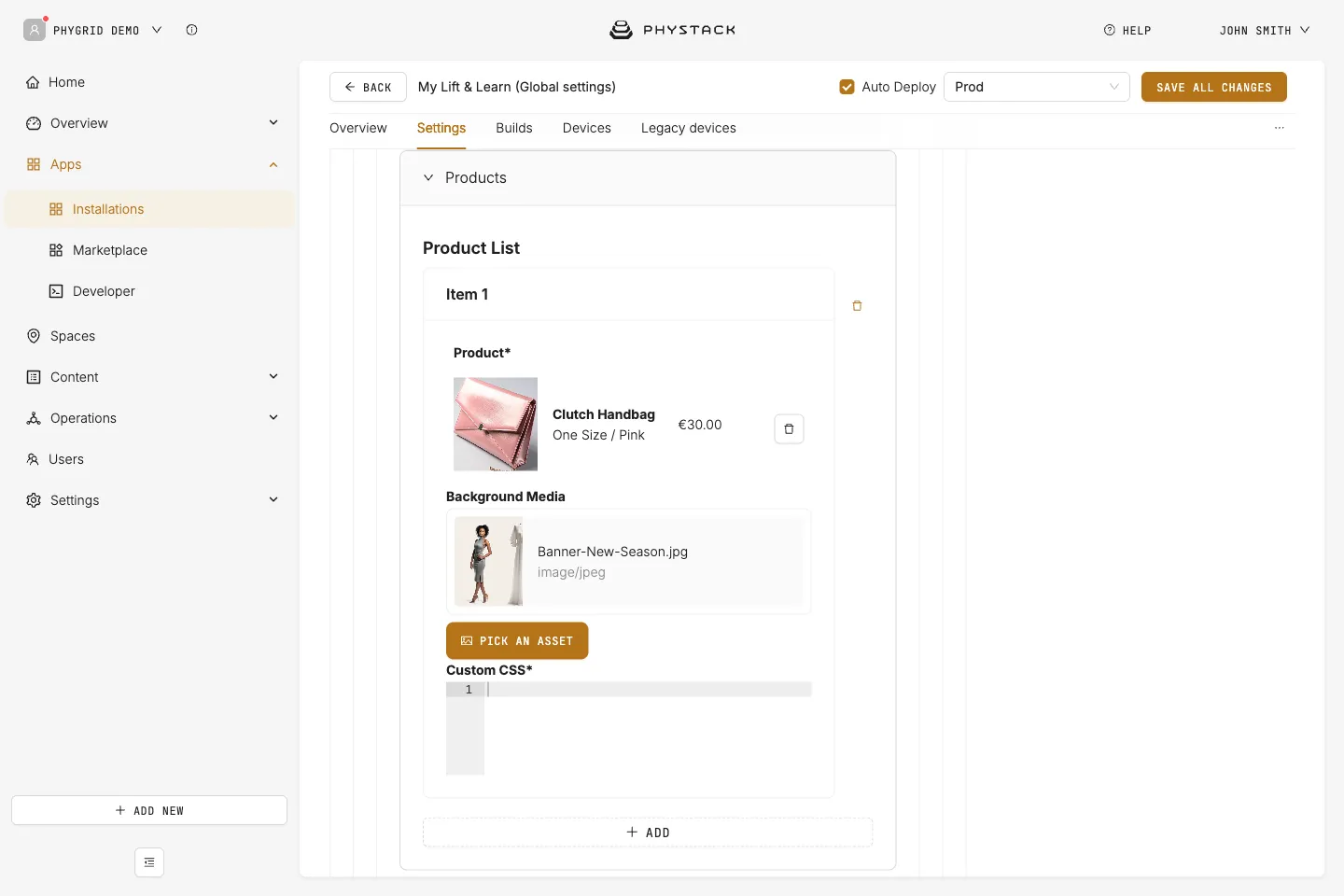
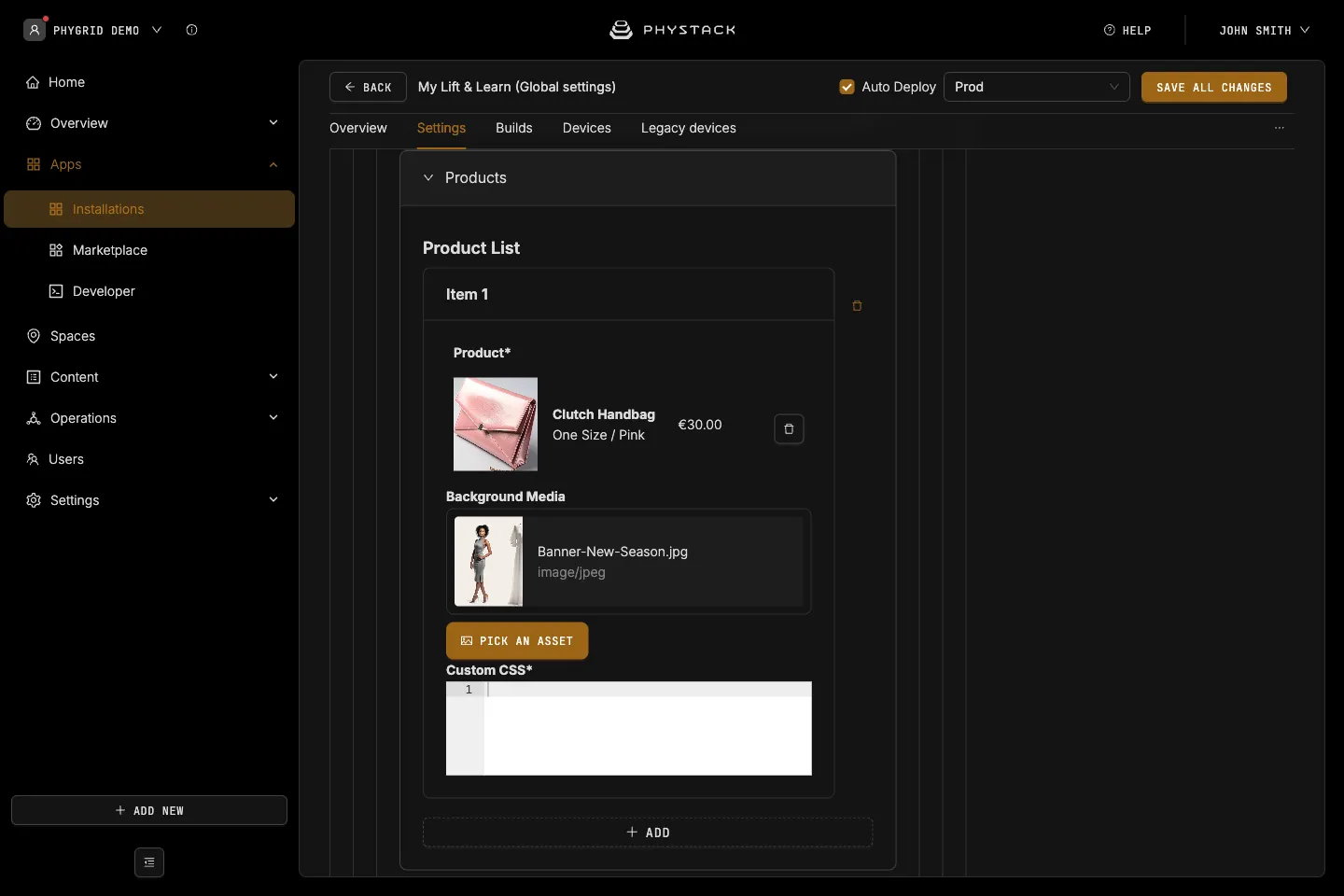
Products
- Product List → Add: Adds a product to the list
- Product: The product from your catalogue. Its
NEXMO-{number}EAN links it to the sticker on the shelf. See Integrate your product catalogue for Lift & Learn - Background Media: Image or video shown behind this product’s details (PNG, JPEG, SVG, MP4, or WebM)
- Custom CSS: CSS applied to this product’s details screen, for example to
.product-info-background
Screens
- Mode: How the screen reacts when products are lifted
- Standard (default): Shows one product at a time
- Compare: Lifting two products at the same time shows them side by side
Each mode has its own Idle Screen, Wakeup Screen, and Product Details settings. Only the settings of the selected mode are used.
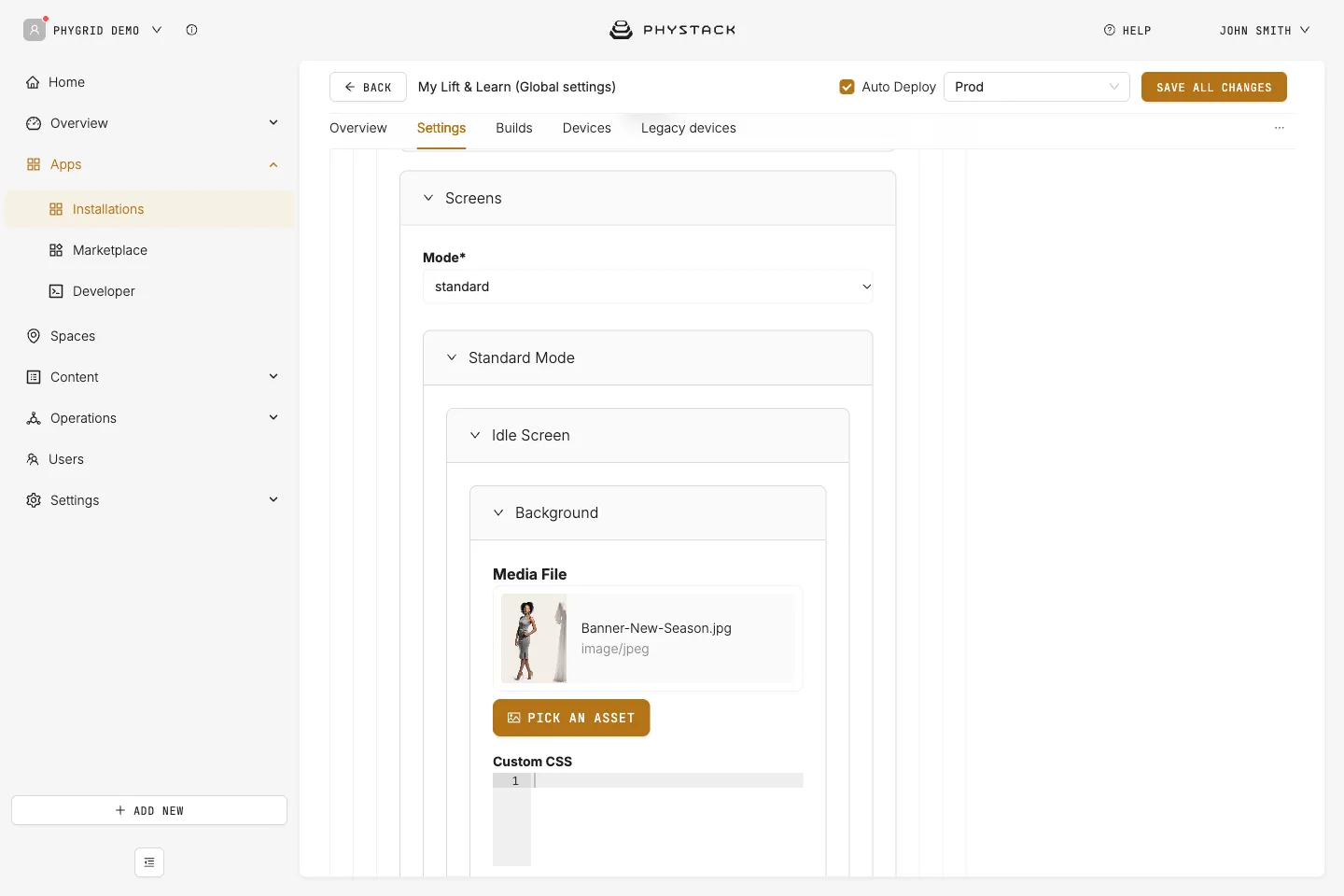
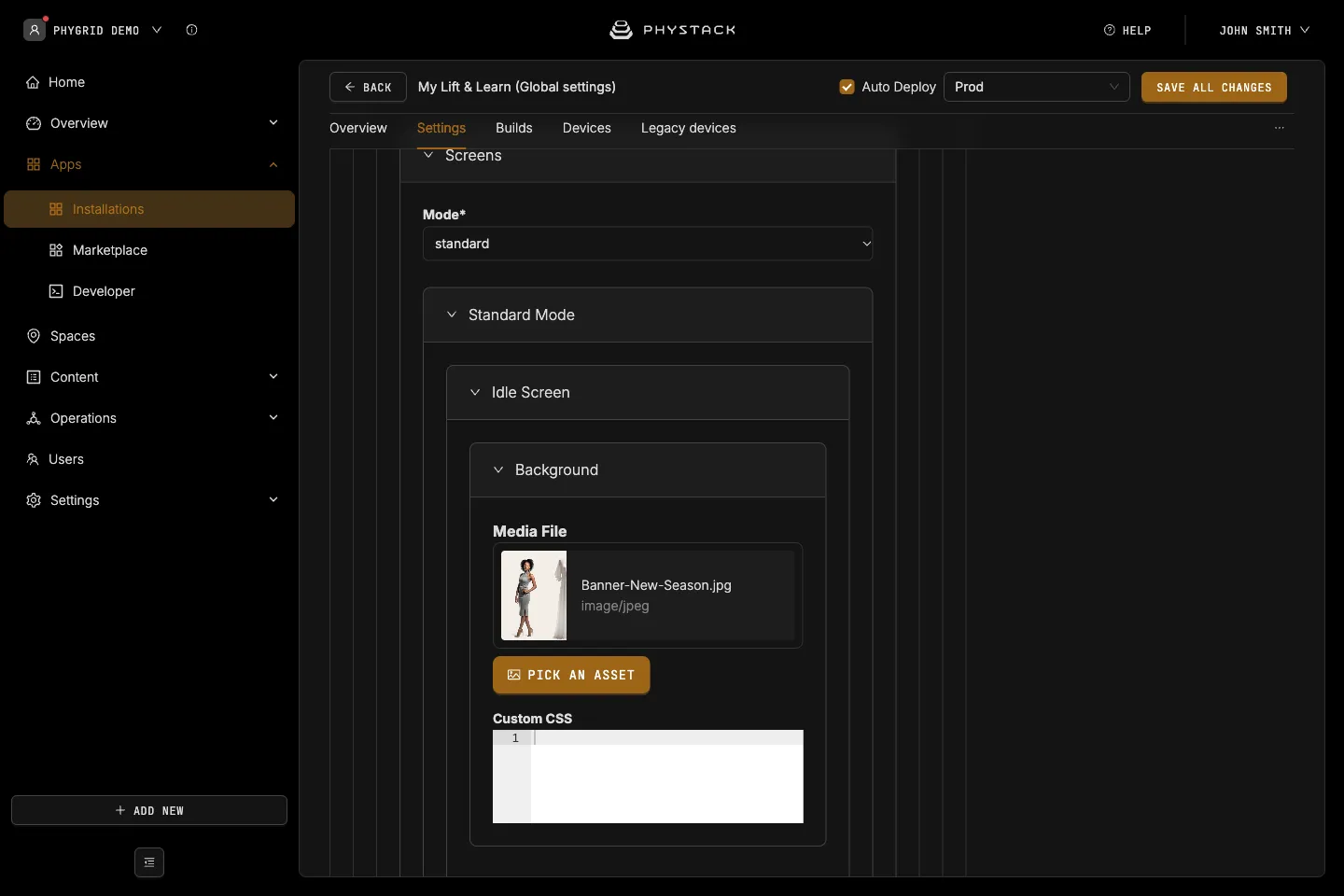
Standard mode: Idle screen
- Background → Media File: Image or video shown while no product is lifted
- Background → Custom CSS: CSS for the idle screen, for example
.idle-containerand.idle-media
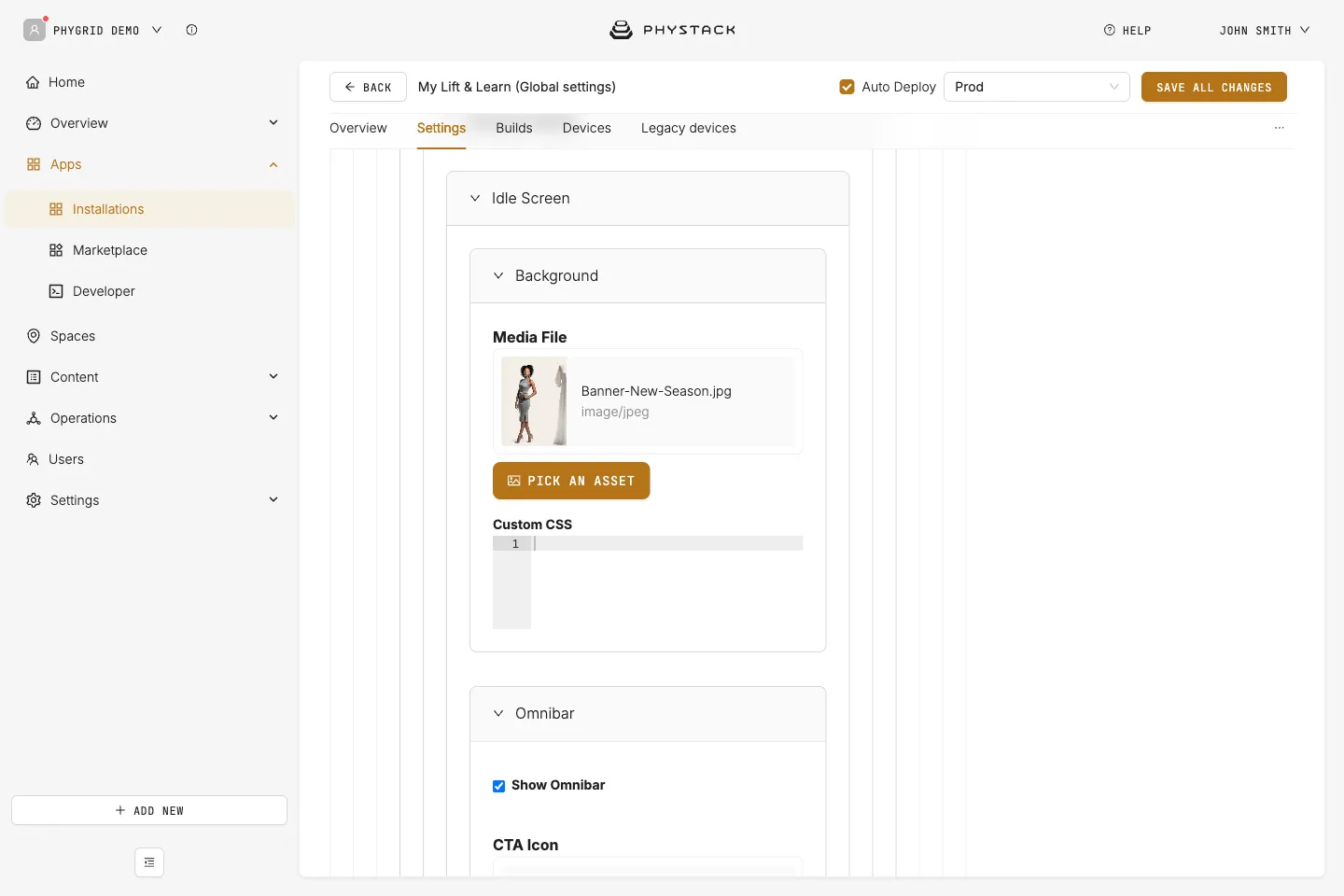
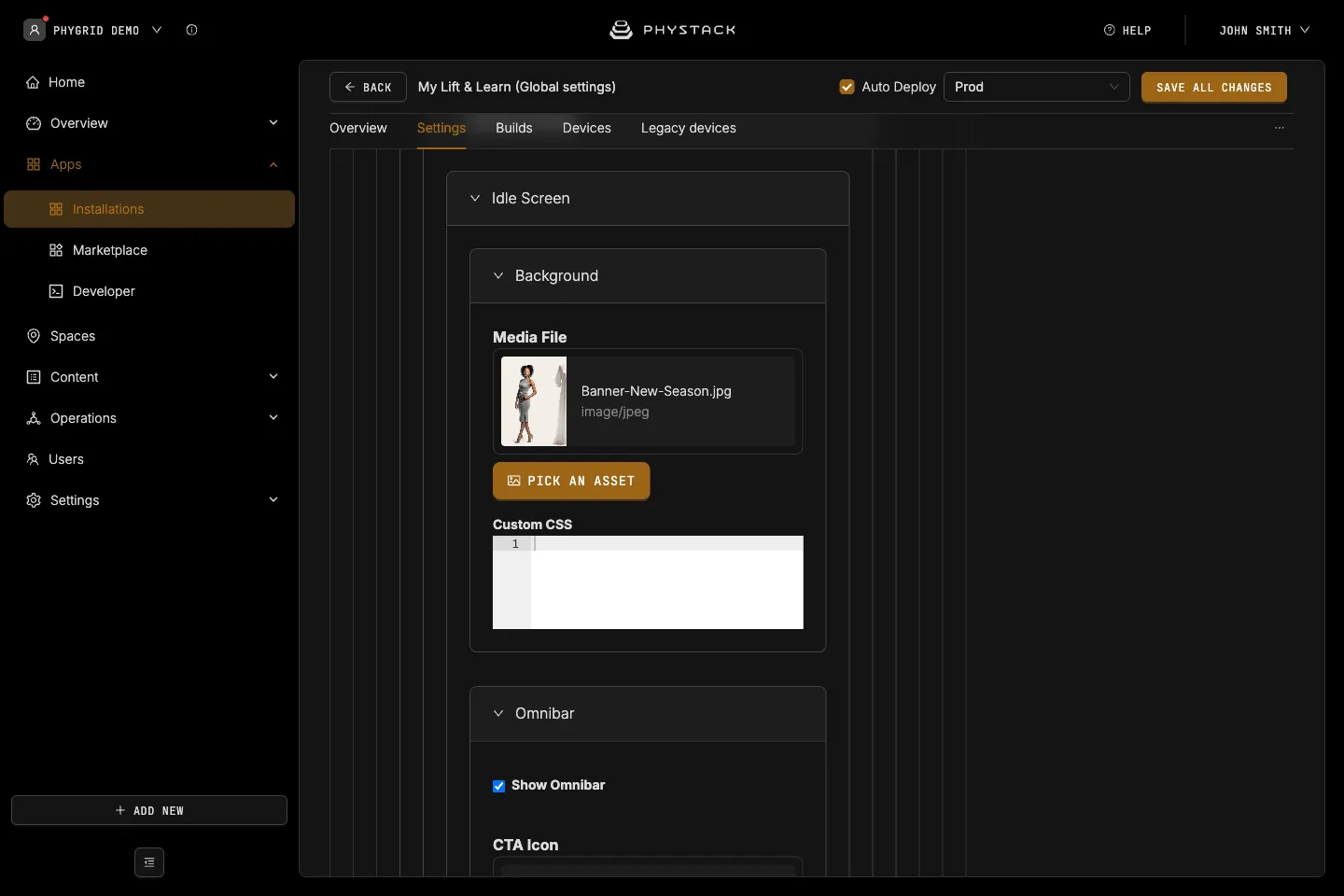
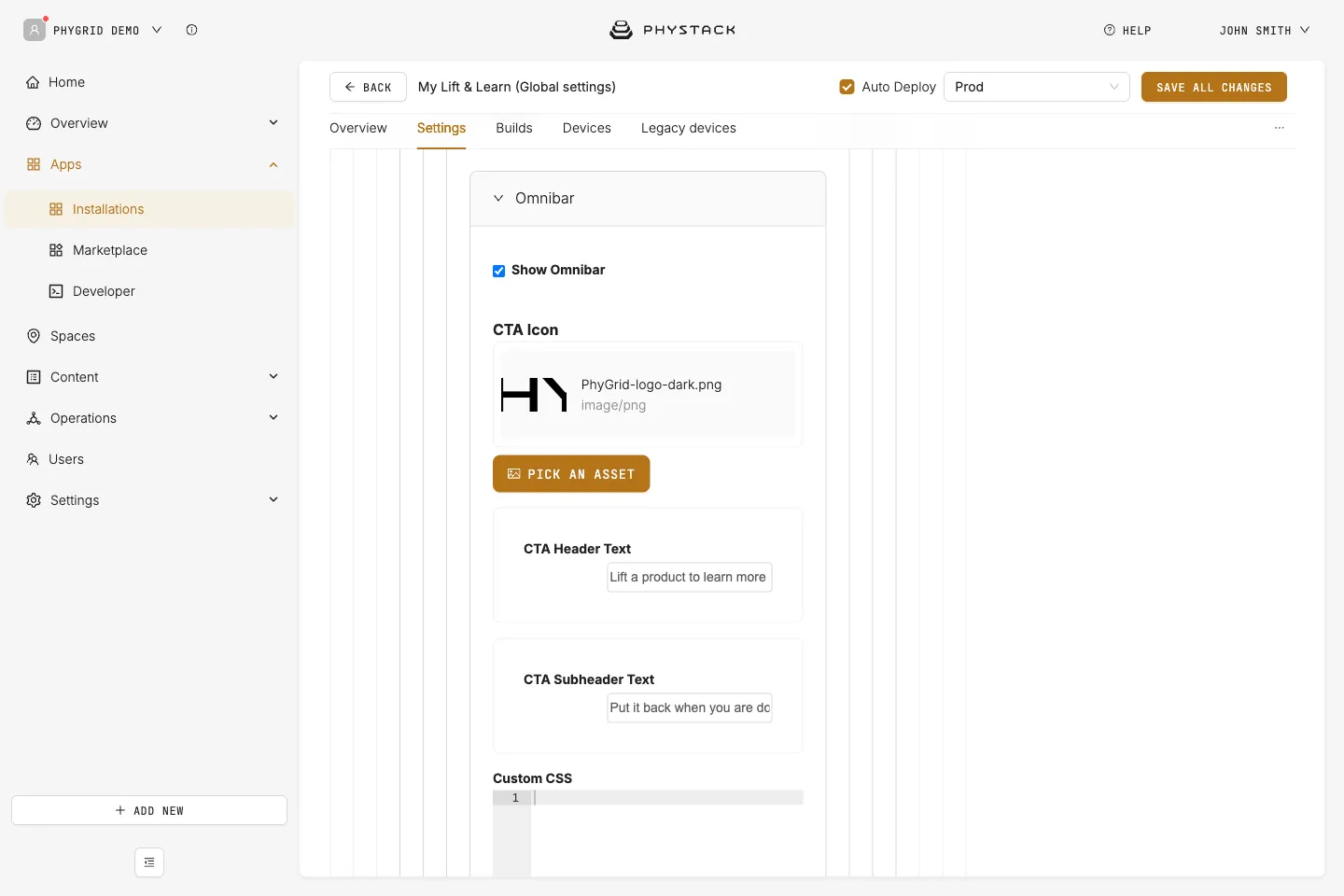
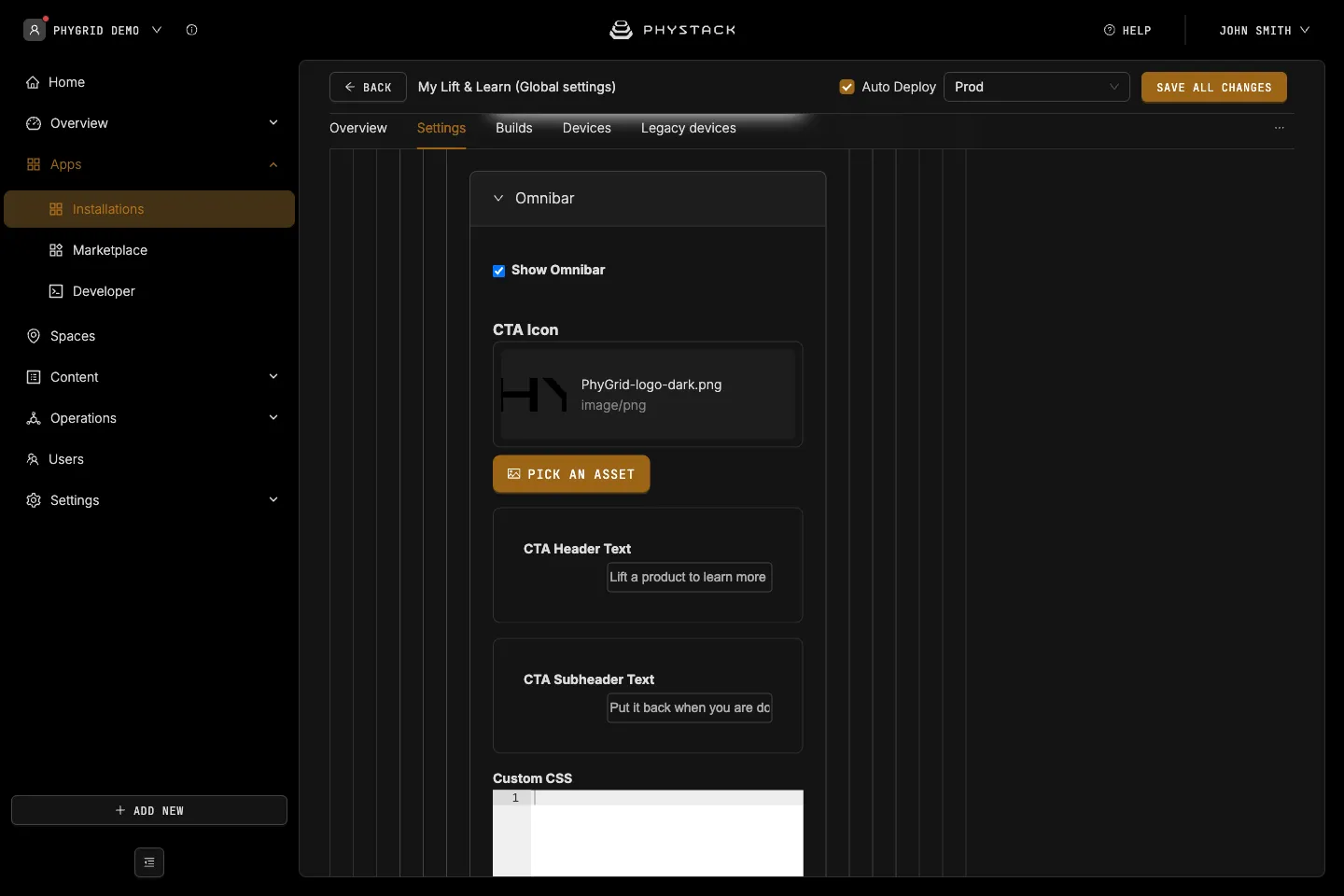
Standard mode: Idle omnibar
- Show Omnibar: Shows the call-to-action bar on the idle screen. Default: on
- CTA Icon: Icon shown in the bar. If empty, a built-in icon is used
- CTA Header Text: Headline in the bar
- CTA Subheader Text: Secondary text in the bar
- Custom CSS: CSS for the bar, for example
.omnibar-container,.cta-icon,.cta-header-text, and.cta-subheader-text
Standard mode: Wakeup screen
- Content → Active and Custom CSS: Not used by the current app version. The screen doesn’t react to motion
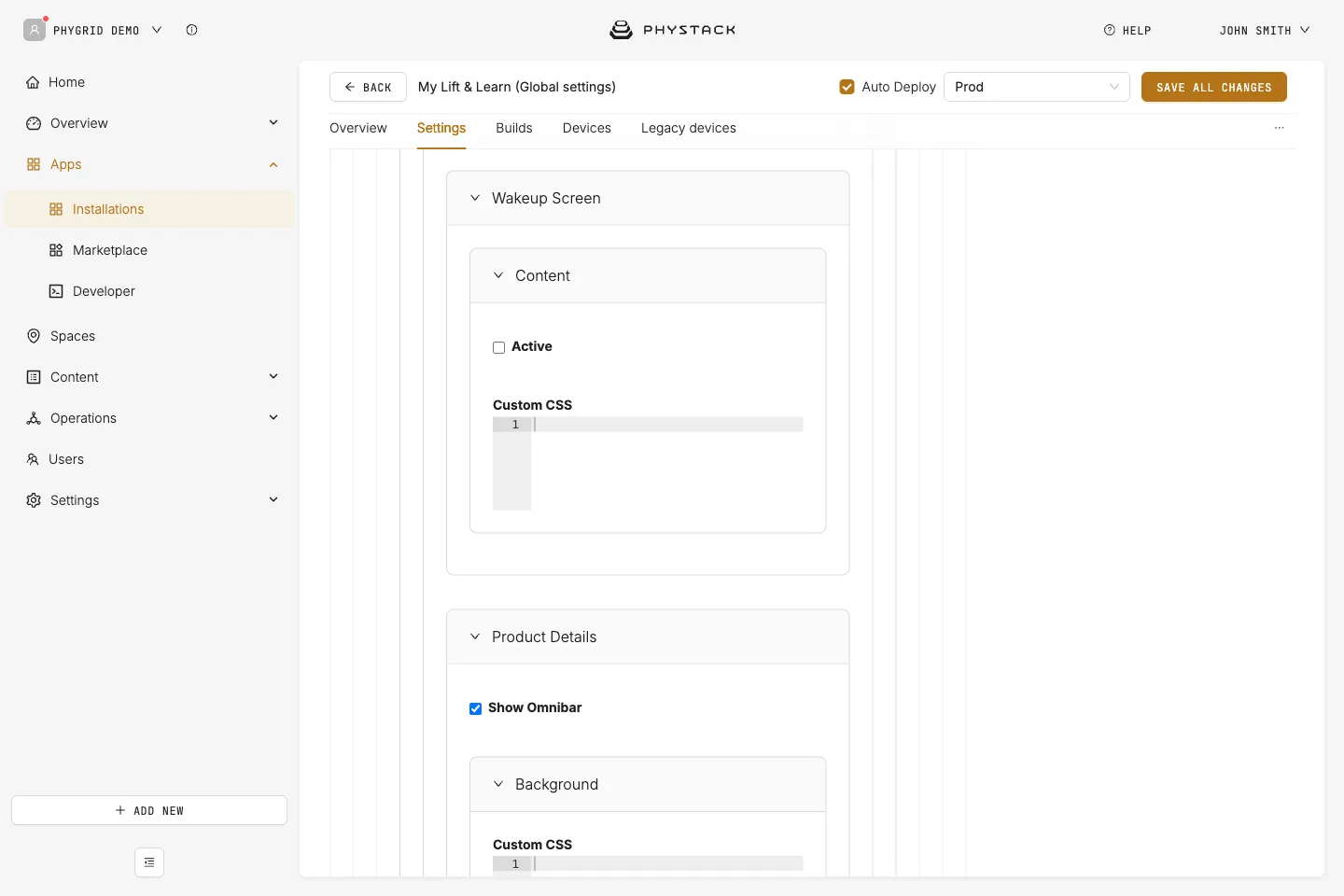
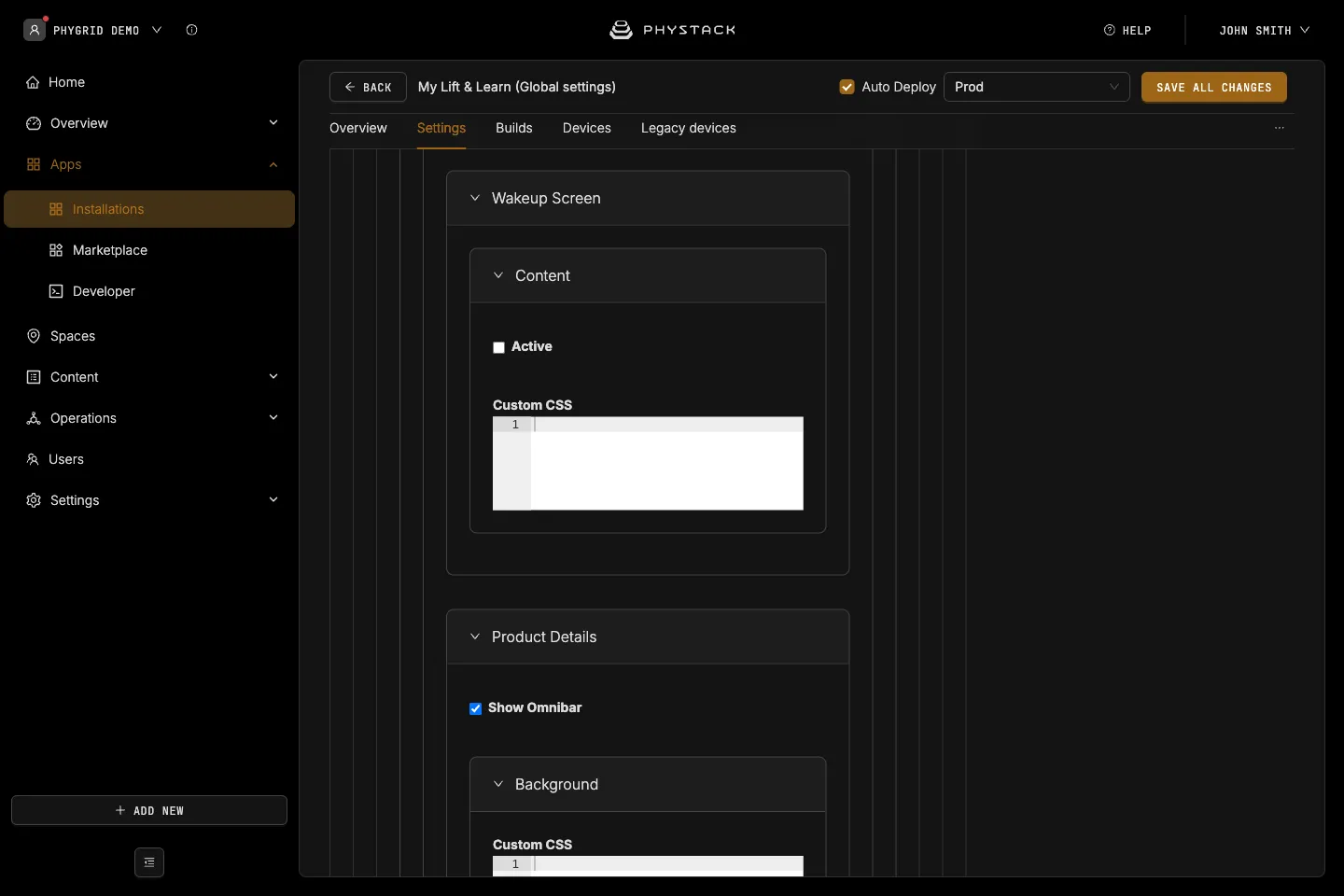
Standard mode: Product details
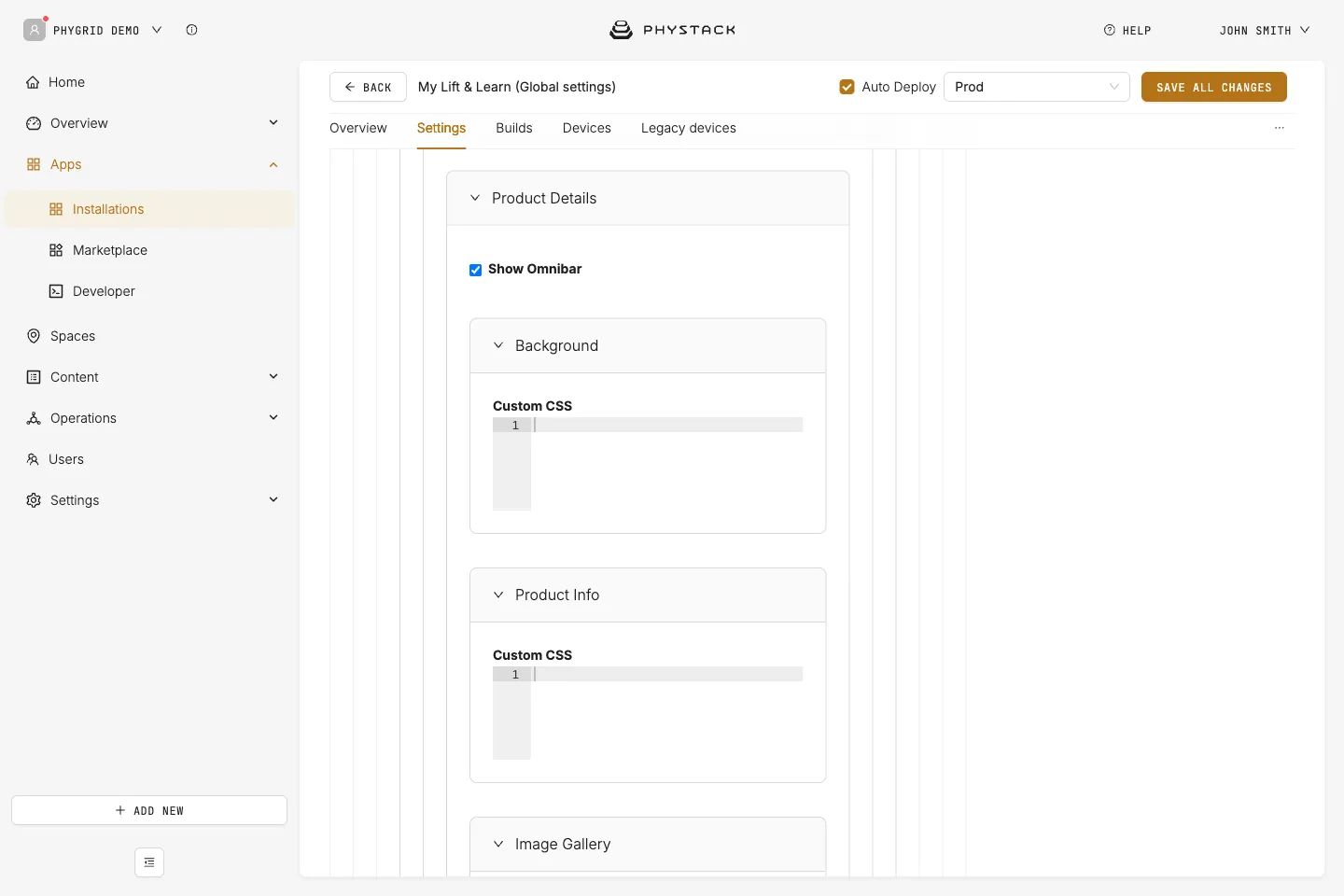
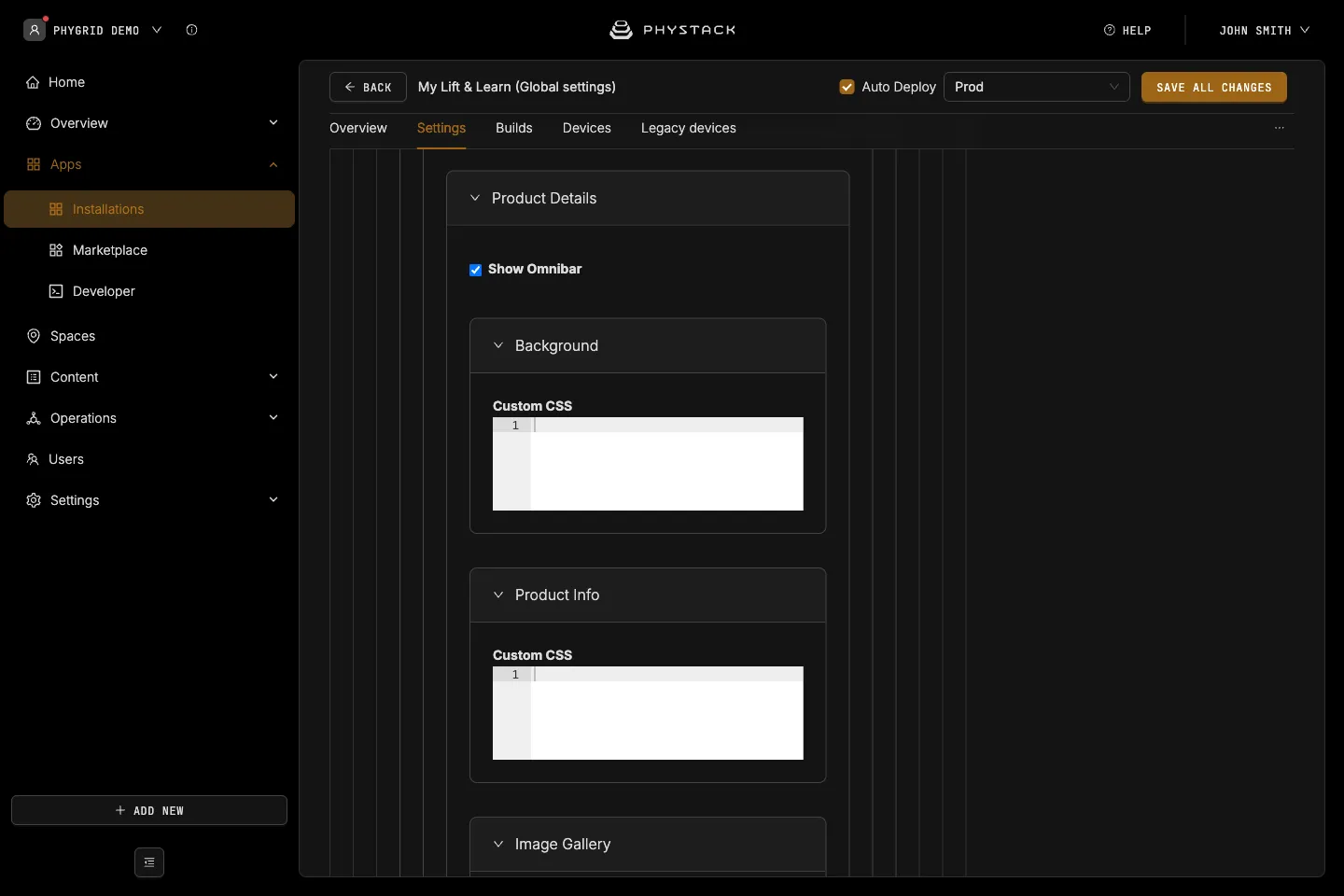
- Show Omnibar: Shows the bar on the product details screen. Default: on
- Background → Custom CSS: CSS for the product details background
- Product Info → Custom CSS: CSS for the product texts, for example
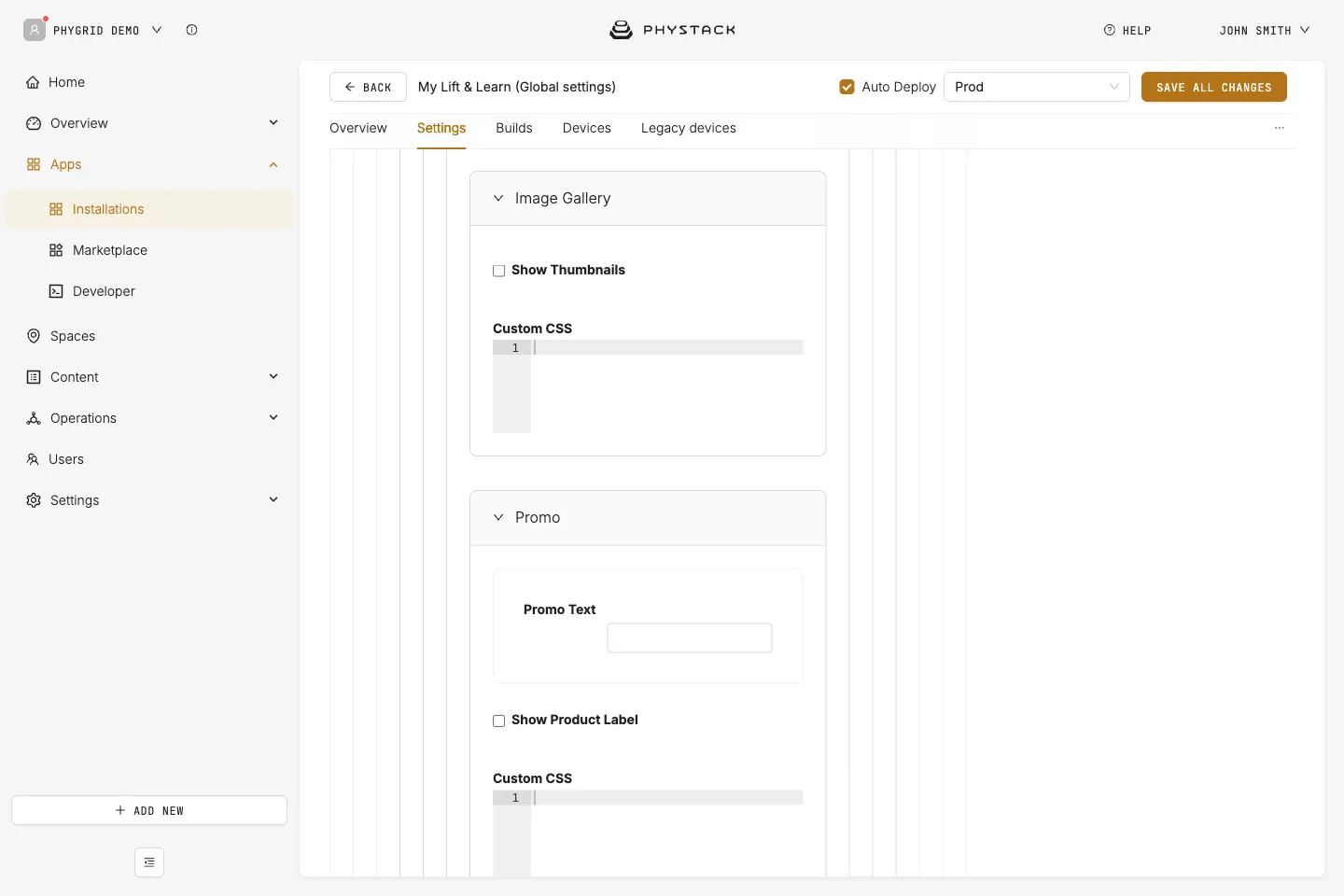
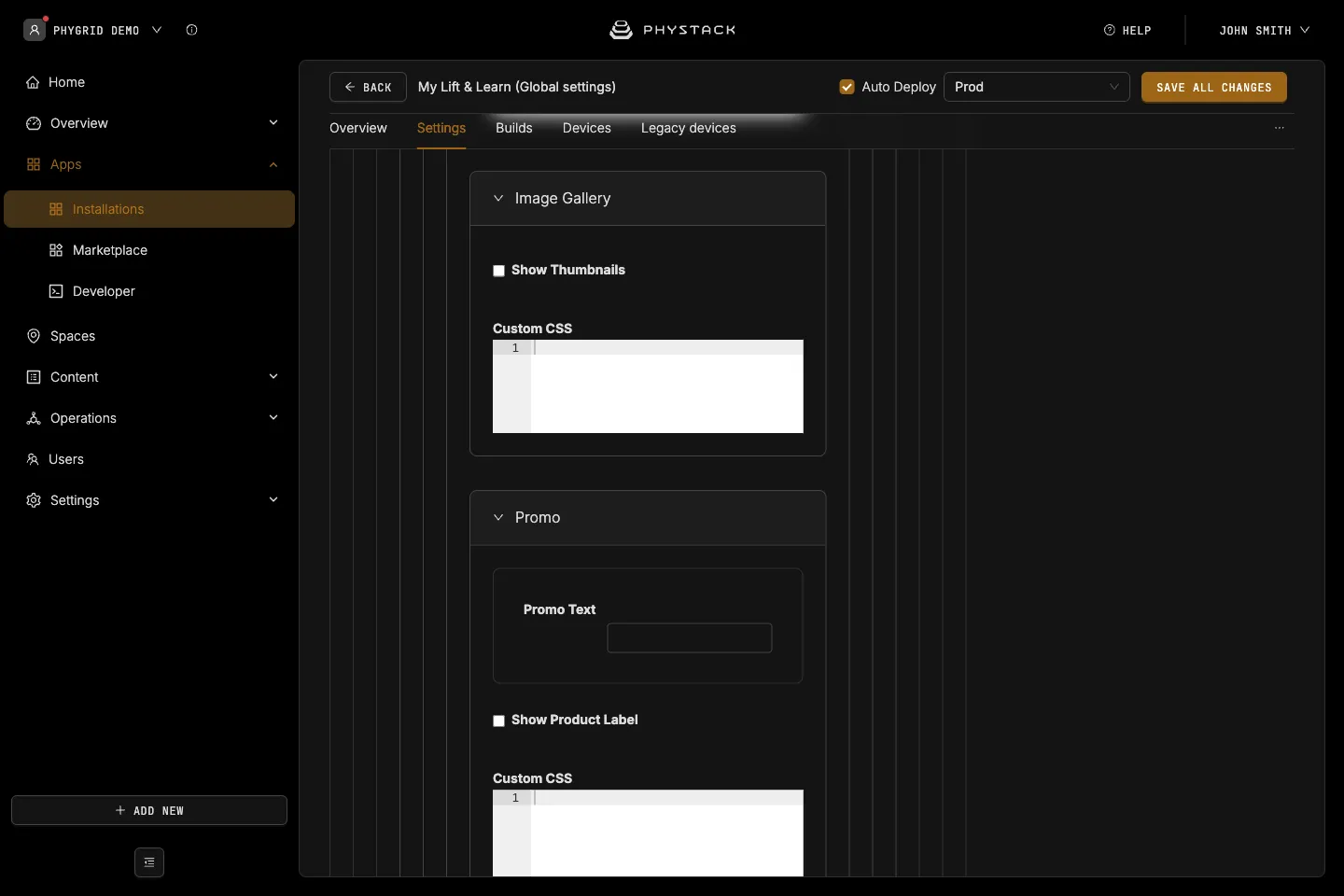
.product-brand,.product-title, and.product-description - Image Gallery → Show Thumbnails: Shows thumbnails next to the main image instead of dots. With thumbnails on, the gallery doesn’t play automatically. Default: off
- Image Gallery → Custom CSS: CSS for the gallery, for example
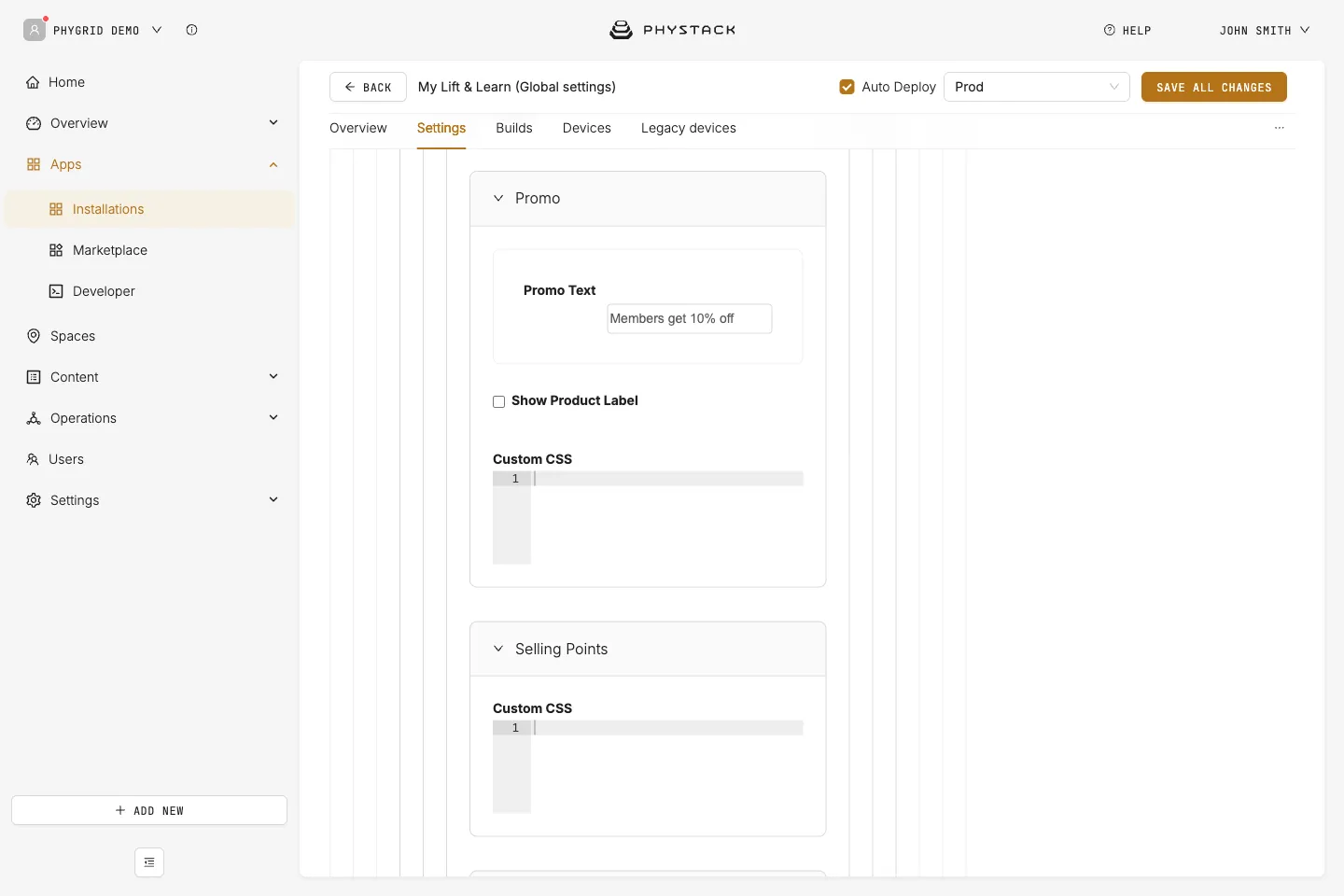
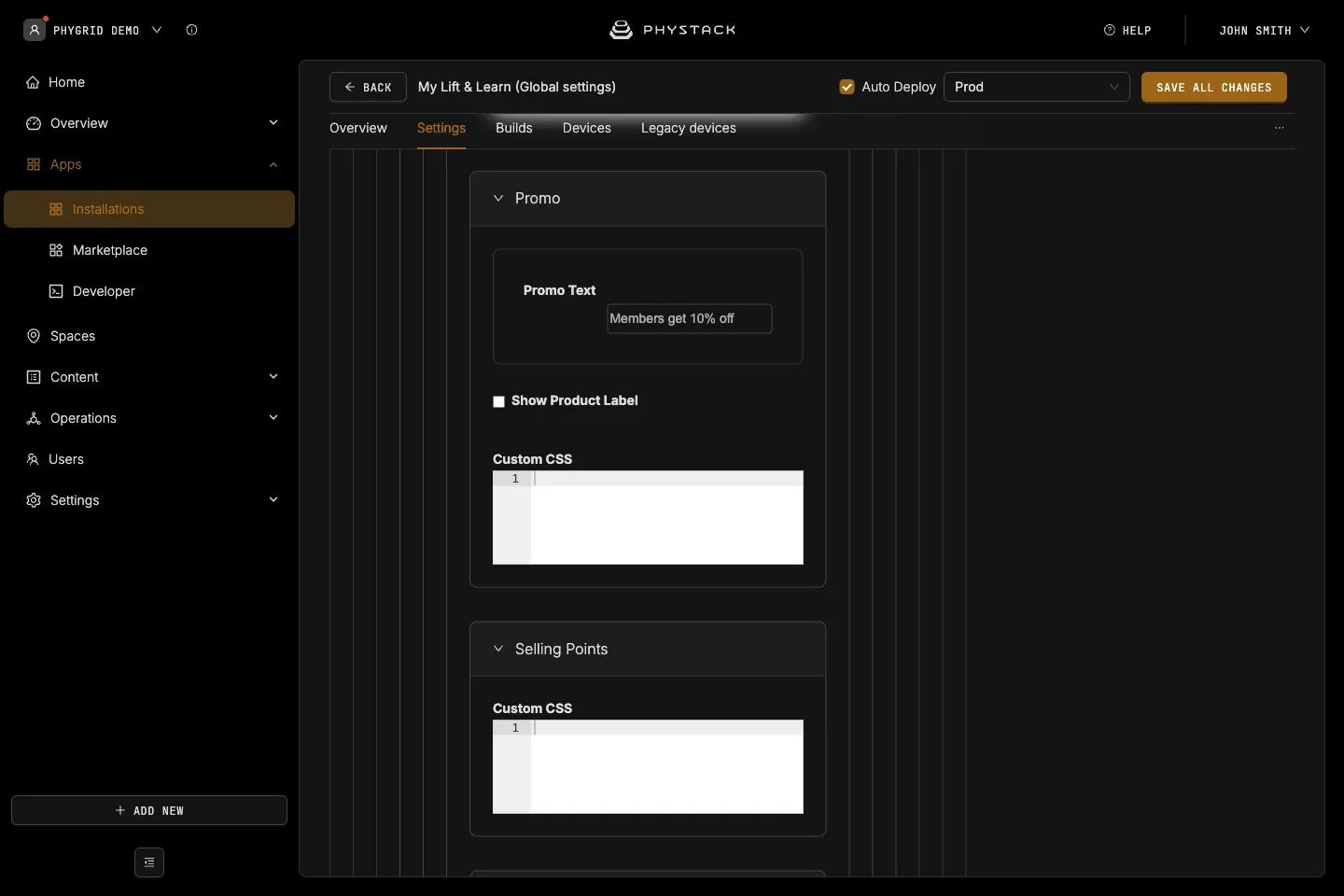
.gallery-container,.gallery-carousel,.gallery-thumbnails, and.gallery-dots - Promo → Promo Text: Promotional text shown in the price area
- Promo → Show Product Label: Shows the product label in the price area. Default: off
- Promo → Custom CSS: CSS for the price area, for example
.price-container,.retail-price,.slashed-price,.promo-custom-text, and.promo-product-label - Selling Points → Custom CSS: CSS for the key selling points, for example
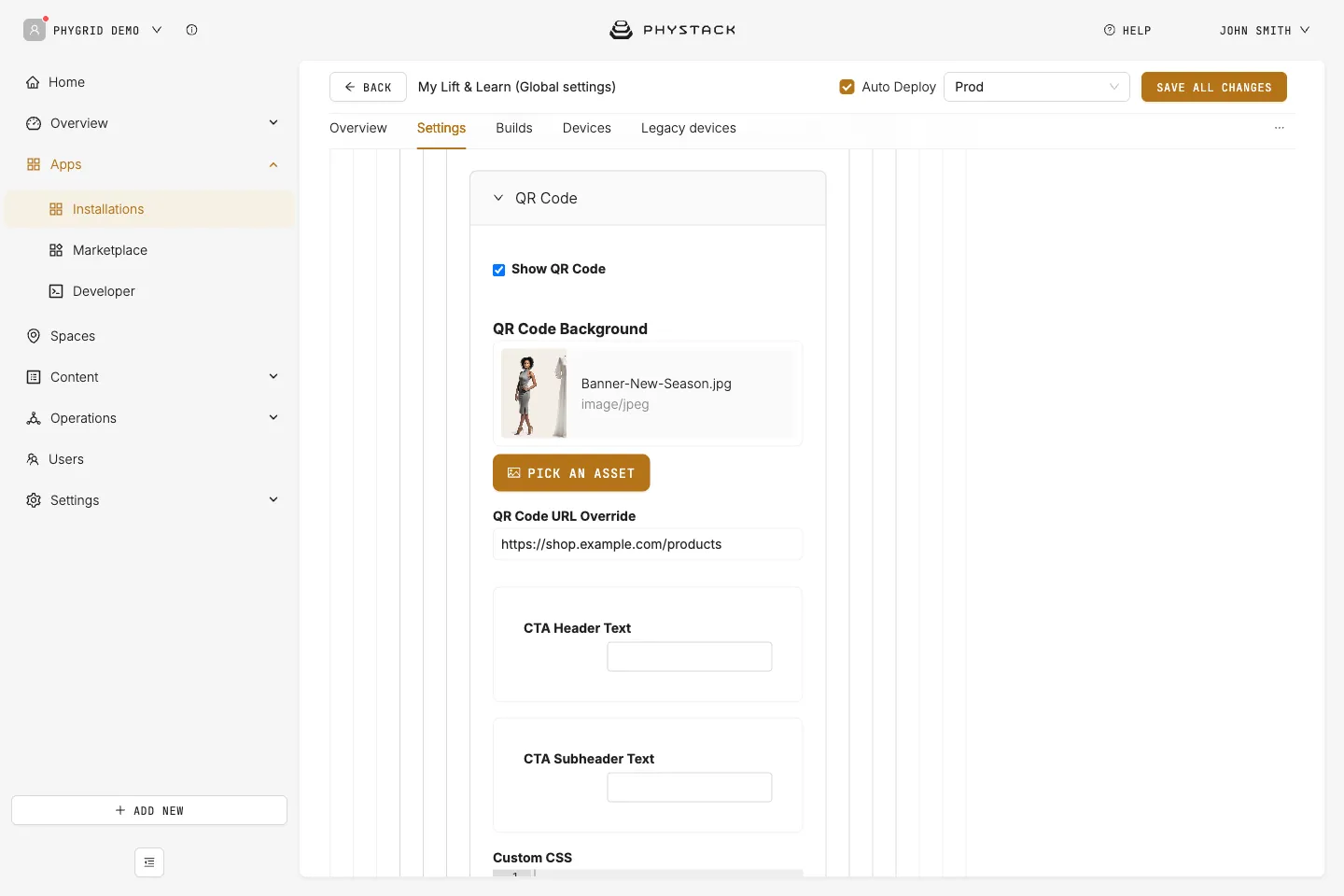
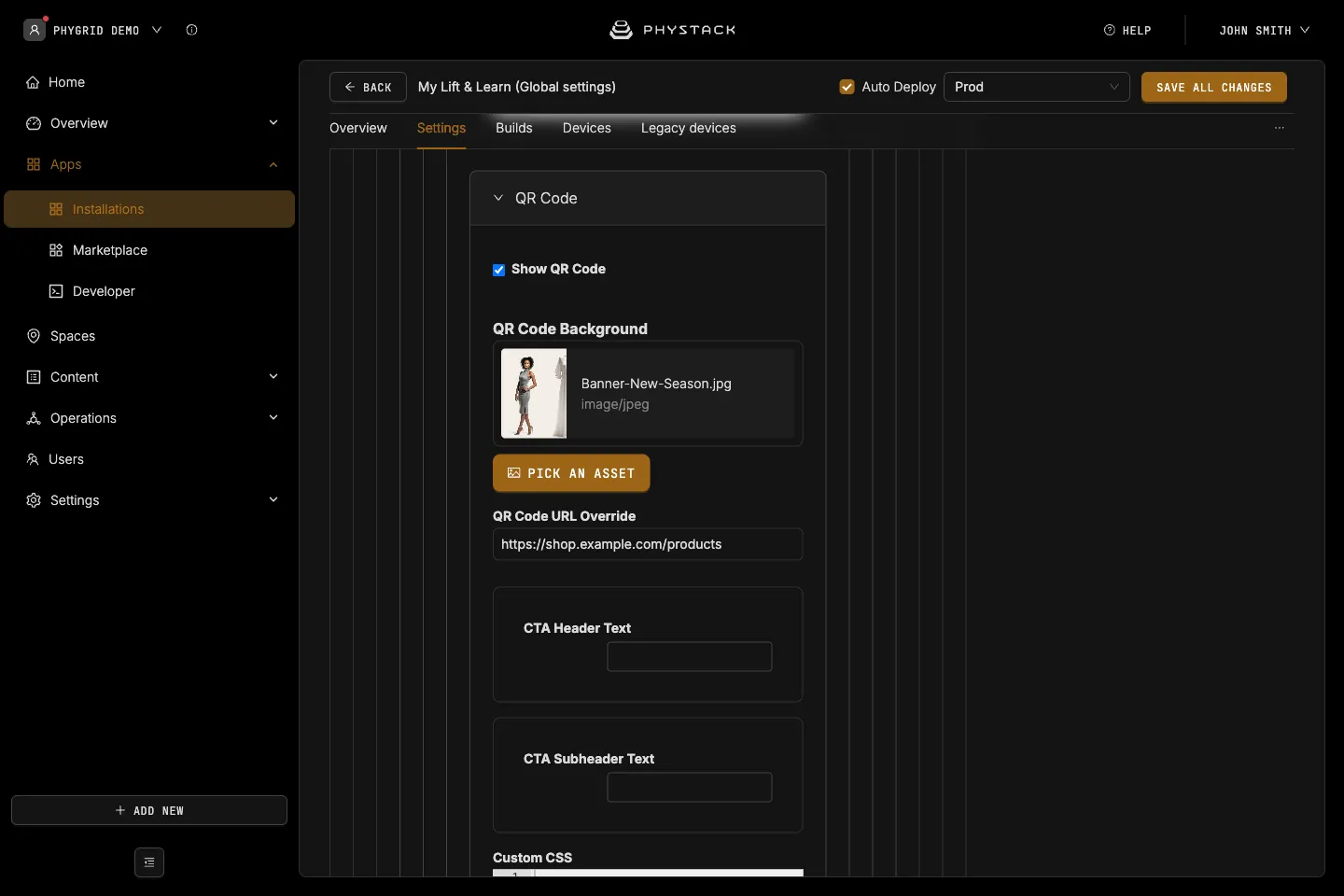
.selling-point-details - QR Code → Show QR Code: Shows a QR code on the product details screen. Default: on
- QR Code → QR Code Background: Image shown behind the QR code
- QR Code → QR Code URL Override: The address the QR code opens. If empty, the QR code opens the product’s own link
- QR Code → CTA Header Text and CTA Subheader Text: Texts shown next to the QR code
- QR Code → Custom CSS: CSS for the QR code area, for example
.qr-media-background,.qr-code,.qr-cta-header-text, and.qr-cta-subheader-text
Compare mode: Idle screen
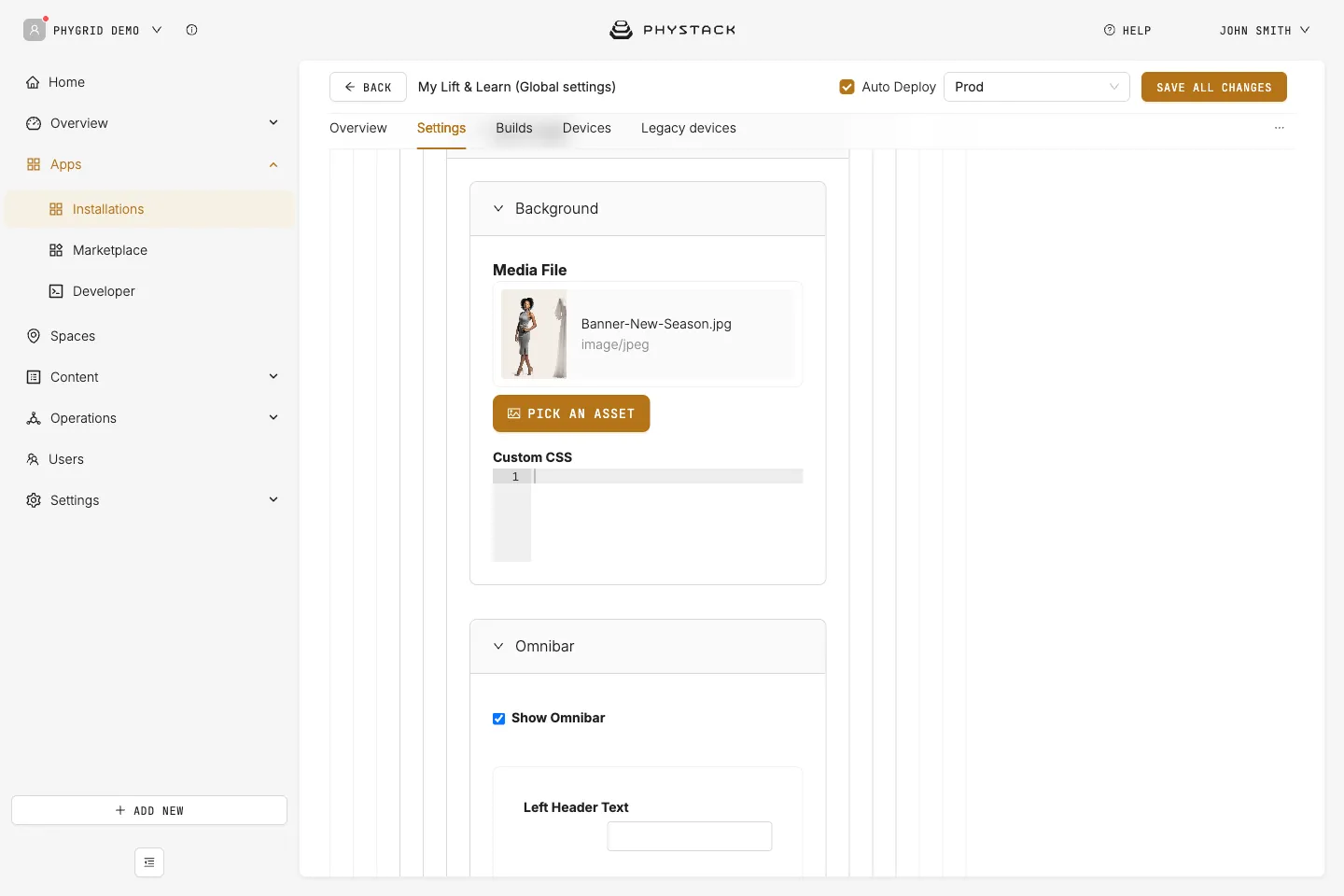
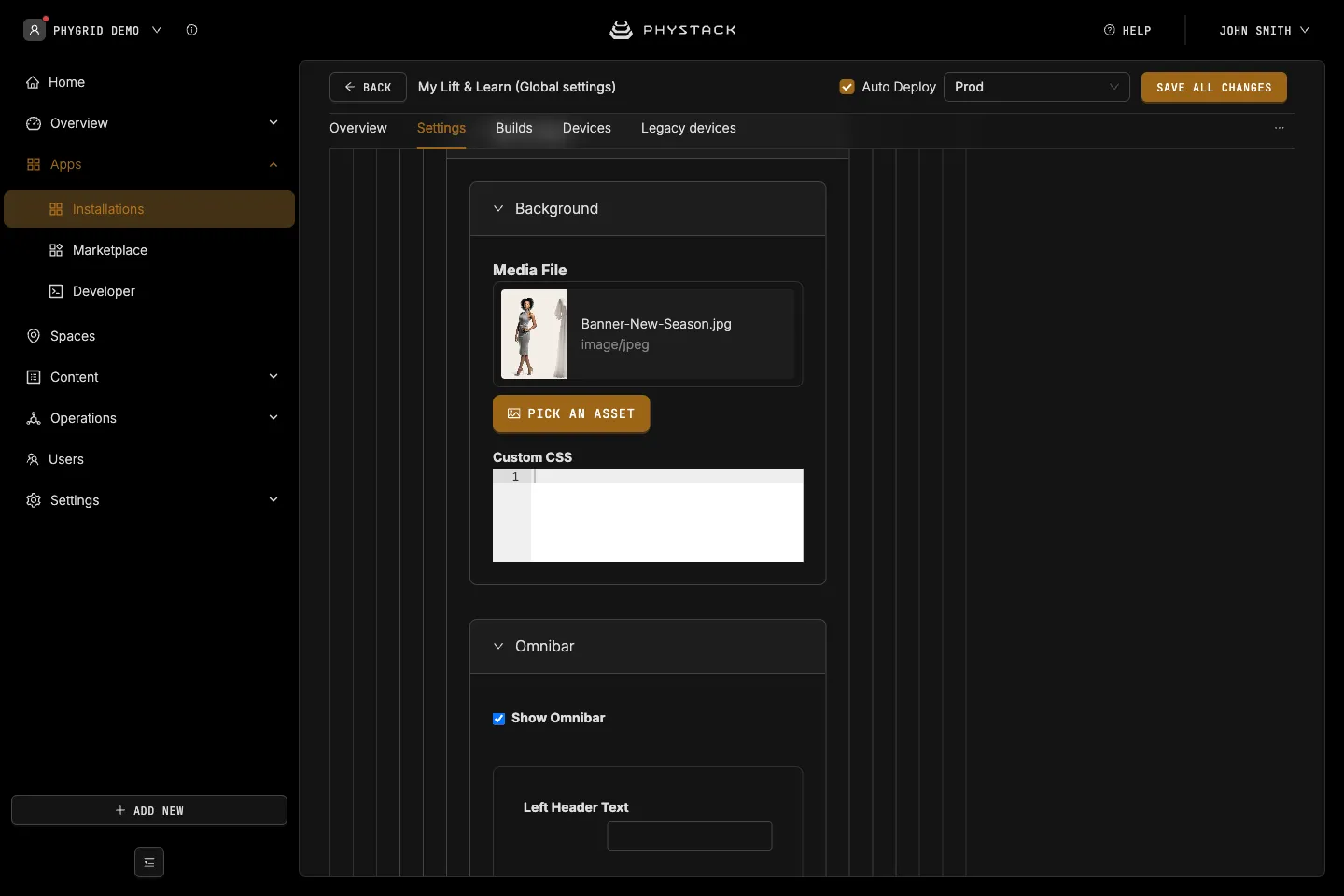
- Background → Media File: Image or video shown while no product is lifted
- Background → Custom CSS: CSS for the idle screen, for example
.idle-containerand.idle-media
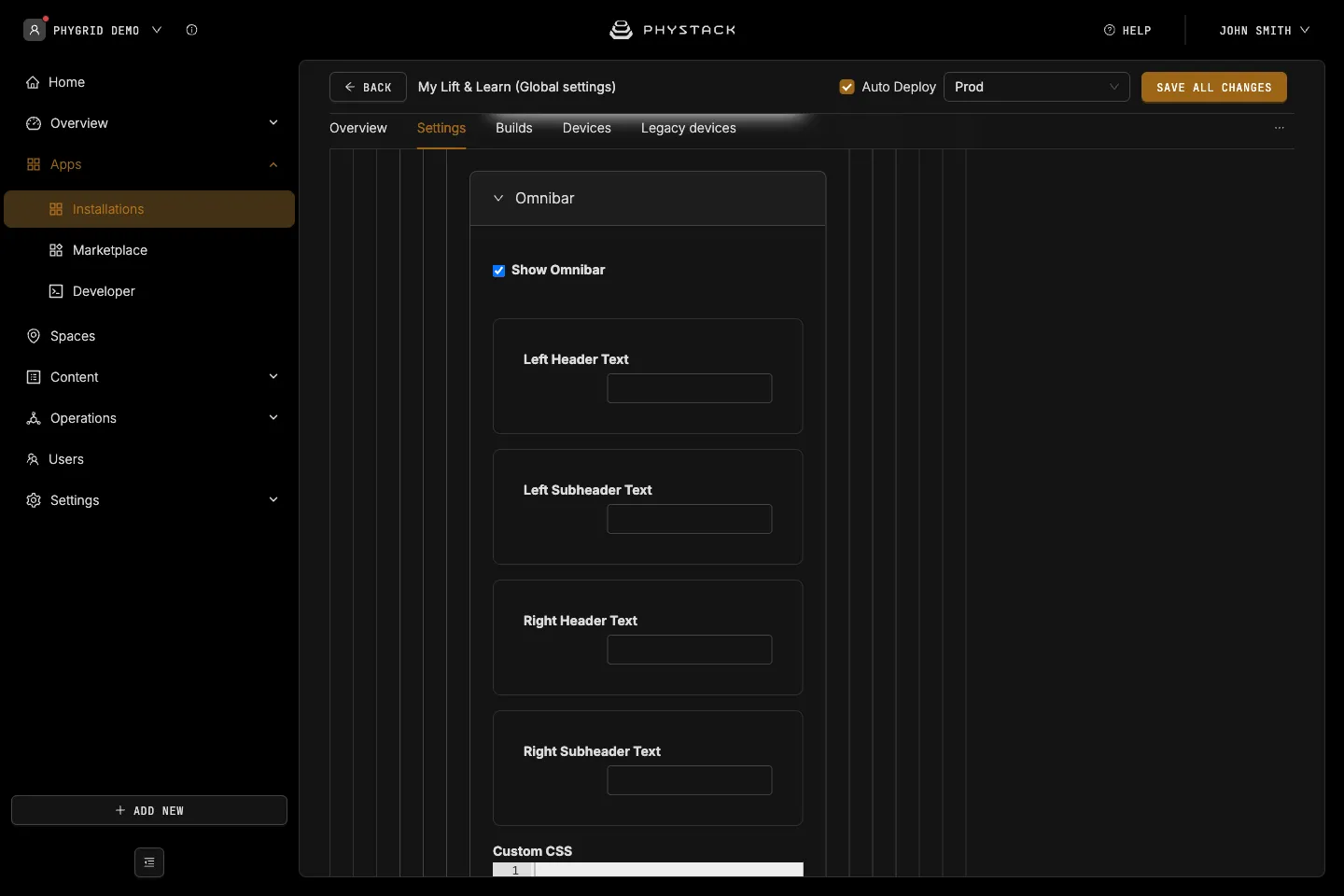
Compare mode: Idle omnibar
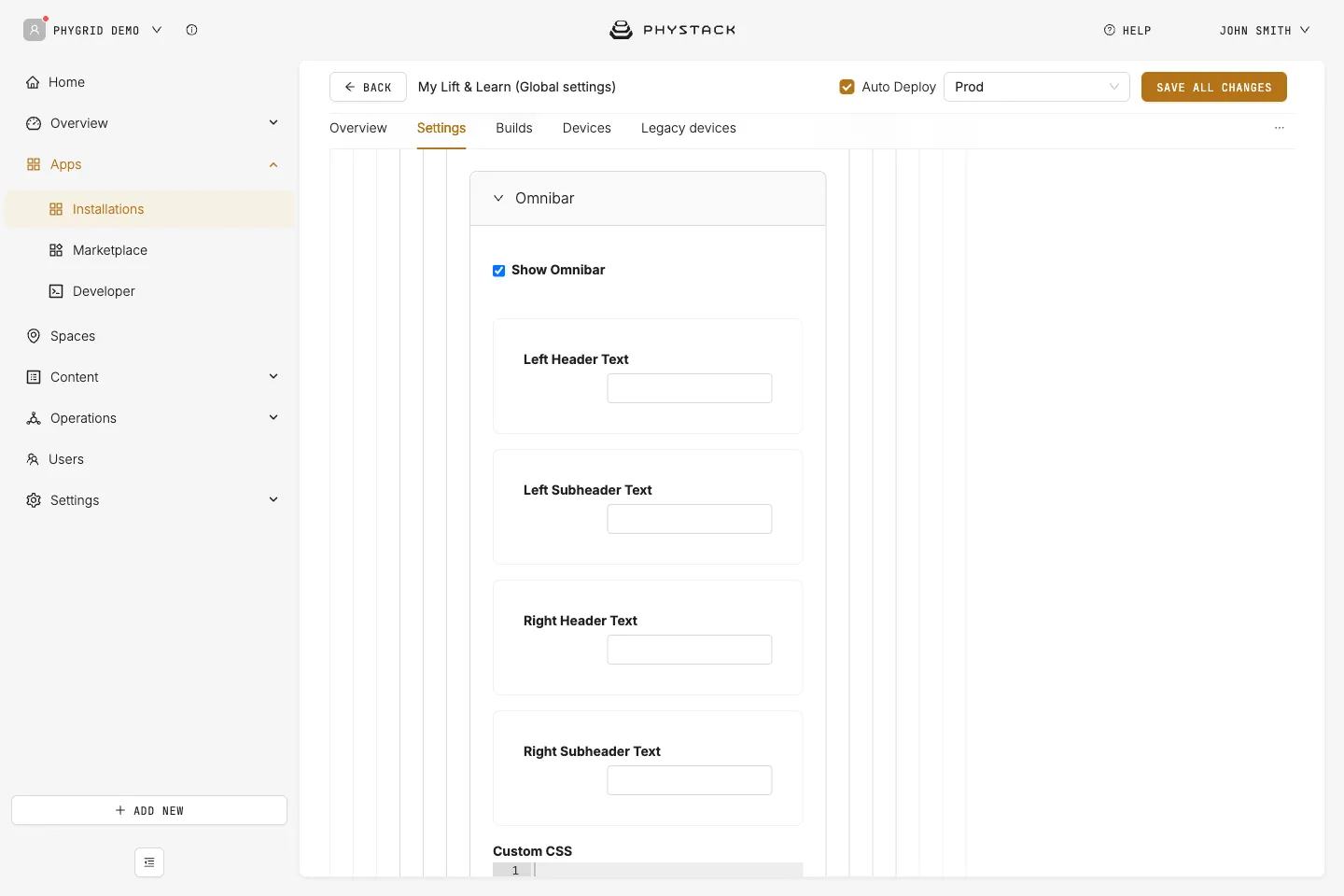
- Show Omnibar: Shows the call-to-action bar on the idle screen. Default: on
- Left Header Text and Left Subheader Text: Texts for the left side of the bar
- Right Header Text and Right Subheader Text: Texts for the right side of the bar
- Custom CSS: CSS for the bar, for example
.omnibar-container,.cta-left-header-text,.cta-left-subheader-text,.cta-right-header-text, and.cta-right-subheader-text
Compare mode: Wakeup screen and product details
Compare mode has its own Wakeup Screen and Product Details settings, with the same fields as in standard mode. Set them under Compare Mode: the standard mode settings don’t apply when Mode is Compare.
Theme
Colours
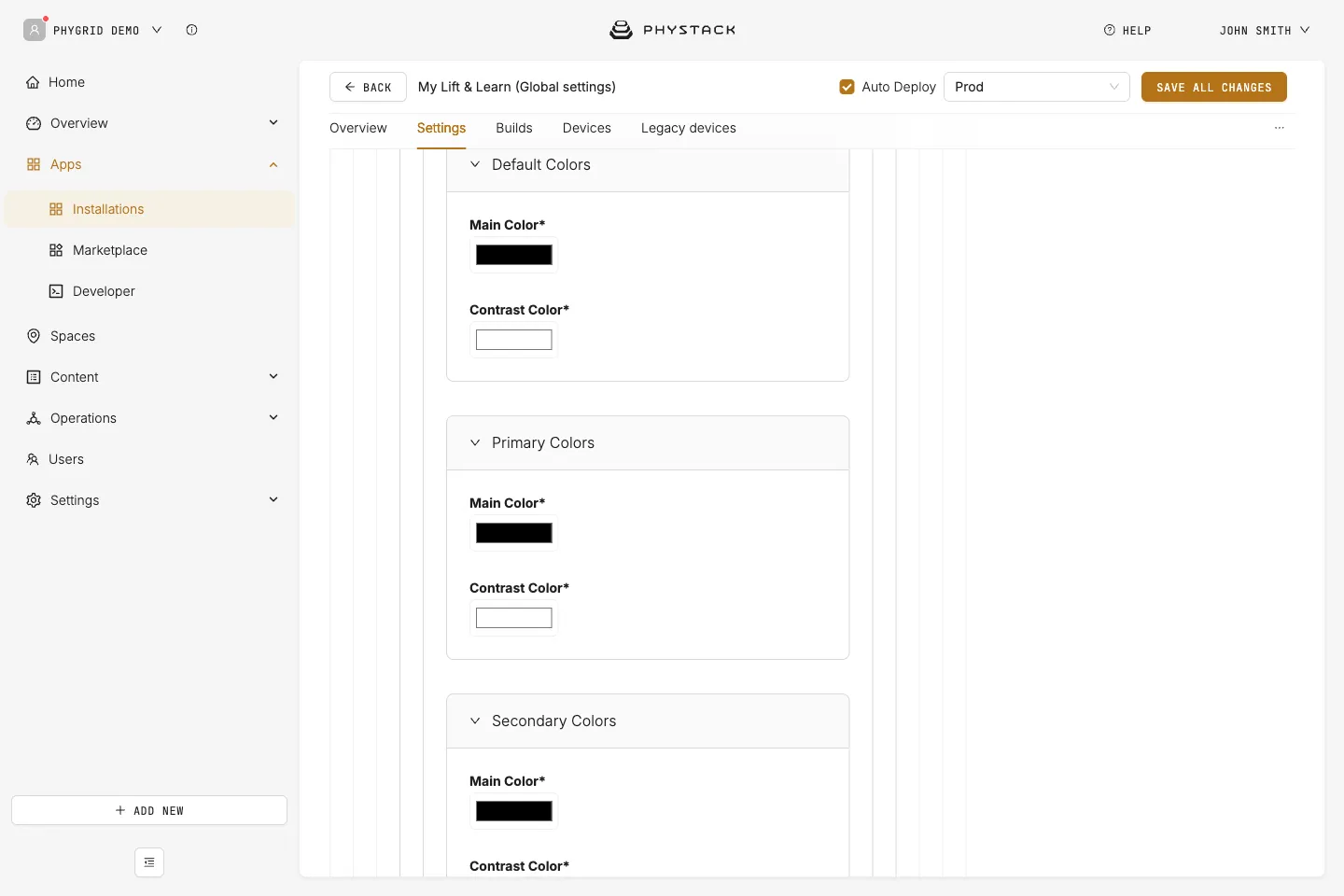
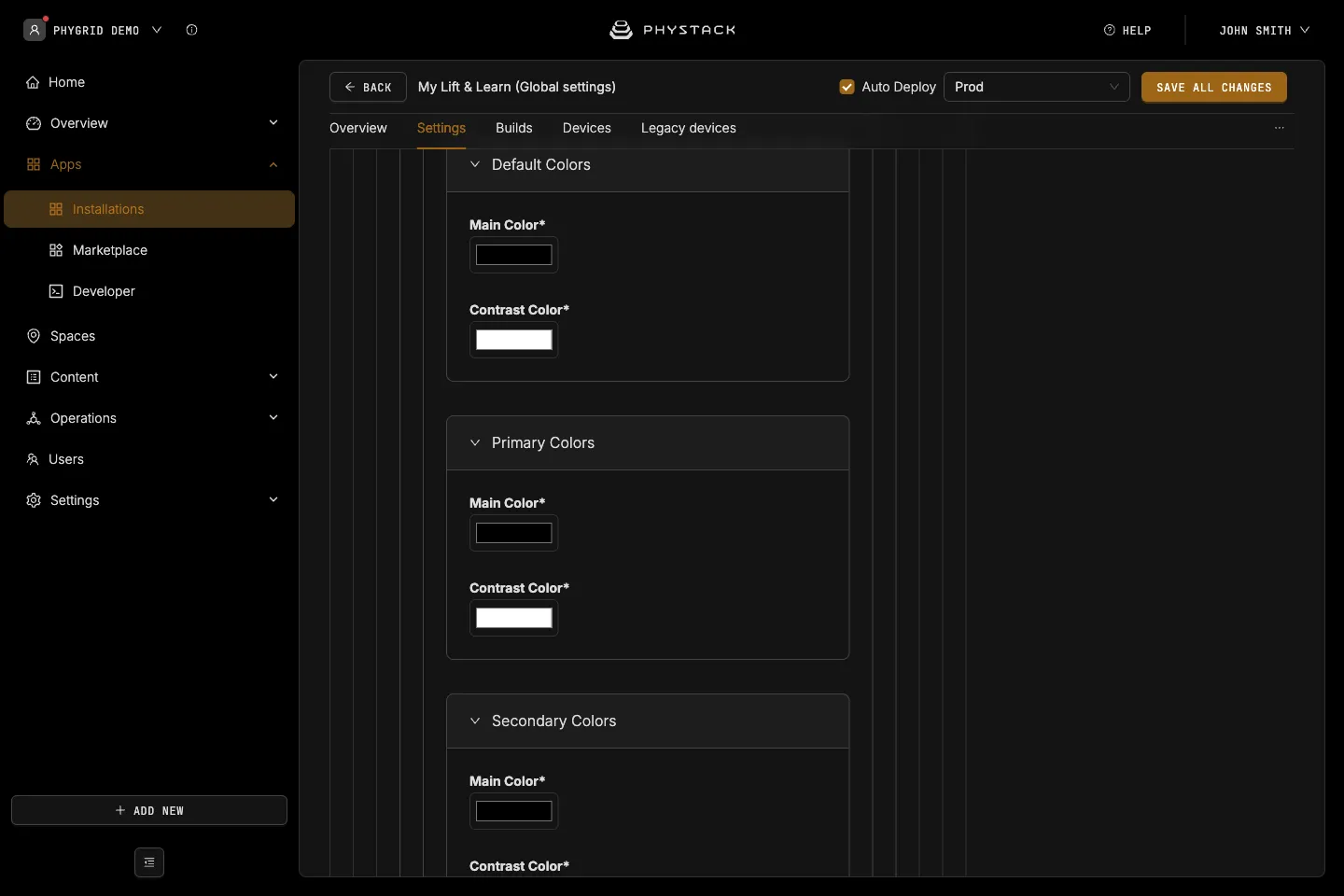
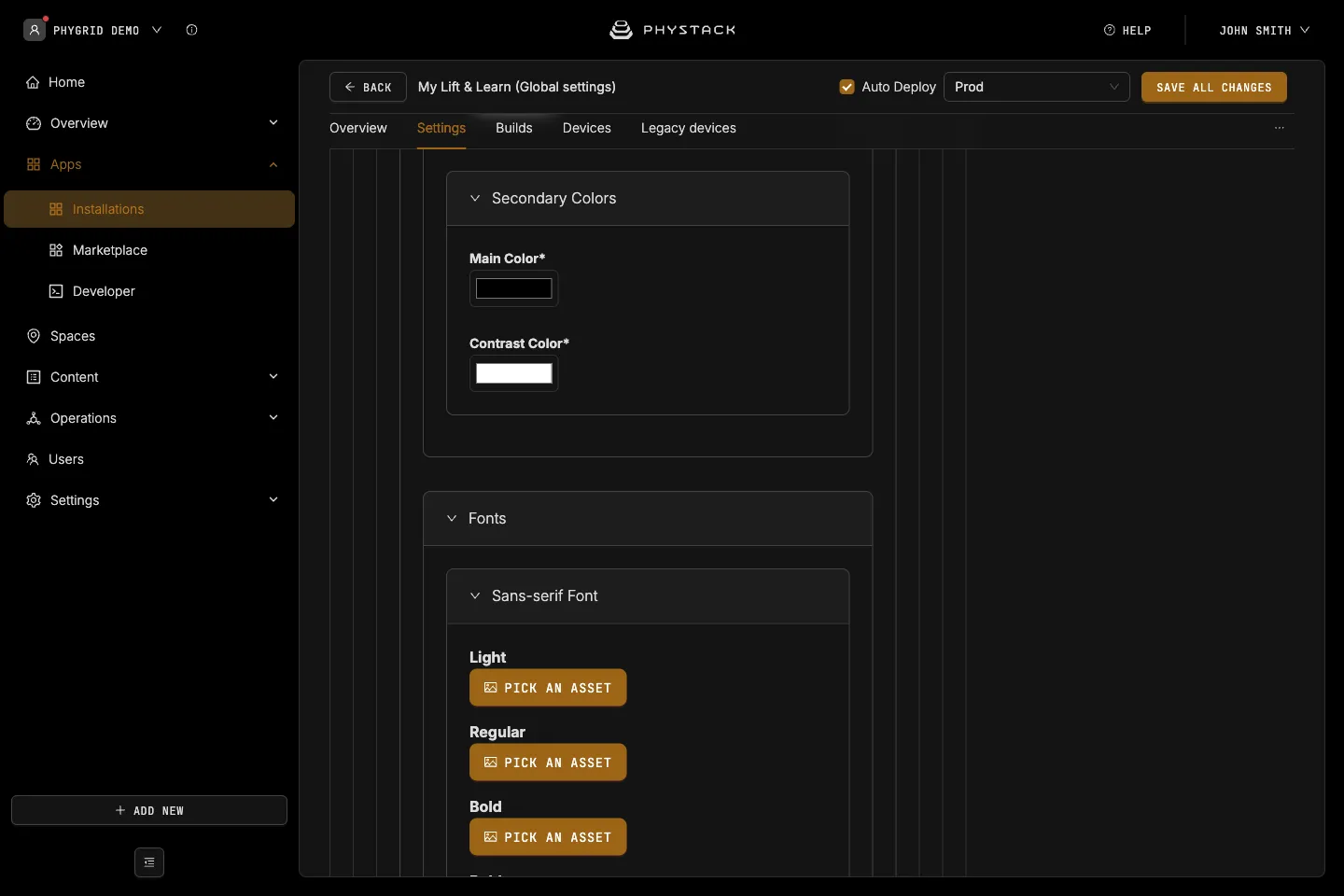
Each colour pair has a Main Color (default #000000) and a Contrast Color (default #ffffff) for text and icons shown on top of the main colour.
- Default Colors: The base pair used across the app
- Primary Colors: The accent pair
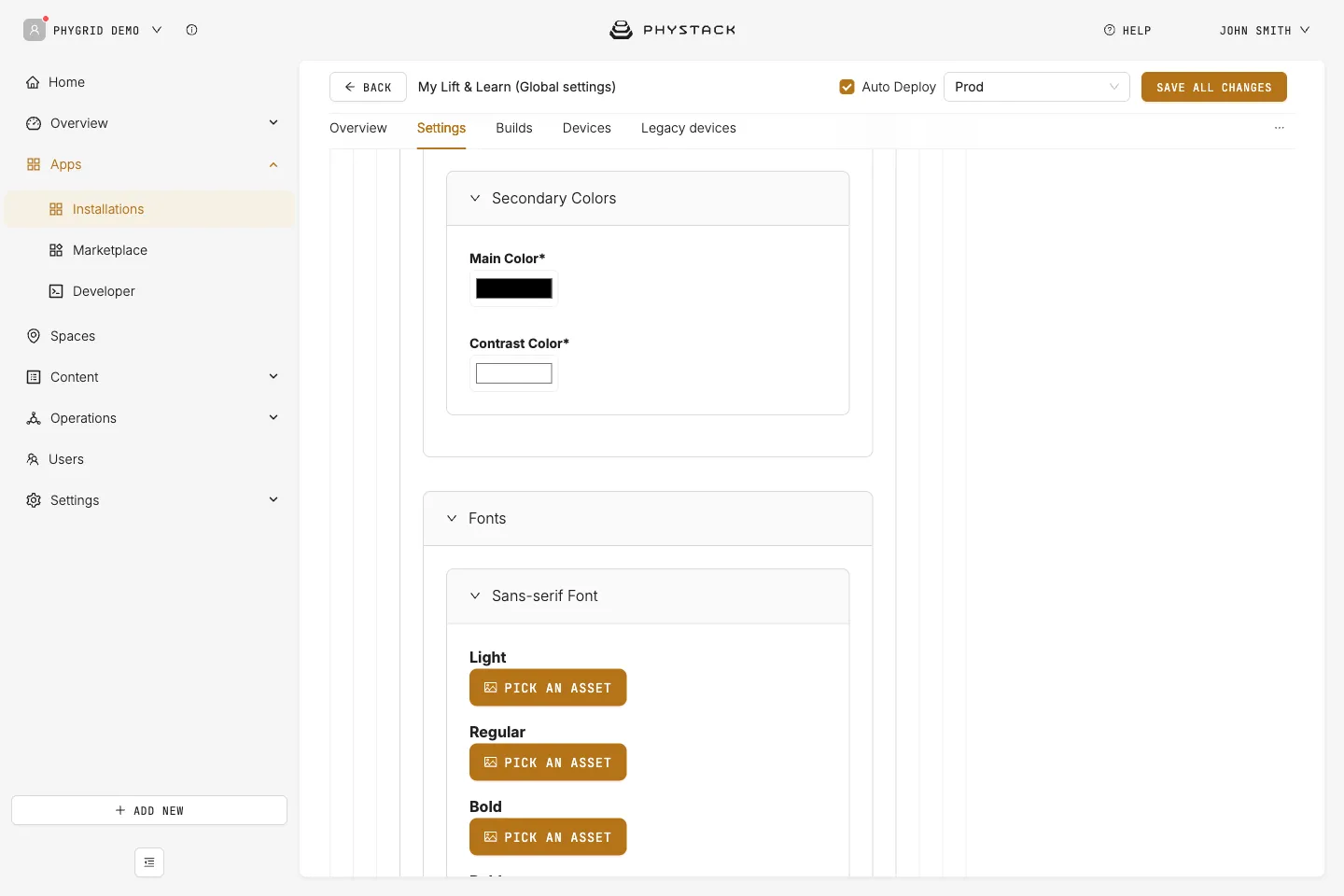
- Secondary Colors: The secondary accent pair
Fonts
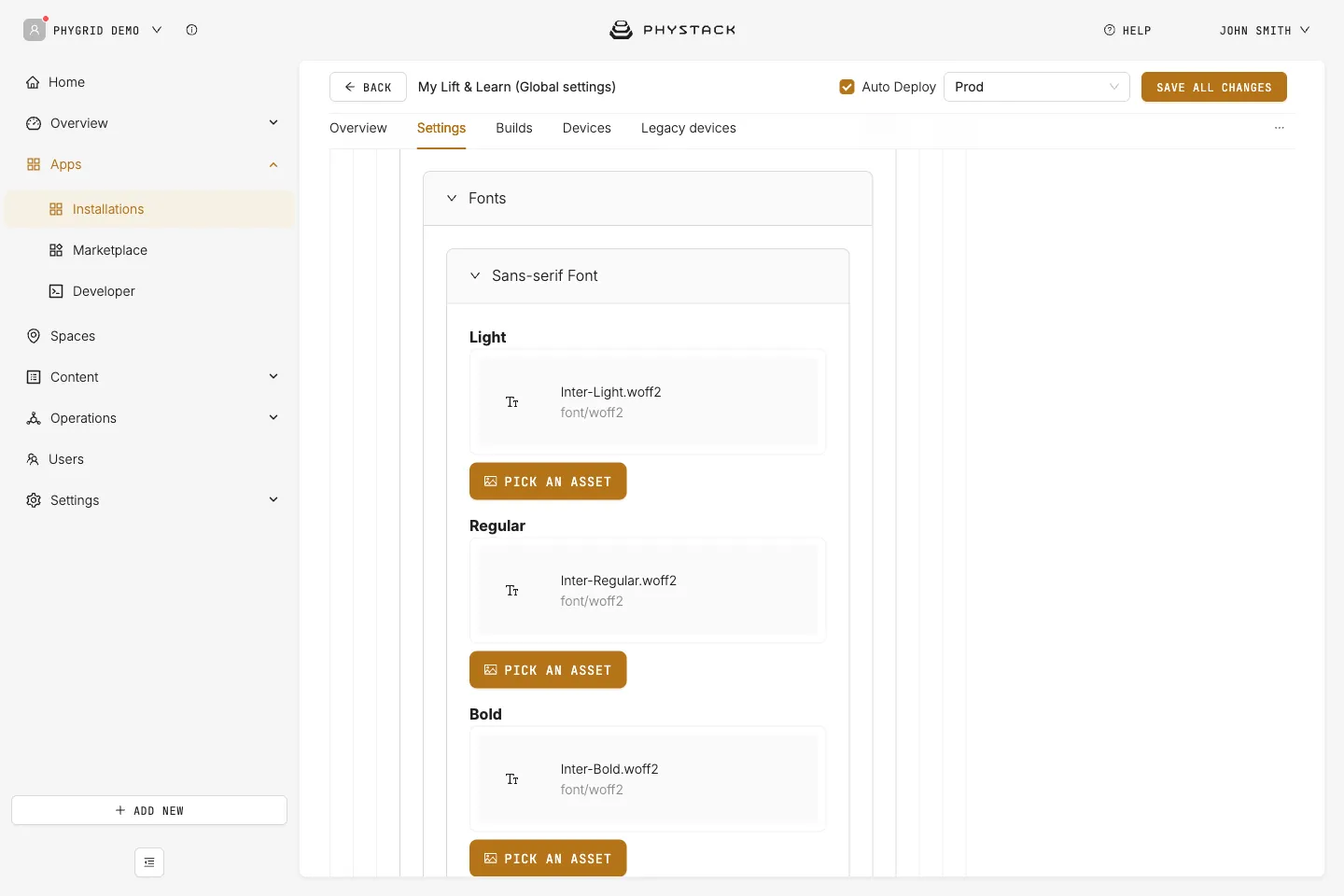
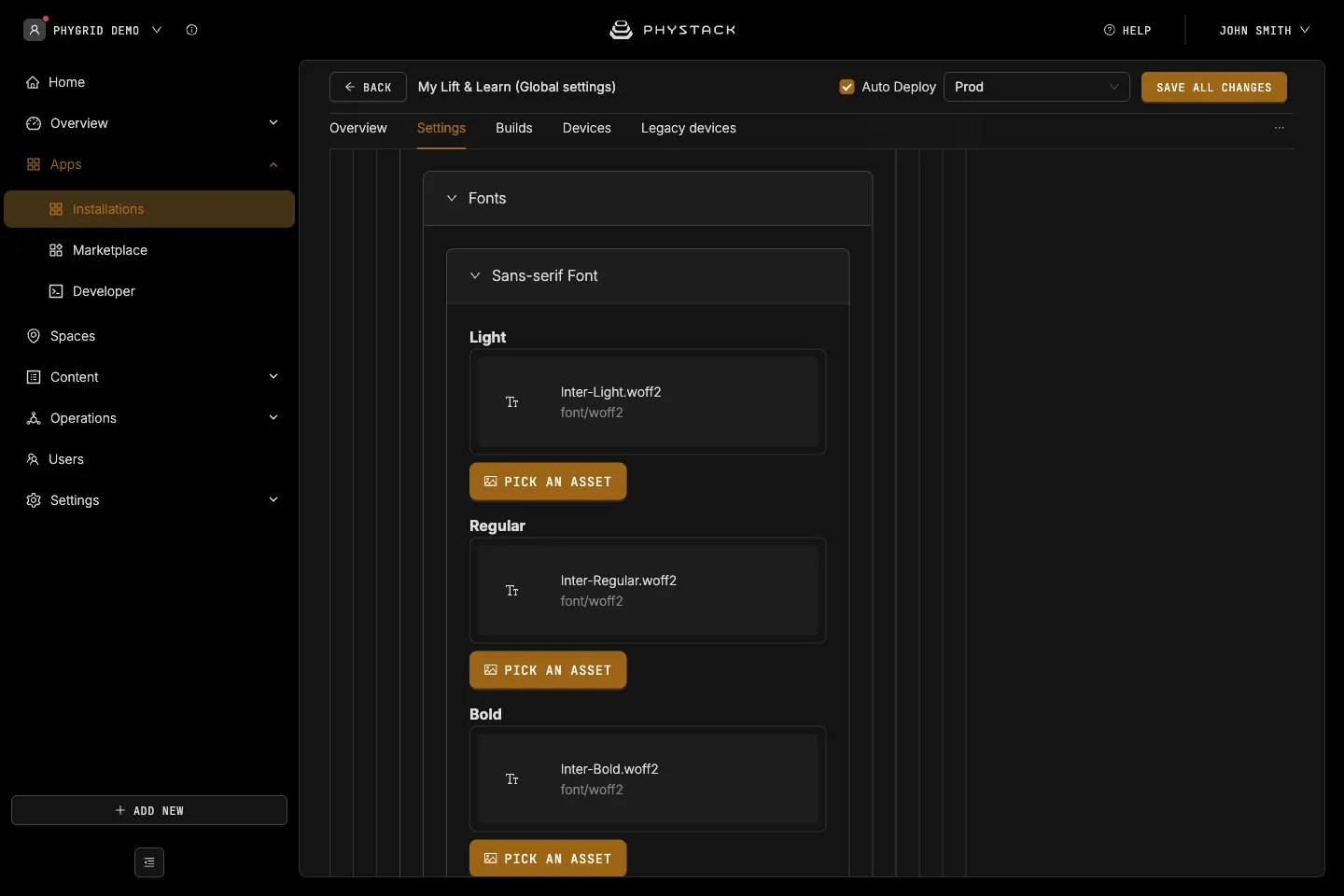
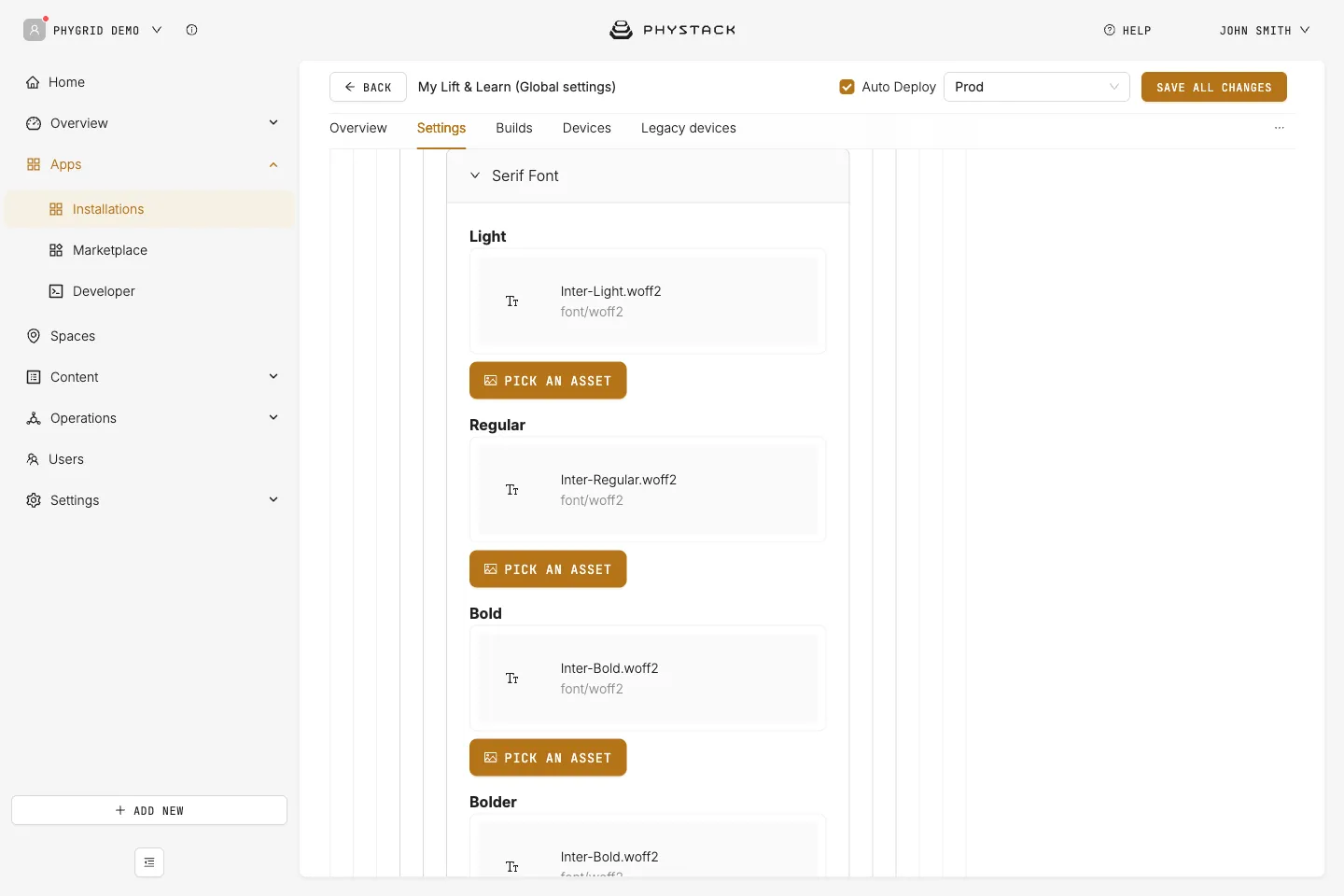
If a font weight is left empty, the built-in font for that weight is used.
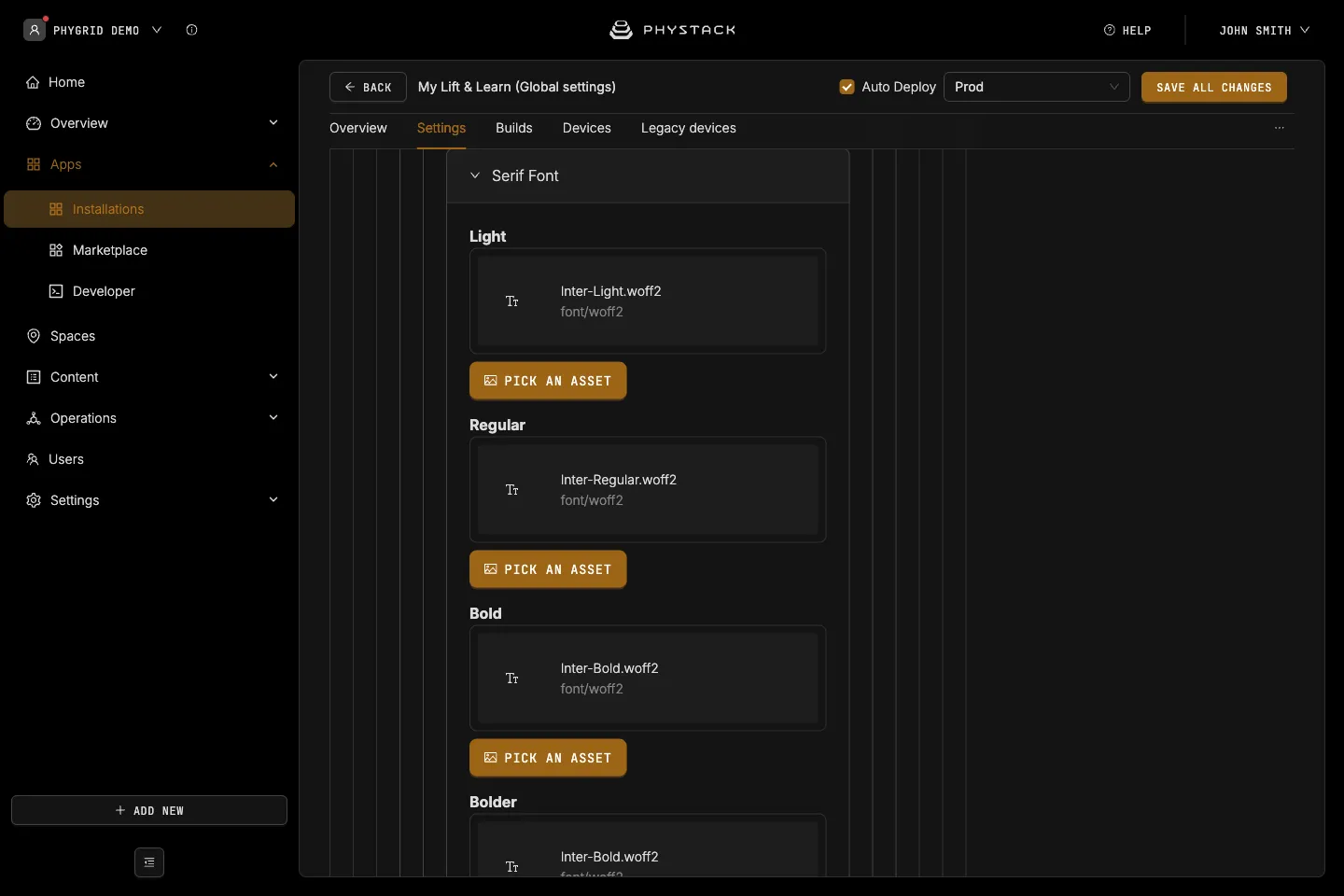
- Sans-serif Font → Light, Regular, Bold, Bolder: Font files (OTF, TTF, WOFF, or WOFF2) for each weight of the main font
- Serif Font → Light, Regular, Bold, Bolder: Font files for each weight of the serif font
Advanced settings
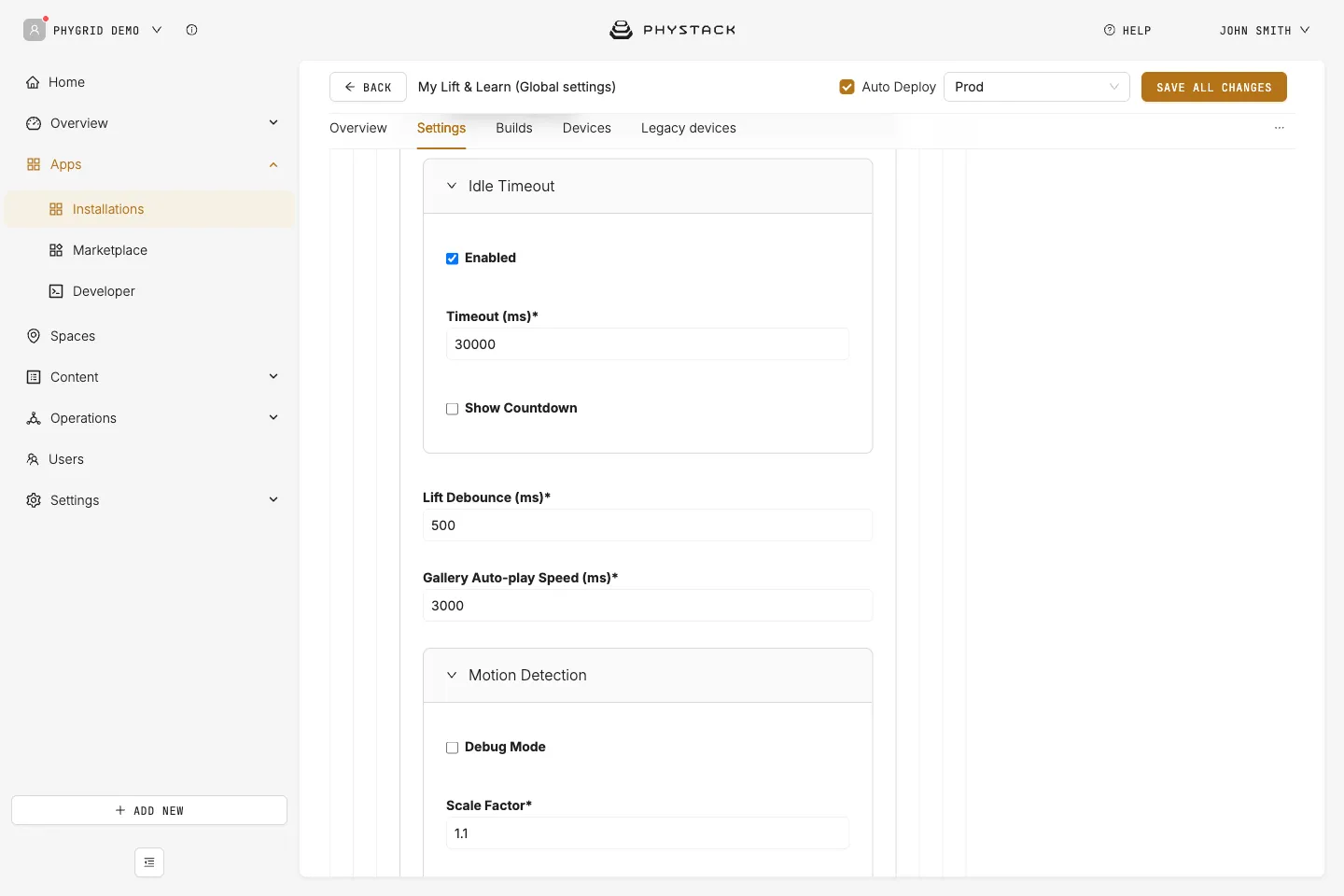
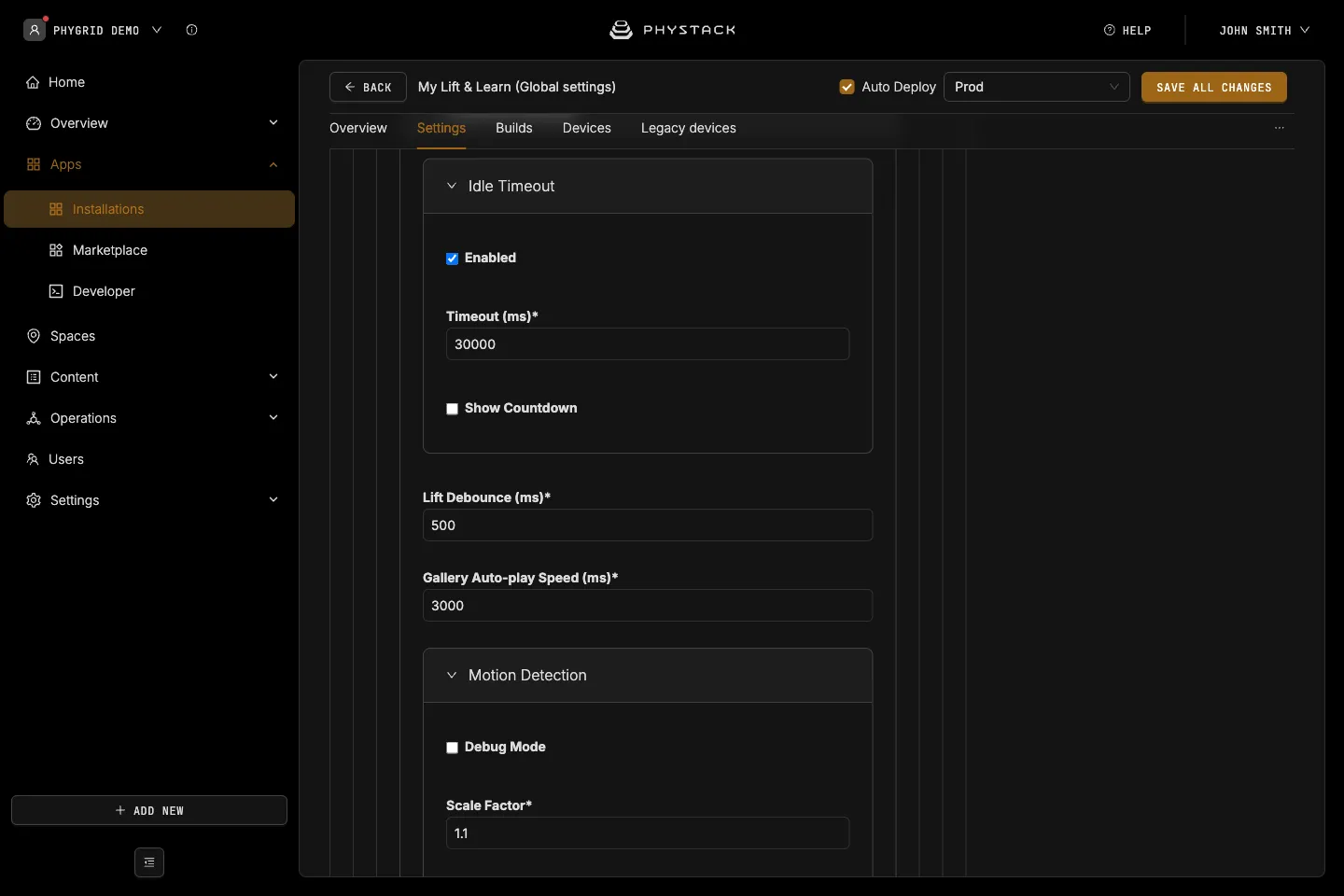
- Idle Timeout → Enabled: Returns to the idle screen after the timeout, even if a product is not put back. Default: on
- Idle Timeout → Timeout (ms): Time in milliseconds before the screen returns to idle. Default: 30000 (30 seconds)
- Idle Timeout → Show Countdown: Shows a countdown to the return to idle. Default: off
- Lift Debounce (ms): Time in milliseconds the app waits after a lift before showing the product, so the screen settles on the last lifted product instead of switching every time a product is moved. Default: 500
- Gallery Auto-play Speed (ms): Time in milliseconds each image is shown before the gallery moves on. Default: 3000
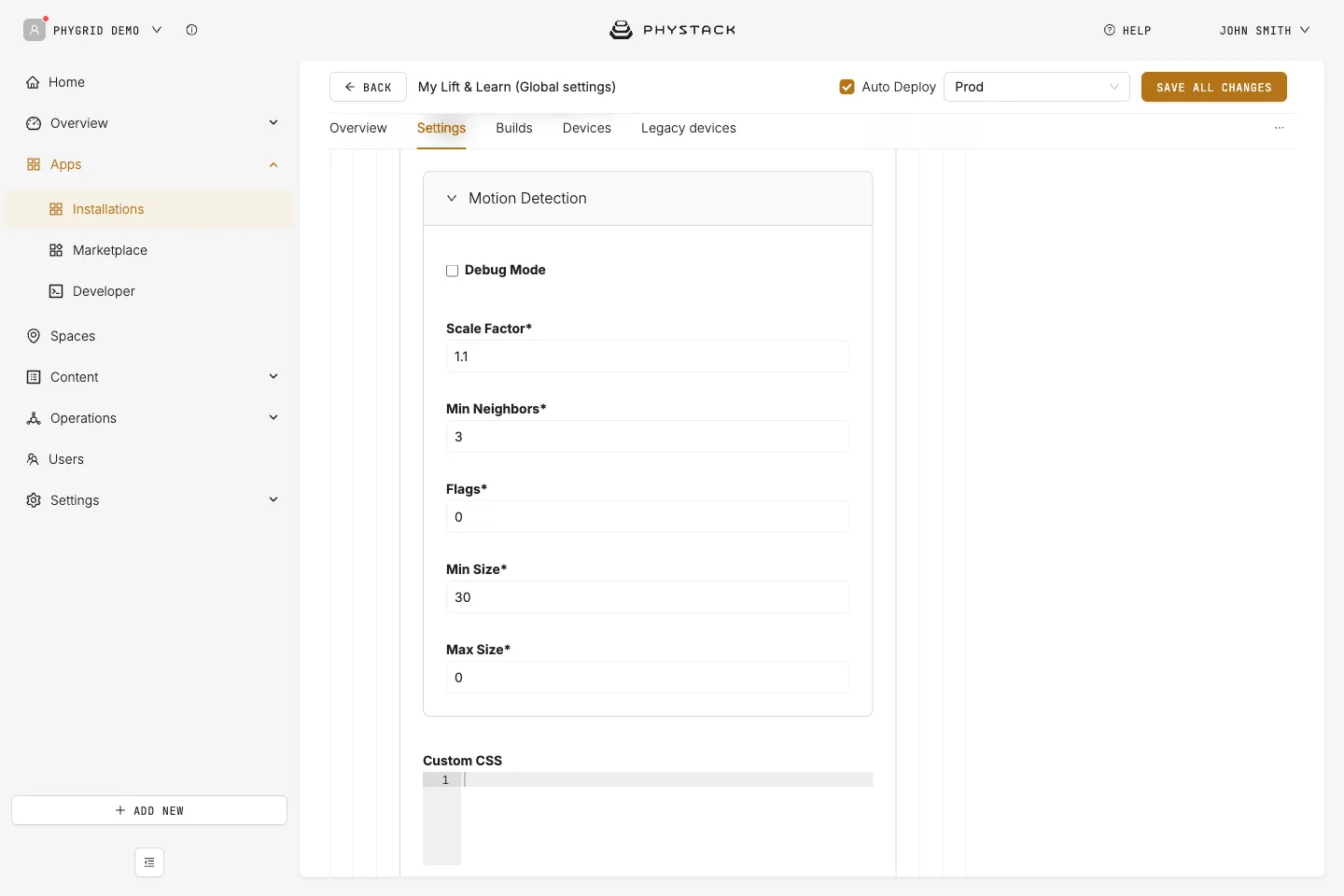
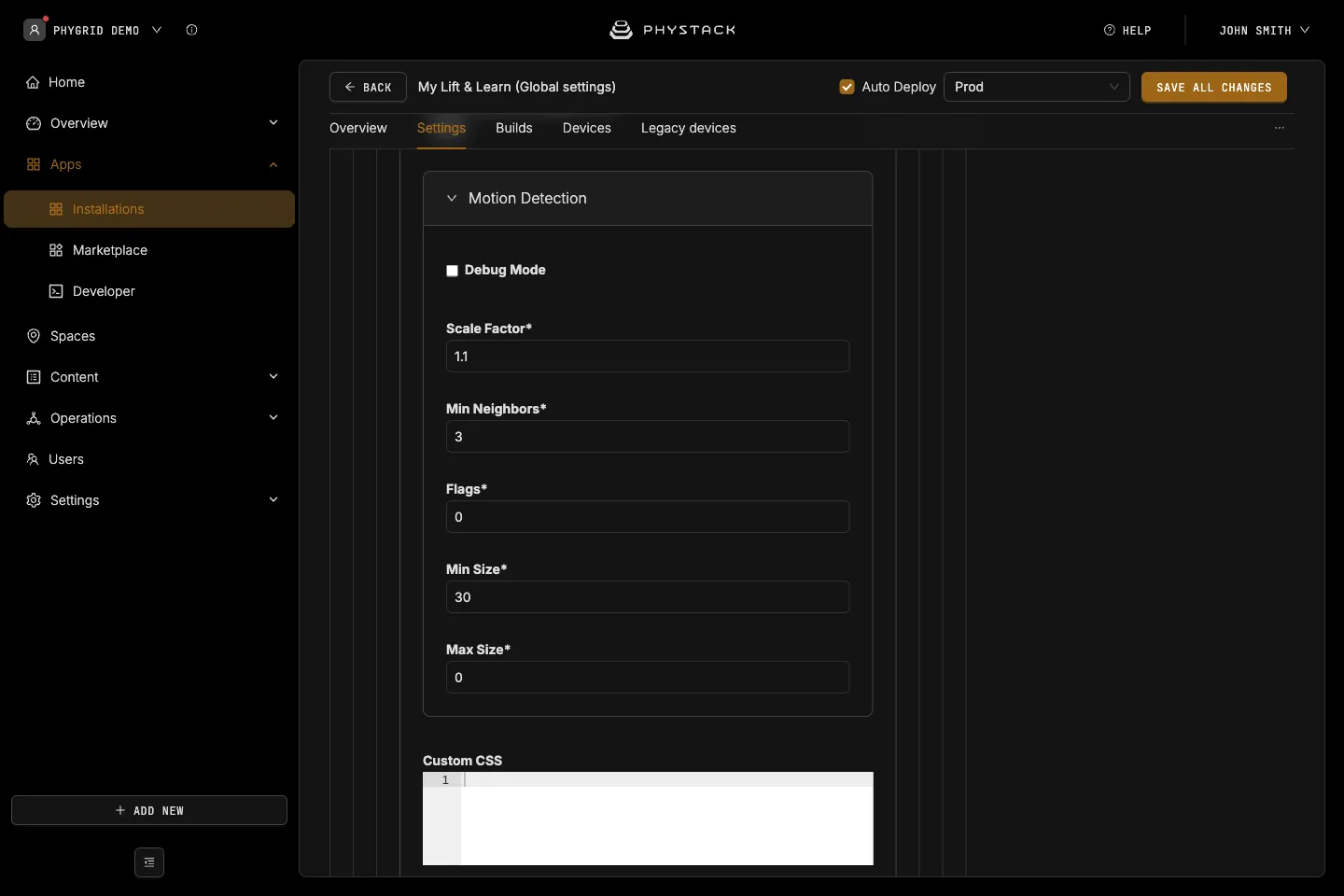
- Motion Detection: Debug Mode, Scale Factor, Min Neighbors, Flags, Min Size, and Max Size are not used by the current app version
- Custom CSS: CSS applied to the whole app, for example to style the
.company-logo
Save options
- Auto Deploy: If selected, changes are saved, and a build is created and deployed to connected devices (see Glossary)
- Environment: The deployment environment
- Save all changes: Saves your current configuration