Settings are grouped by screen, in the order a visitor sees them. Multi-language texts are written per language. The mirror uses the installation’s default language.
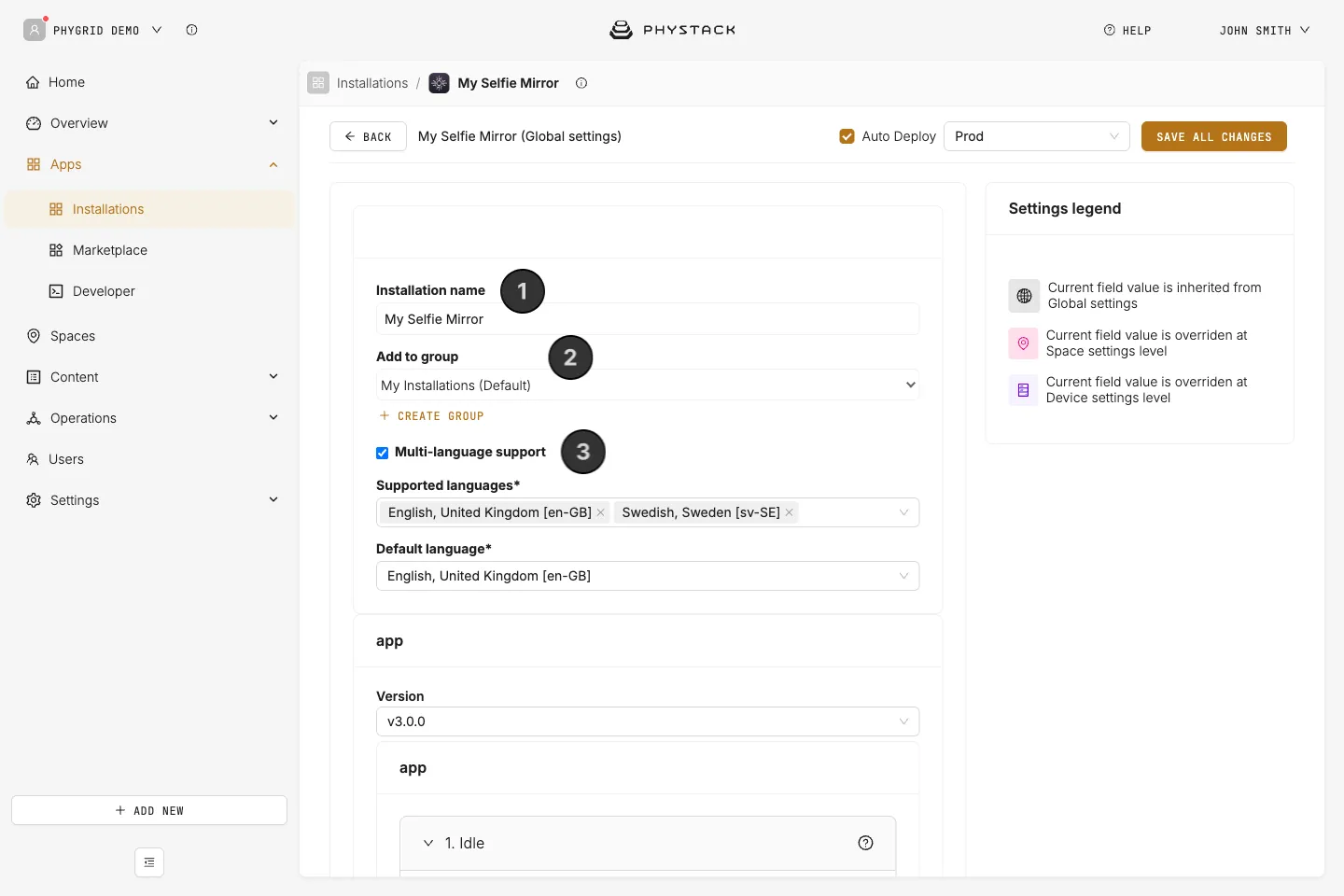
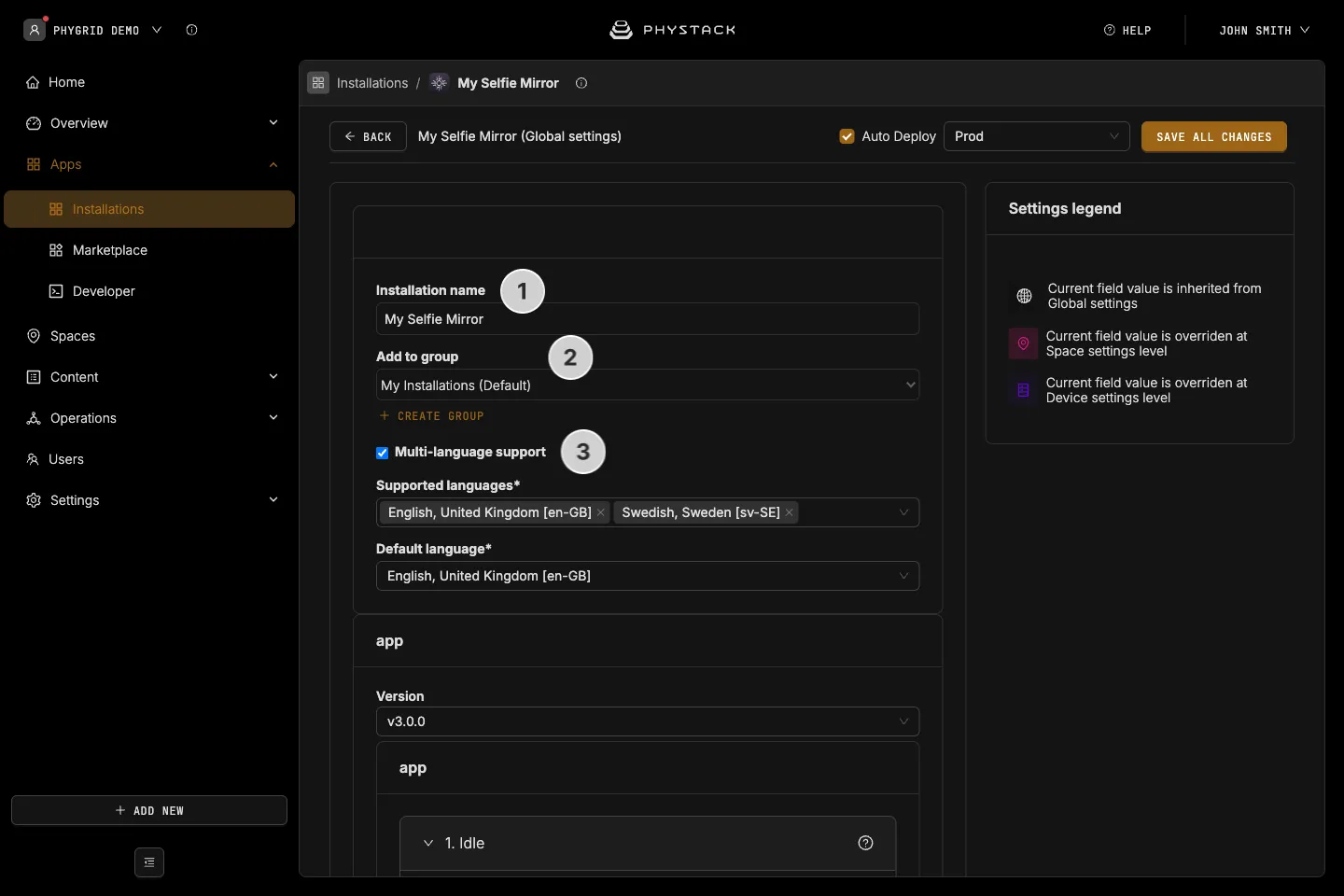
Console settings
- Installation name: The name shown in Apps → Installations
- Add to group: The installation group it belongs to
- Multi-language support: The languages you can write texts in. Applies to every multi-language text field below (see Glossary)
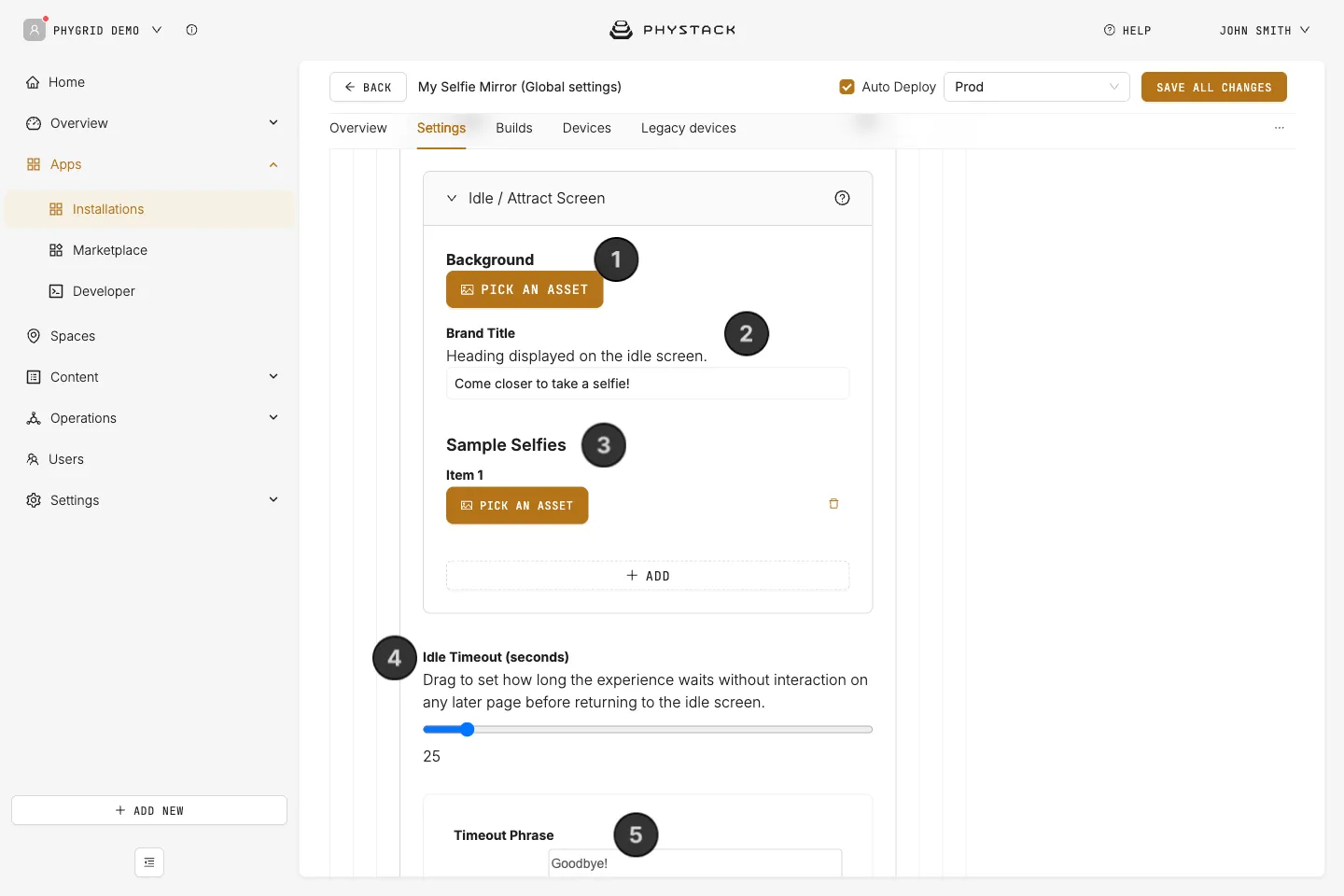
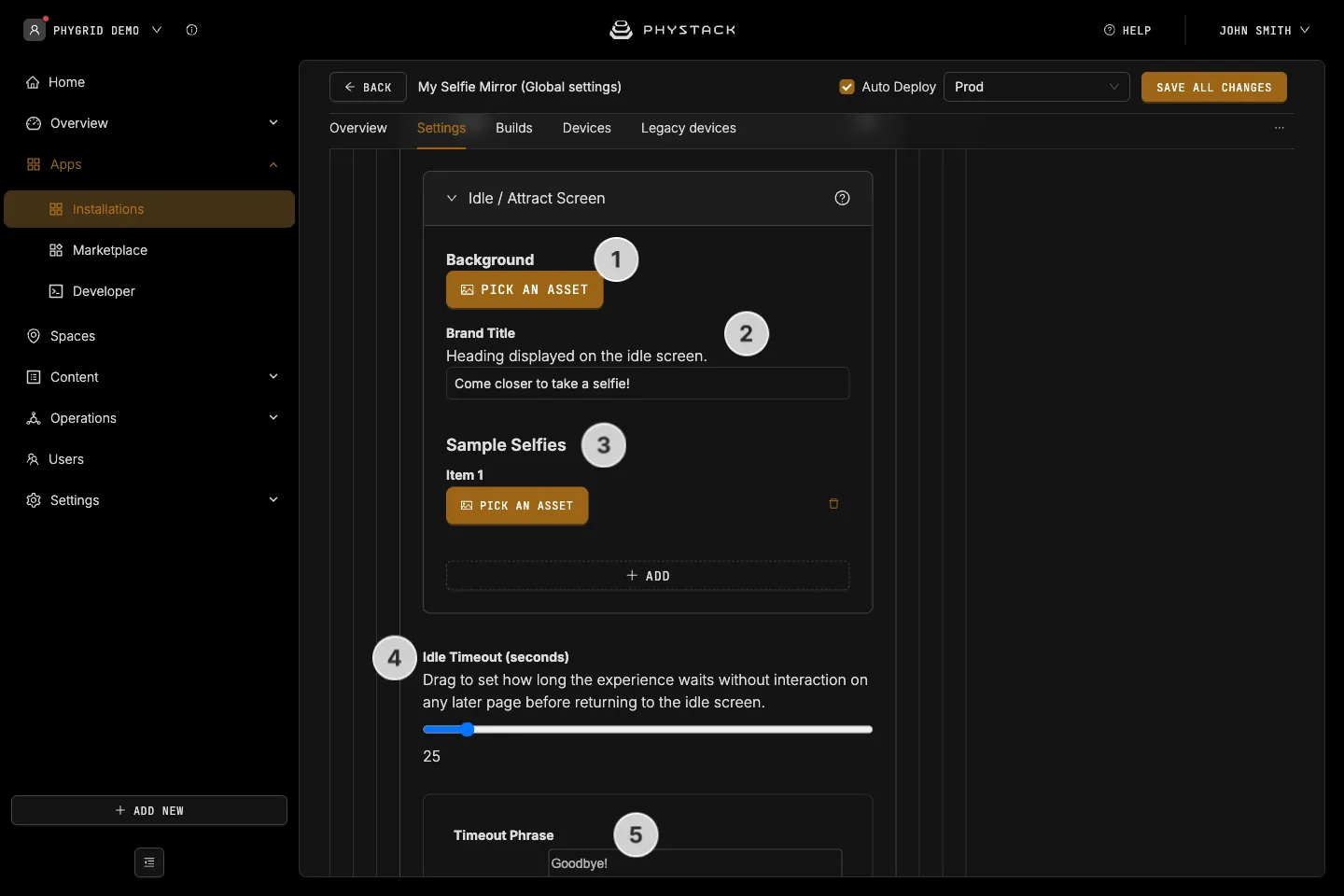
1. Idle
The attract screen shown while nobody is at the mirror.
- Idle / Attract Screen → Background: Full-screen image or video. Videos play muted, automatically, and in a loop
- Idle / Attract Screen → Brand Title: Heading on the idle screen. Default: “Come closer to take a selfie!”
- Idle / Attract Screen → Sample Selfies: Up to three example images shown as a row near the bottom. Leave empty to hide the row
- Idle Timeout (seconds): How long any later screen waits without interaction before returning to the idle screen. 5 to 300 seconds, default 25
- Timeout Phrase: Spoken when the mirror returns to the idle screen after a timeout. Default: “Goodbye”
2. CTA
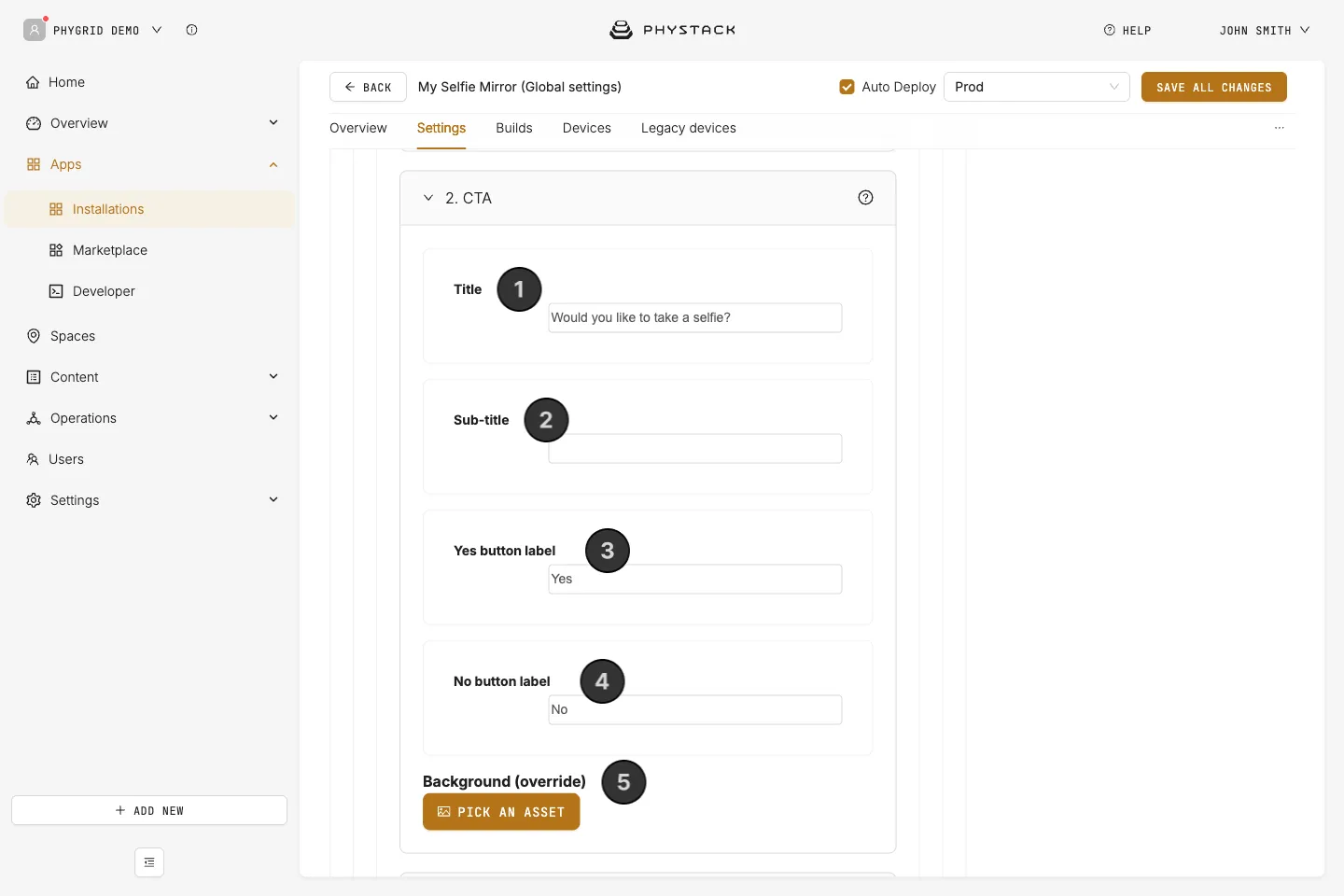
The prompt shown when a visitor is detected.
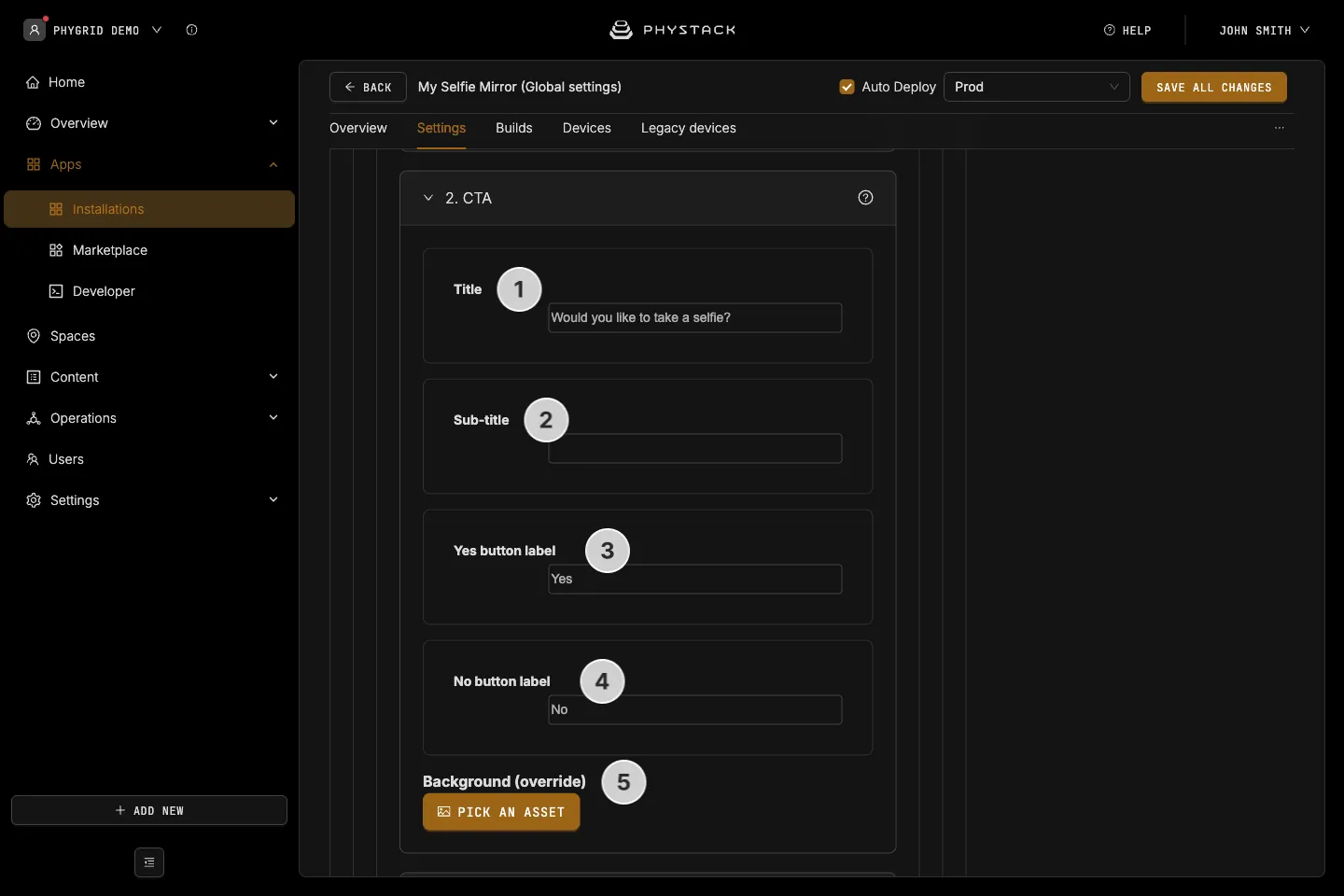
- Title: The question across the screen. Default: “Would you like to take a selfie?”
- Sub-title: Optional line under the title
- Yes button label: Label of the button that starts the selfie. Default: “Yes”
- No button label: Label of the button that returns to the idle screen. Default: “No”
- Background (override): Optional background for this screen only. Without it, the idle background is used
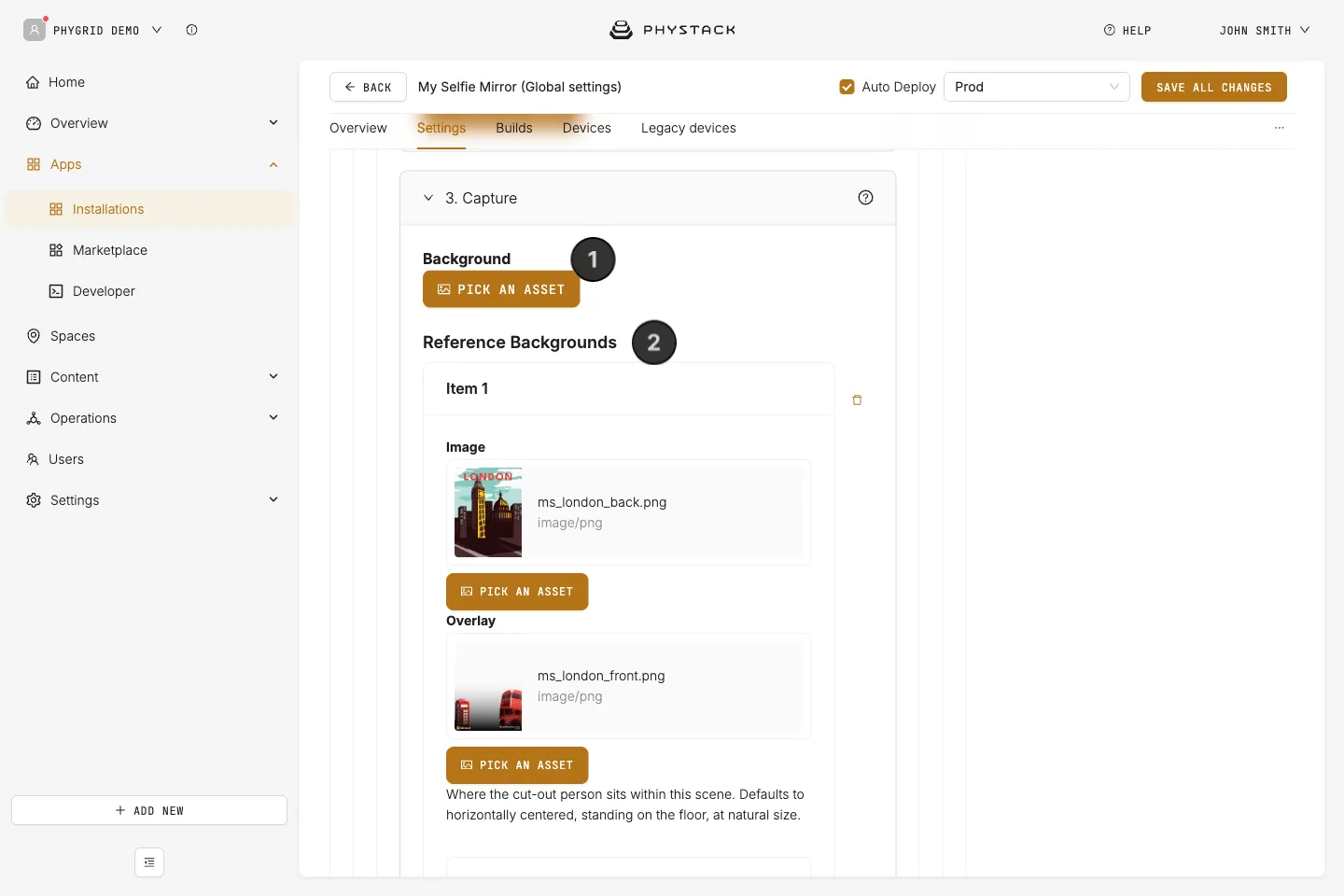
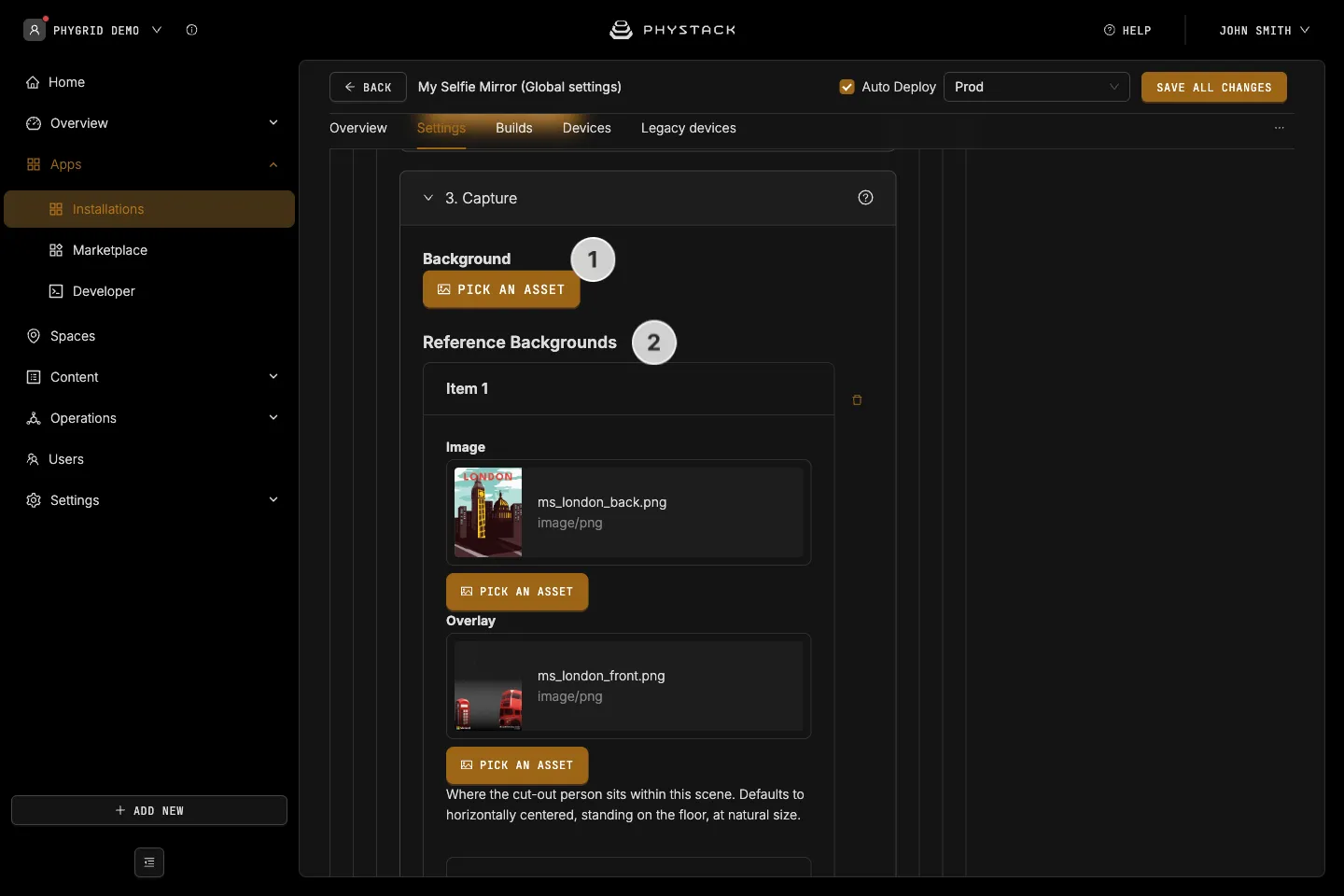
3. Capture
The camera countdown, the photo, and the covers made from it.
- Background: Optional image or video around the camera preview during the countdown. Without it, the area stays black
- Reference Backgrounds: One to three covers. Each one has:
- Image: The scene the visitor is placed into. The finished cover has the same size as this image
- Overlay: Optional transparent PNG drawn on top of the person, stretched to the size of the image
- Person Placement → Horizontal position: 0 is far left, 0.5 is centred (default), 1 is far right
- Person Placement → Vertical position: 0 is the top of the scene, 1 is standing on the bottom edge (default)
- Person Placement → Scale: 1 fits the person to the full height of the scene (default). 0.2 to 3
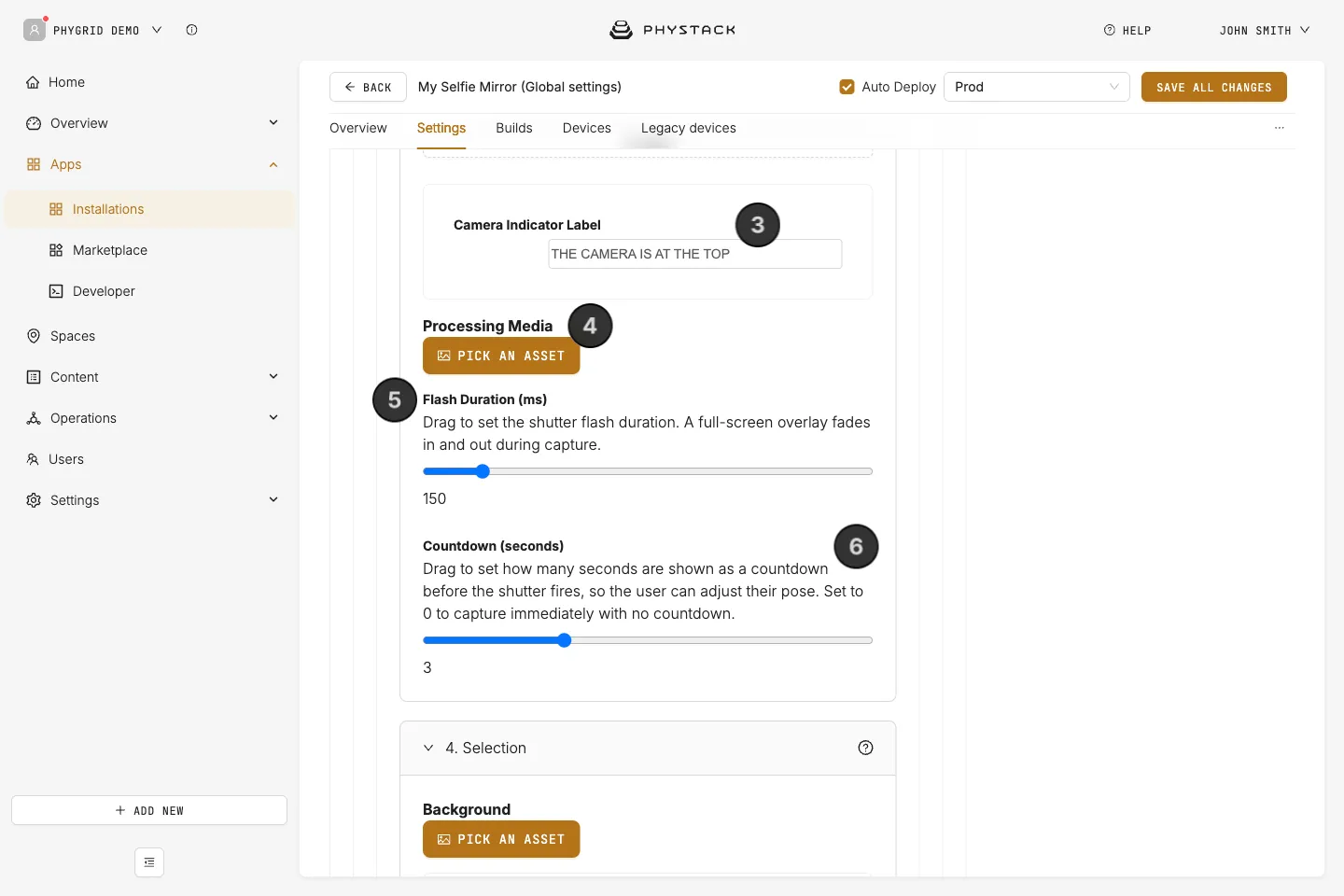
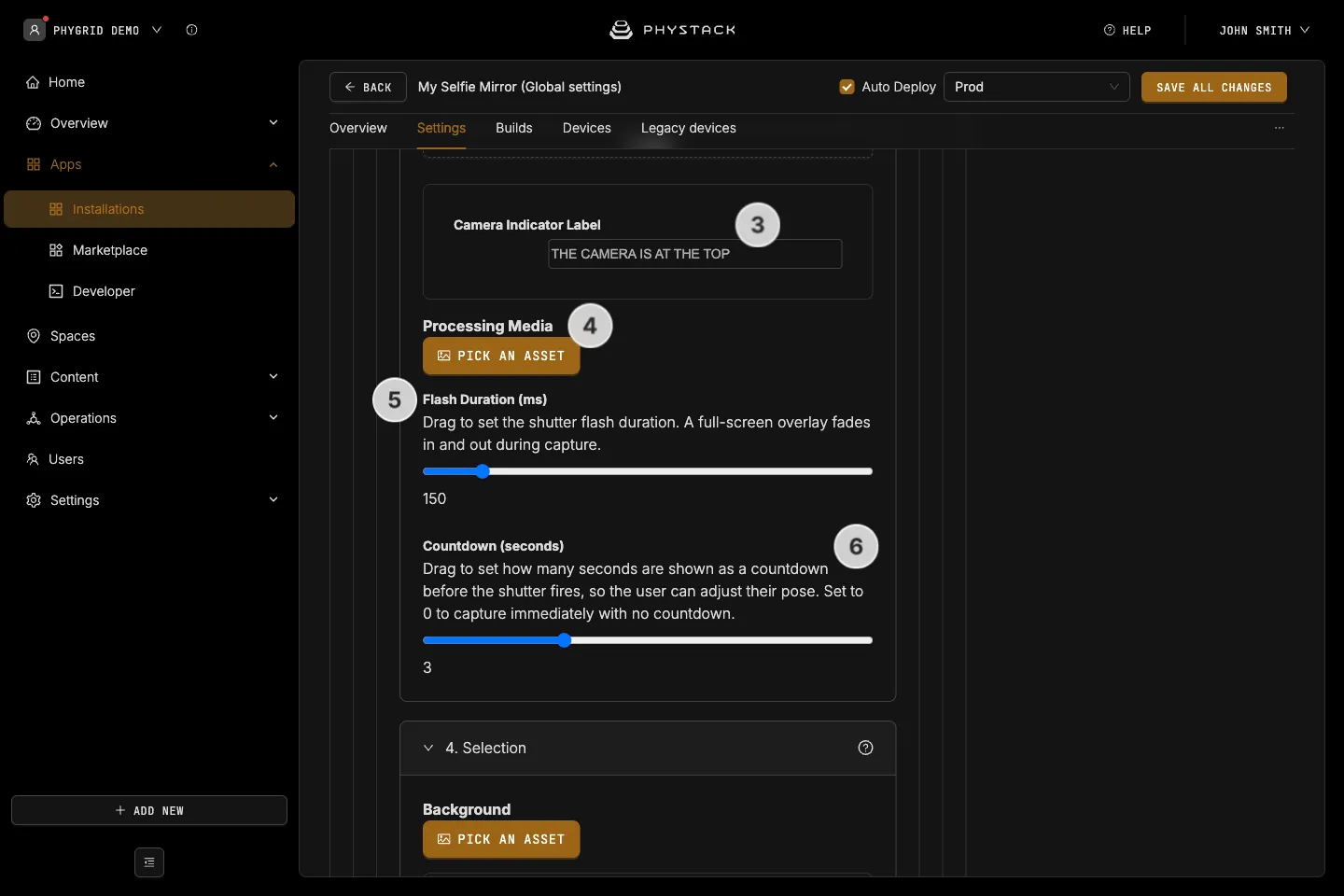
- Camera Indicator Label: Text pointing visitors to the camera during the countdown. Default: “THE CAMERA IS AT THE TOP”
- Processing Media: Optional image or video shown while the covers are being made. Without it, the captured photo stays on screen
- Flash Duration (ms): Length of the on-screen flash when the photo is taken. 50 to 1000 ms, default 150
- Countdown (seconds): Seconds the visitor gets to pose. 0 to 10, default 3. 0 takes the photo immediately
See Prepare cover images for Selfie Mirror for image requirements.
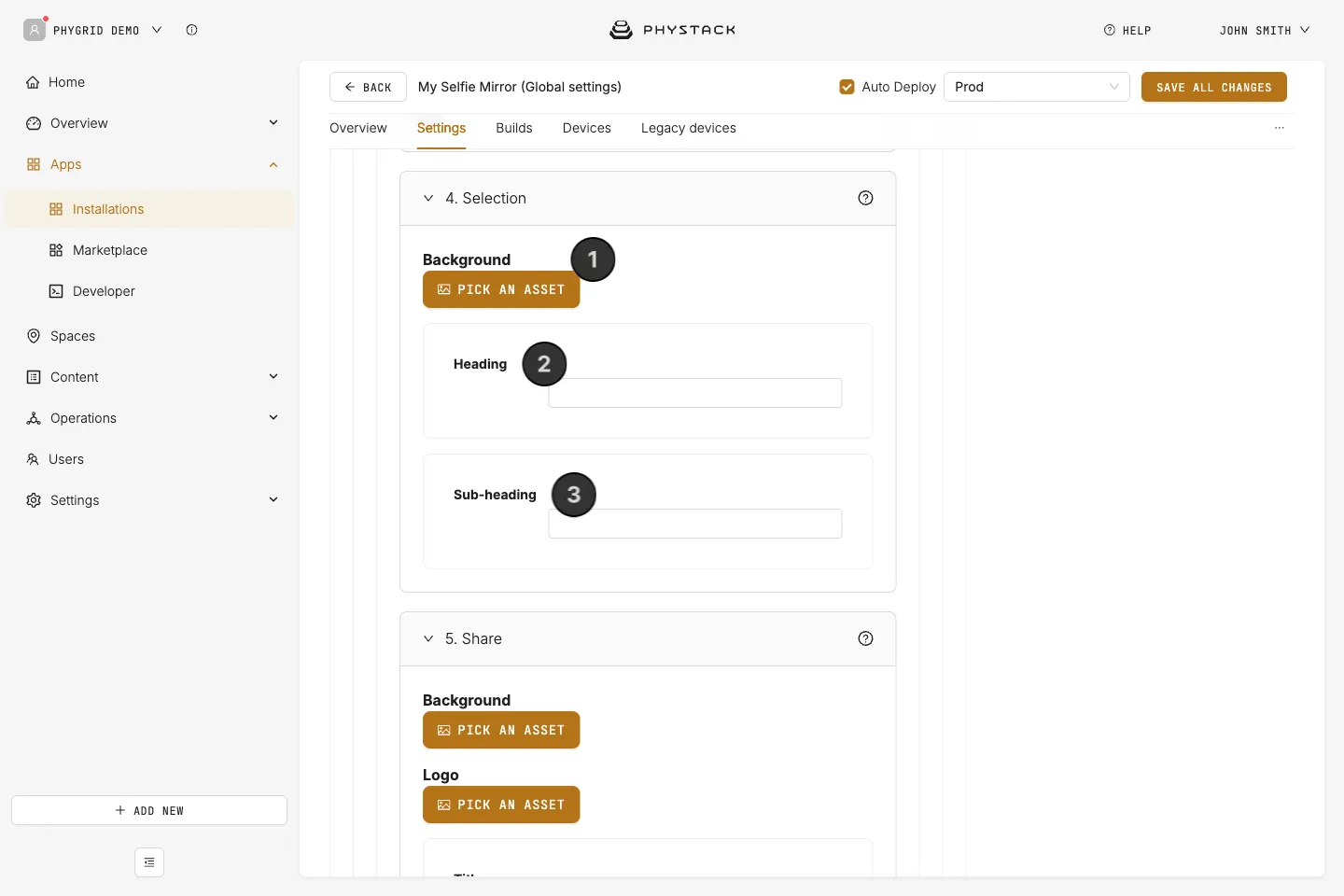
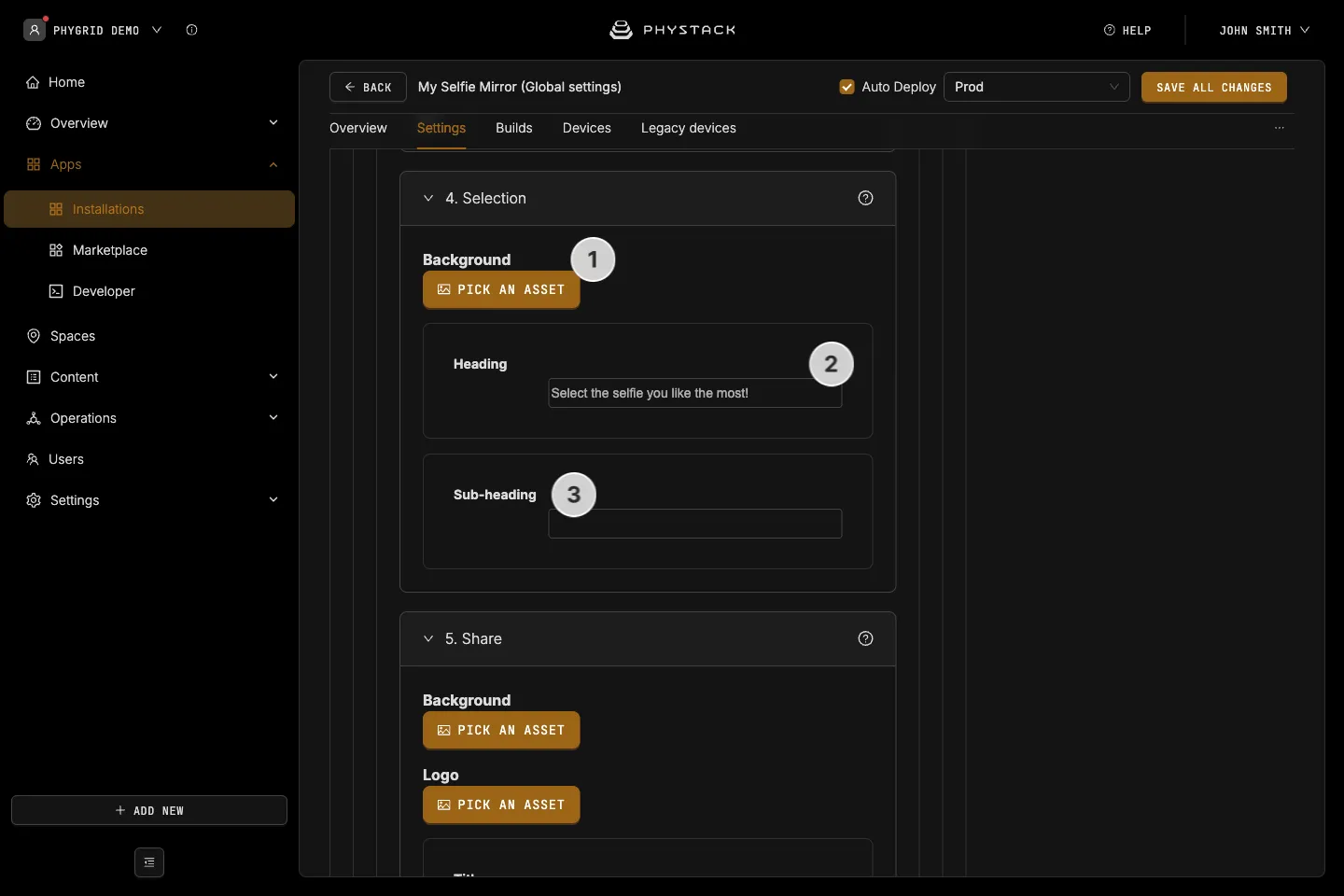
4. Selection
The screen where the visitor picks a cover.
- Background: Optional full-screen image or video
- Heading: Text shown above the covers. Default: “Select the selfie you like the most!”
- Sub-heading: Optional line under the heading
5. Share
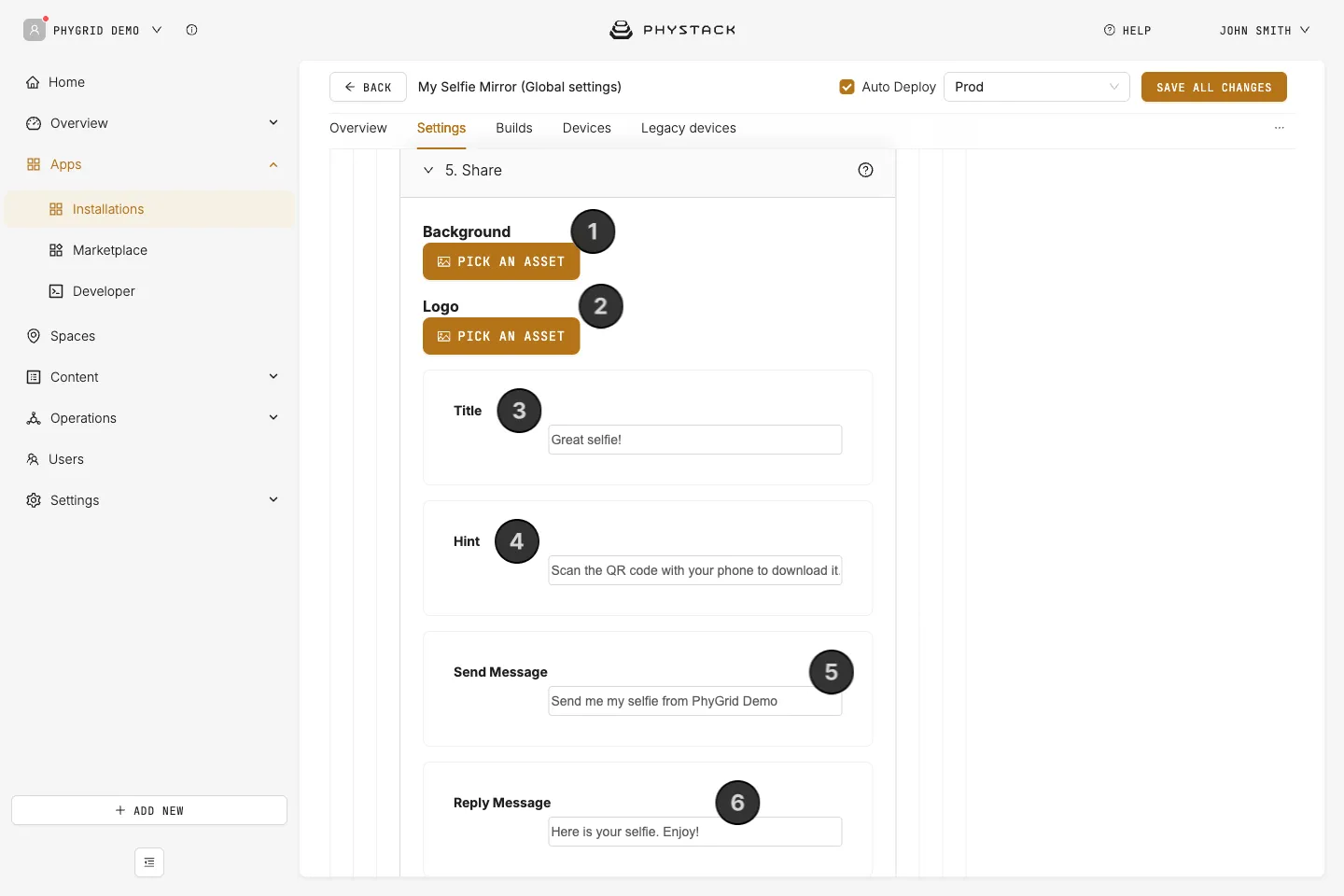
The screen with the chosen cover and the QR code for WhatsApp.
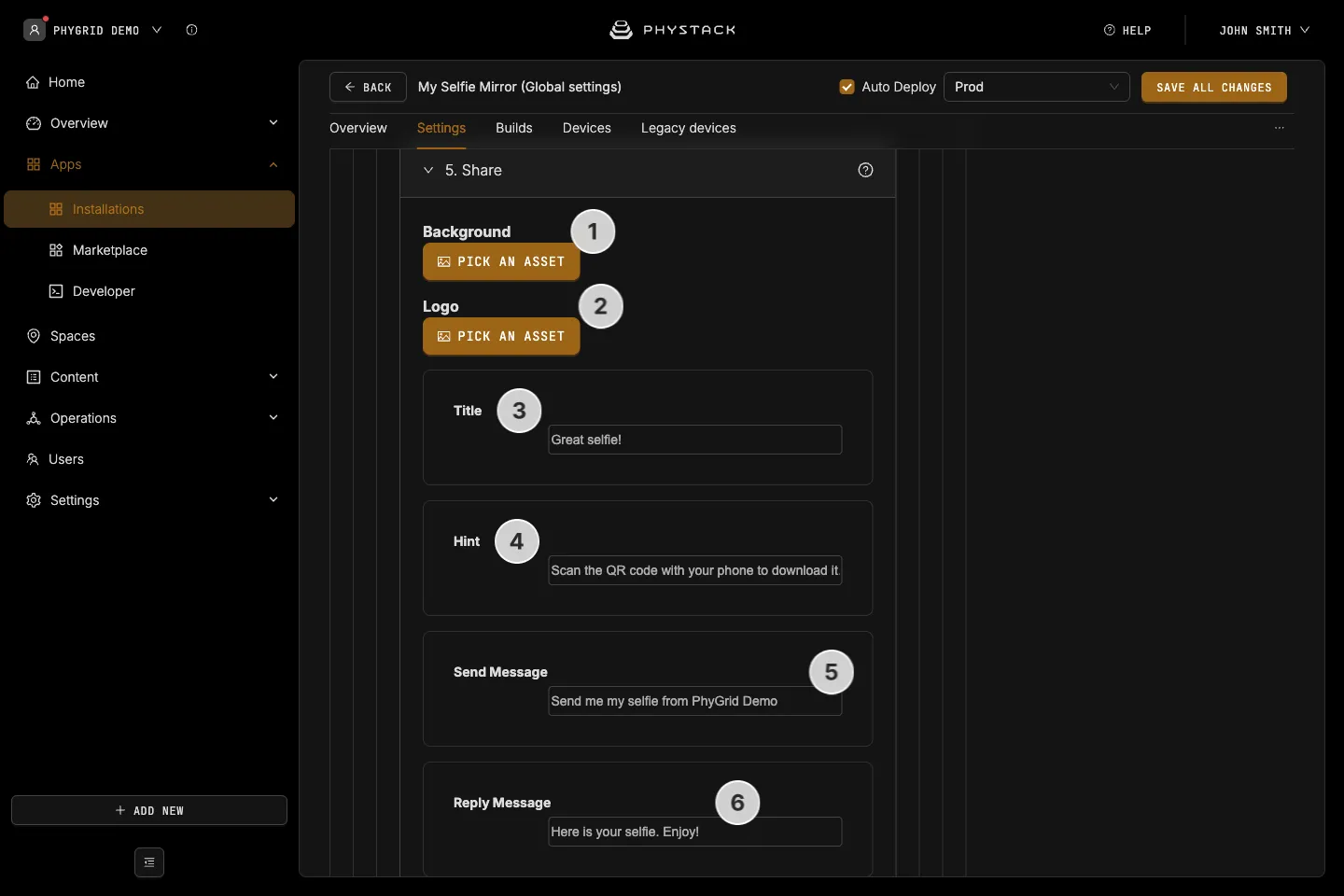
- Background: Optional full-screen image or video
- Logo: Optional logo in the short-link label, typically the WhatsApp logo. Use a PNG with transparency
- Title: Heading under the cover. Default: “Great selfie!”
- Hint: Line under the title. Default: “Scan the QR code with your phone to download it.”
- Send Message: Text pre-filled in the visitor’s WhatsApp message. Default: “Check out my AI selfie!”
- Reply Message: Text sent back to the visitor together with the cover. Default: “Here is your selfie!”
General
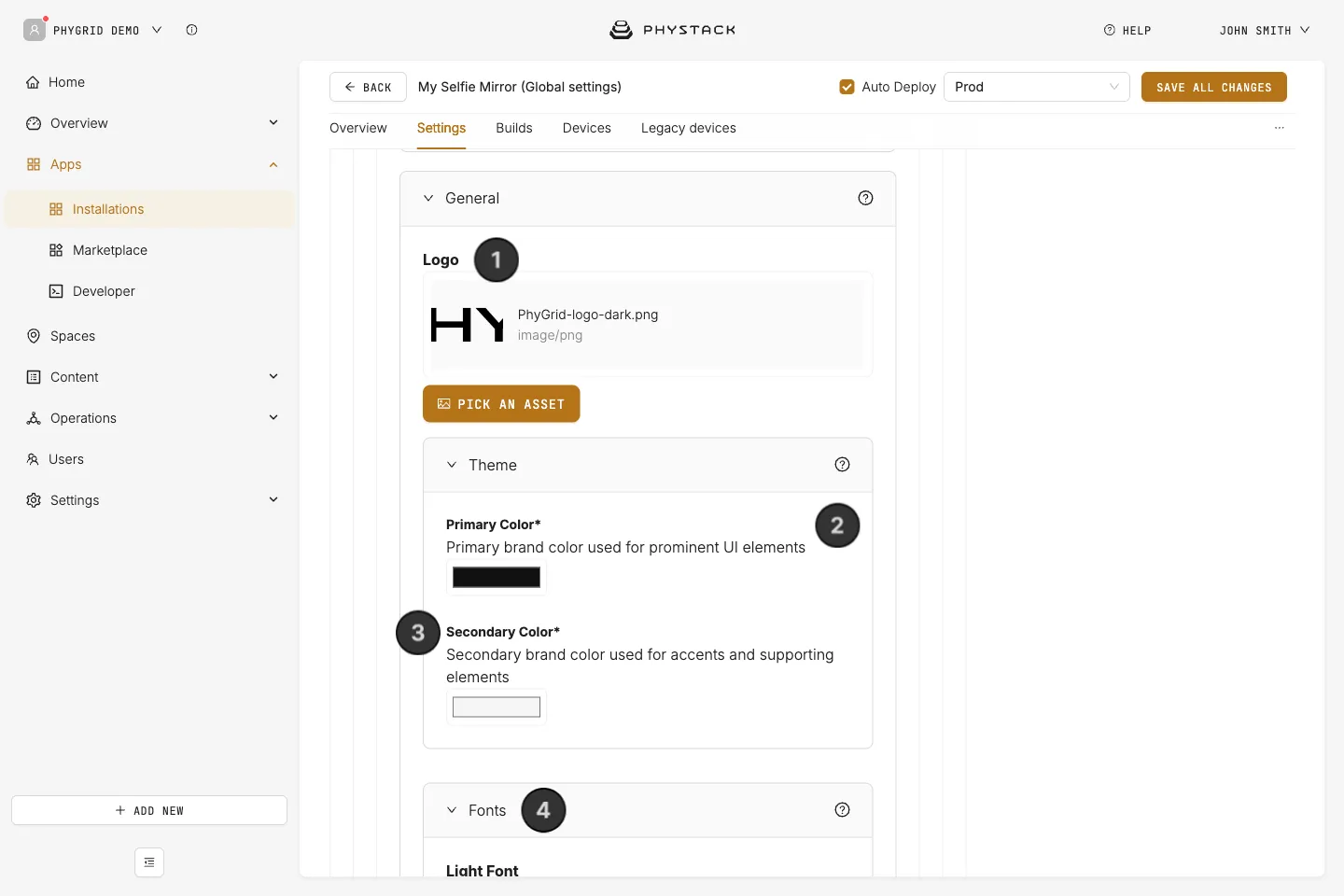
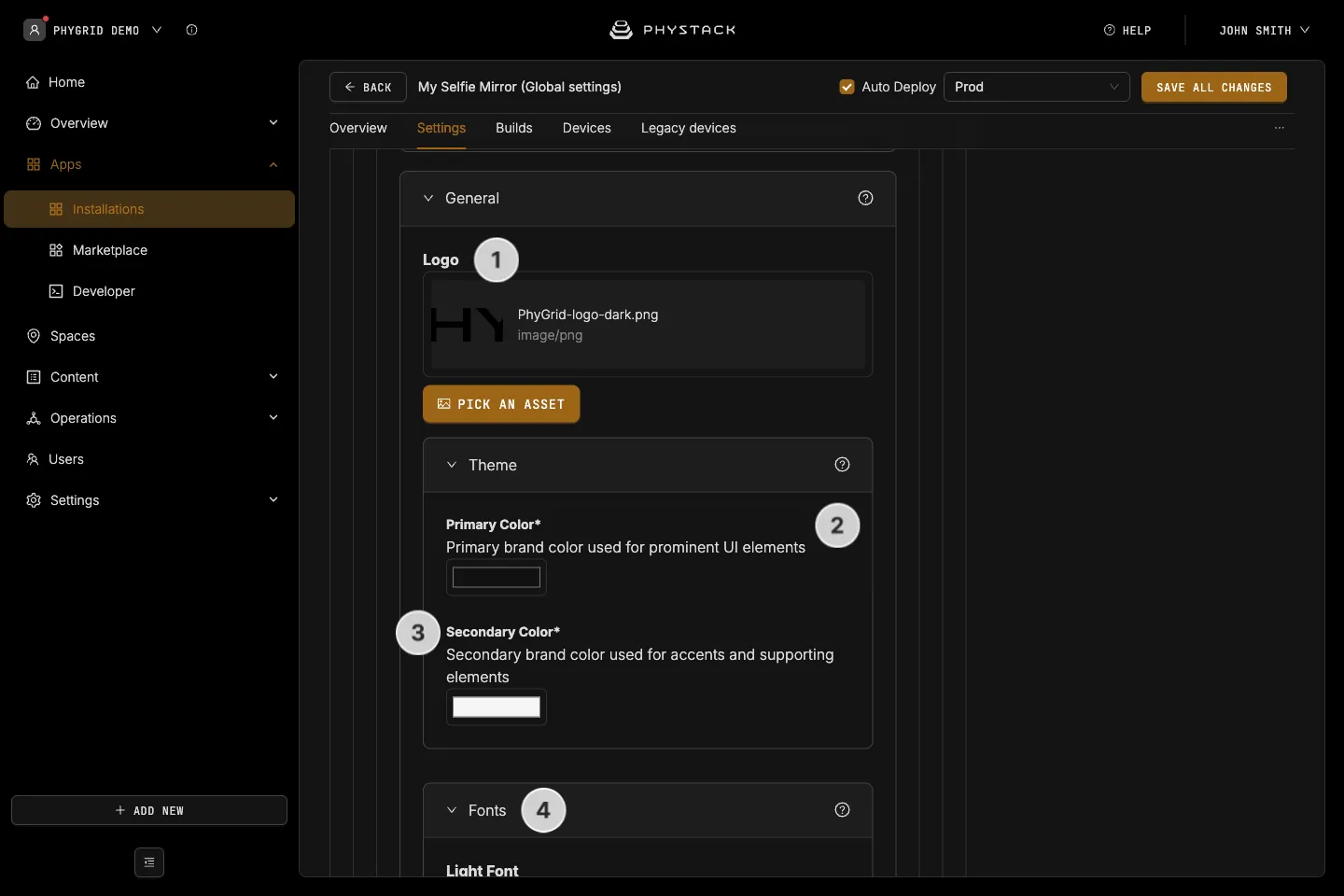
Branding applied to every screen.
- Logo: Shown at the top of the idle and prompt screens. Use a PNG or SVG with transparency
- Theme → Primary Color: Colour of prominent elements. Default: #111111. Not used by the current app version
- Theme → Secondary Color: Colour of accents and supporting elements. Default: #F5F5F5. Not used by the current app version
- Fonts → Light Font, Regular Font, Bold Font: Font files (TTF, OTF, WOFF, or WOFF2) for each weight. Empty weights use the system font
Speech
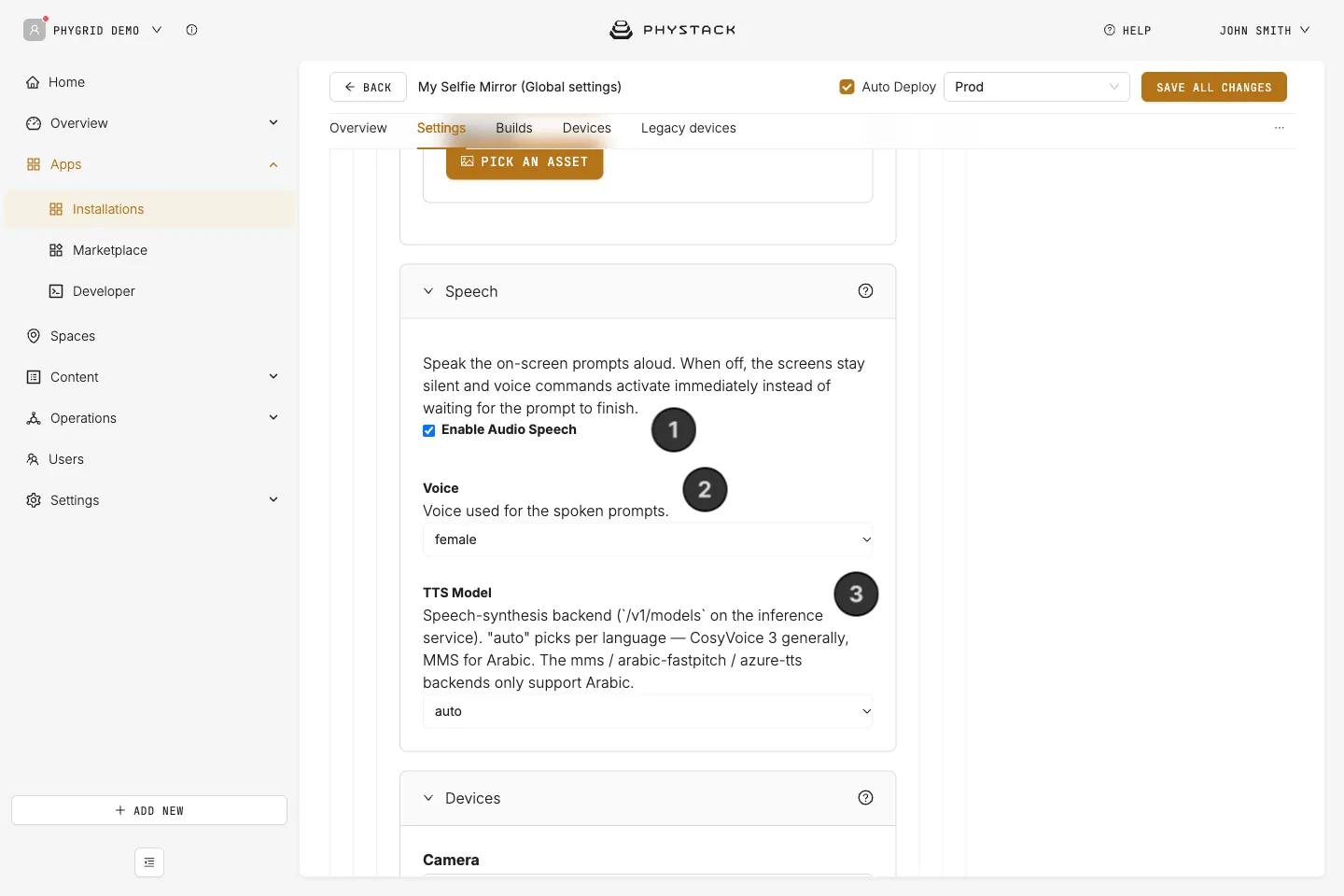
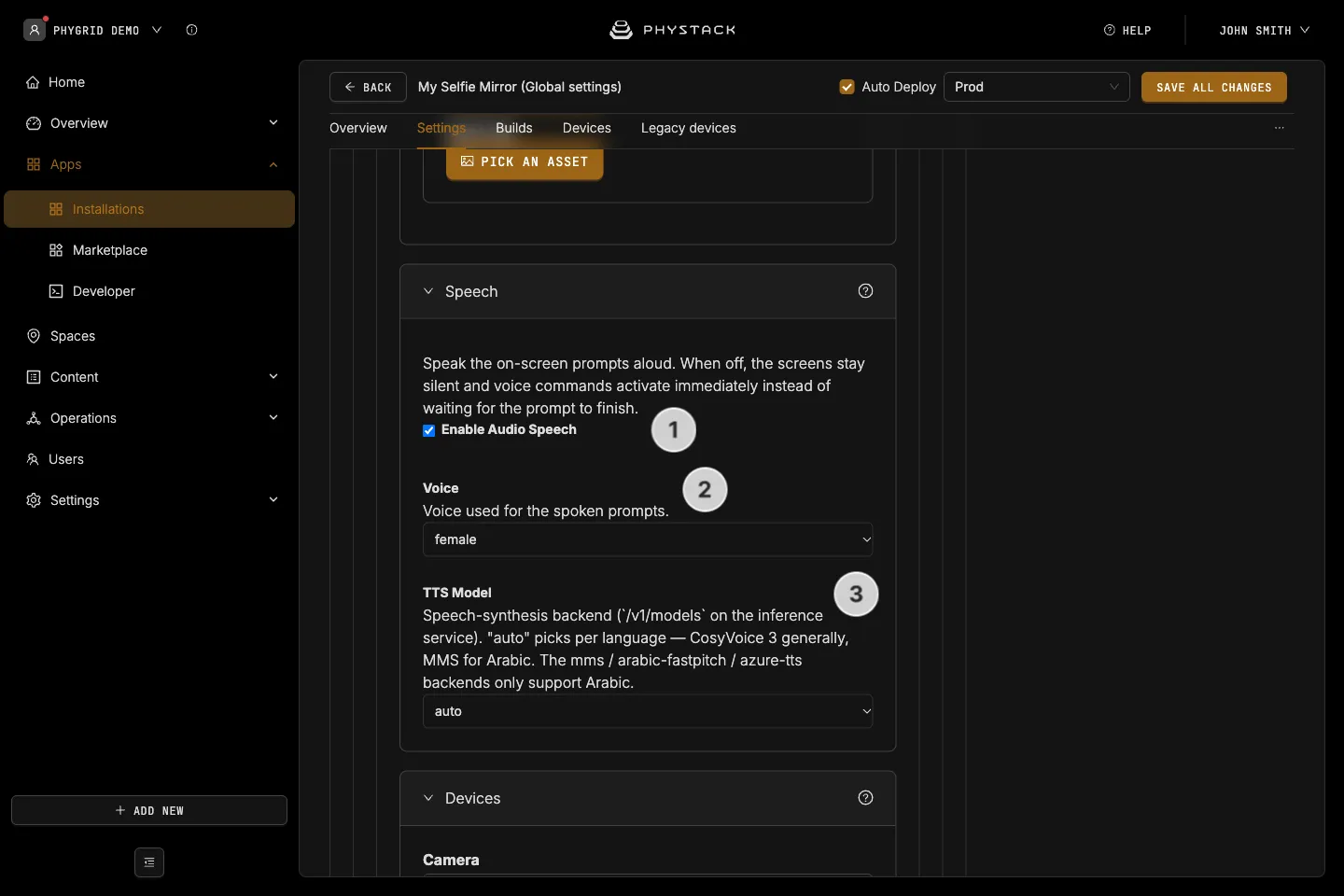
Voice prompts for the prompt title, countdown, selection heading, share title, and timeout phrase.
- Enable Audio Speech: Reads the texts aloud. When off, the mirror stays silent and listens for voice answers immediately. Default: on
- Voice: Female (default) or male
- TTS Model: The speech engine. auto (default) picks the best engine per language. The other options are for specific Arabic voices
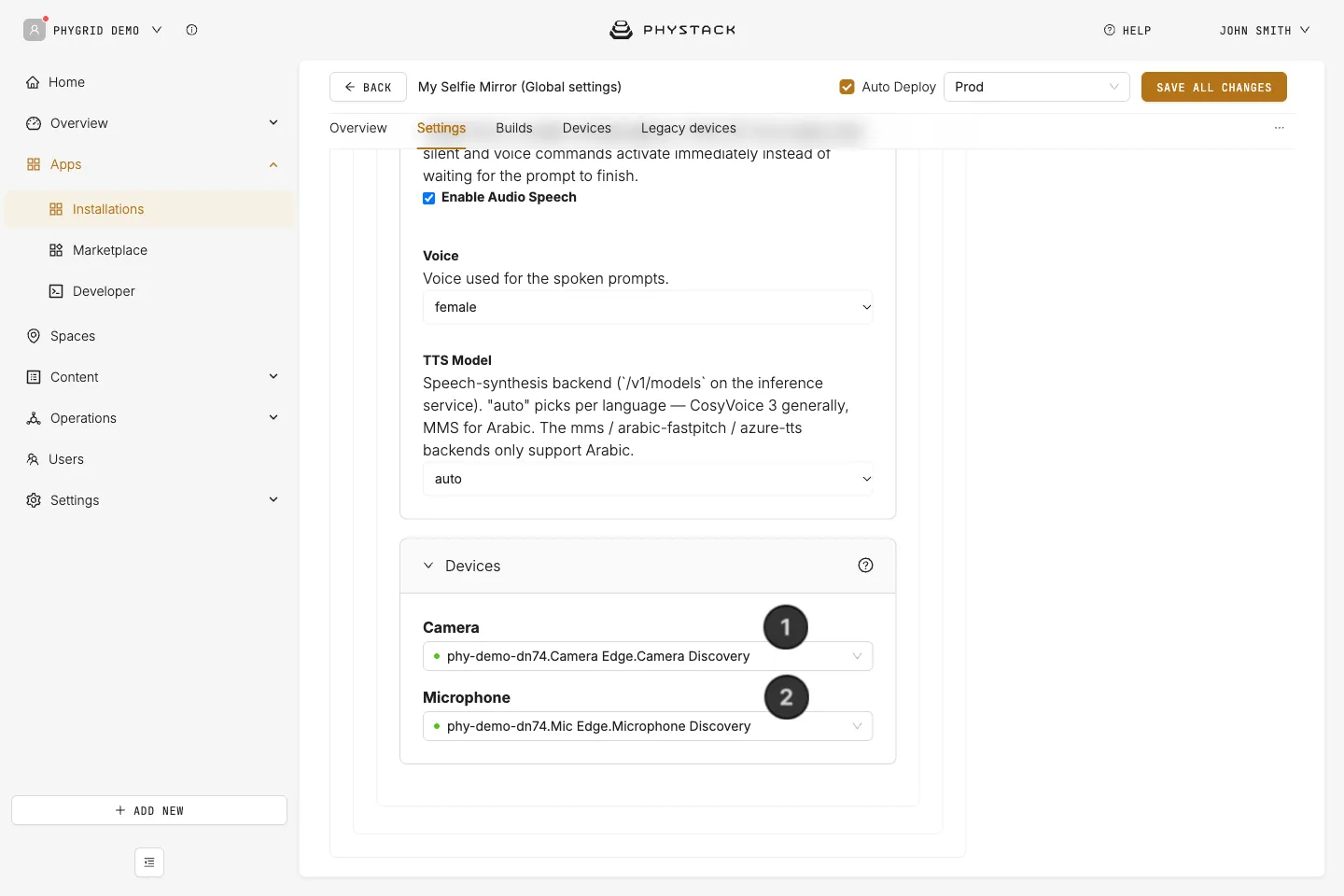
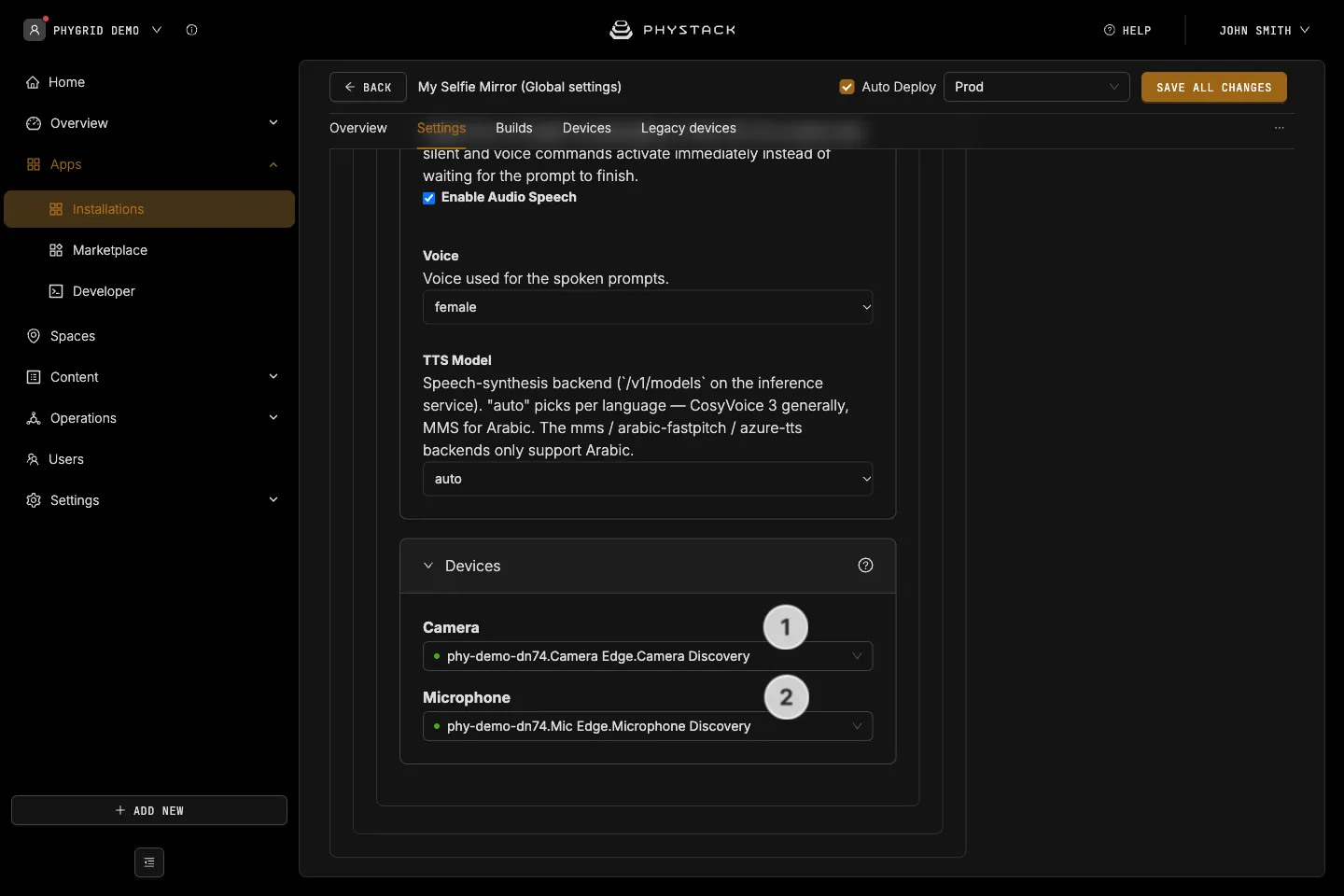
Devices
The hardware the mirror uses. Both lists come from the peripheral apps on the device, see Install camera and microphone peripherals for Selfie Mirror.
- Camera: The camera peripheral on the mirror’s device
- Microphone: The microphone peripheral on the mirror’s device