

How to install Tasks
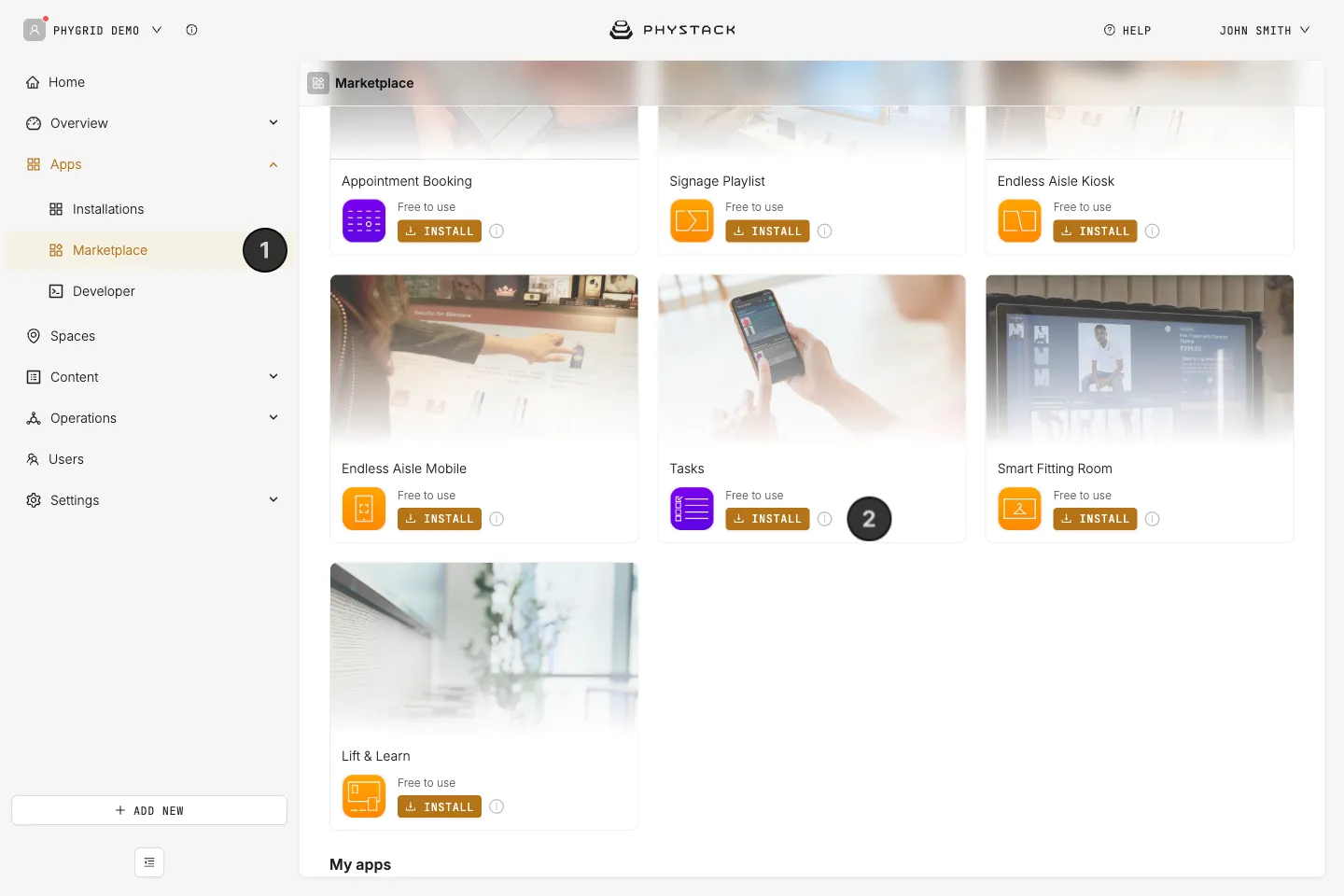
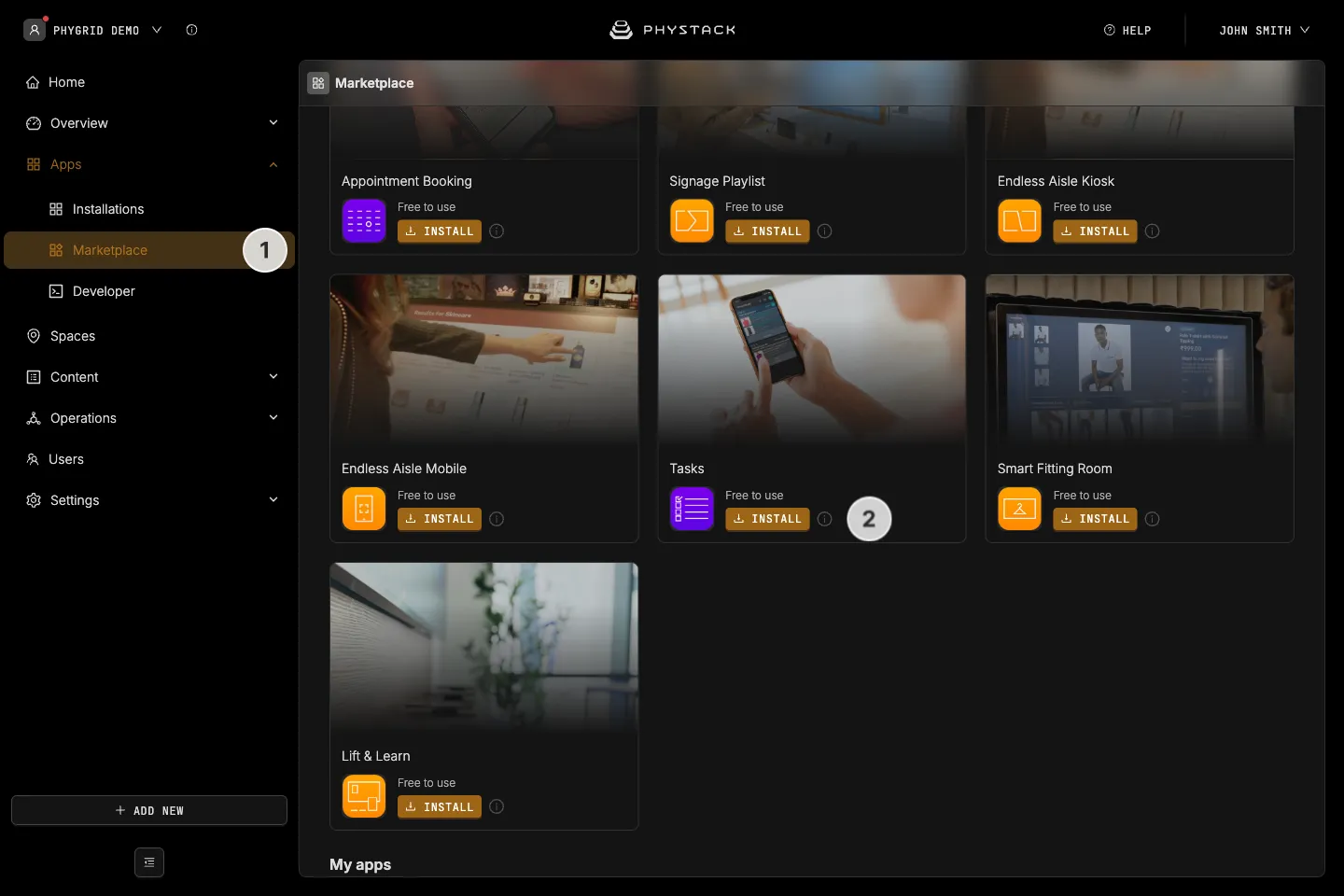
- In the sidebar, navigate to Apps → Marketplace
- Look for Tasks in the list of applications and click on the Install button to open the installation dialog
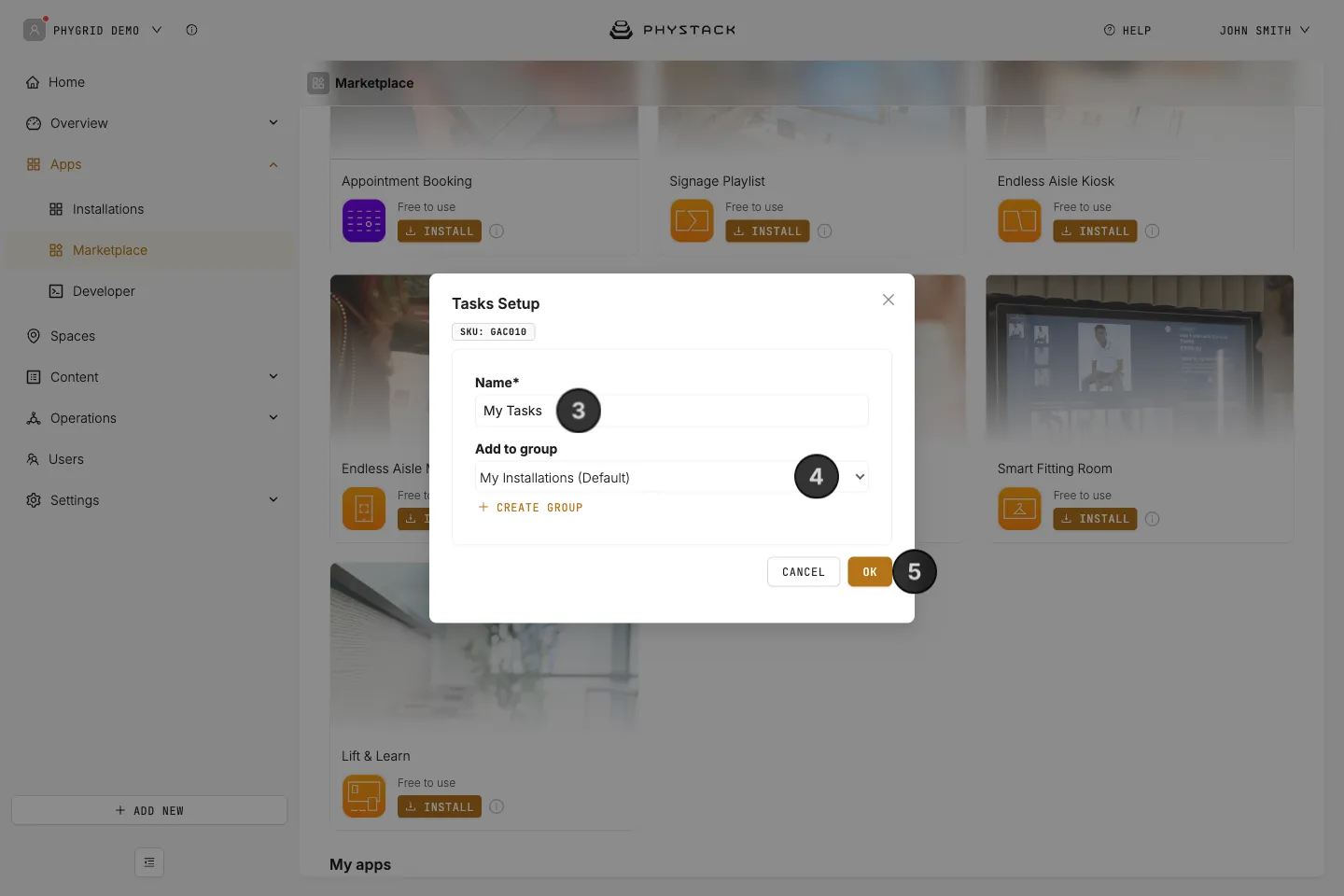
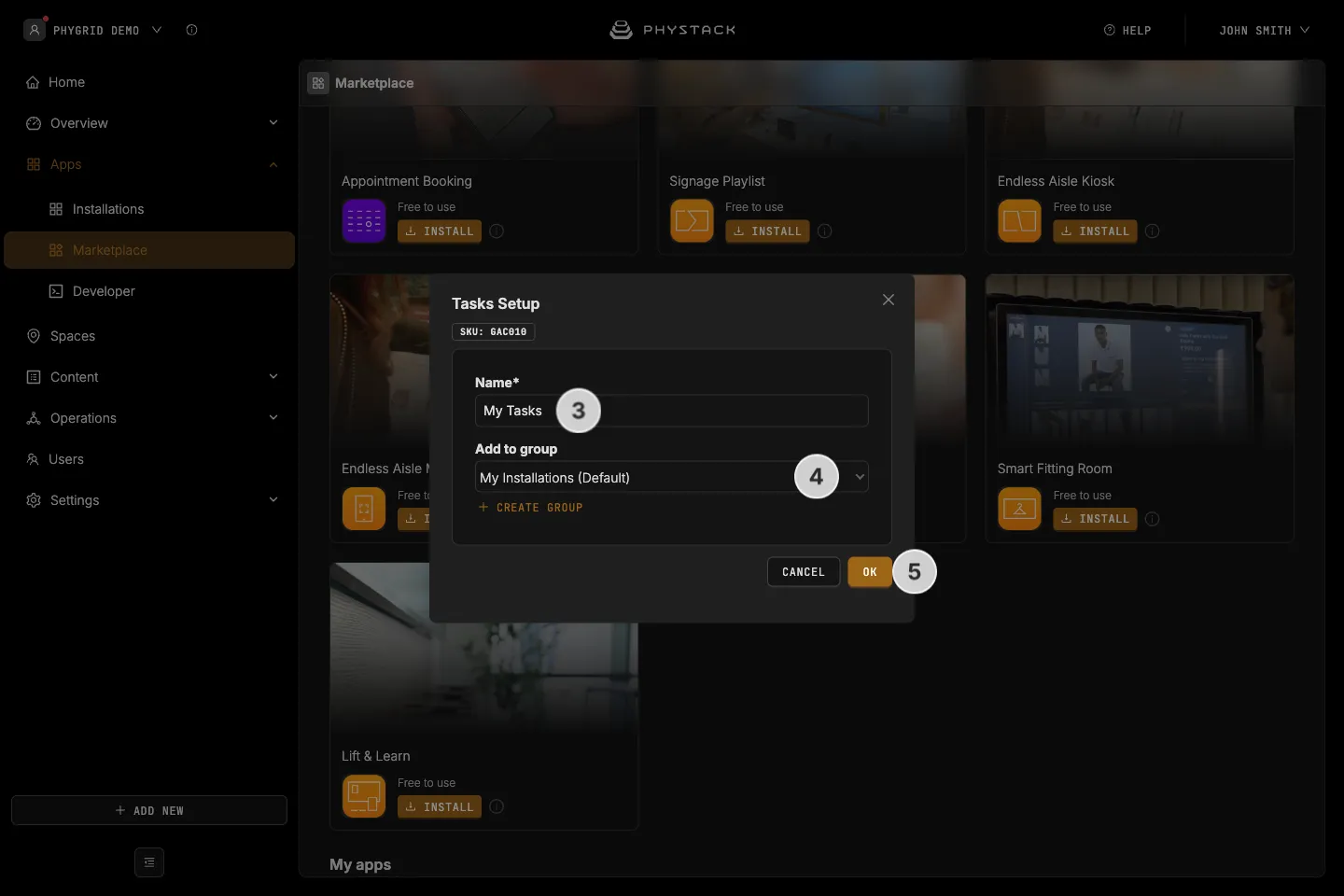
- In the installation form, enter a Name for your installation, for example “Store requests”
- Optionally, select a Group to organise your installations
- Click OK to create the Tasks installation
One installation can receive requests from several solutions in the same store. Create a separate installation for each store, so staff only see their own store’s requests.
How to configure Tasks
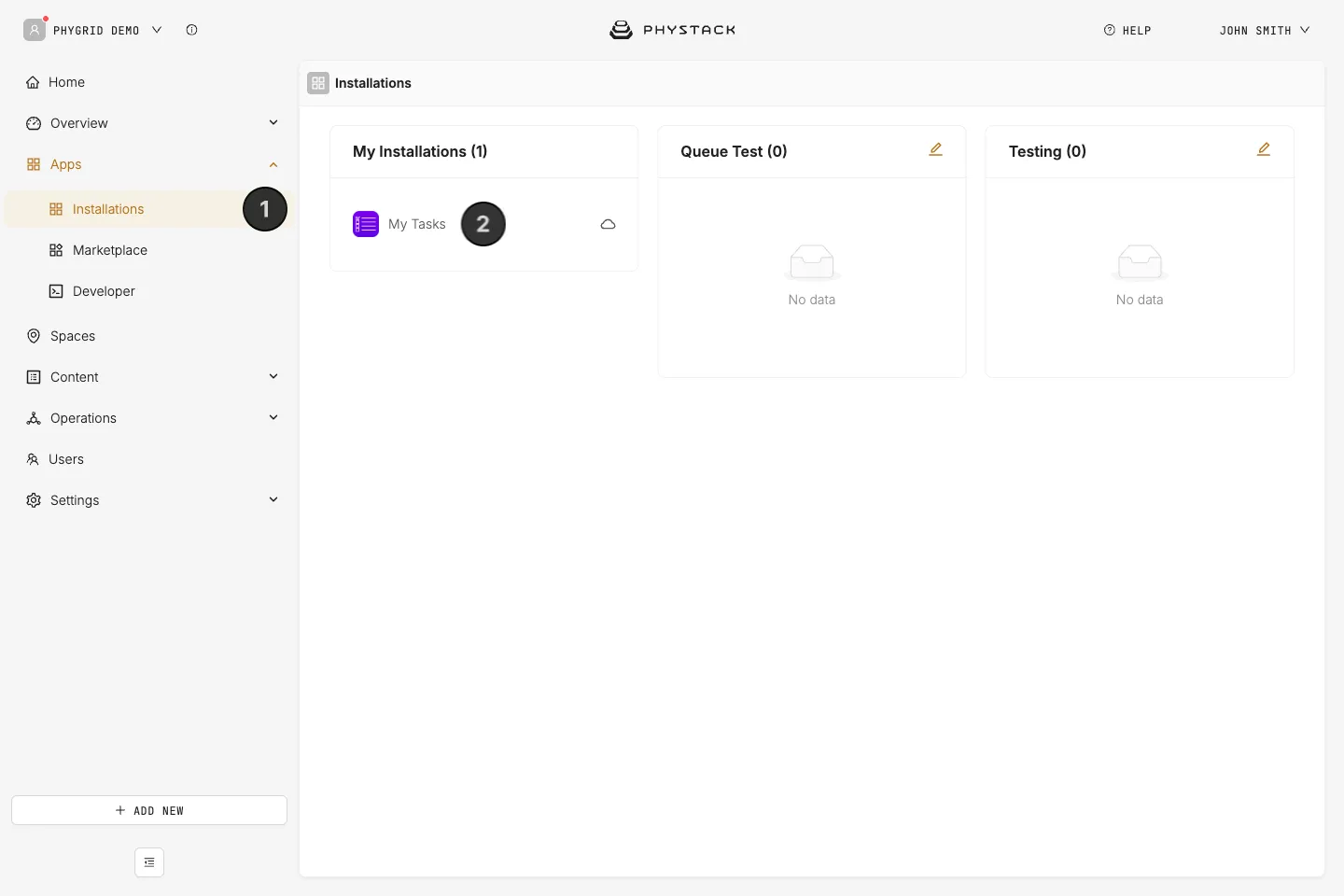
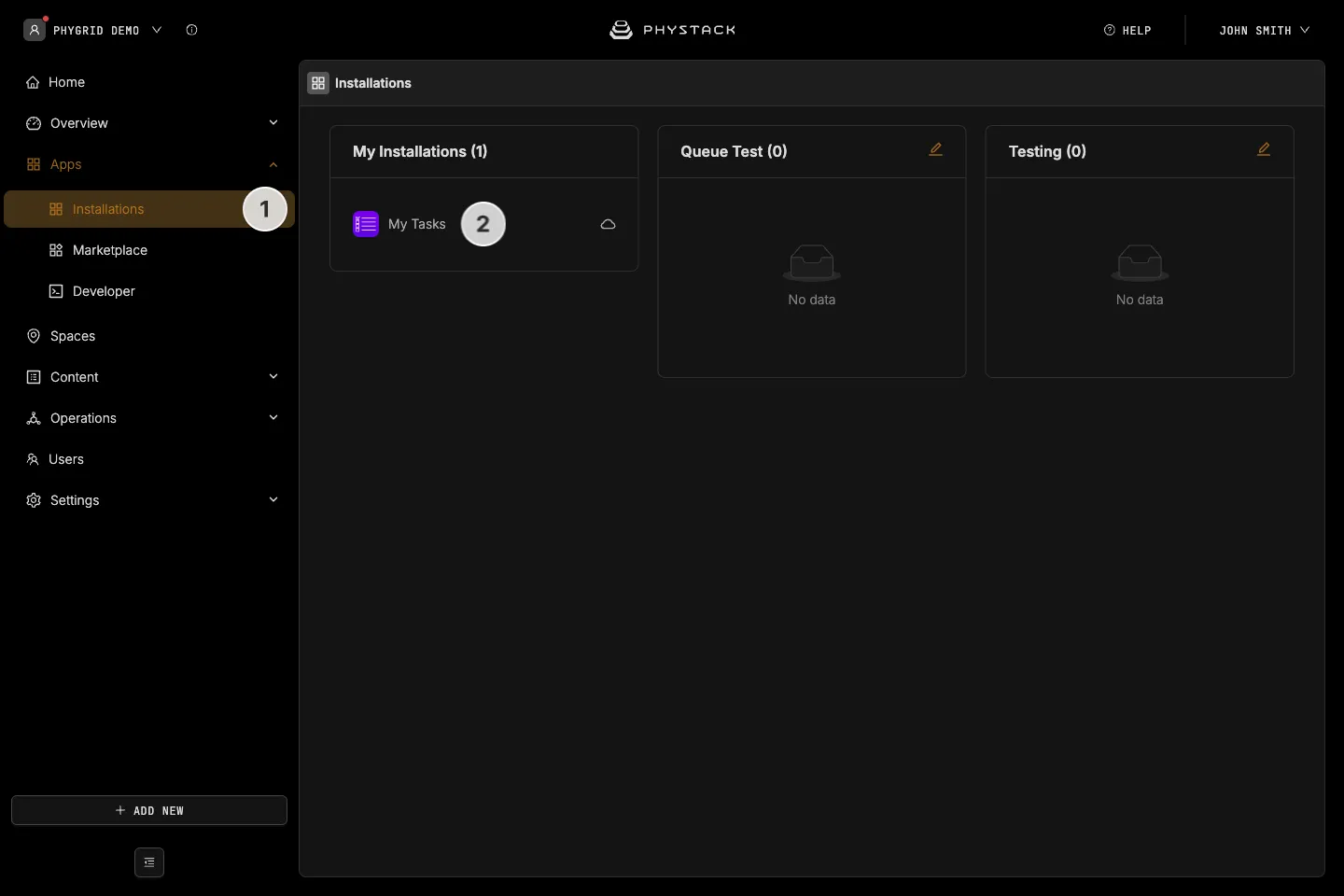
- Your new installation will be available in the sidebar under Apps → Installations
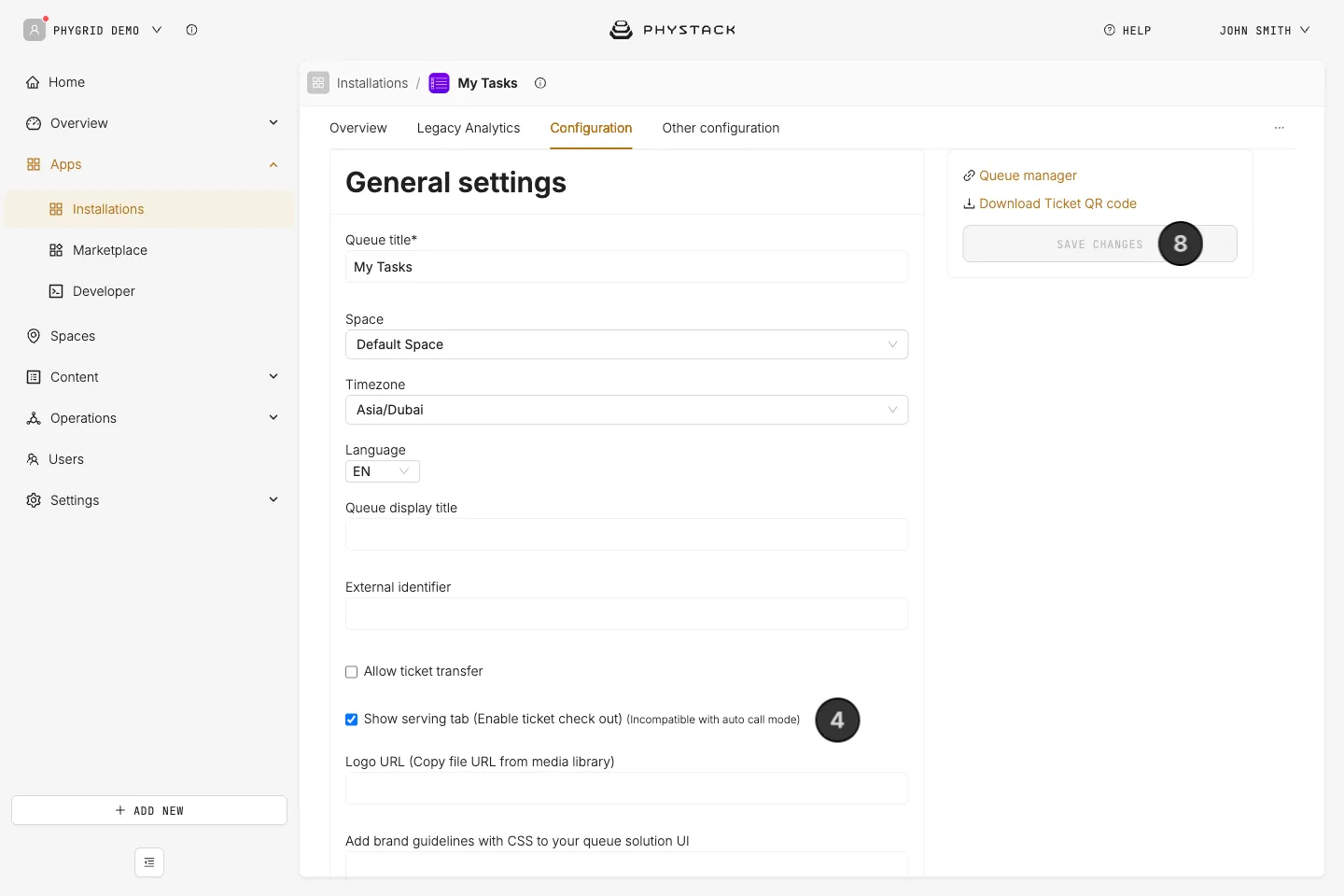
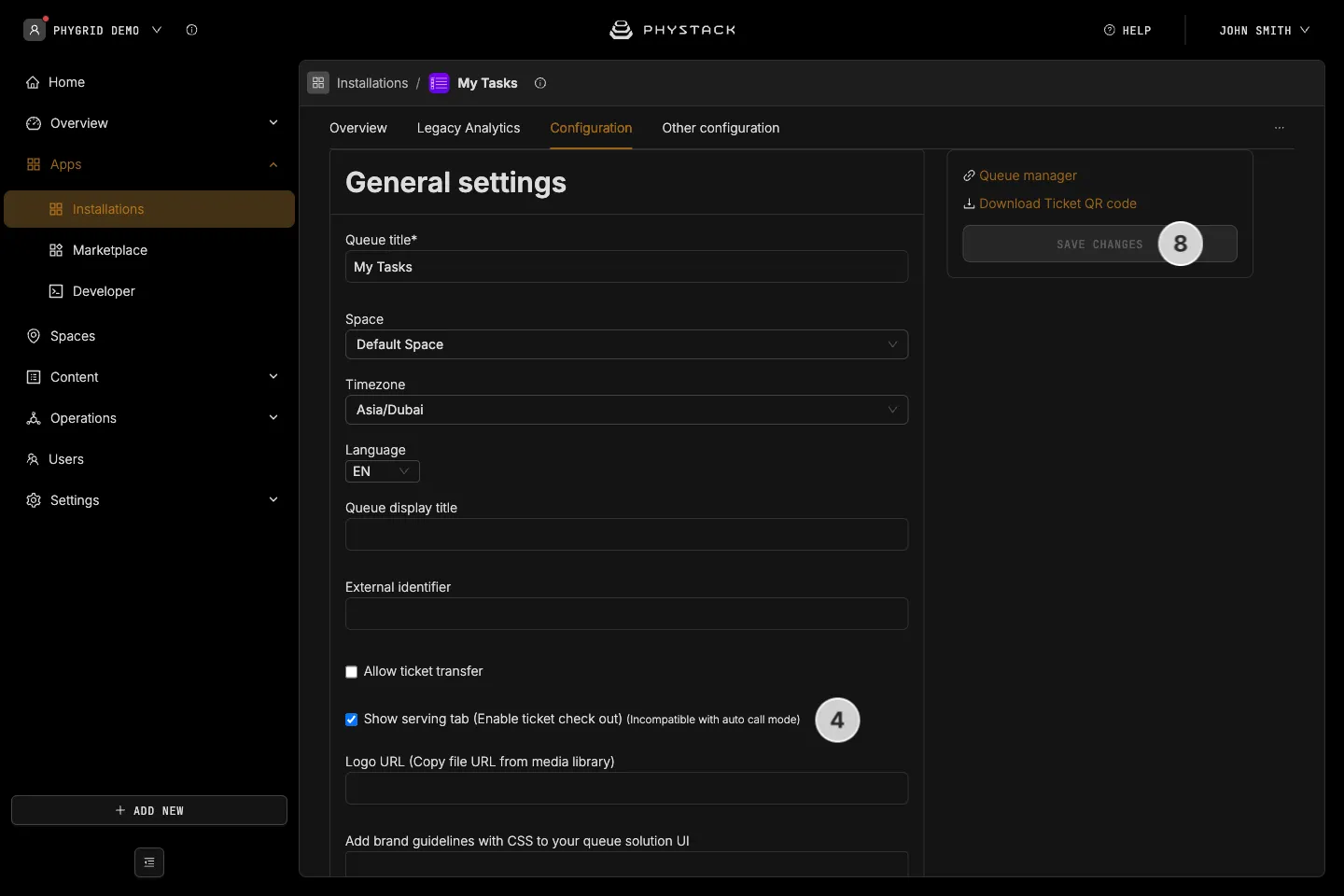
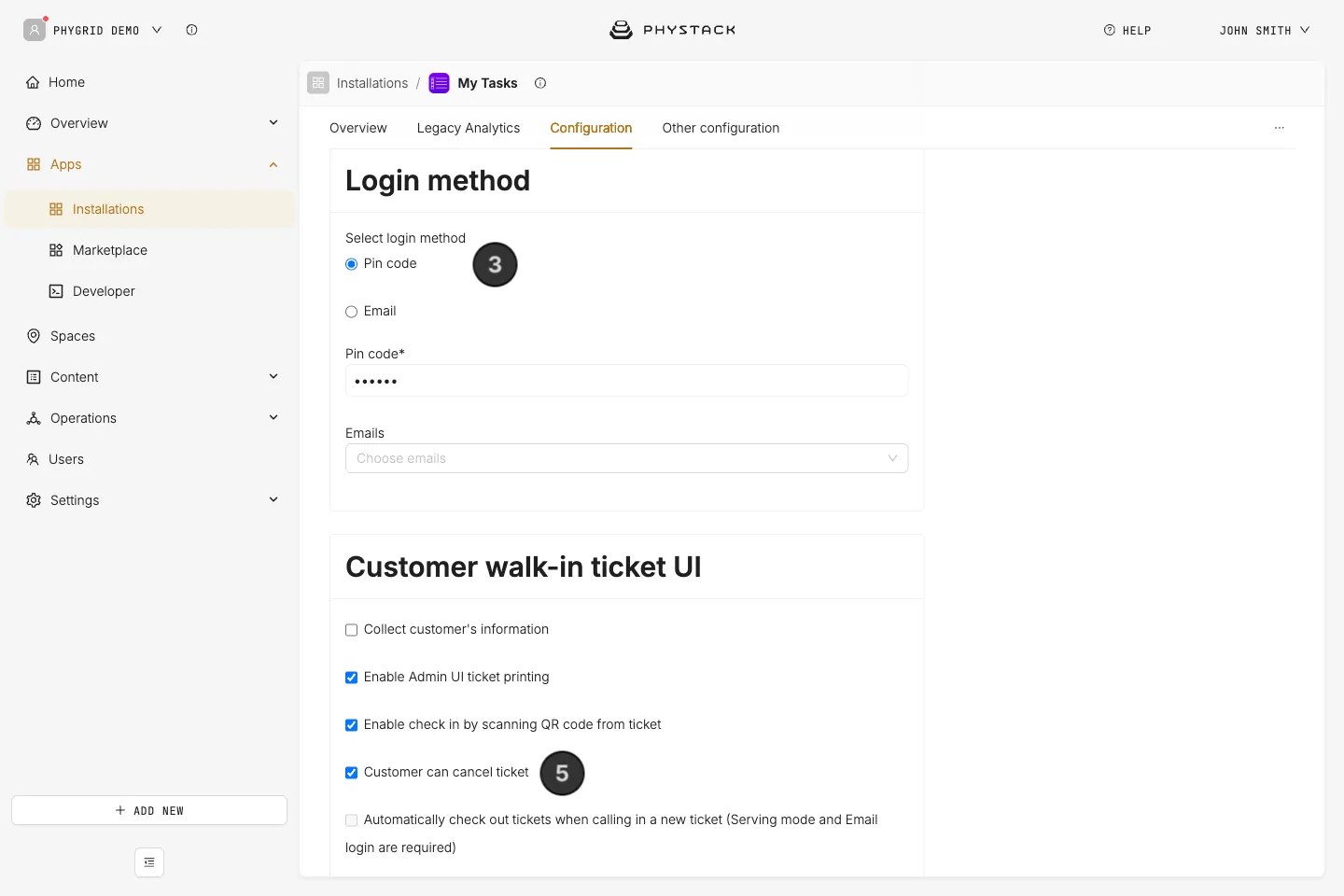
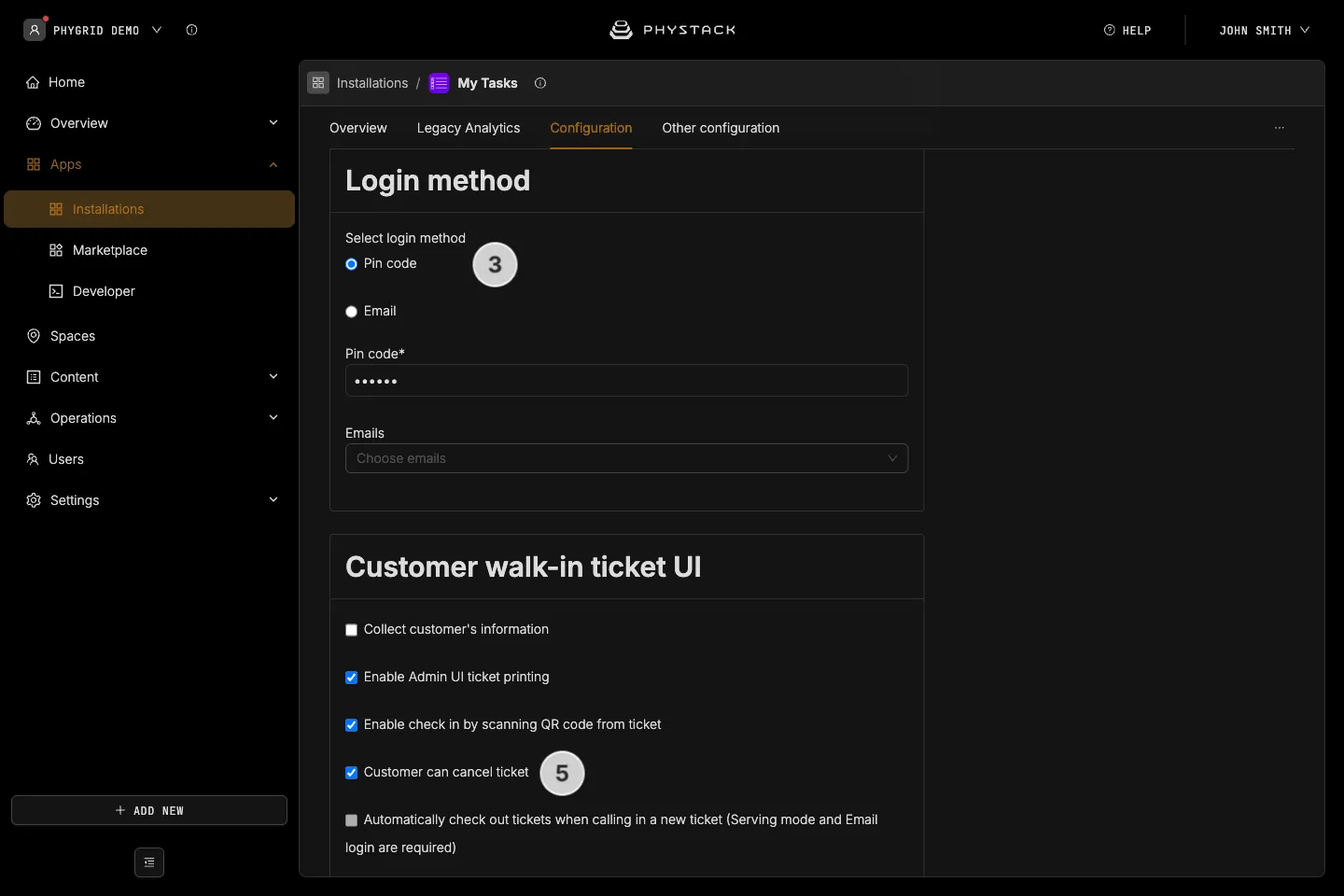
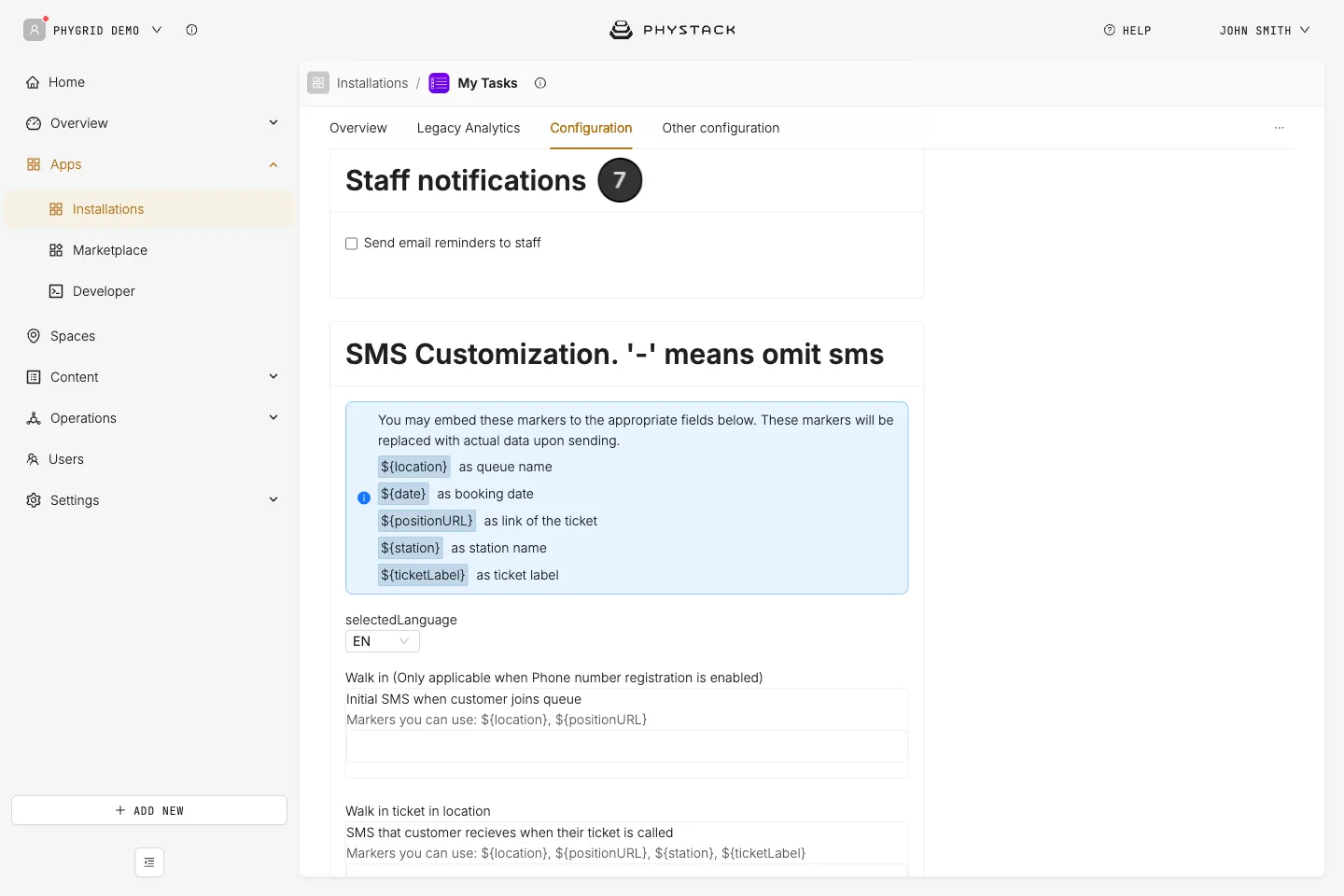
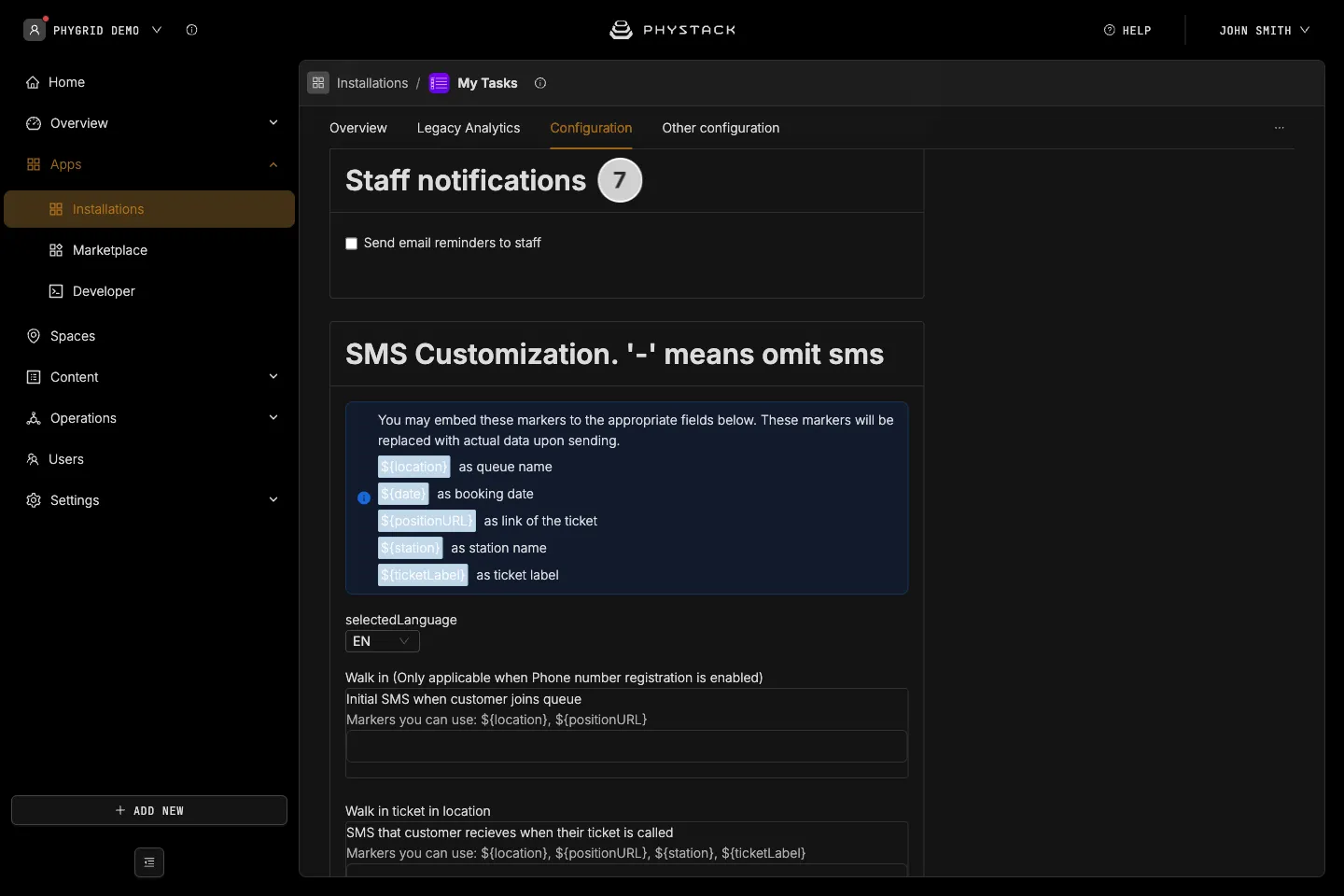
- Open the installation and go to the Configuration tab
- Set the Login method staff use to open Tasks:
- Pin code: staff enter a PIN. Enter the PIN in the settings. This needs no other setup
- Email: staff sign in with their PhyGrid account. Invite them to the tenant first, see Invite a user
- Turn on Show serving tab (Enable ticket check out). It adds the For Payment column and the Complete button. Without it, requests disappear from the board once they’re delivered
- Optionally, leave Customer can cancel ticket on, so customers can cancel a request that hasn’t been prepared yet
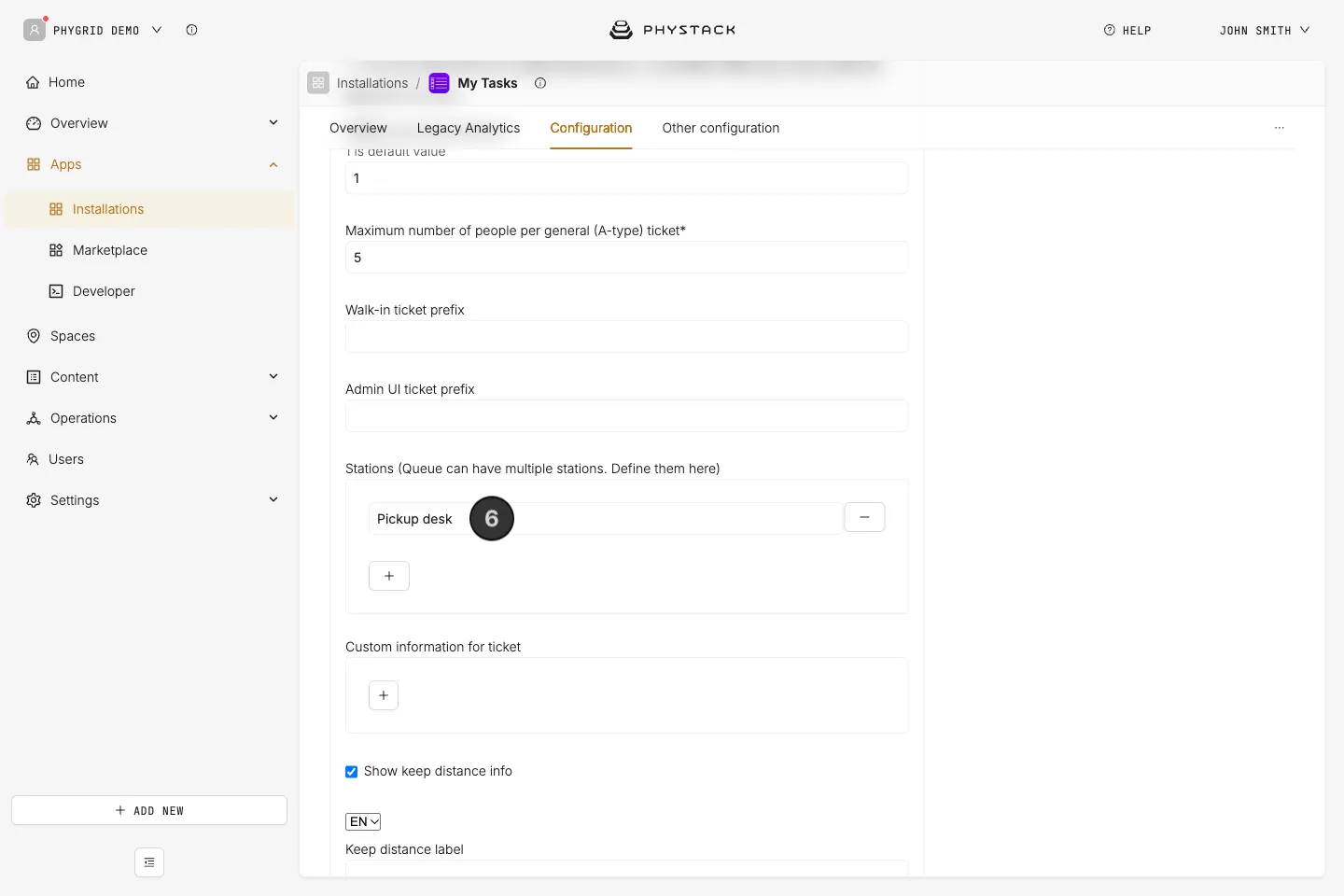
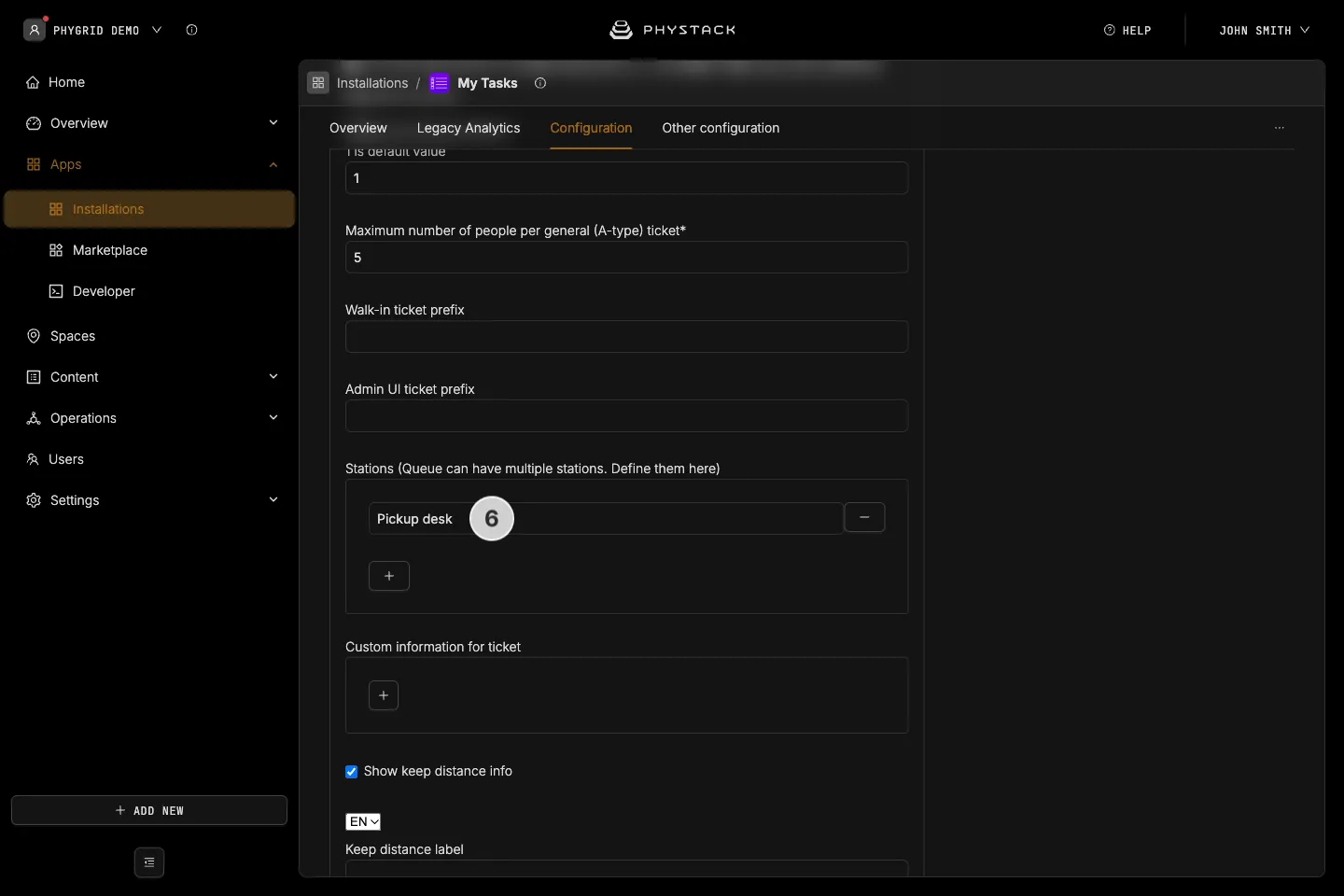
- Optionally, add Stations, such as “Pickup desk” or “Fitting rooms”, so staff can choose where they’re serving
- Optionally, set up Staff notifications to email staff when too many requests are waiting, or when they wait too long
- Save the settings
How to open the queue
Tasks only accepts requests while its queue is open. While it’s closed, solutions can’t send requests: Endless Aisle shows “An error occurred while creating order”.
- Open Tasks on a staff device. See Manage requests in Tasks
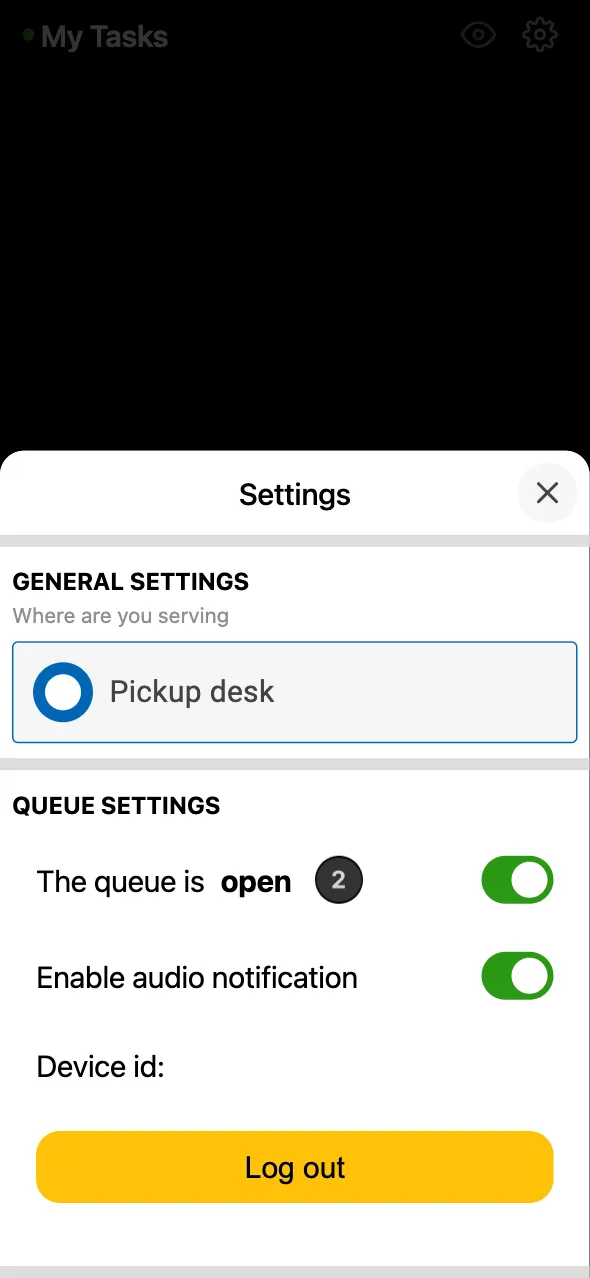
- Open Settings and turn on The queue is open
How to connect Tasks to a solution
Each solution has a setting where you pick the Tasks installation that receives its requests:
- Endless Aisle: Features → Bag → Tasks App → Queue. See Set up checkout with Tasks
- Smart Fitting Room: Tasks App → Queue. See Connect Smart Fitting Room to Tasks
Tasks works as a queue, so these settings list all queues in your tenant, including Queue Management queues. Check that you pick the queue of your Tasks installation.