How to integrate your products for use in Endless Aisle
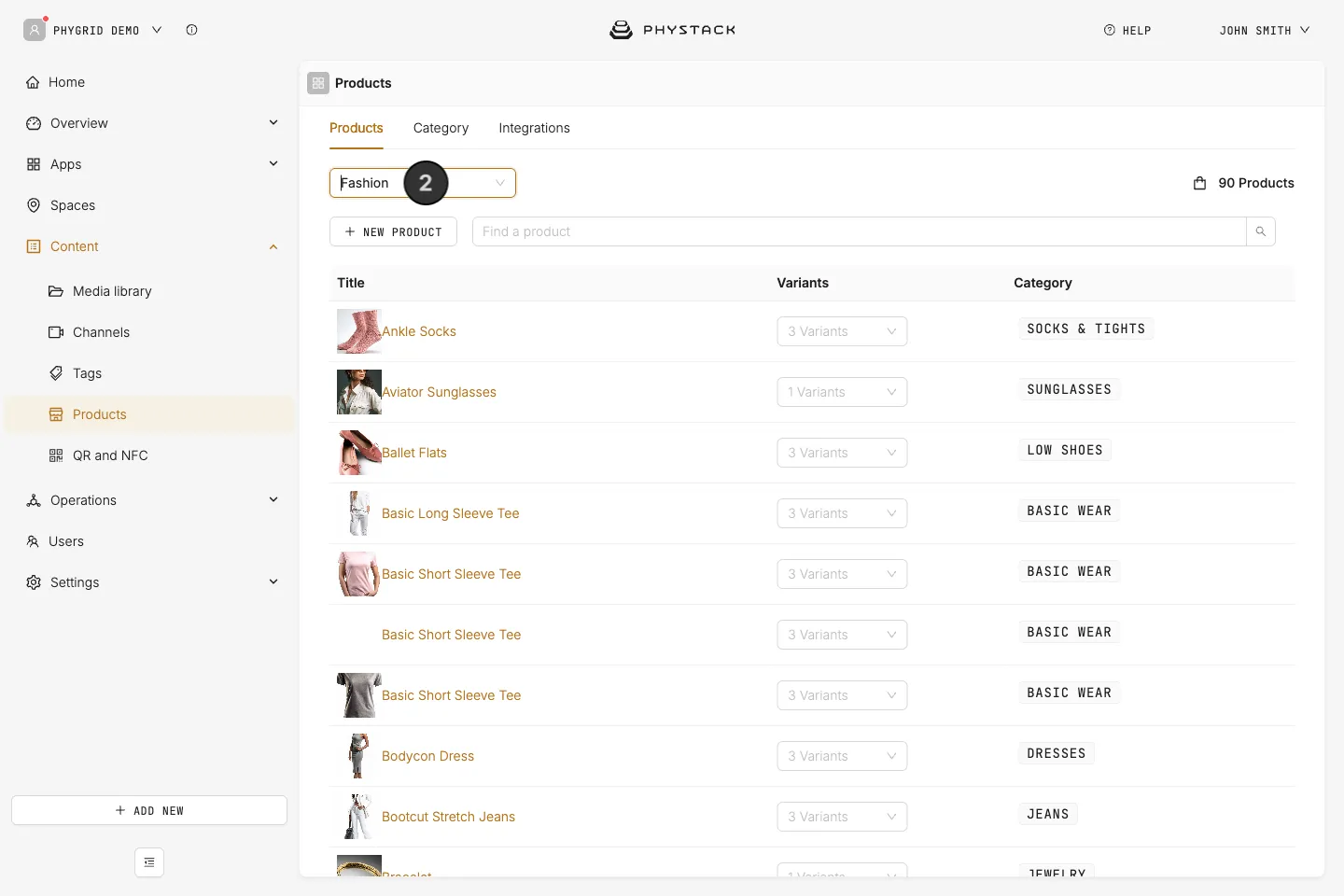
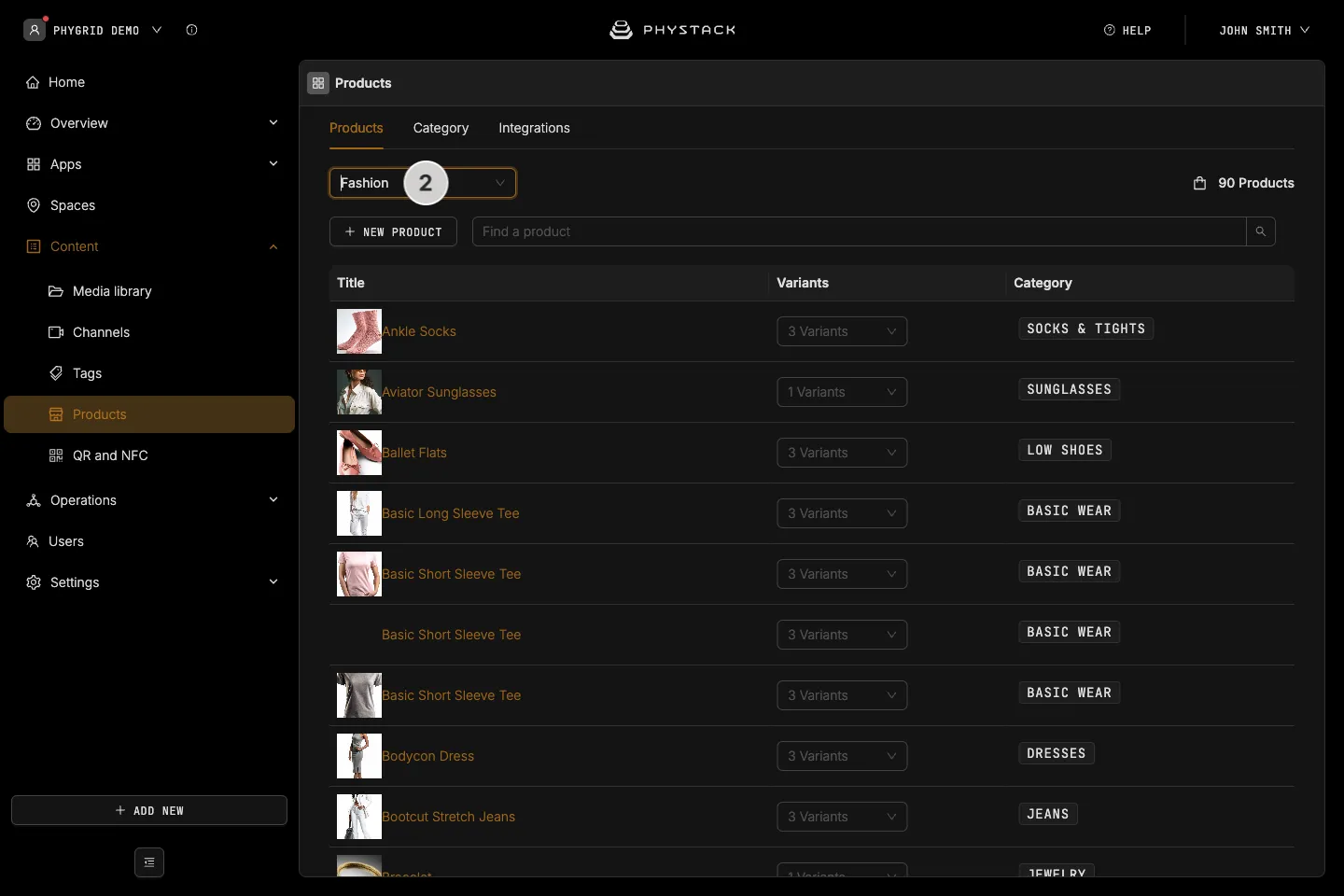
Endless Aisle uses the Products functionality built into the Console: it shows the products in Content → Products. Any products you’ve already integrated for other PhyGrid solutions can be used in Endless Aisle too.
Use these guides to integrate your products:
- Products overview
- Integrate products using Google Product Feed: imports your catalogue from the feed you use for Google Merchant Centre, on a daily schedule. Best for a full catalogue that changes often
- Create a product manually: good for a small catalogue or for fixing single products
- Create a category manually: categories decide where products appear on the kiosk
To import products through the PhyGrid products API instead, contact PhyGrid support.
What product information Endless Aisle uses
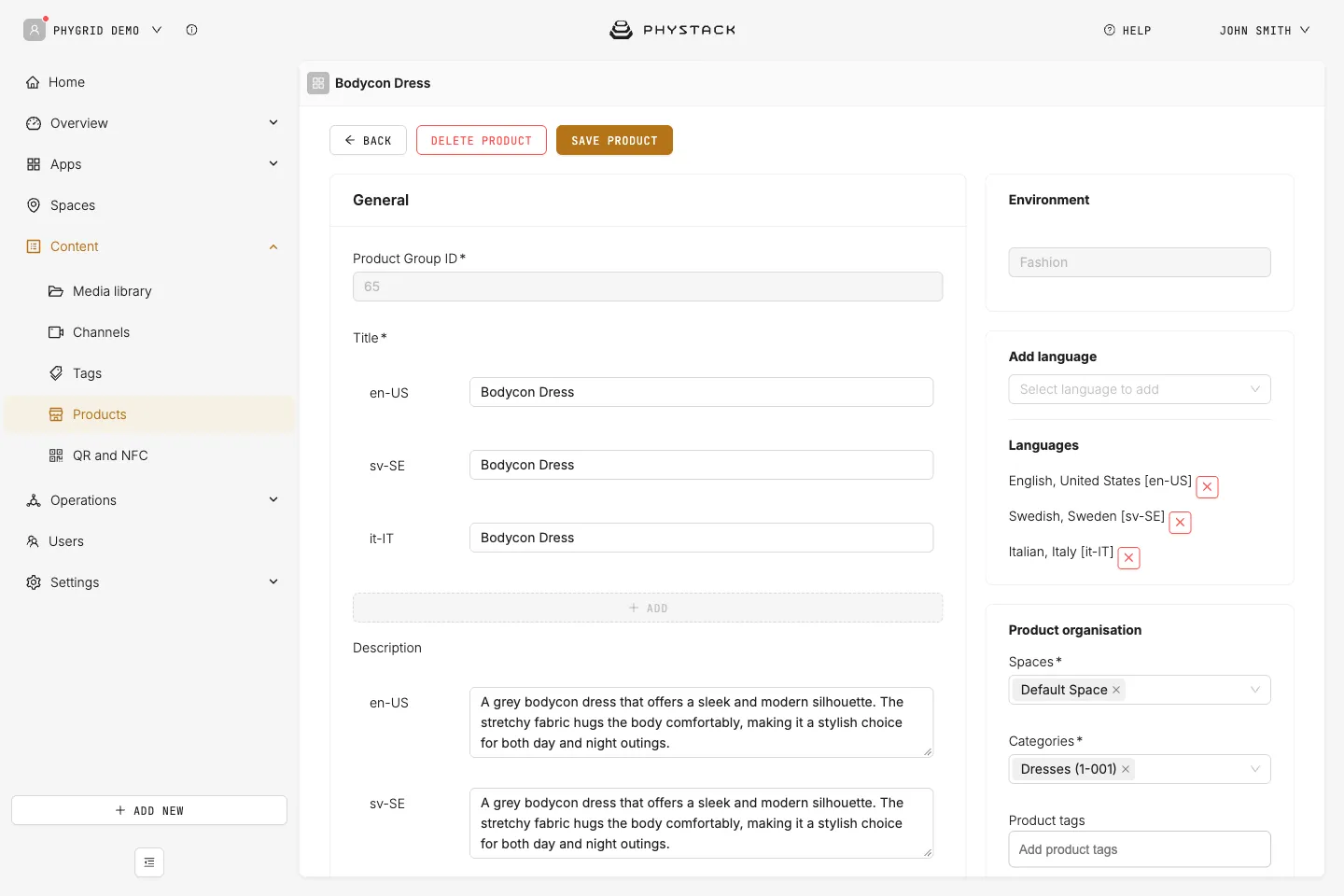
- Spaces: the kiosk only shows products assigned to its space
- Categories: decide where products appear on the kiosk’s home screen and in category lists
- Title and description: shown on product cards and the product page, in the kiosk’s language. If a text is missing in that language, the English text is shown
- Images: the first image is used on product cards. Products without an image show a placeholder
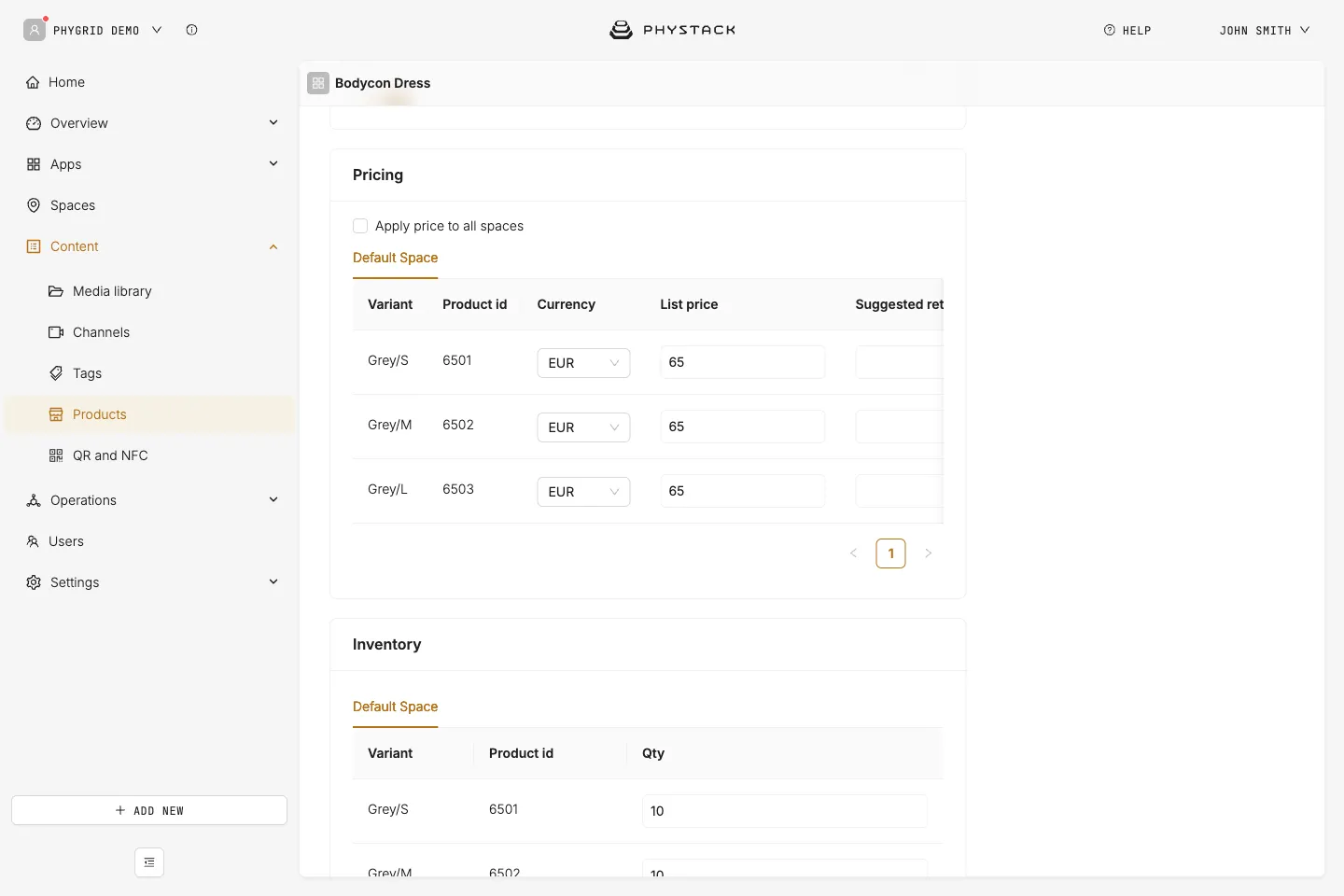
- Price: the price for the kiosk’s space. A promotional price is shown with the standard price struck through
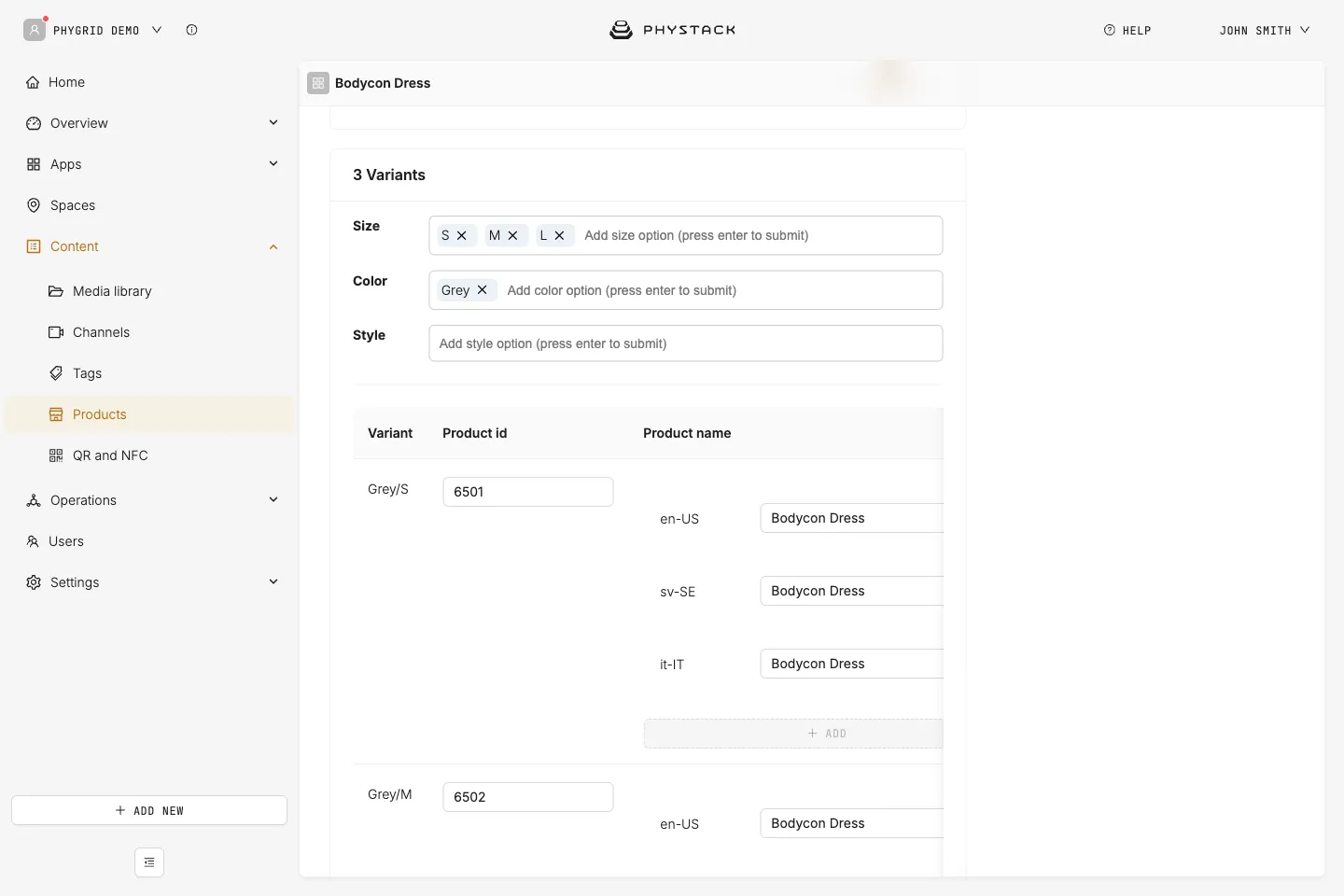
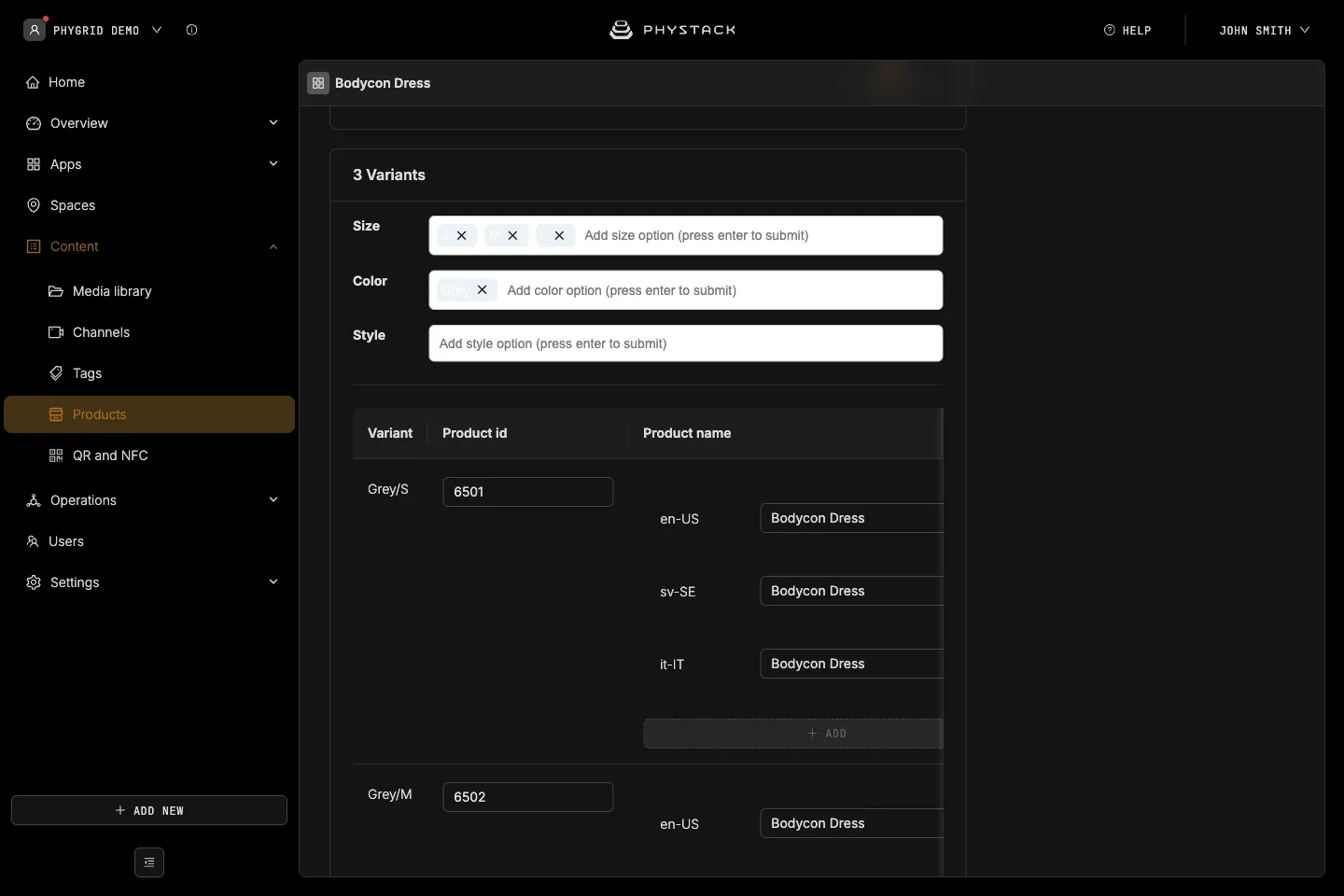
- Variants: sizes, colours, and styles become the choices on the product page
- Inventory: the quantity in stock for each variant and space. By default, products and variants without stock aren’t shown or can’t be added to the bag
- Barcodes (EAN, GTIN, or UPC): needed for barcode scanning, printed receipts, and Tasks
- Product link: the web shop address used for the product QR code
- Optional: labels (shown as stickers), product features (used for filters), and related products (used for recommendations)
How to check that your products are ready
- If you use a Google Product Feed, open the integration on the Integrations tab after its scheduled time, and check that its history shows a successful run
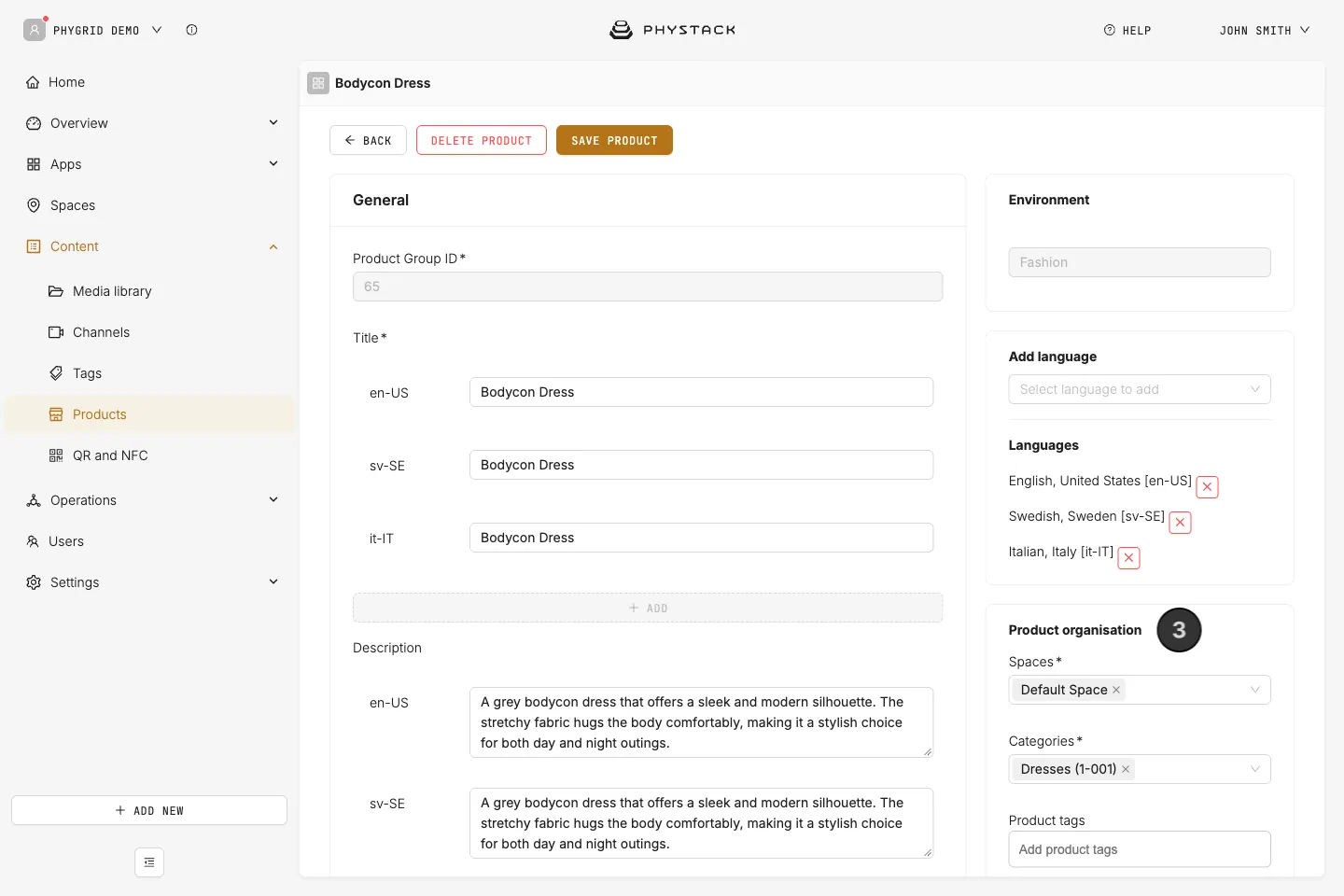
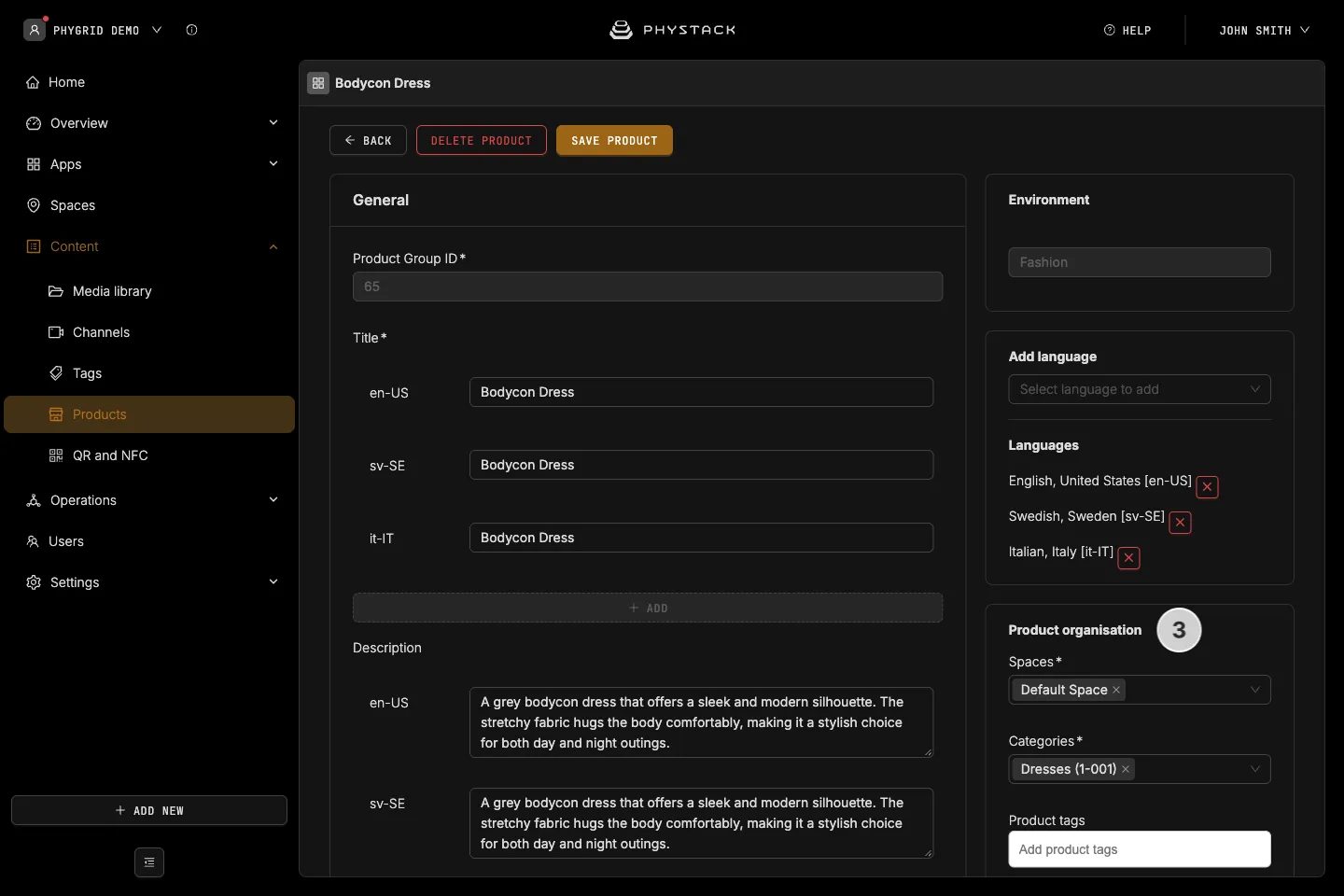
- On the Products tab, select the environment and open a few products
- Check each product’s Spaces, Categories, prices, inventory, and images
- Check that the products meet the conditions in Make products show on the kiosk