

Only admins see the Integrations tab. See Who can manage products.
How to add a Google feed integration
- In the PhyGrid Console, go to Content → Products and open the Integrations tab
- Click New integration and choose the feed type:
- Google Product Feed: your catalogue, from the feed you use for Google Merchant Center
- Google Local Inventory: store stock and prices, from your local inventory feed
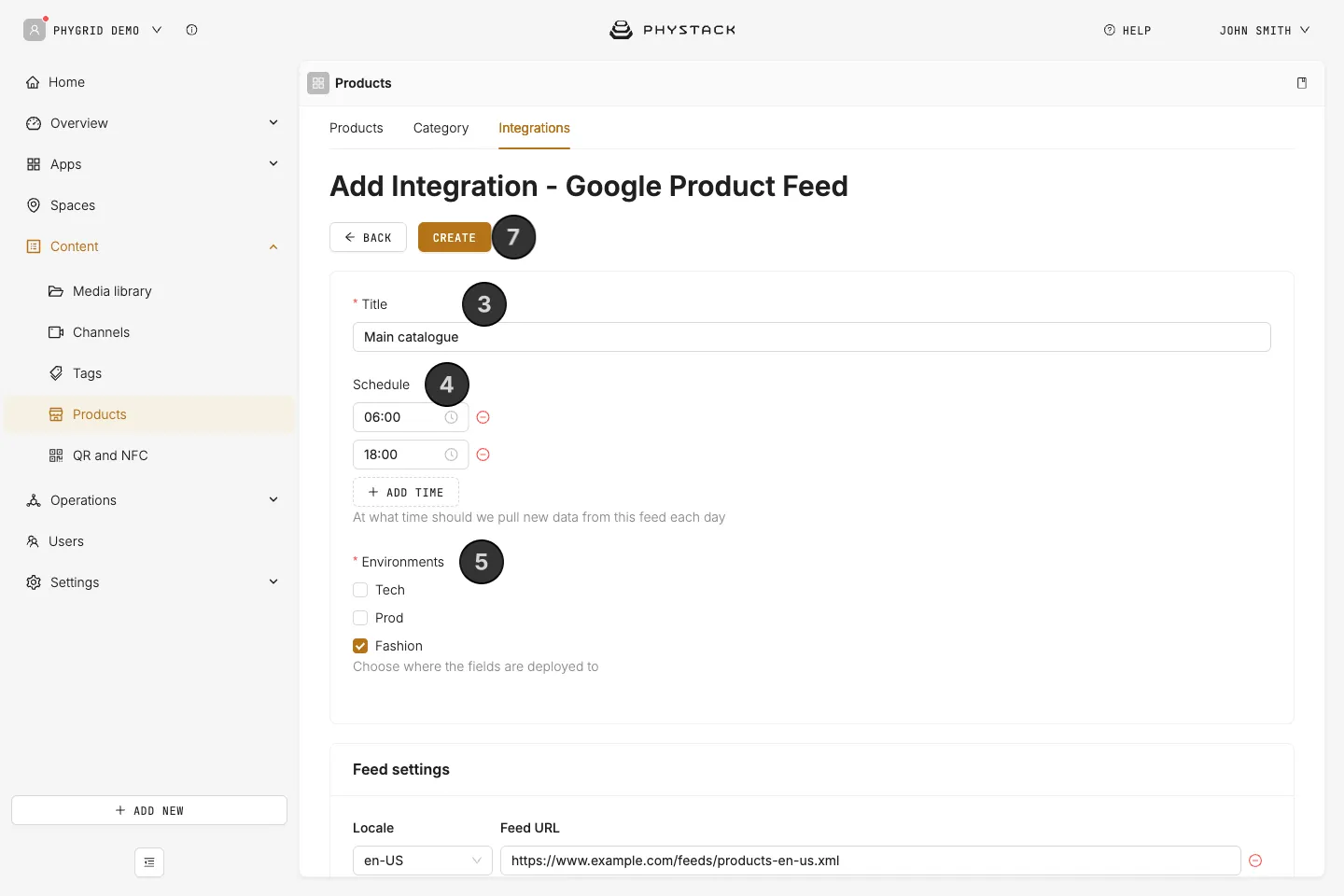
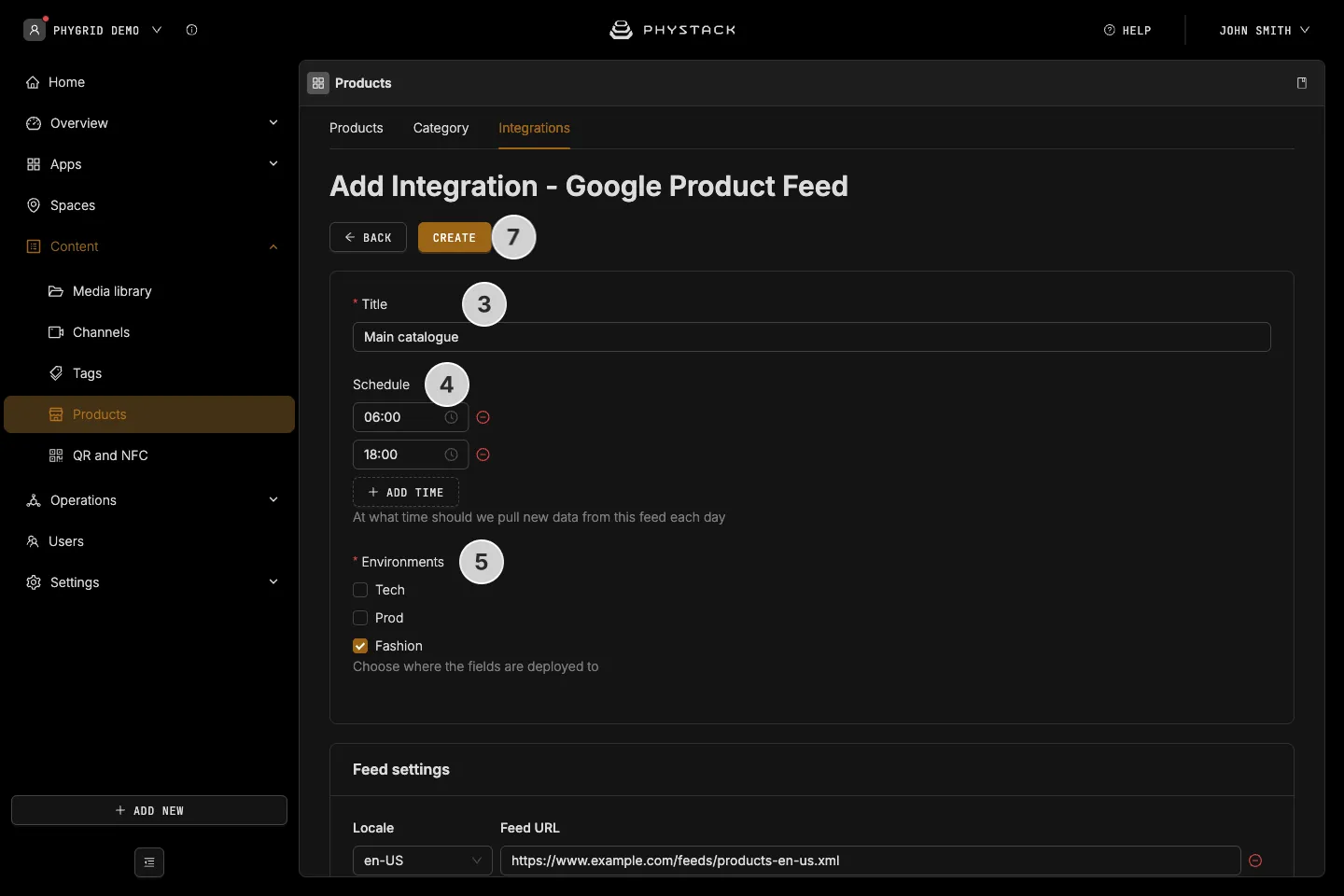
- Enter a Title, for example “Main catalogue”
- Under Schedule, set the time of day for the import. To import more often, click Add time. You can add up to 10 times, at least 15 minutes apart. Times are in your computer’s time zone
- Under Environments, select every environment the products go to
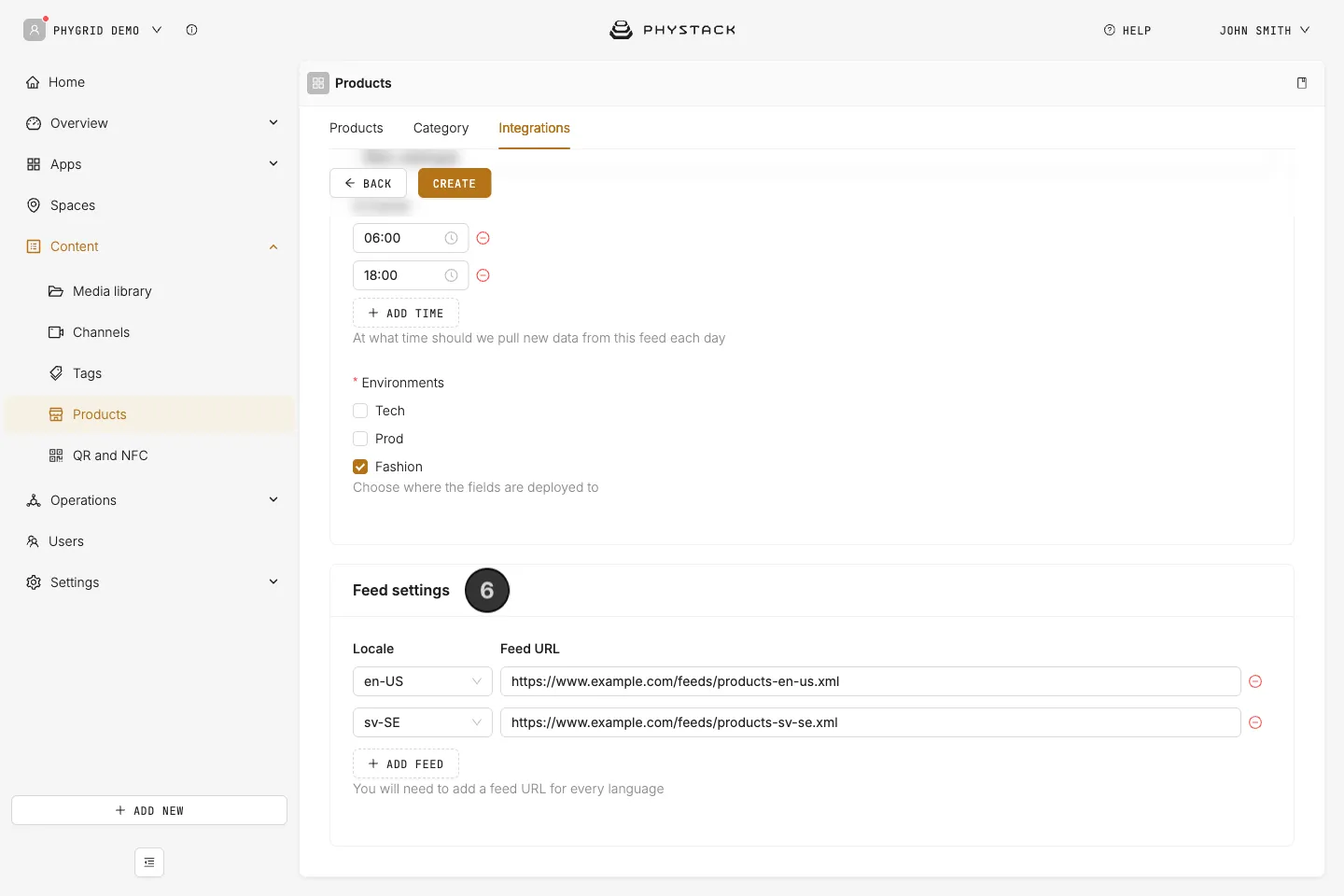
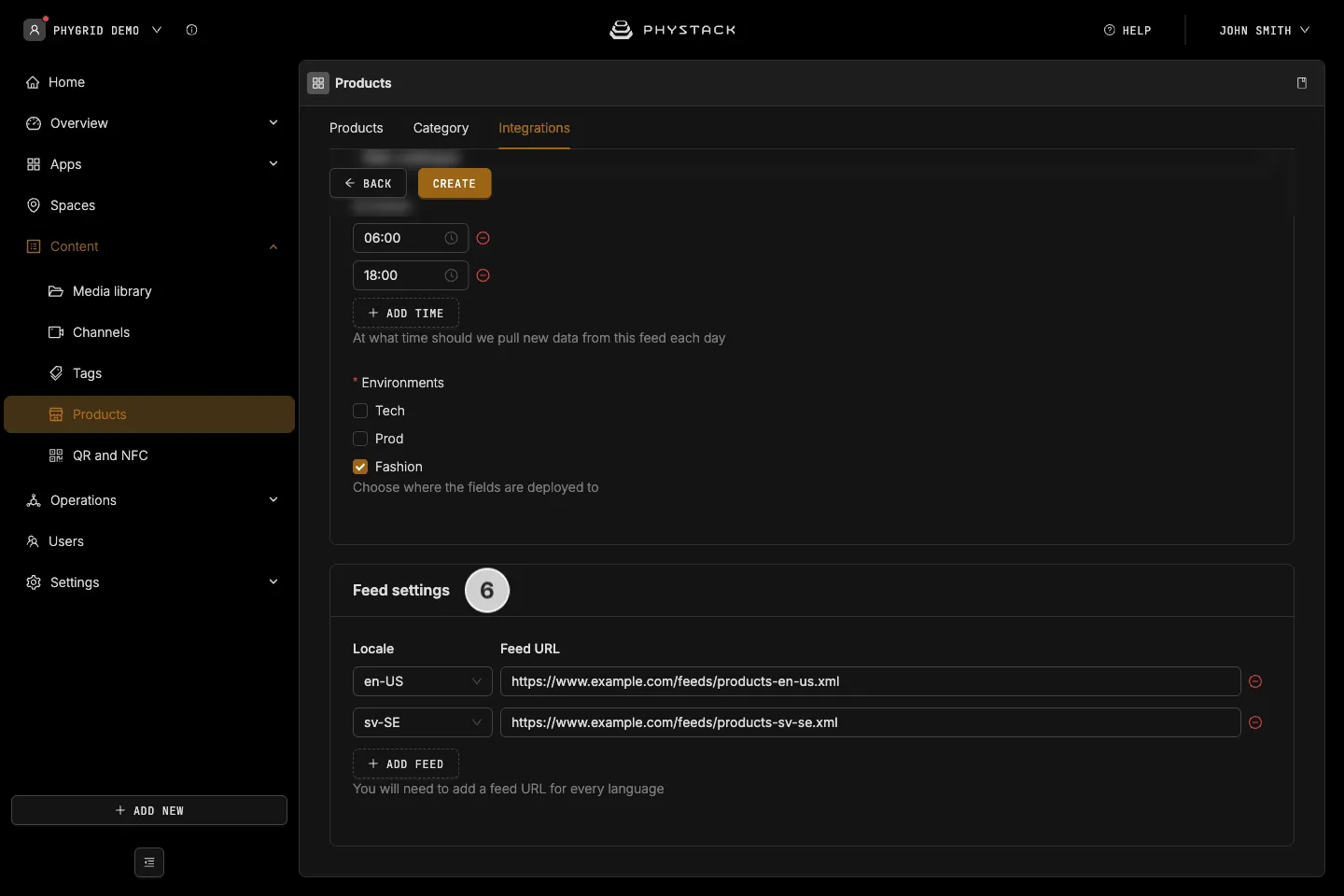
- Under Feed settings, add the feed address:
- Google Product Feed: choose the Locale and enter the Feed URL. Click Add Feed to add the feed for each other language
- Google Local Inventory: enter the Feed URL
- Click Create
The first import runs at the next scheduled time.
How to check an import
- On the Integrations tab, click the integration’s name
- Under History, check the Job status of the latest import: Success, Failed or In progress
- Open the Products tab, choose the environment, and open a few products to check their details
If an import failed, see Troubleshooting products.
How to change or pause an integration
- On the Integrations tab, click the integration’s name
- Under Status, choose Inactive to stop the imports, or Active to start them again
- Change the Schedule, Environments or Feed settings if needed
- Click Save
How to delete an integration
- On the Integrations tab, click the ⋮ menu on the integration’s row
- Click Delete, then Delete again to confirm
To stop imports for a while without losing the settings, set the integration to Inactive instead.