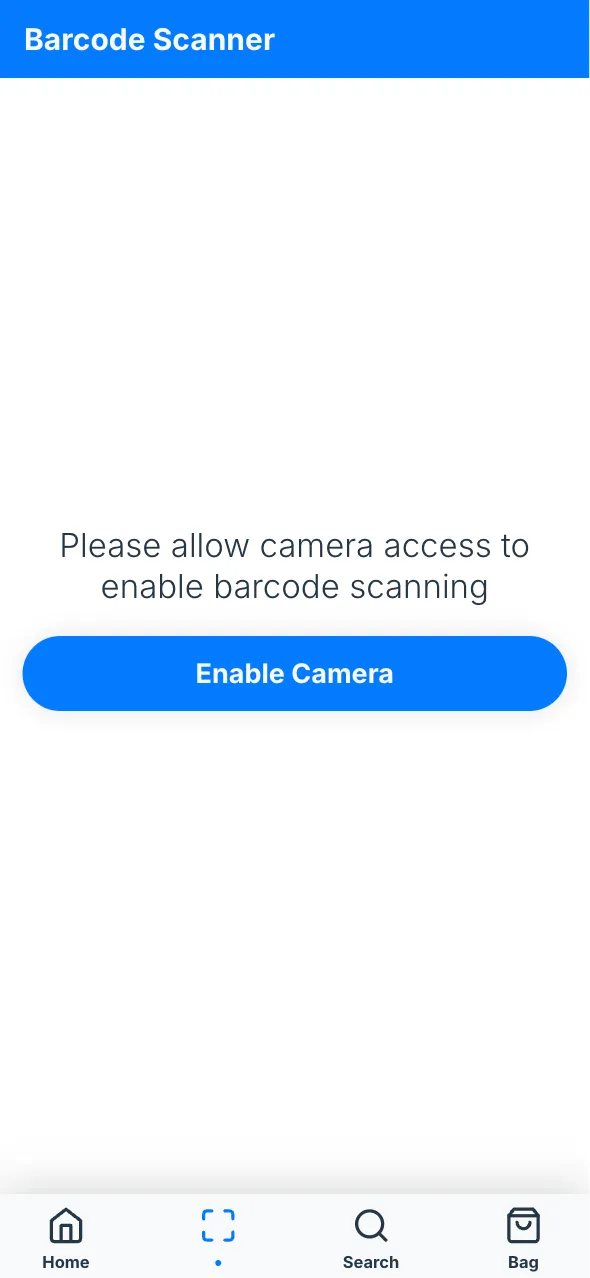
Endless Aisle Mobile is a web app that customers open in their phone’s browser, without installing anything. They can scan a product’s barcode with the phone camera, browse categories, search, and add products to a bag. It uses the same products as the kiosk.
A mobile installation has no device. Customers reach it through a mobile endpoint: a public link to the installation, tied to a space and an environment.
How to install Endless Aisle Mobile
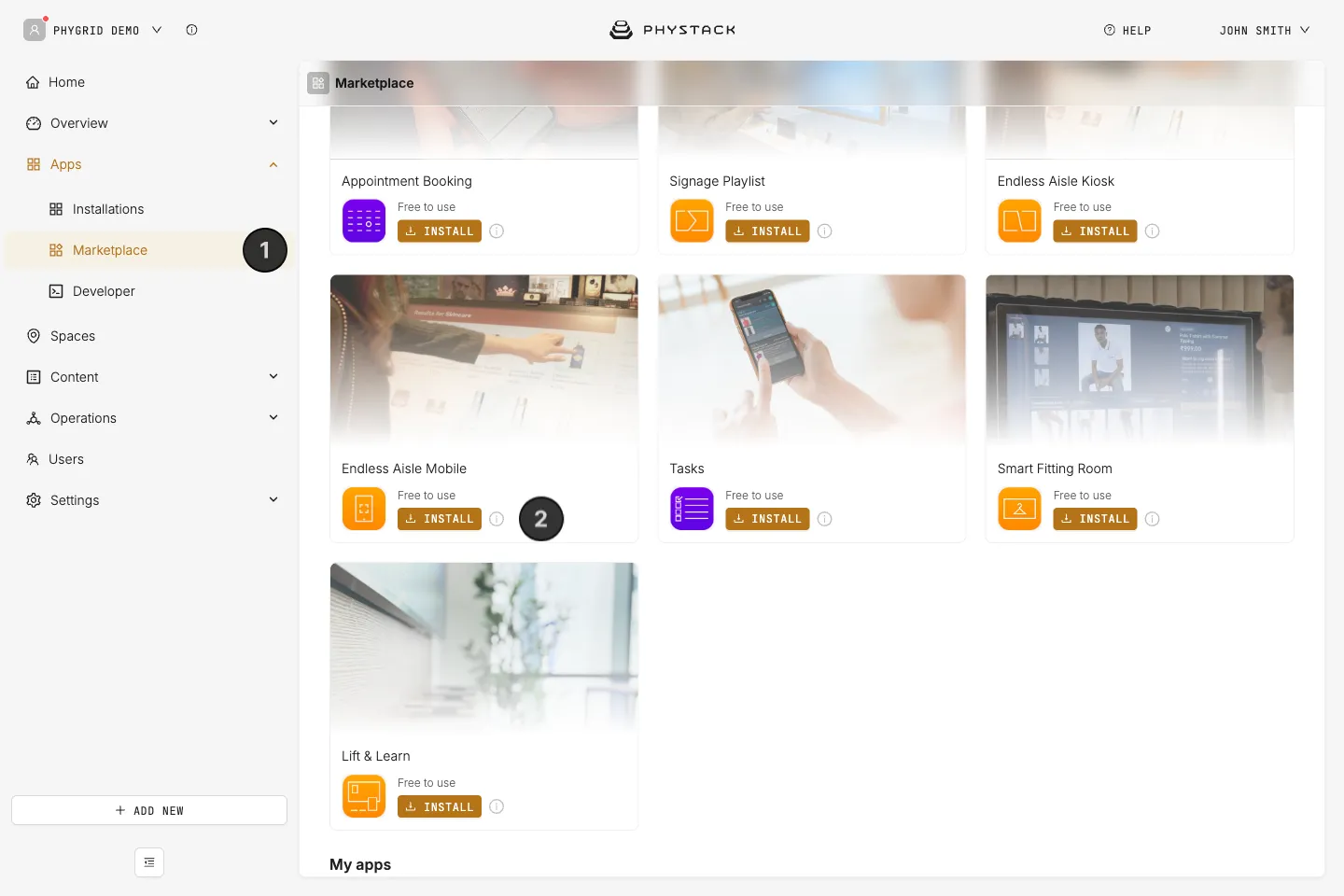
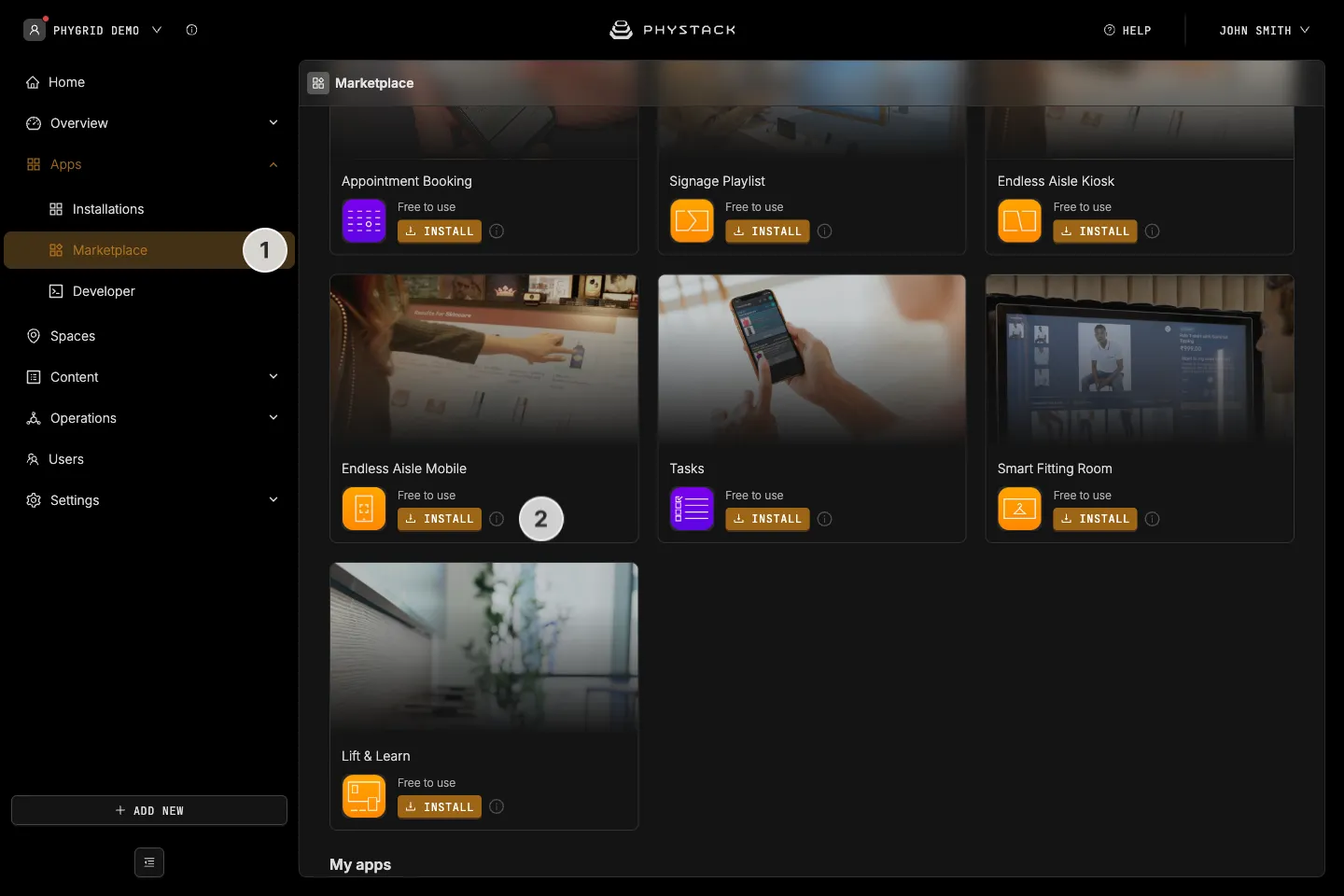
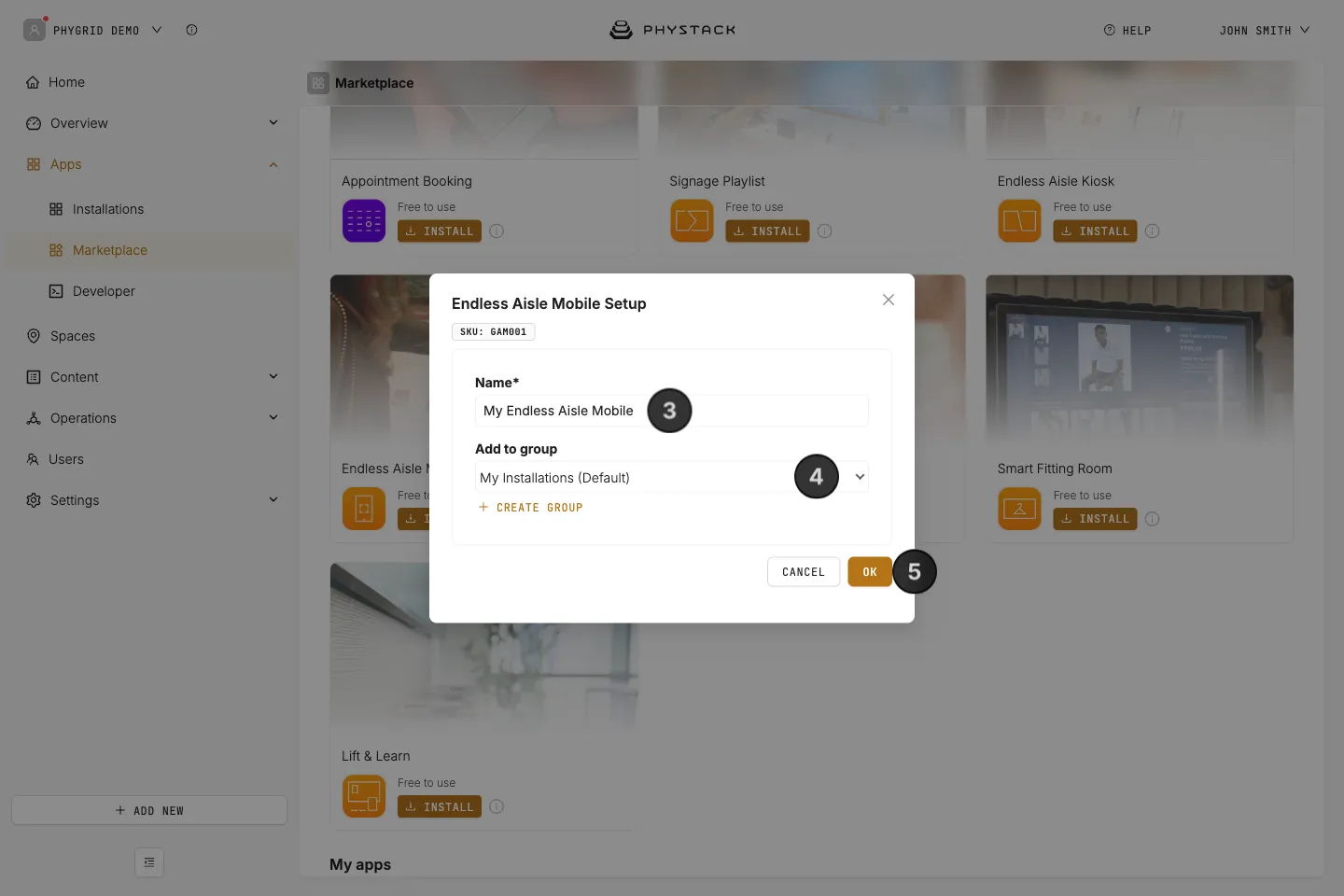
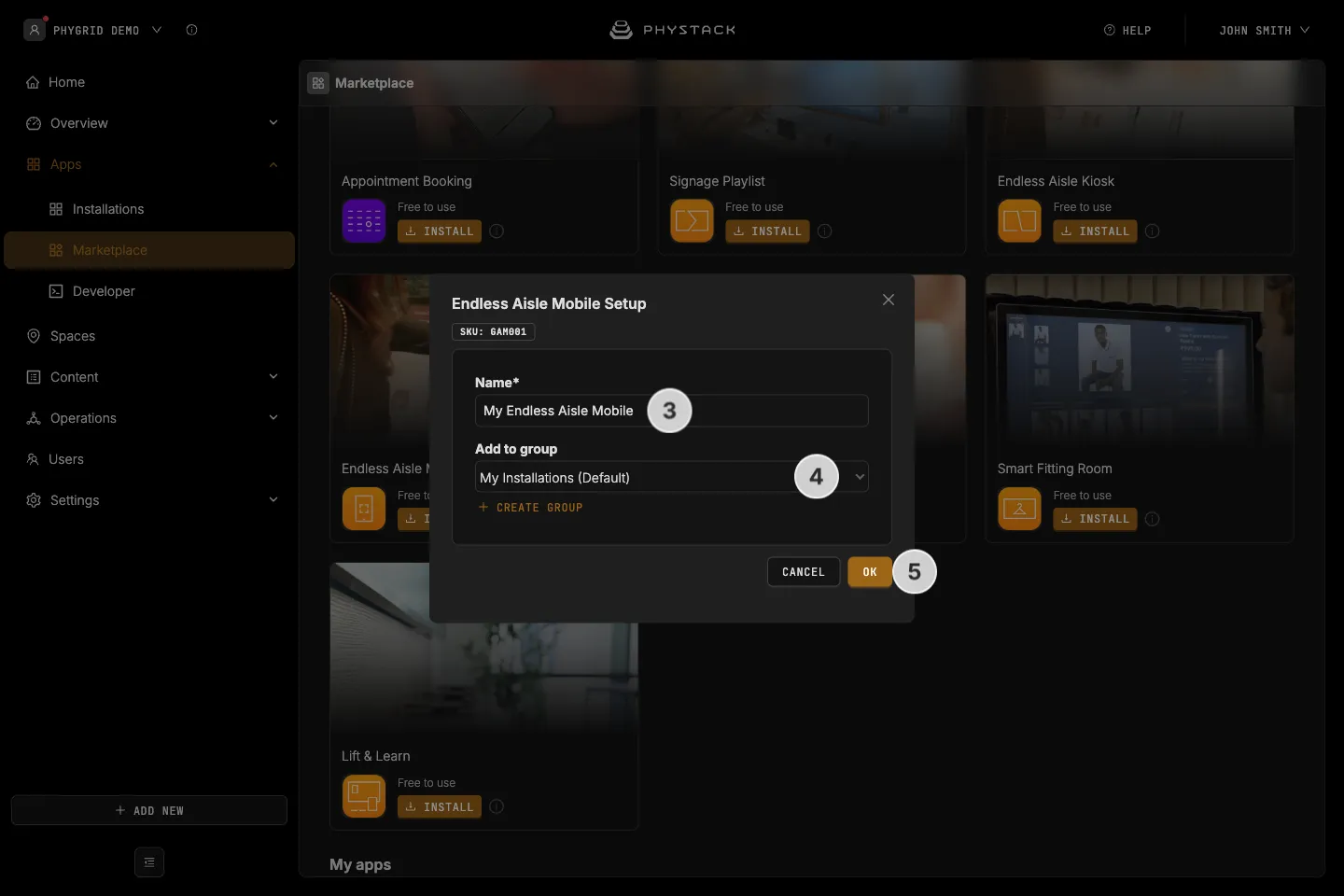
- In the sidebar, navigate to Apps → Marketplace
- Look for Endless Aisle Mobile in the list of applications and click on the Install button to open the installation dialog
- In the installation form, enter a Name for your installation
- Optionally, pick a group in Add to group
- Click OK to create the installation
- Open the installation, configure its settings, and save them with Auto Deploy selected. See Endless Aisle Mobile settings explained
How to create a mobile endpoint
The endpoint’s space decides which products and prices customers see, so create one endpoint per store if your stores have different products.
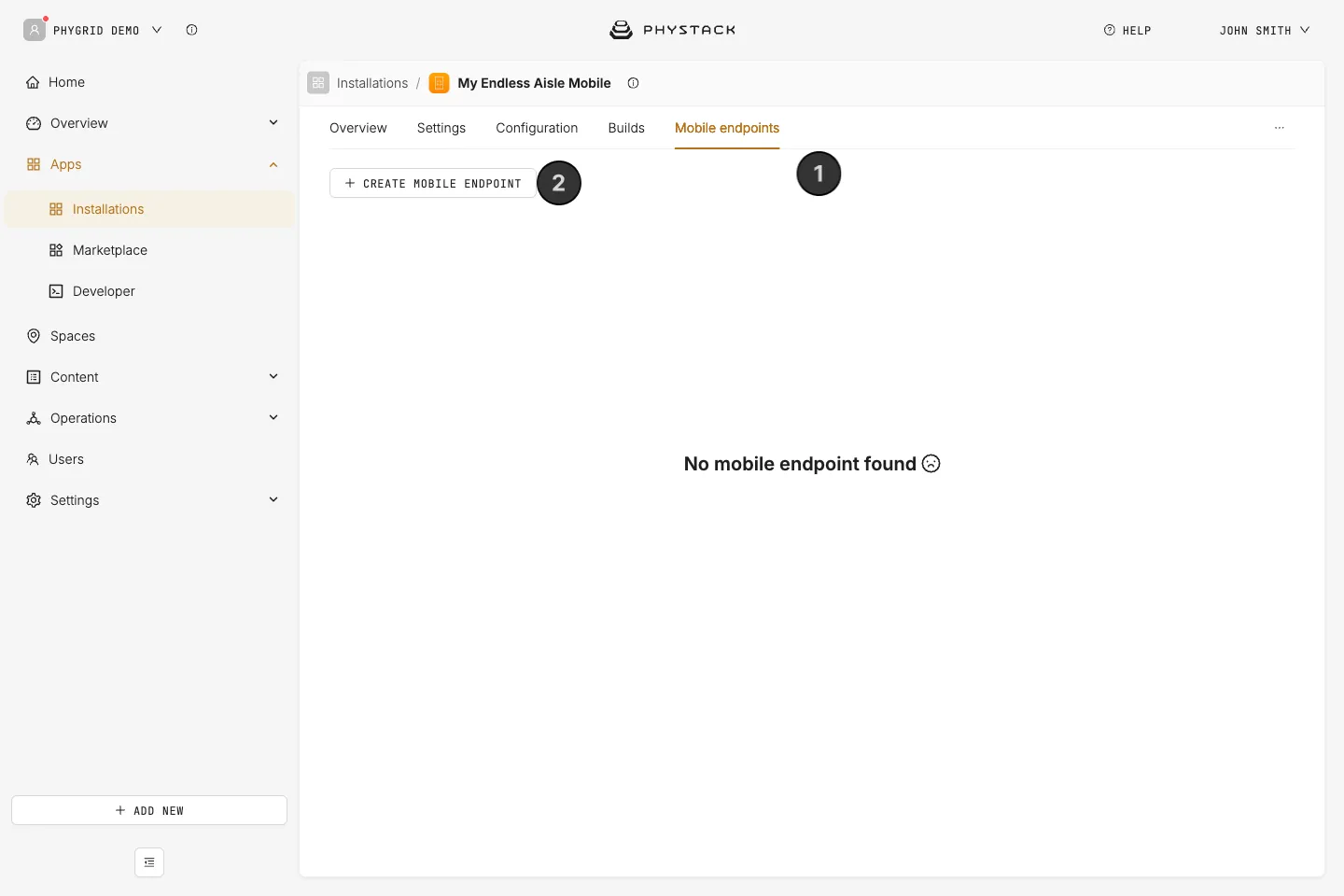
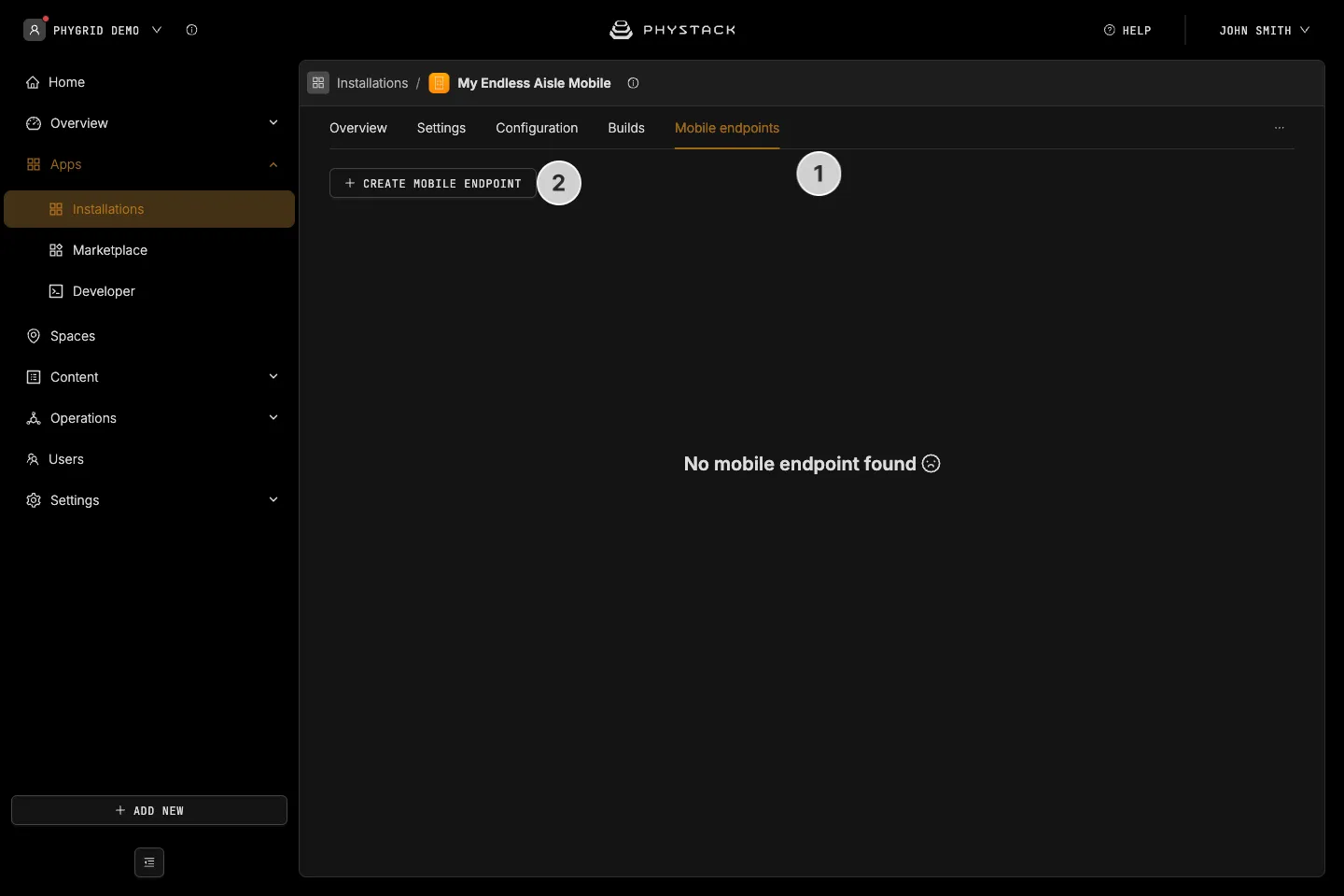
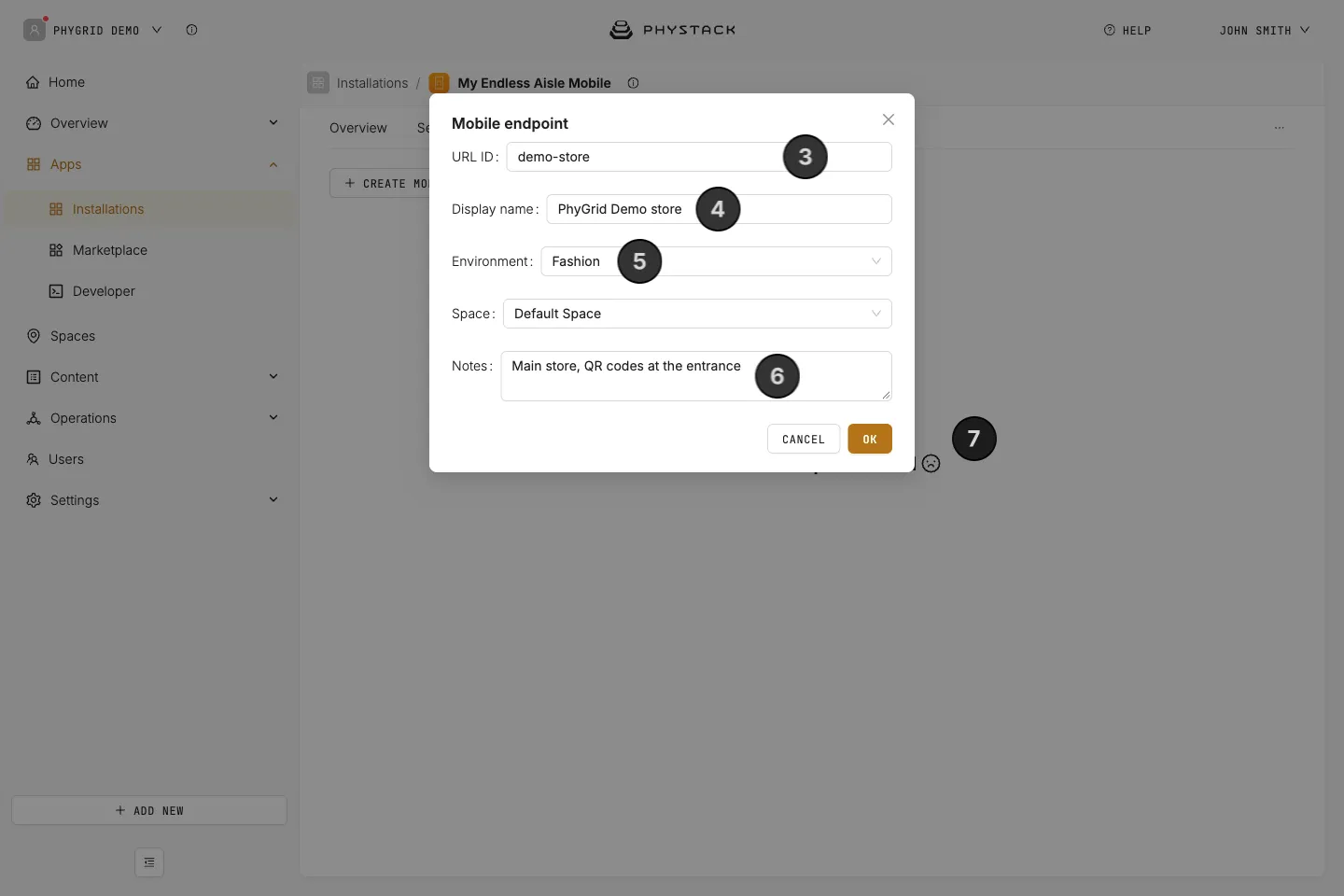
- Open the Endless Aisle Mobile installation and go to the Mobile endpoints tab
- Click Create mobile endpoint
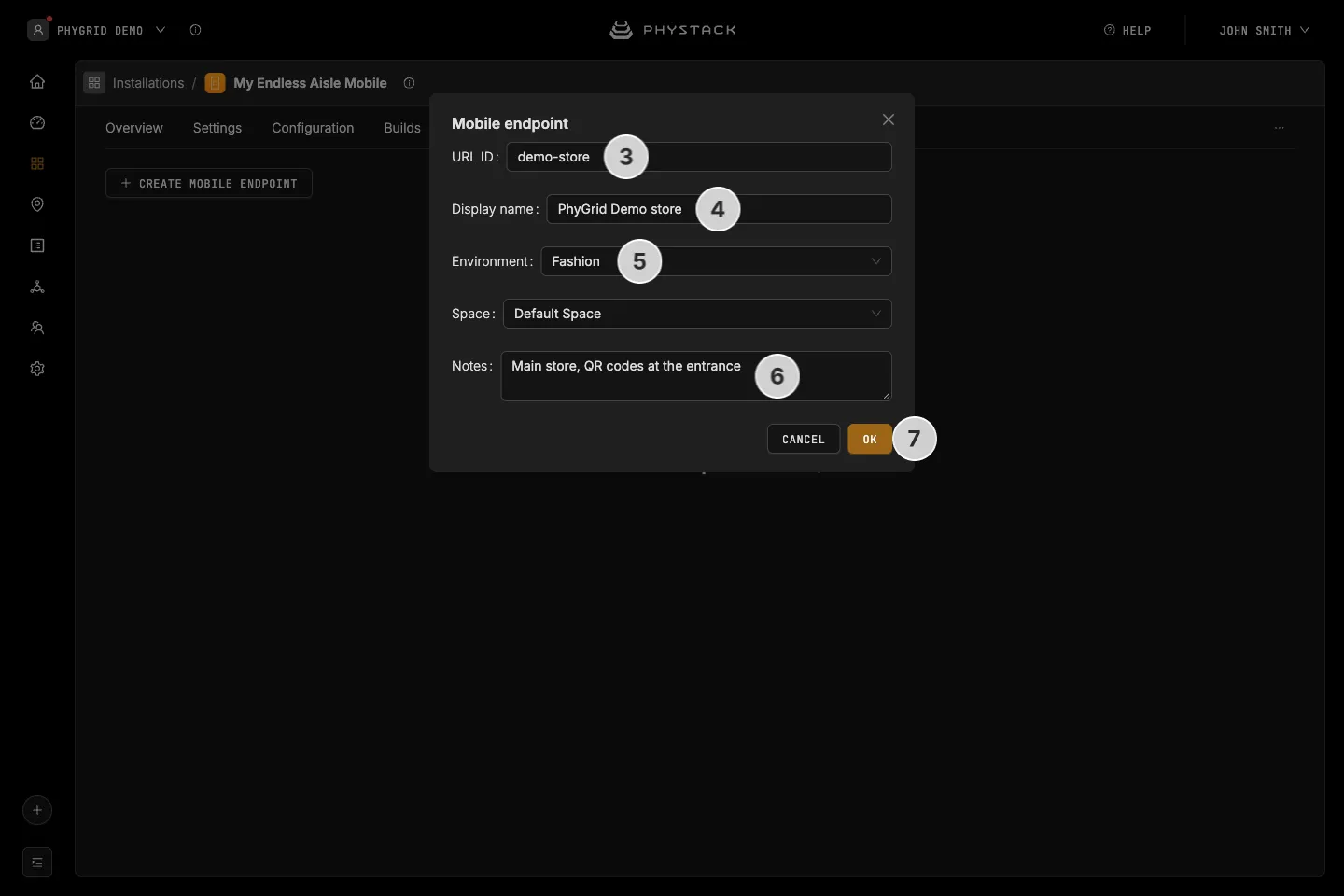
- Enter a URL ID: the last part of the link, starting with a letter, in lowercase words separated by hyphens, for example
stockholm-store. It can’t be changed later - Enter a Display name
- Select the Environment and the Space of the store
- Optionally, add Notes for your team. They’re shown as a tooltip next to the endpoint’s name
- Click OK to save the endpoint
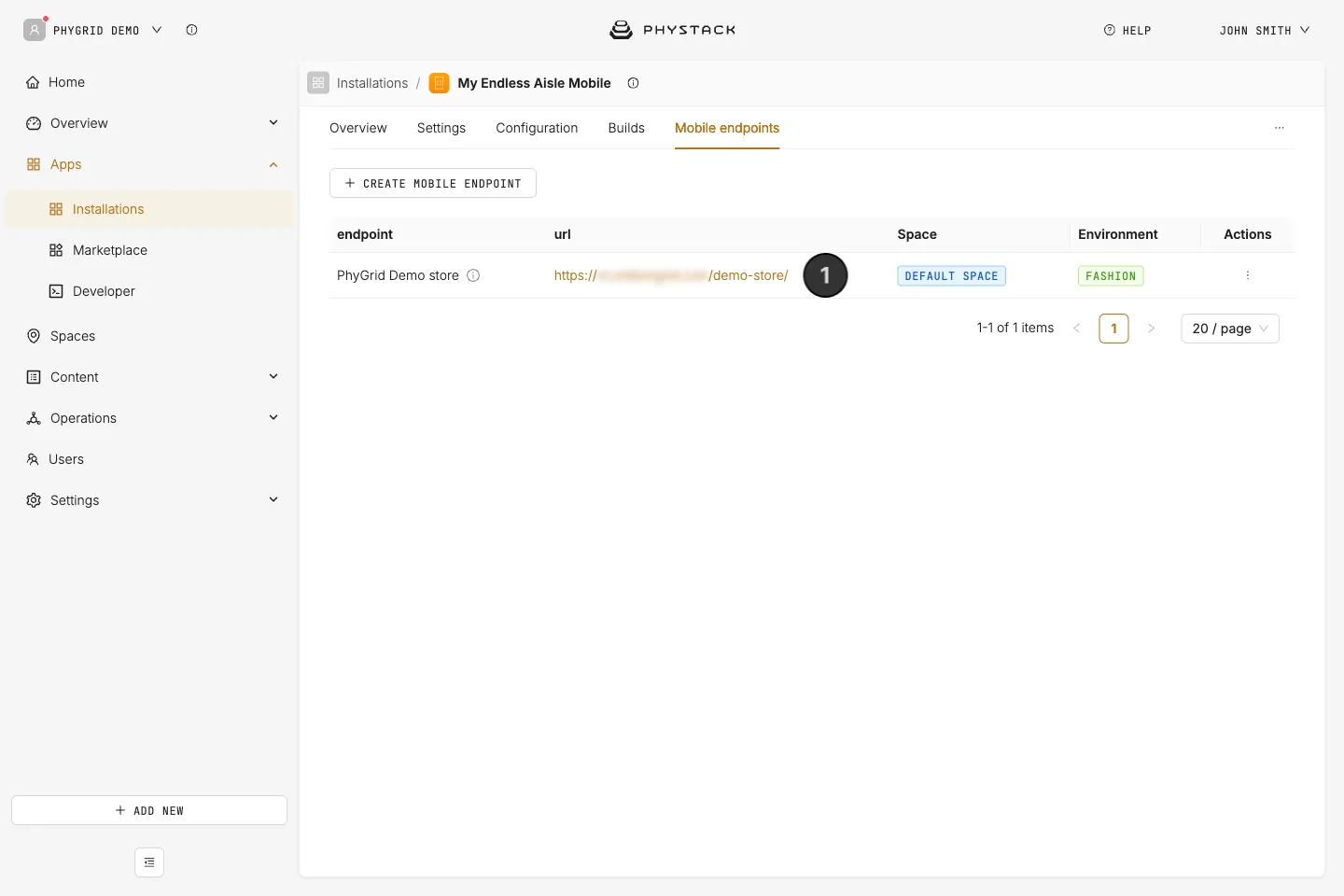
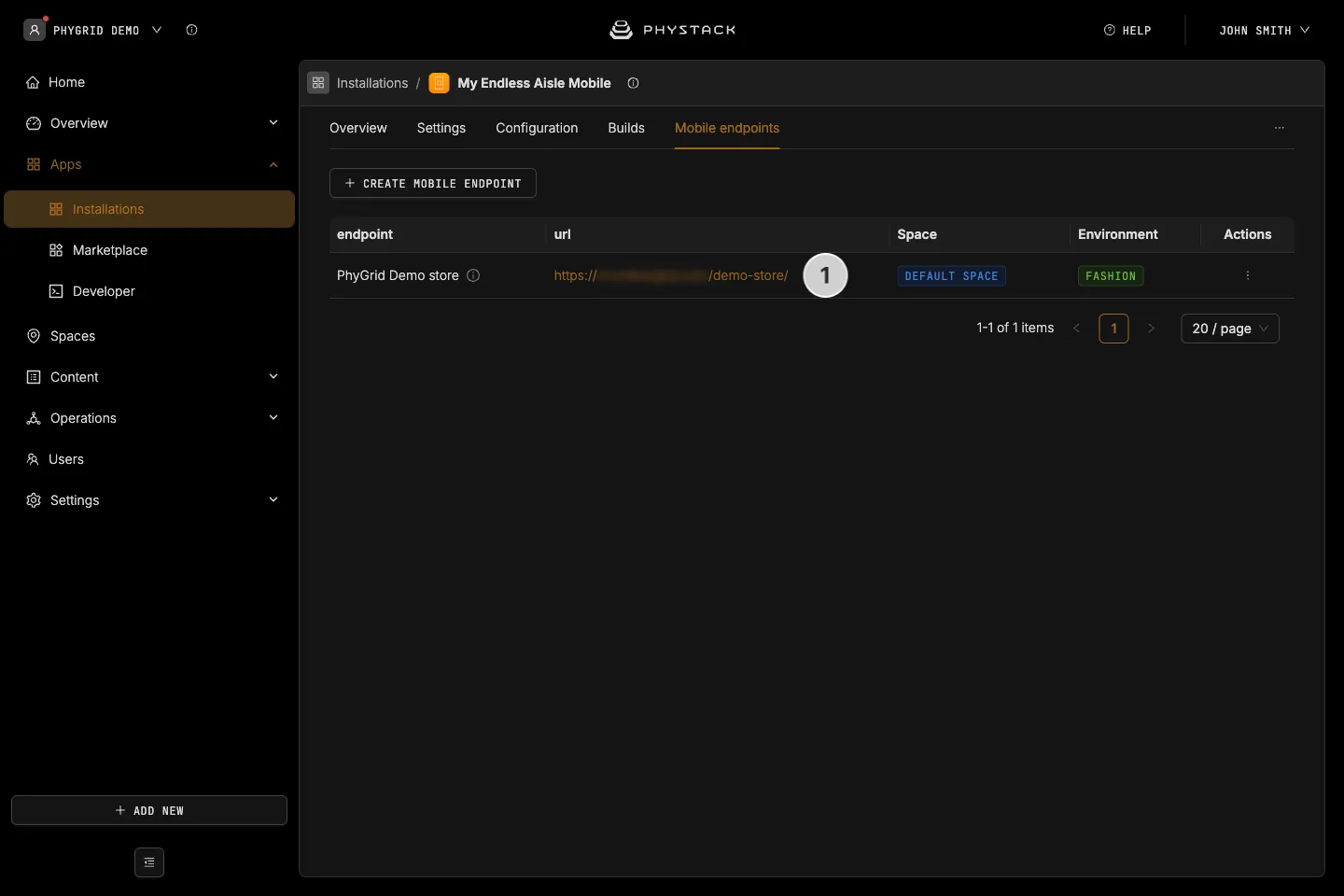
The endpoint is listed in the tab with its public link, space, and environment. To change it later, open the menu in the Actions column and click Edit.
How to share the link with customers
- Copy the endpoint’s link from the Mobile endpoints tab
- Turn the link into a QR code, for example with Content → QR and NFC in the Console. See QR codes
- Place the QR code where customers browse: on shelves, signs, or at the entrance
- Optionally, show a QR code to the mobile endpoint on your Endless Aisle kiosk as well. See Configure in-store features
The kiosk’s QR code opens the mobile web app only: the customer’s bag on the kiosk isn’t transferred to the phone.
How to set up checkout on mobile
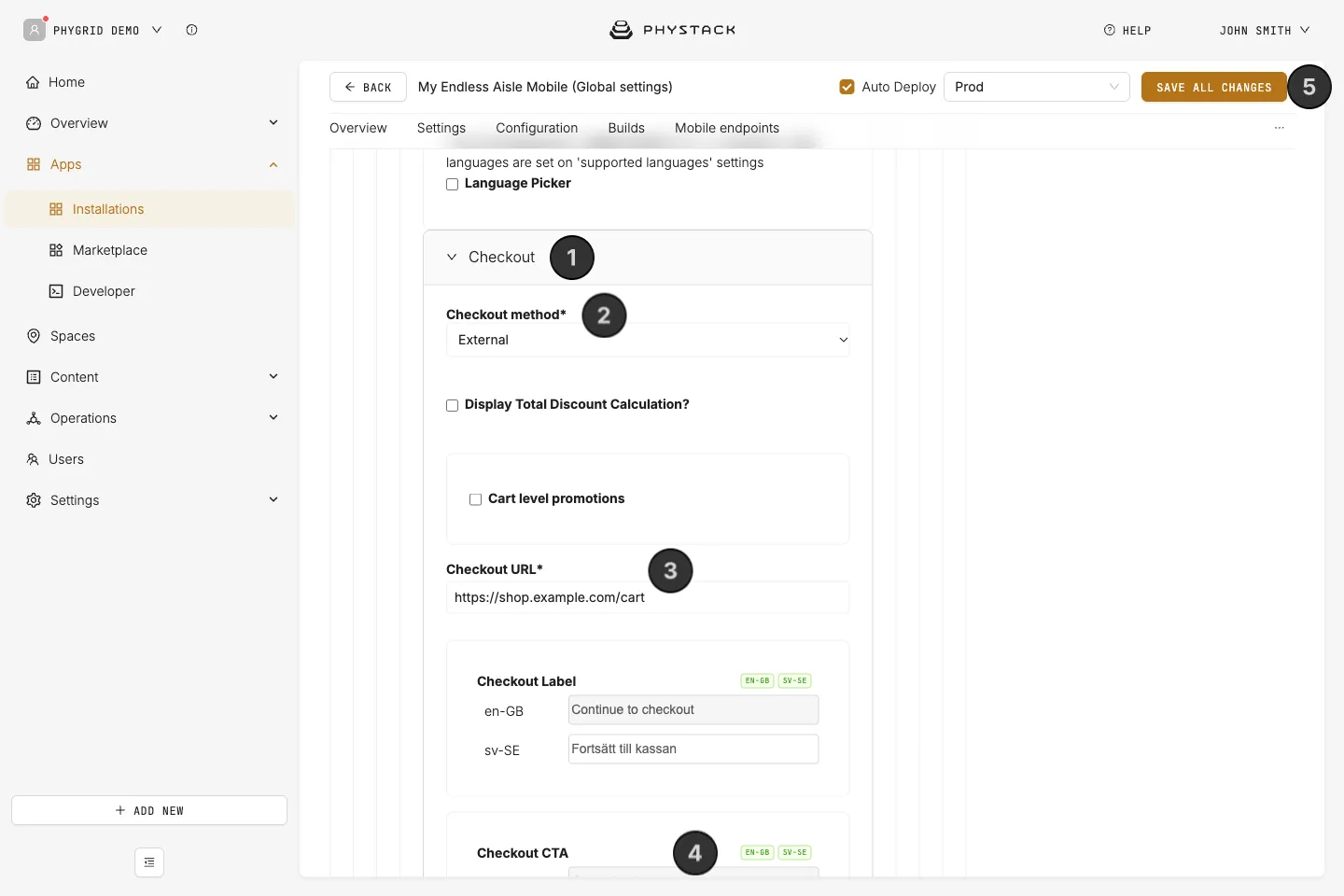
Endless Aisle Mobile supports external checkout only. Tasks App is listed under Checkout method, but checkout with Tasks doesn’t work in the mobile app.
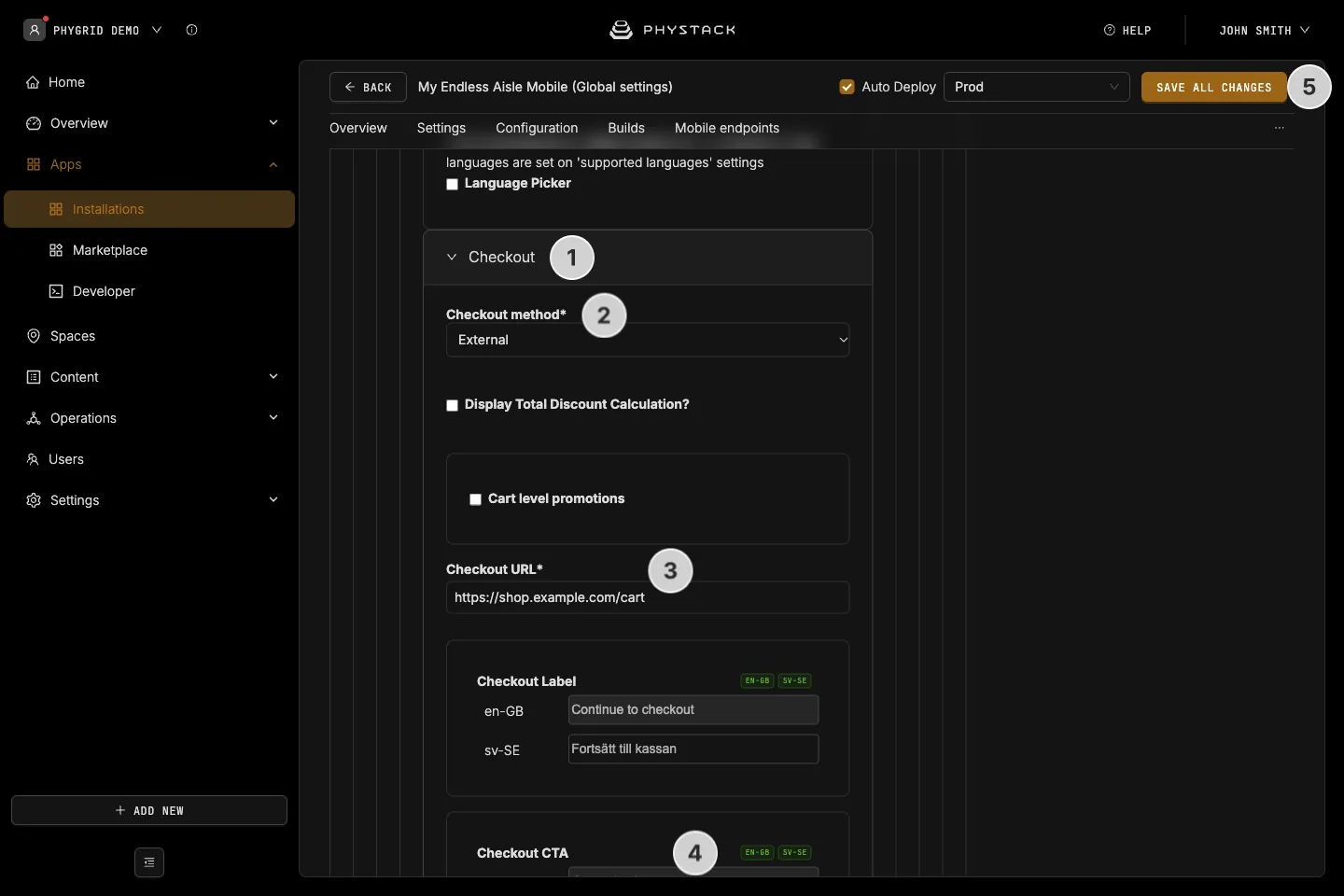
- In the installation’s settings, go to Features → Checkout
- Set Checkout method to External
- Enter the Checkout URL of your web shop and a Checkout Label
- Optionally, enter a Checkout CTA and Additional Parameters
- Click Save all changes
When customers tap Checkout, your web shop opens in a new tab with the bag’s products in the cart. See Set up external checkout for how your web shop receives the bag.
With Checkout method set to None (the default), customers can browse and scan products, but there’s no bag and no Checkout button.