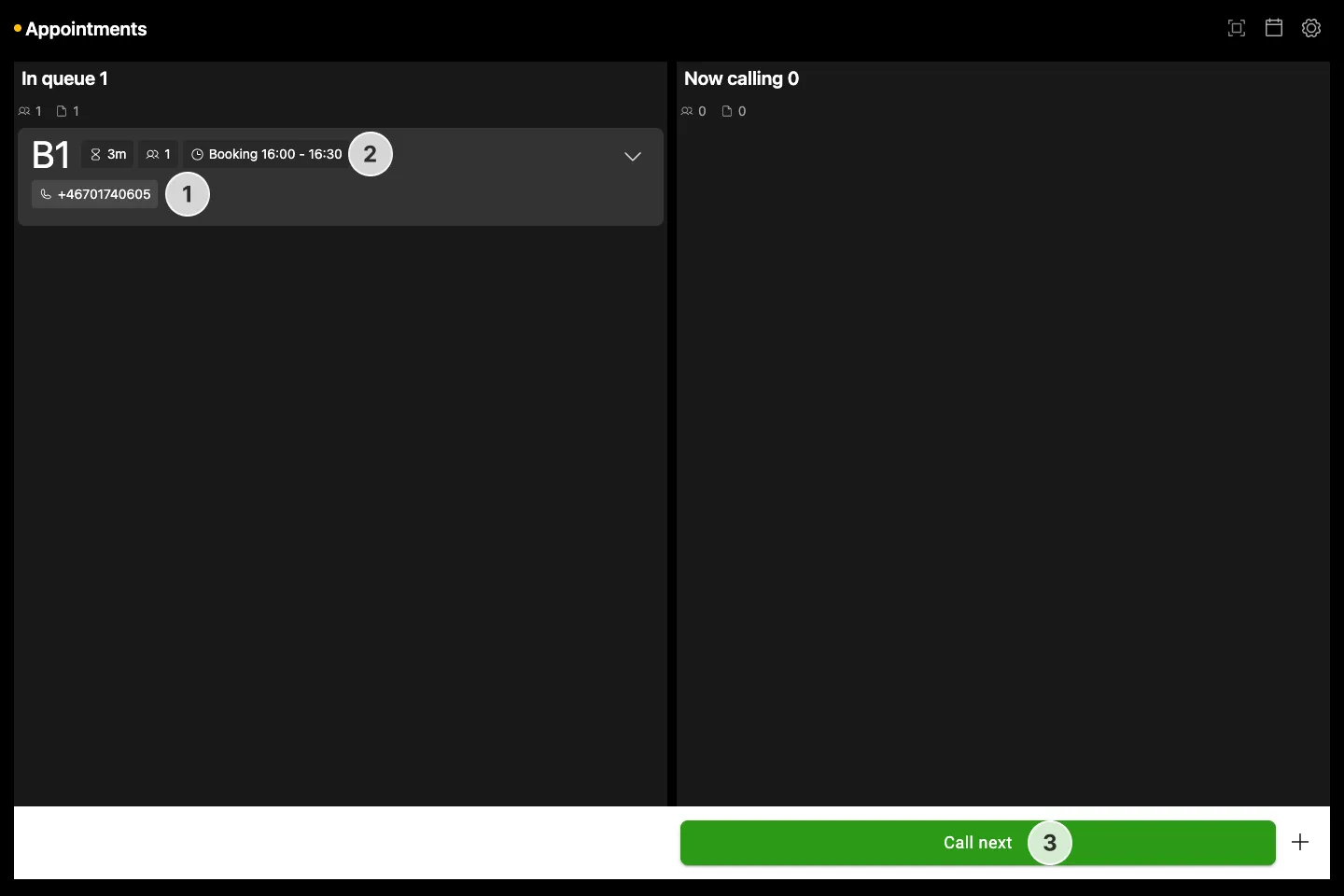

Appointment Booking shares the visitor flow management features with the regular Queue Manager app. We will only focus on the appointment related features in this guide.
How to access Queue Manager with booking support
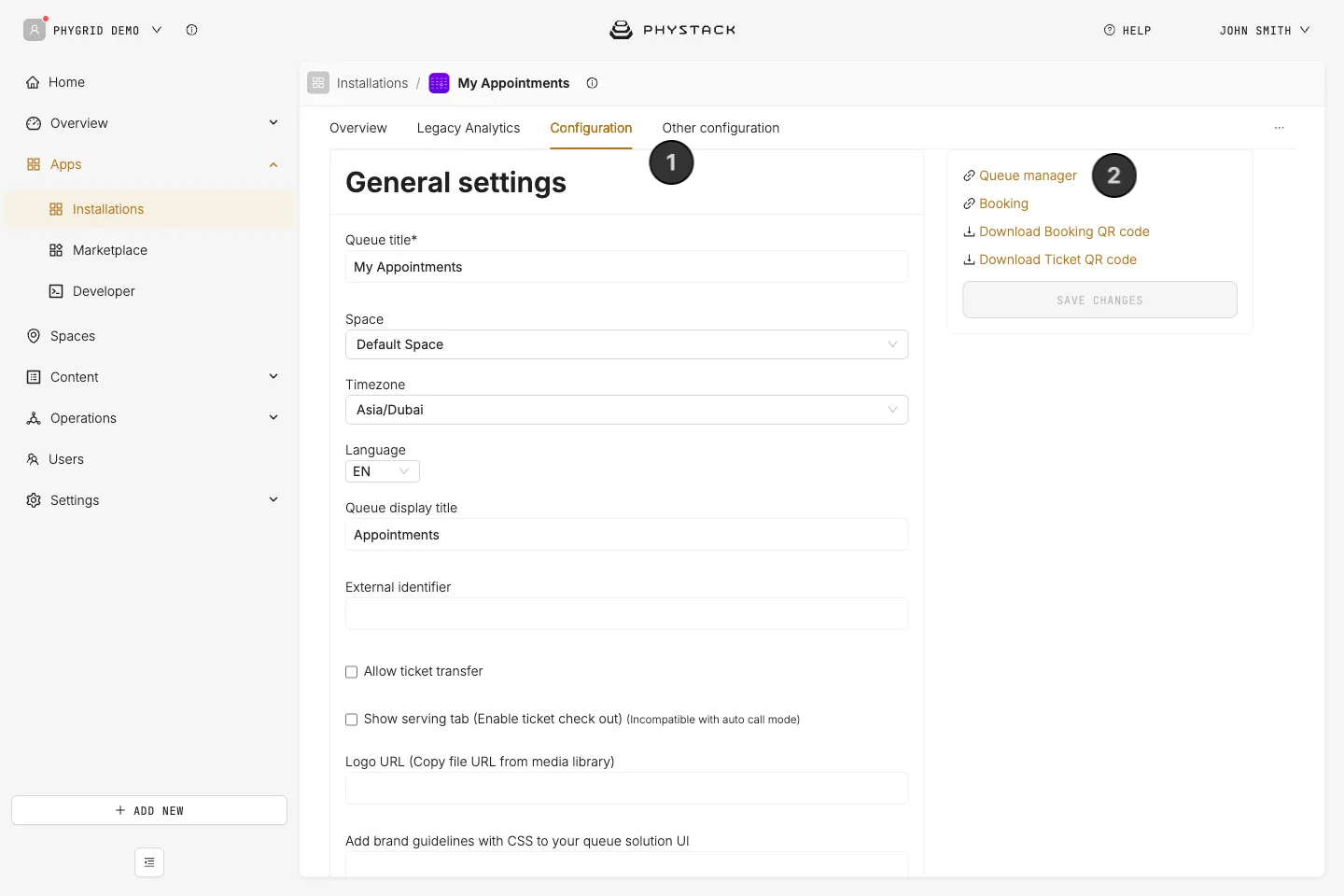
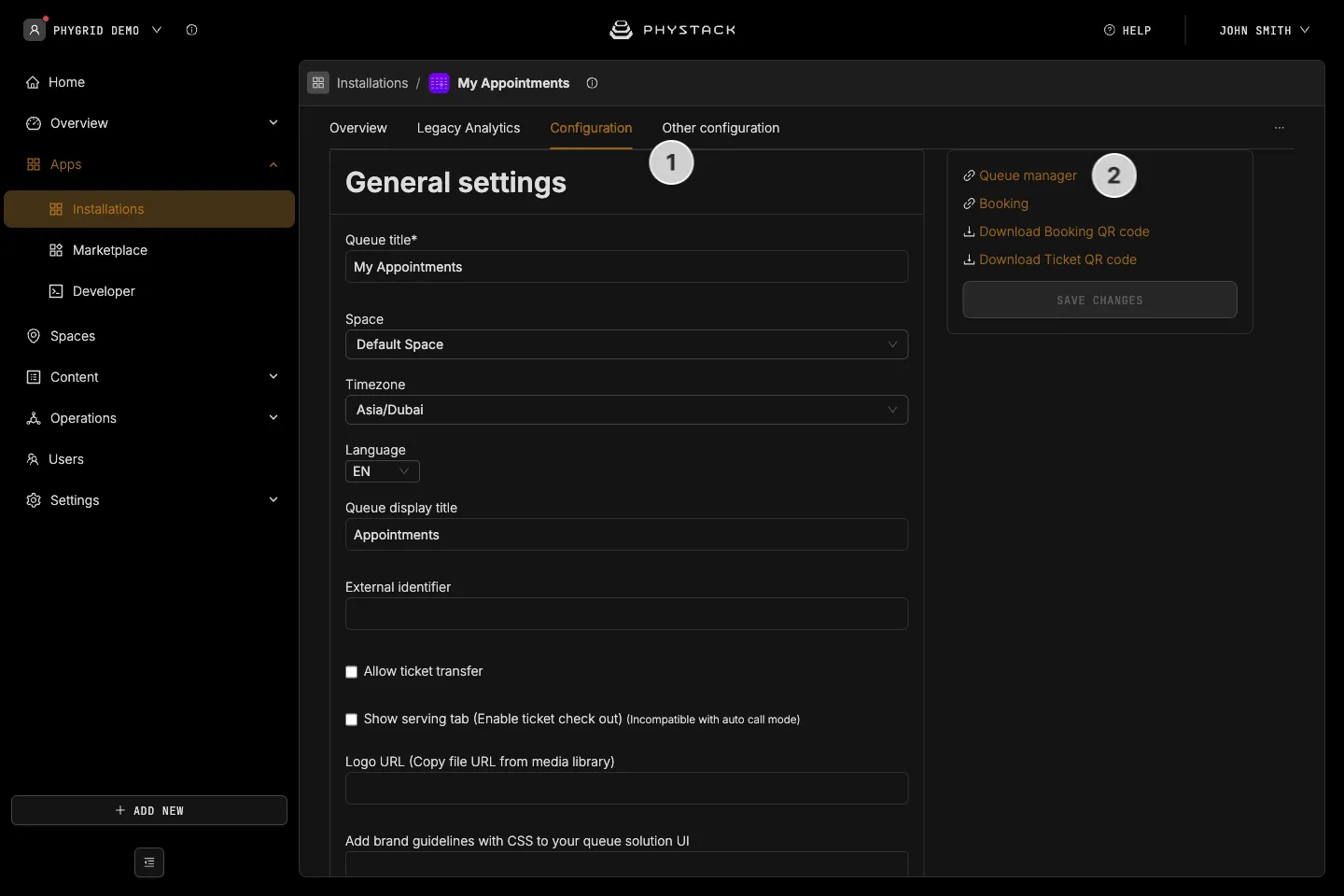
- In the Console, open your Appointment Booking installation and go to the Configuration tab
- Copy the link for Queue manager from the right-hand panel and share it with staff responsible for queue management and visitor flow
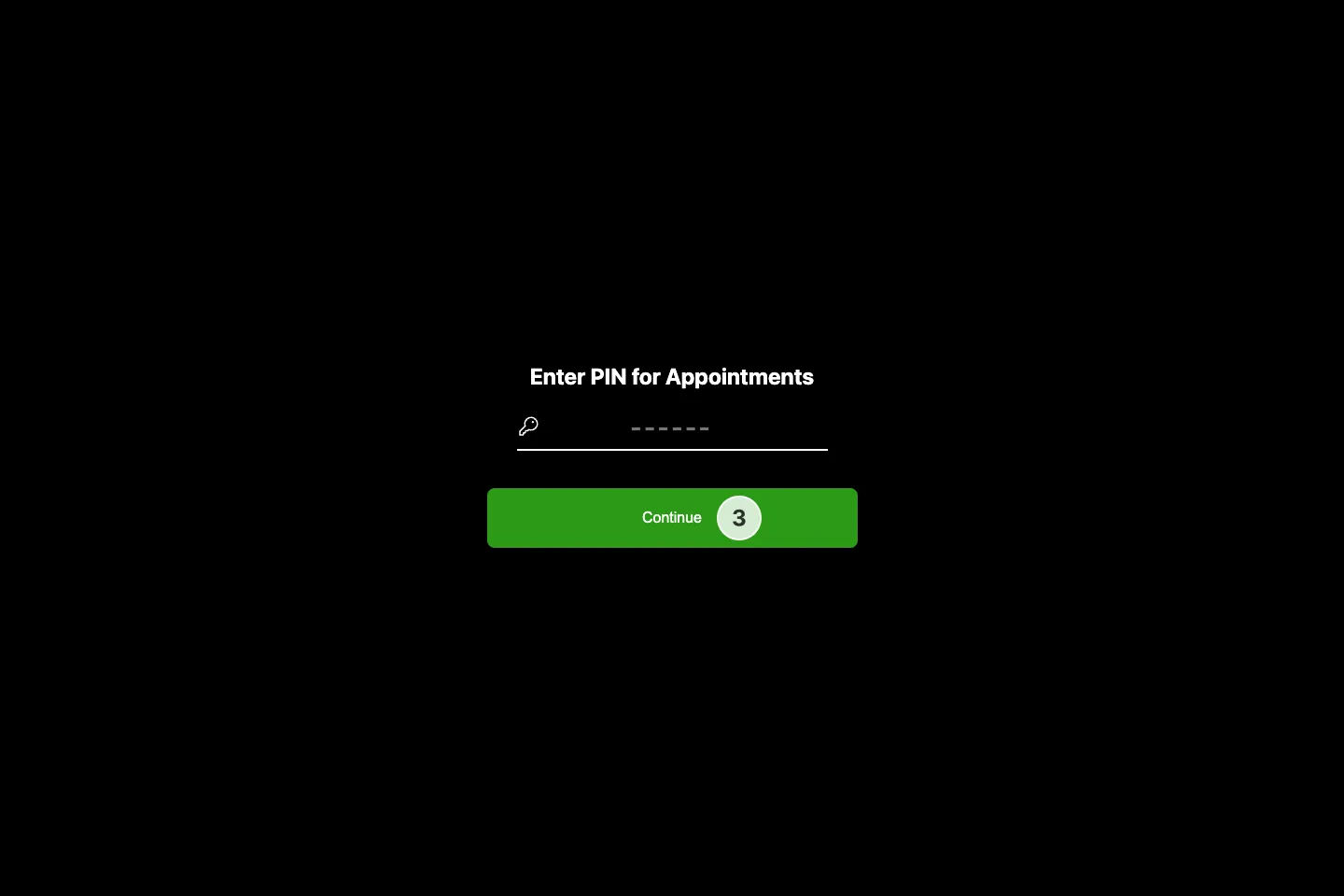
- Depending on the configured login method, you might also need to share the access pin number
- On the staff side, open the link you just received, and enter the pin or log in using your email
How to view and manage upcoming appointments using the calendar
Make sure you have set proper station and category and customised other Queue Manager settings first.
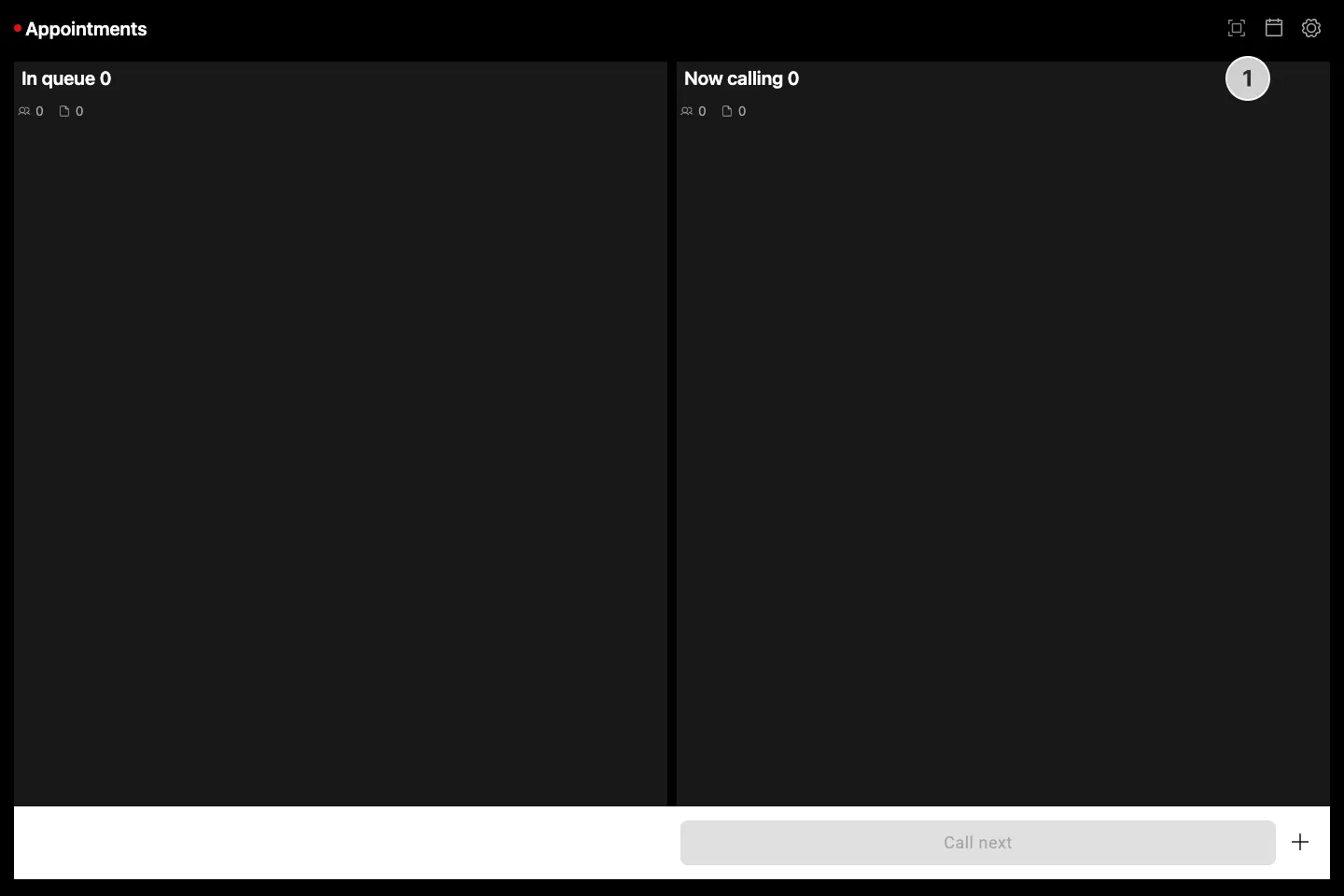
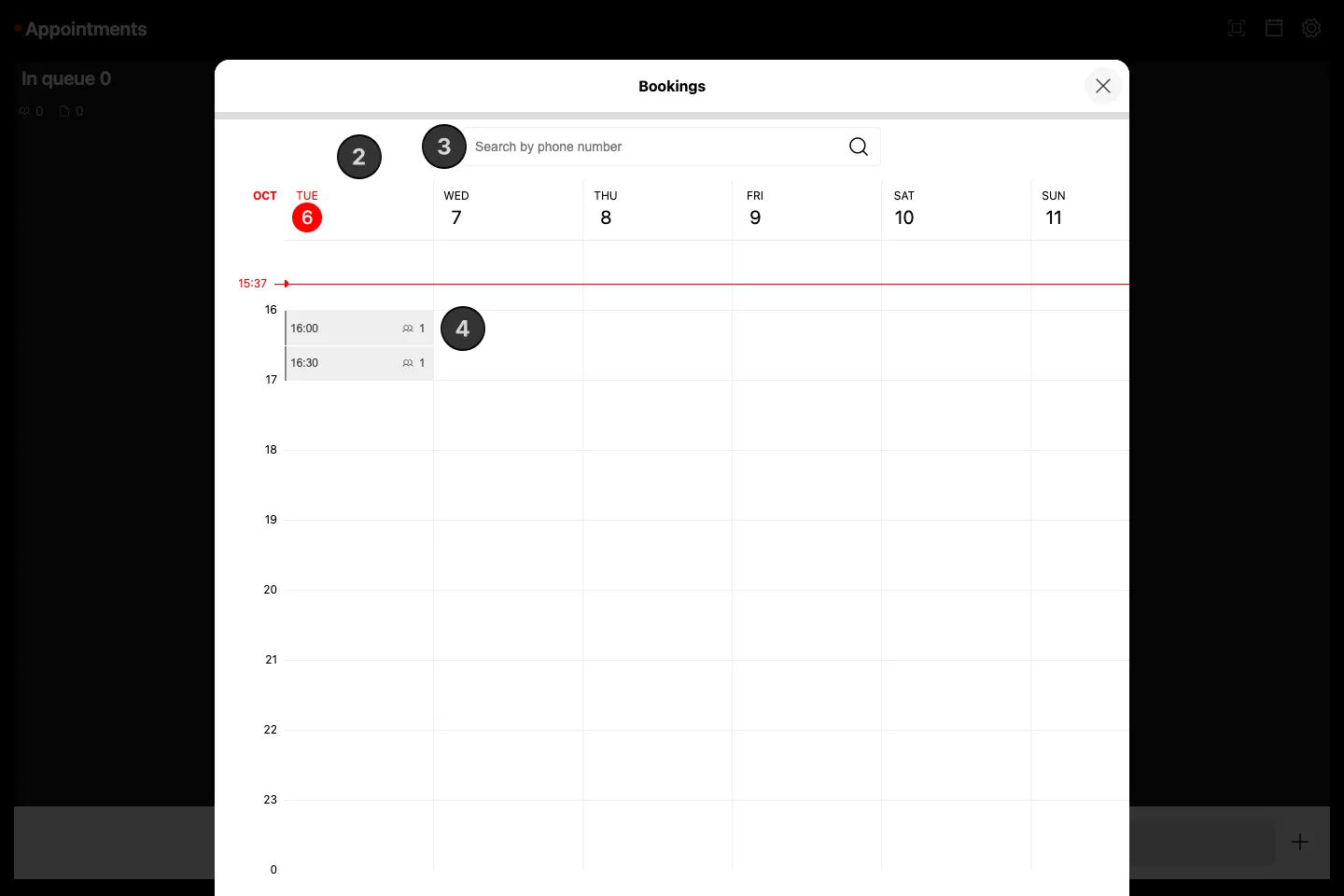
- In the Queue Manager, click on the calendar icon to open the appointments calendar
- Daily overview will show all appointments for that day in hourly blocks
- You can look for a specific appointment using the customer phone number, if the user registration details were set up to collect the phone number
- Timeslot previews will show an overview of the visitors for that particular timeslot: how many users are visiting
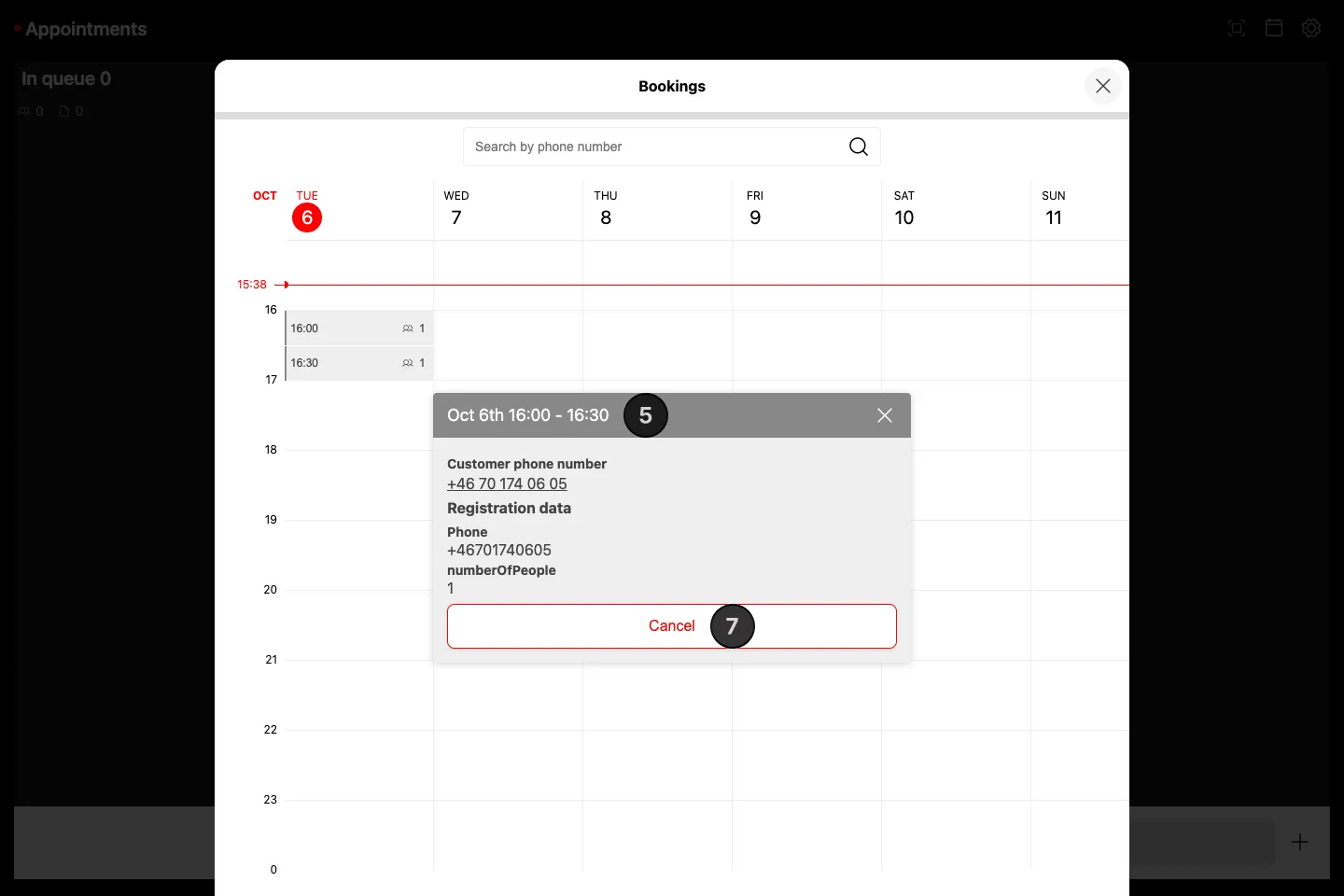
- Clicking on a timeslot will open the expanded timeslot preview, that will show ticket details for that particular timeslot
- Each ticket can be assigned to a specific staff member prior to appointment start
- Each ticket can be cancelled from the calendar view directly. You are asked to confirm, and the customer is notified of the cancellation
How to manage appointment tickets in the Queue Manager
- Once the appointment time starts, ticket is “activated” and shows up in one of the columns
- By default, tickets will join the In queue column, and the visitors will wait to be called to approach the station
- This can be customised in Console so that booked appointments are automatically called to approach the specific station at the start of the appointment
- You can also set this option to directly check in the visitor at appointment time start
- Booking tickets provide some additional details, such as the booked timeslot start and end time
- You can call the ticket using the standard process and the Call next button, and manage thereafter using the same options you would use for walk-in tickets