

Before you start
An Endless Aisle kiosk needs:
- A device with a touch screen, connected to the internet
- Your products in PhyGrid, assigned to the space of the kiosk. See Integrate your product catalogue
- Optionally, a barcode scanner or a receipt printer connected to the device
How to install Endless Aisle Kiosk
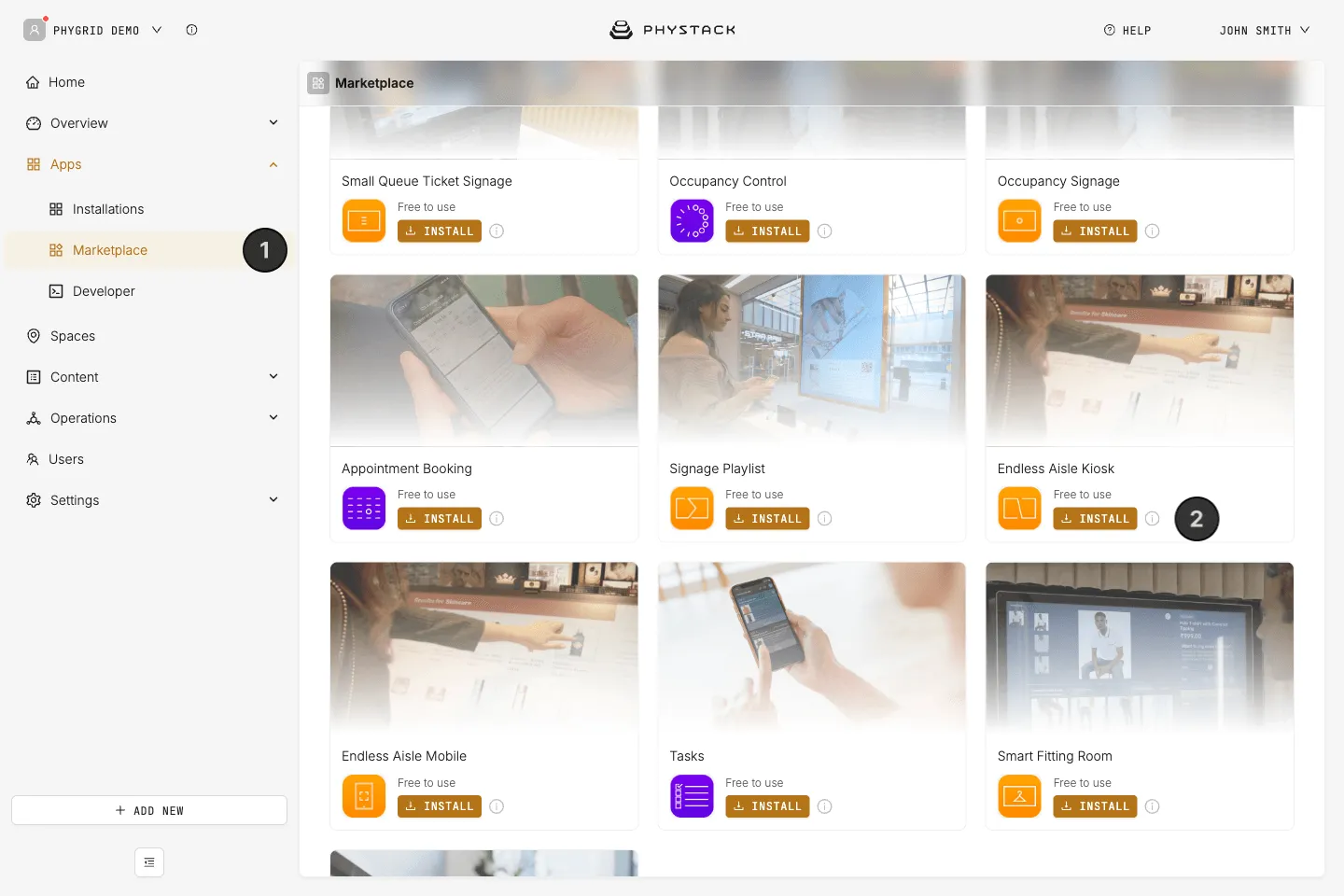
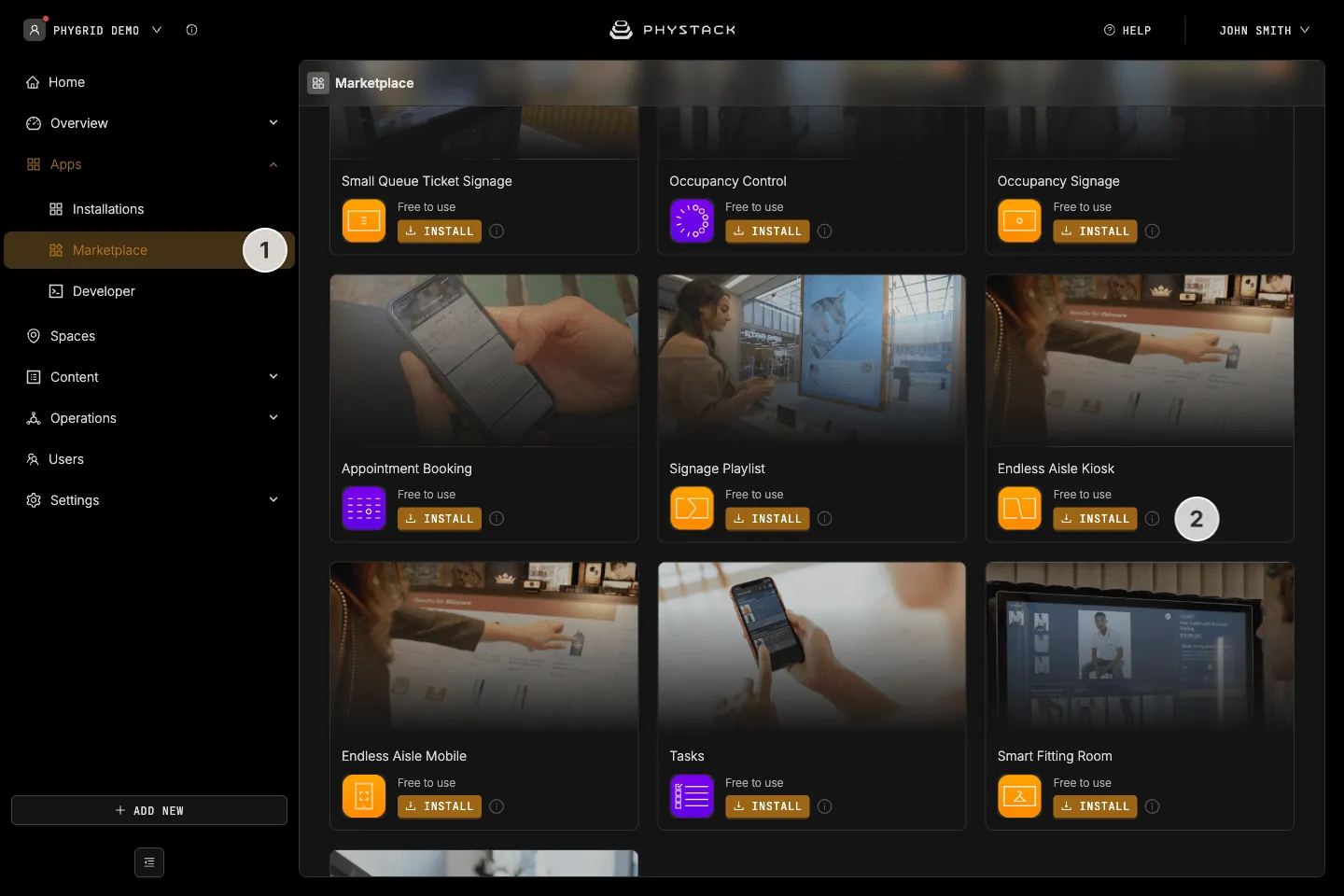
- In the sidebar, navigate to Apps → Marketplace
- Look for Endless Aisle Kiosk in the list of applications and click on the Install button to open the installation dialog
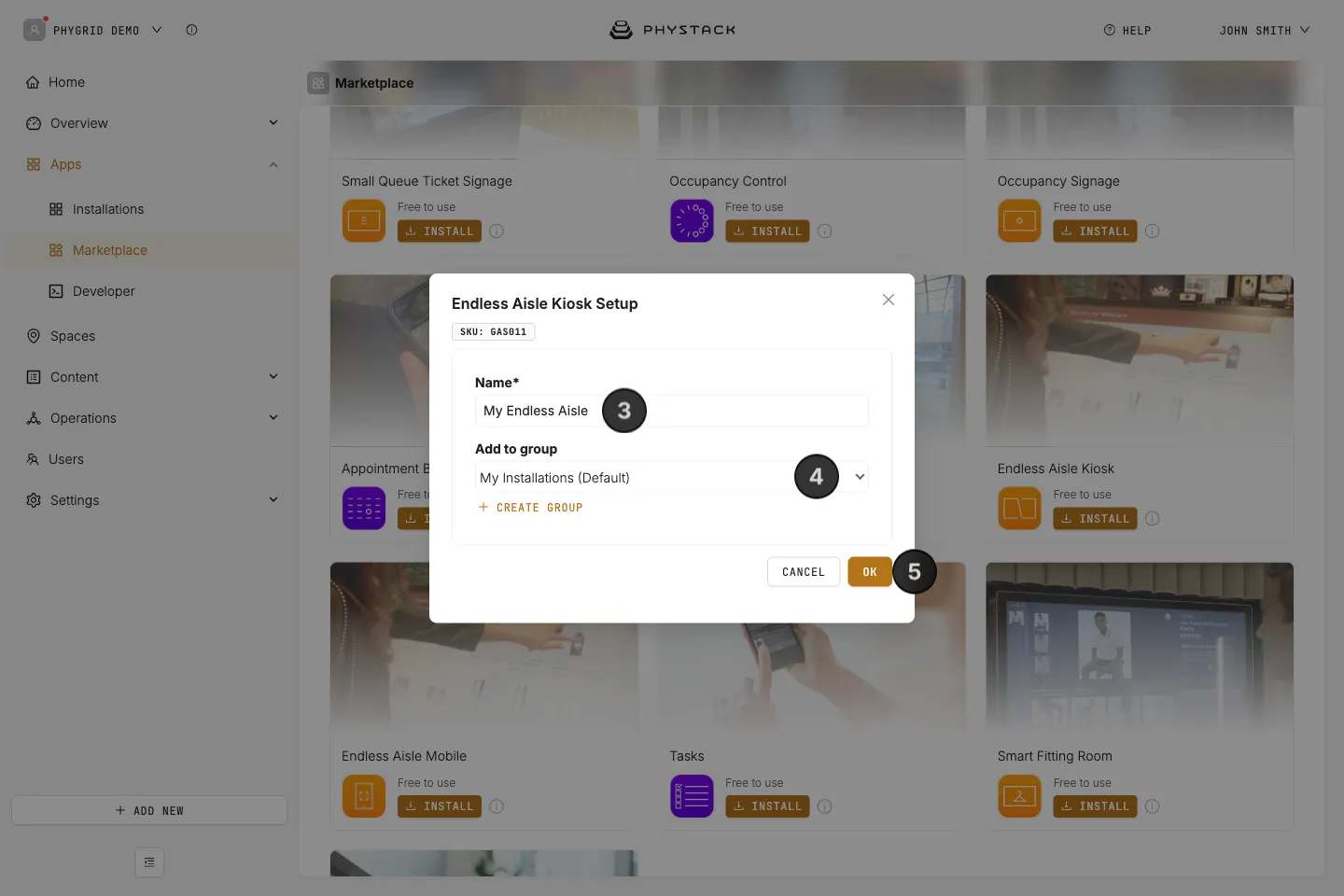
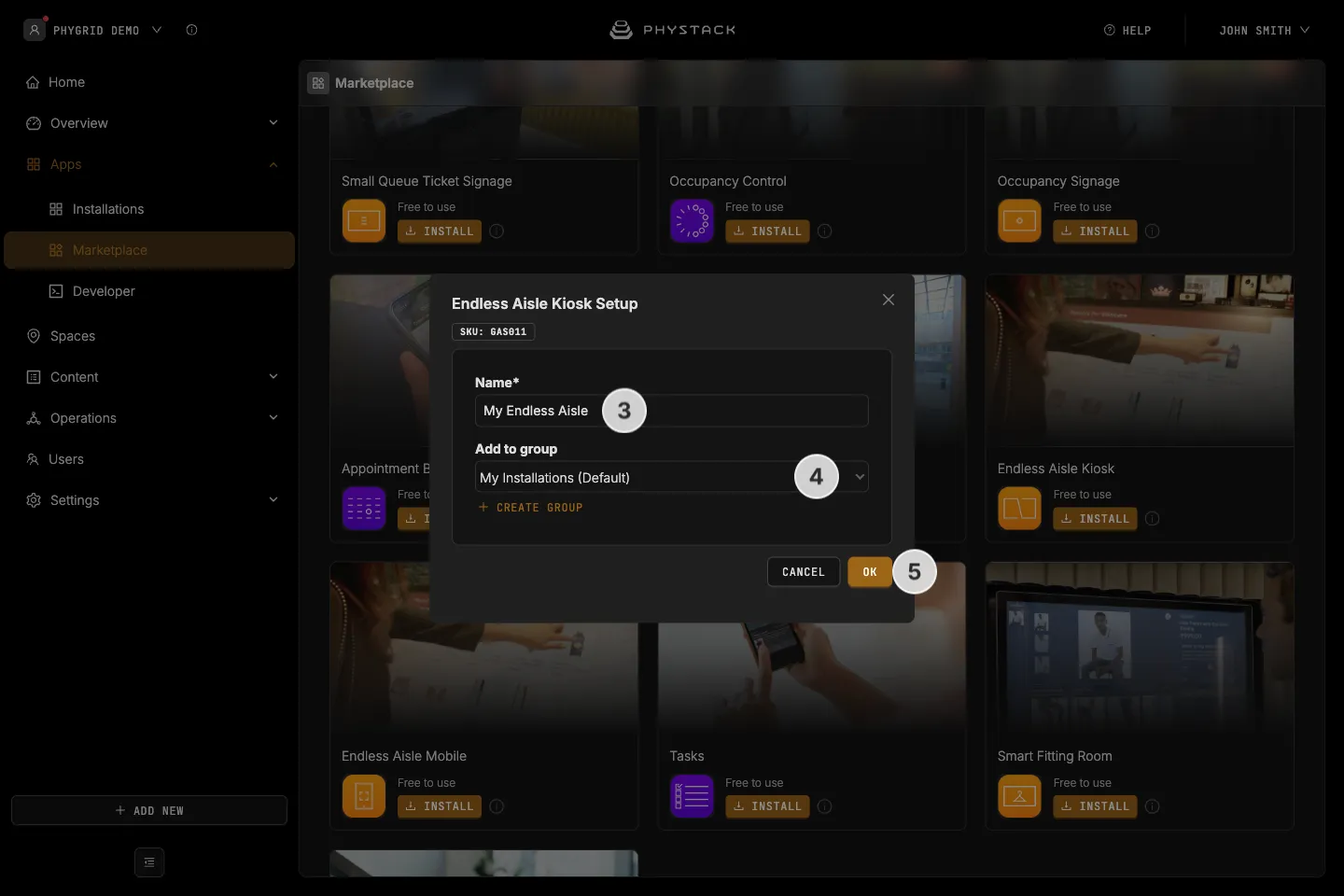
- In the installation form, enter a Name for your installation
- Optionally, select a Group to organise your installations
- Click OK to create the Endless Aisle Kiosk installation
How to verify the installation
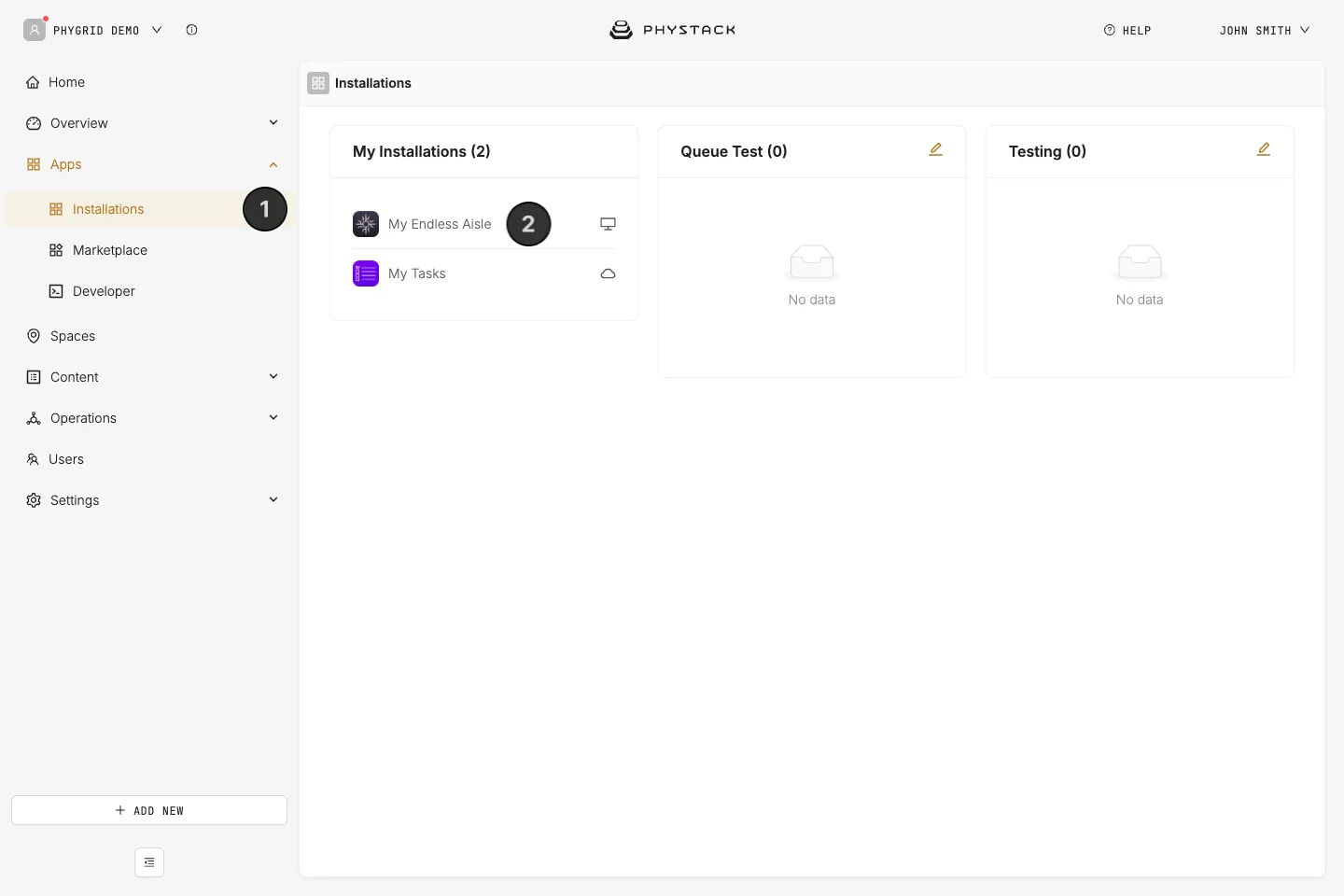
- Your new installation will be available in the sidebar under Apps → Installations
- Open the installation and connect it to a device
What to set up next
Work through these steps in order. The kiosk needs products and categories before it can show anything, and a checkout method before customers can order.
- Products: Integrate your product catalogue and make the products show on the kiosk
- Basic settings: Set up Endless Aisle, then the home screen and the idle screen
- Checkout: Choose a checkout method and set it up
- Customisation: Customise the look of the kiosk to match your brand