

What is Signage Playlist?
PhyGrid Signage Playlist plays a list of images, videos and apps on your screens. You build the playlist in the PhyGrid Console and it plays on every connected device. Triggers let you play other content at set times or in certain weather. A space or device can have its own playlist through a settings override.
What Signage Playlist does
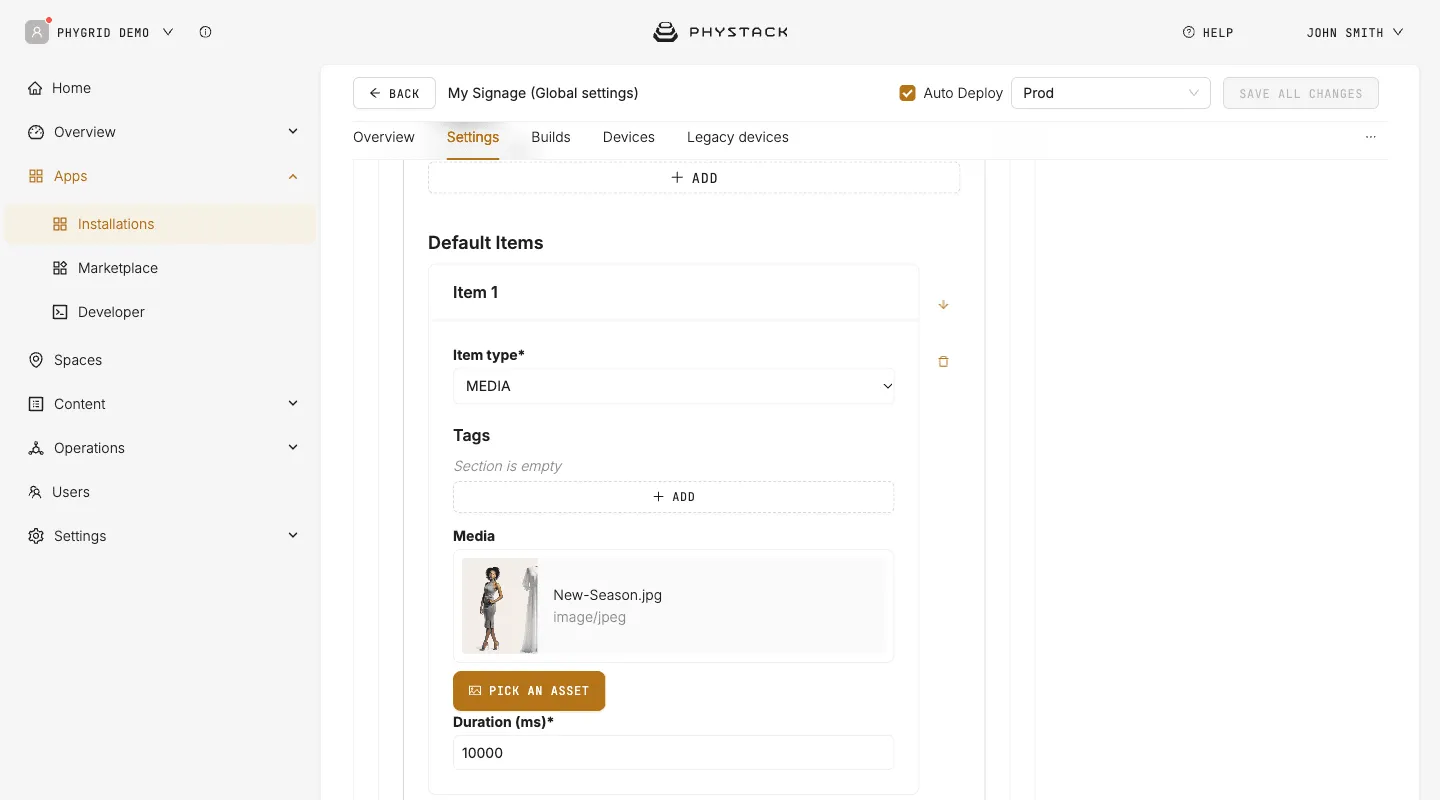
- Images, videos and apps: Add media items, or a GridApp item that runs another app as part of the playlist
- Order and duration: Put the items in order, and set how long each image or app stays on screen
- Triggers: Play other items on set dates, times or days, or when the weather or temperature matches a condition
- Same playlist everywhere: The global settings apply to every connected device
- Settings overrides: Give one space or device its own playlist
- Analytics: Log media plays and tag items to compare them (see Analytics)
Key features
Content
- Media Library: Pick images and videos you have uploaded, or upload new ones from the file picker
- Free stock media: Add free photos and videos directly in the Console
- Default items: Every playlist has at least one default item, which plays whenever no trigger is active
Scheduling and triggers
- Date and time: Play items between a start and end date, time of day, or both
- Day of the week: Play items on the days you select
- Weather: Play items when the weather in a city you choose matches the conditions you set
- Temperature: Play items when the temperature is above or below a value you set
- Several active triggers: Their items play together, or only those of the first active trigger
Deployment
- Auto Deploy: Saving creates a build and deploys it to connected devices in the selected environment
- Devices: Run Signage Playlist on a media player connected to a display, or on a Samsung Tizen TV (see Hardware)
- Screen orientation: Set landscape or portrait in the device’s screen settings
Quick setup
- Install Signage Playlist from the Marketplace
- Add content to the playlist in the installation’s Settings
- Optionally, add triggers for scheduled content
- Connect your installation to a display device