How to integrate your products for use in Lift & Learn
Lift & Learn uses the existing Products functionality built into the Console. As such, any existing products you have already integrated can be easily adjusted and selected for use in Lift & Learn.
Use these guides to integrate your products for use with PhyGrid applications:
- Integrate products using Google Product Feed
- Import products using Excel files
- Create a product manually
How to prepare selected products for use in Lift & Learn
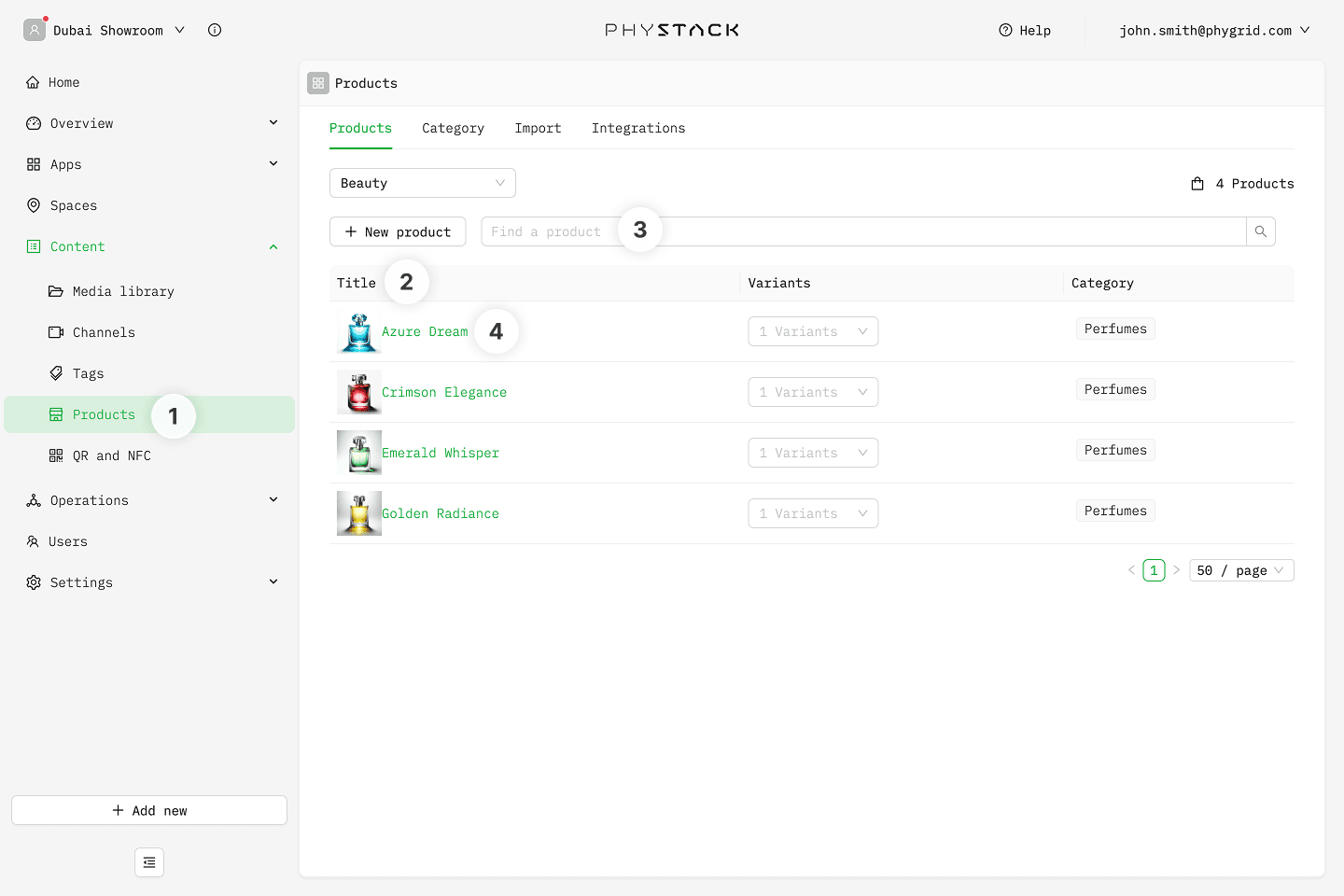
- Navigate to Content → Products
- Browse for the product to use in Lift & Learn
- Search for the product by name or product ID to use in Lift & Learn
- Select the product
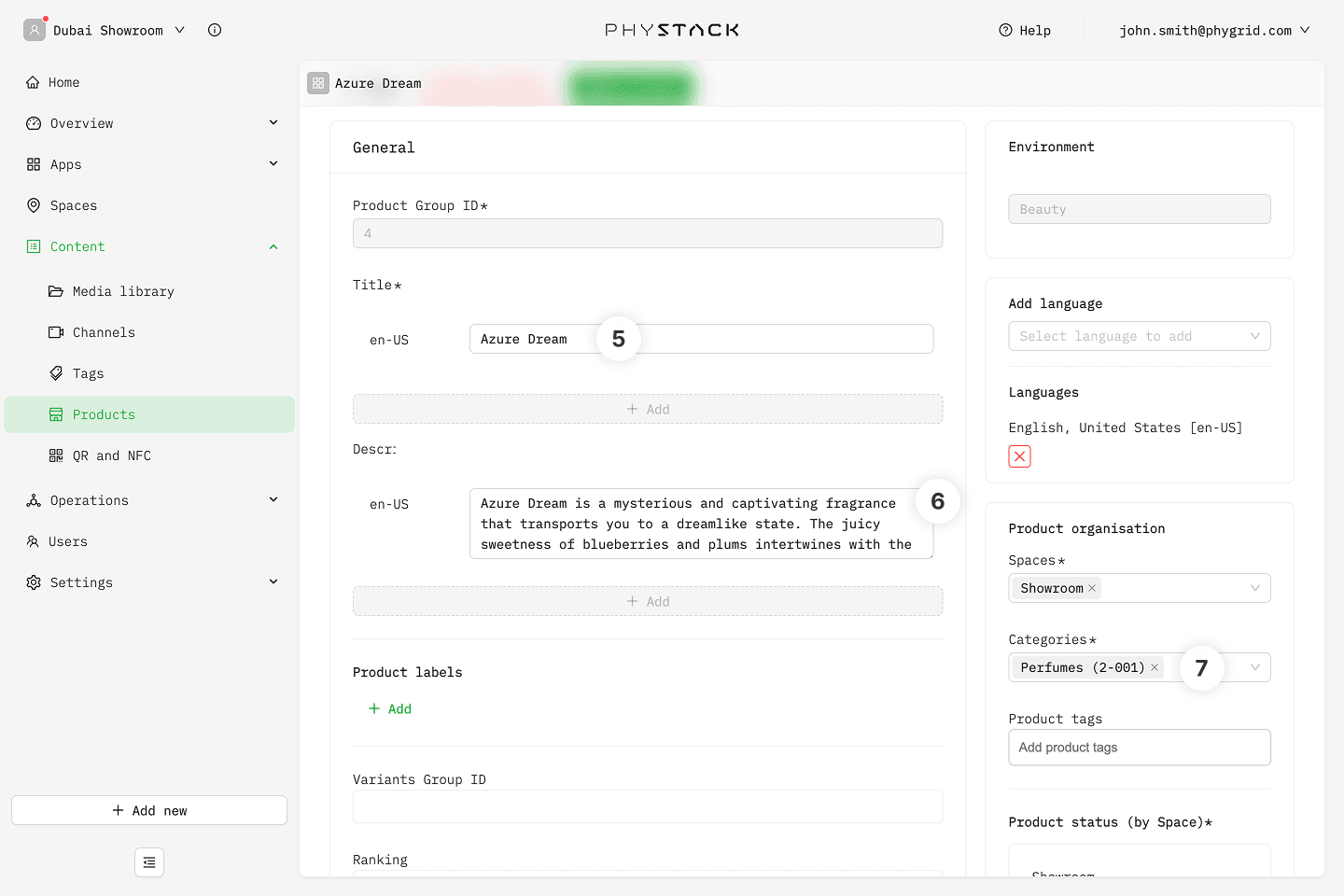
- Product Title: Make sure your product has a title set
- Description: Used for the main product information area in the Lift & Learn app. Recommended length of 600 characters*. Note that line breaks and spaces between paragraphs will reduce the maximum character count by around 70 characters per each new line
- Category will be shown as set in Products
- Short description: Used for the Key Selling Points in the Lift & Learn app. Recommended maximum of 400 characters*. Note that paragraphs will reduce the maximum character count by 50 characters per each new paragraph
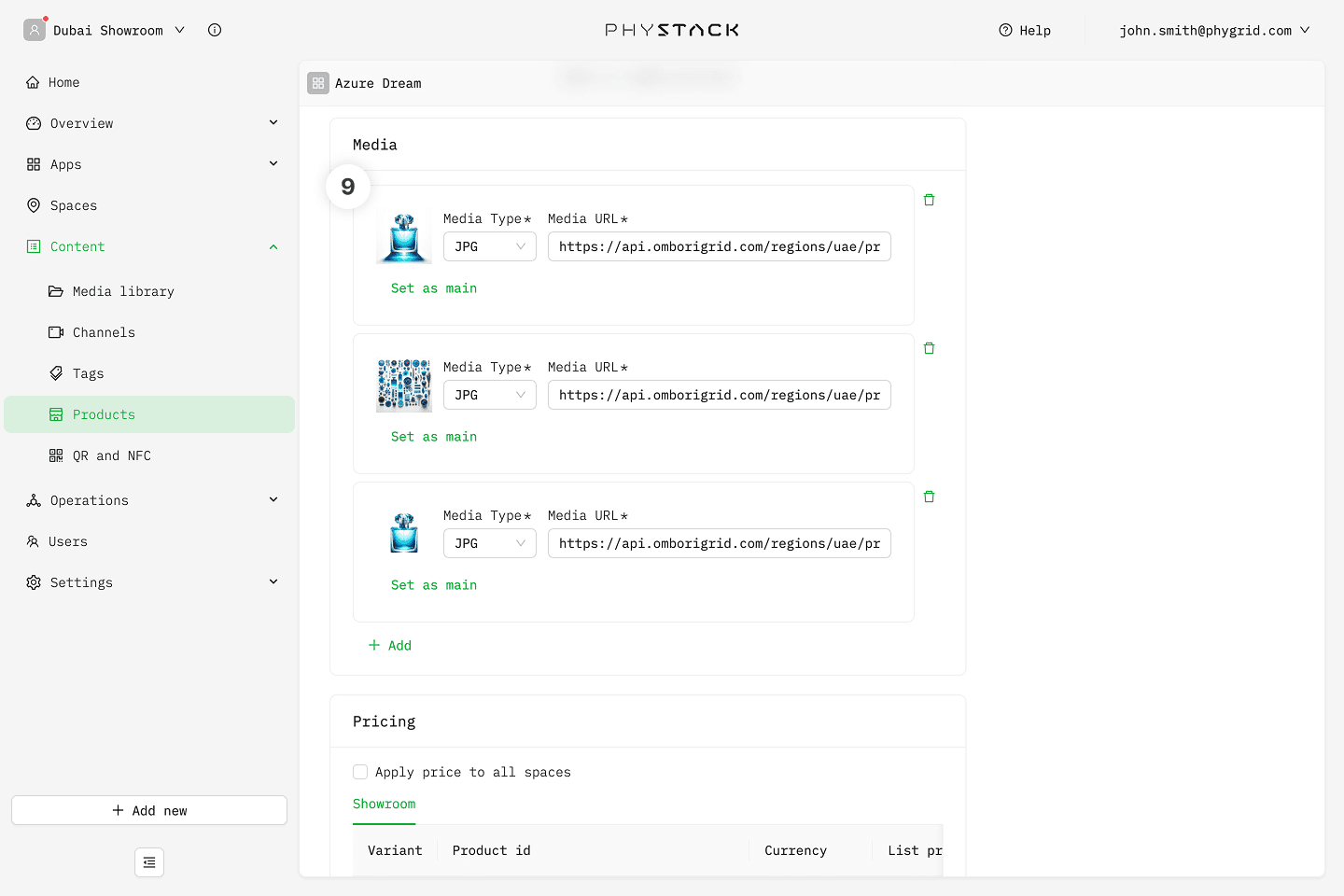
- Media: Used for the main image gallery. Make sure the gallery has at least one image active
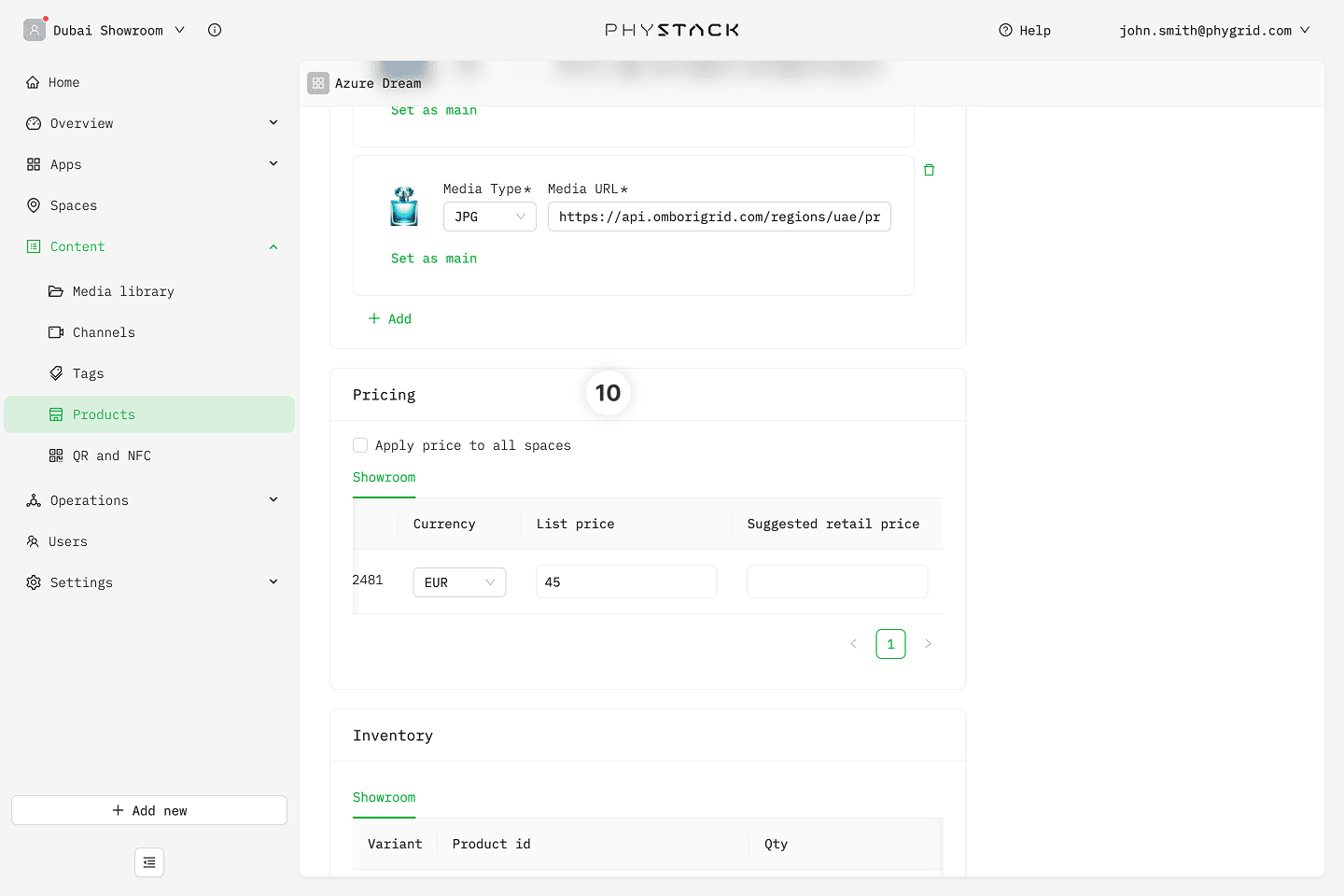
- Price will be shown as set in Products
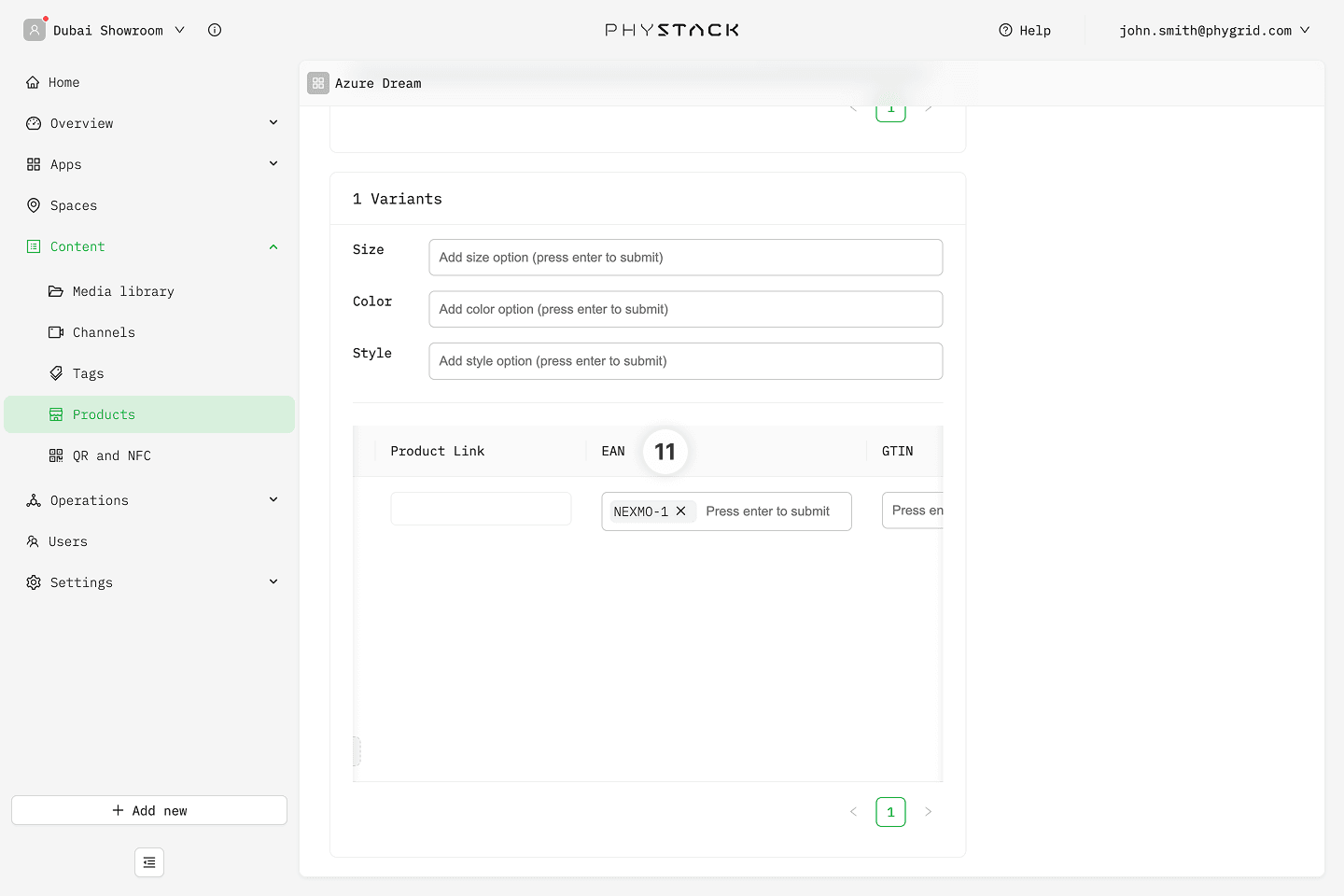
- Browse to the bottom of the page and look for the EAN field. This is where you will set the Nexmosphere sensor number to match the sticker number on the product. Use the following format: NEXMO-1, NEXMO-2, etc.