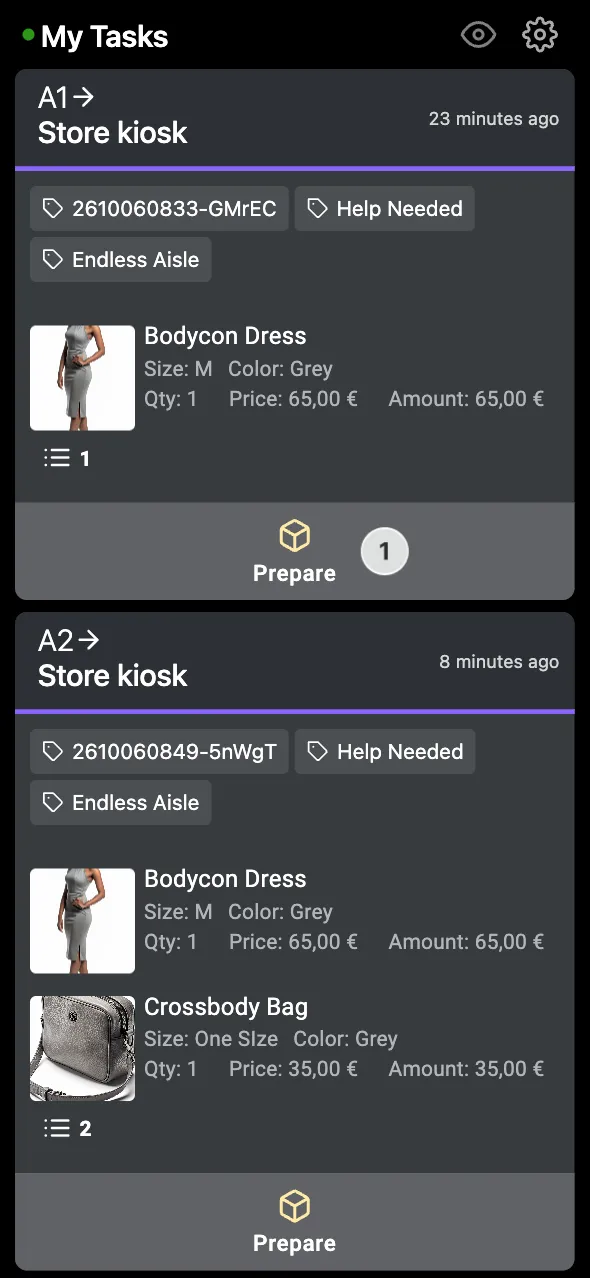
Smart Fitting Room sends two kinds of requests to Tasks:
- Bring to me: a customer asks for another size or colour of an item. Each request is one item, with its size, colour, and barcode
- Call for help: a customer asks for assistance without choosing an item
Staff see each request on the Tasks staff board, labelled with the fitting room screen it came from. The fitting room screen shows the customer when the request is sent, when the item is on its way, and when it’s delivered.
How to set up Tasks
- Install and configure Tasks, including its login method and the serving tab
- Open the Tasks queue, so it accepts requests
How to connect Smart Fitting Room to Tasks
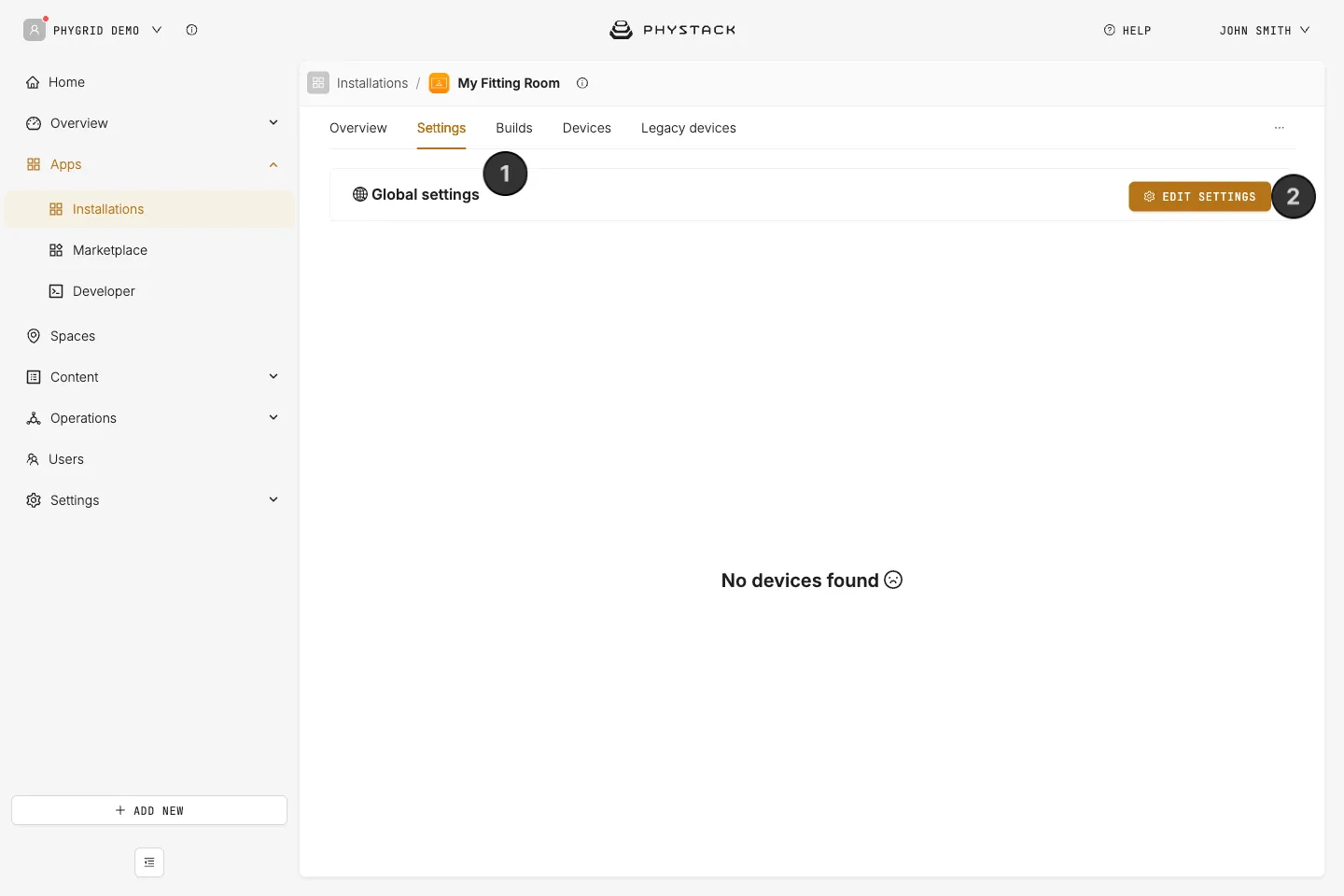
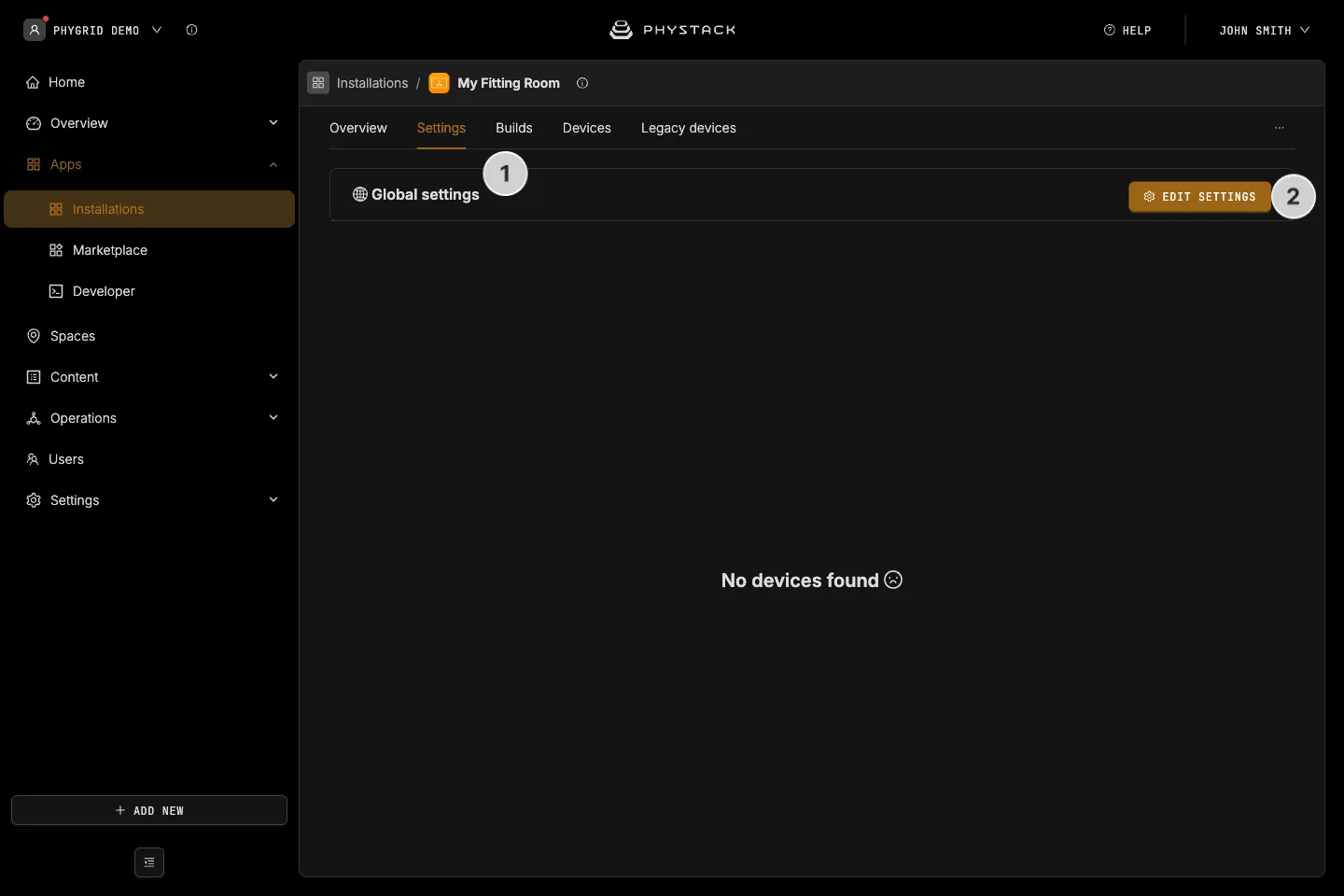
- Open the Smart Fitting Room installation and go to the Settings tab
- In Global settings, click Edit settings
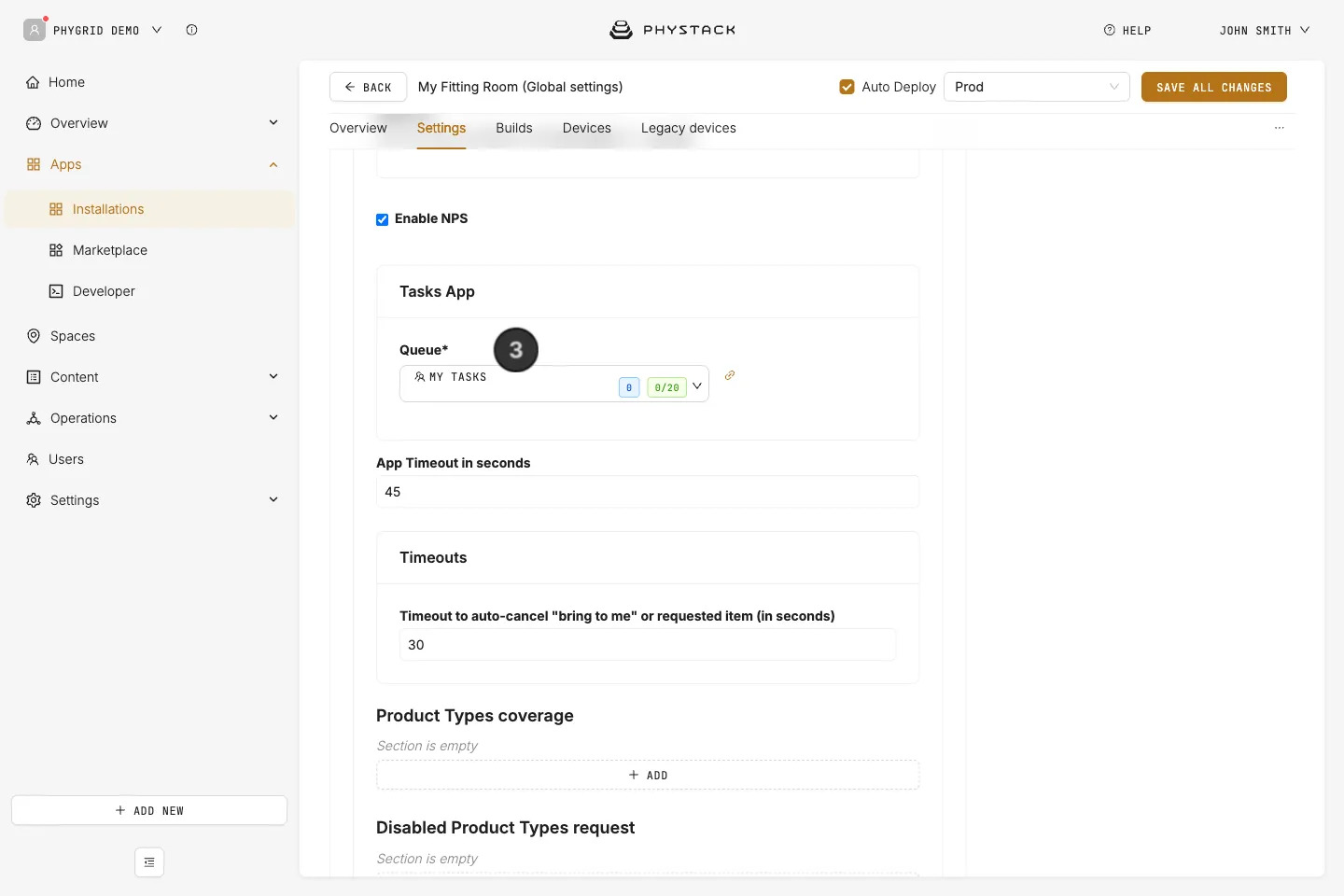
- In Tasks App, open Queue and select the queue of your Tasks installation. The list shows all queues in your tenant, so check that you pick your Tasks queue
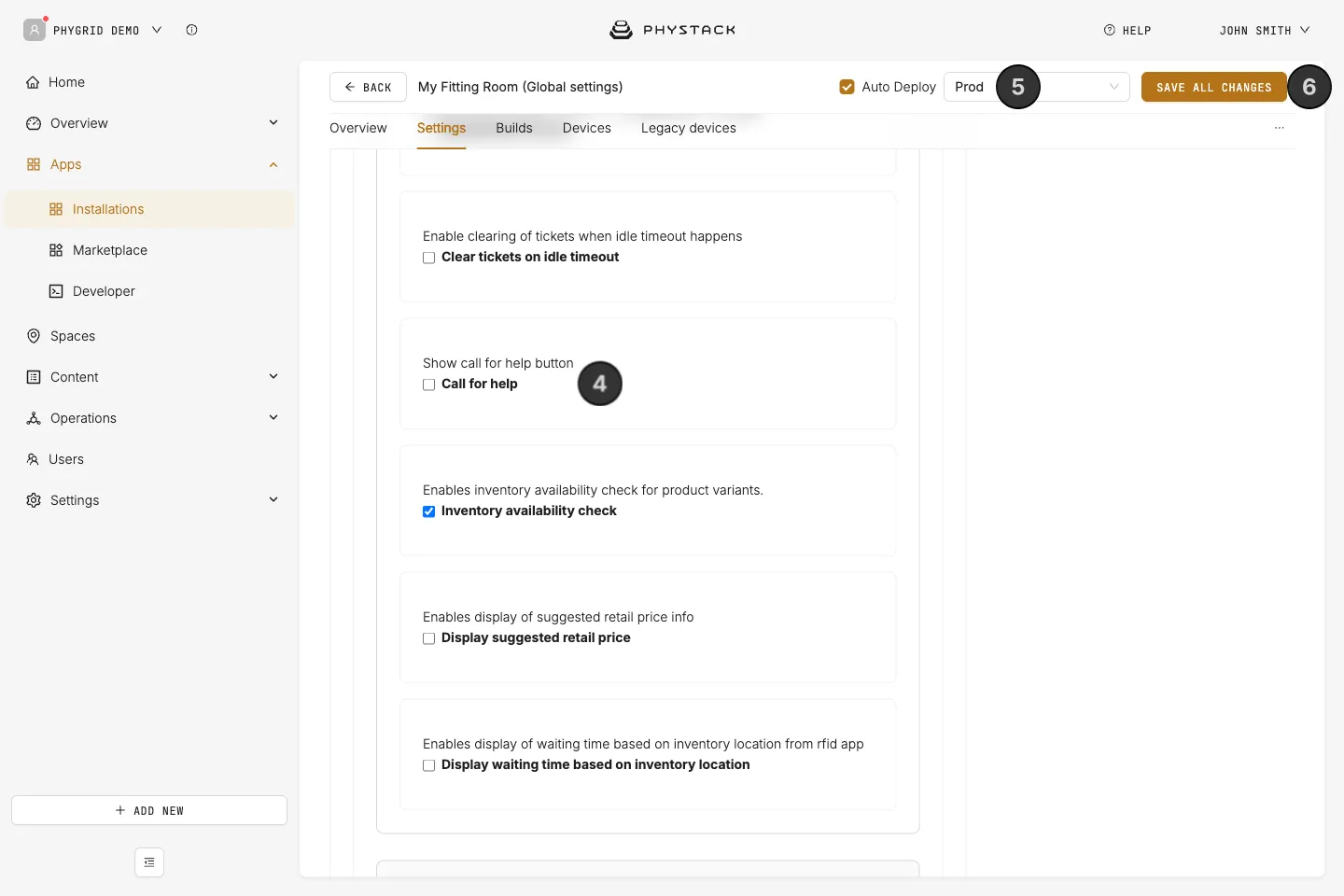
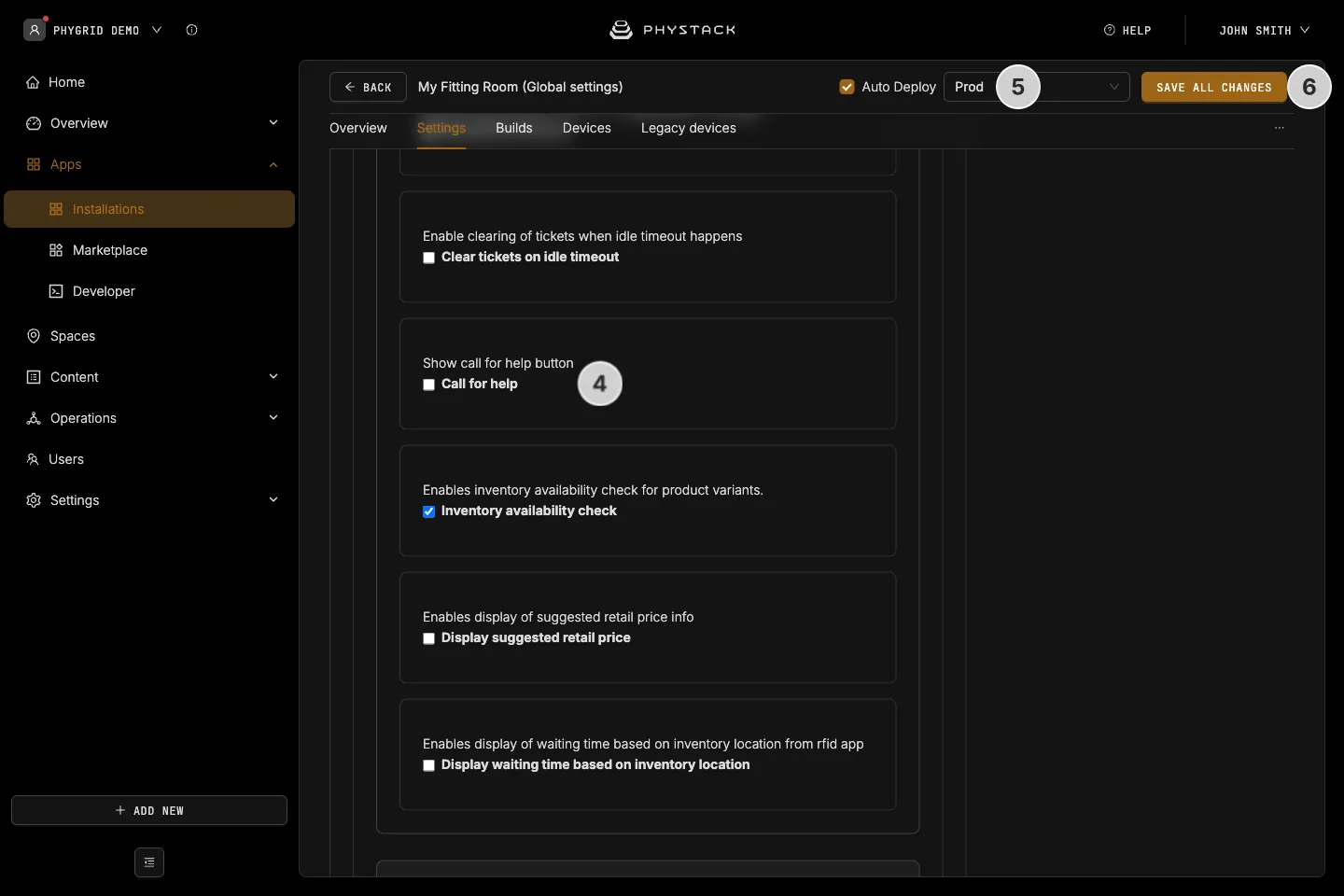
- Optionally, expand Features and turn on Call for help to show the call for help button on the screens
- Make sure Auto Deploy is selected (see Glossary) and pick the environment to deploy to
- Click Save all changes
How staff handle the requests
Keep the Tasks staff board open on a phone or tablet. See Manage requests in Tasks.
- When a request comes in, tap Prepare. The fitting room screen tells the customer the item is on its way
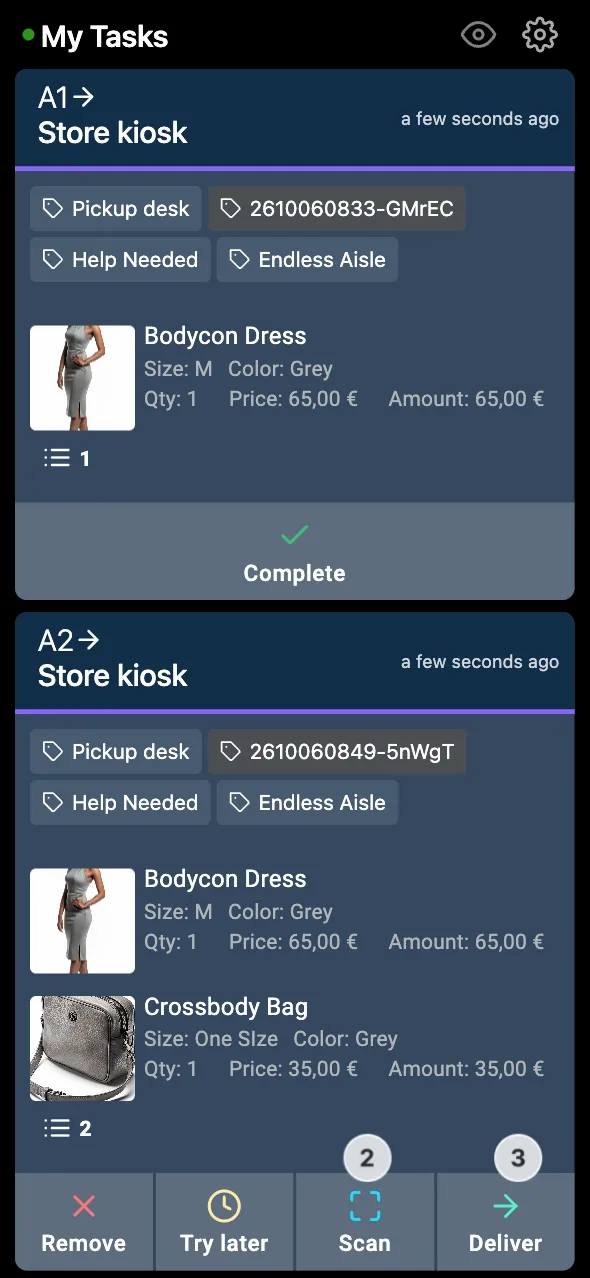
- Fetch the item in the requested size or colour, and tap Scan to scan its barcode
- Bring the item to the fitting room and tap Deliver. The fitting room screen tells the customer the item has been delivered
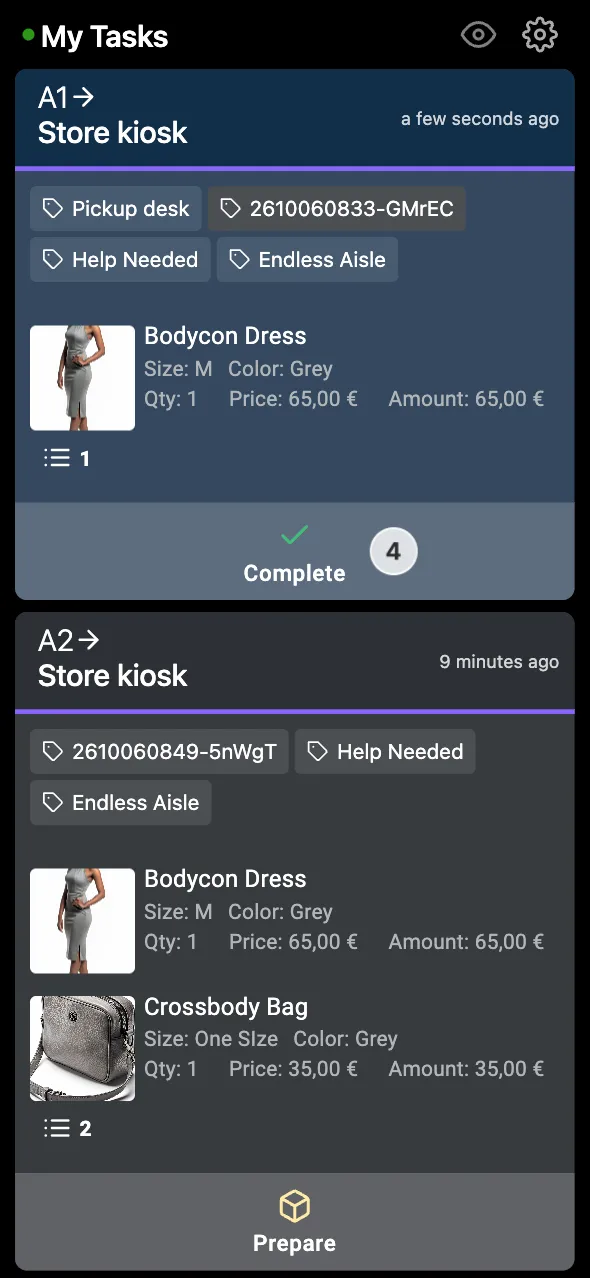
- Tap Complete to finish the request
Staff need to tap Prepare in time: if nobody takes a request within Timeout to auto-cancel “bring to me” or requested item (in seconds) (default 30), the request is cancelled. If the screen returns to idle before the request is handled, Clear tickets on idle timeout decides whether open requests are cancelled. See Smart Fitting Room settings explained.