Before you proceed
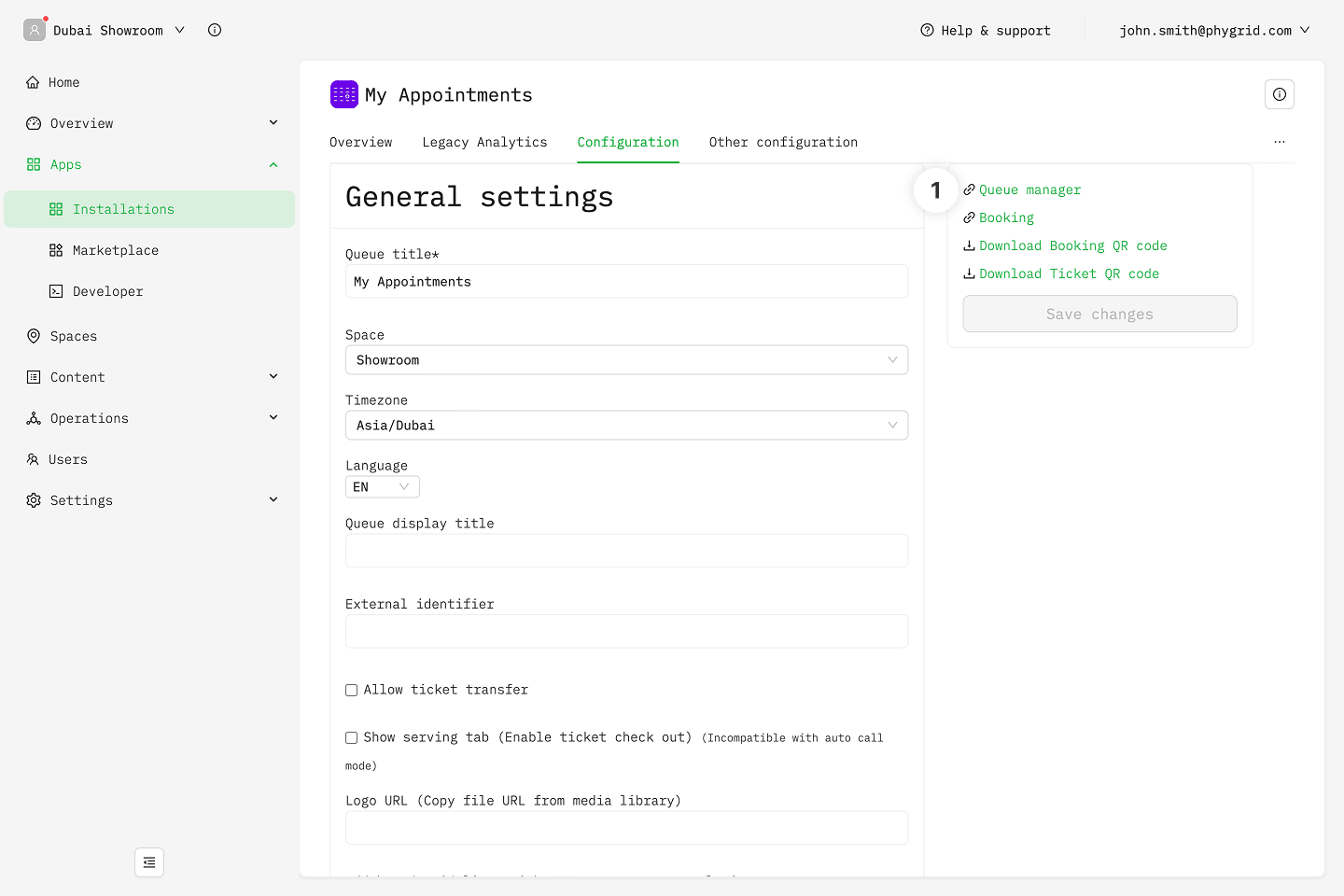
Appointment Booking is a variant of the Queue Management system that incorporates prebooking functionality. It extends on the features already present in the regular Queue Management application. As such, this guide only covers the functionality related to Appointment Booking. Read the Quick Start: Queue Management guide to do a basic queue setup, then come back here and set up options related to prebooking.
You can combine prebooking with regular walk-in tickets.
How to install a queue with Appointment Booking
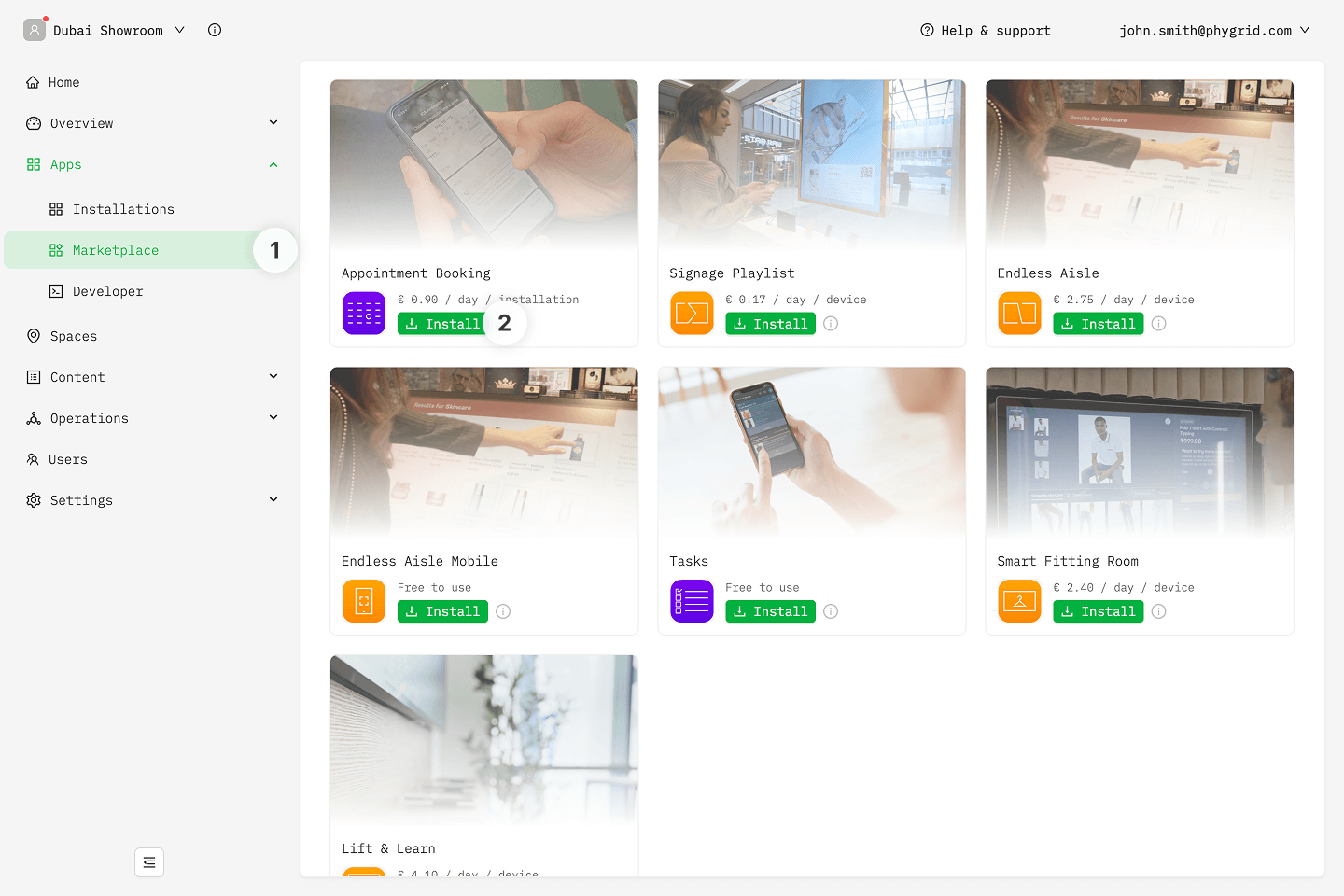
- In the sidebar, navigate to Apps → Marketplace
- Look for Appointment Booking in the list of applications and click on the Install button to open the installation dialog
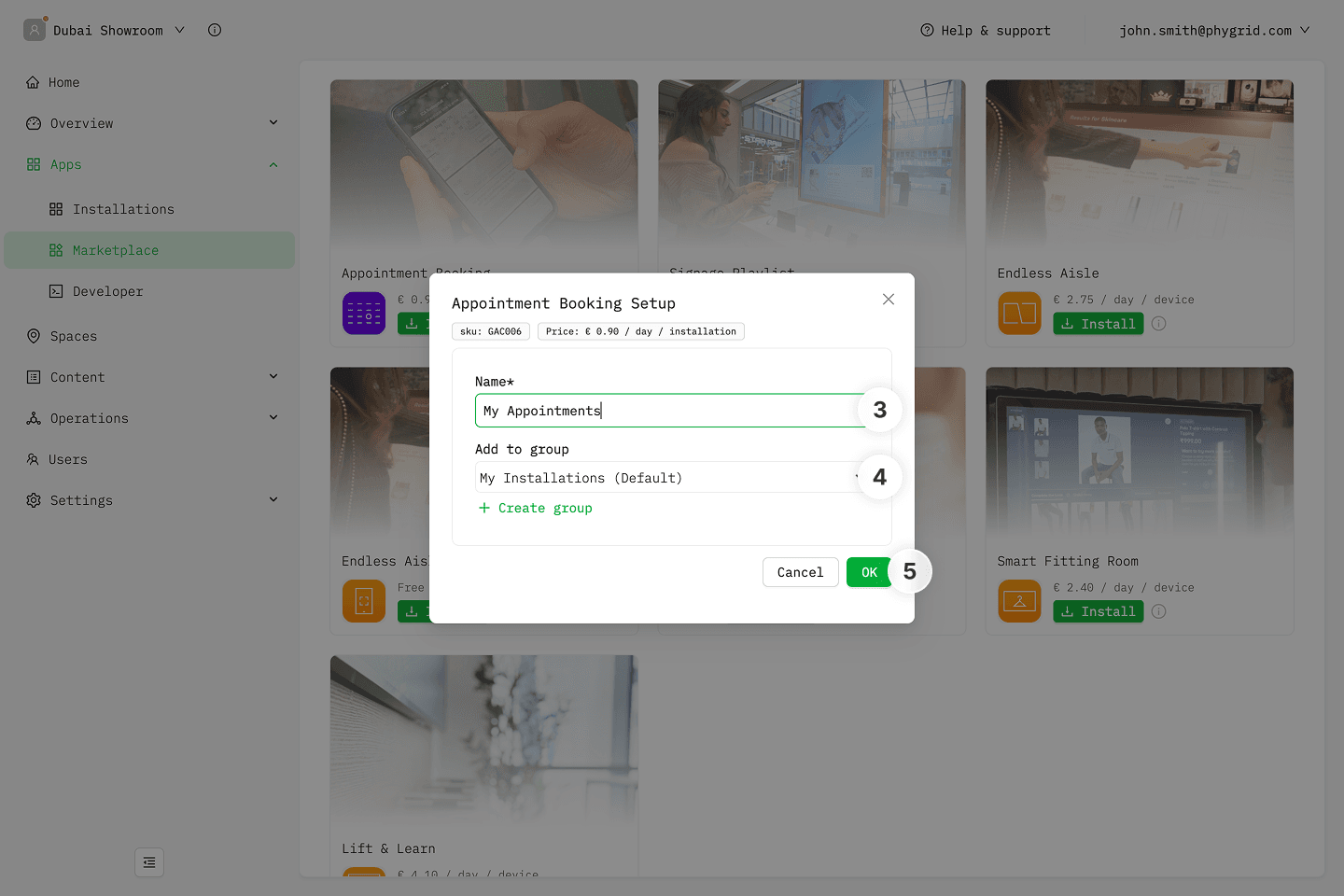
- In the installation form, enter a Name for your Appointment Booking installation
- Optionally, select a Group to organize your installations
- Click OK to create the Appointment Booking installation
How to access Appointment Booking settings
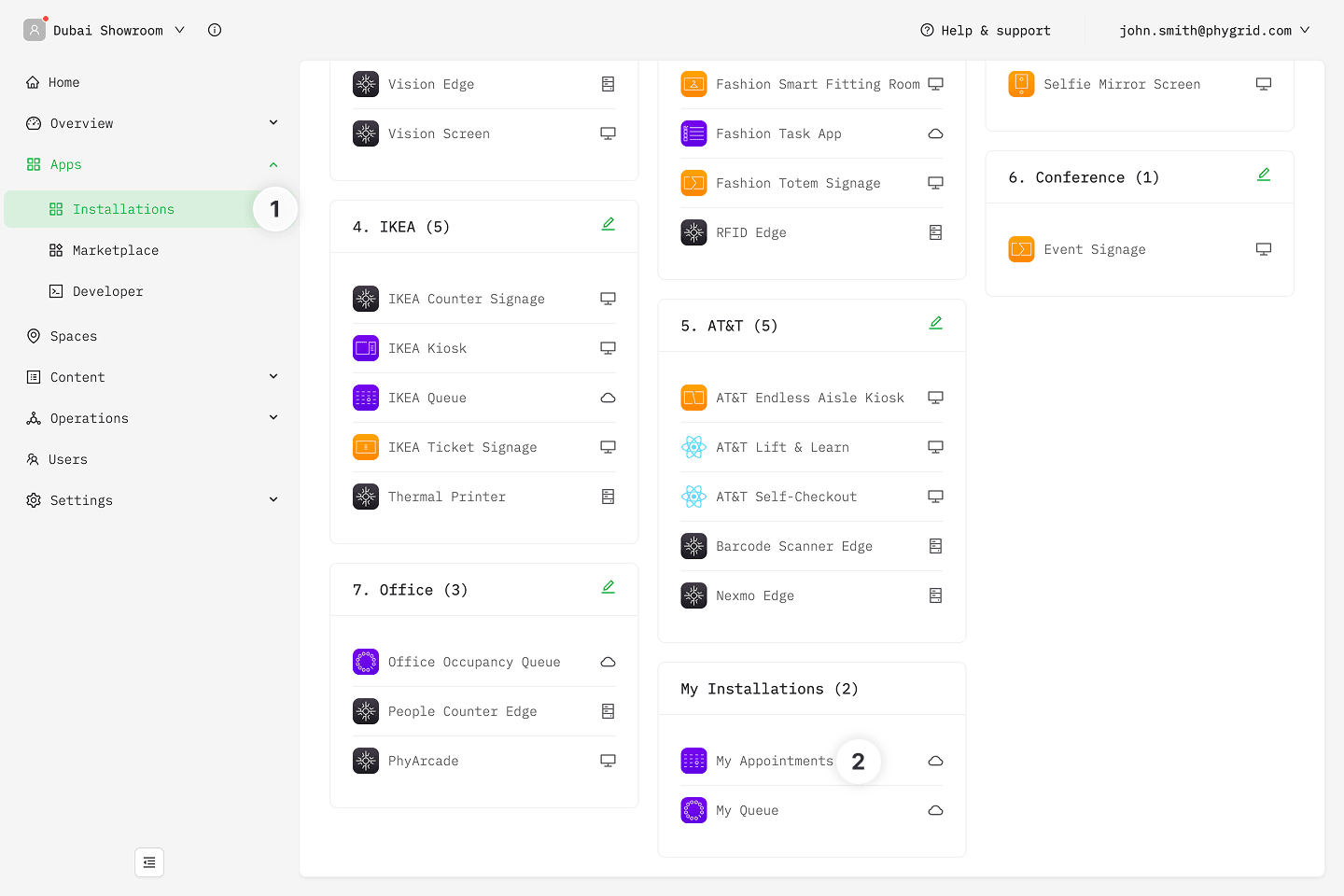
- Your new installation will be available in the sidebar under Apps → Installations
- Open the installation and select the Configuration tab to access your queue's options
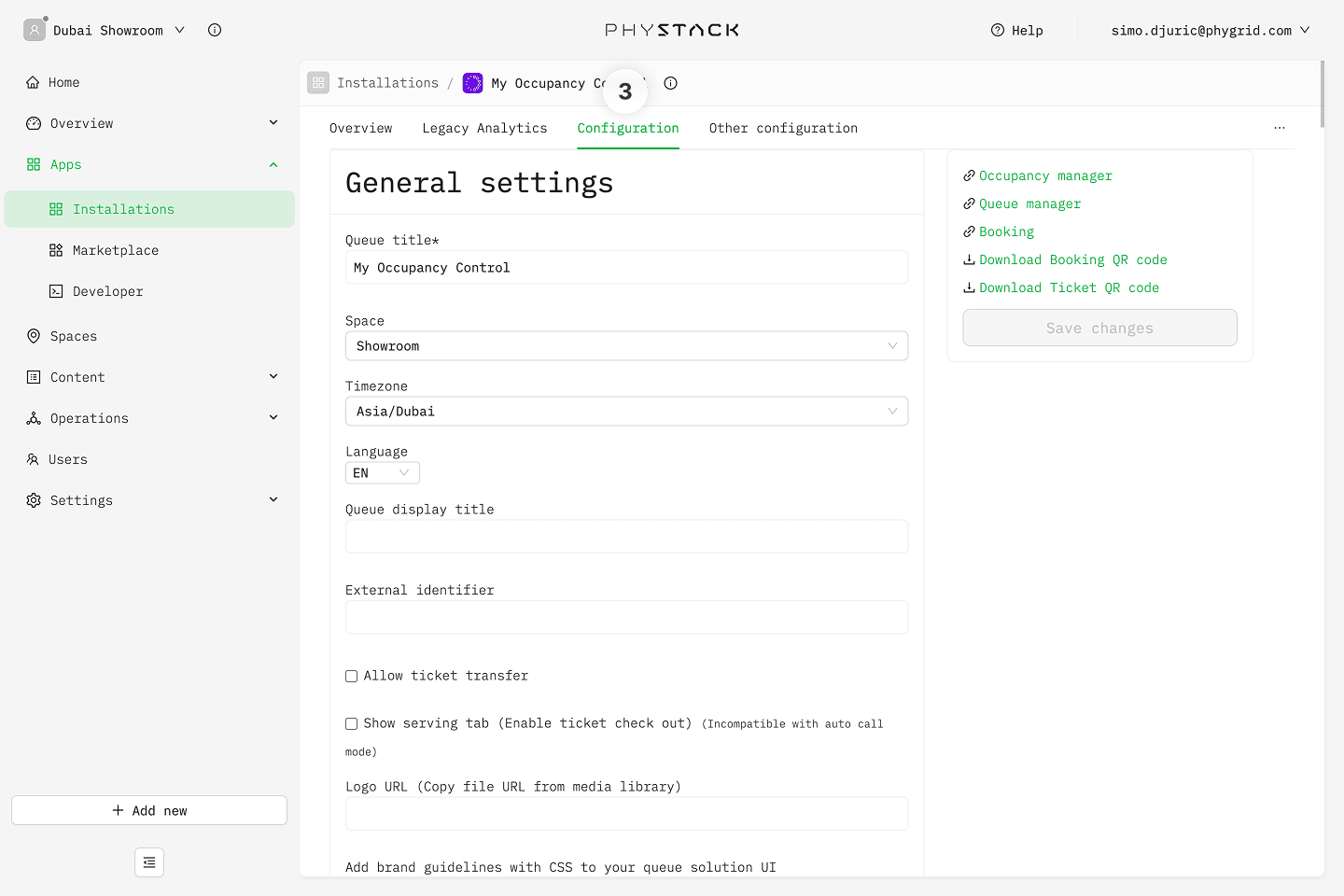
How to configure Appointment Booking
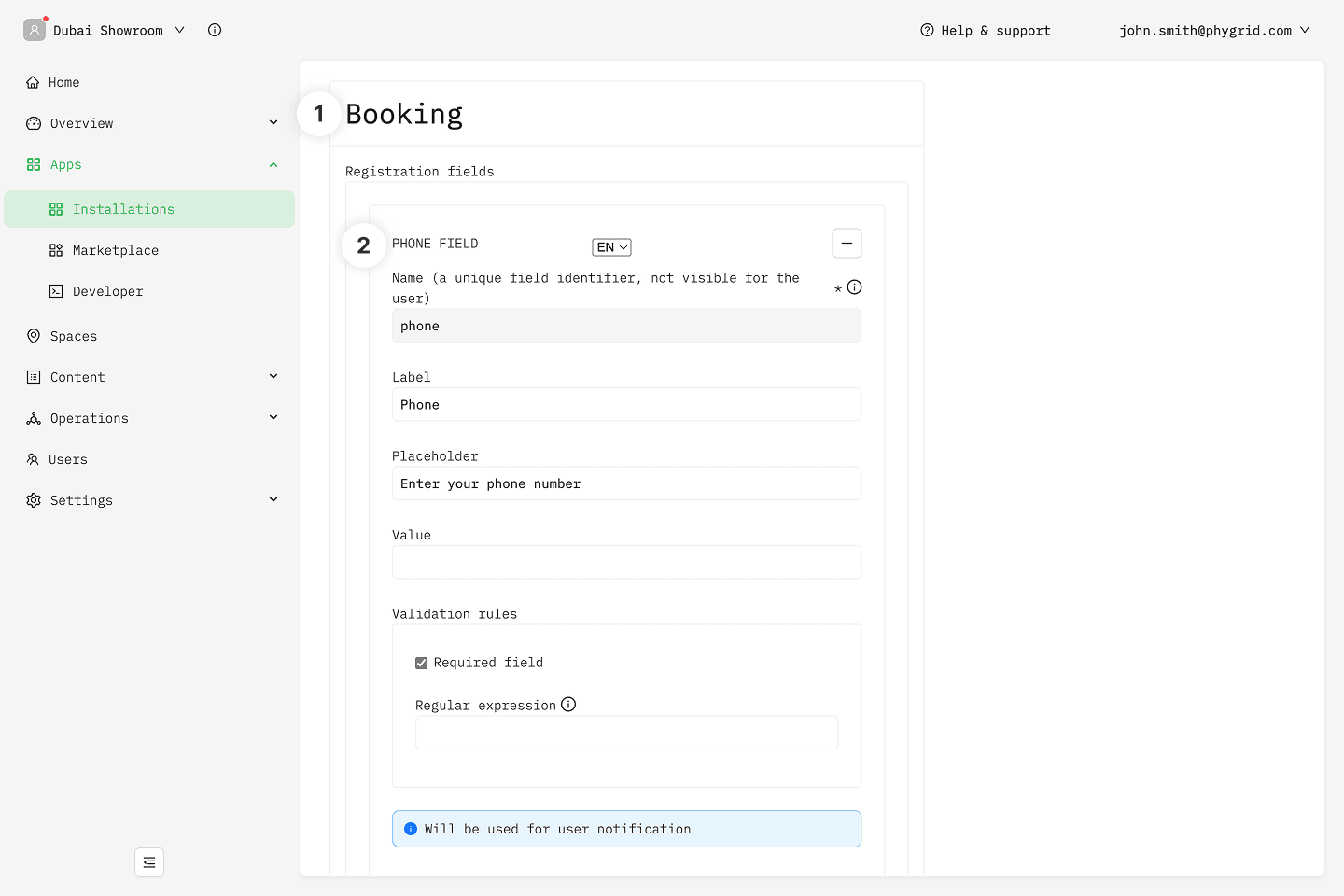
- Scroll to the Booking section in Settings
- By default, phone number is a required and pre-filled registration field, as booking reminders and notifications need to be delivered to the visitor prior to their booked timeslot
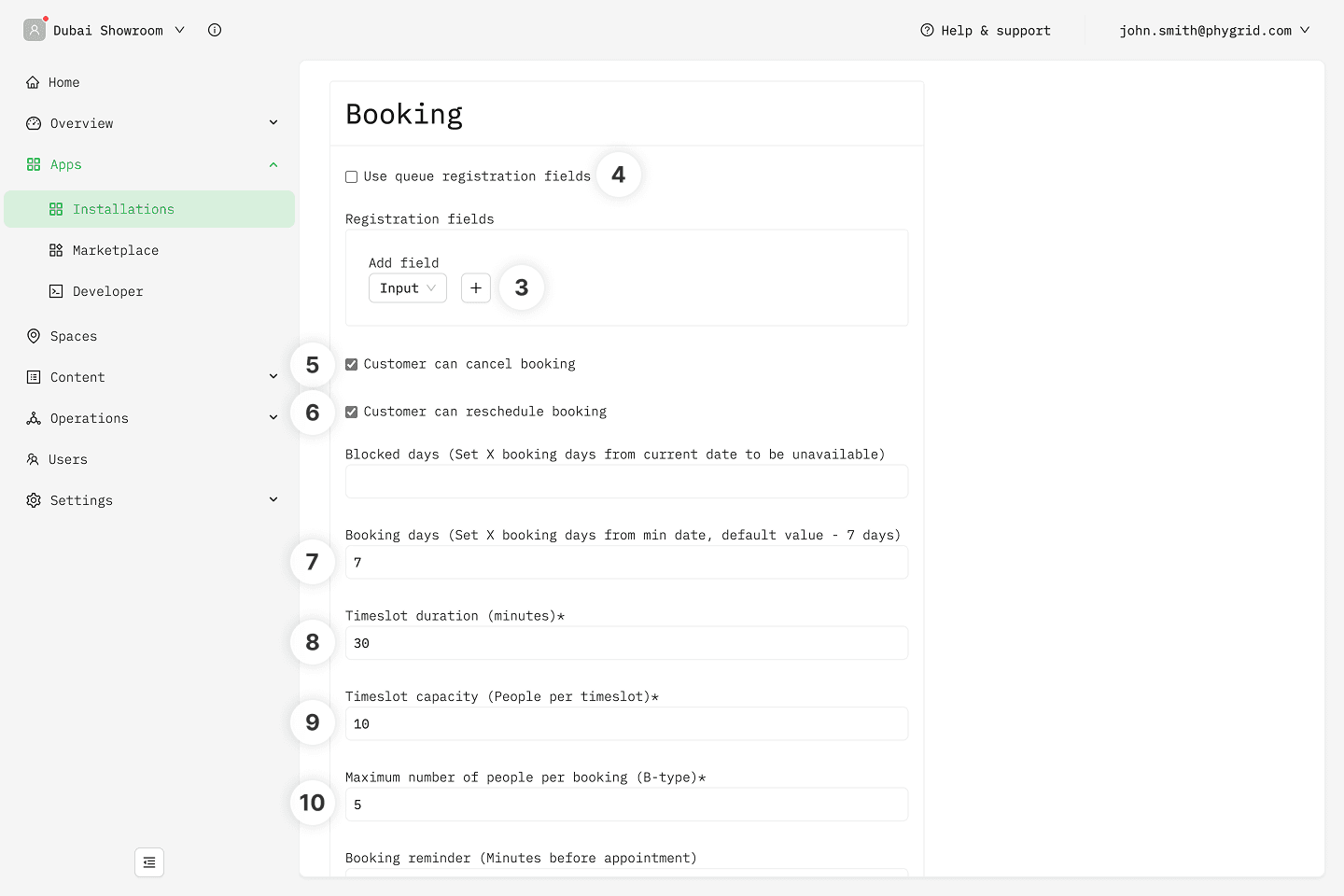
- If you want to, you can customize the registration fields, by removing the phone number and adding custom fields (name, email, categories)
- You can re-use and match registration fields for the walk-in tickets, if you have previously set up any
- Allow the user to cancel booking from the booking confirmation page
- Allow the user to reschedule booking from the booking confirmation page
- Set the timeslot duration
- Set the timeslot capacity (how many people can book during one timeslot, across all tickets)
- Limit how many people can register on a single ticket
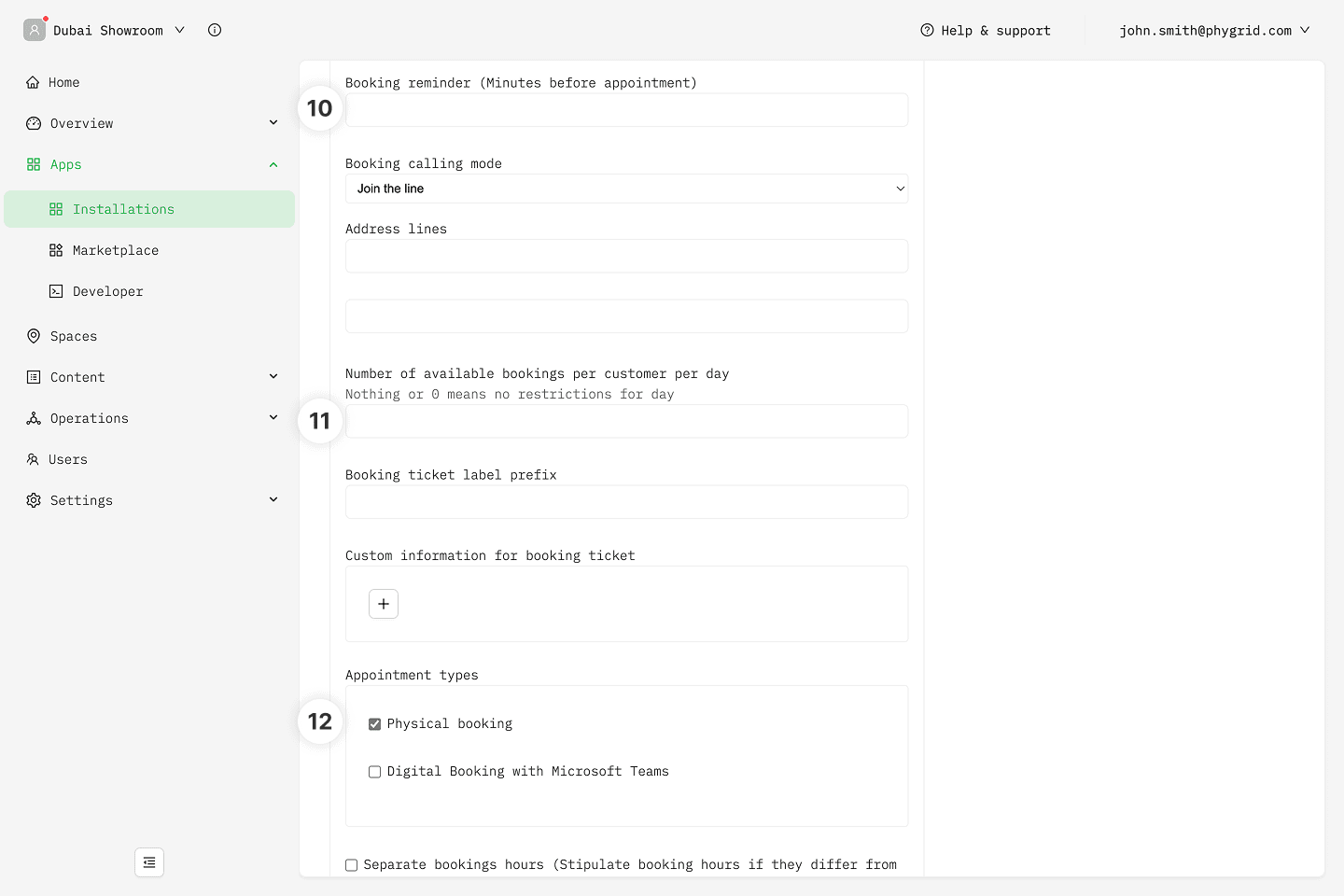
- Set how many minutes before the timeslot start should the user receive a reminder (SMS or email)
- Pick appointment type. In addition to location visits, you can create virtual appointments integrated with Microsoft Teams
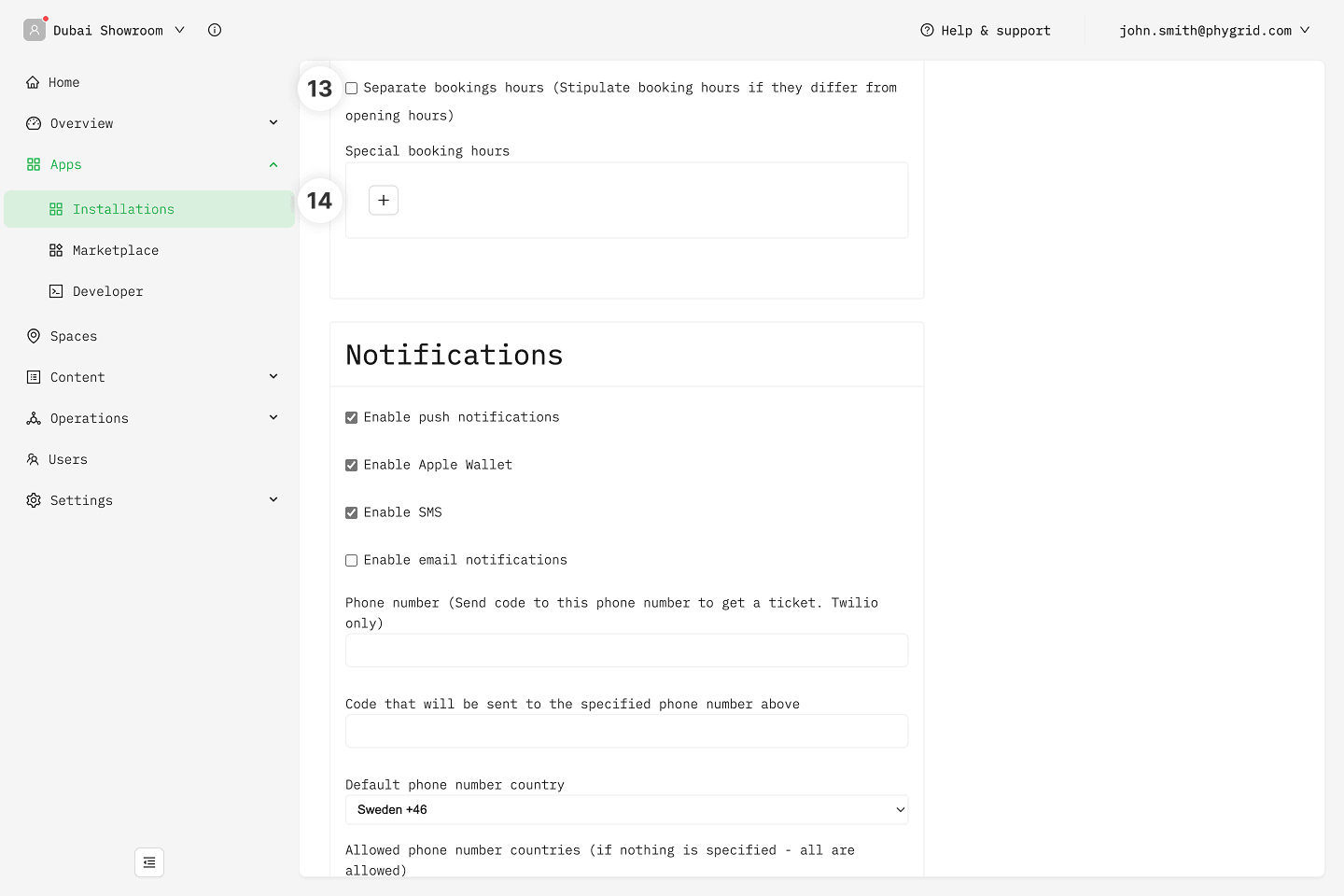
- Customize booking hours, if they don't match the location's working hours, as set up in the walk-in (general queue) section of the Settings
- Define special booking hours that fall outside of working hours or separate booking hours, and completely replace that day's regular booking hours
How to share the booking link
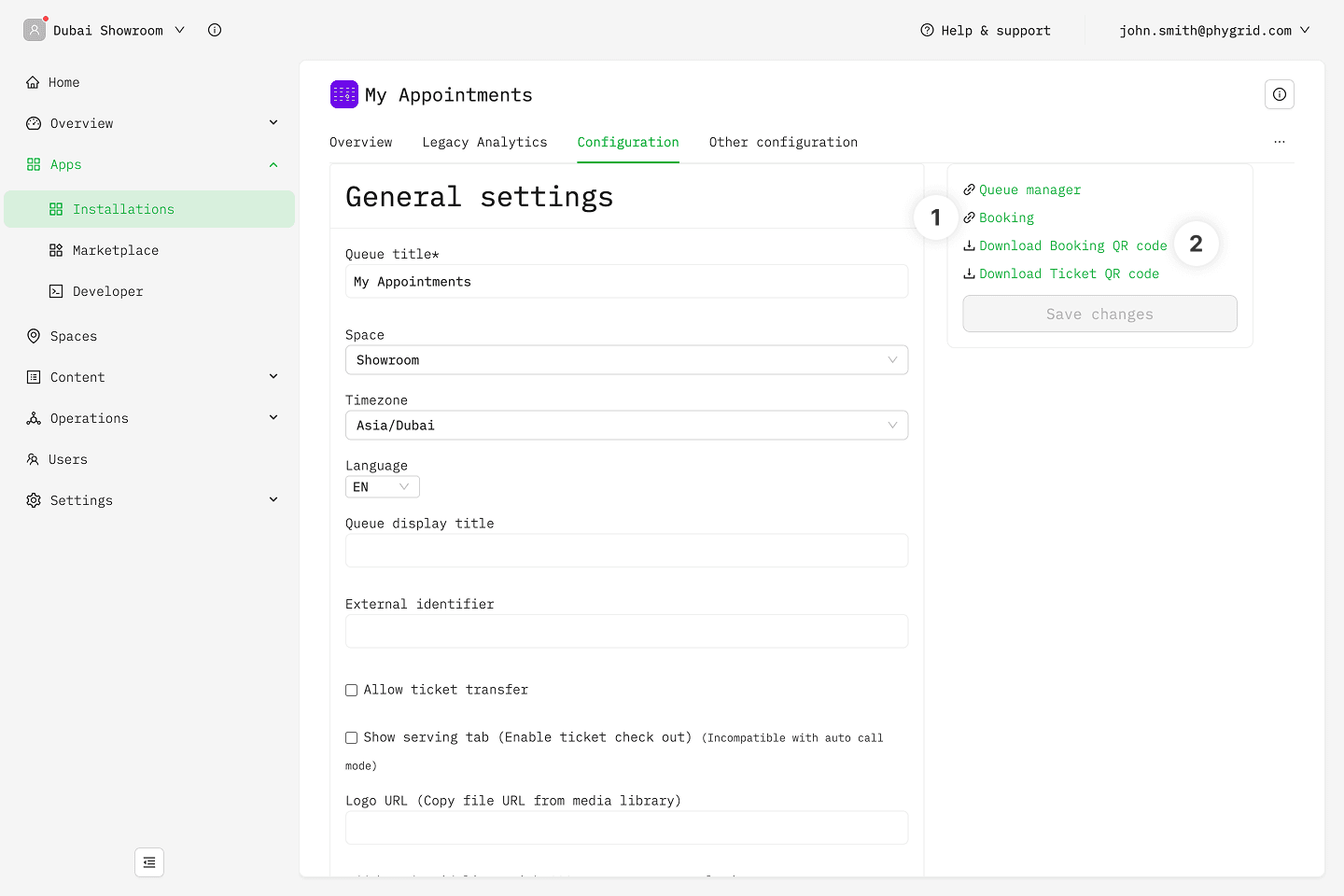
- Copy and share the booking link - include the link on your website, share it via email or SMS
- Download and print the QR code alongside additional instructions and place it on promotional materials
- To further grab the visitor's attention, you can utilize a Signage Playlist and show the QR code through a digital display
- If you utilize the Ticket Signage optional component for Queue Management and Appointment Booking, you can enable the option to show a QR code to join the queue
How to manage a queue
- Copy the link to the Queue Manager and share it with the staff that is managing the queue
- Depending on the selected login method, you might also need to share the login pin code
- Upcoming booking are visible in the Calendar
- Activated bookings (bookings that have reached their timeslot) will join the queue by default, and can further be managed like any other queue ticket