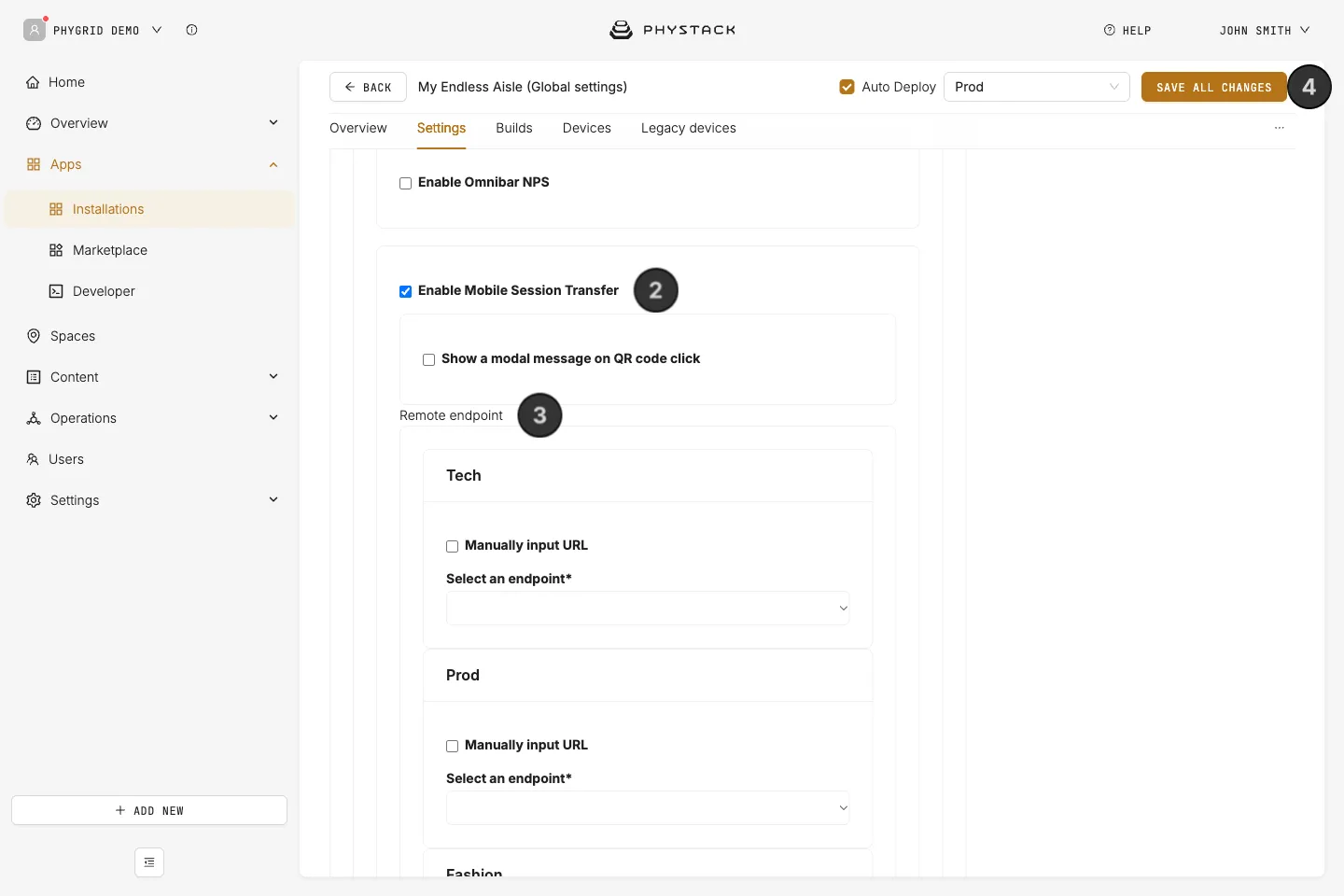
These features live in the bar at the bottom of the kiosk screen, called the omnibar. It holds the search field, Home, the bag, and the buttons you add below. Turn off Enable Omnibar to replace it with a simple back button.
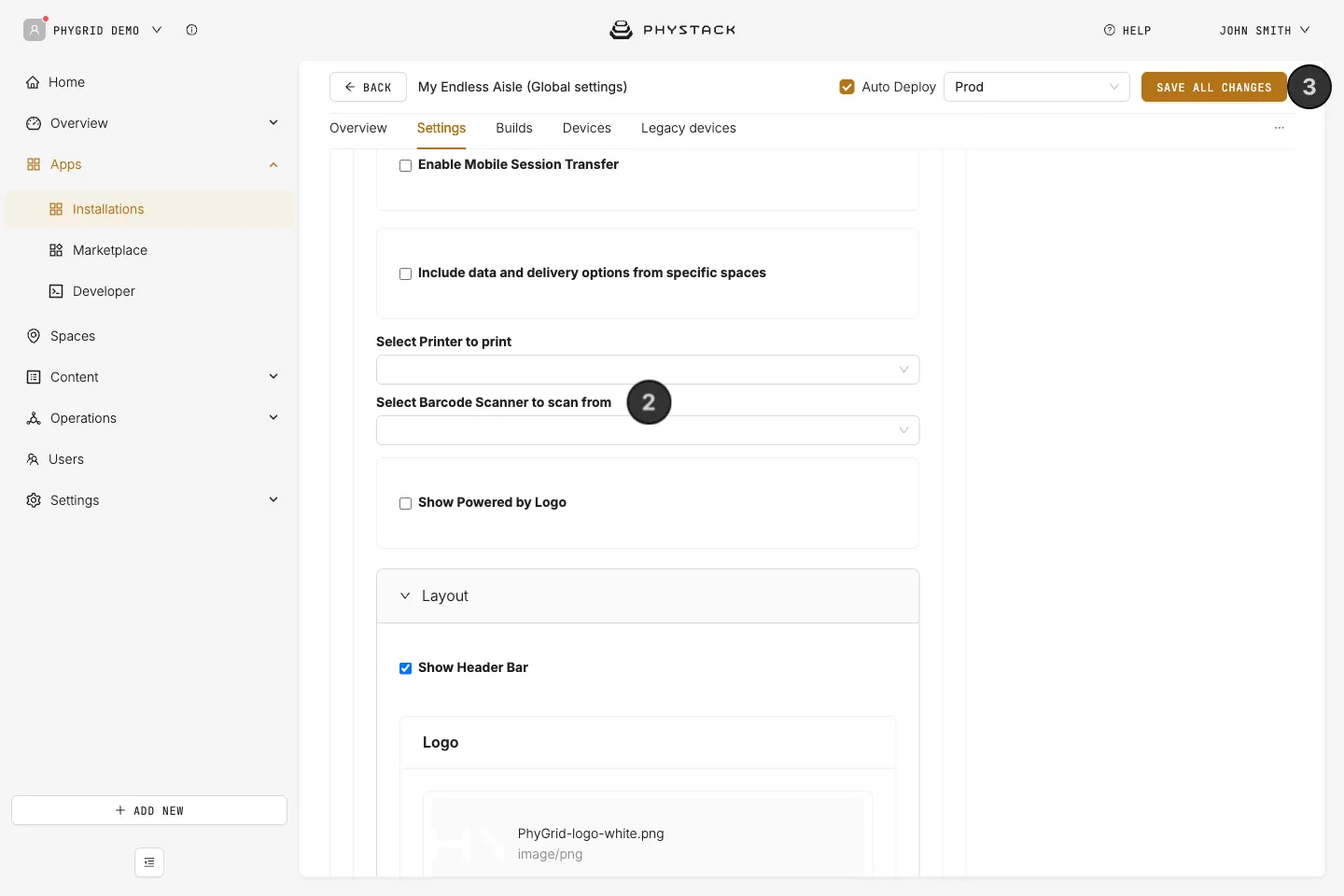
How to let customers scan barcodes
Customers can scan a product’s barcode to open it on the kiosk.
- Connect a barcode scanner to the kiosk device, so it appears as a peripheral of the device
- In the Endless Aisle settings, select it in Select Barcode Scanner to scan from
- Click Save all changes
The kiosk looks up the scanned code in the EAN, GTIN, and UPC barcodes of your products.
How to let customers call staff for help
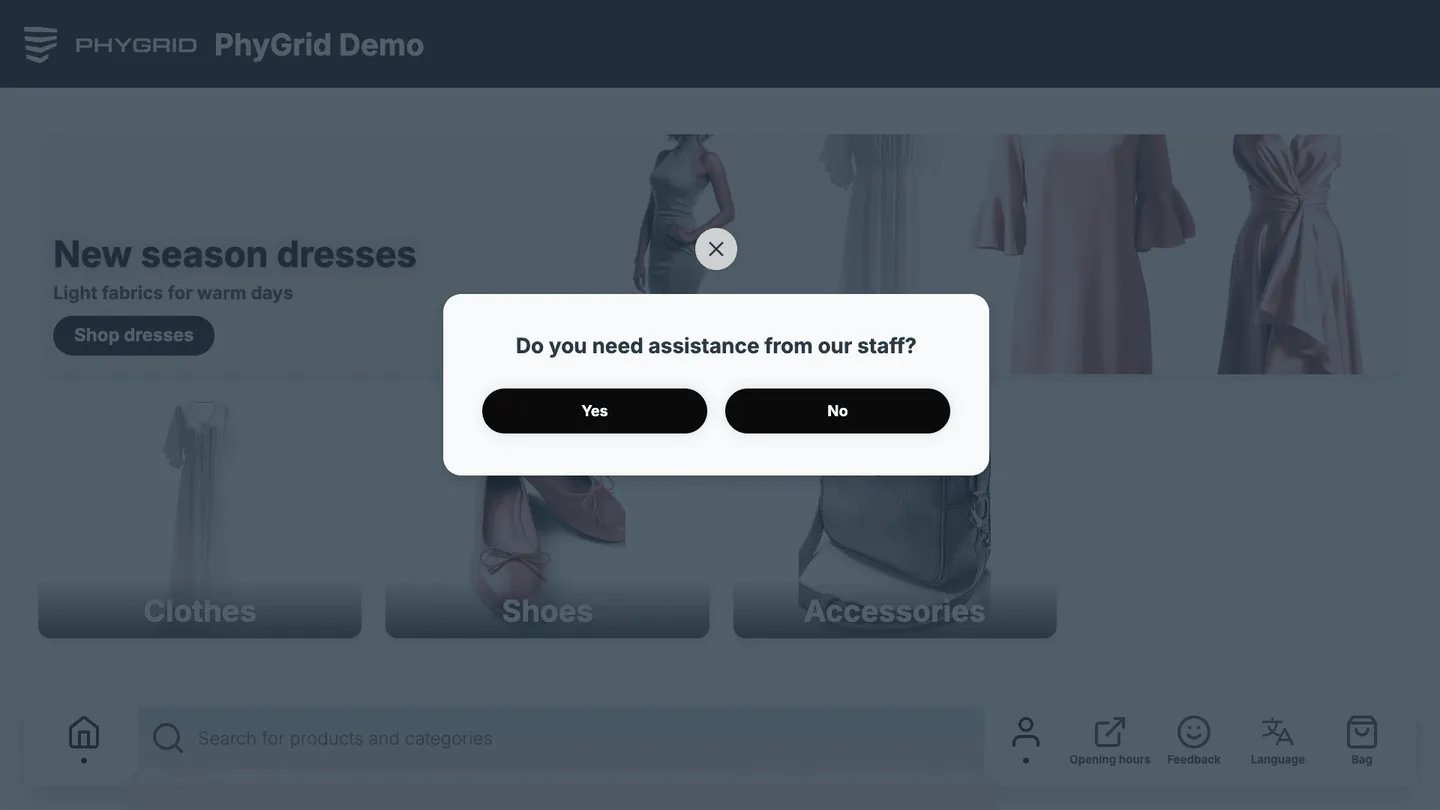
A Help button asks the customer to confirm, then sends a request to your staff notification system.
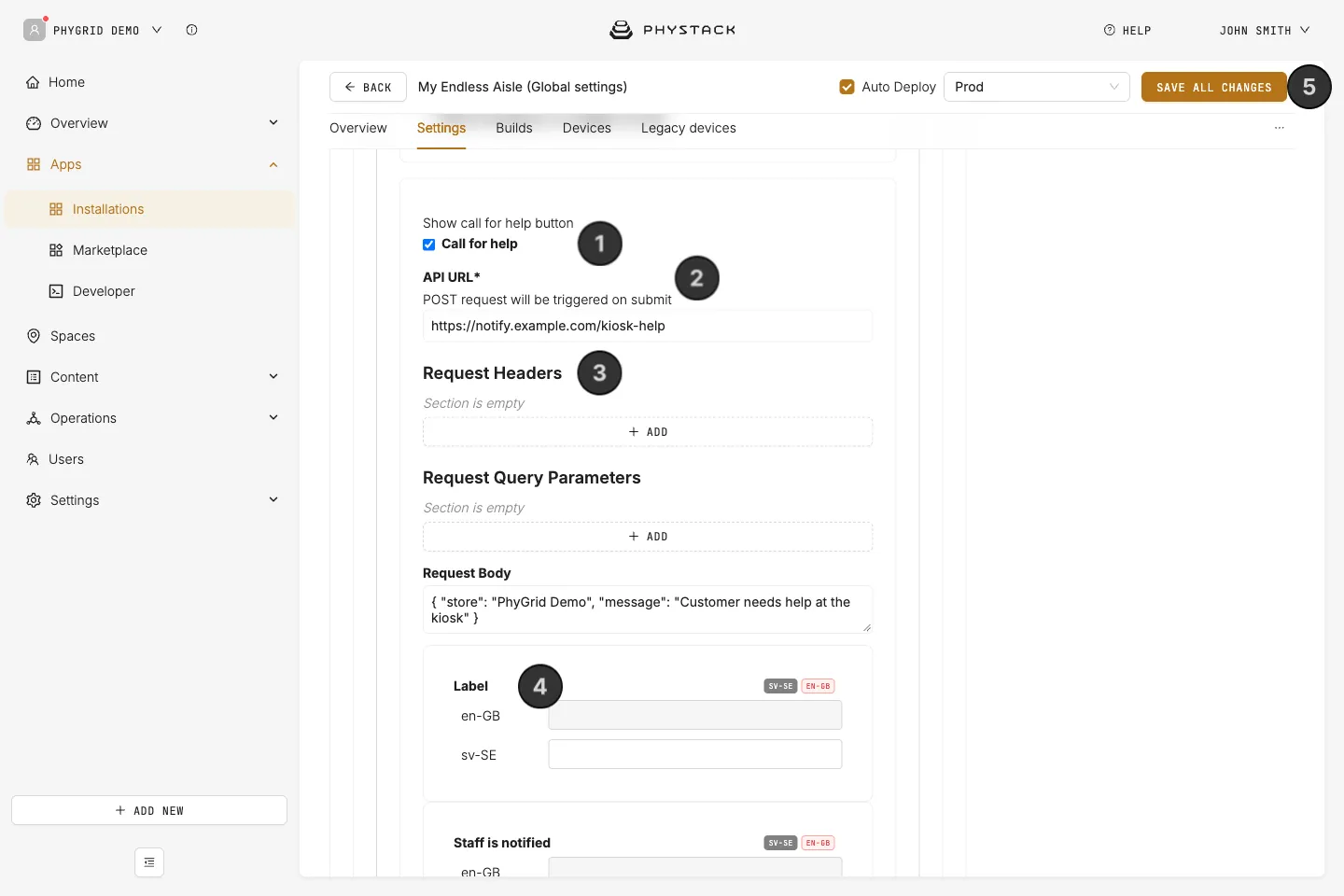
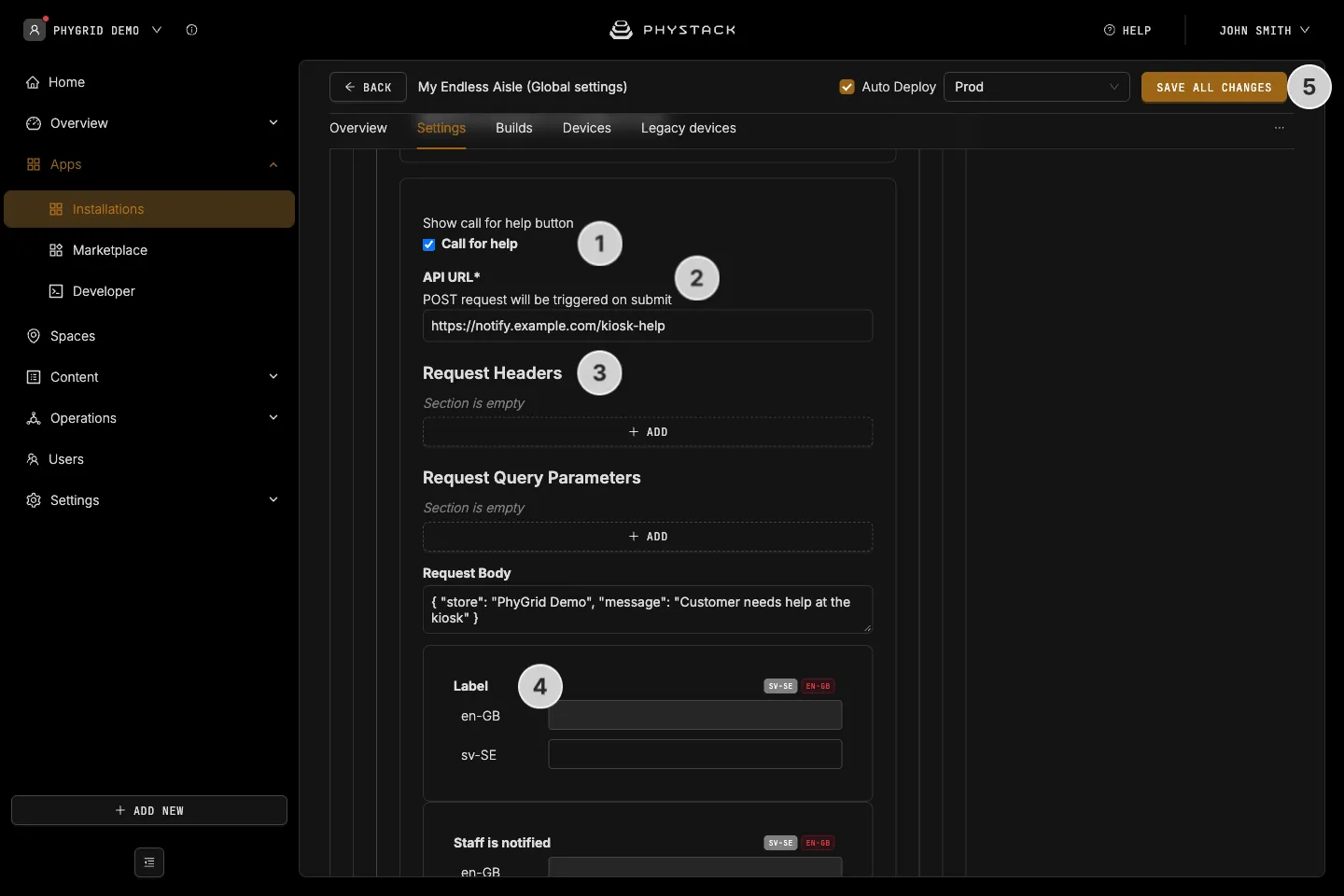
- Expand Features and turn on Call for help
- Enter the API URL of your notification system. The kiosk sends a POST request to it
- Add the Request Headers, Request Query Parameters, and Request Body your system expects
- Optionally, change the Label, Staff is notified, Unable to find help, and Finding some help texts
- Click Save all changes
How to collect customer feedback
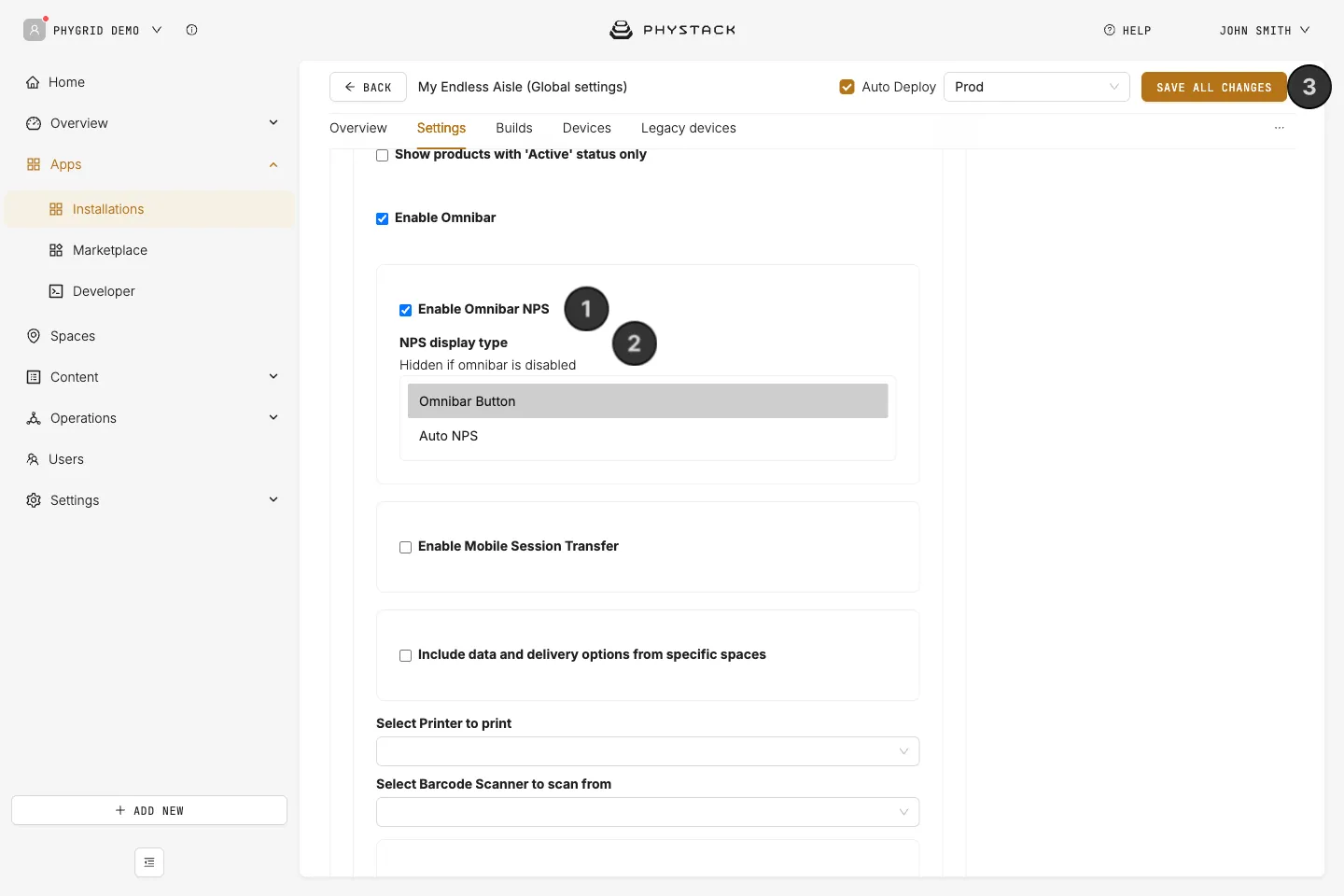
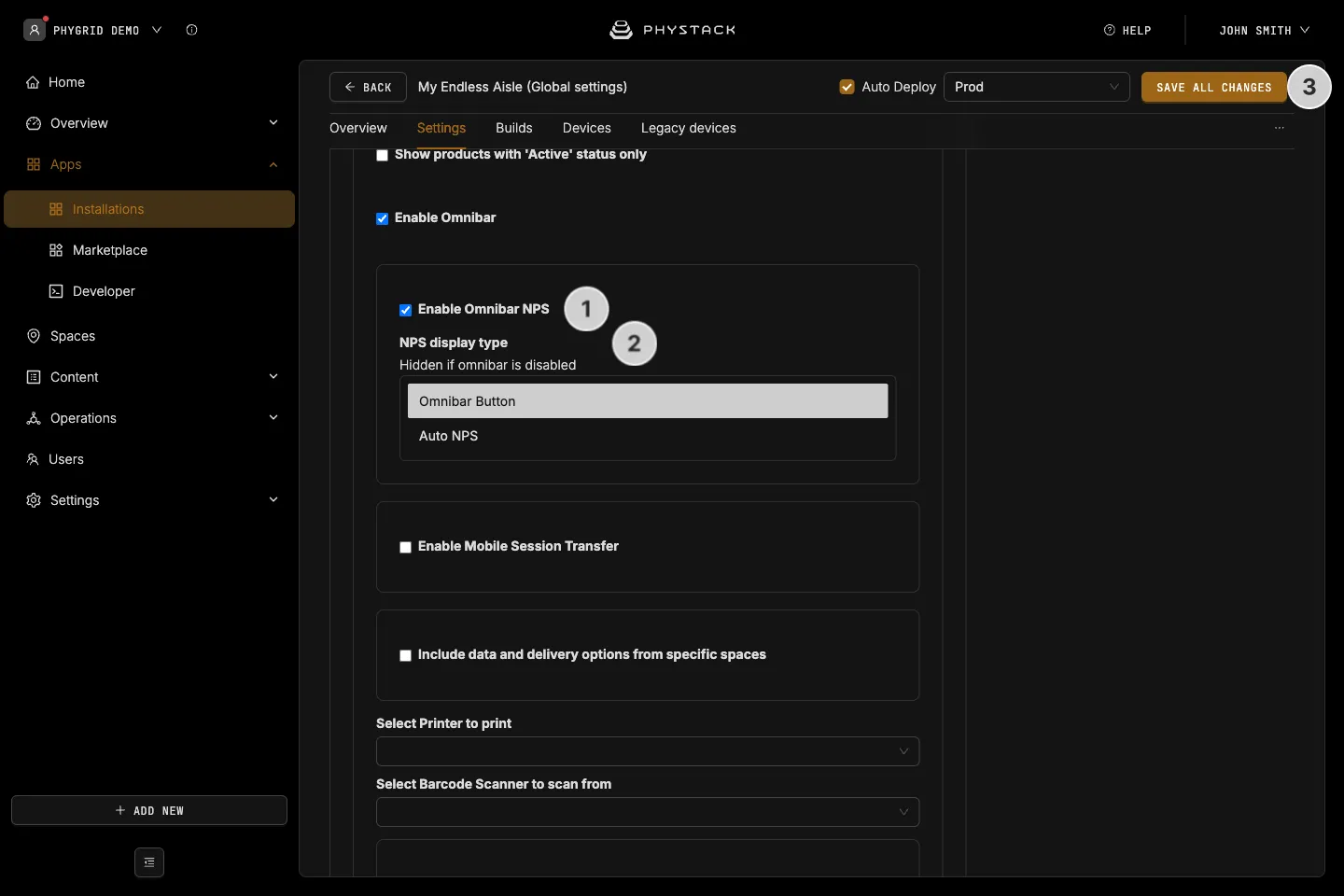
- Turn on Enable Omnibar NPS
- Choose the NPS display type:
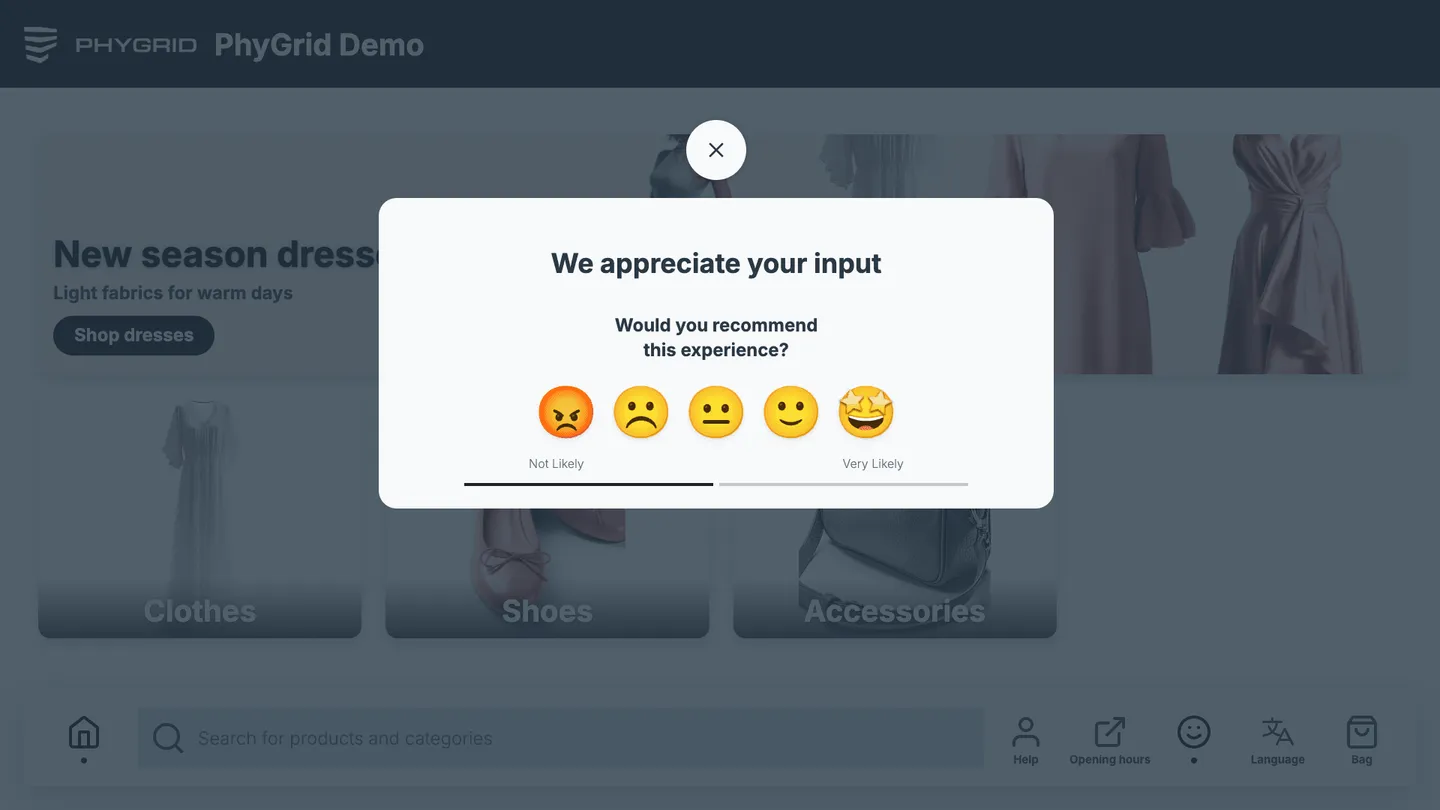
- Omnibar Button: adds a Feedback button customers can tap at any time
- Auto NPS: asks for a rating automatically after 40 seconds of use
- Click Save all changes
Customers are also asked for feedback after checkout. Results are part of the installation’s analytics.
How to add your own buttons
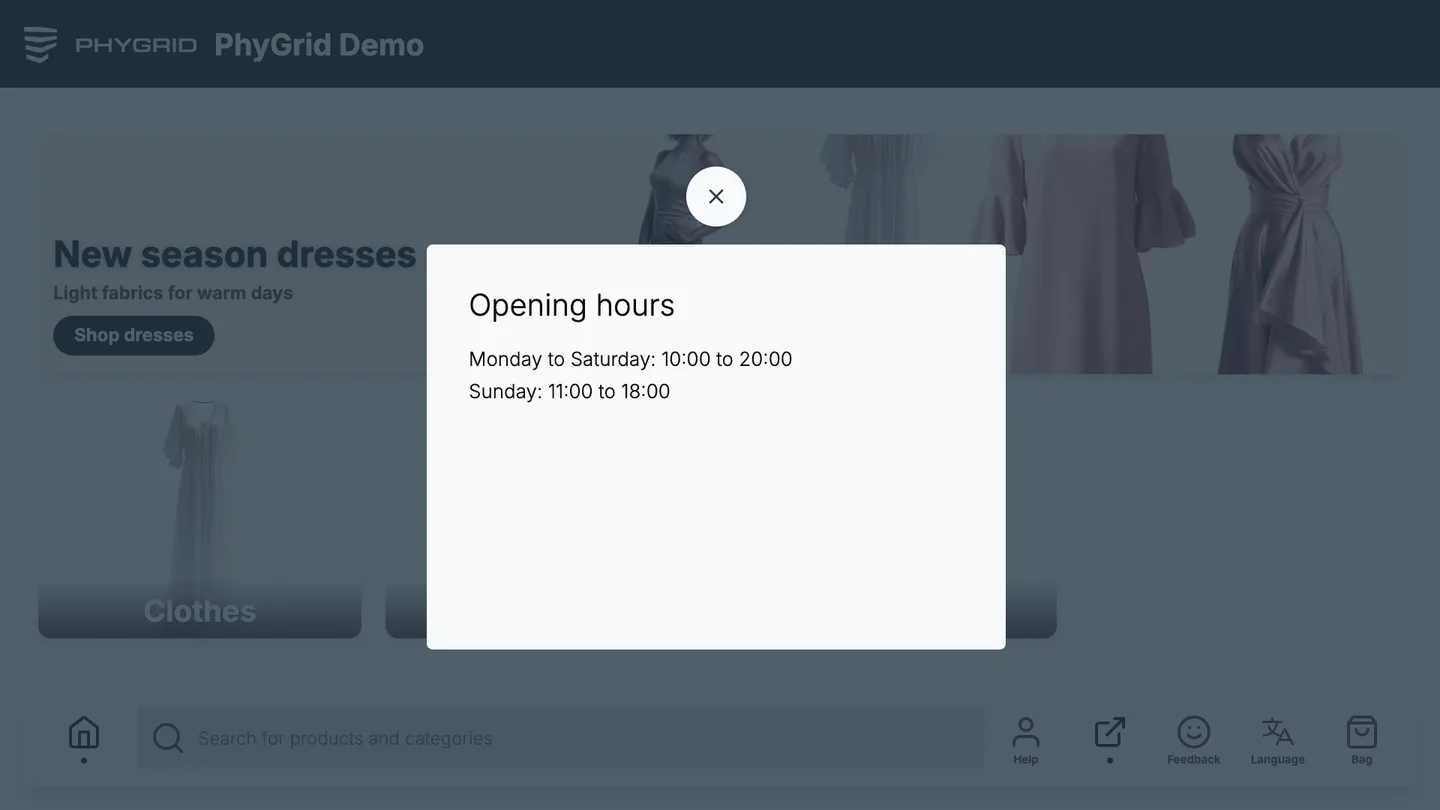
Custom buttons open a pop-up window with your own content, such as store opening hours or a size guide.
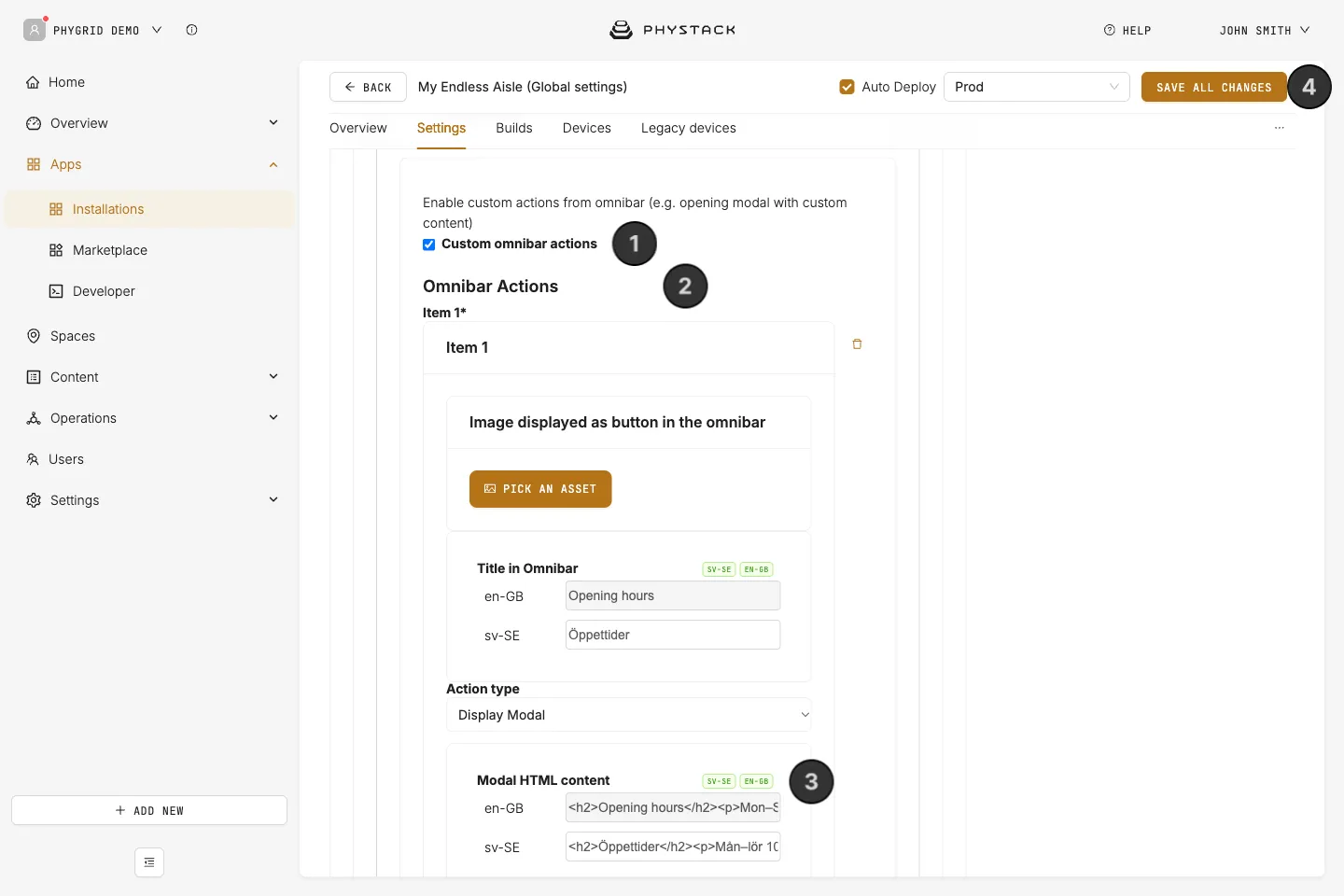
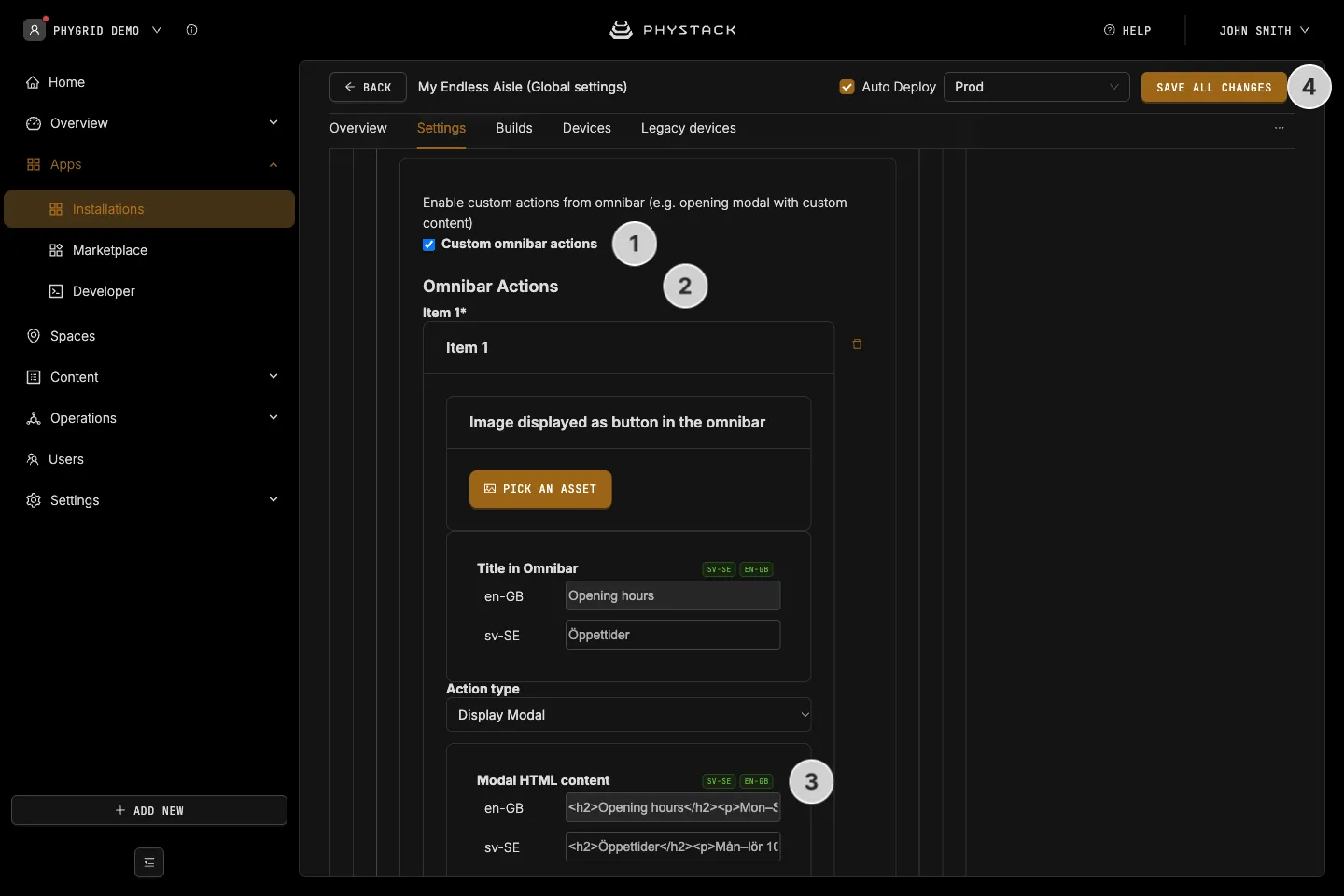
- Expand Features and turn on Custom omnibar actions
- Under Omnibar Actions, add a button with an Image displayed as button in the omnibar and a Title in Omnibar
- Write the Modal HTML content in each language. The pop-up shows your HTML without any styling of its own, so add inline styles for spacing and text sizes, for example
<div style="padding: 48px"> - Click Save all changes
How to let customers continue on their phone
With Endless Aisle Mobile, the kiosk can show a QR code that opens the mobile web app on the customer’s phone. The shopping bag isn’t transferred.
- Set up Endless Aisle Mobile and its mobile endpoint. See Set up Endless Aisle Mobile
- Turn on Enable Mobile Session Transfer
- In Remote endpoint, select the mobile endpoint for each environment
- Click Save all changes