
How to use triggers to schedule content
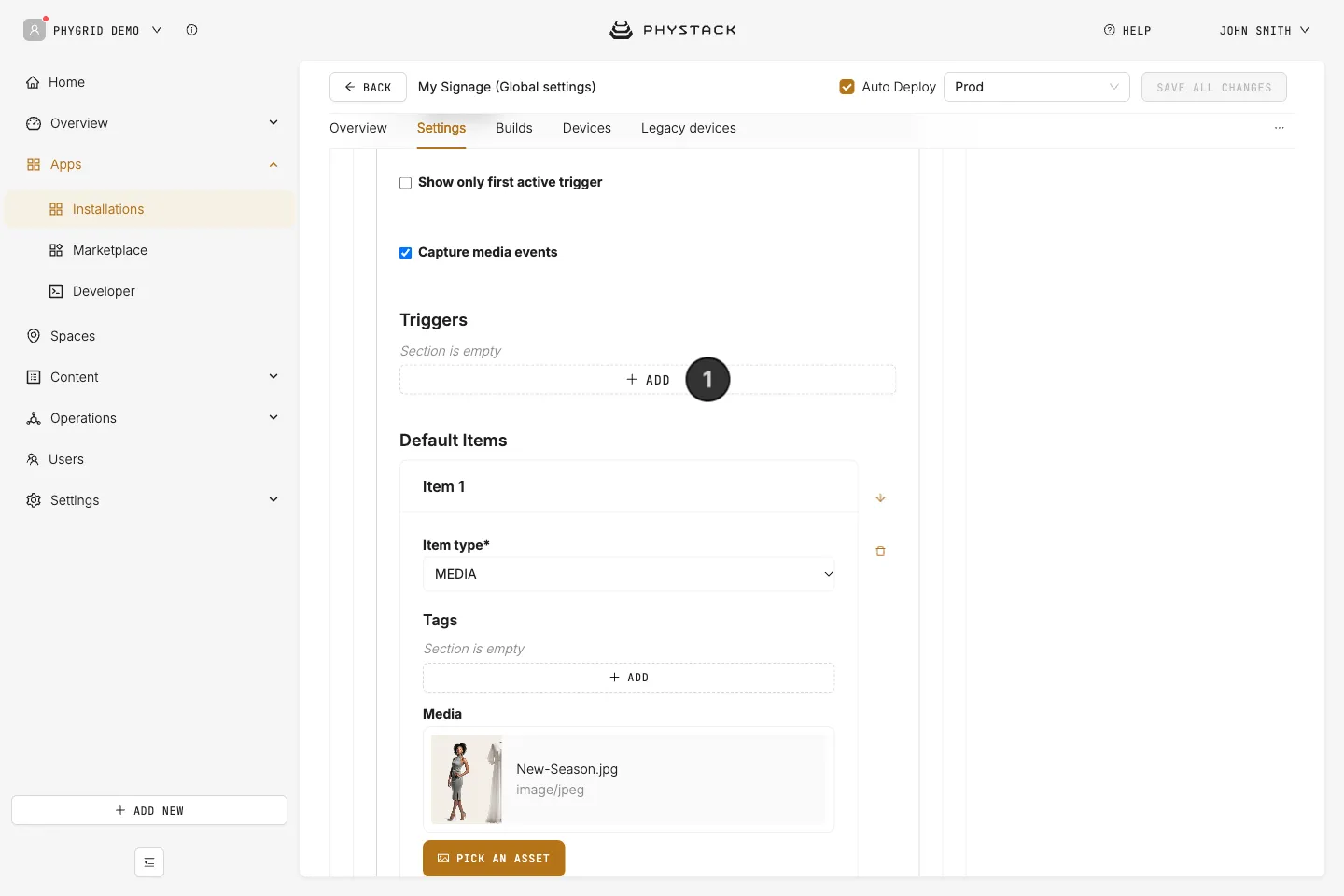
Always configure at least one default item to serve as fallback, before creating scheduled or conditional content playlists
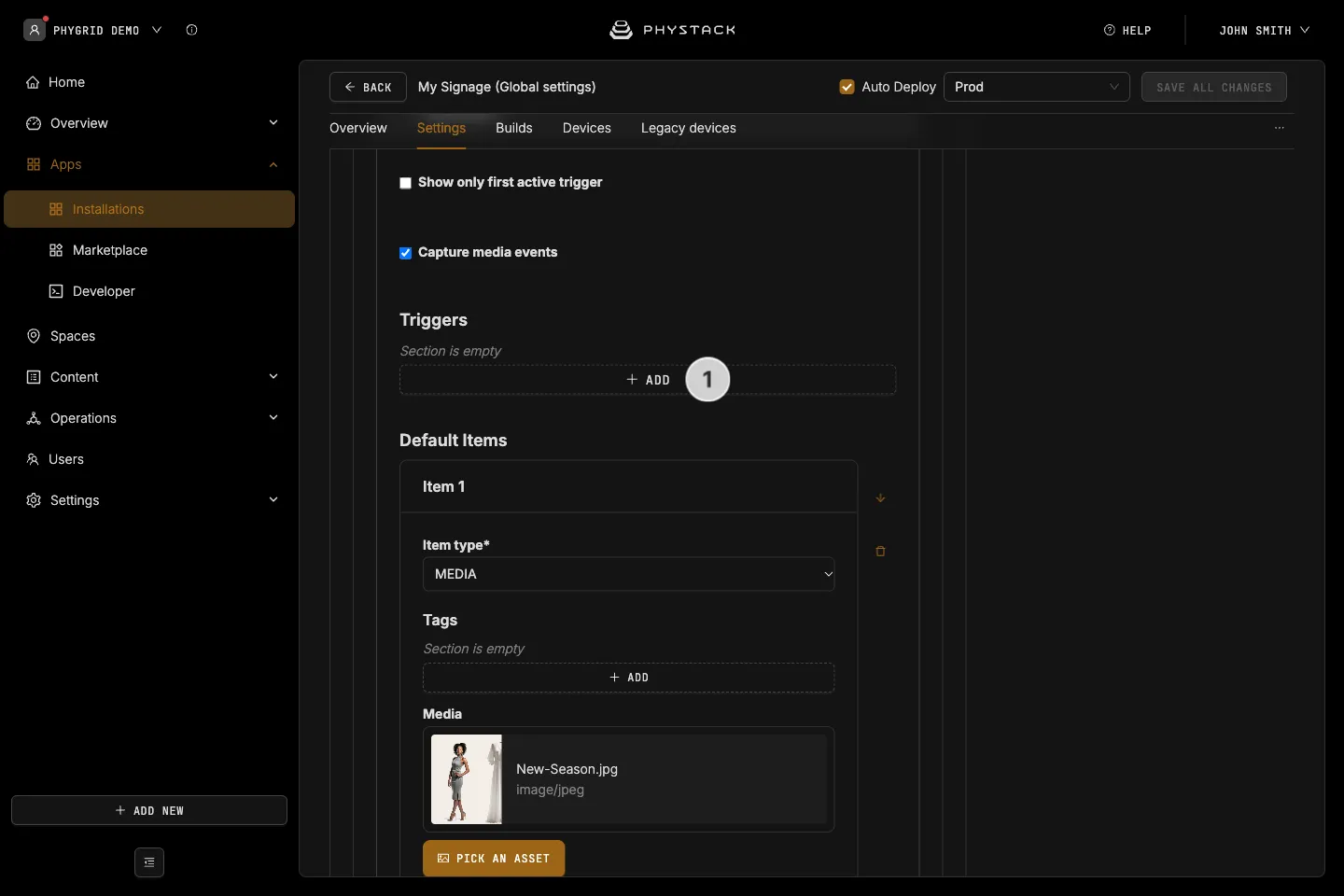
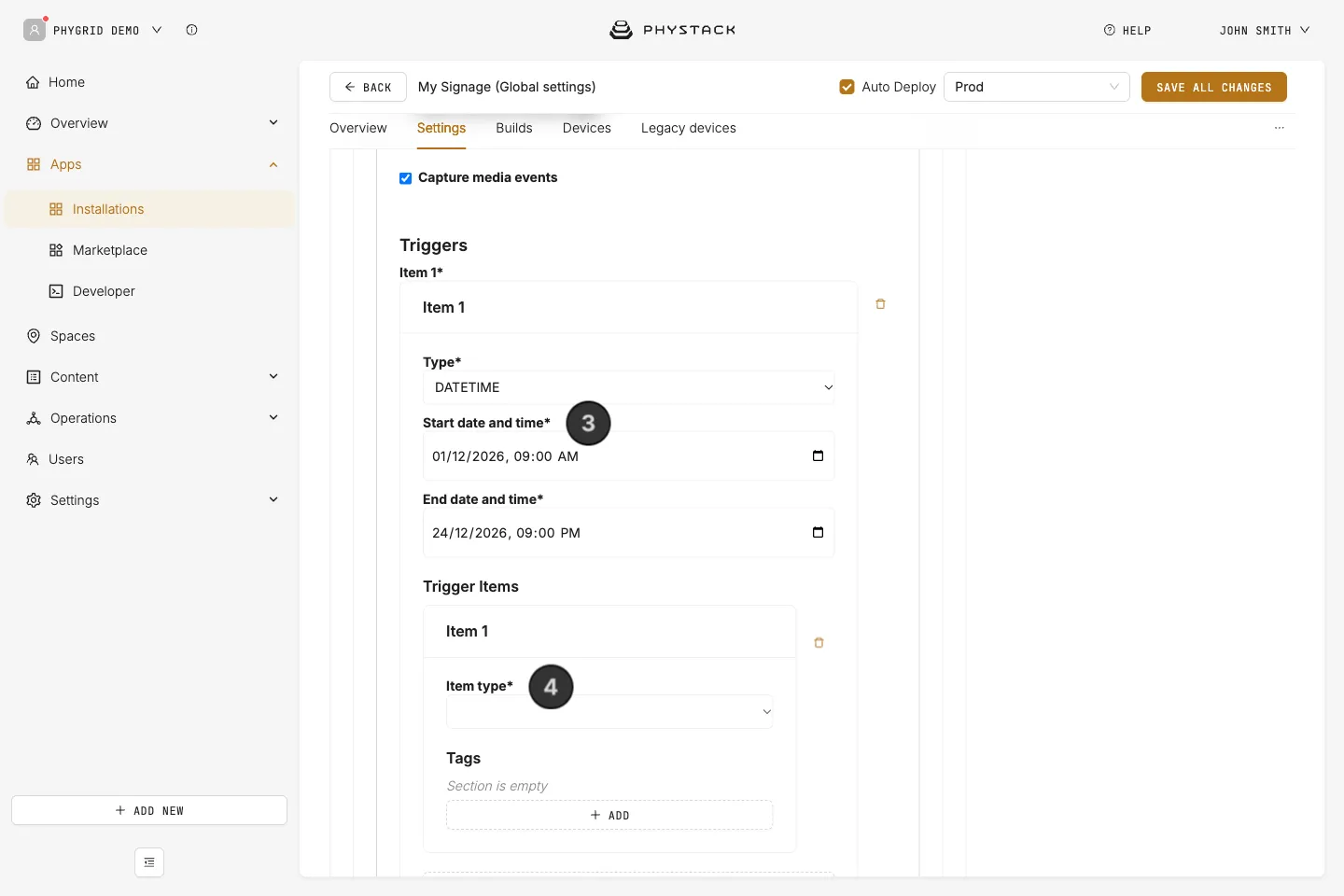
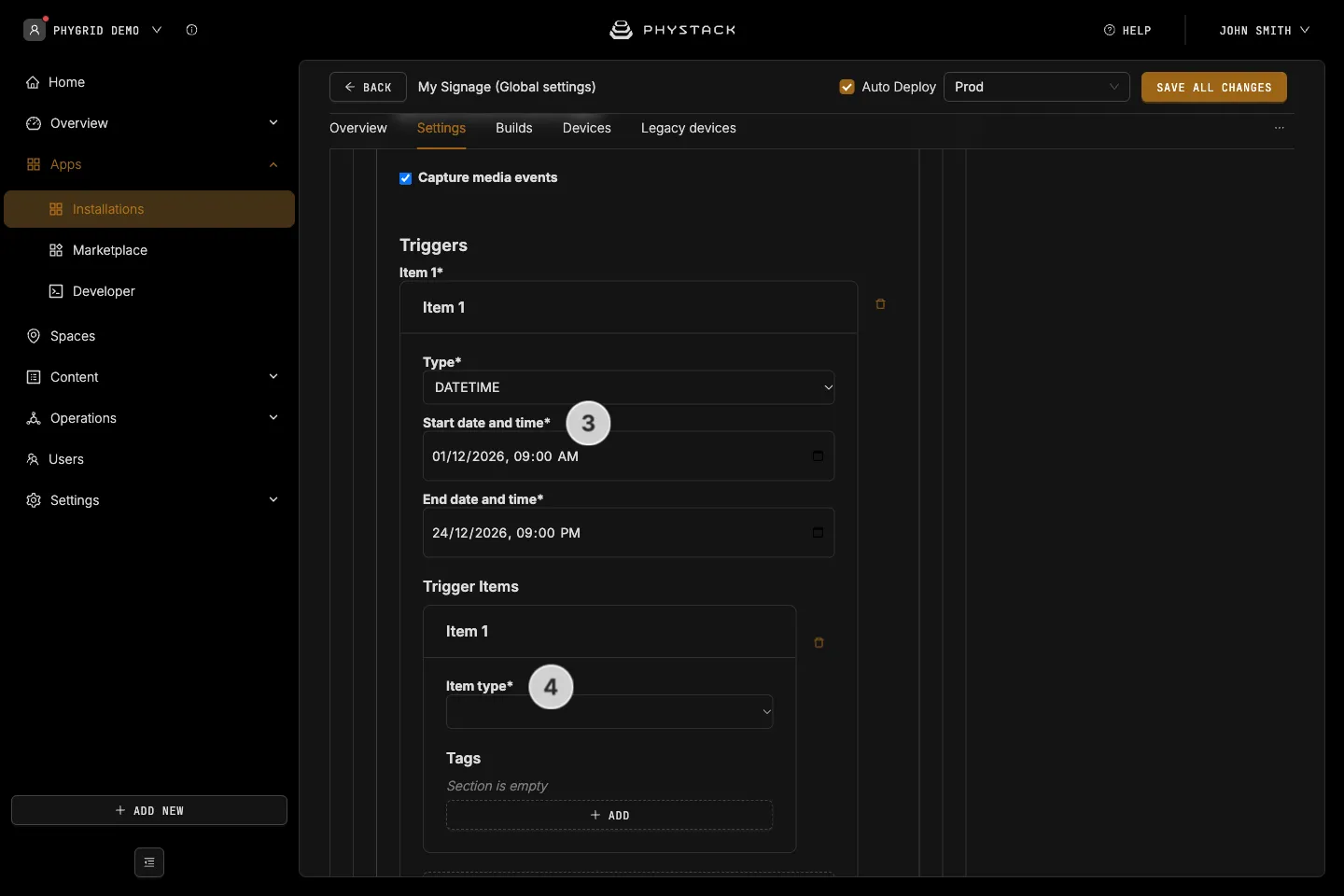
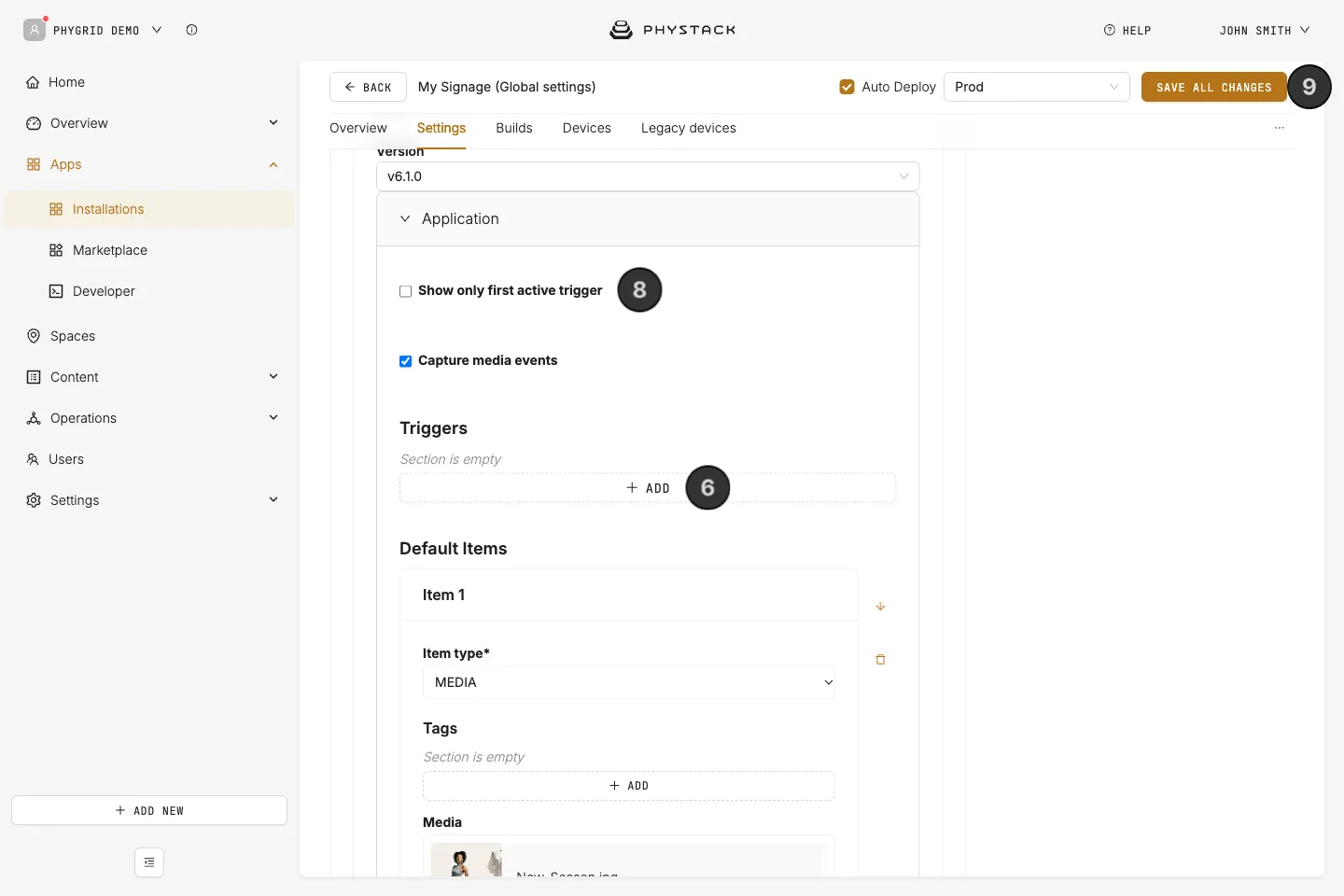
- In your Signage Playlist Settings, navigate to the Triggers section, and click Add
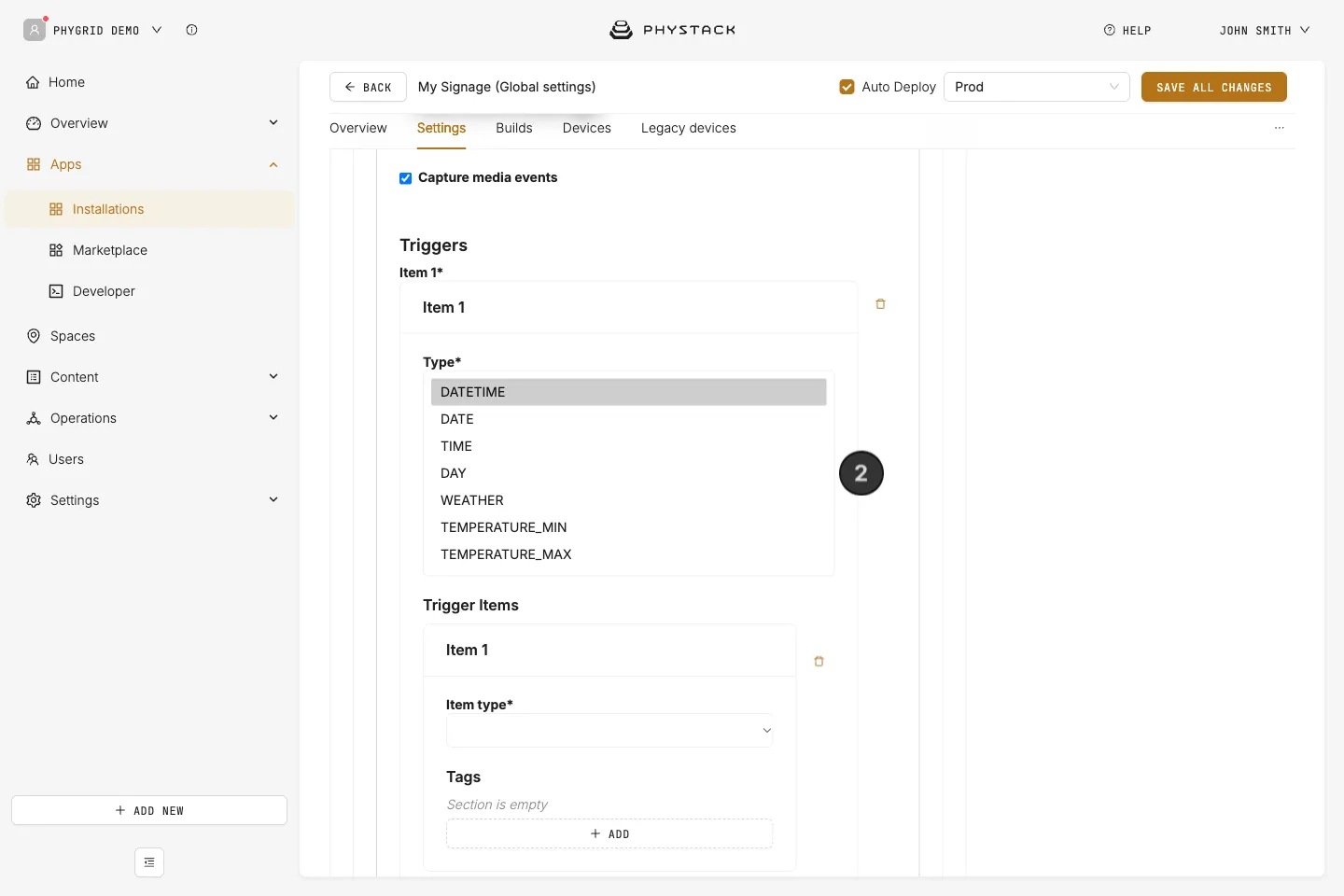
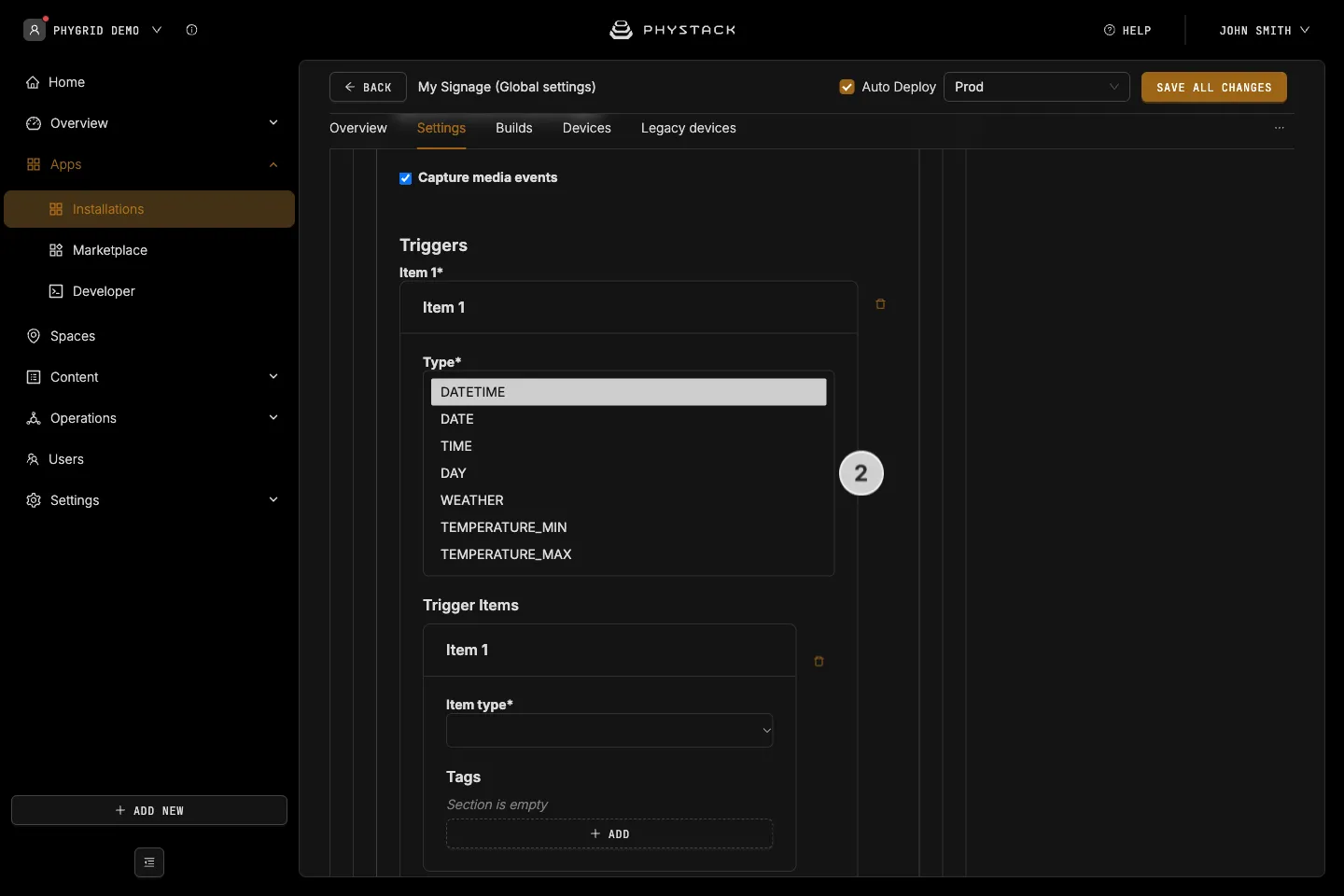
- Select the type of trigger:
- Datetime lets you pick a start and end date and time during which the triggered content will play
- Date lets you set a start and end date for triggered content
- Time lets you set a start and end time of day
- Day lets you select one or more days of the week to play trigger items
- Weather lets you play special content only when certain weather conditions are met for a location
- Temperature minimum will play content only if the temperature is above the set value
- Temperature maximum will play content only if the temperature is below the set value
- For example, select Datetime and set the start and end date and time for the content
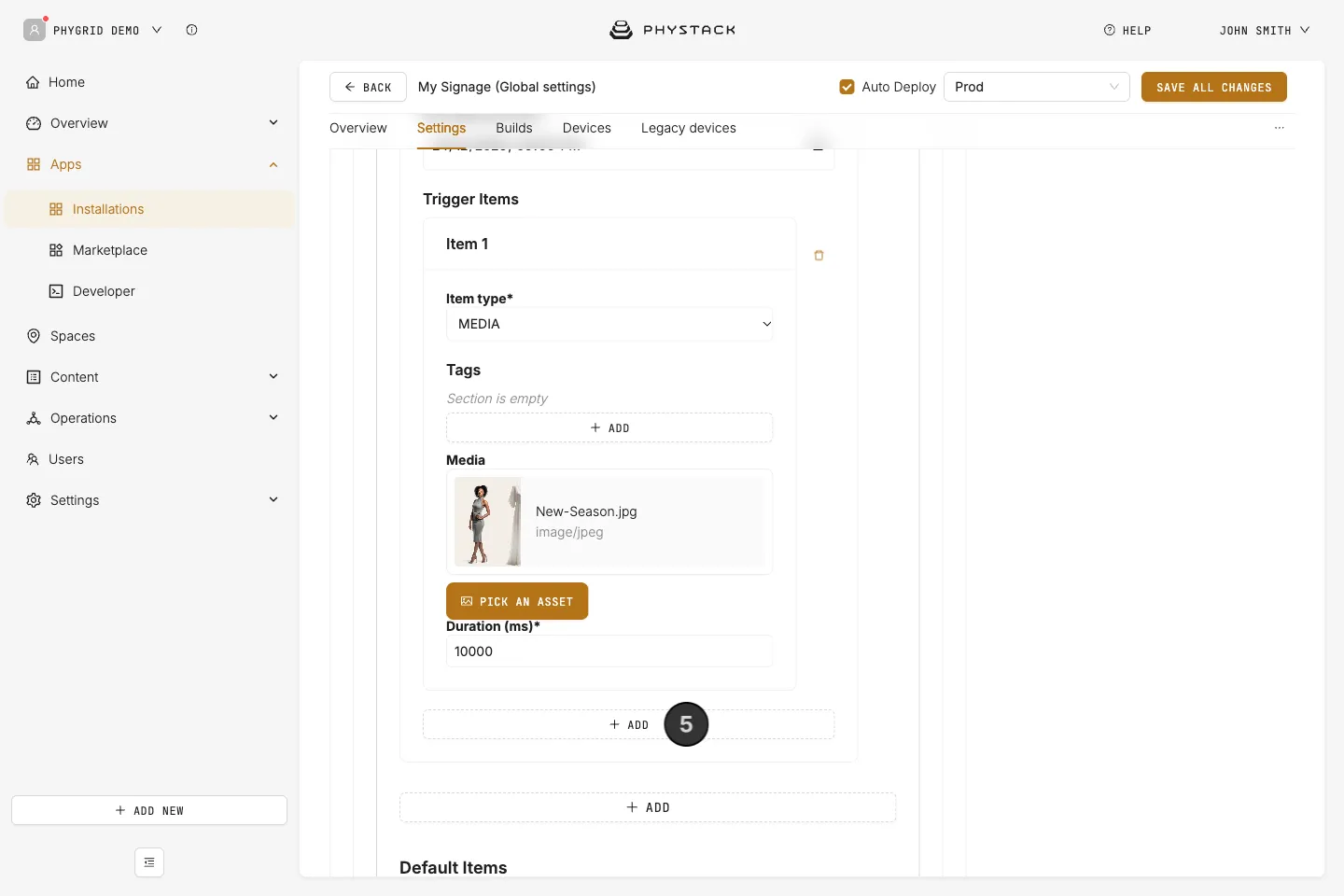
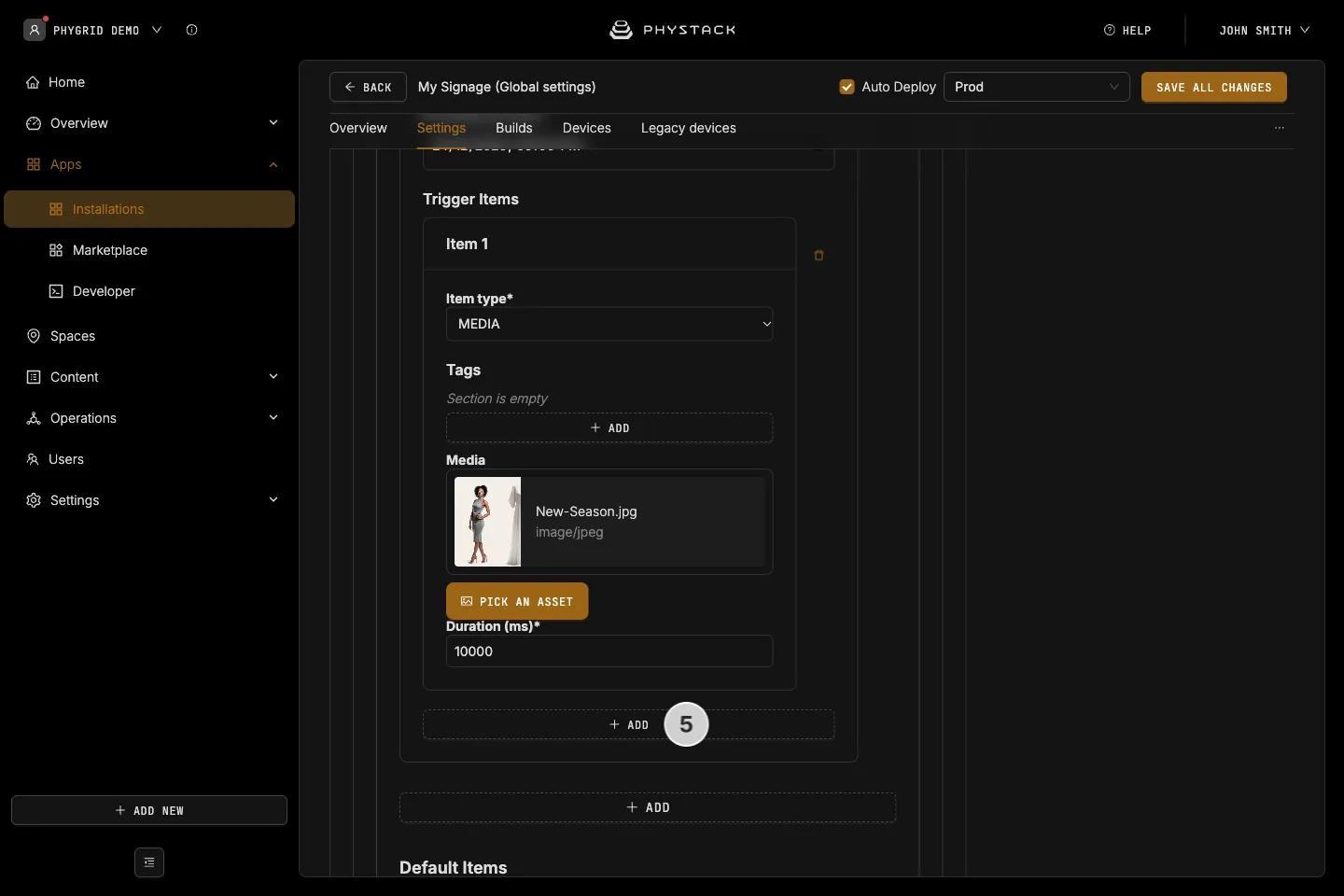
- You can now set content items for this trigger. You can choose between Media (images and videos) and GridApp (which lets you set up a separate application as part of the Signage Playlist installation)
- You can add more content items that will run under this trigger, and create a playlist specifically for this trigger
- You can add more triggers to the same playlist, each with individual conditions and content items
- While any trigger is active, its items replace the default items. The default items play again when no trigger is active
- If two or more trigger conditions are met at the same time (for instance, one trigger plays content during a specific datetime period, another plays content under certain weather conditions), both triggers will be combined into a single playlist
- You can select the option to Show only first active trigger, which will only show items from the first active trigger in the list order
- Click Save all changes