

Most of the kiosk’s look comes from the Theme, Fonts, and Layout settings. For finer changes to single elements, see Customise Endless Aisle with CSS.
How to set the theme colours
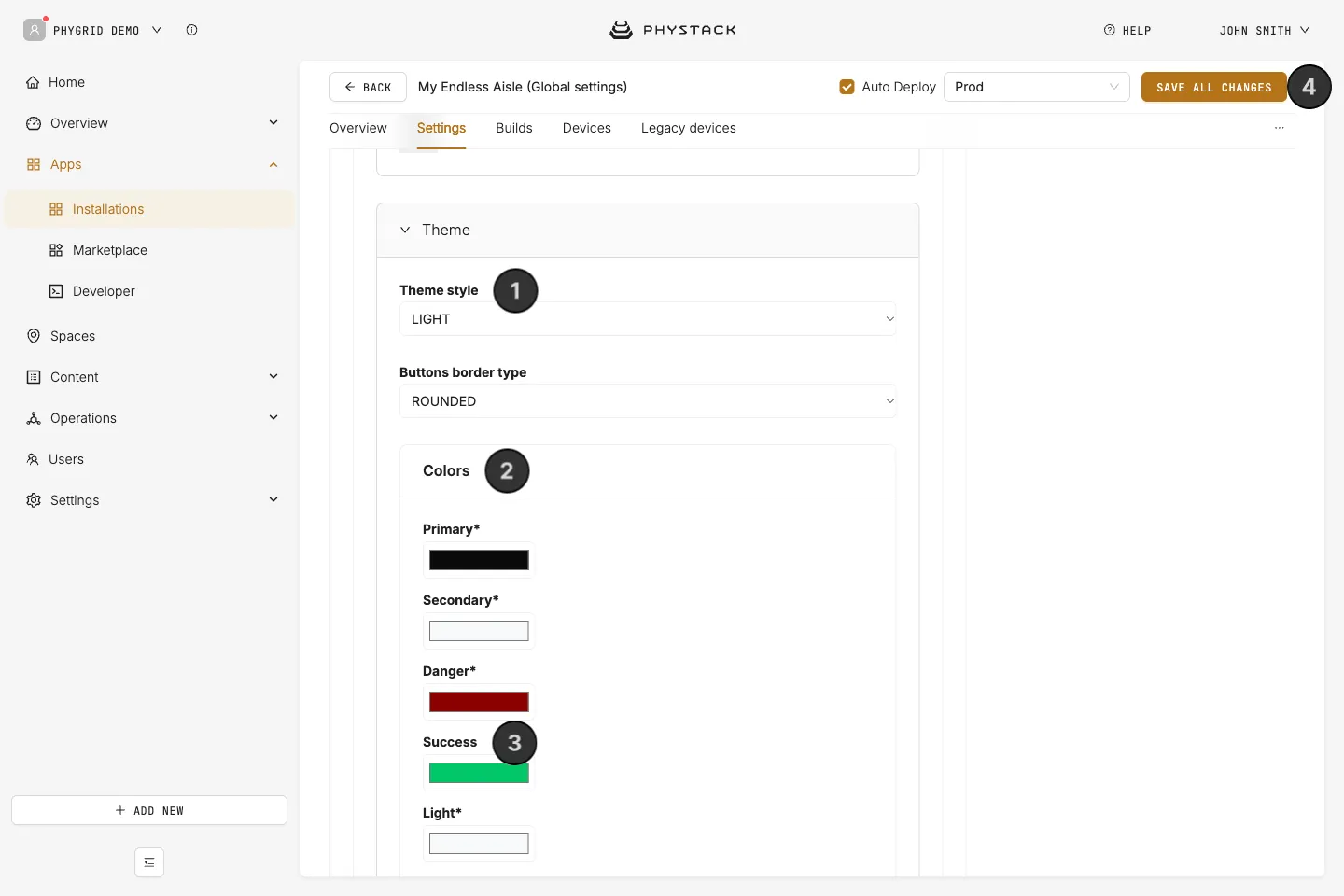
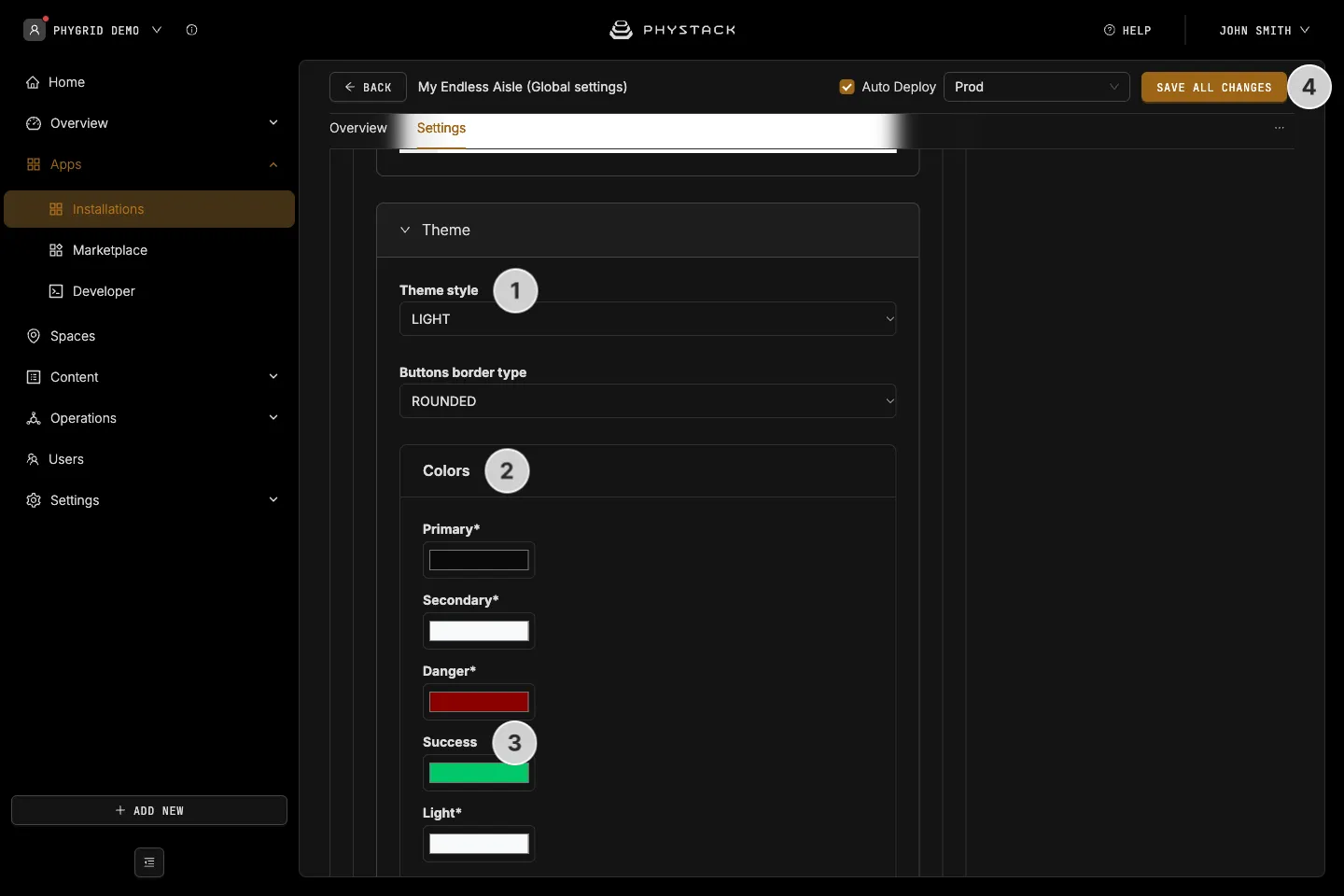
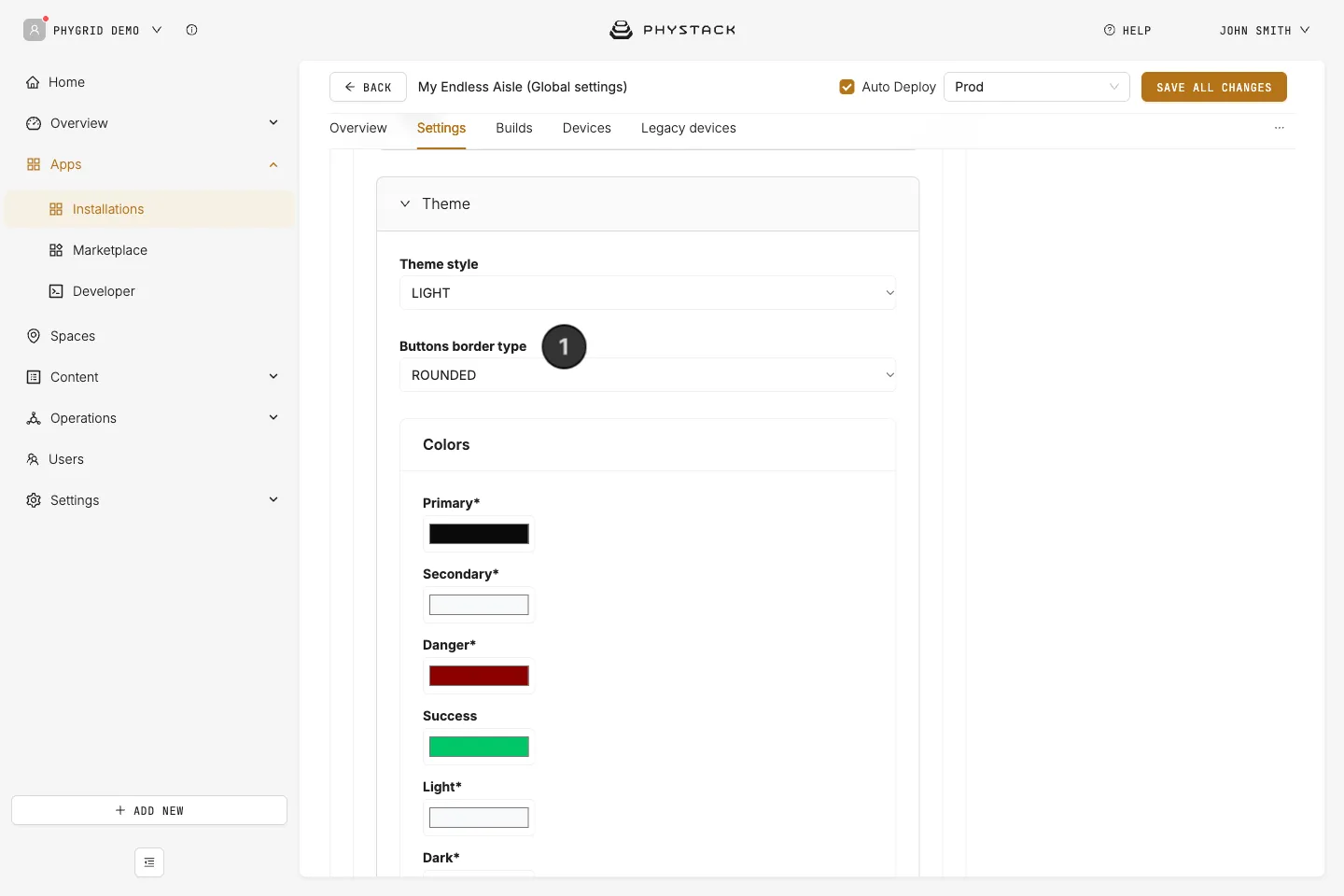
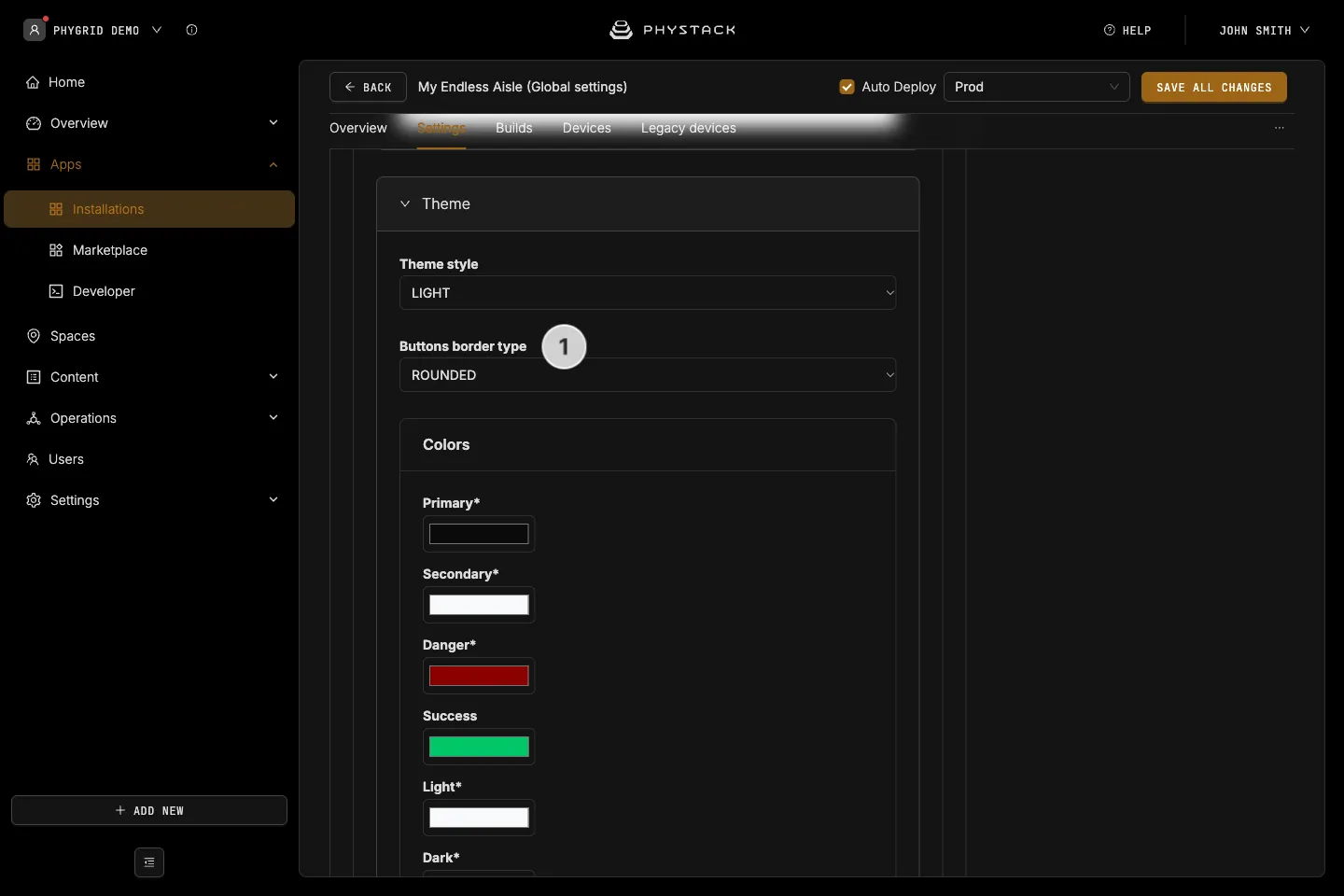
- Expand Theme and choose a Theme style: LIGHT for dark text on light backgrounds, or DARK for the opposite
- Under Colors, set your brand colours. The most visible ones are:
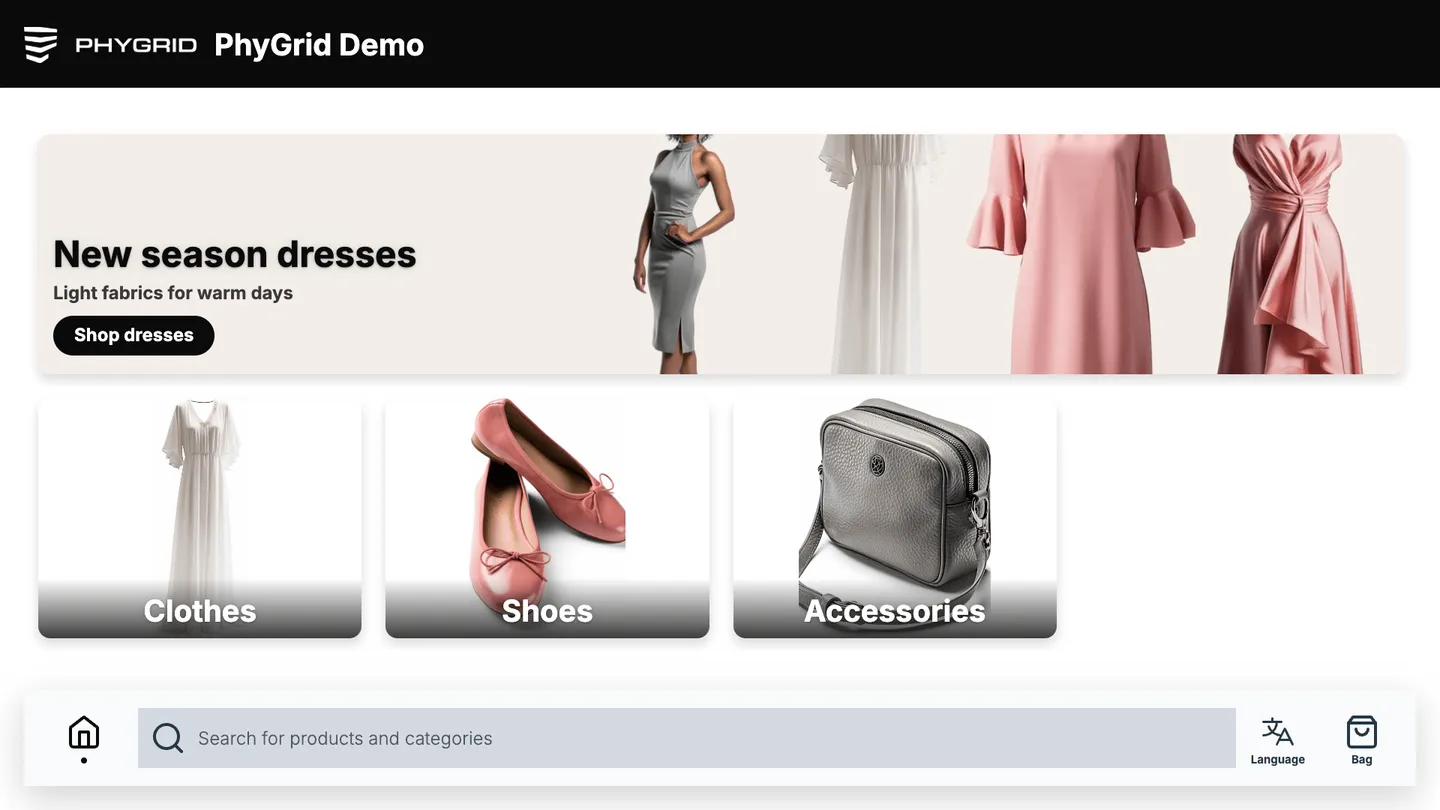
- Primary: the header bar, main buttons, and highlights
- Secondary: secondary buttons
- Main Screen Background Color: the page background
- Secondary Screen Background Color: pop-up windows and panels
- Dark: the main text colour
- Light: light text and backgrounds, and text on primary buttons
- Promo: promotional prices
- Danger: errors and out-of-stock messages
- Optionally, set Success, Border, Ominibar and Keyboard Background Color, Background for variant selector, and Redirect icon indicator color
- Click Save all changes
How to set the fonts
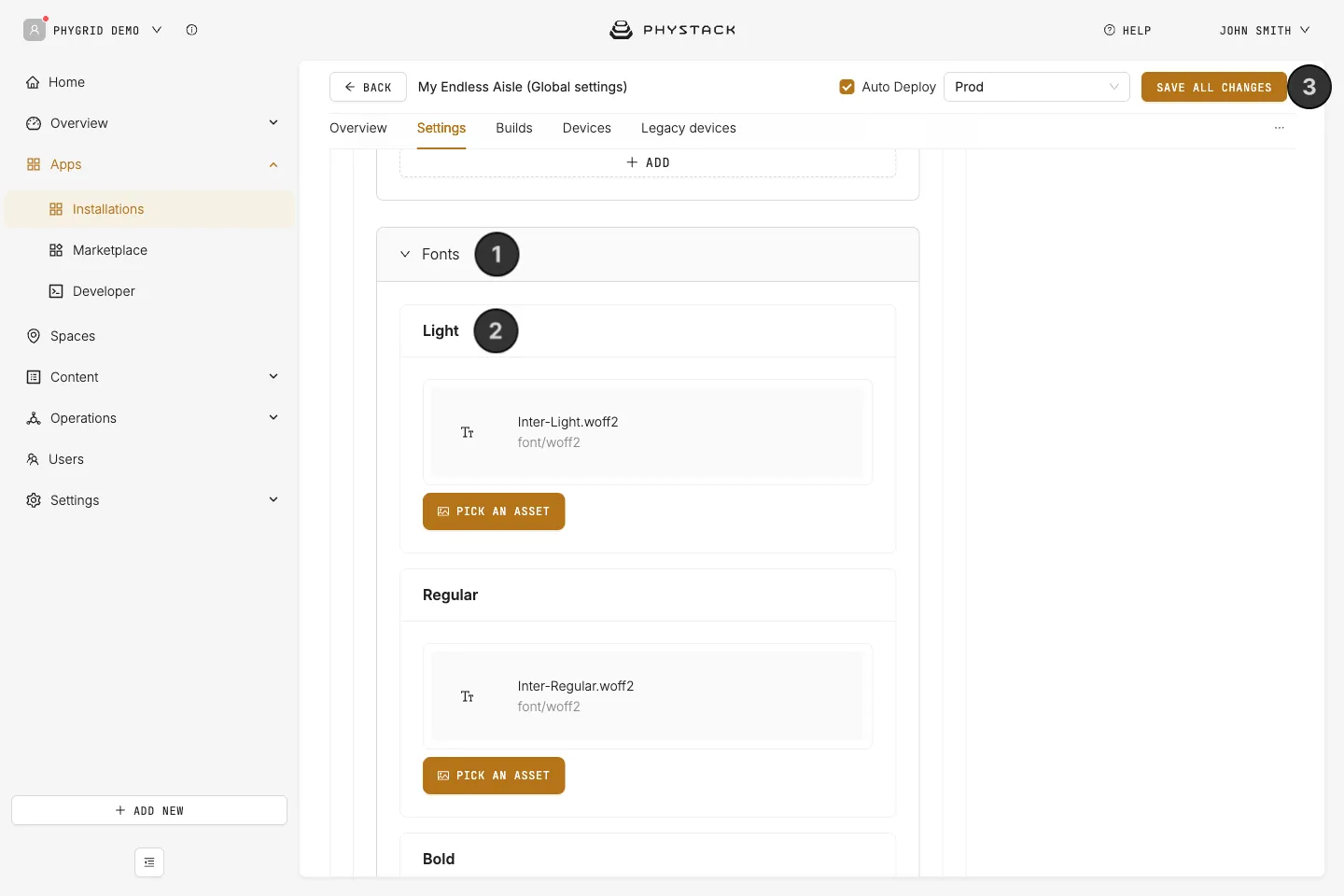
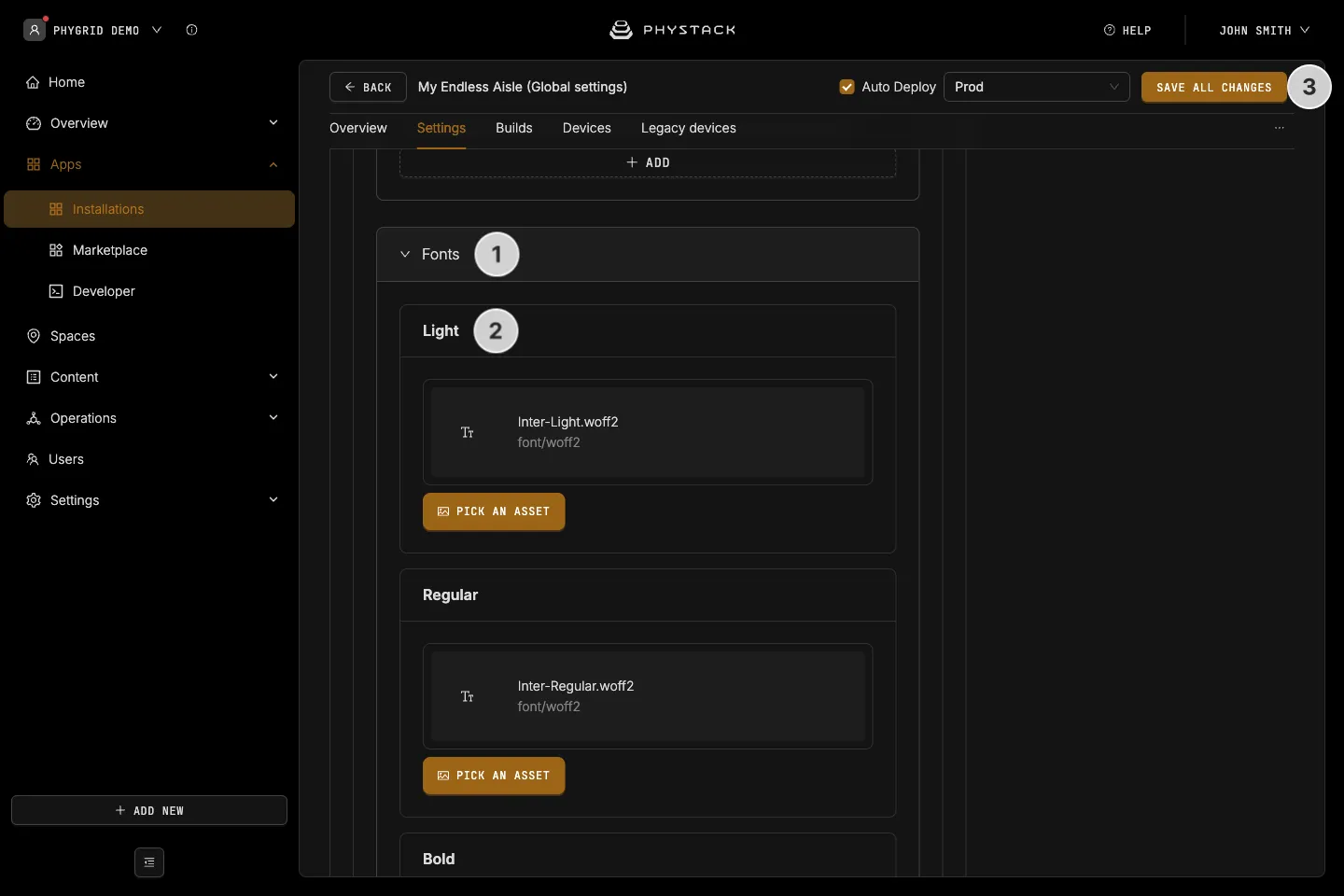
- Expand Fonts
- Upload font files for Light, Regular, and Bold, in WOFF2, TTF, or OTF format. All three are required to save the settings. WOFF files upload to Media but can’t be selected
- Click Save all changes
Your font is used for all text on the kiosk.
How to choose shapes
- Theme → Buttons border type: rounded or straight corners for buttons, product cards, and pop-up windows
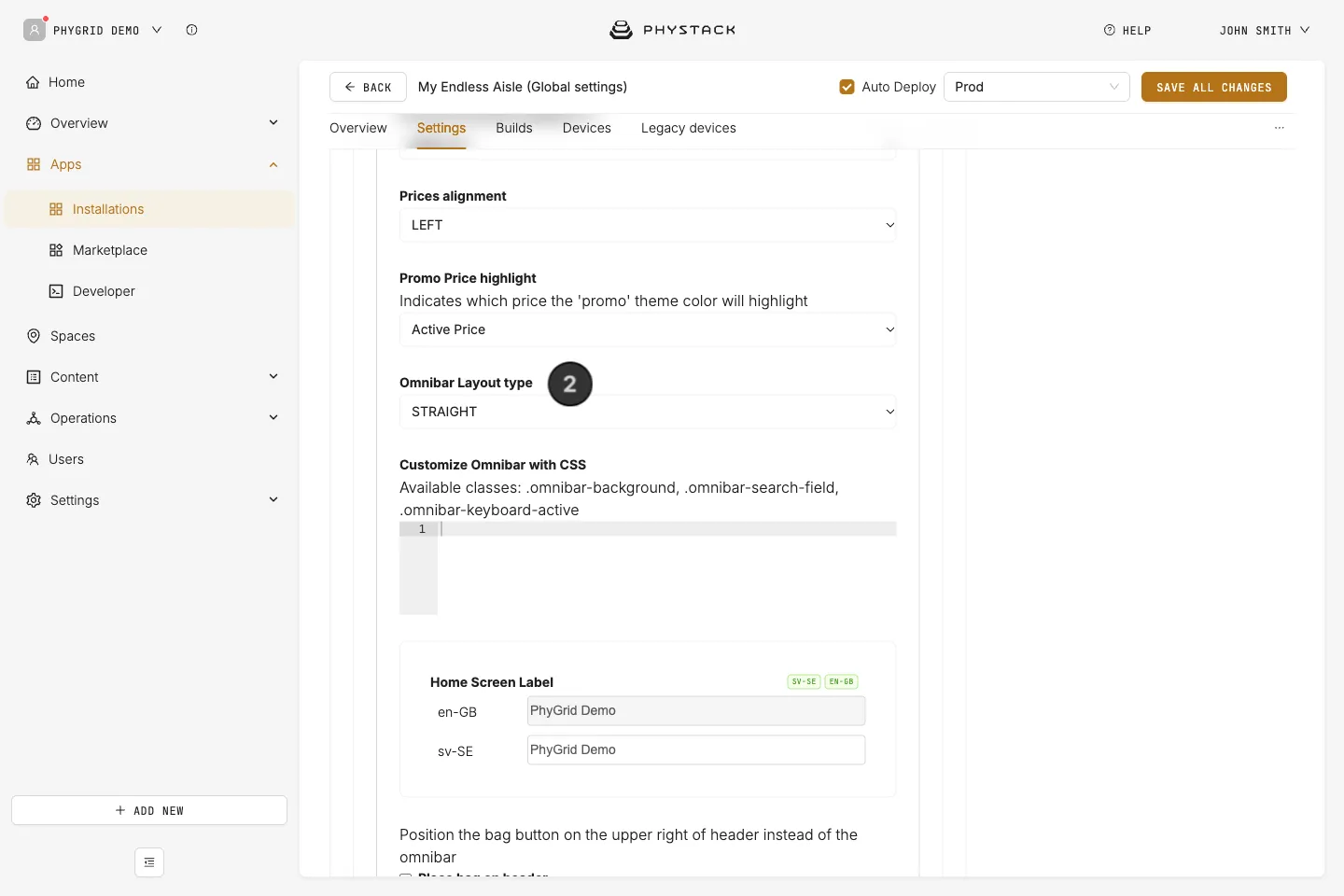
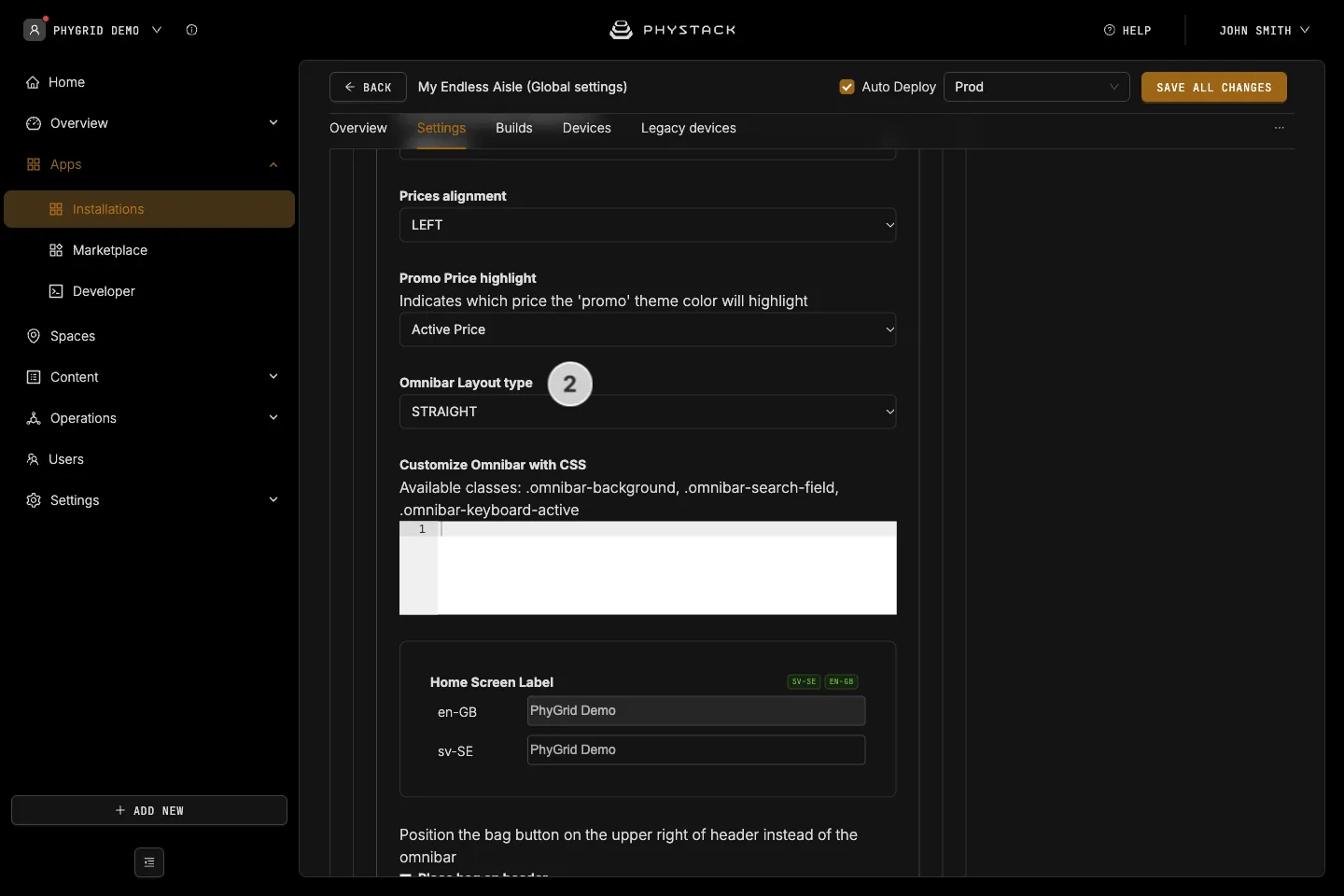
- Layout → Omnibar Layout type: rounded or straight bar at the bottom of the screen
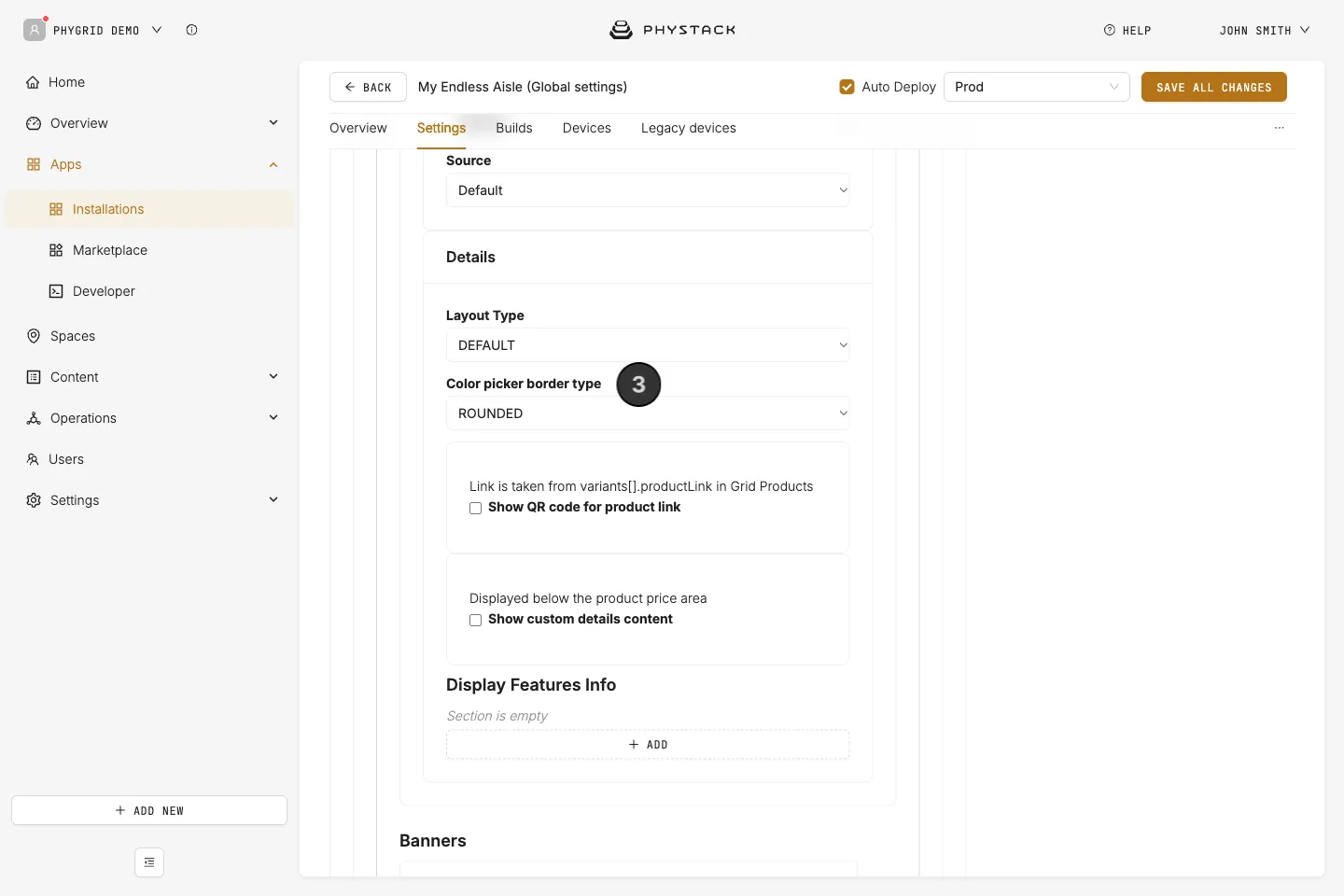
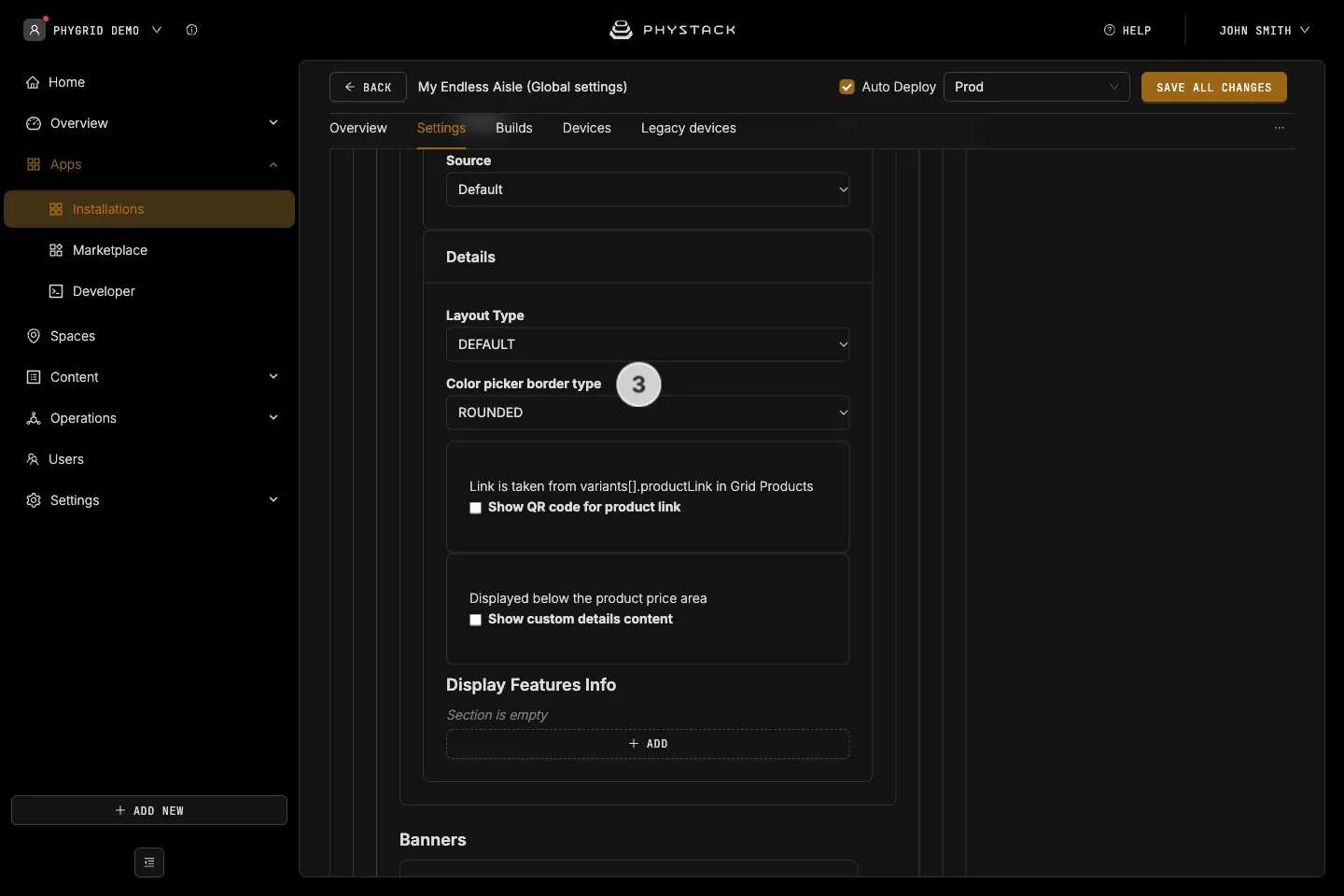
- Active → Details → Color picker border type: round or square colour swatches on the product page
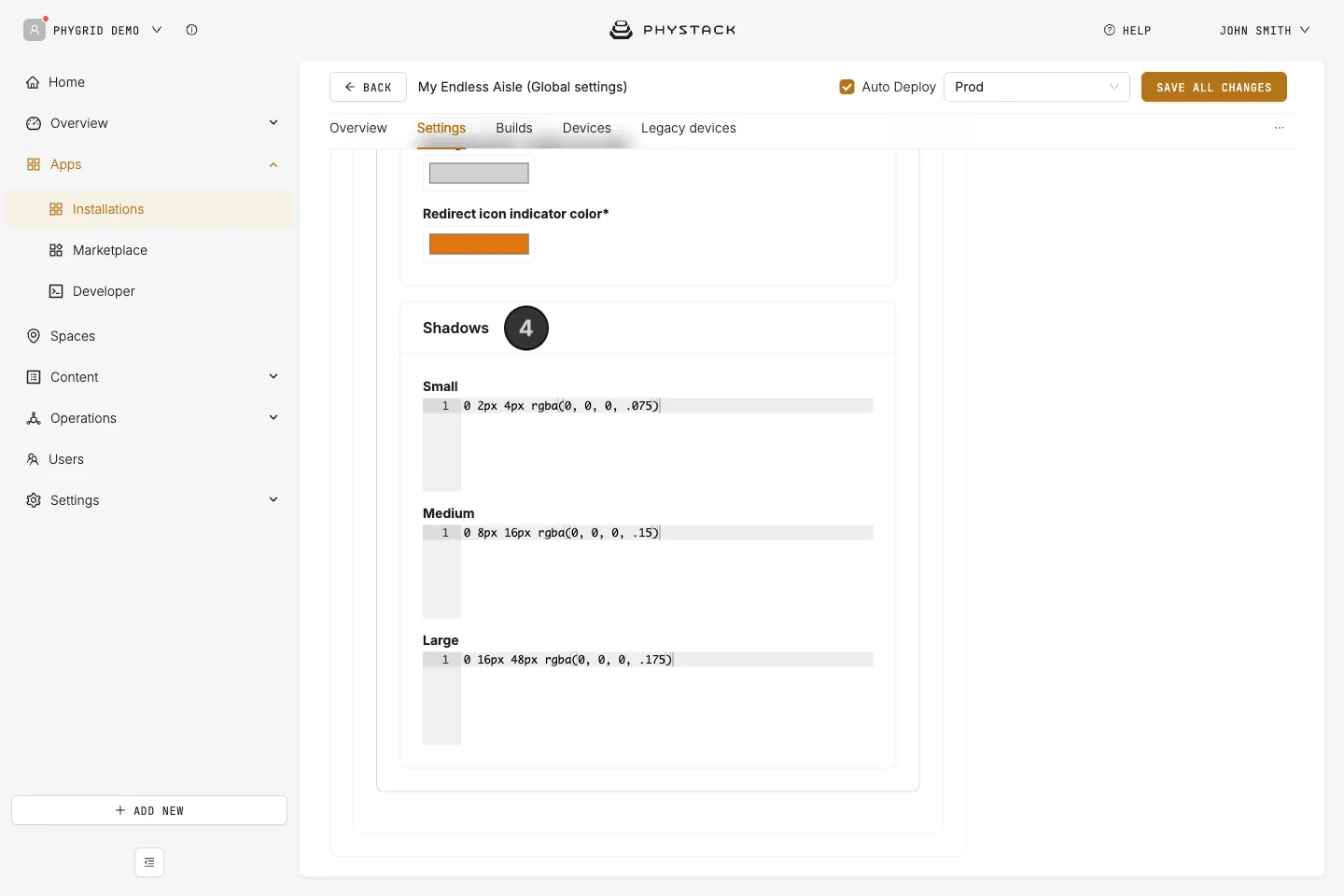
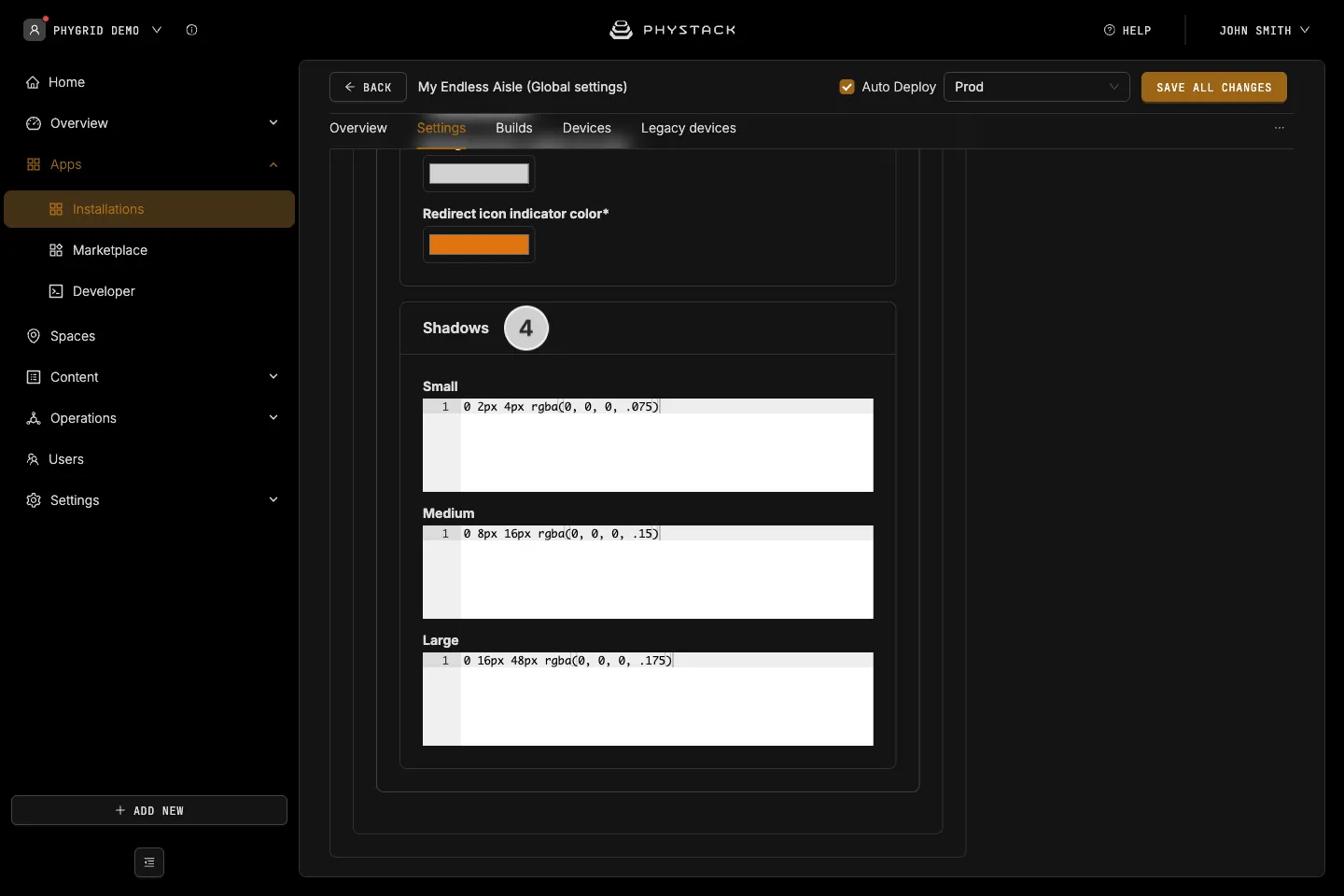
- Theme → Shadows: the Small, Medium, and Large shadows used on tiles and pop-up windows, as CSS shadow values
How to style product labels
Product labels from your catalogue, such as “New” or “Sale”, are shown as stickers on product cards.
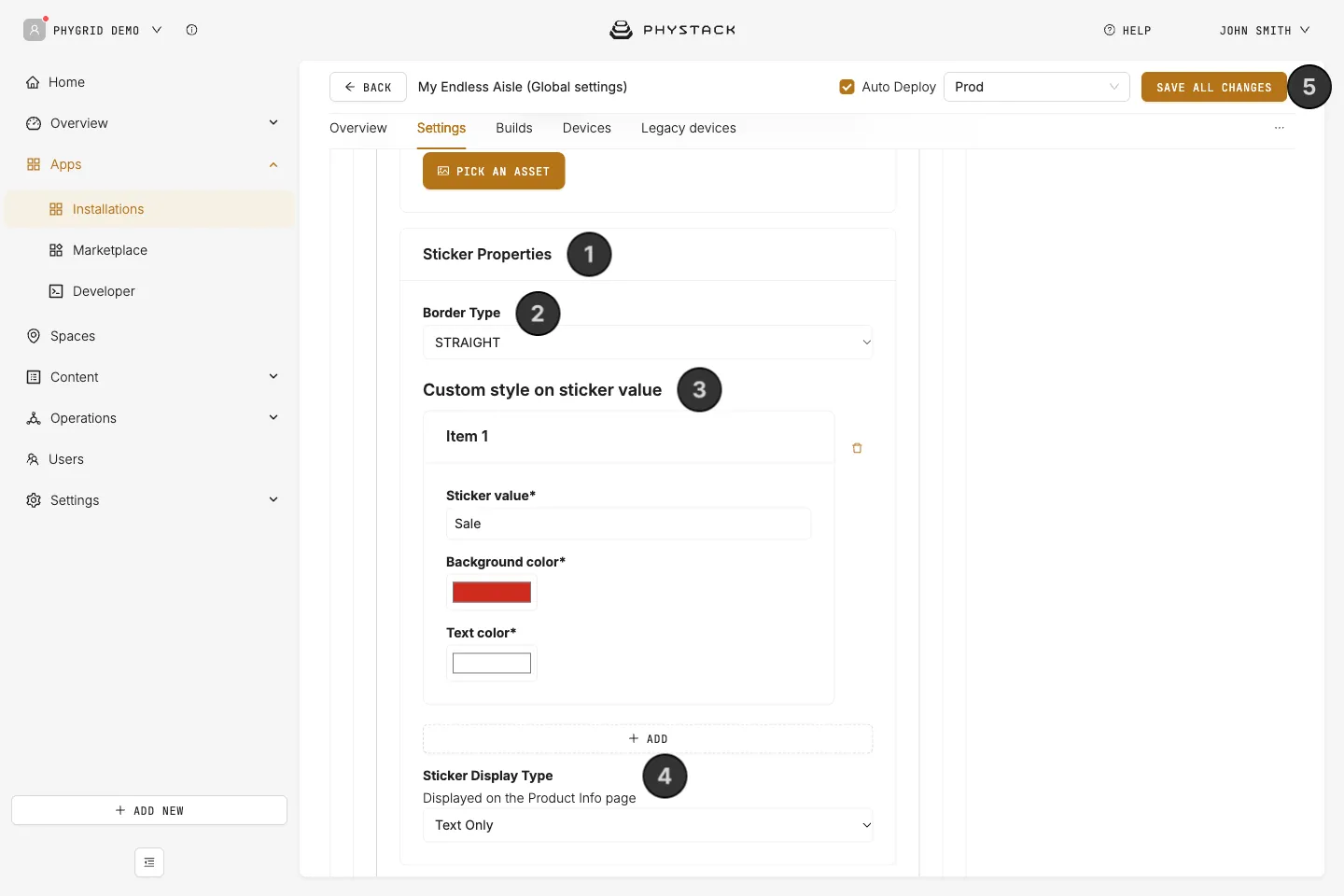
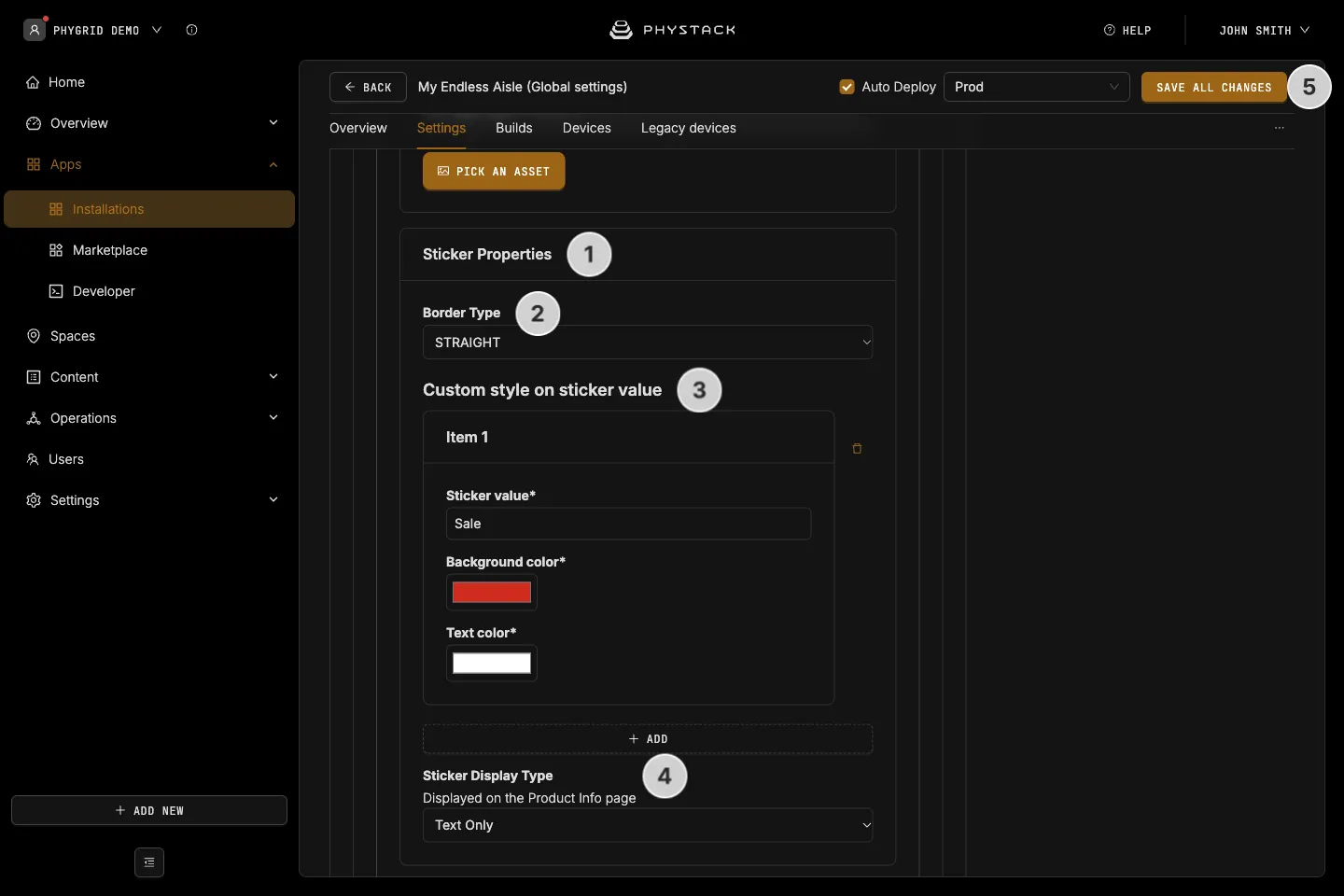
- Expand Layout → Sticker Properties
- Choose a Border Type: ROUNDED or STRAIGHT corners
- Under Custom style on sticker value, add a Sticker value, such as “Sale”, with its Background color and Text color
- Choose the Sticker Display Type for the product page: as text above the name, or as a sticker next to the price
- Click Save all changes
What you can change and what you can’t
You can change:
- Colours, fonts, logos, shapes, and shadows, as described above
- The layout of the home screen, product list, and product page, from the choices in Layout and Active → Details
- Images and videos on the idle screen, banners, and categories
- The texts in settings with language tabs, such as banner titles, button labels on the idle screen, and checkout titles
- Single elements with CSS, in the fields described in Customise Endless Aisle with CSS. This includes the size of banner and category tiles and how many fit in a row, see How to change the layout of tiles
You can’t change:
- The kiosk’s own texts, such as “Order Summary” or error messages. They come with the app in seven languages
- The order of the screens and what each screen contains, for example banners above categories on the home screen
- Pages through custom code or JavaScript