Add content to Signage Playlist
How to add content and organise items in a playlist
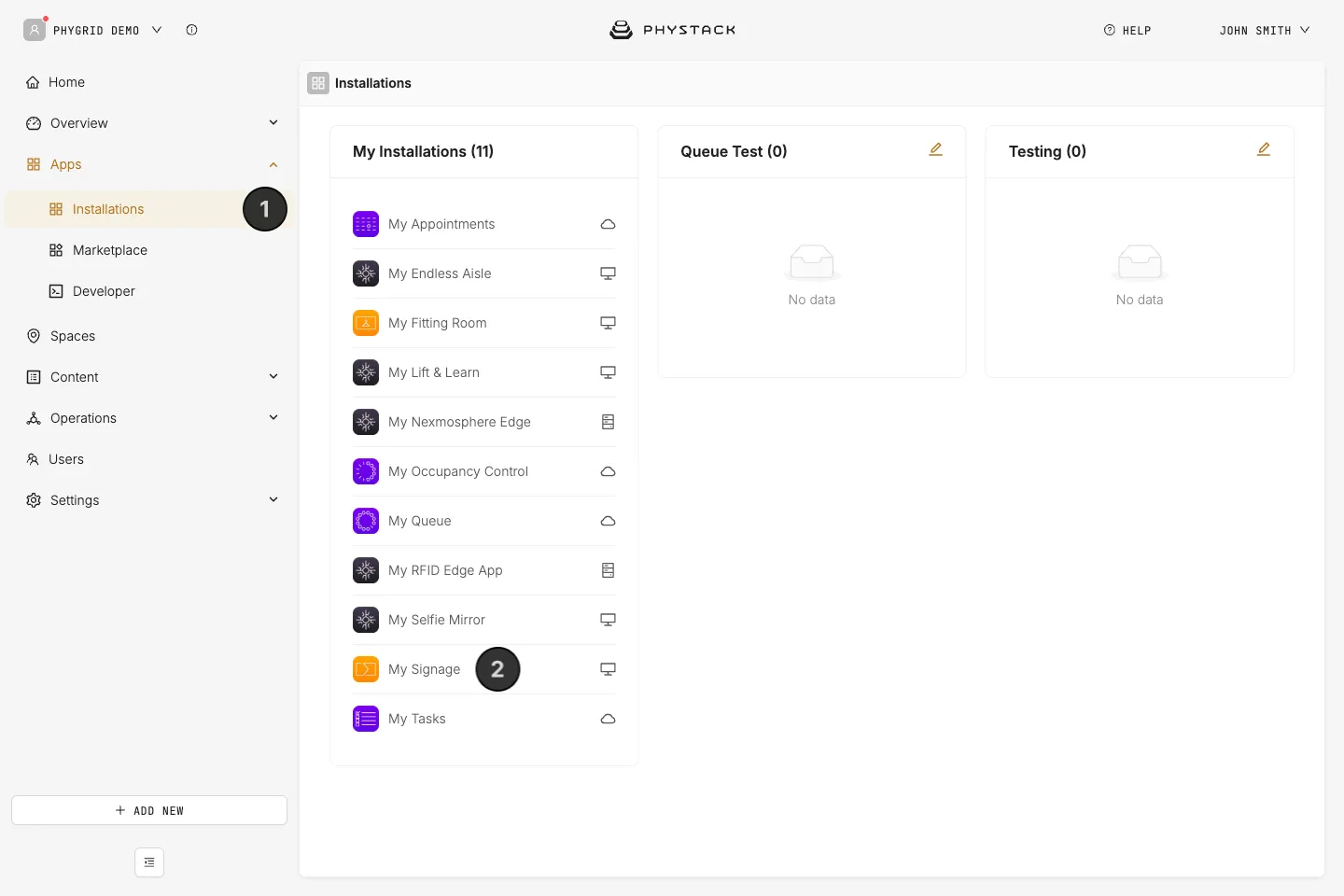
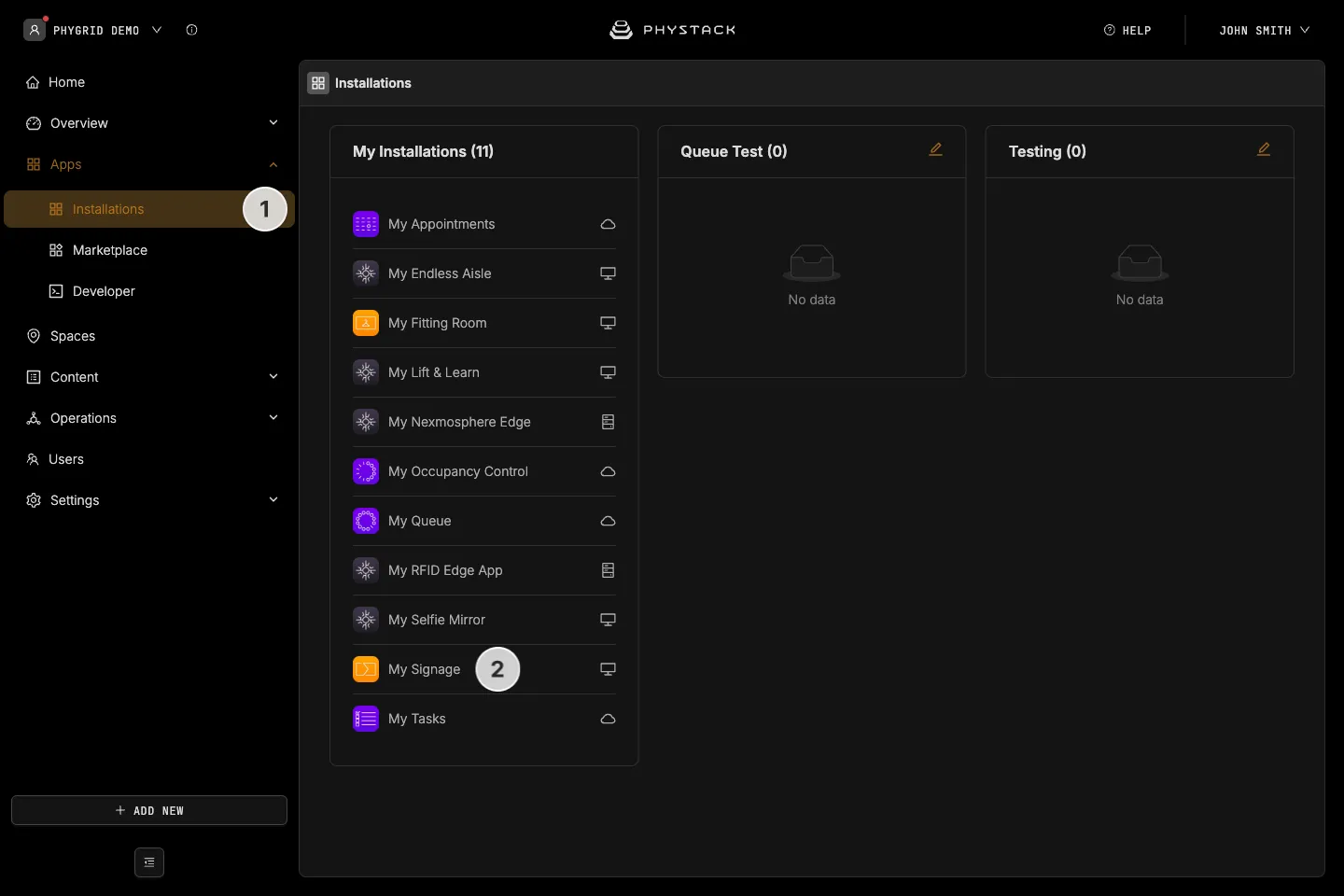
- In the sidebar, navigate to Apps → Installations
- Find your installation and open it
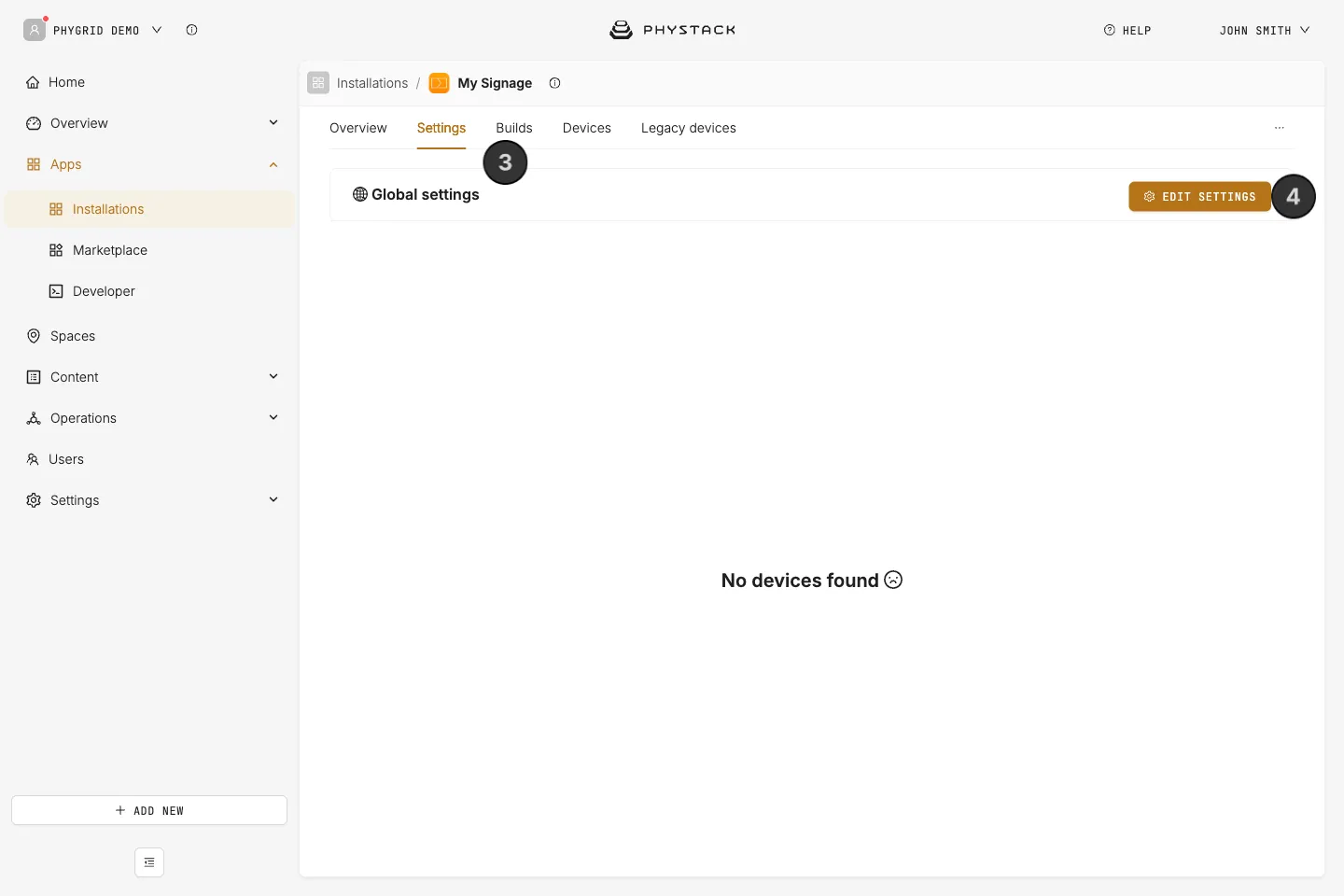
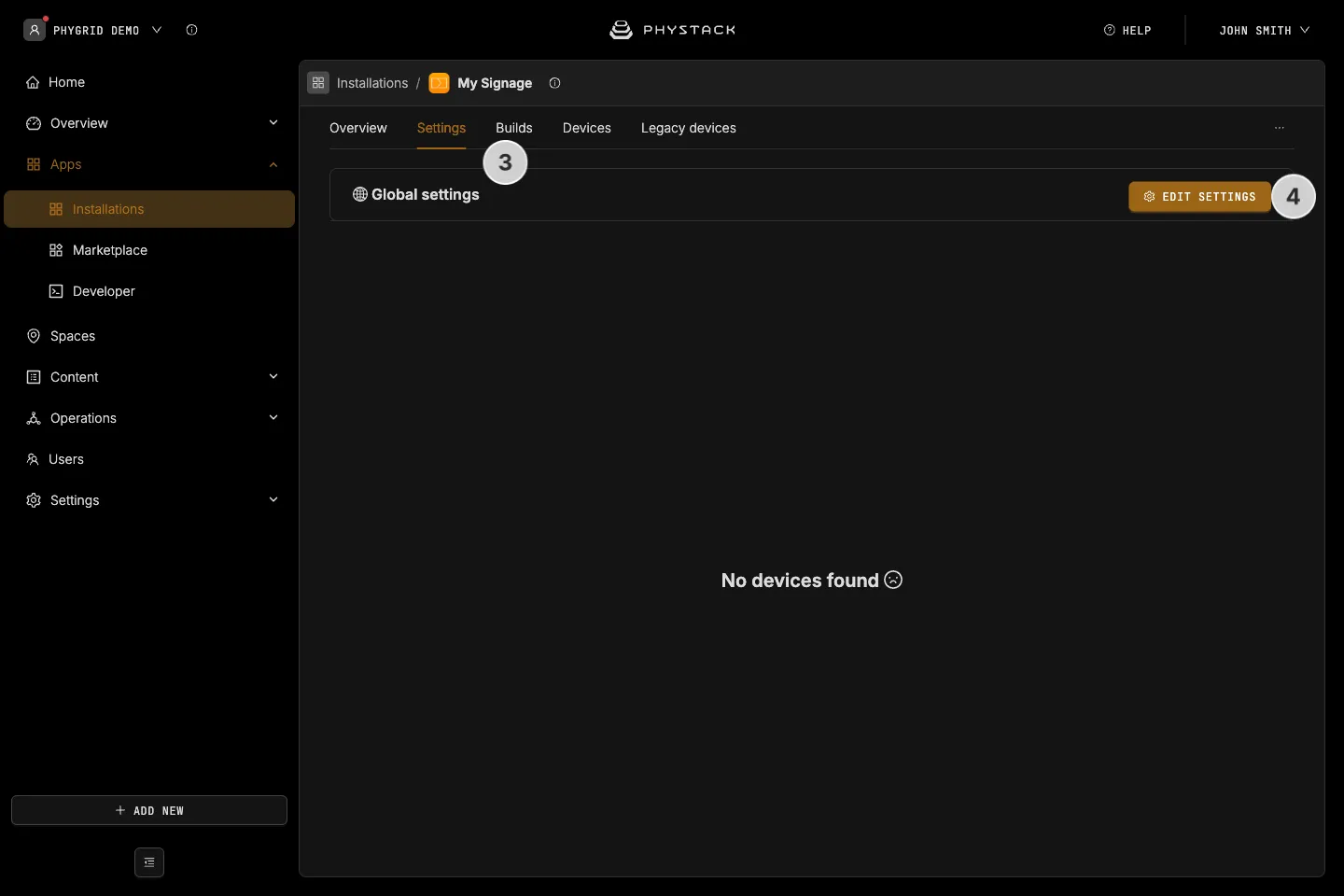
- Go to the Settings tab
- For the first-time setup, you need to set up global settings for the installation by clicking Edit settings in Global settings
- After you have completed the initial setup and connected devices to the installation, you can set up settings overrides
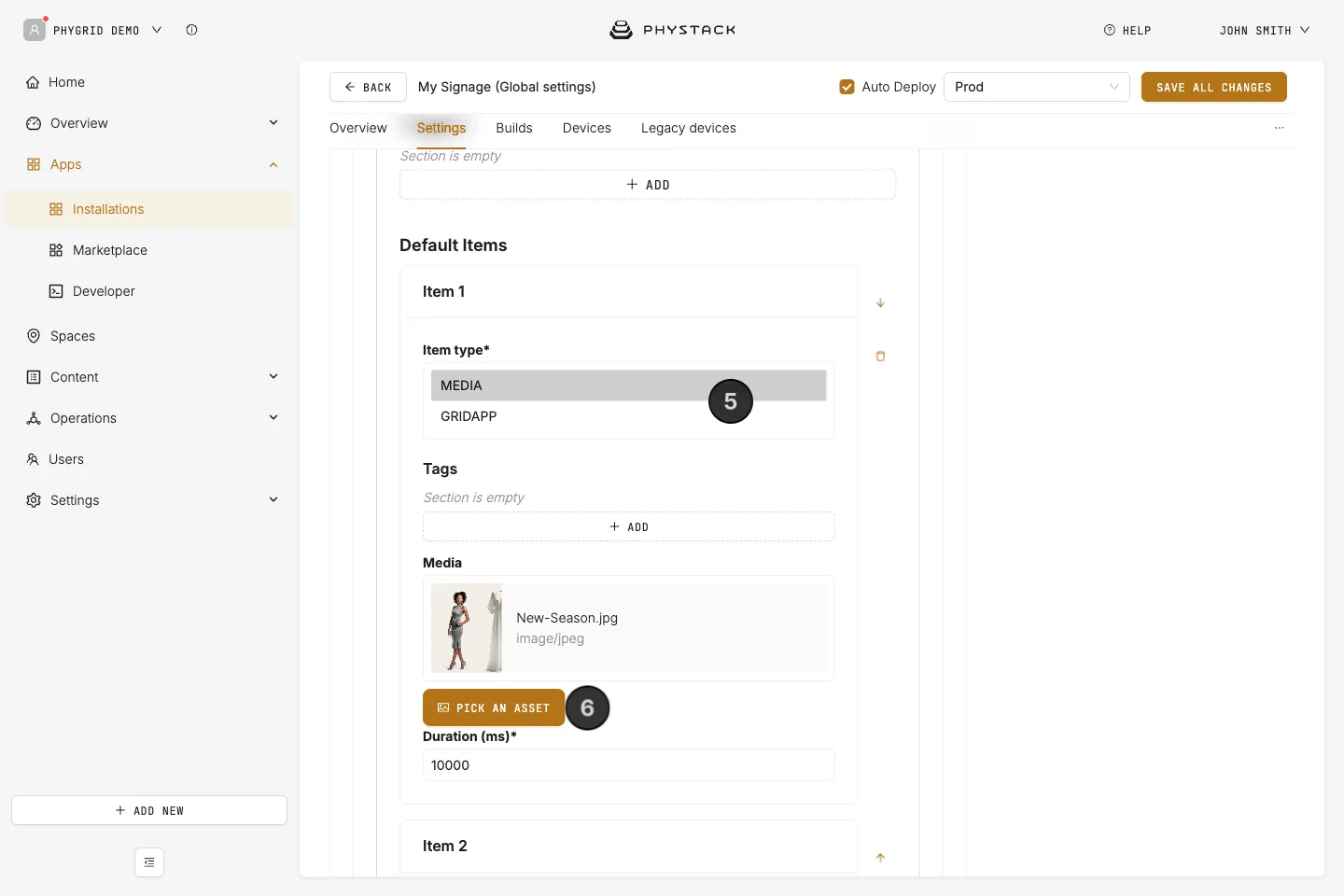
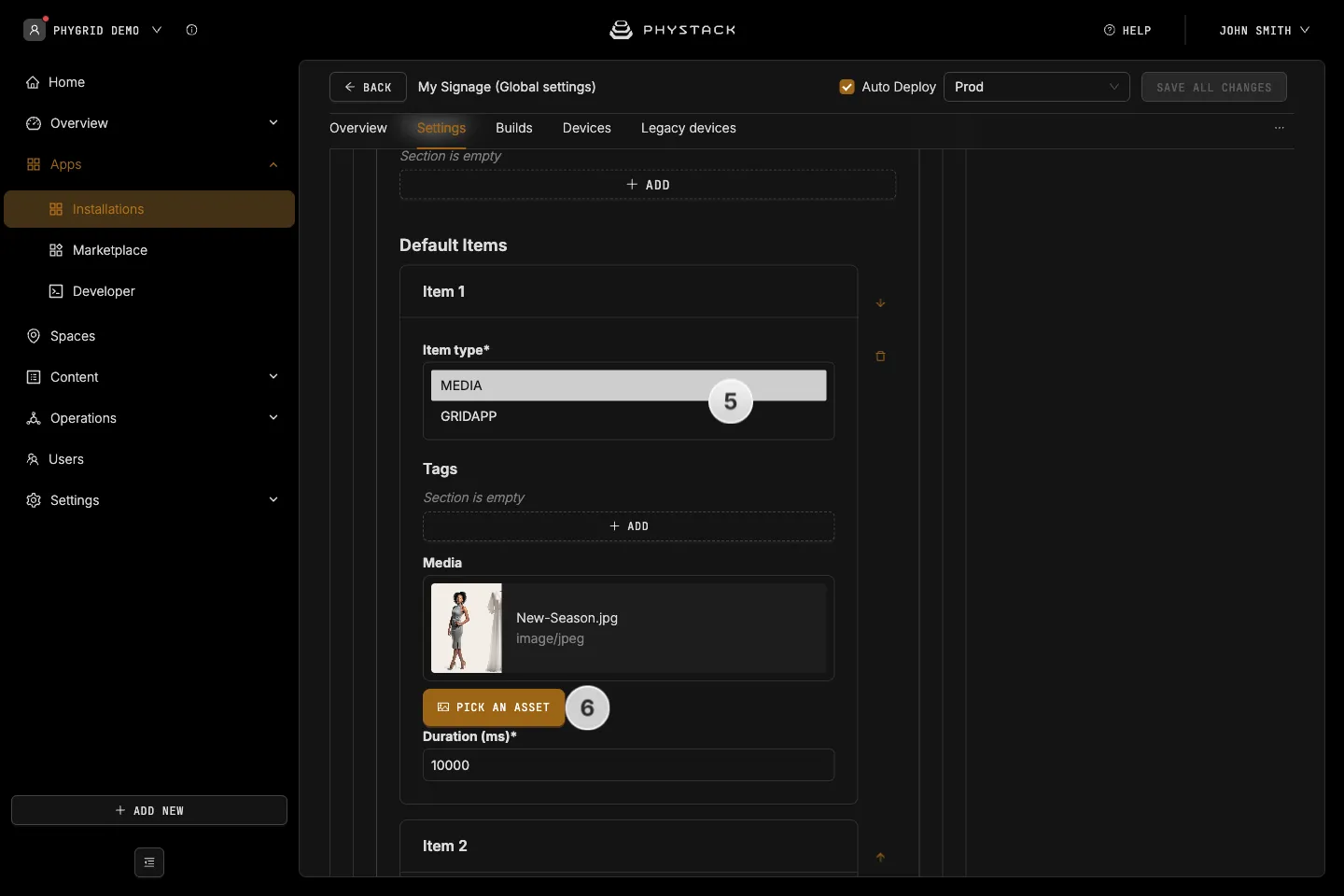
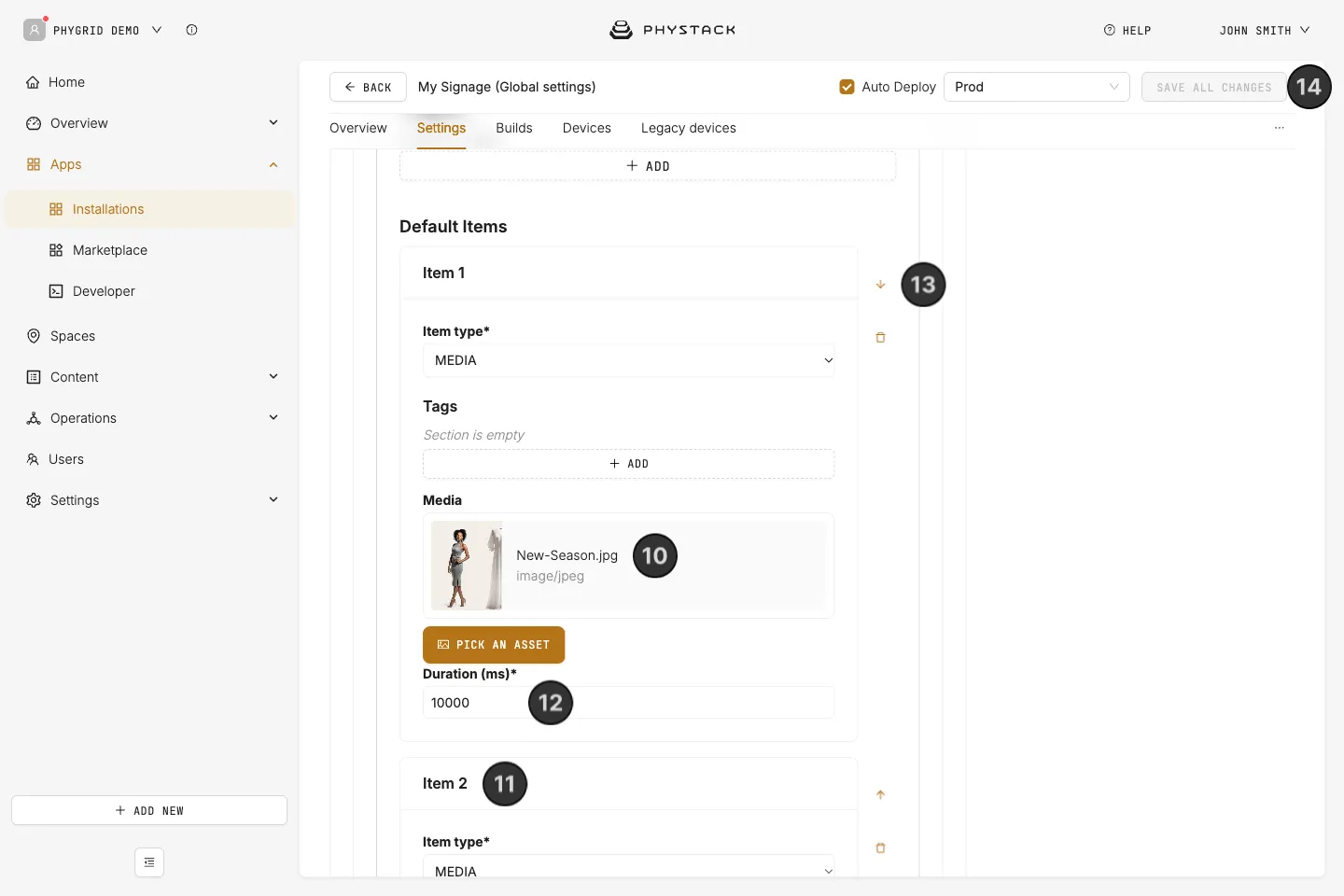
- In the Default Items section, you will set up the first item in the playlist
- You can choose between Media (images and videos) and GridApp (which lets you set up a separate application as part of the Signage Playlist installation)
- Each Signage Playlist needs to have at least one default item set up
- Select Media, then click on Pick an asset to select the file
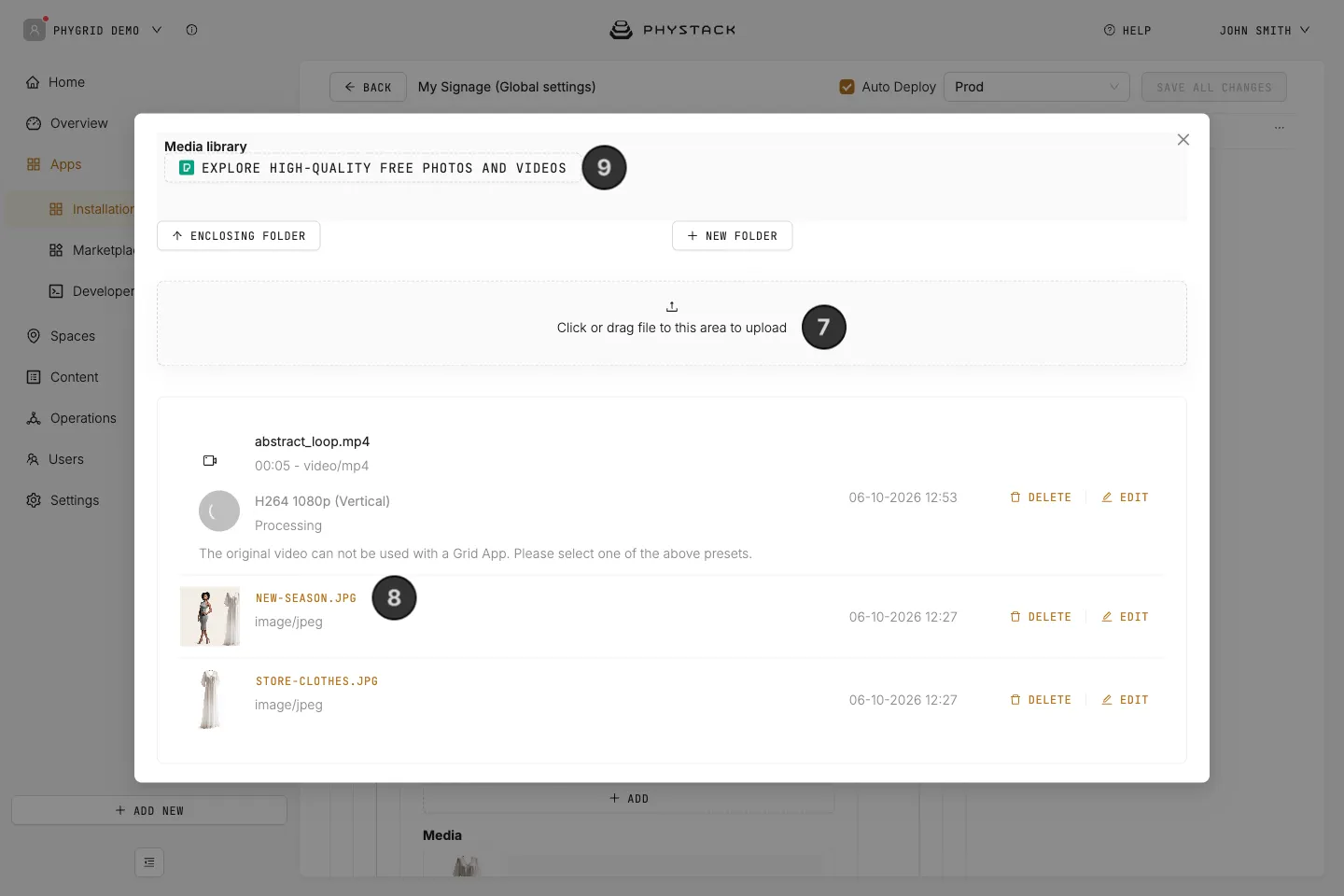
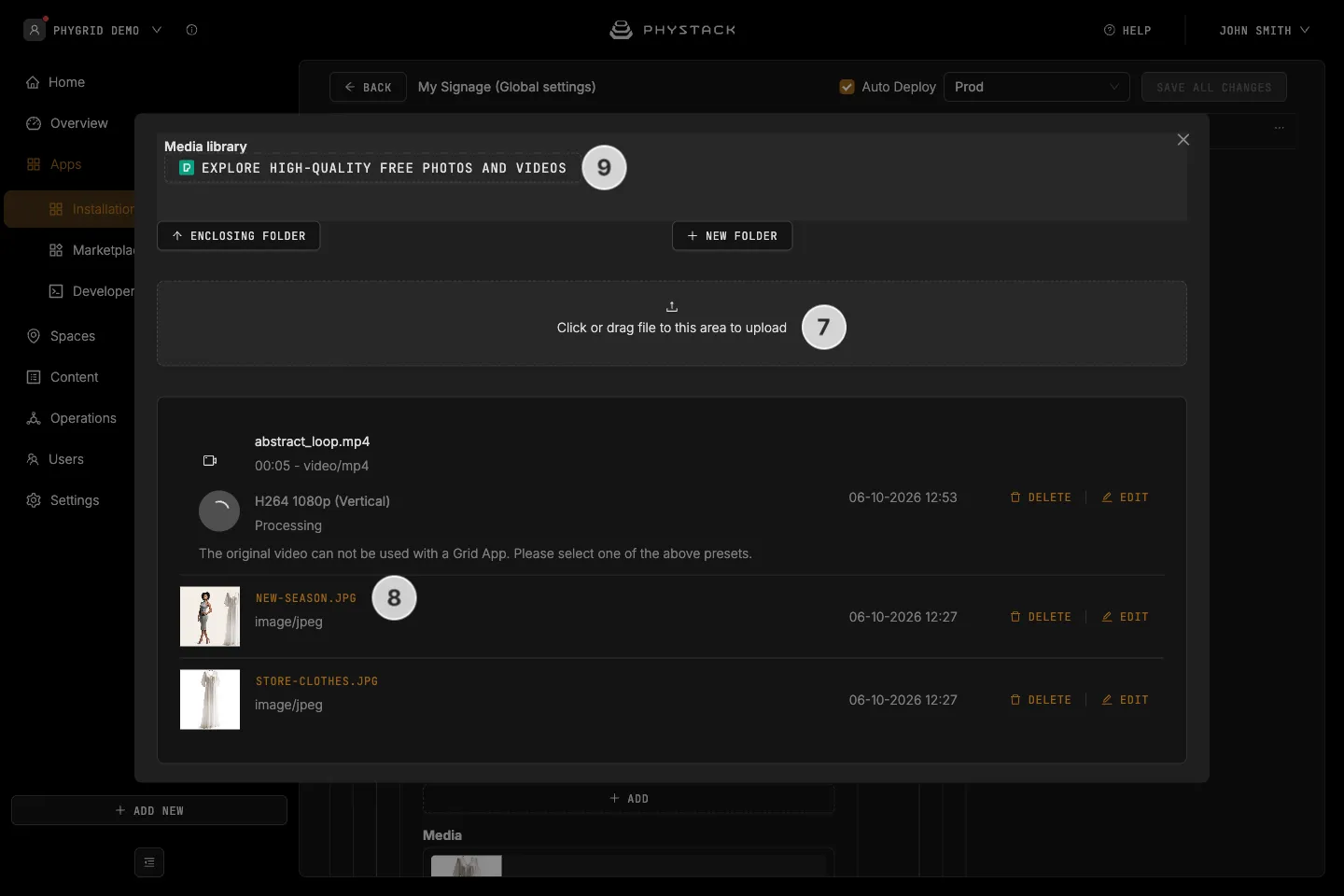
- You can choose to upload media directly from the file picker
- You can select previously uploaded media. Learn how to add files to the Media Library
- You can add free photos and videos with Explore high-quality free photos and videos
- For a video, pick one of its converted versions (presets), such as H264 1080p. The original upload can’t be used in a playlist, and conversion can take a while after uploading
- The media you select will now show in the main settings
- You can now add more items
- If you add an image or a GridApp item, set Duration (ms), the time it stays on screen in milliseconds. For example, enter
10000 for 10 seconds. The field starts empty and is required. Videos play to the end and don’t need a duration
- You can organise the order of the items using the arrows
- Once you are happy with your playlist, click Save all changes. With Auto Deploy on, a new build is deployed to connected devices in the selected environment