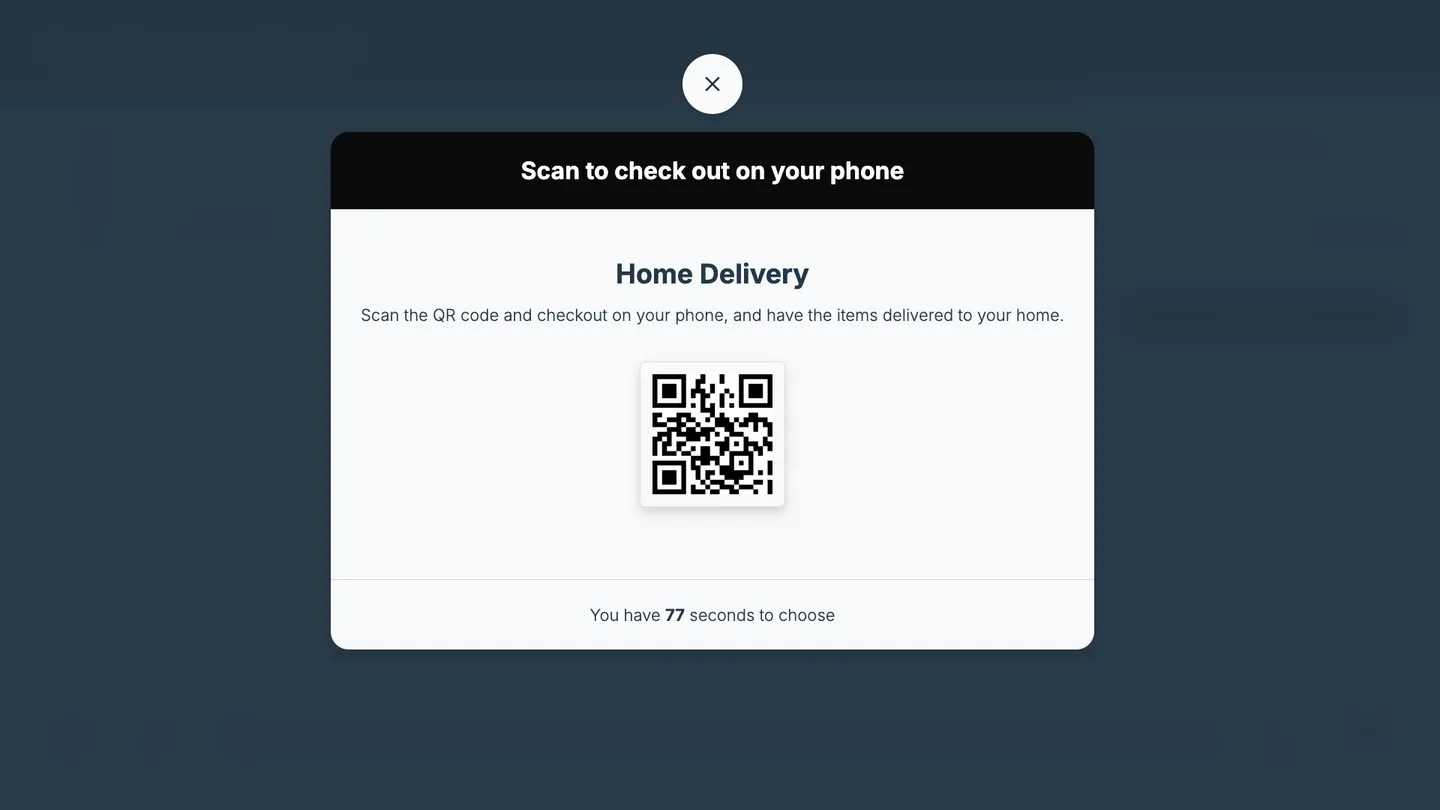
With External checkout, the kiosk shows a QR code. The customer scans it and finishes the purchase in your own web shop on their phone. The order is handled entirely by your web shop: the kiosk doesn’t know whether the customer bought anything.
How the bag is passed to your web shop
The QR code opens your Checkout URL with the bag contents added as a cart parameter, followed by any extra parameters you set:
https://shop.example.com/checkout?cart=[{"i":"<product ID>","q":<quantity>}]&utm_source=kiosk
iis the product variant’s ID in PhyGrid, andqis the quantity- Your web shop must read the
cartparameter and fill the customer’s cart with these products. Ask your web shop developer to set this up, using the same product IDs as in PhyGrid
How to set up external checkout
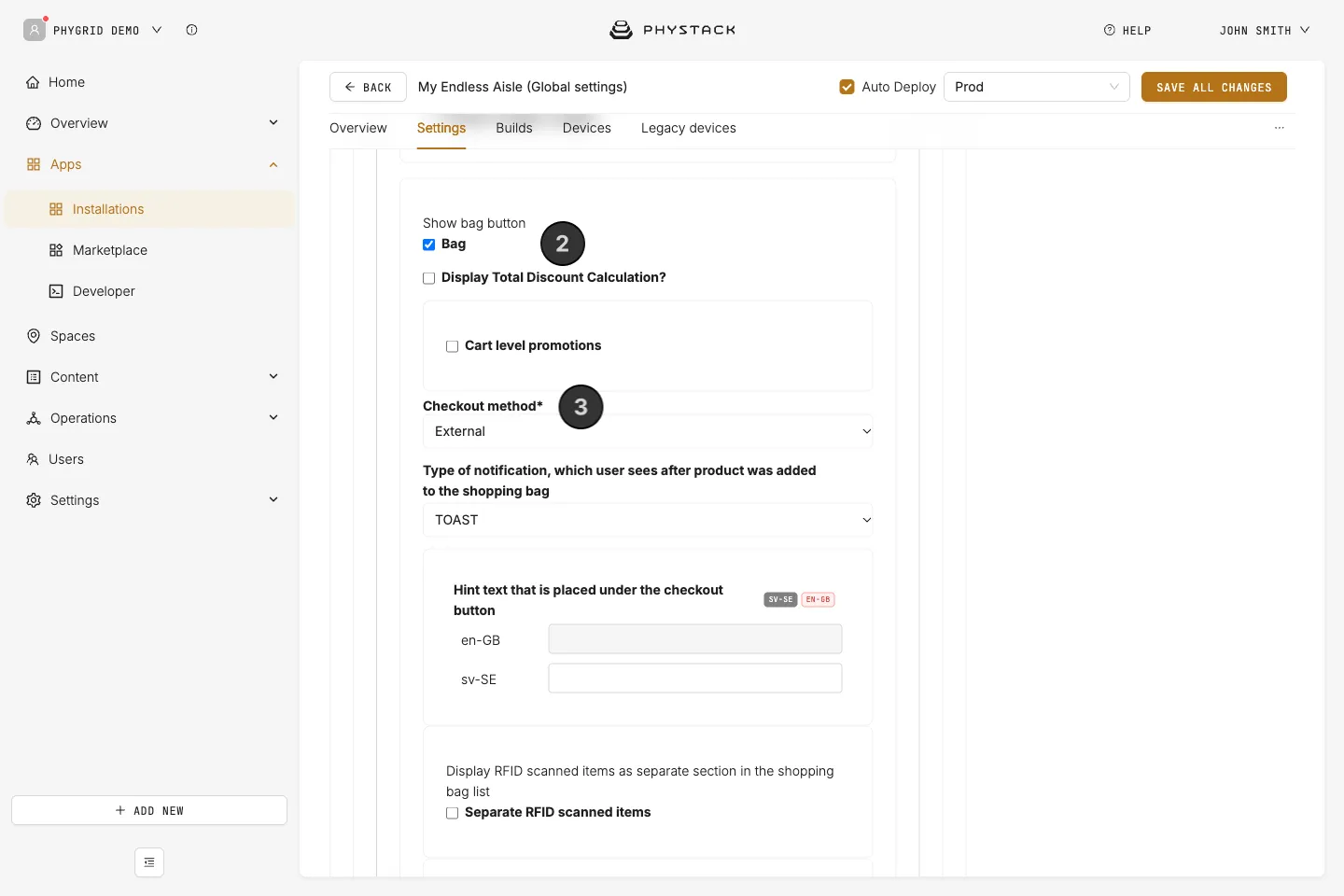
- Open the Endless Aisle installation and go to the Settings tab
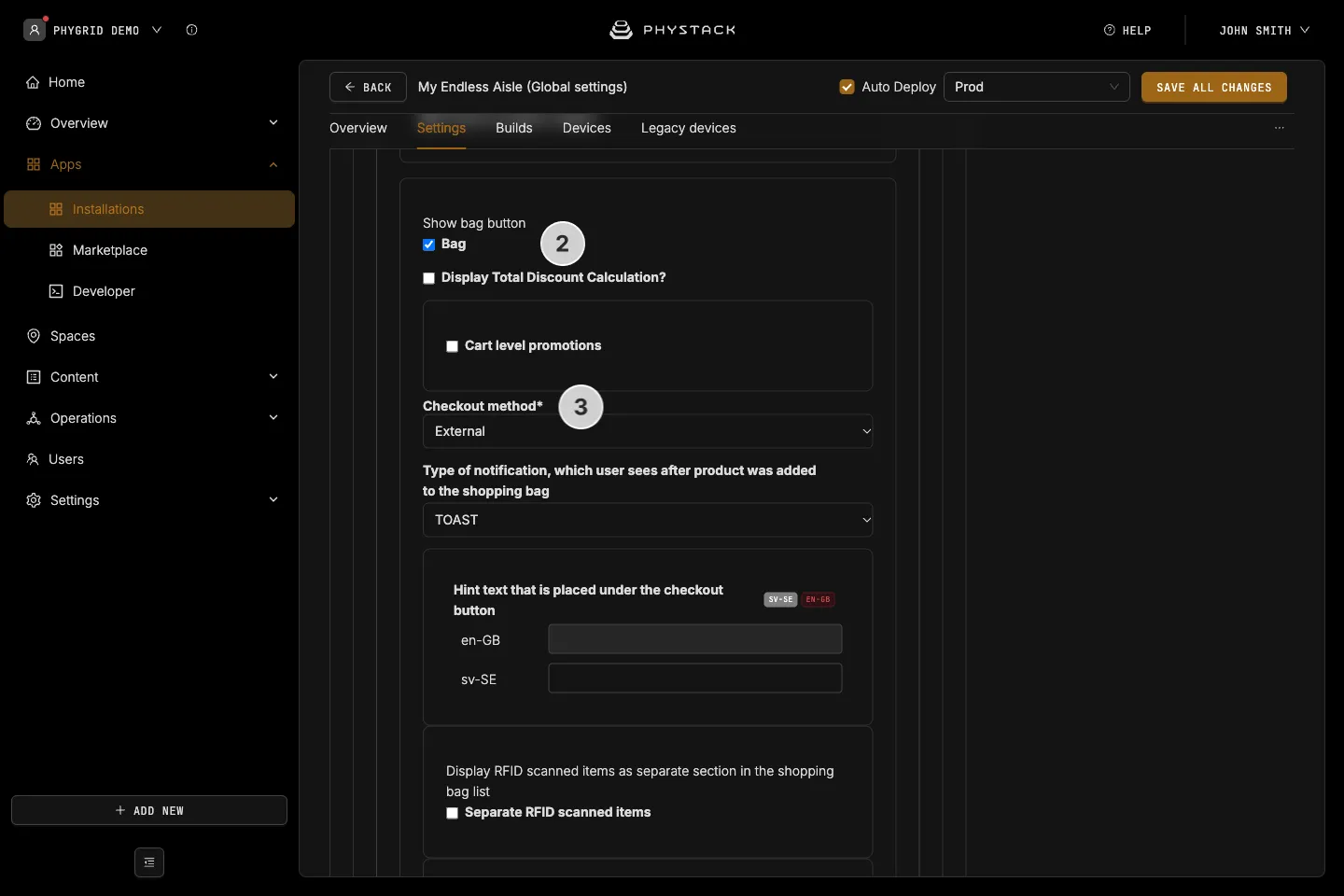
- Expand Features and turn on Bag
- Set Checkout method to External
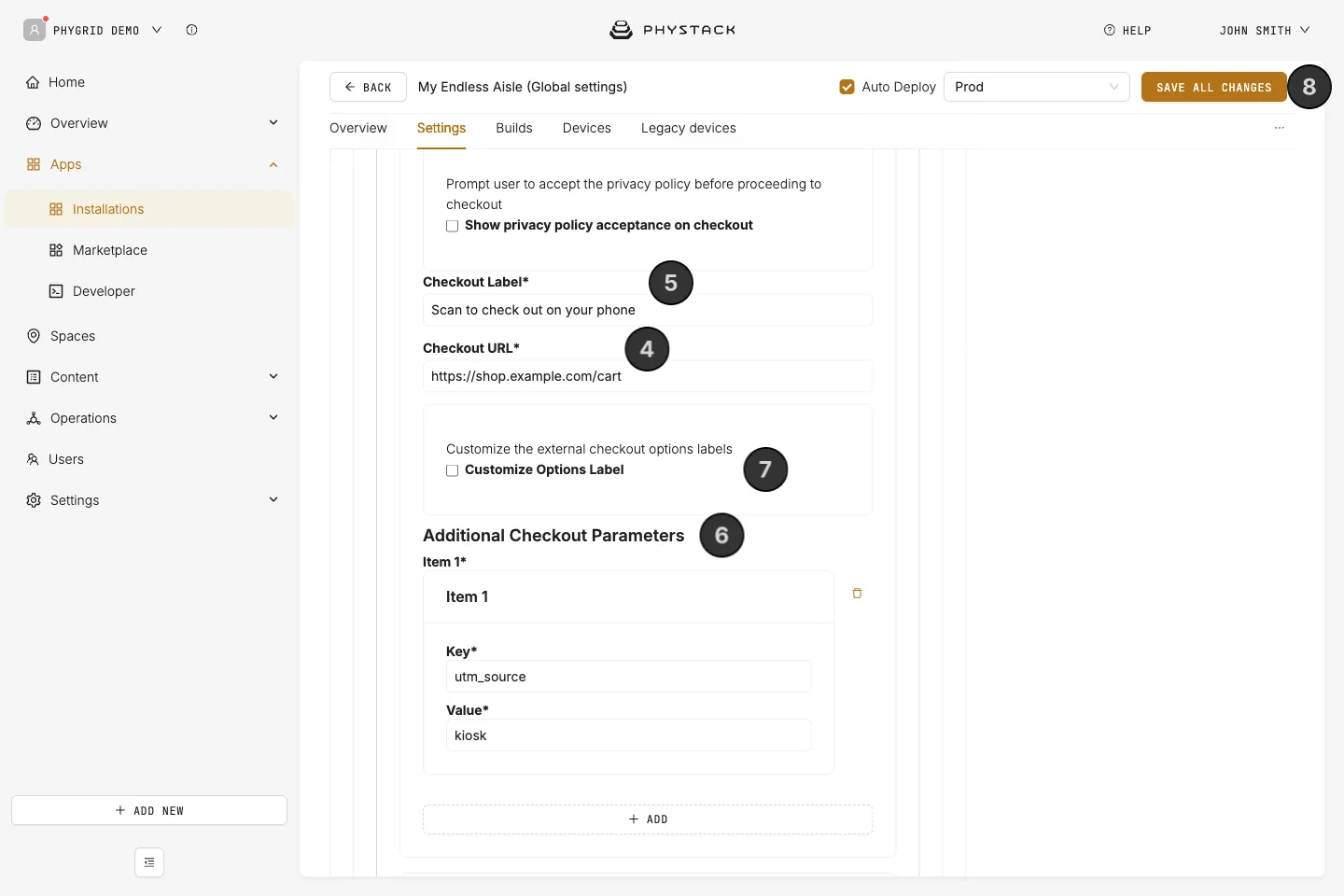
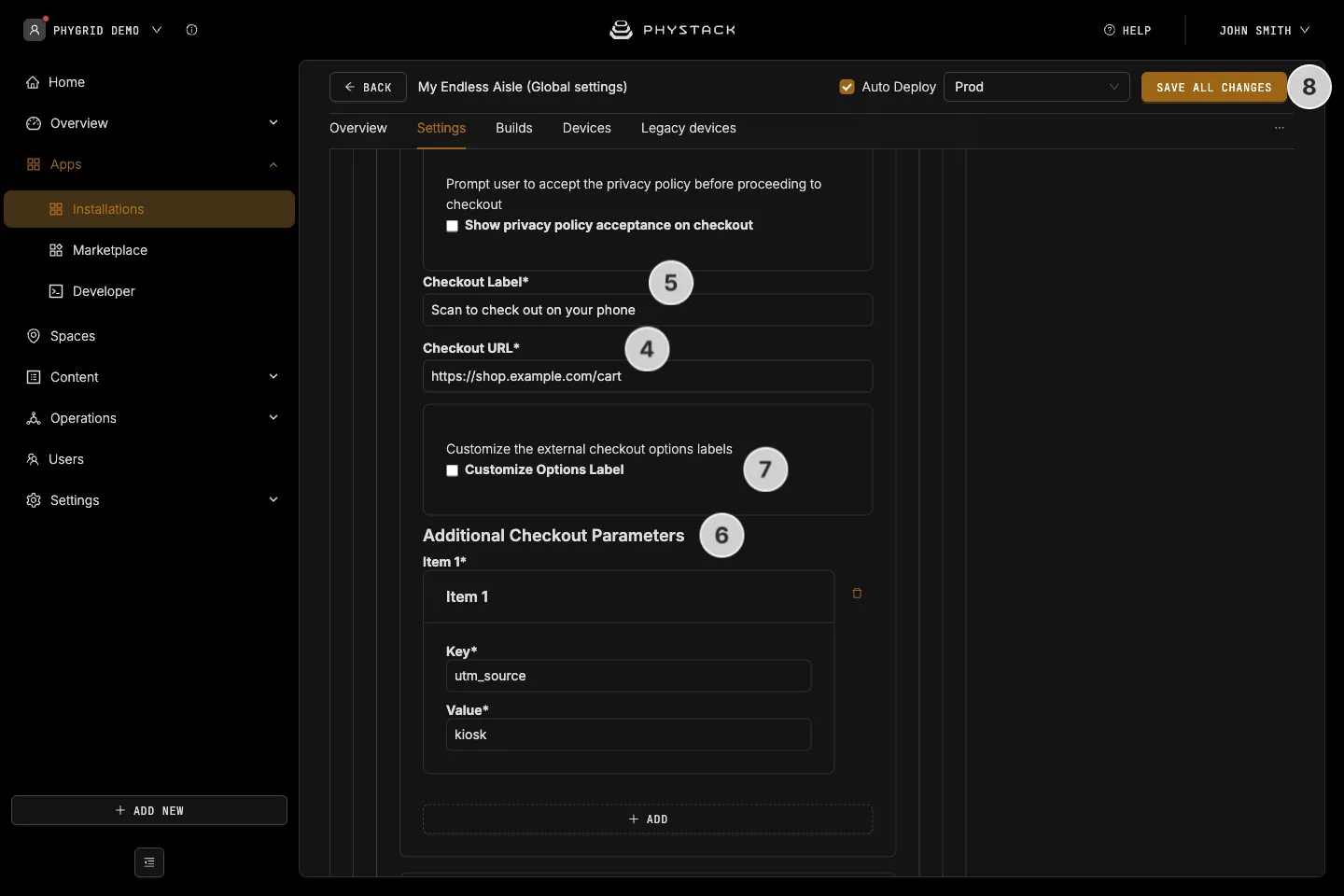
- Enter the Checkout URL of your web shop’s checkout or cart page
- Enter a Checkout Label: the heading above the QR code
- Optionally, add Additional Checkout Parameters as key and value pairs, for example
utm_sourceandkioskto track kiosk sales - Optionally, turn on Customize Options Label to change the default “Home Delivery” heading and the text under it
- Click Save all changes
How to test external checkout
- On the kiosk, add two different products to the bag and tap Continue
- Scan the QR code with your phone
- Check that your web shop opens with both products in the cart, in the right quantities
The QR code stays on screen for 90 seconds. After that, or when the customer closes it, the kiosk empties the bag and returns to the idle screen.