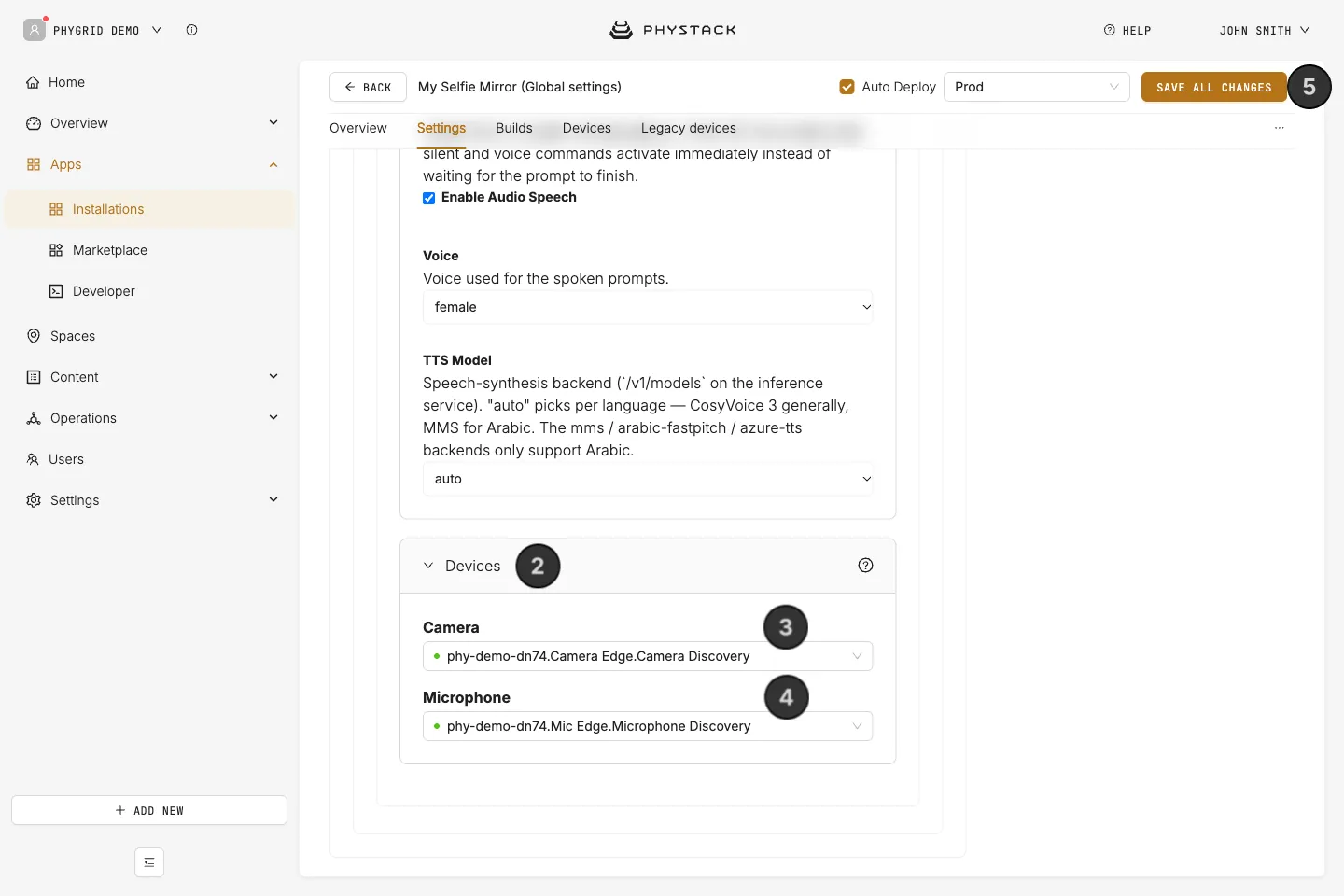
Selfie Mirror finds the camera and microphone through two peripheral edge apps that run on the same device: Camera Edge lists the cameras connected to the device, and Mic Edge lists the microphones. Install both, connect them to the mirror’s device, then pick the camera and microphone in the Selfie Mirror settings.
How to install the camera peripheral edge app
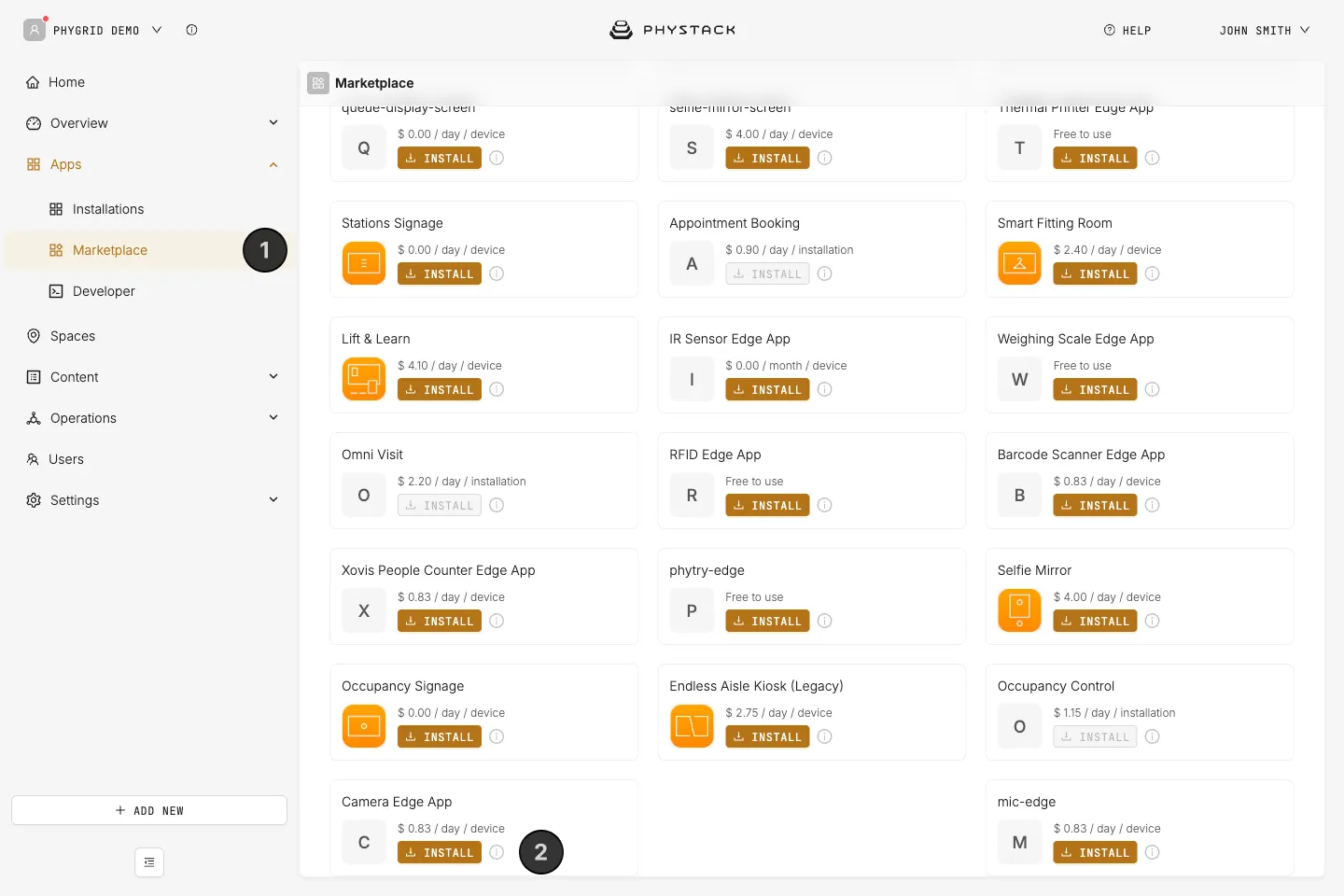
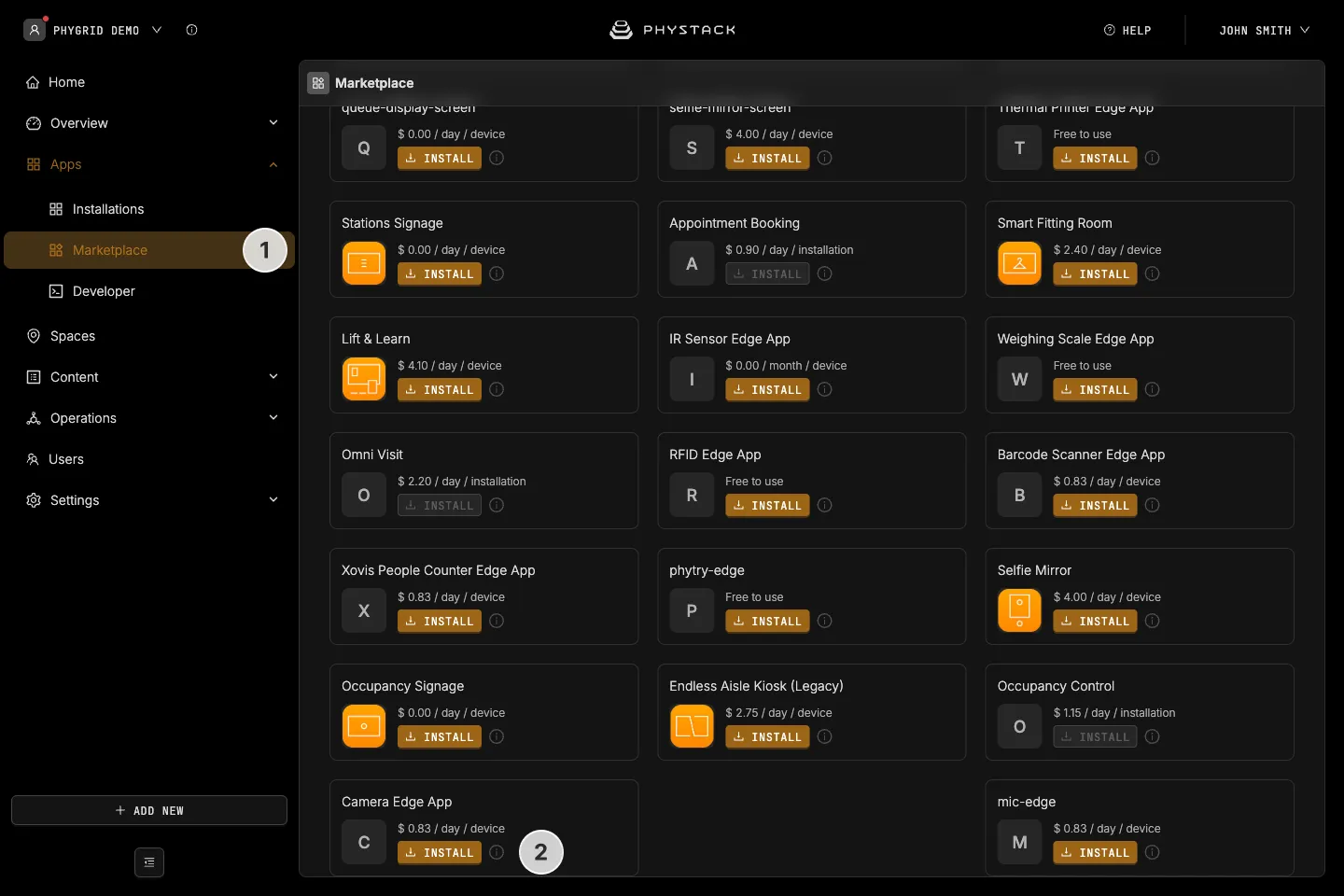
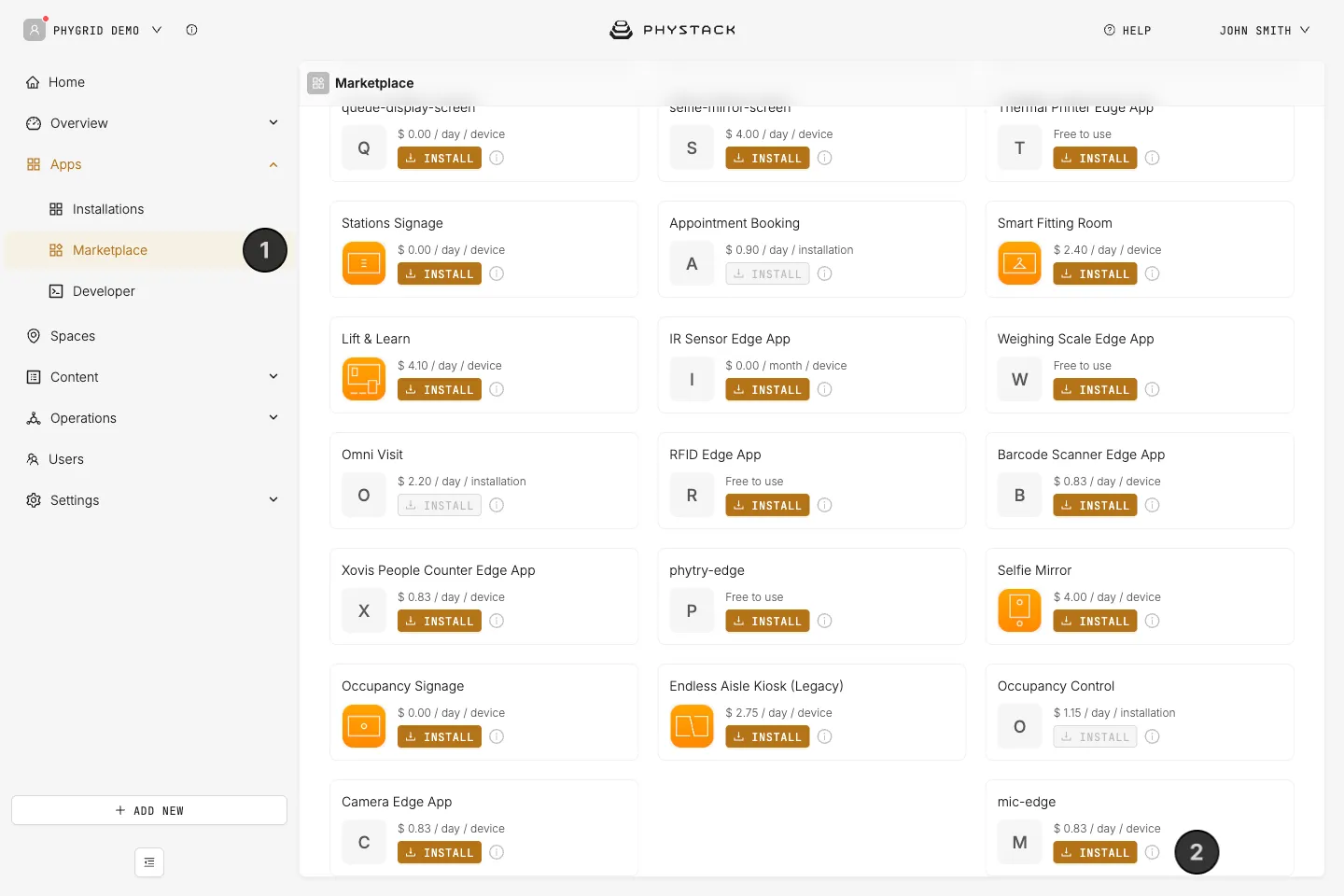
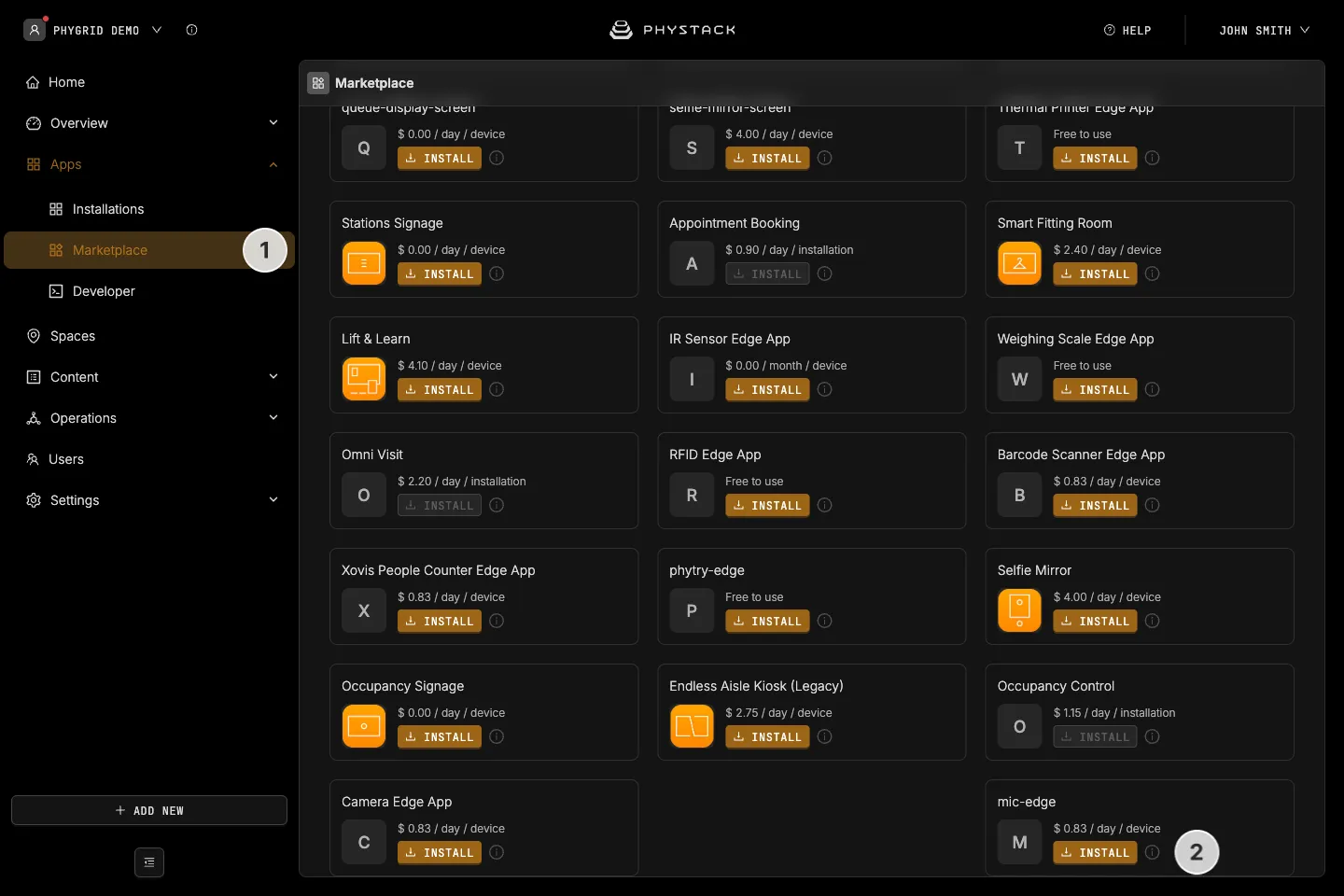
- In the sidebar, navigate to Apps → Marketplace
- Look for Camera Edge App in the list of applications and click on the Install button to open the installation dialog
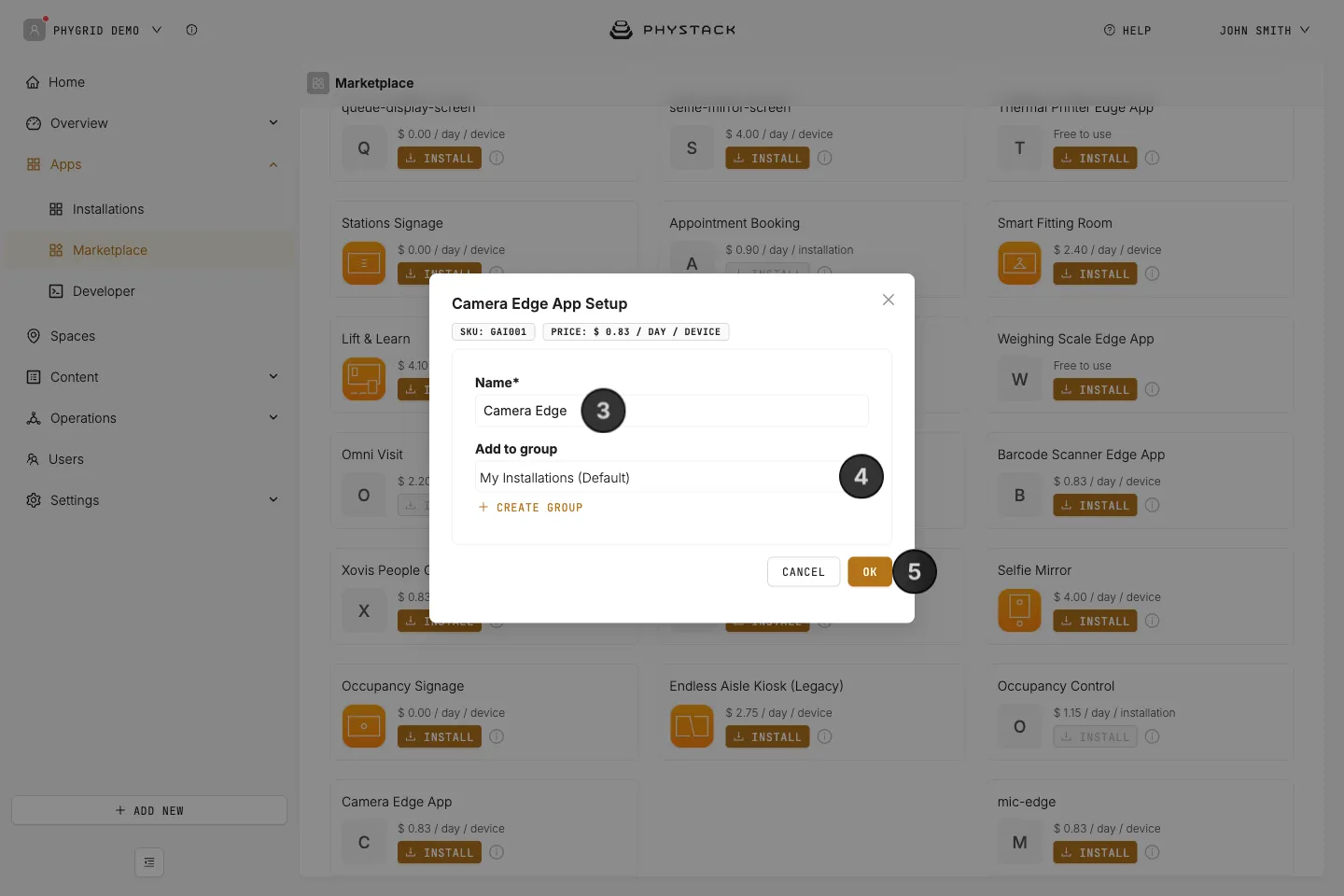
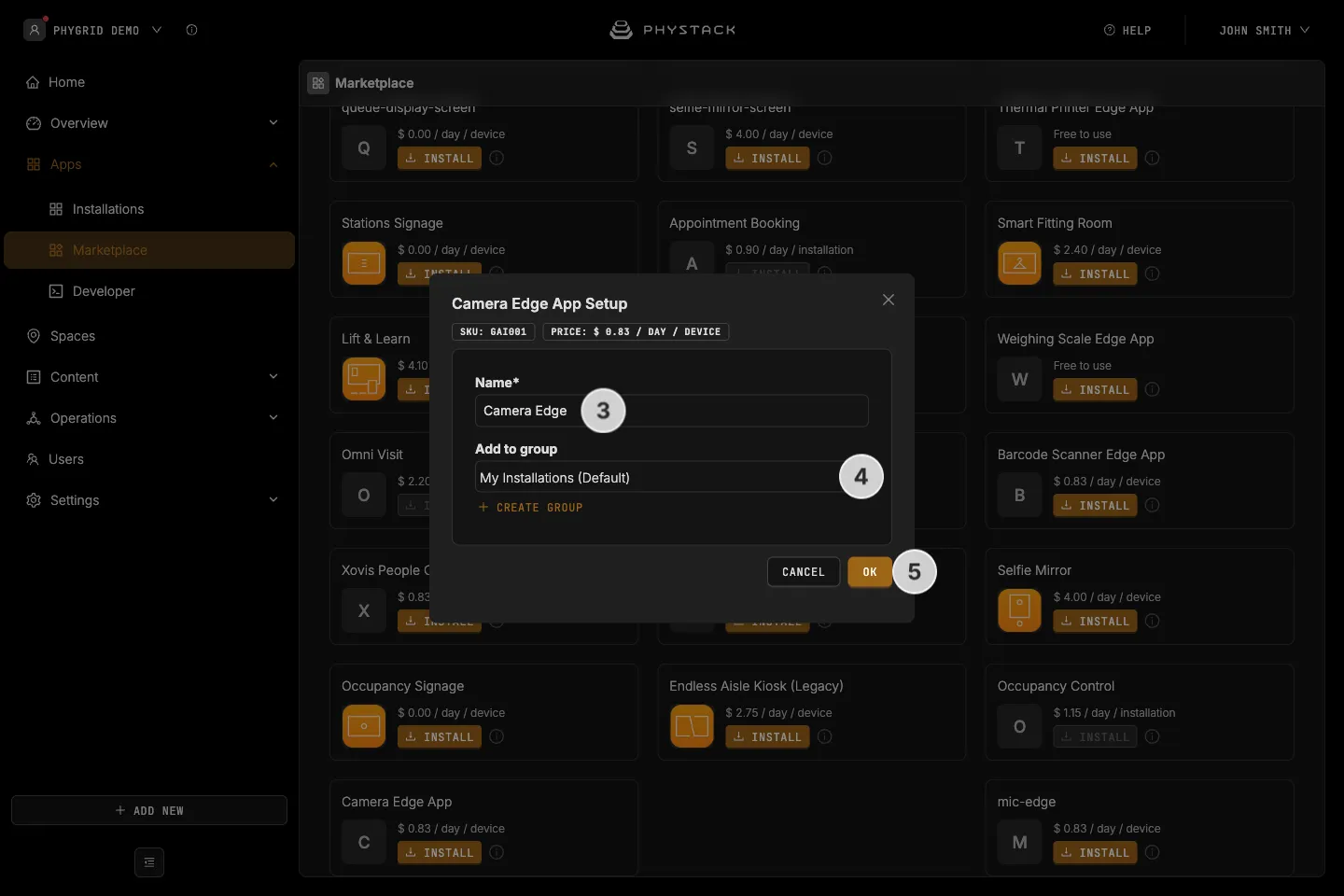
- In the installation form, enter a Name for your installation
- Optionally, select a Group to organise your installations
- Click OK to create the camera peripheral installation
How to install the microphone peripheral edge app
- In the sidebar, navigate to Apps → Marketplace
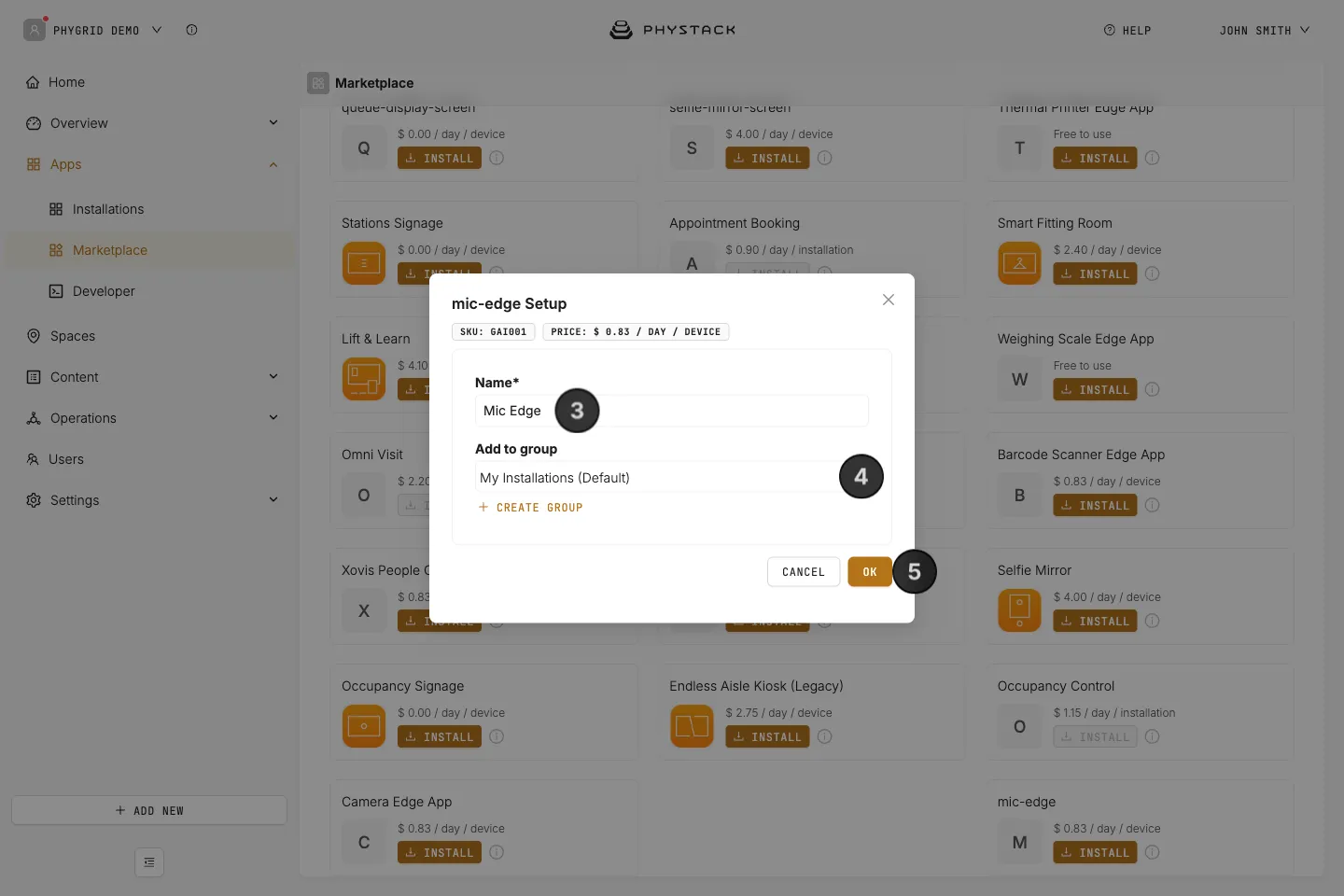
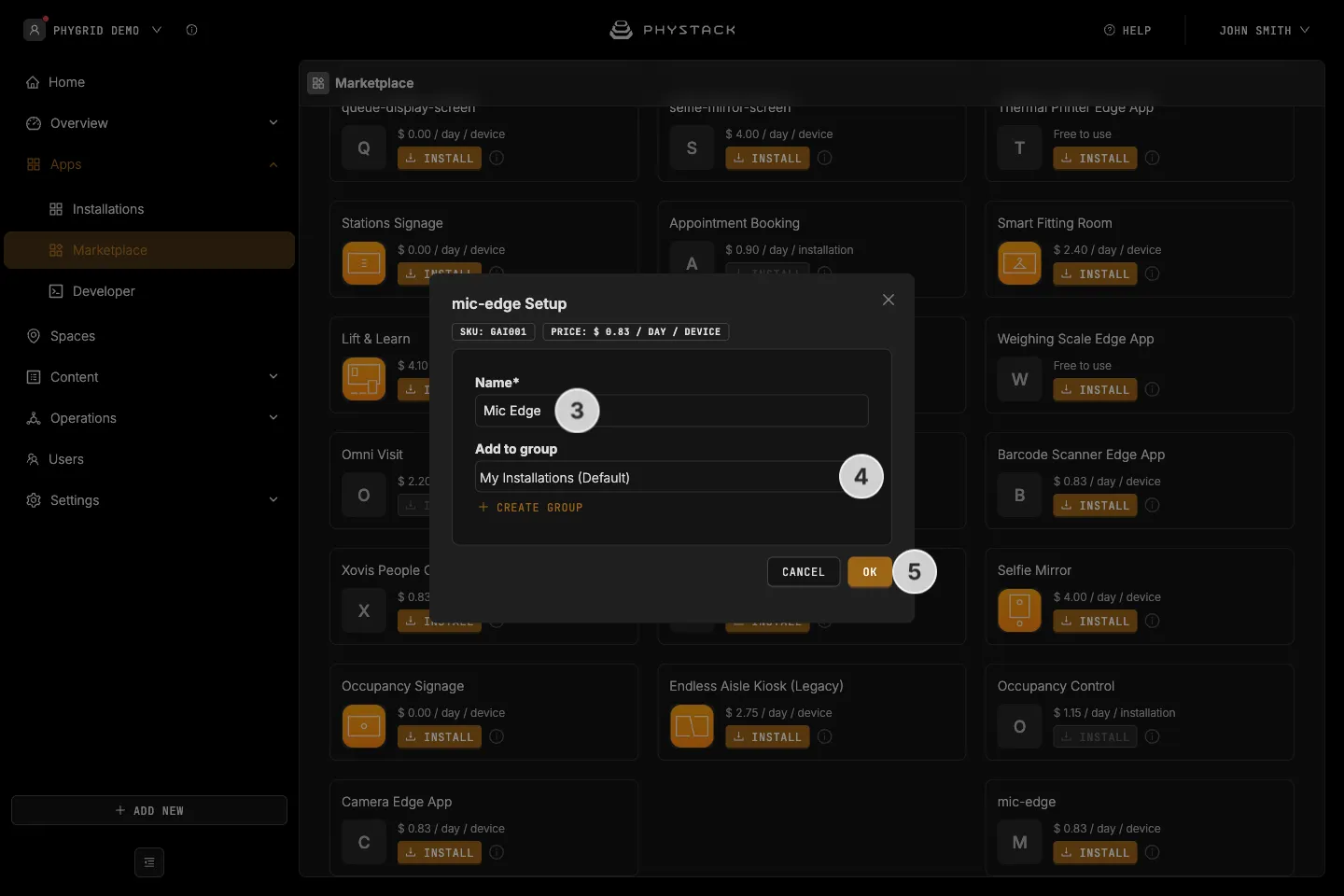
- Look for mic-edge in the list of applications and click on the Install button to open the installation dialog
- In the installation form, enter a Name for your installation
- Optionally, select a Group to organise your installations
- Click OK to create the microphone peripheral installation
How to configure the peripheral edge apps
Camera Edge works without configuration when the device has a single camera. Mic Edge needs its Capture device label before its build deploys:
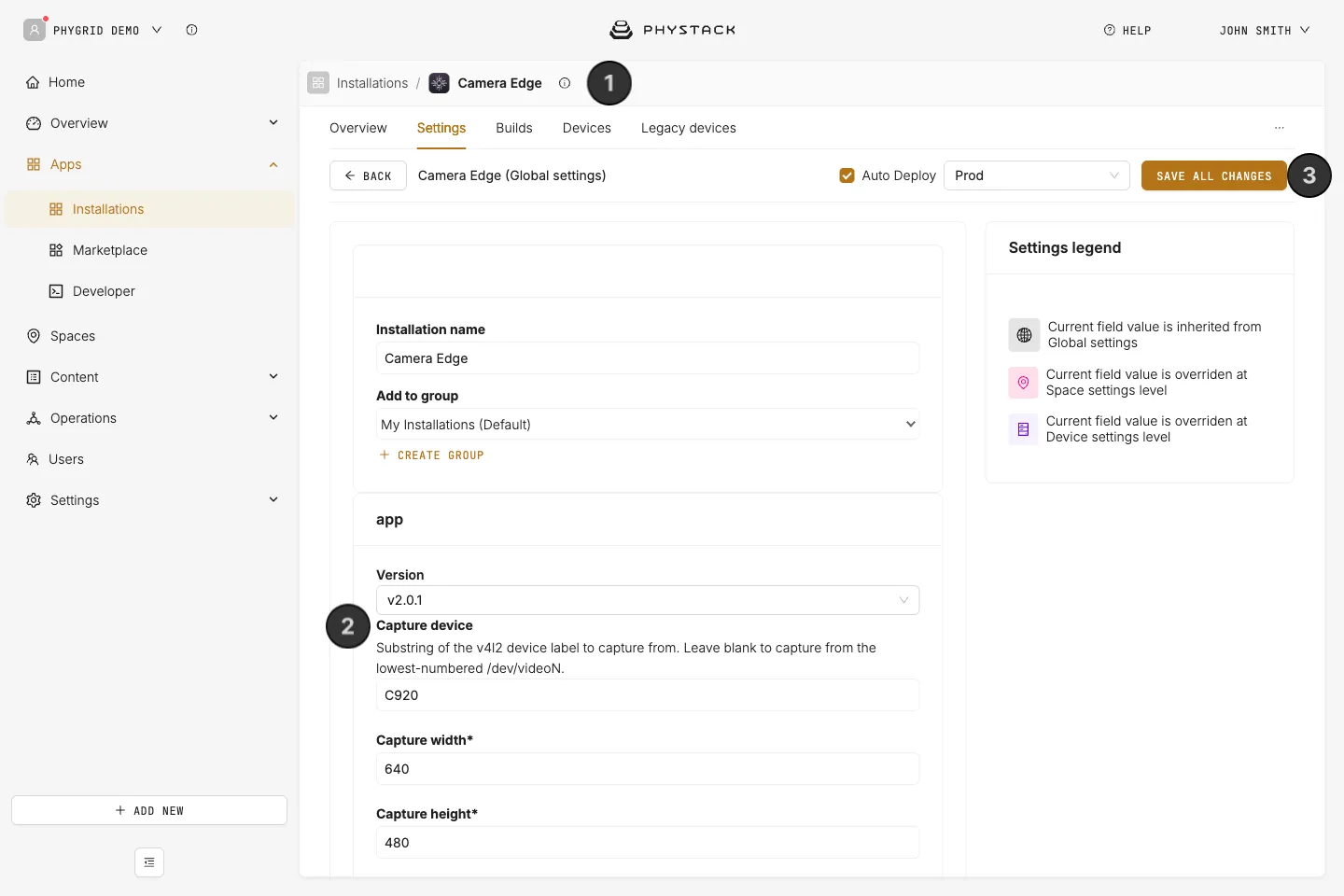
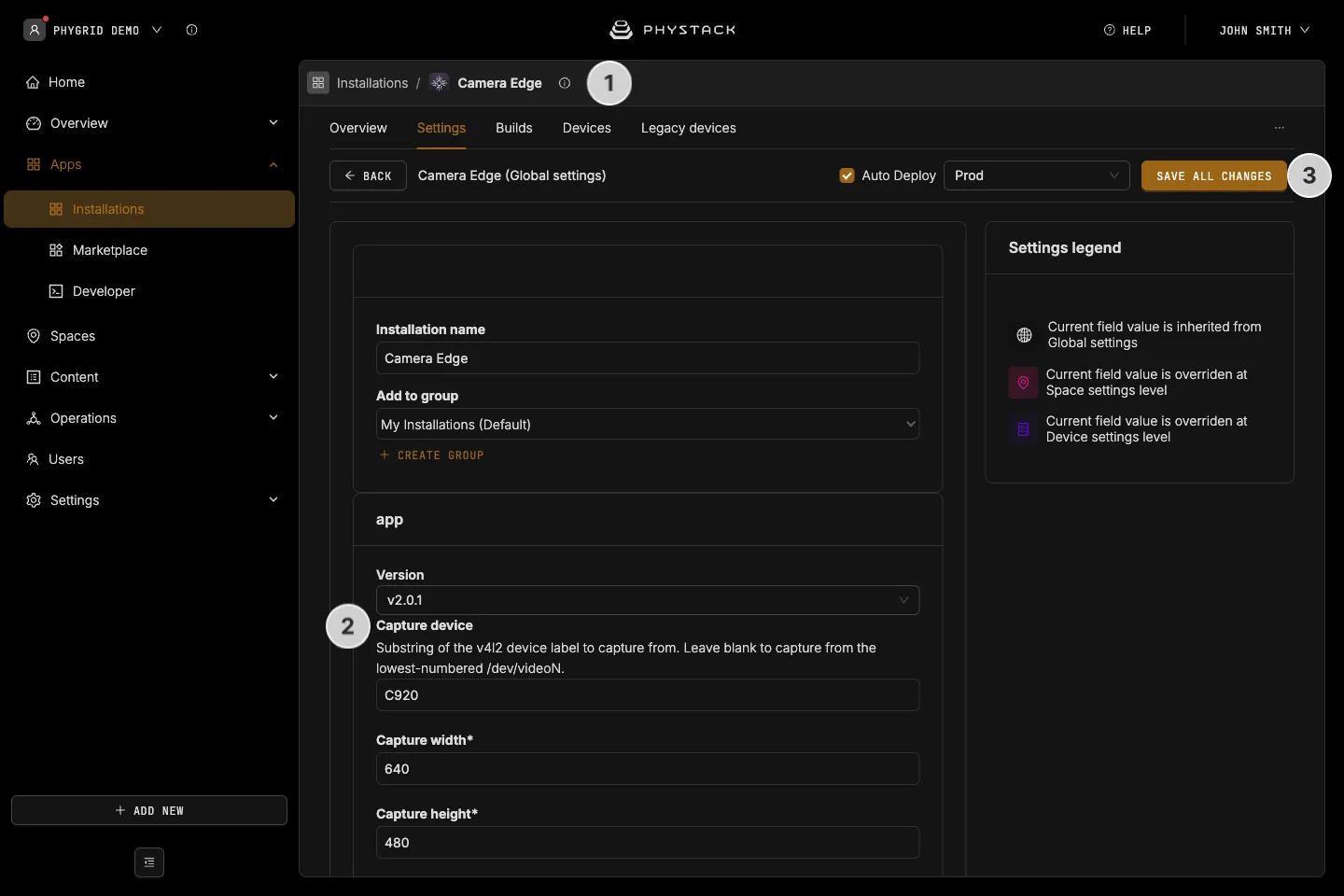
- Open the Camera Edge installation and go to the Settings tab
- In Capture device, enter part of the camera’s name, such as the model name. Leave it empty to use the first camera the device reports. Capture width, Capture height, and Capture frames per second have defaults that suit most cameras
- Click Save all changes
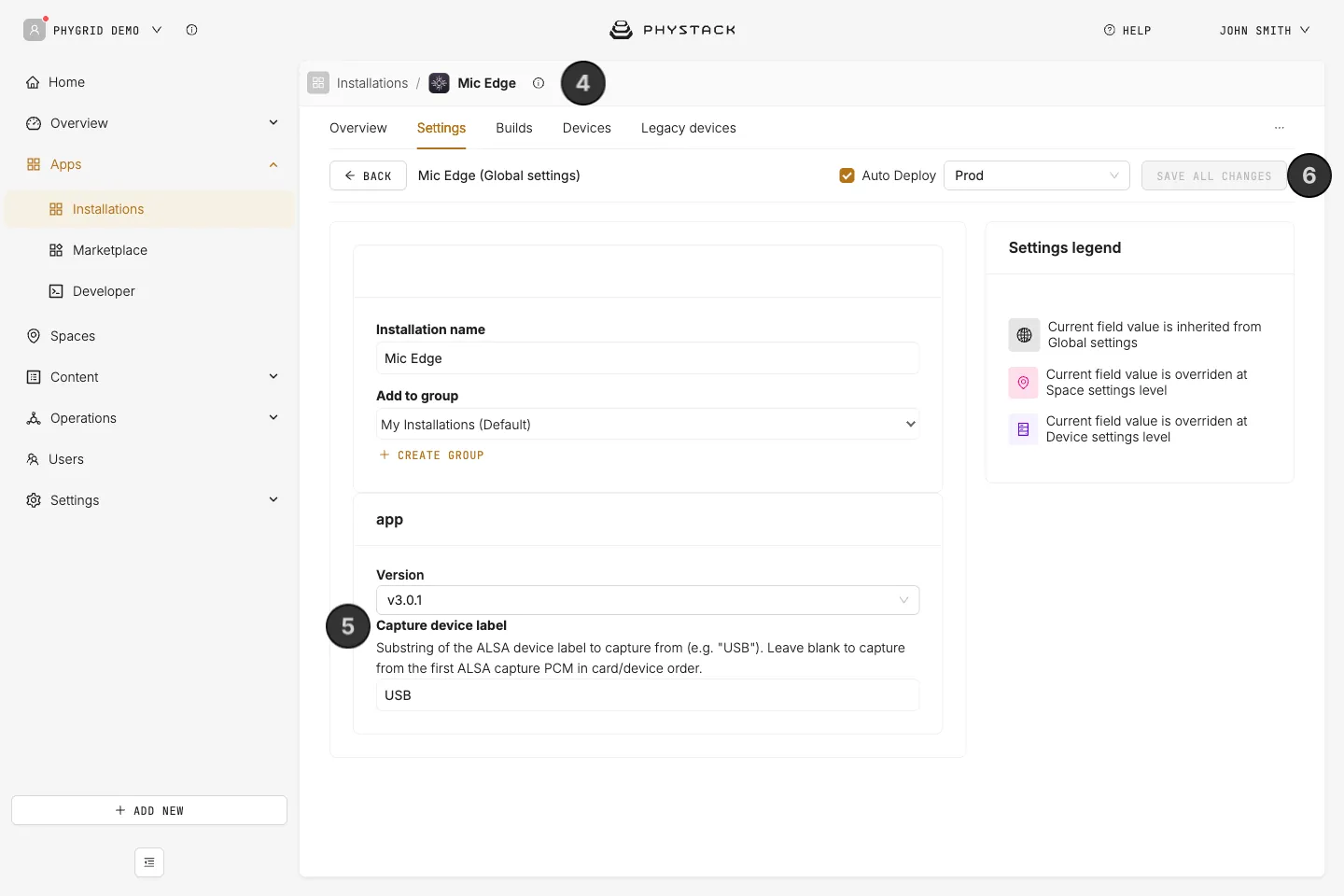
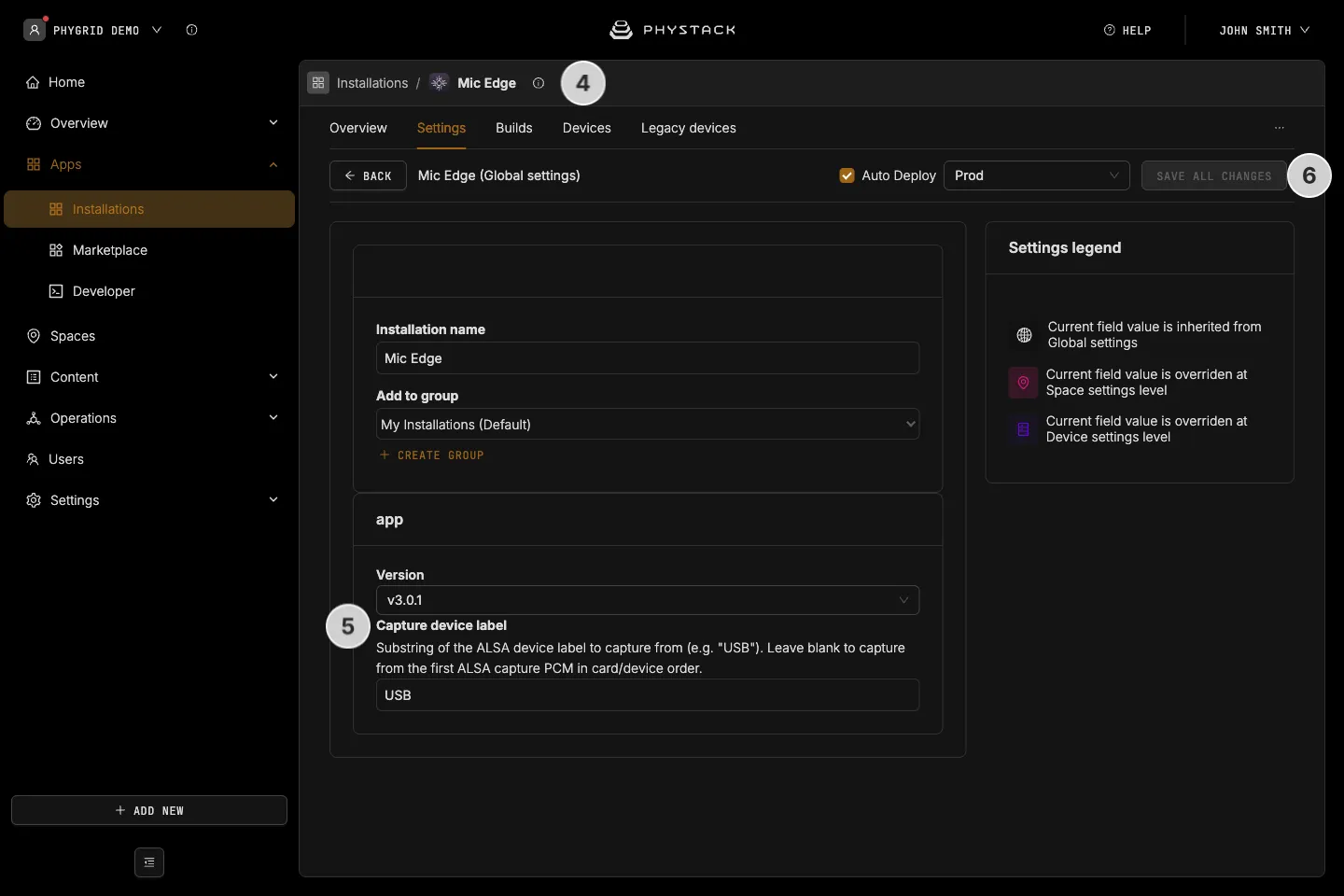
- Open the Mic Edge installation and go to the Settings tab
- In Capture device label, enter a substring of the microphone’s ALSA device label, such as “USB”. Fill it in even with a single microphone: the form accepts it empty, but the Mic Edge build doesn’t deploy without it
- Click Save all changes
How to connect the peripheral edge apps to the device
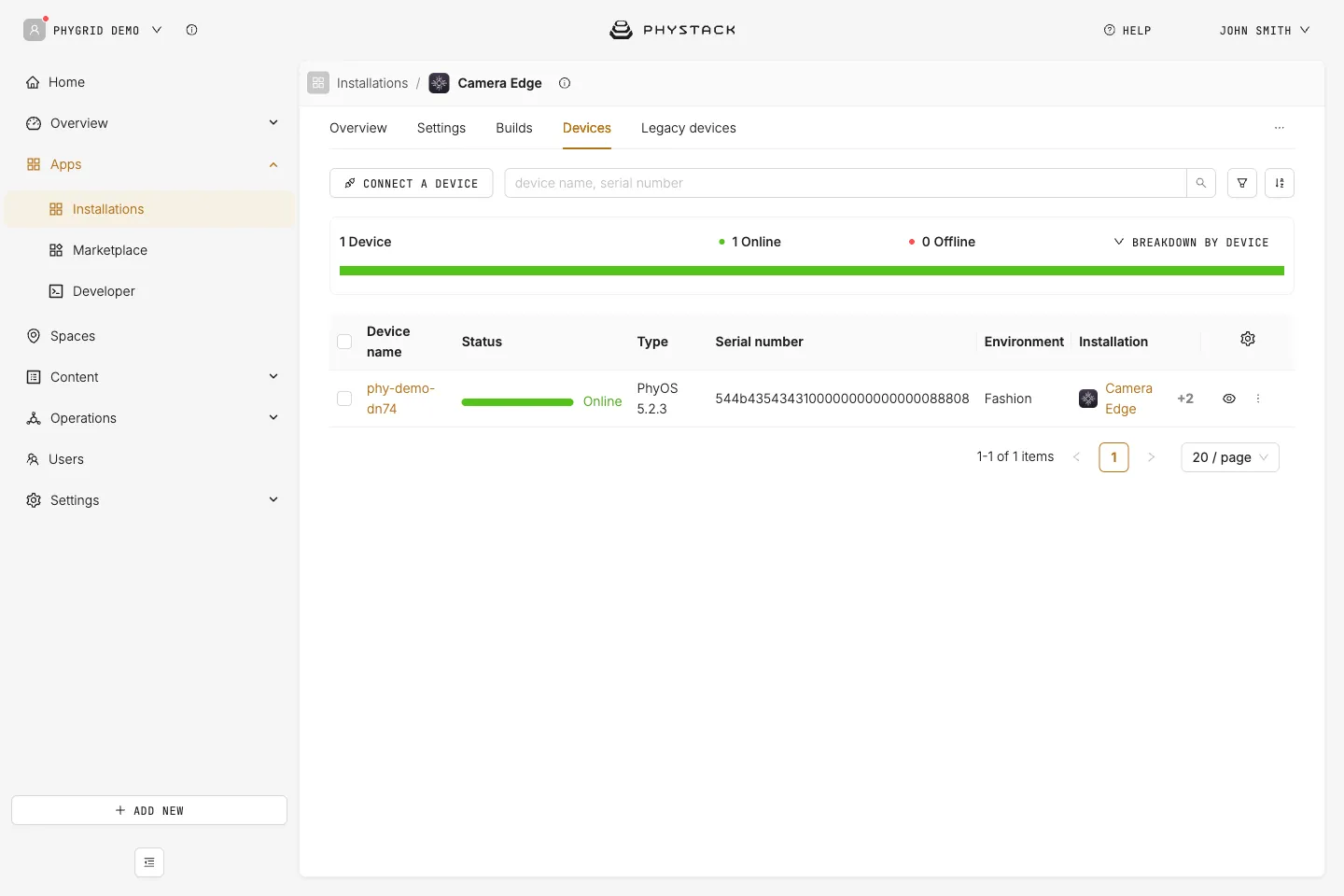
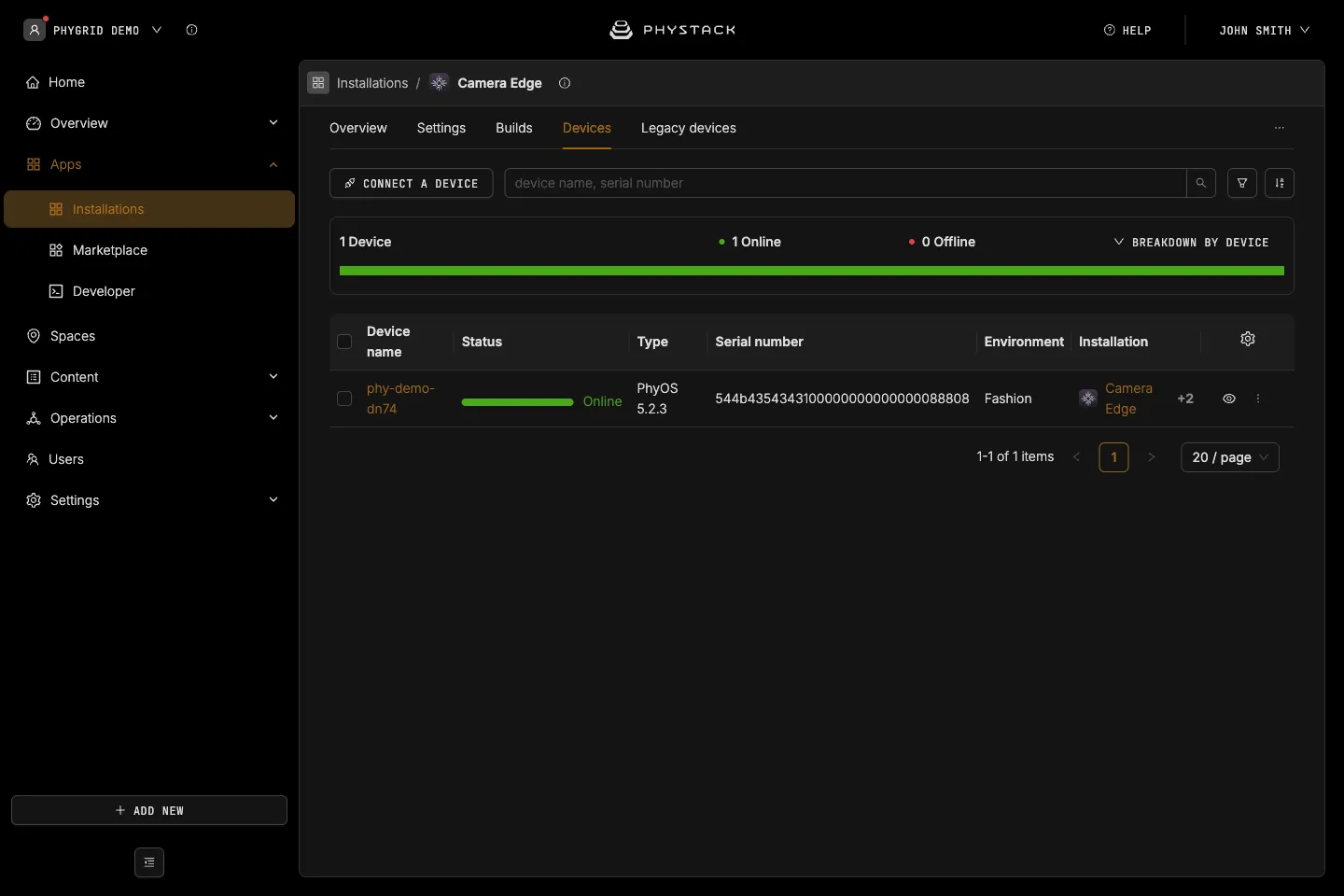
Connect both installations to the same device as the Selfie Mirror installation:
How to select the camera and microphone in Selfie Mirror
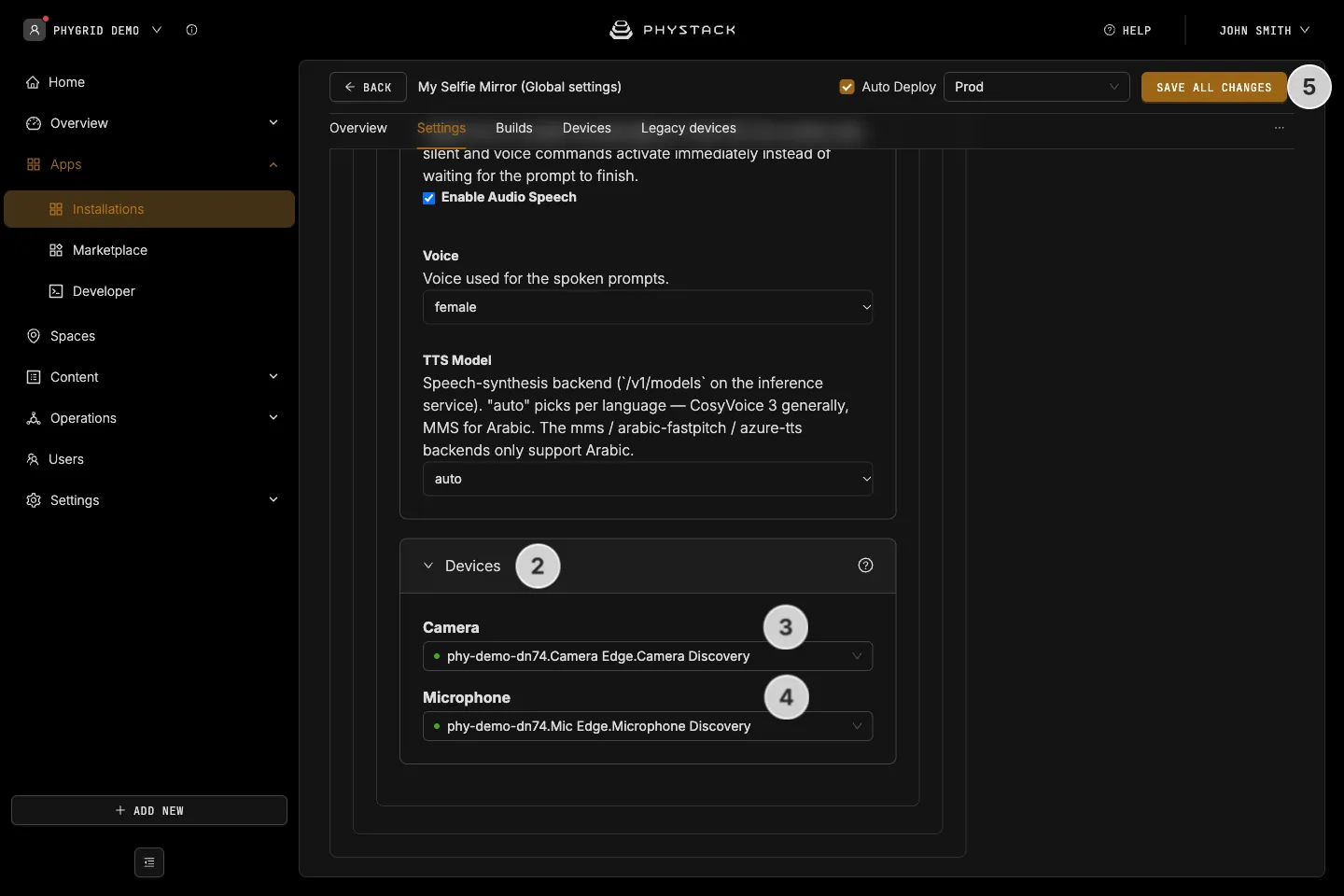
- Open the Selfie Mirror installation and go to the Settings tab
- Expand Devices
- In Camera, pick the camera peripheral on the mirror’s device. The list fills once Camera Edge runs on the device, so connect the edge apps first
- In Microphone, pick the microphone peripheral on the mirror’s device
- Click Save all changes