
Appointment Booking shares all settings available in Queue Management. This page only covers the additional settings specific to the Appointment Booking variant.
Booking
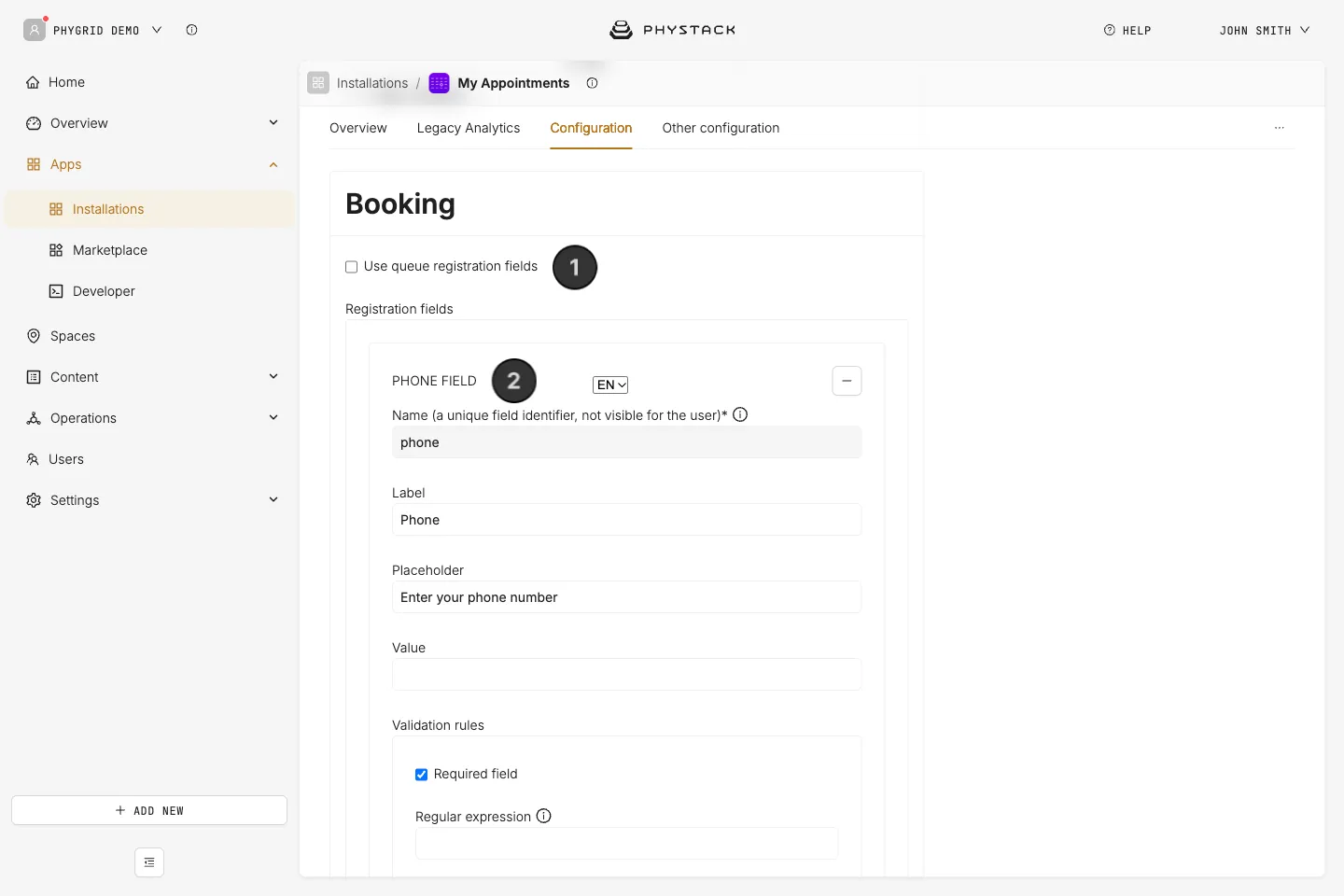
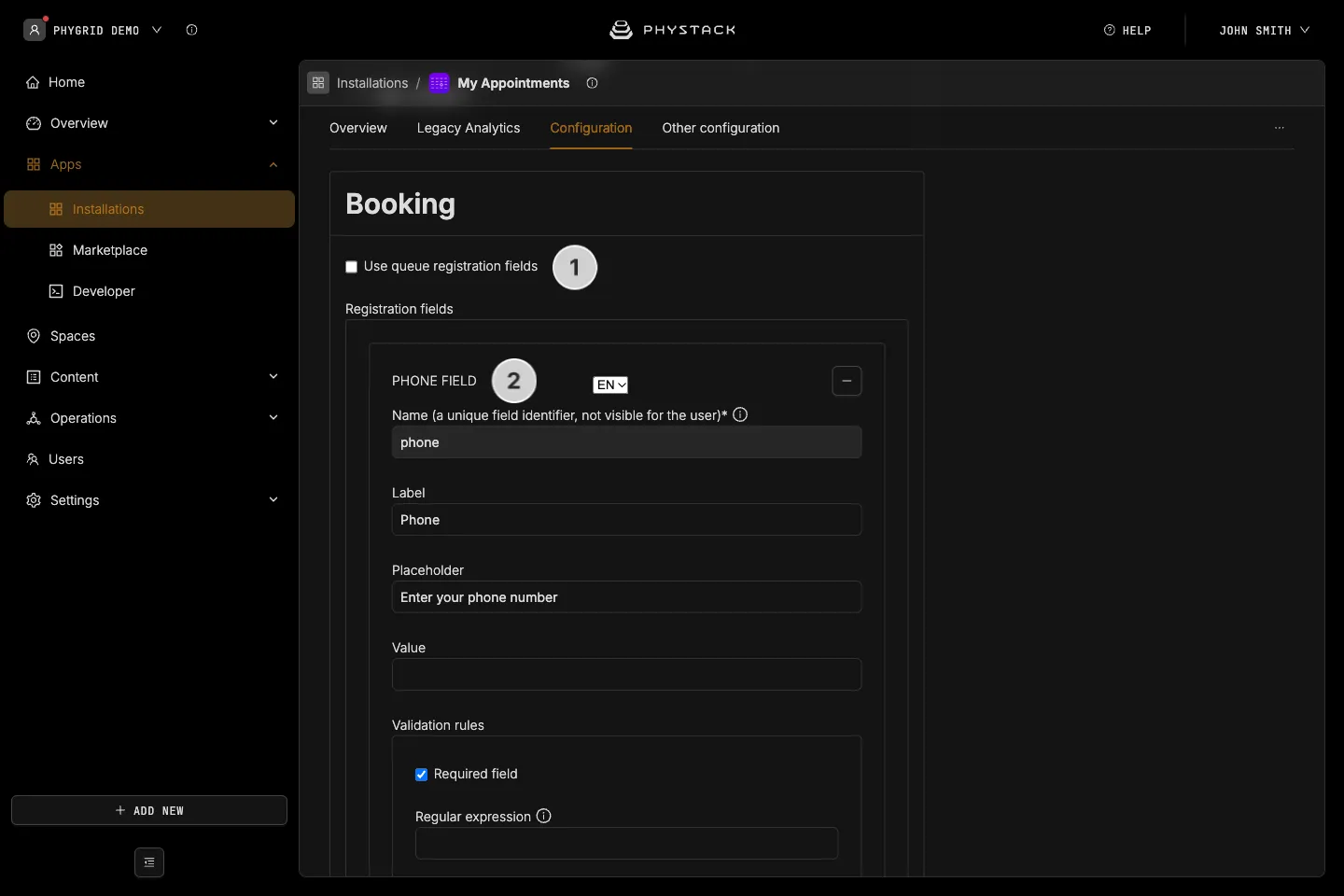
- Use queue registration fields: If the queue has registration enabled, selecting this option reuses the same registration form for bookings instead of defining separate fields. This option is only visible when Collect customer’s information is enabled in the Customer walk-in ticket UI section
- Booking registration field builder: If the option above is not selected, define separate registration fields for the booking flow. Supports the same field types as the queue registration builder: text input, text area, checkbox, radio buttons, phone, email, and category selector
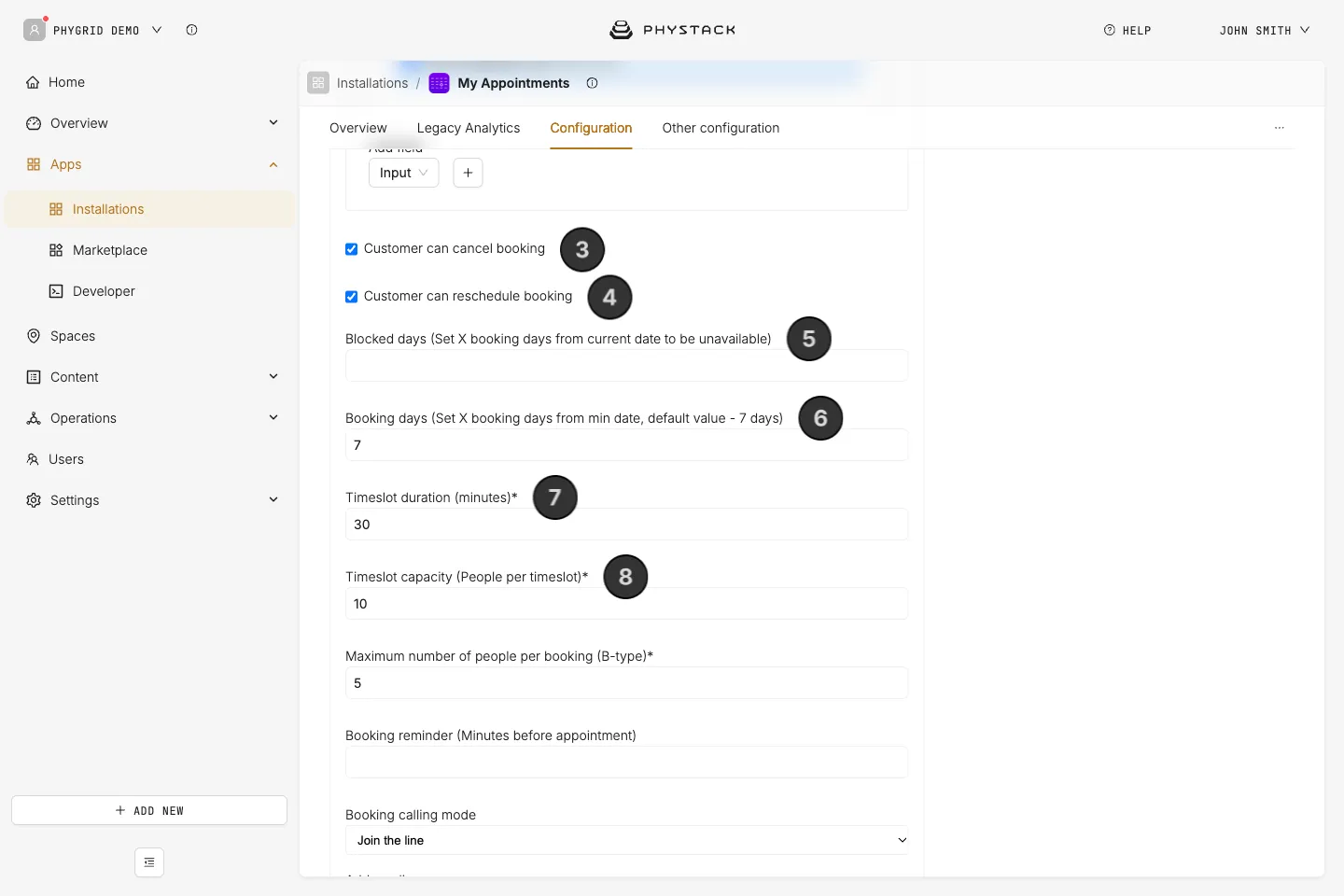
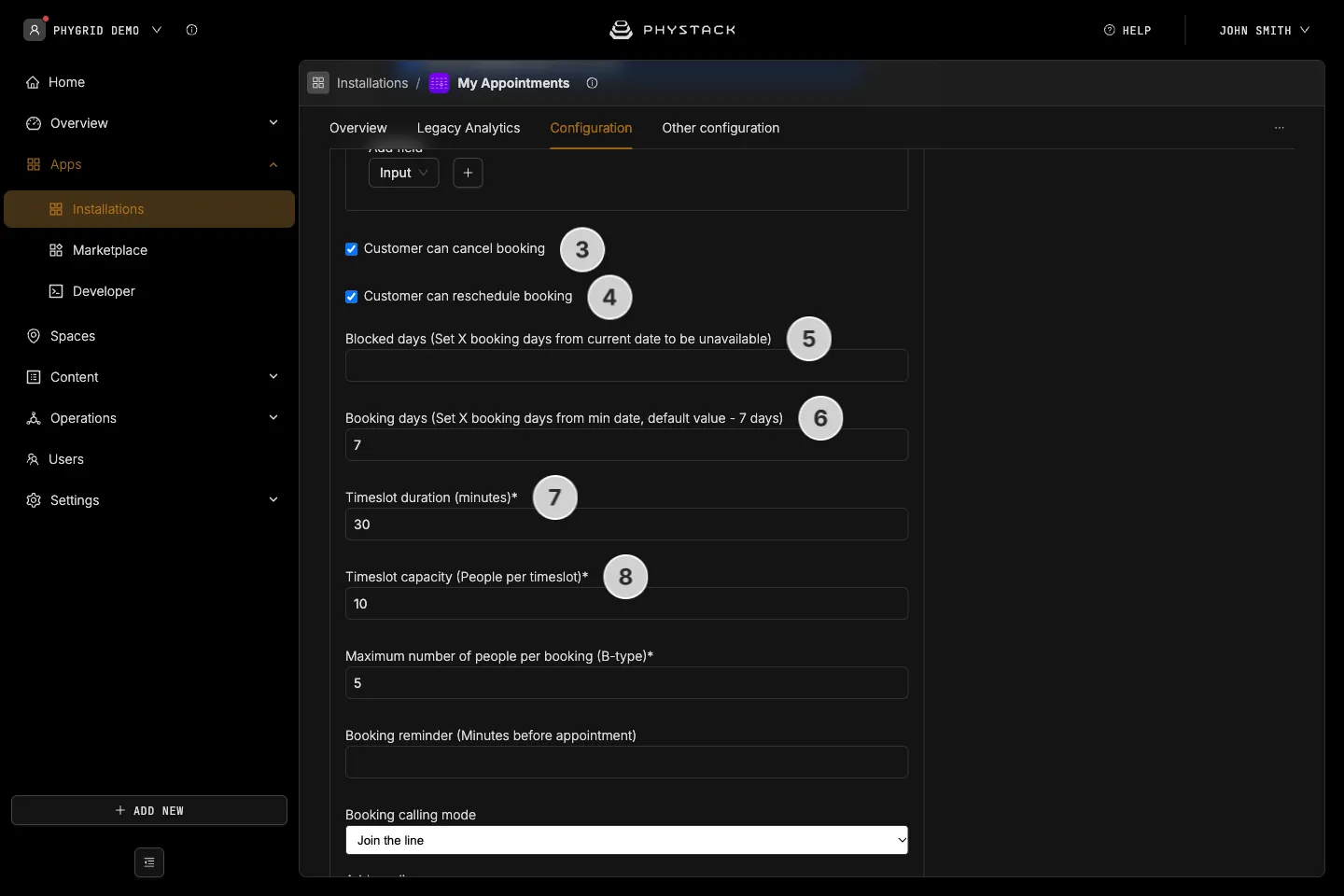
- Enable ticket cancellation for bookings: If selected, customers can cancel their own booking from the ticket status page
- Enable ticket rescheduling for bookings: If selected, customers can reschedule their booking to a different timeslot from the ticket status page
- Blocked days ahead: The number of days from today during which no bookings can be made. For example, setting this to 1 means customers cannot book for today, only from tomorrow onwards
- Booking days count: The total number of days into the future for which bookings are available. This defines how far ahead customers can schedule an appointment
- Timeslot duration: The length of each booking timeslot in minutes. This determines the scheduling grid for available appointments
- Timeslot capacity: The maximum number of bookings allowed per timeslot. When a timeslot reaches capacity, it is no longer available for new bookings
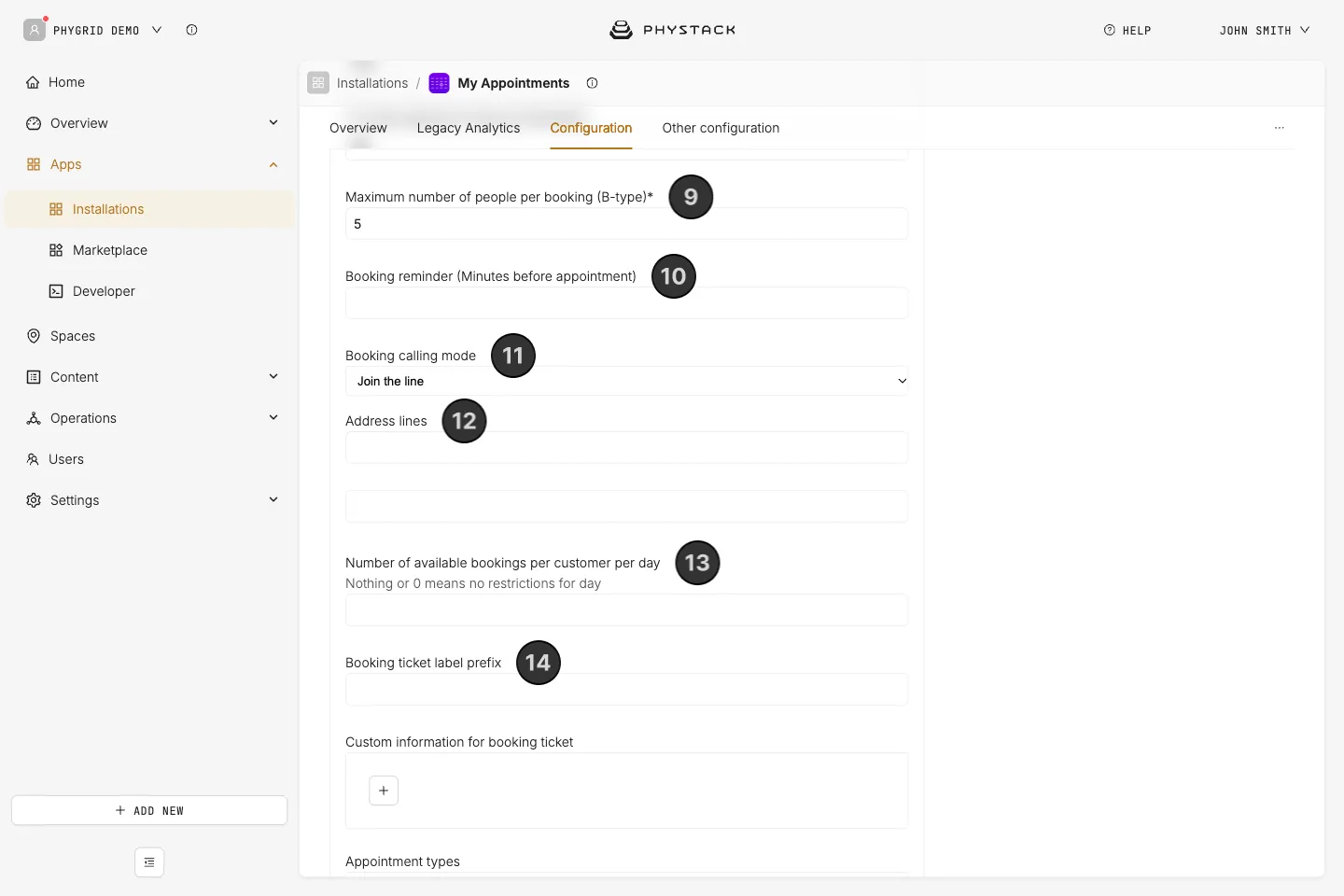
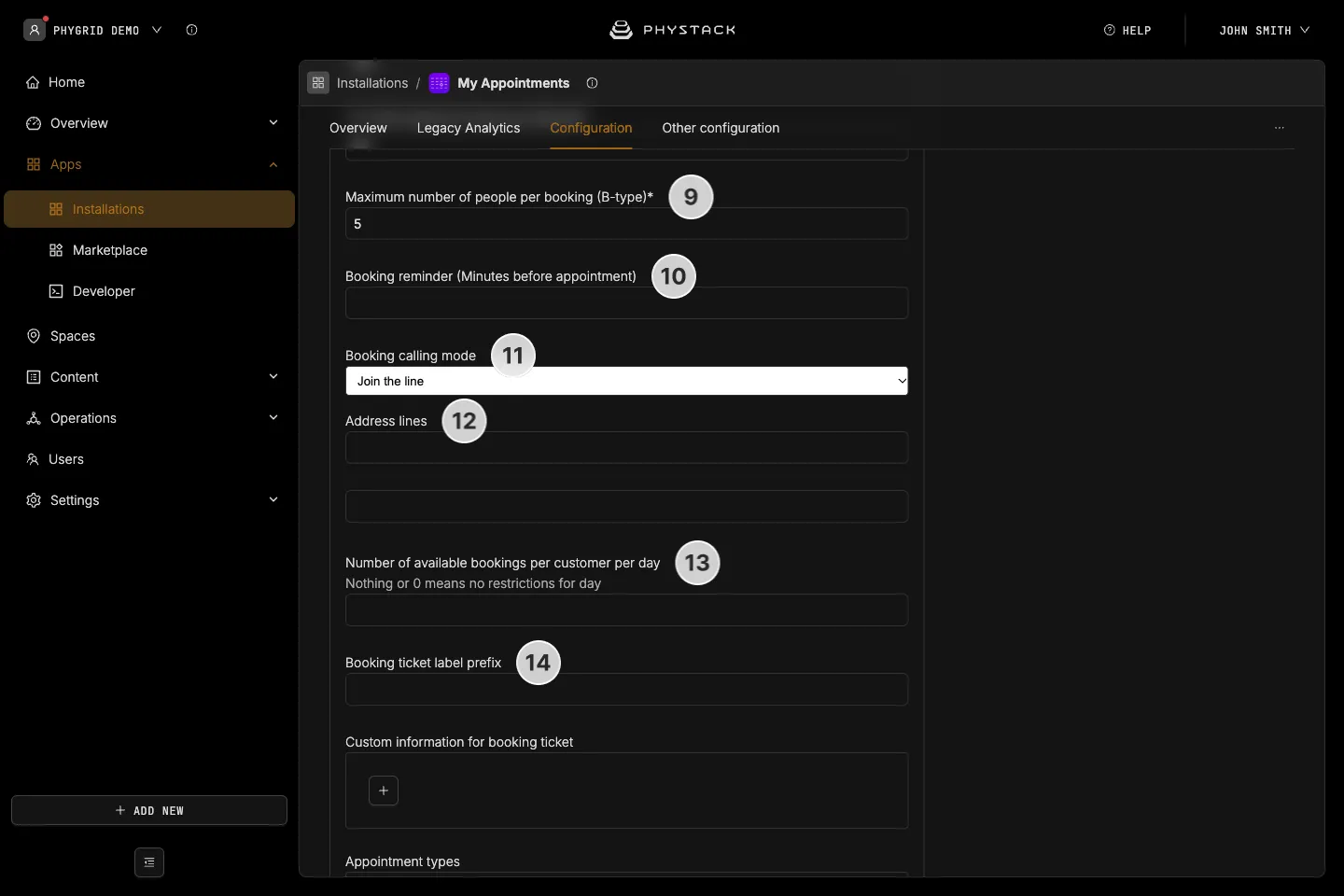
- Max number of people per booking ticket: Set the maximum number of people that can be registered on a single booking ticket
- Booking reminder notification before minutes: The number of minutes before an appointment at which a reminder notification is sent to the customer
- Bookings mode: Select how booked tickets are handled when the customer arrives:
- Join the line: The ticket enters its timeslot, appears in the waiting column, and waits to be called by staff
- Auto call ticket forward: The ticket is automatically called forward when the booking enters its timeslot
- Auto check-in ticket: The ticket is automatically checked in at the booking start time
- Address lines: Set up to two address lines for the booking location. This address is included in booking confirmation messages sent to customers
- Number of available bookings per day: The maximum number of bookings one customer can make for the same day. Bookings are counted per customer contact (for example, phone number) and date. Leave empty or set to 0 for no limit
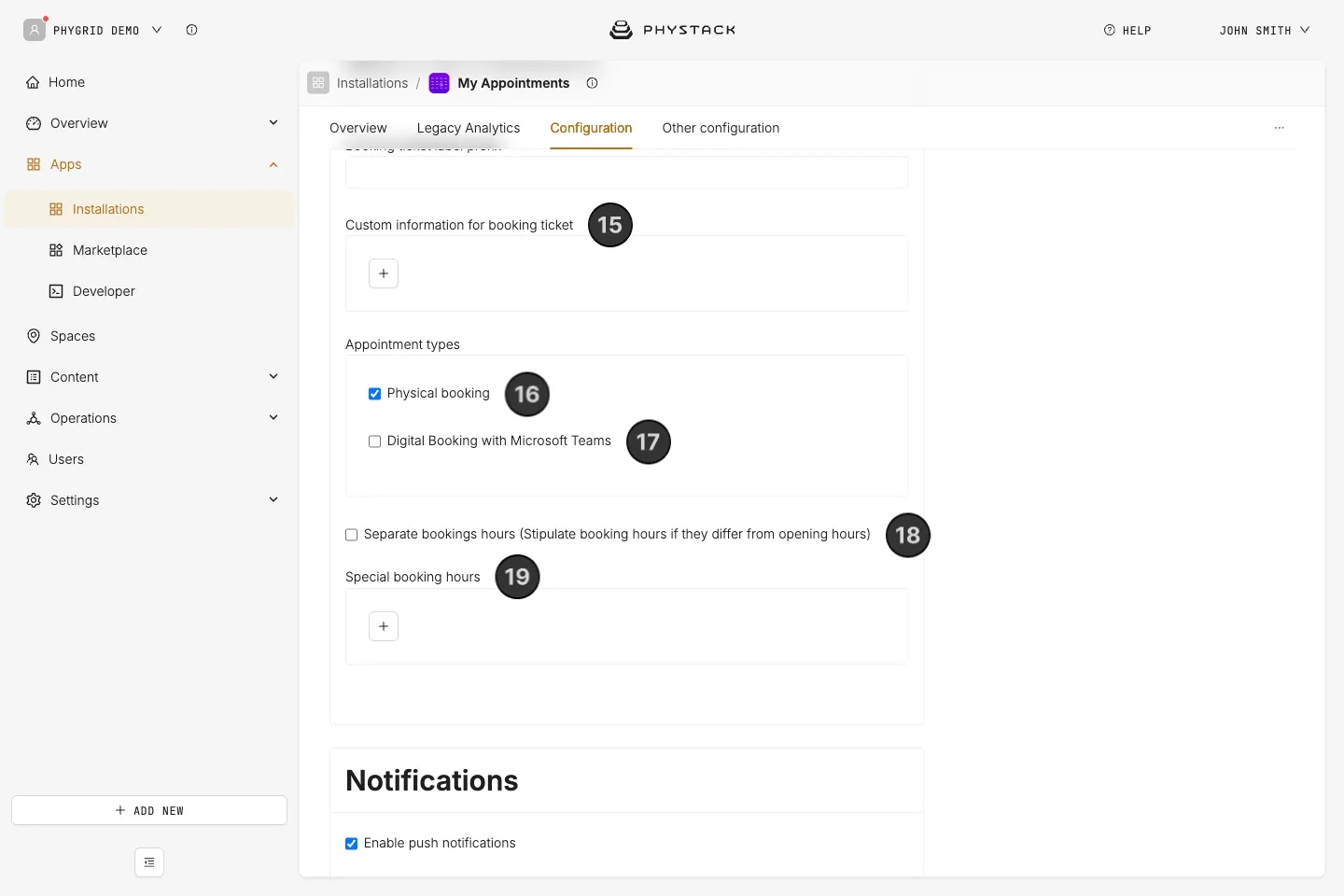
- Booking ticket label prefix: A prefix (up to 3 characters) added to booking ticket numbers for identification on displays and printed tickets
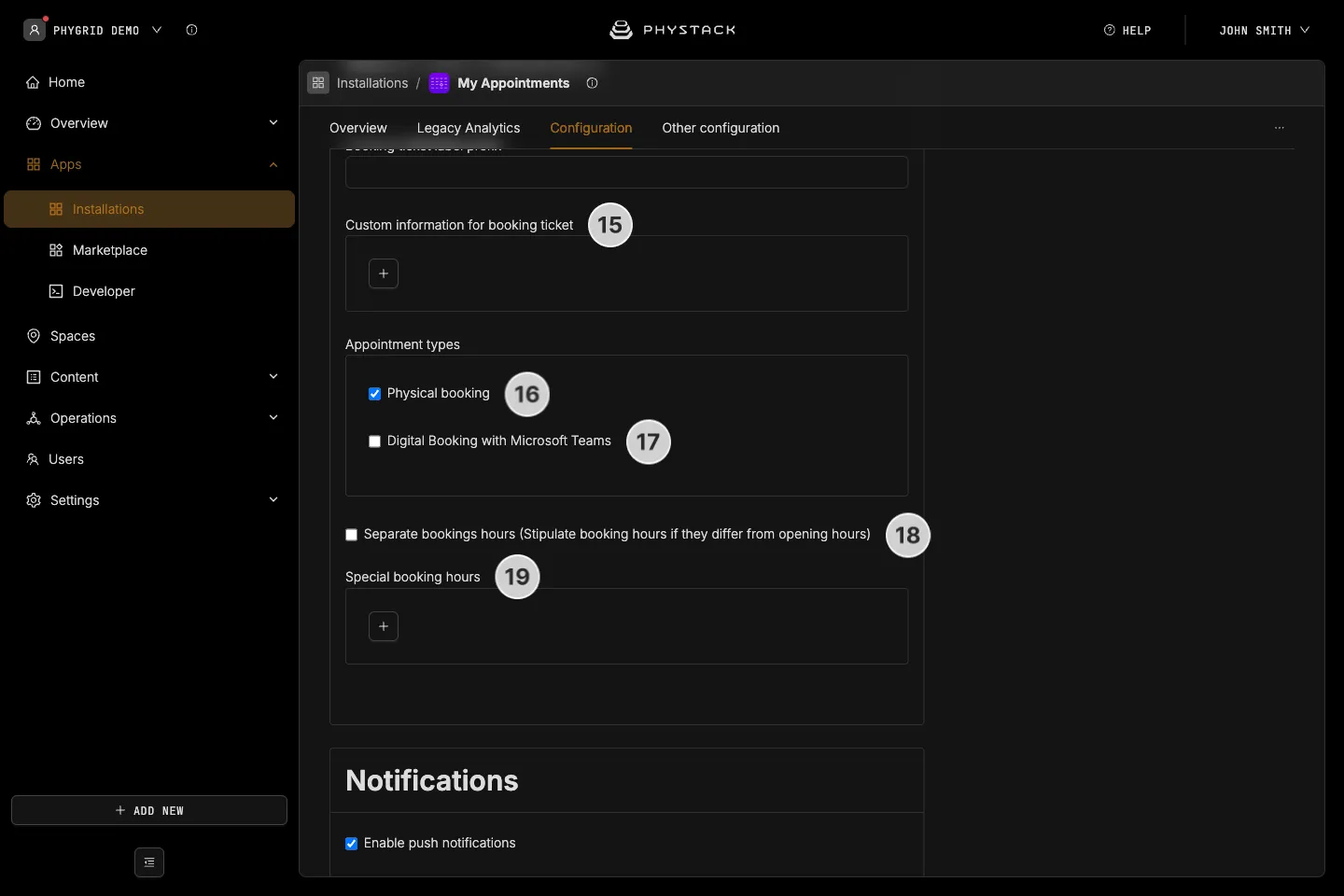
- Add custom field: Add custom information fields that will be attached to each booking ticket. Each field has an icon URL and a text value, useful for displaying additional location or service details on the ticket
- Physical booking: If selected, customers can book an in-person appointment at the location
- Digital booking with MS Teams: If selected, customers can book a virtual appointment conducted via Microsoft Teams
- Separate booking hours: If selected, booking availability uses its own schedule instead of the queue’s regular opening hours. When enabled, a weekly hour picker appears where you can define booking-specific hours per day, with adjustable capacity per time period
- Special booking hours: Define date-specific overrides for booking availability. Each entry has a date, a from and to time, and an optional capacity override. Use this for holidays, special events, or temporary schedule changes
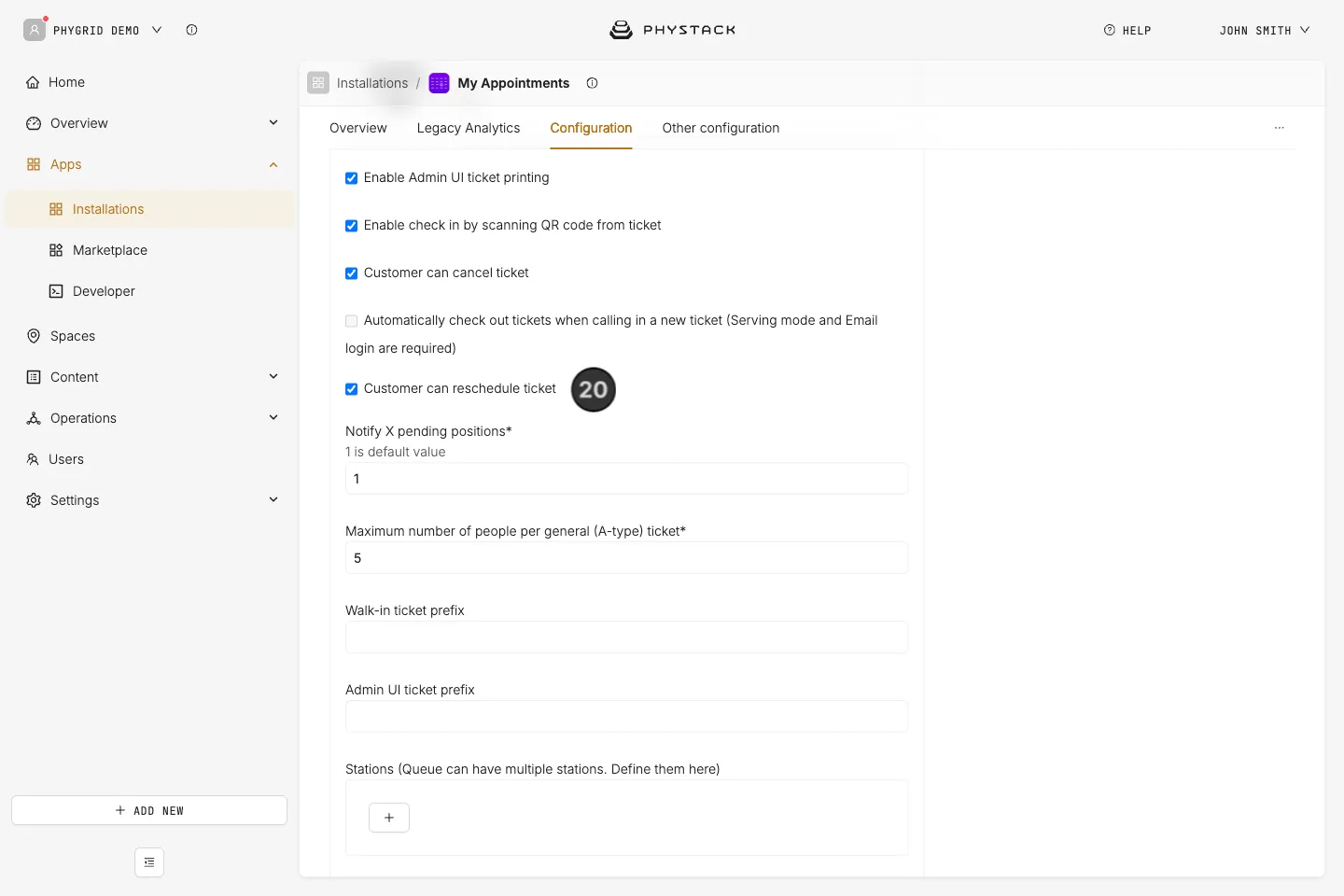
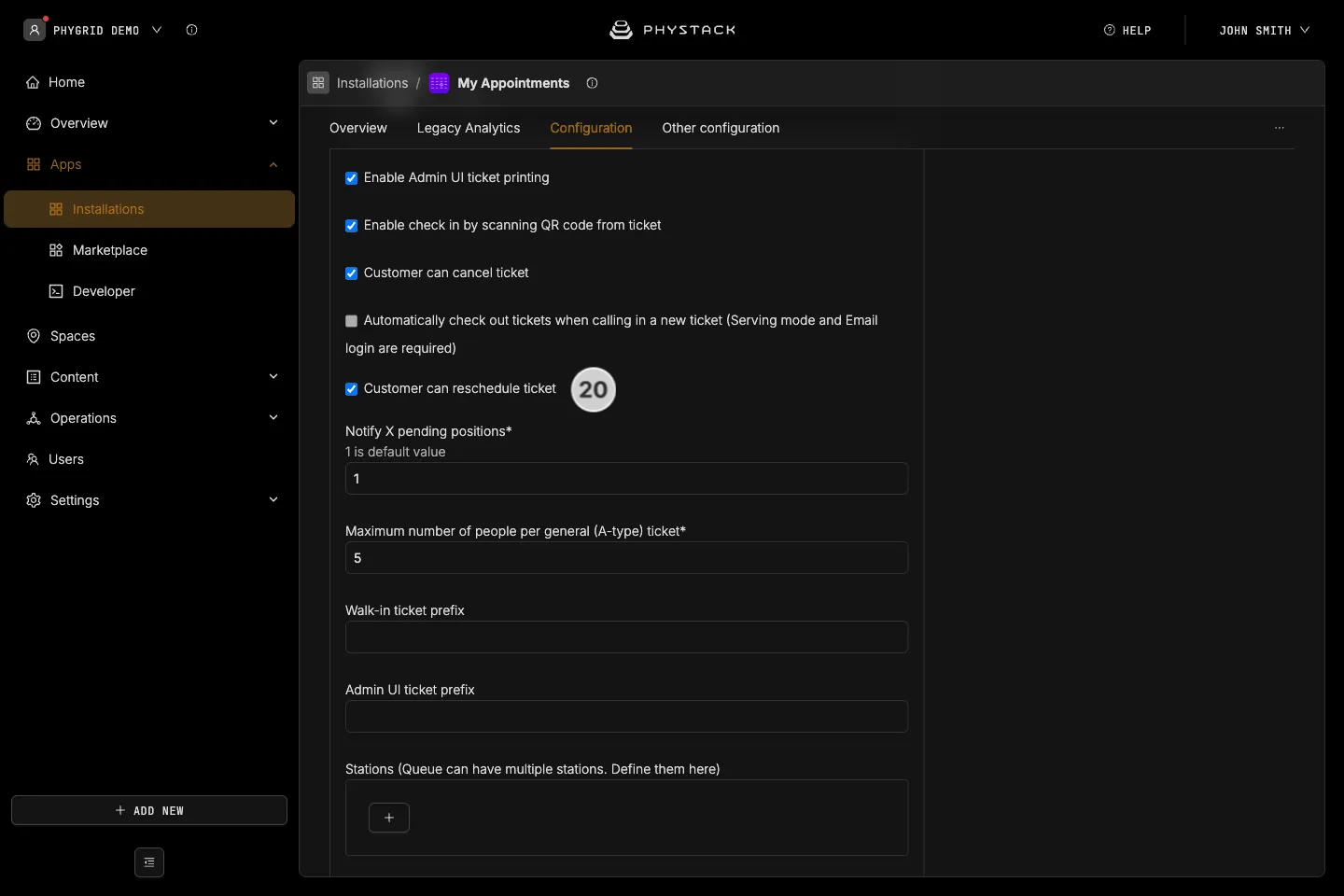
- Customer can reschedule ticket: Shown in the Customer walk-in ticket UI section on queues with booking enabled. If selected, walk-in customers can reschedule their ticket
Booking text customisation
The following text groups are added to the Text customization section:
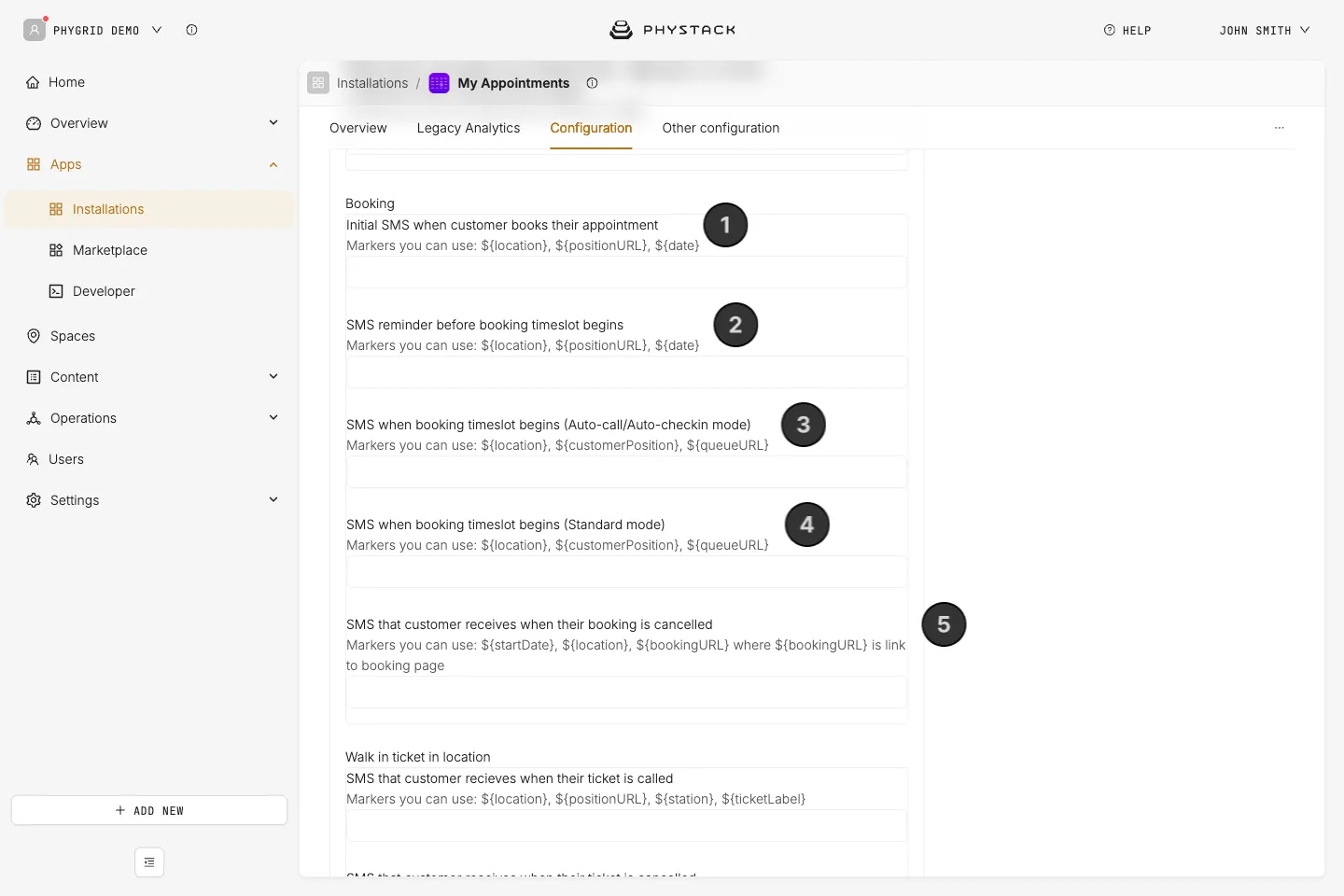
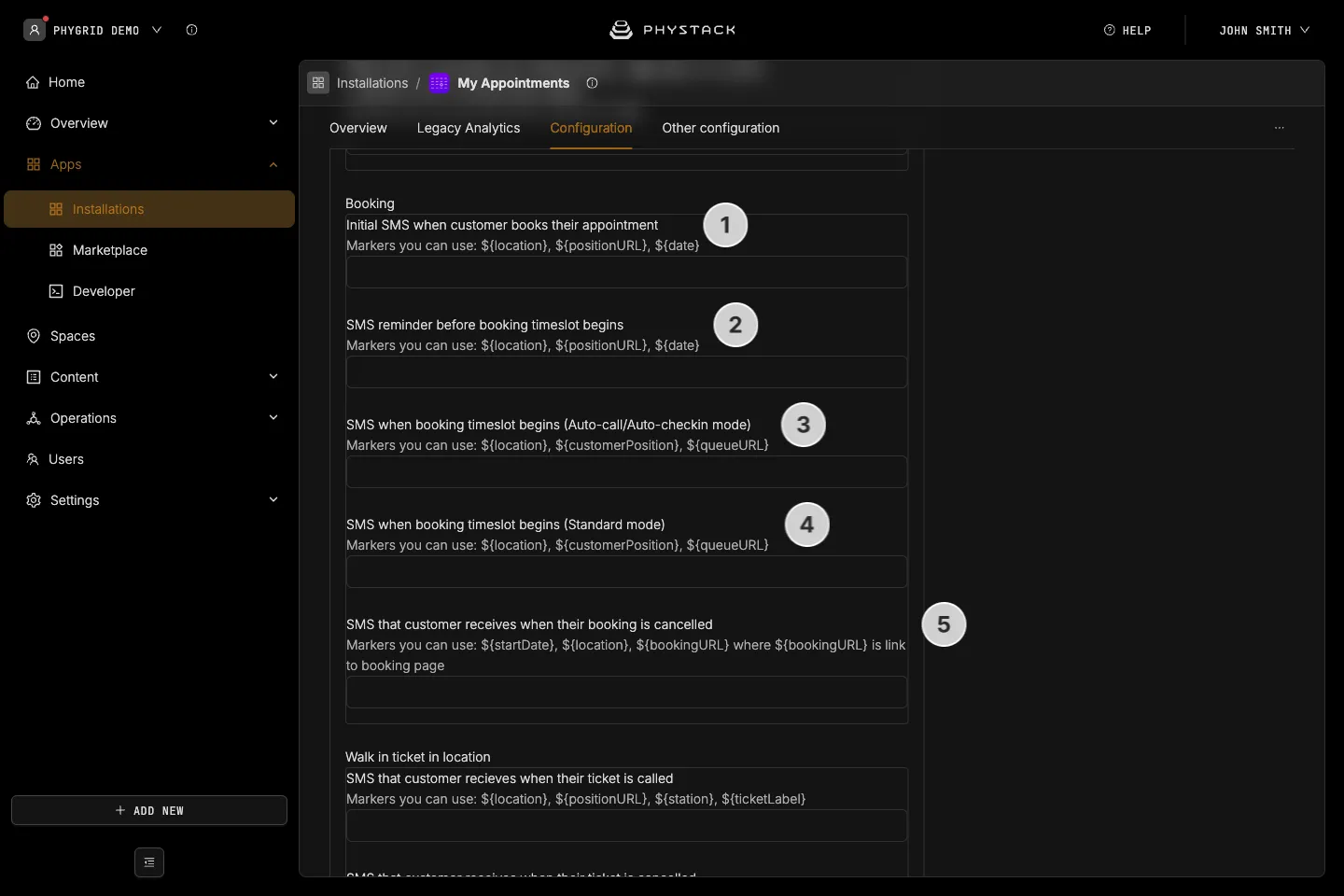
- Initial SMS when customer books their appointment: Sent immediately after a customer completes a booking. Available markers:
${location},${positionURL},${date} - SMS reminder before booking timeslot begins: Sent to the customer before their appointment starts, based on the booking reminder minutes setting. Available markers:
${location},${positionURL},${date} - SMS when booking timeslot begins (Auto-call/Auto-checkin mode): Sent when the timeslot starts and the queue is configured in auto-call or auto-checkin bookings mode. Available markers:
${location},${customerPosition},${queueURL} - SMS when booking timeslot begins (Standard mode): Sent when the timeslot starts and the queue uses the default bookings mode, prompting the customer to check in. Available markers:
${location},${customerPosition},${queueURL} - SMS that customer receives when their booking is cancelled: Sent when staff cancel a customer’s booking. Available markers:
${startDate},${location},${bookingURL}