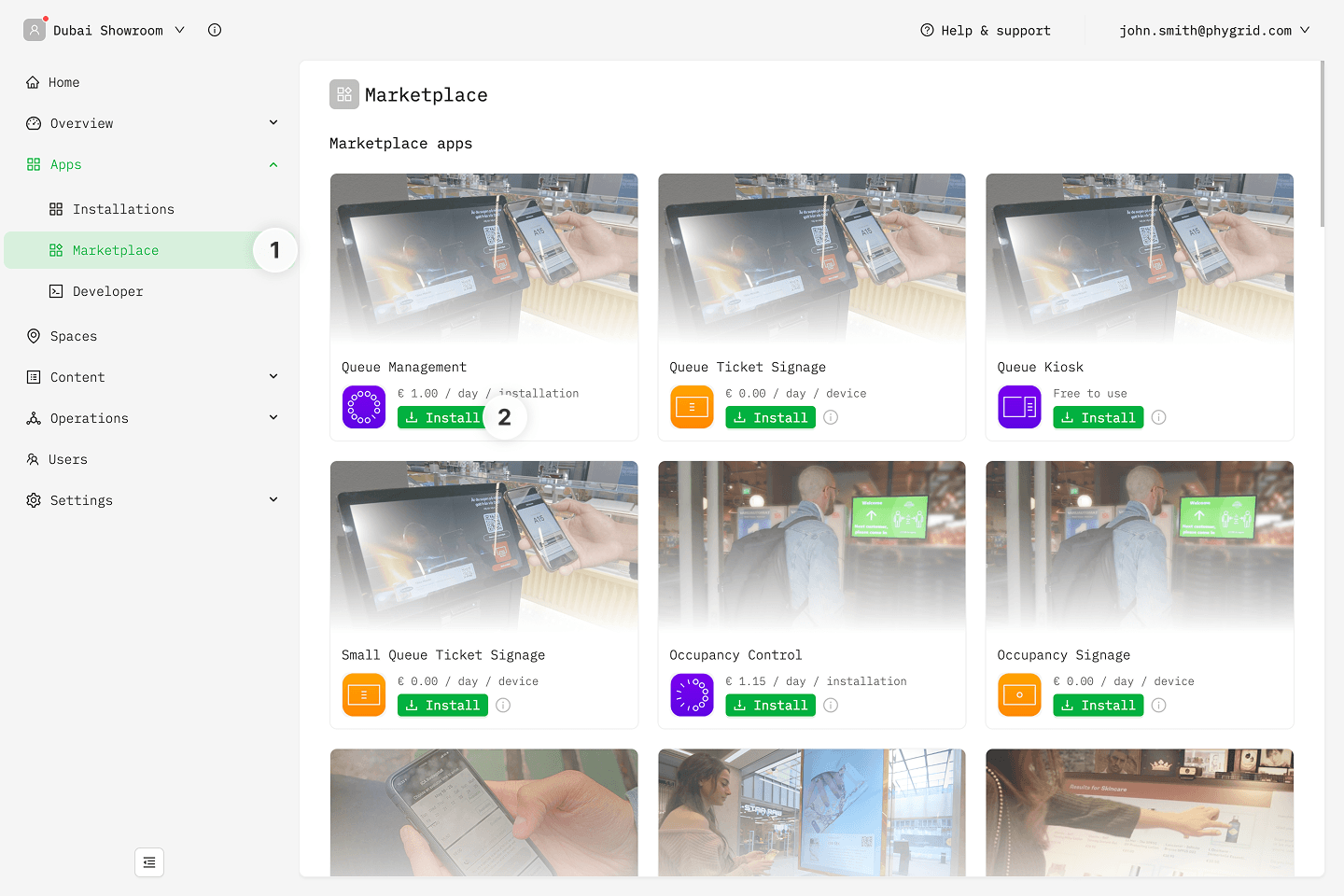
Look for Queue Management in the list of applications and click on the Install button to open the installation dialog
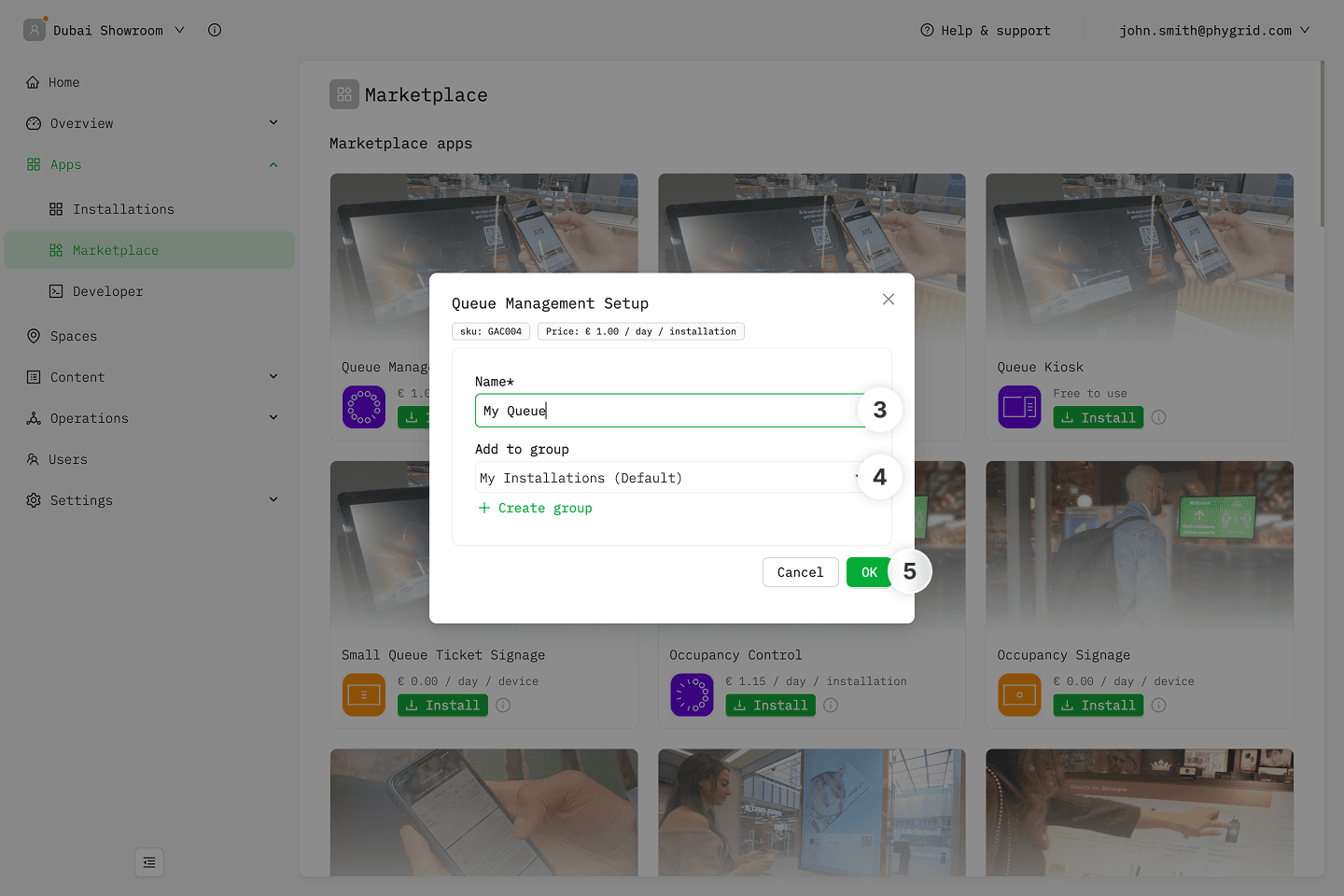
In the installation form, enter a Name for your Queue Management installation
Optionally, select a Group to organize your installations
Click OK to create the Queue Management installation
How to access queue settings
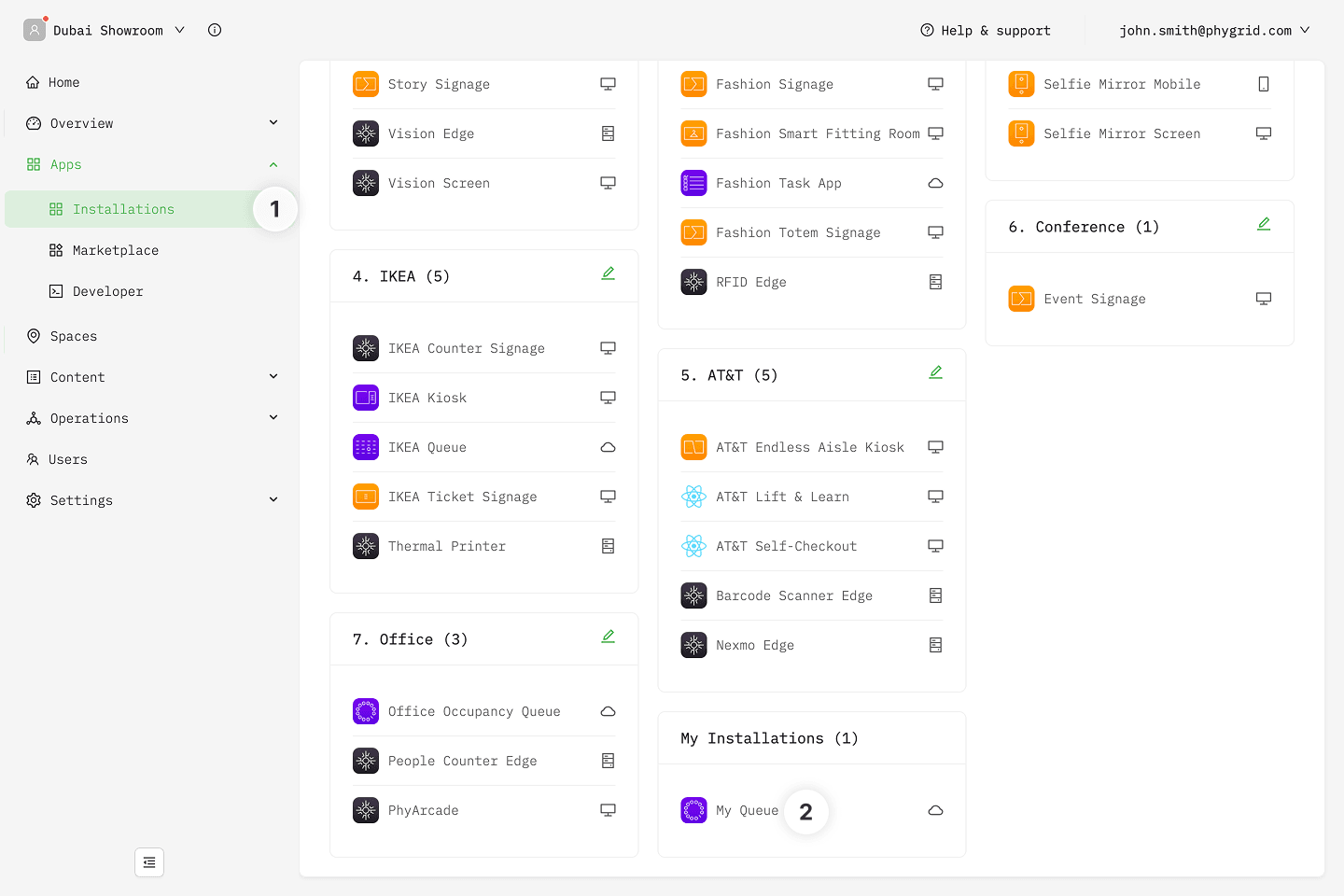
Your new installation will be available in the sidebar under Apps → Installations
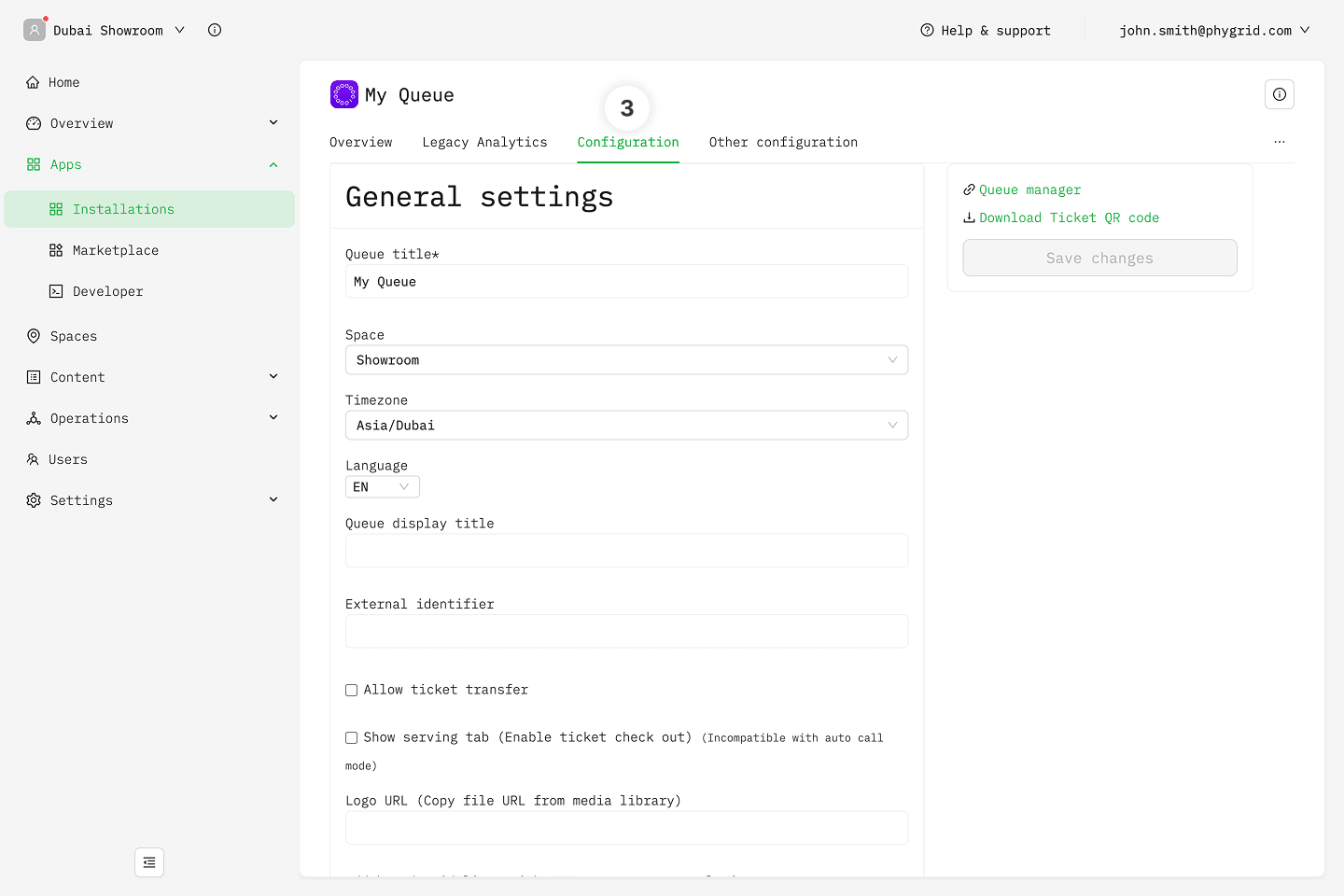
Open the installation and select the Configuration tab to access your queue's options
How to configure a basic queue
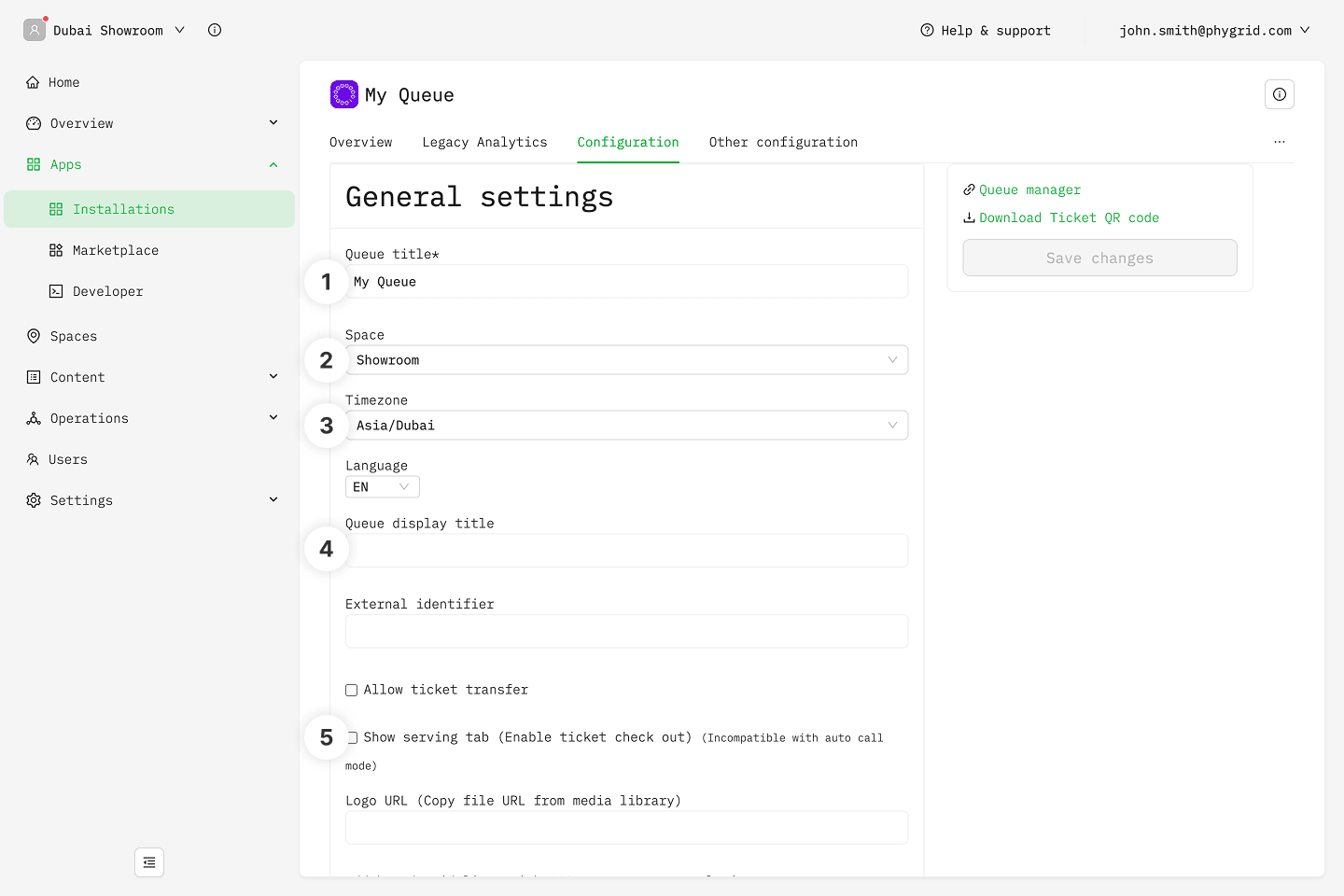
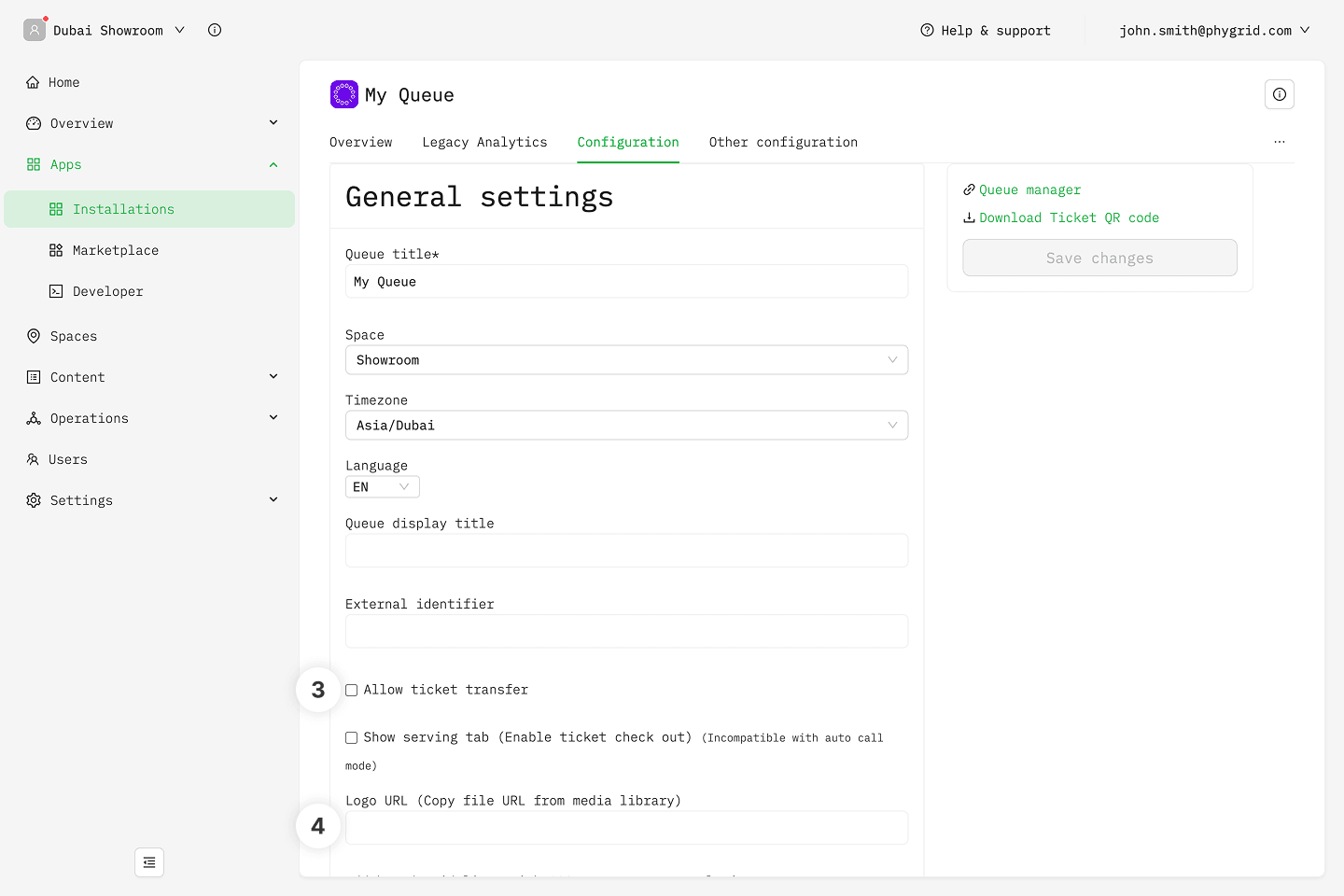
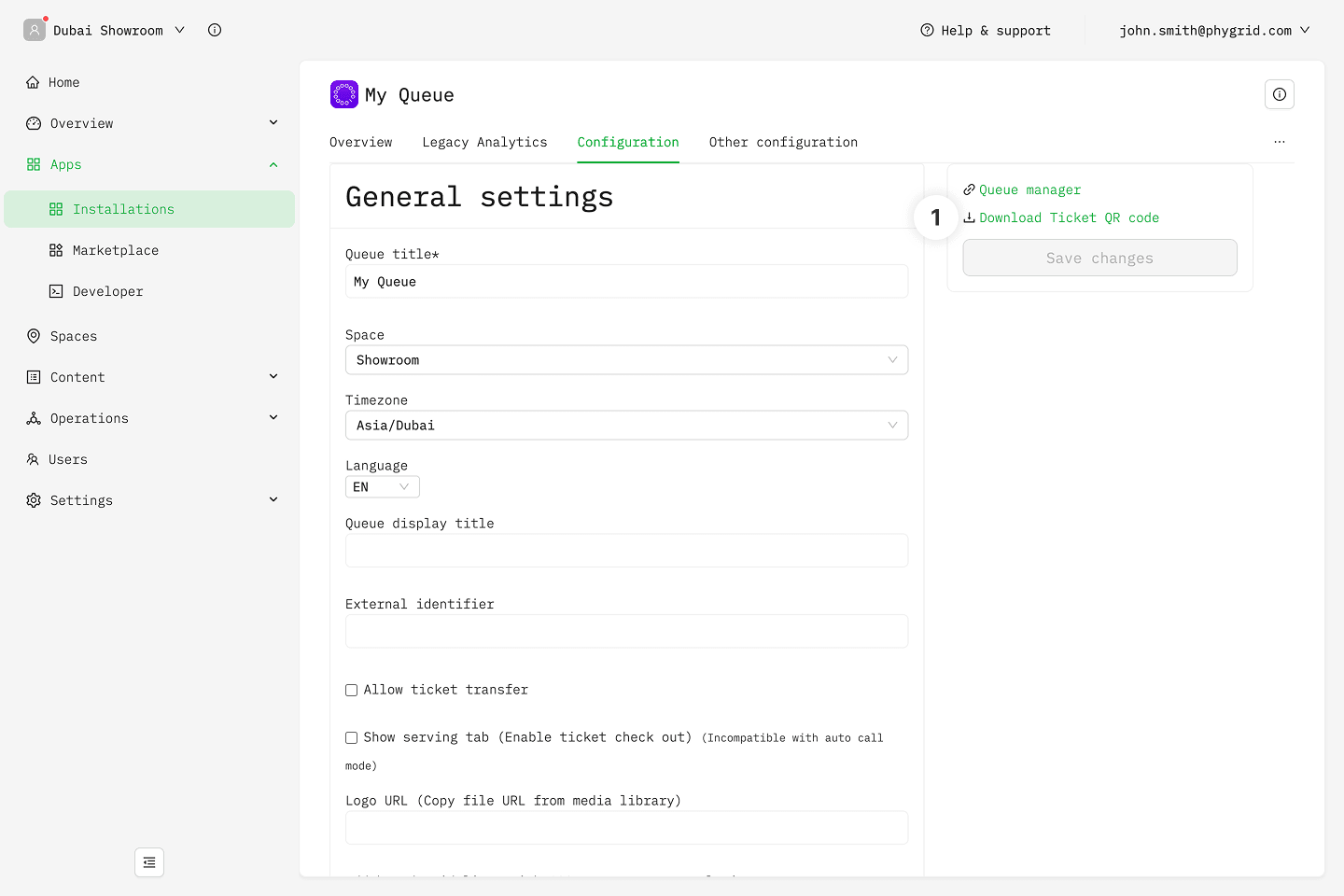
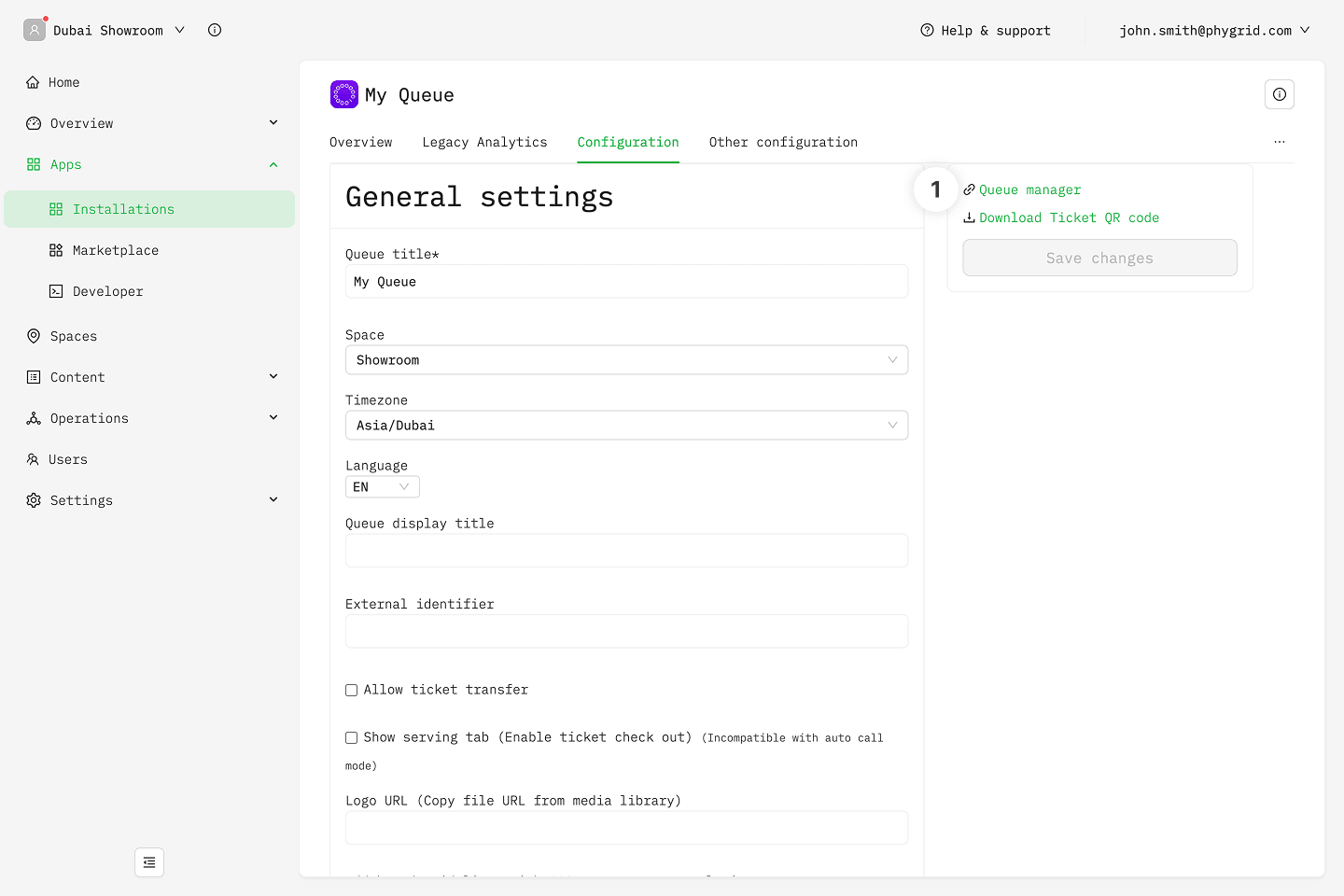
Set or change the installation name for the queue installation. This is the title visible in Apps → Installations
Set the Space for your queue. Setting the correct Space is important if you utilize multiple queues in one location (Space), because it will aggregate analytics properly for the entire location, in addition to the each individual queue.
Set the correct timezone for the queue's location
Set the Queue Display Title - this title will be visible for staff in the Queue Manager, and for your visitors on their tickets. You can adjust the Queue Display Title for each supported language.
For service and time-sensitive related operations, you can track the exact time it took for the visitor to complete their visit. Enable Show the serving tab option, and you can control the full customer journey, from walk-in, to check-out
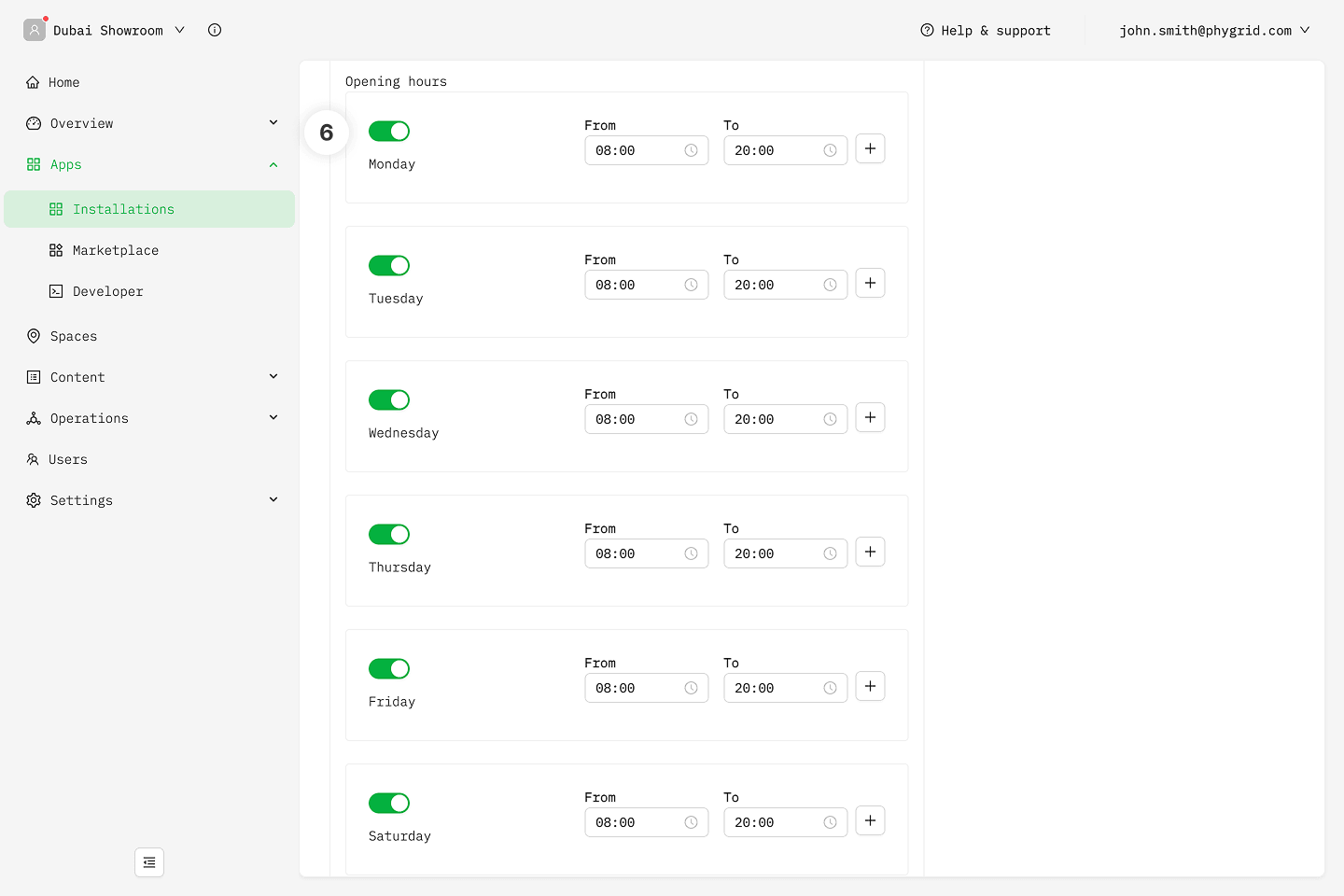
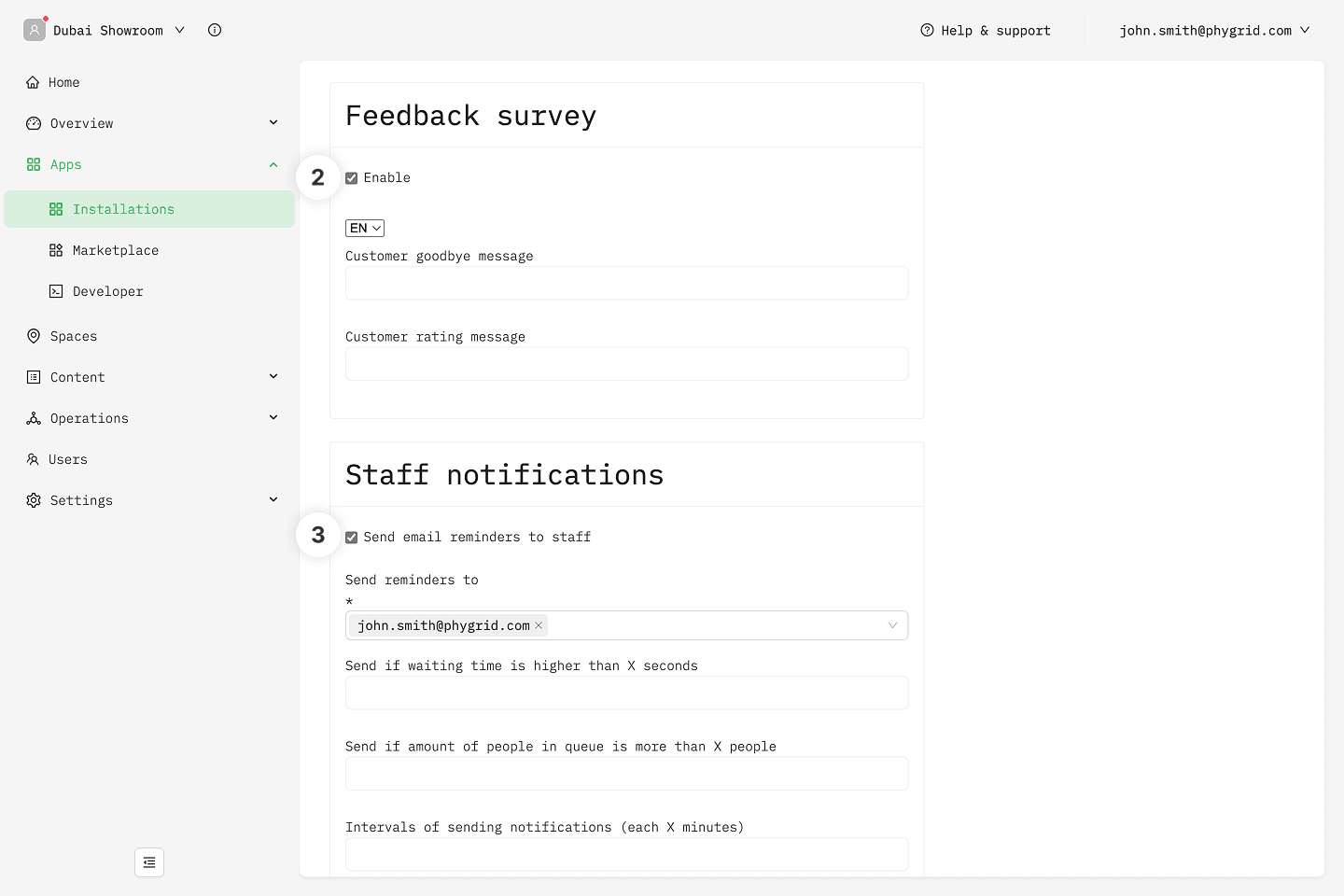
Set the working hours for your location. This is not the same as settings the queue's open hours. Queue's open/close status is managed manually through the Queue Manager. Working hours enable displaying proper waiting times for early visitors.
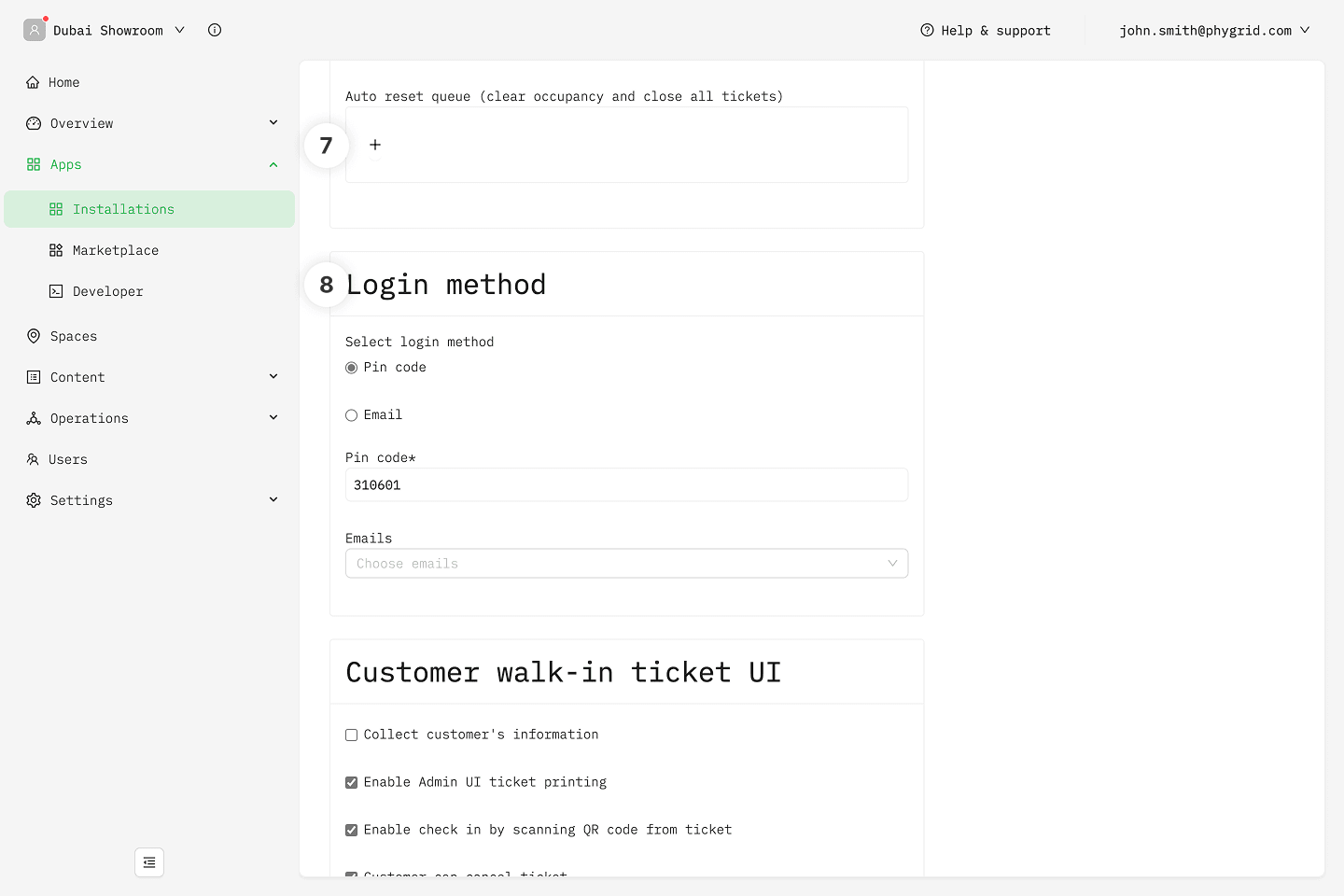
If you don't want to have tickets from previous days showing up in the Queue Manager, enable the Auto reset queue option and set an hour (recommended outside of working hours) when the queue will clear occupancy and close all tickets
Set the login method that the staff will use to access the Queue Manager
Pin code doesn't require any additional set up, and you can start using the Queue immediately
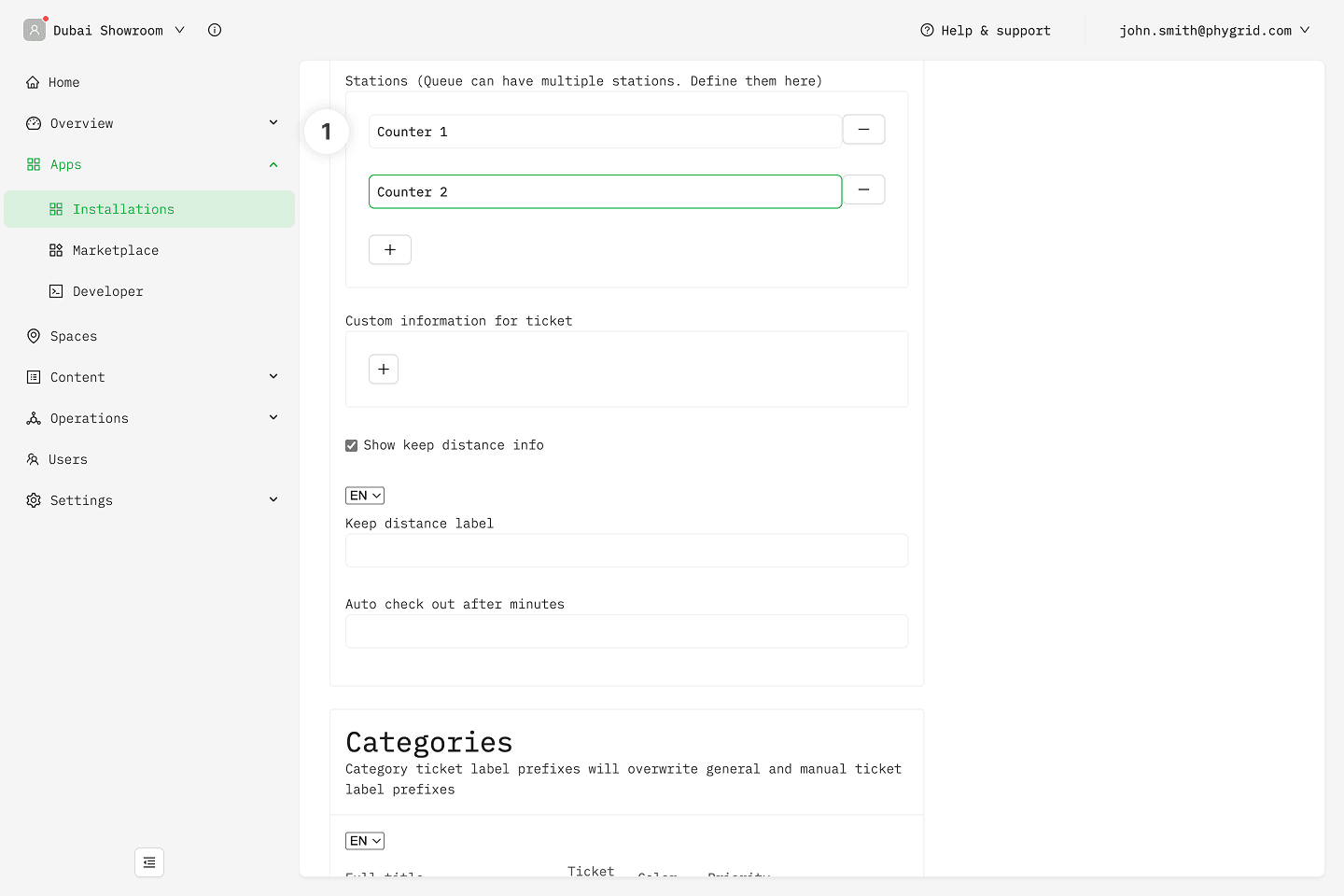
Enable Stations to guide the user to the exact location (counter, desk, office) they need to go to
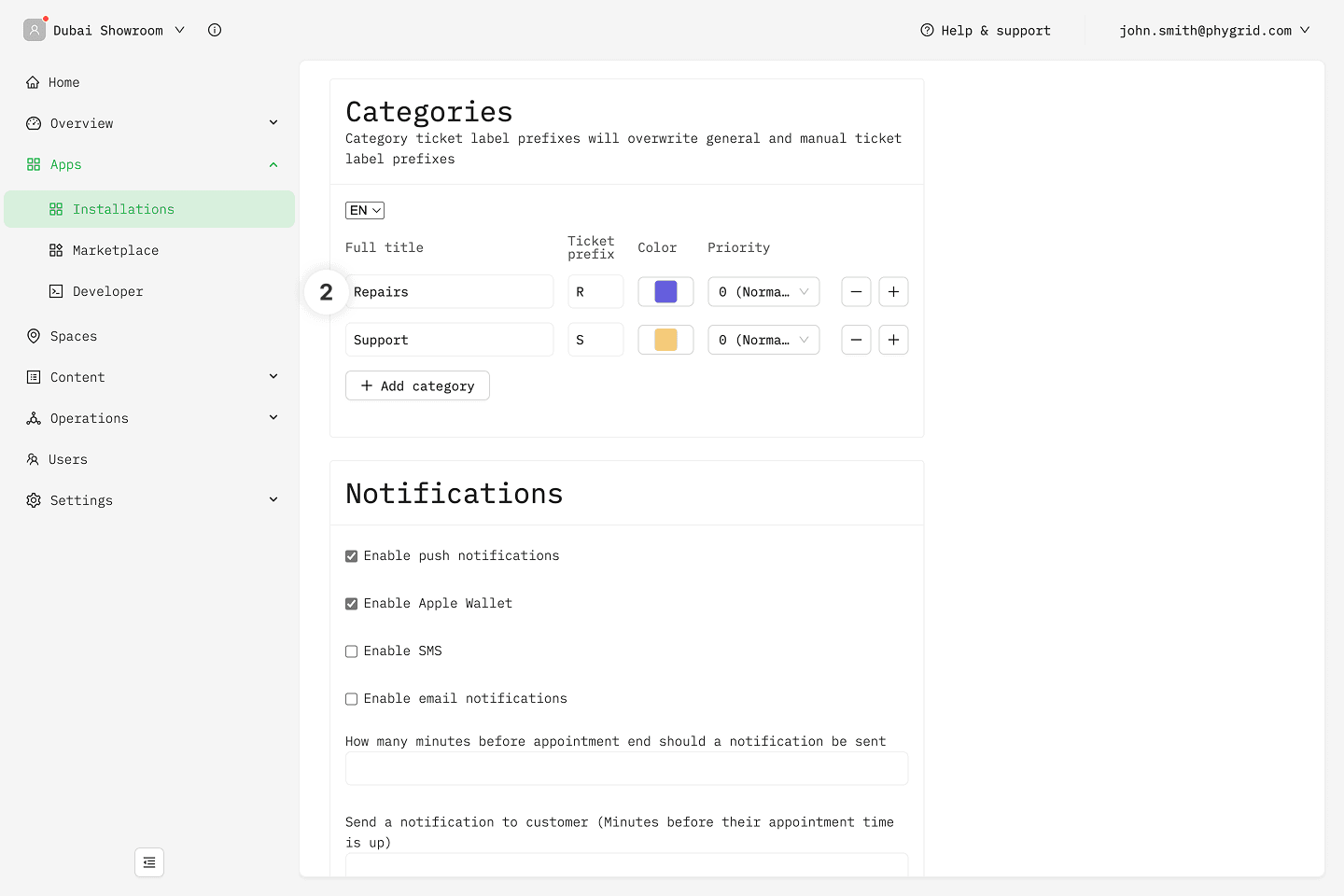
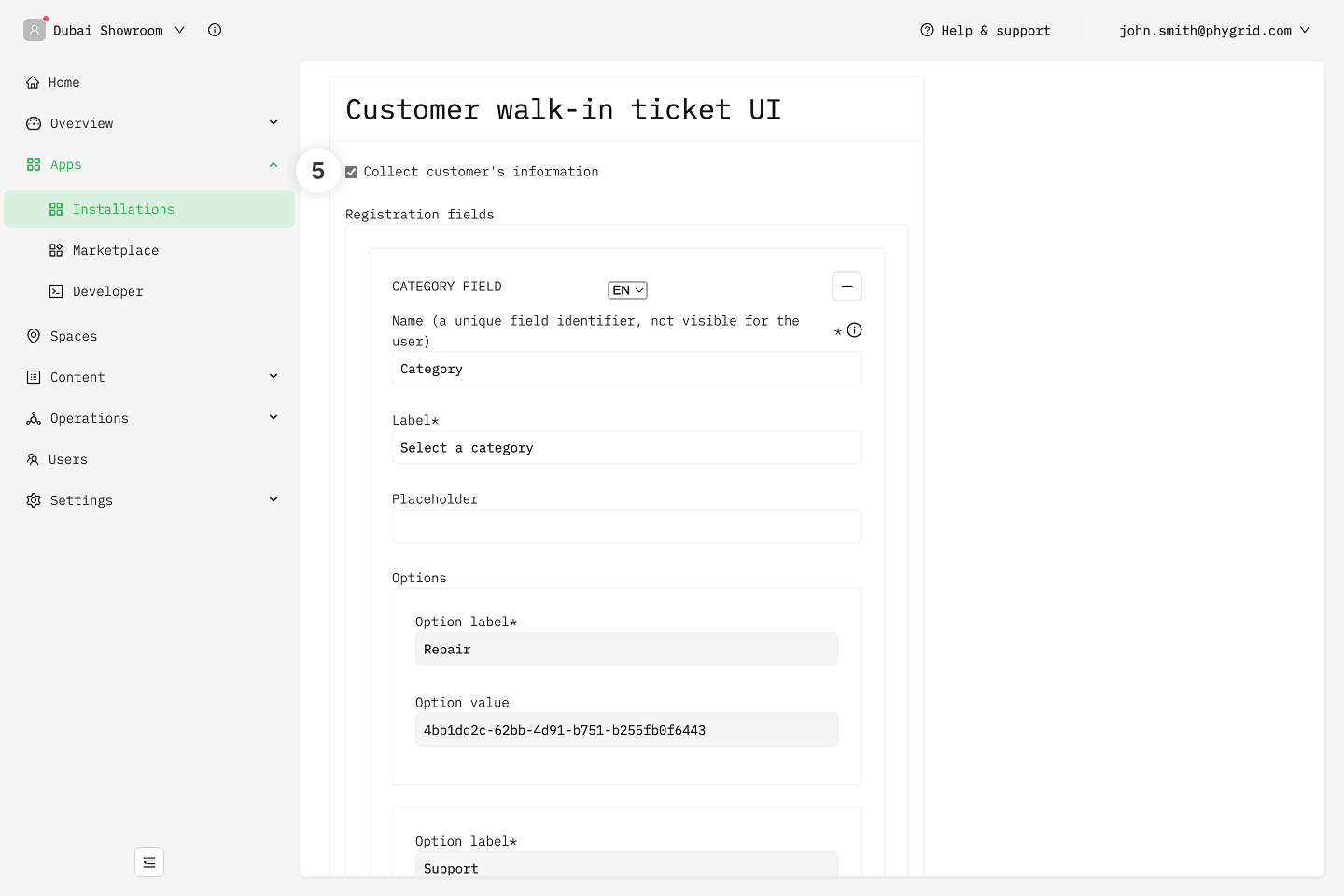
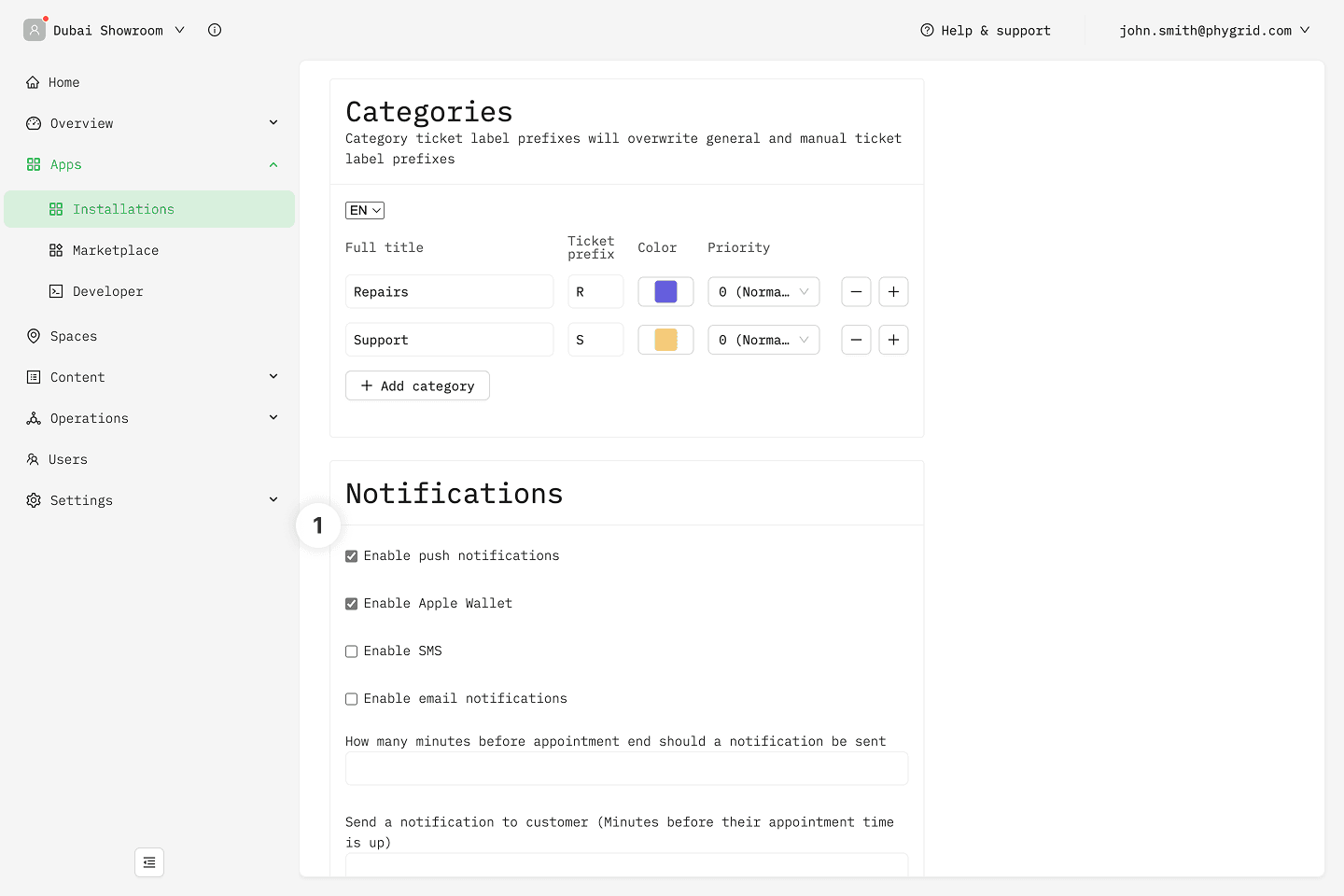
Enable Categories to make your services better organized and easier to access
Allow ticket transfer gives you the option to transfer one ticket from one station to another, from one category to another, and even from one queue to another queue, if you have multiple Queue Management installations set up in the same tenant