Before you start, create the categories the product belongs to. See Create a category.
How to create a product
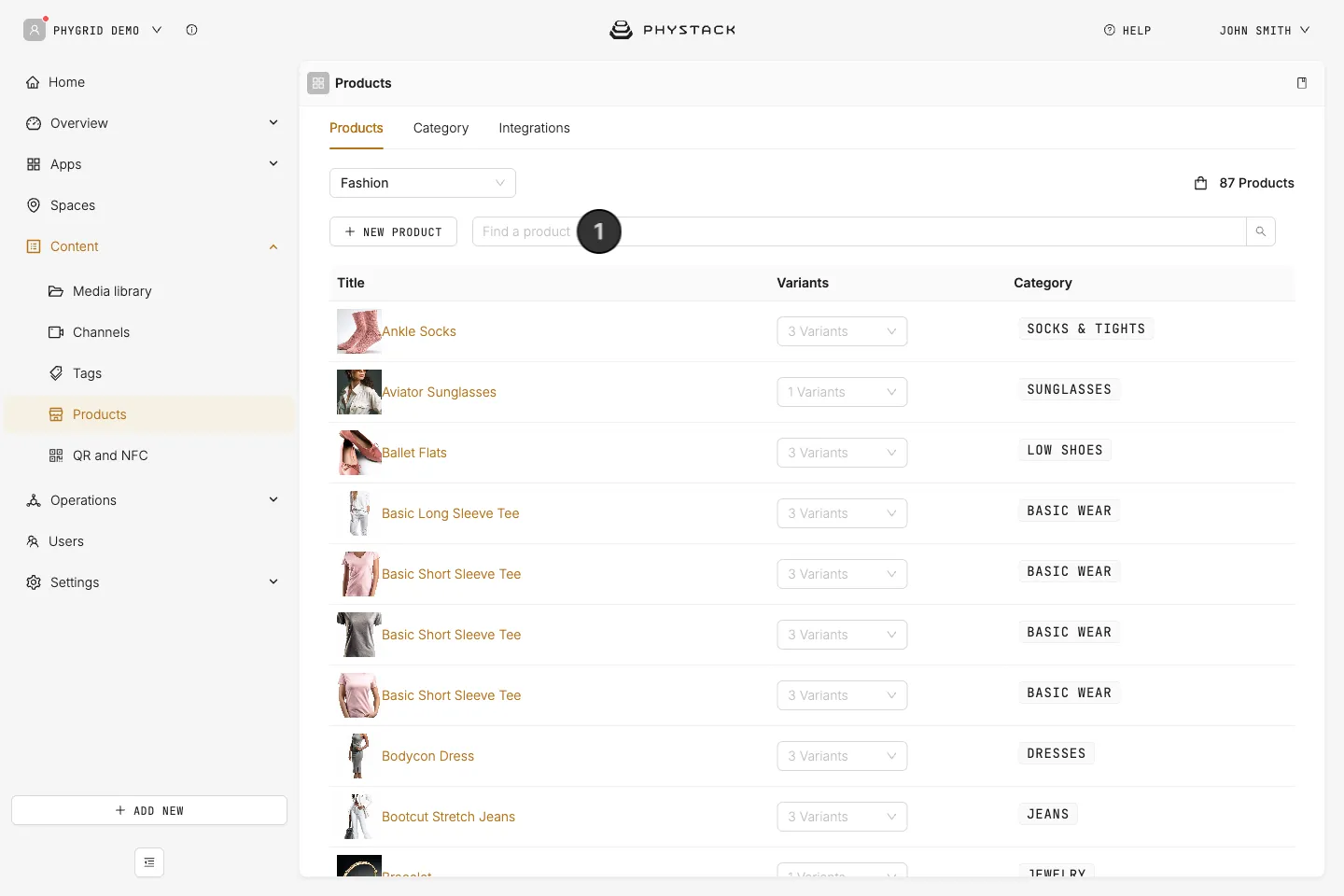
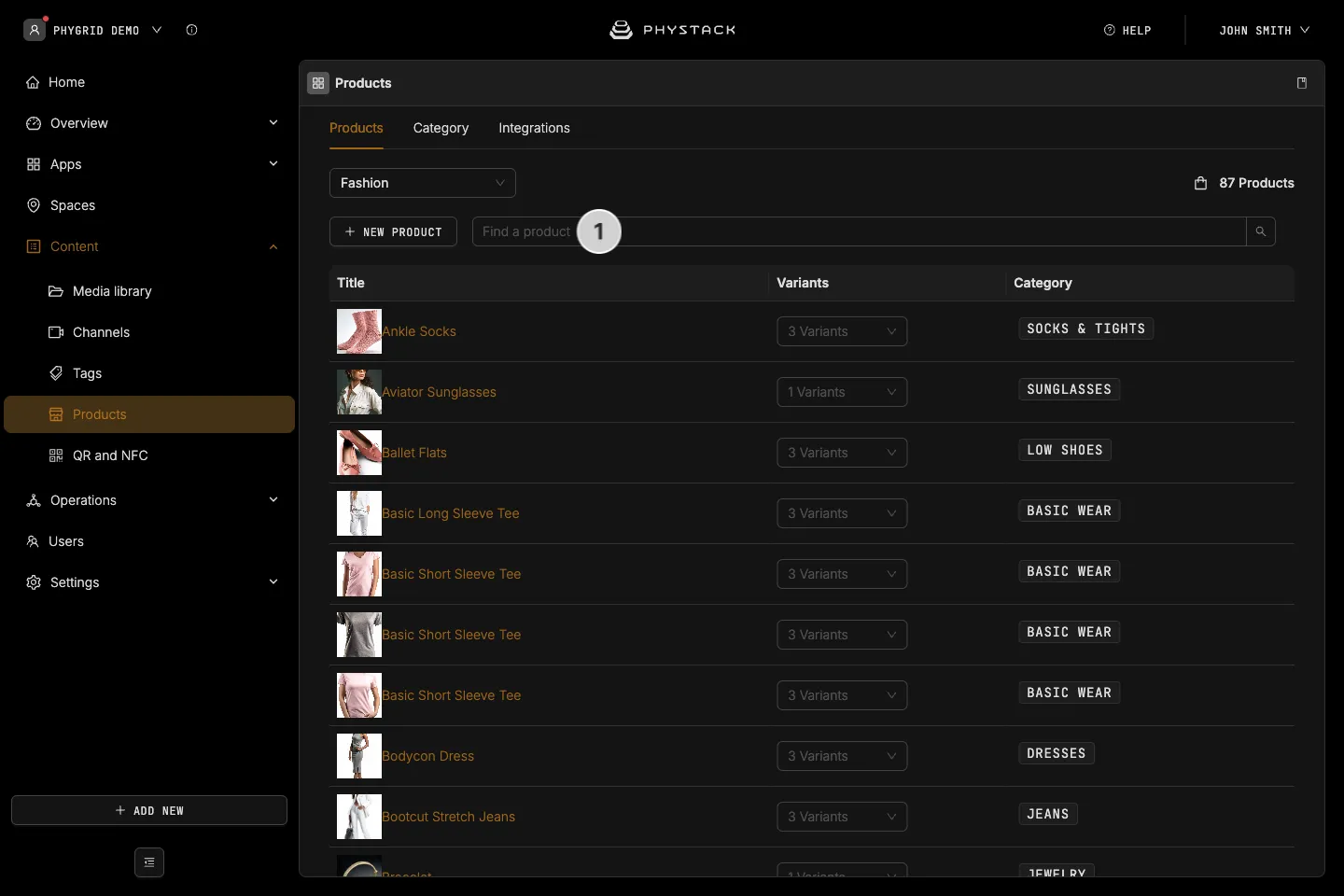
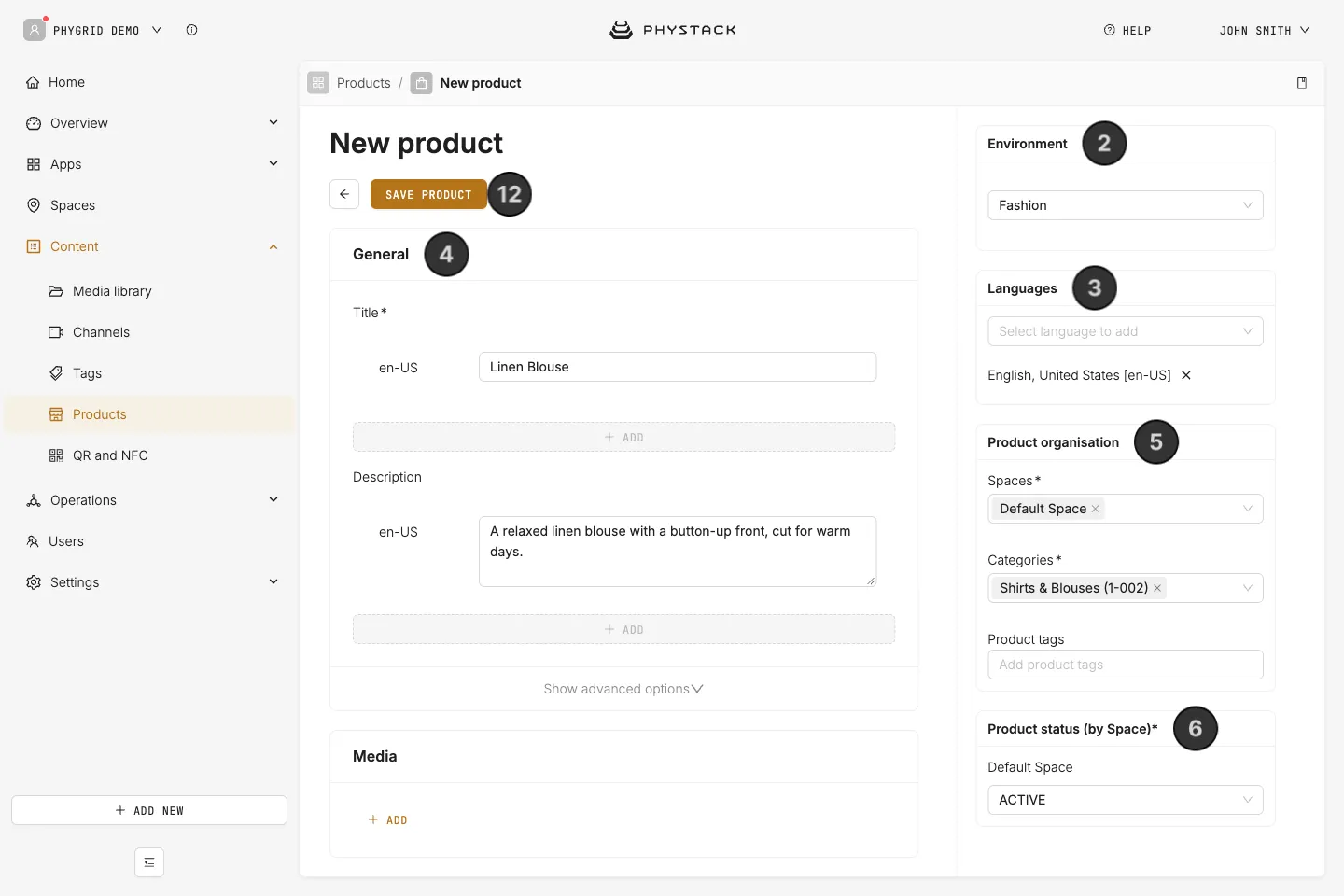
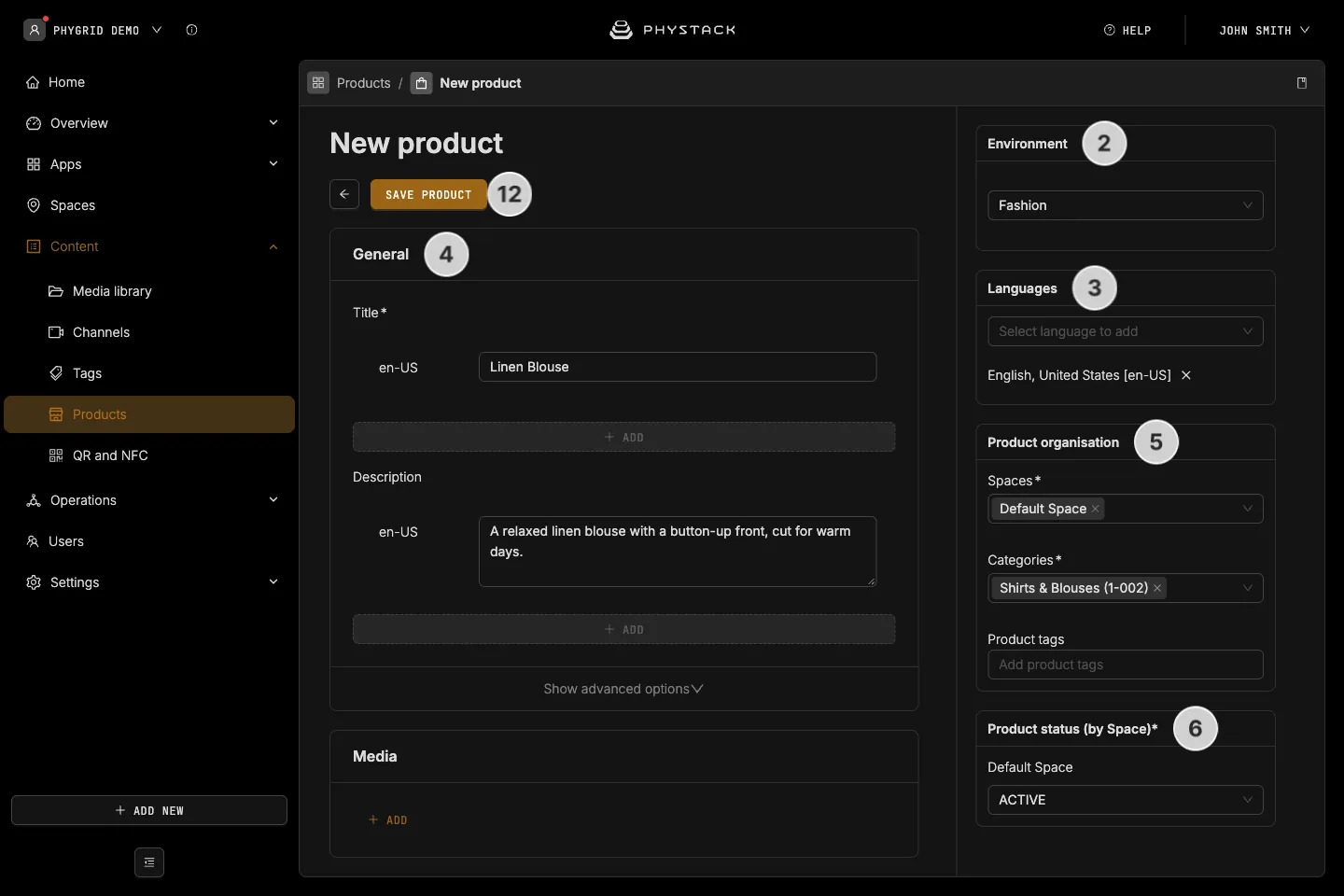
- In the PhyGrid Console, go to Content → Products and click New product
- Under Environment, choose the product’s environment. You can’t change it after saving
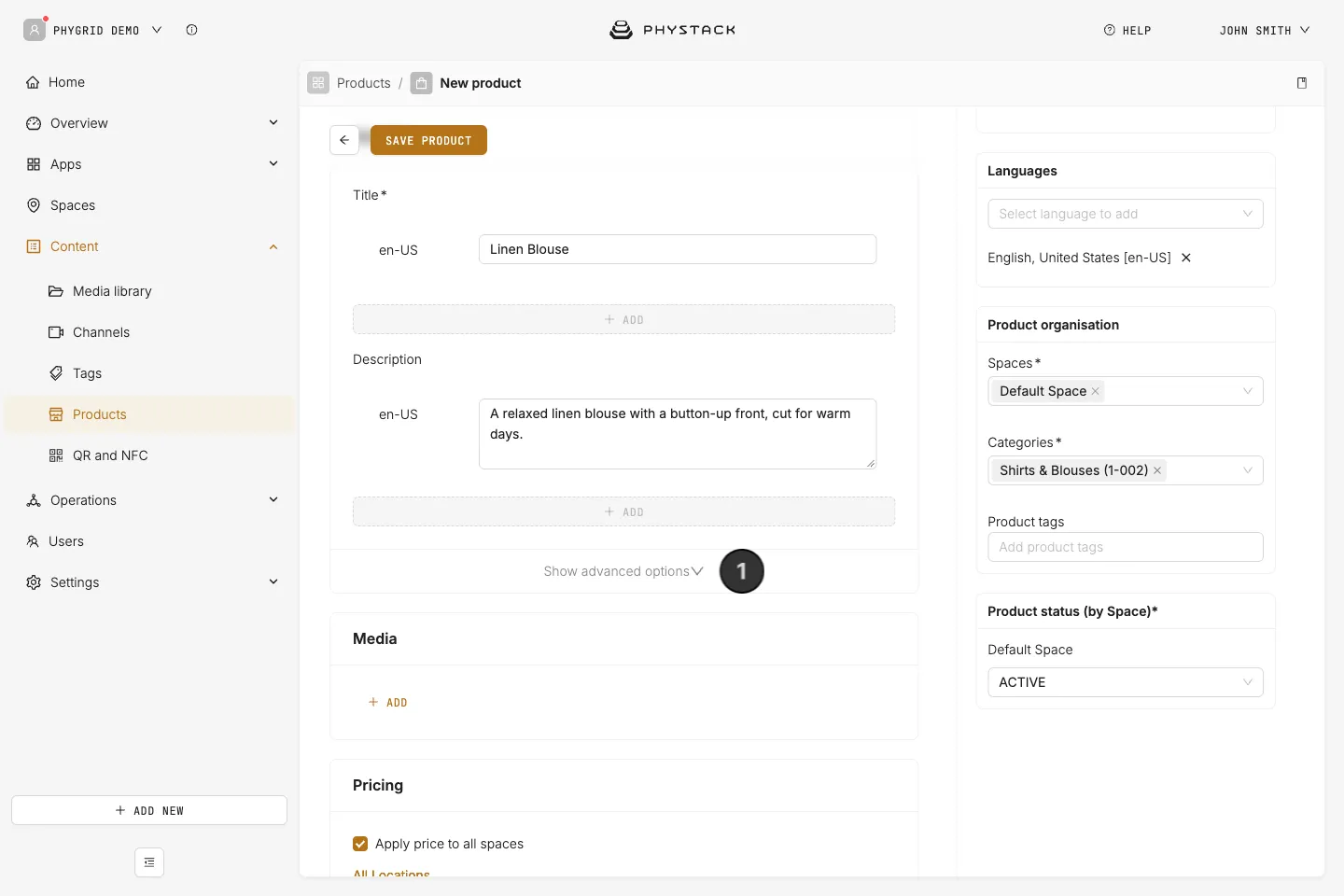
- Under Languages, add each language from Select language to add. Every language gets its own text fields
- Under General, enter the Title and Description in each language
- Under Product organisation, choose the Spaces and Categories. Optionally, add Product tags
- Under Product status (by Space), check the status for each space. New spaces start as ACTIVE
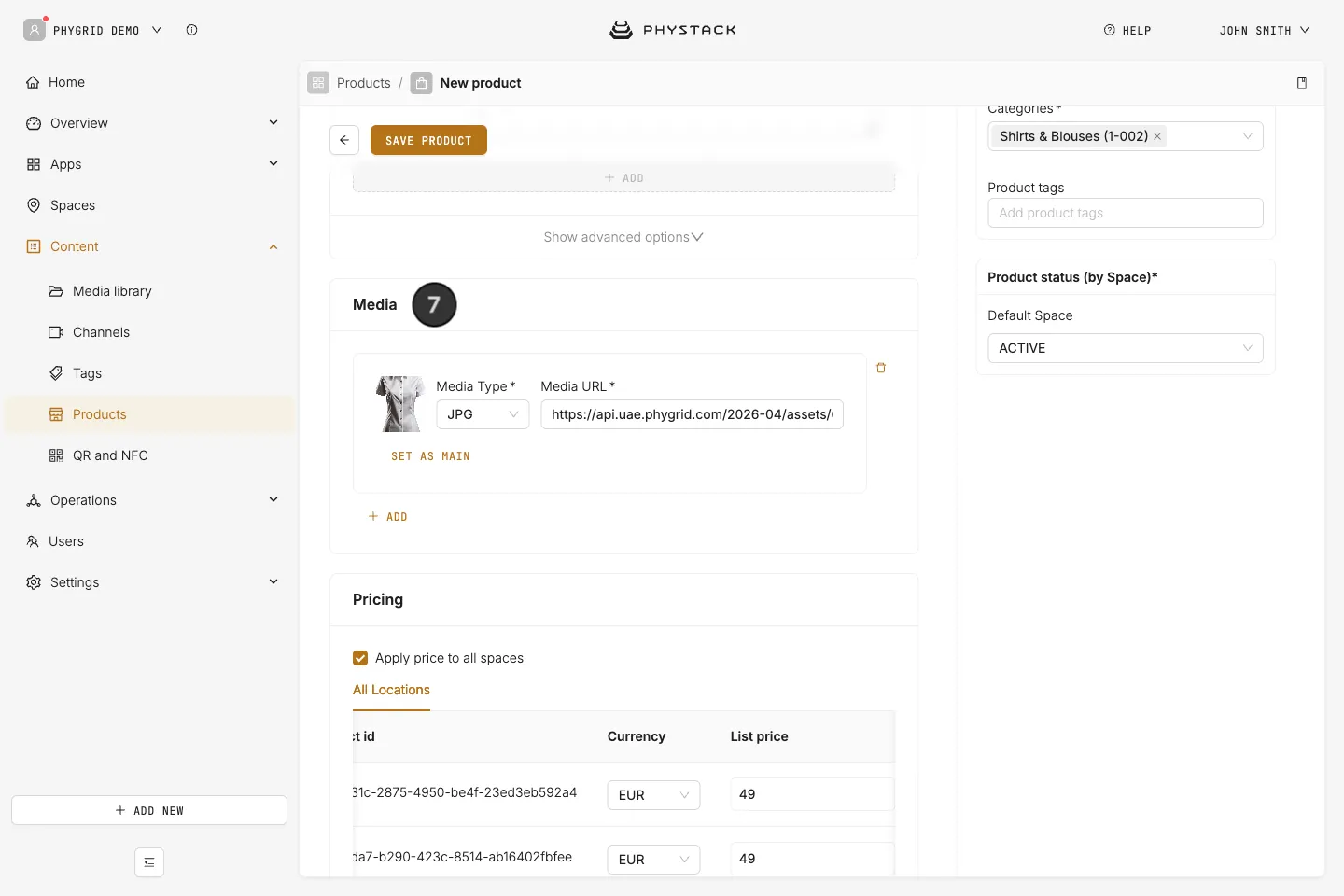
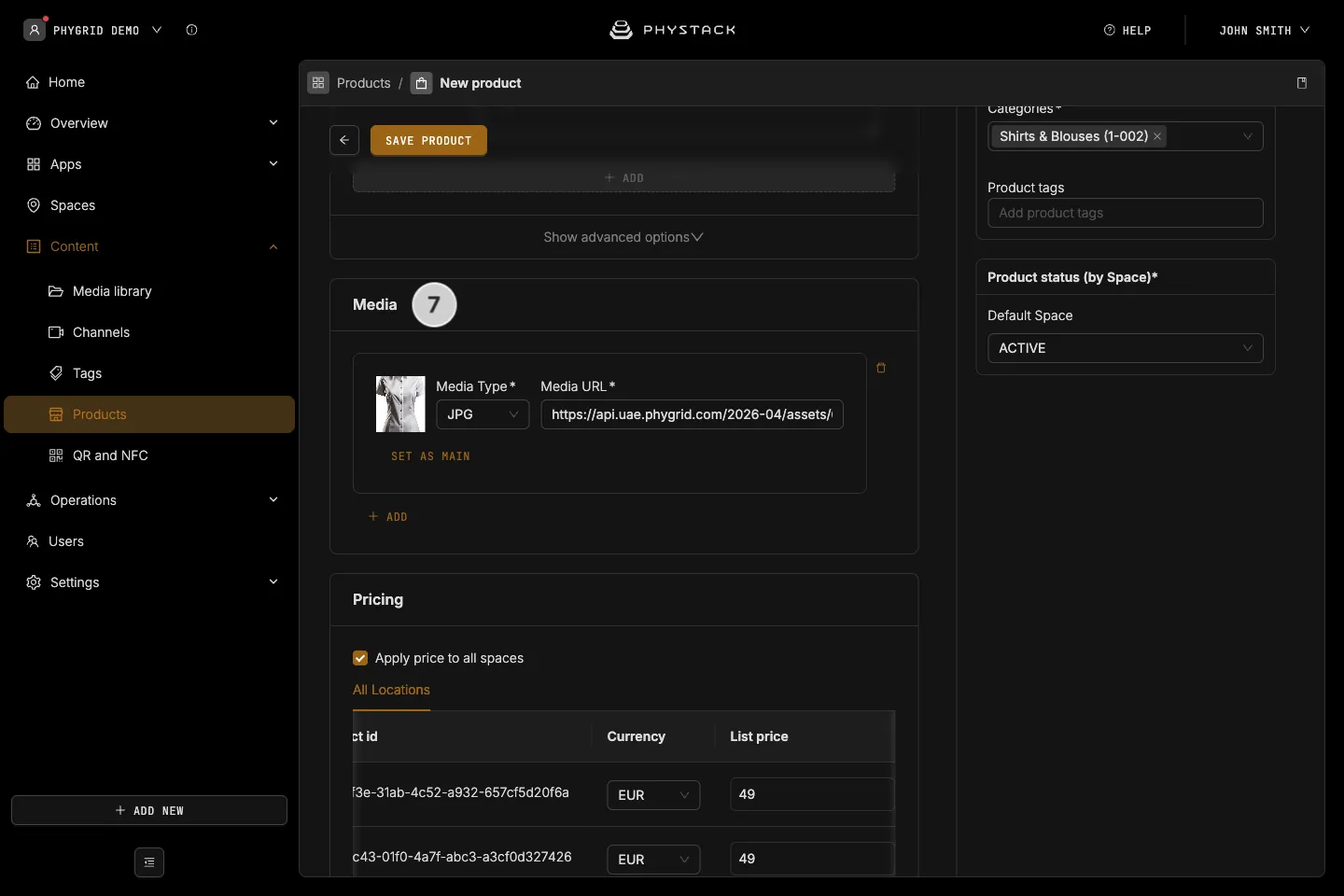
- Under Media, click Add, choose the Media Type and paste the Media URL. The main image is used on product cards. Click Set as main to change it
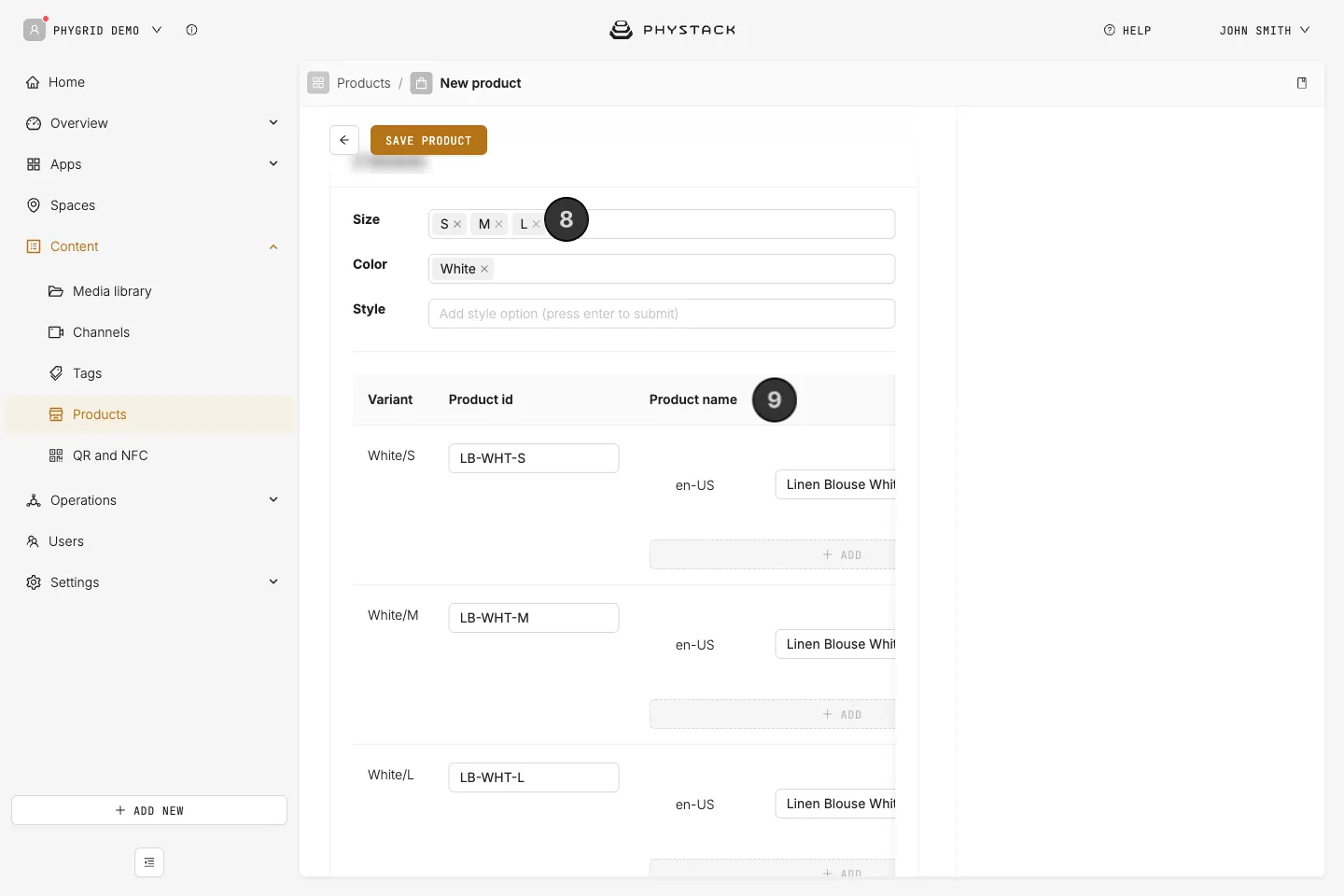
- Under Variants, type each option in Size, Color or Style and press Enter. Every combination becomes a variant
- In the variants table, enter each variant’s Product id and Product name. Optionally, add:
- Product Link: the product’s web shop address, used for QR codes
- EAN, GTIN or UPC: the barcodes, needed for scanning. Press Enter after each one
- Color RGB (e.g. #000): the colour shown in variant previews
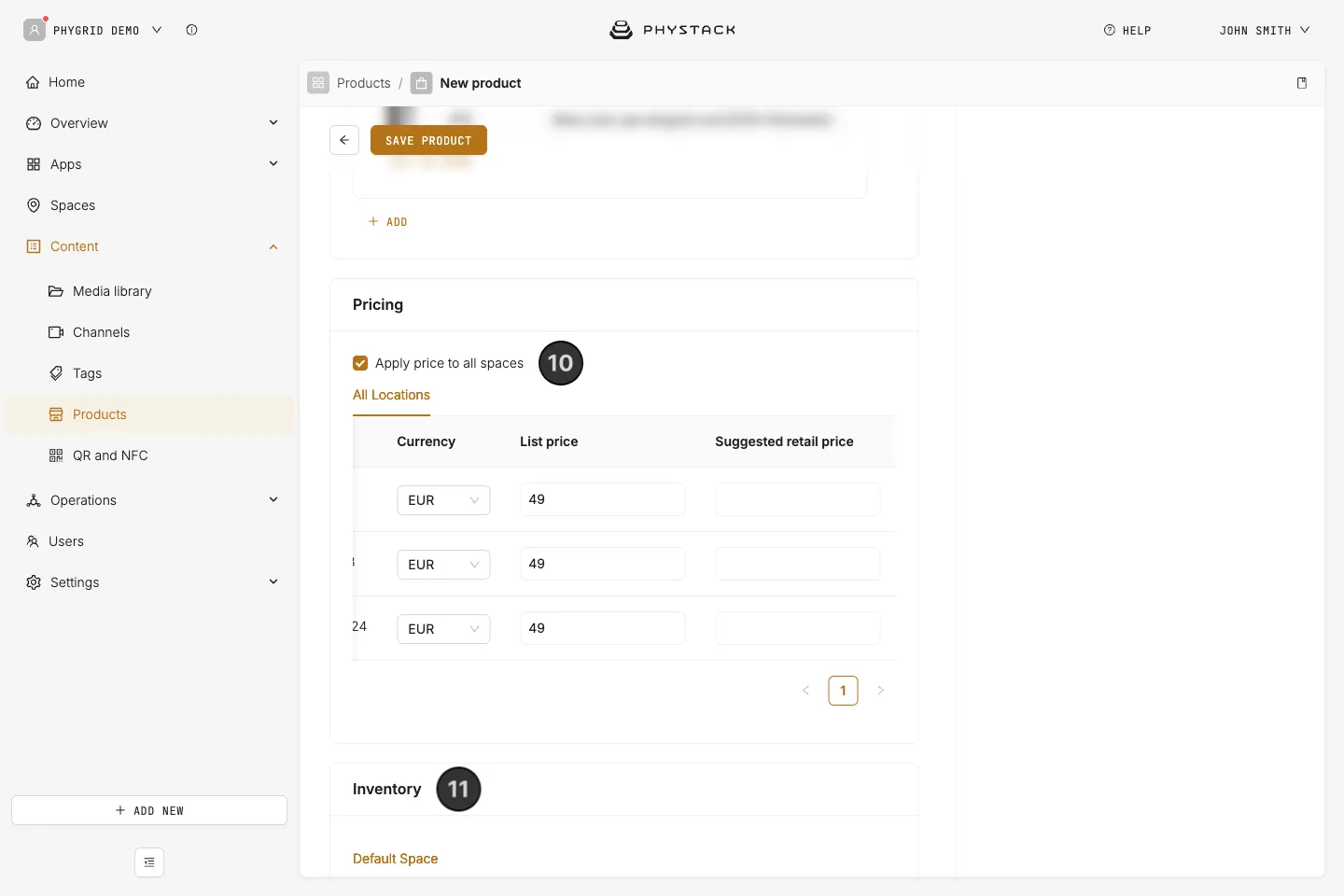
- Under Pricing, set the Currency, List price and, optionally, Suggested retail price for each variant:
- Keep Apply price to all spaces on to use the same prices everywhere
- Turn it off to set prices on each space’s tab
- Under Inventory, enter the Qty of each variant on each space’s tab
- Click Save product
The Console goes back to the product list.
How to add labels and product features
Some solutions use more product details, such as labels for stickers and product features for filters on Endless Aisle.
- Under General, click Show advanced options
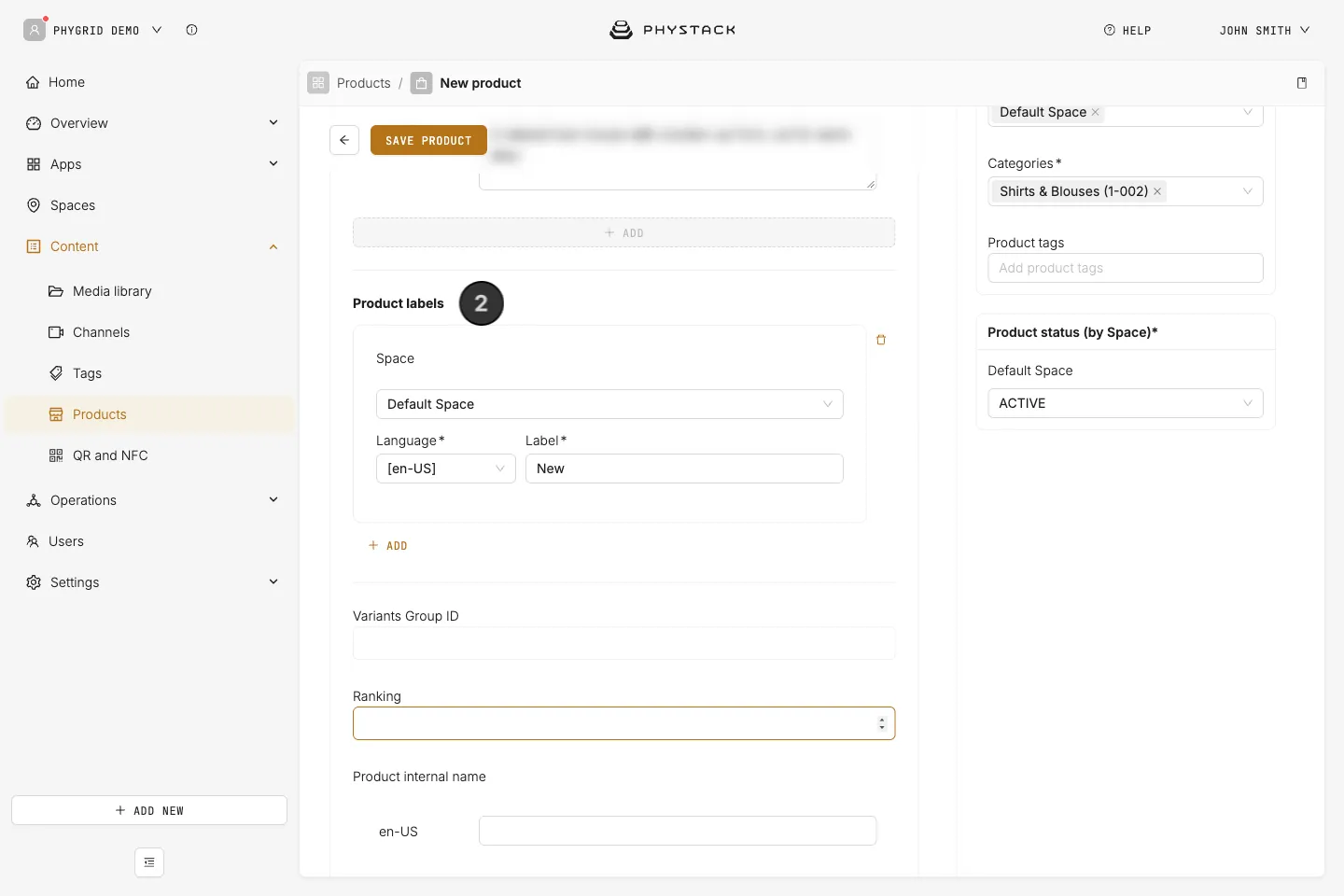
- Under Product labels, click Add and choose the Space and Language, then enter the label
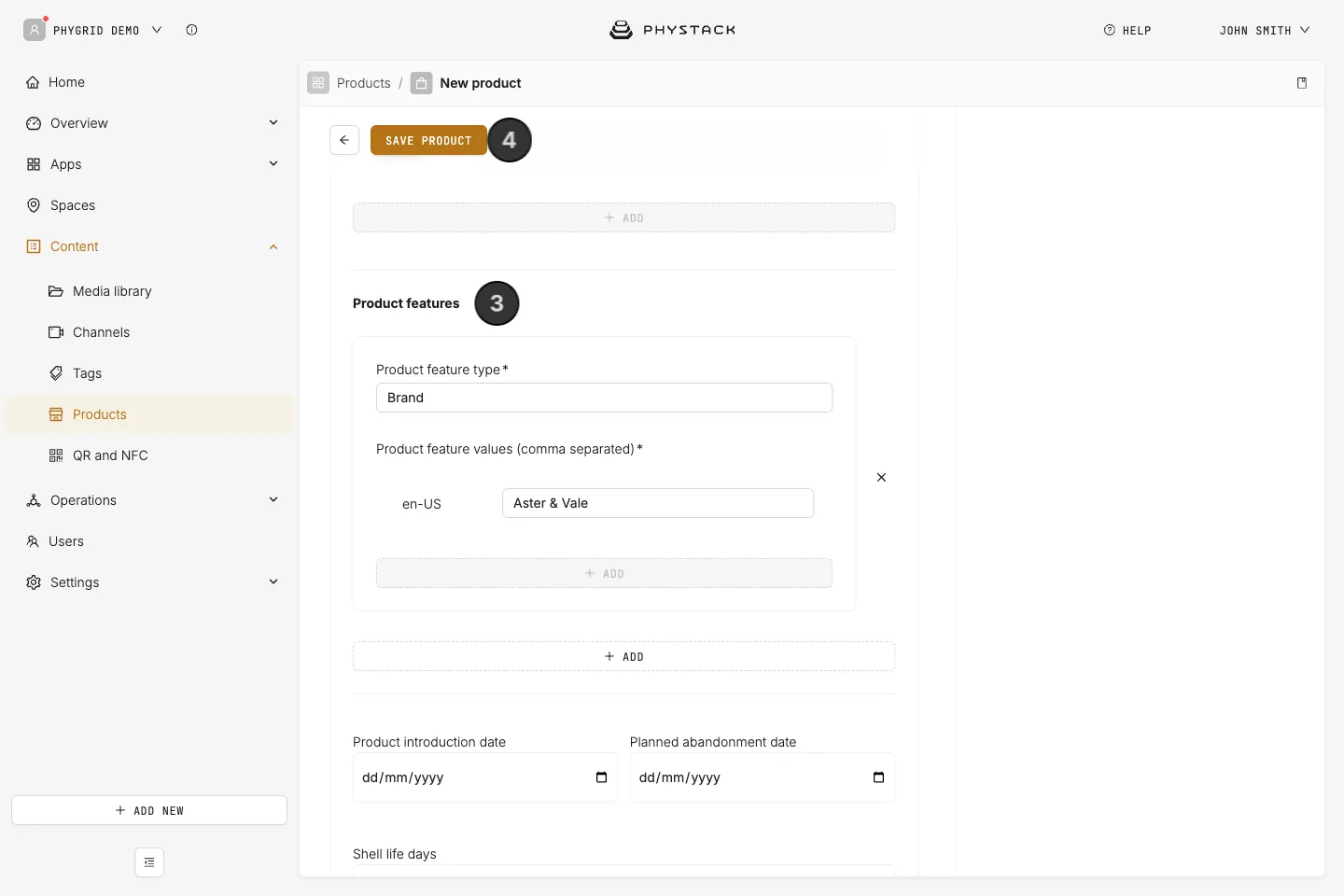
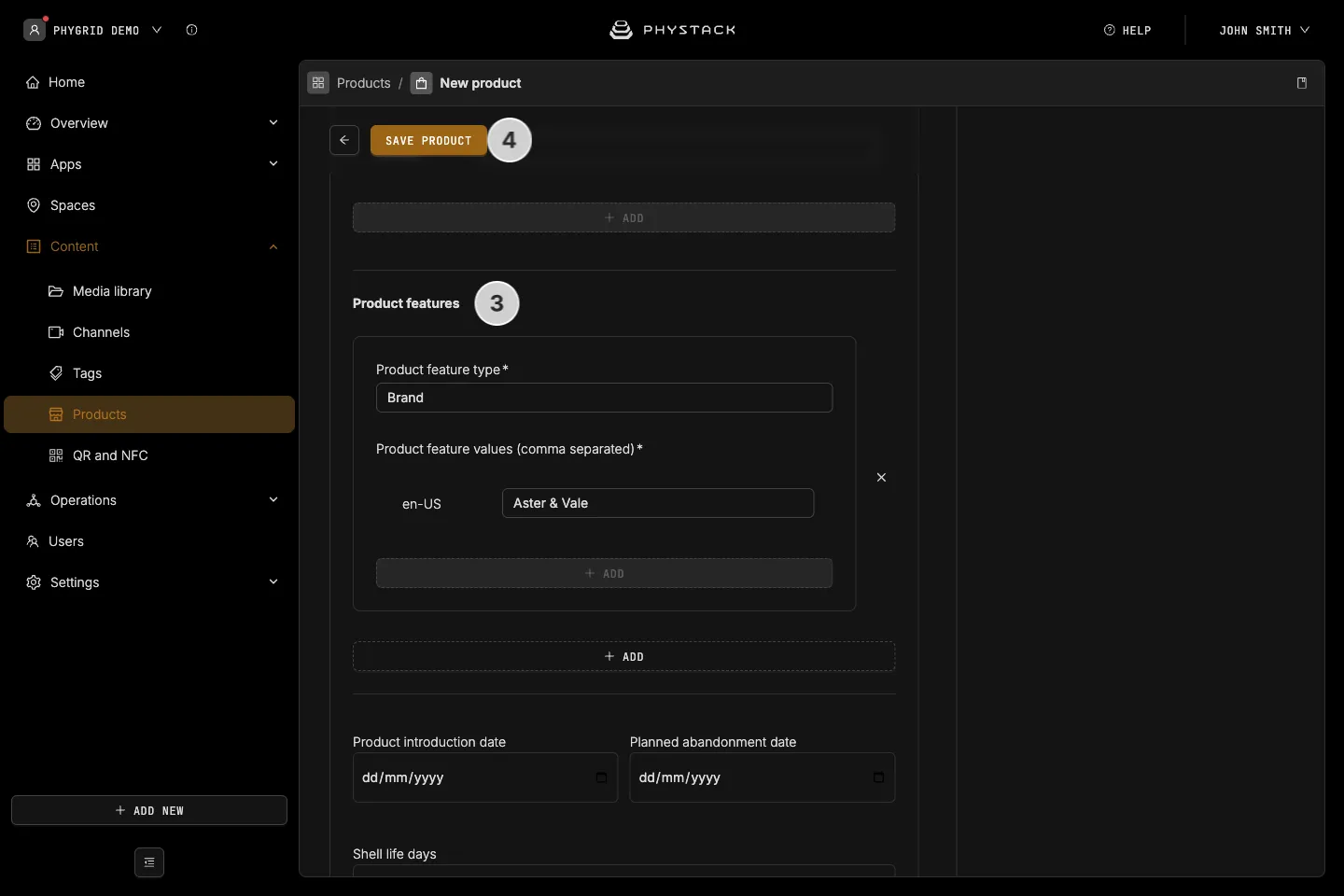
- Under Product features, click Add. Enter the Product feature type, such as “Brand”, and its Product feature values (comma separated) in each language
- Click Save product