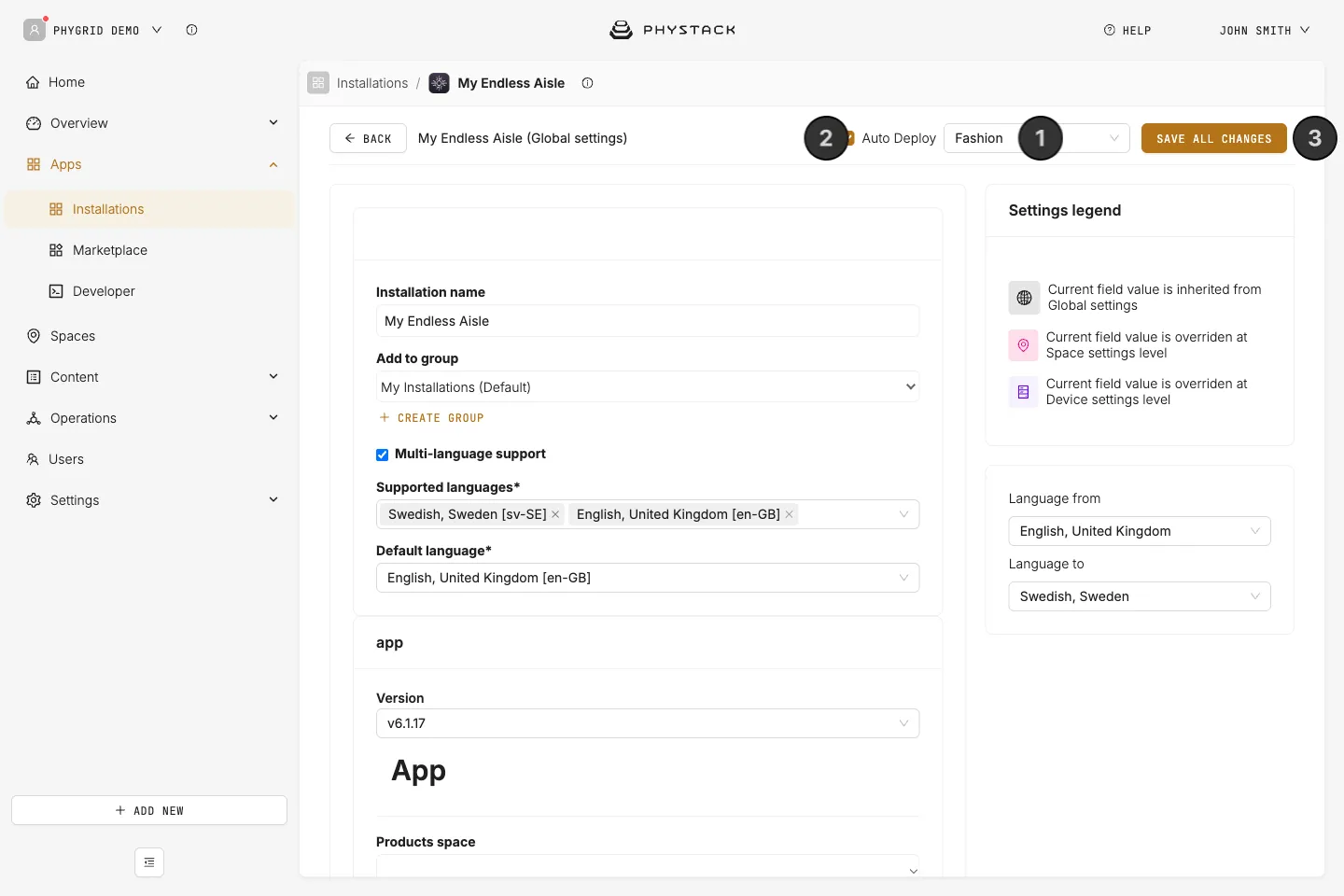
These are the settings to configure first. All settings are described in Endless Aisle Kiosk settings explained.
How to access Endless Aisle settings
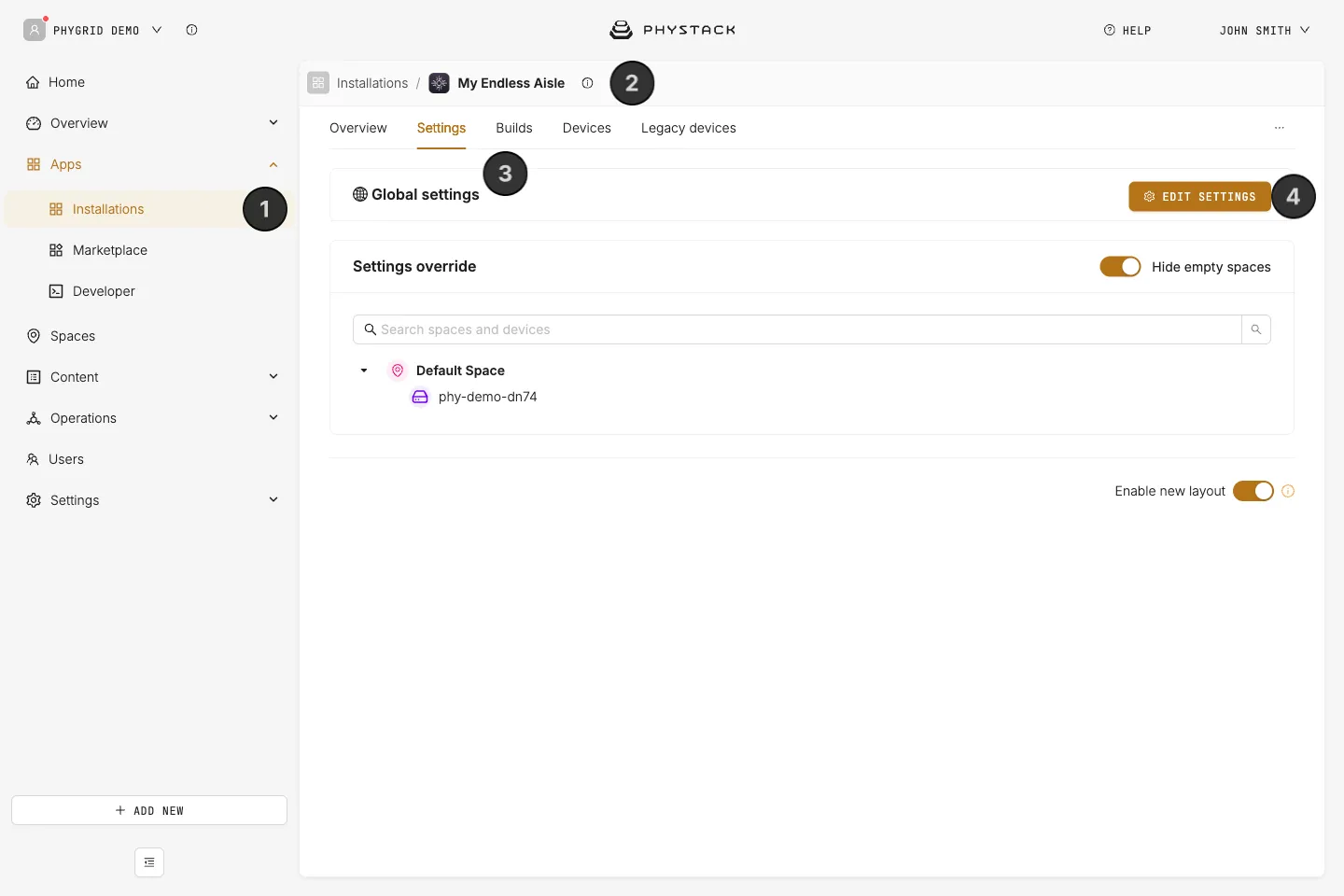
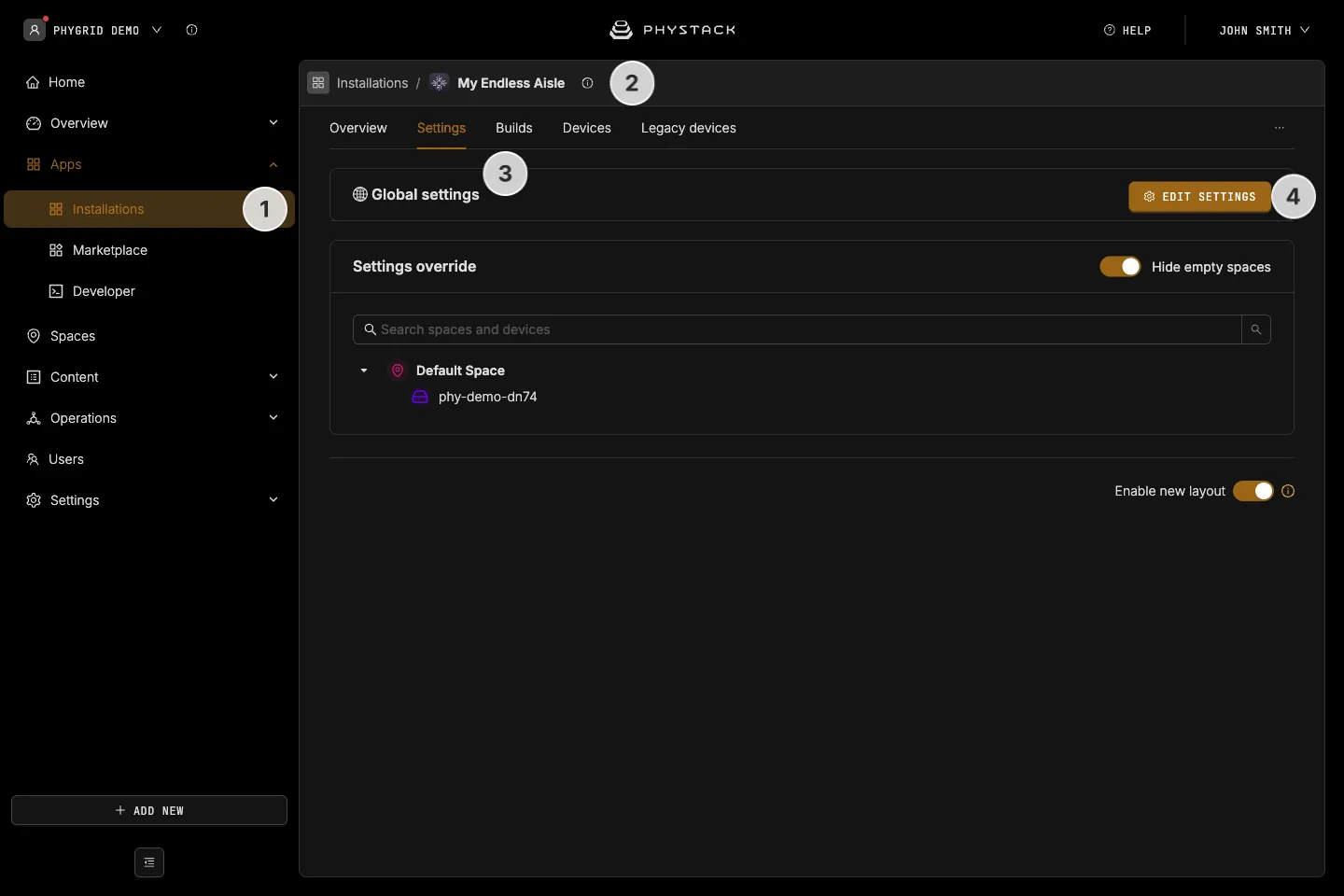
- In the sidebar, navigate to Apps → Installations
- Open your Endless Aisle Kiosk installation
- Go to the Settings tab
- Under Global settings, click Edit settings
To change a setting for one space or device only, use Edit settings for this space or Edit settings for this device under Settings override instead.
What the kiosk needs to start
- Products in the kiosk’s space. See Make products show on the kiosk
- At least one category under Active → Home → Categories. See Set up the home screen
- The Theme colours. They’re filled in with defaults, so you only need to change them to match your brand
- A Home Screen Label, unless you use the traditional layout described below
- Splash Media for the idle screen. See Set up the idle screen
- Fonts for Light, Regular, and Bold: the settings can’t be saved without them. See Customise the look of Endless Aisle
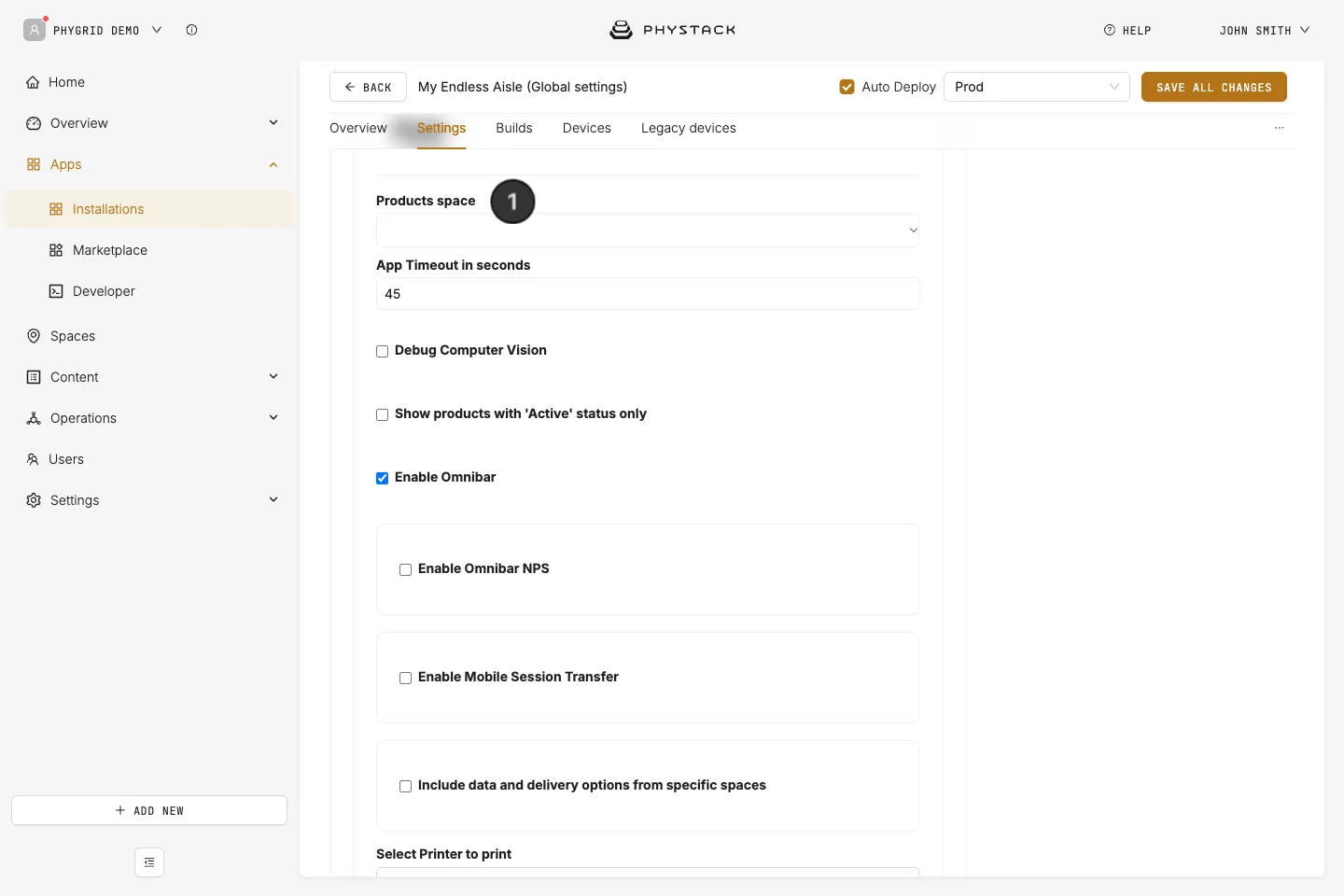
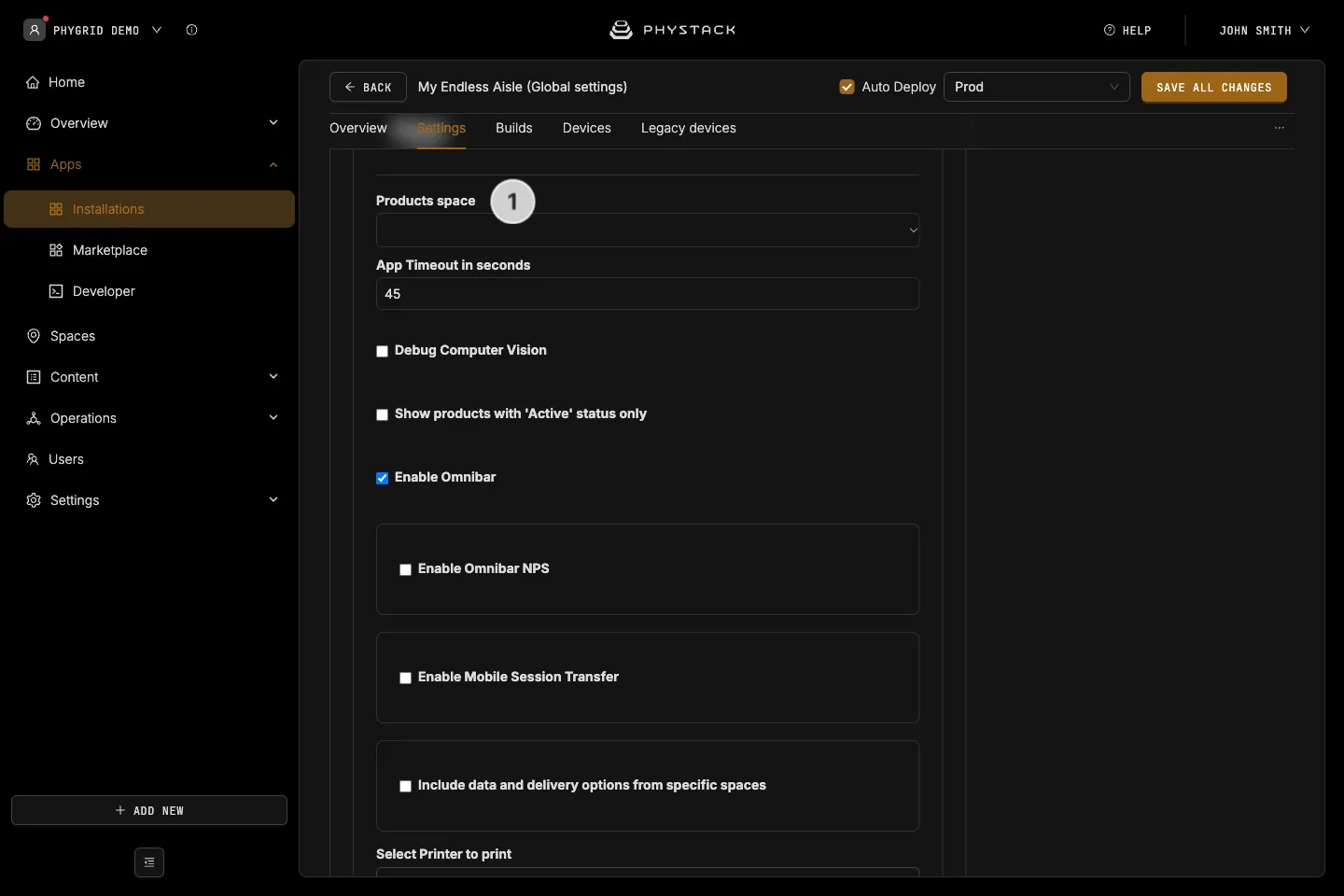
How to choose the products space
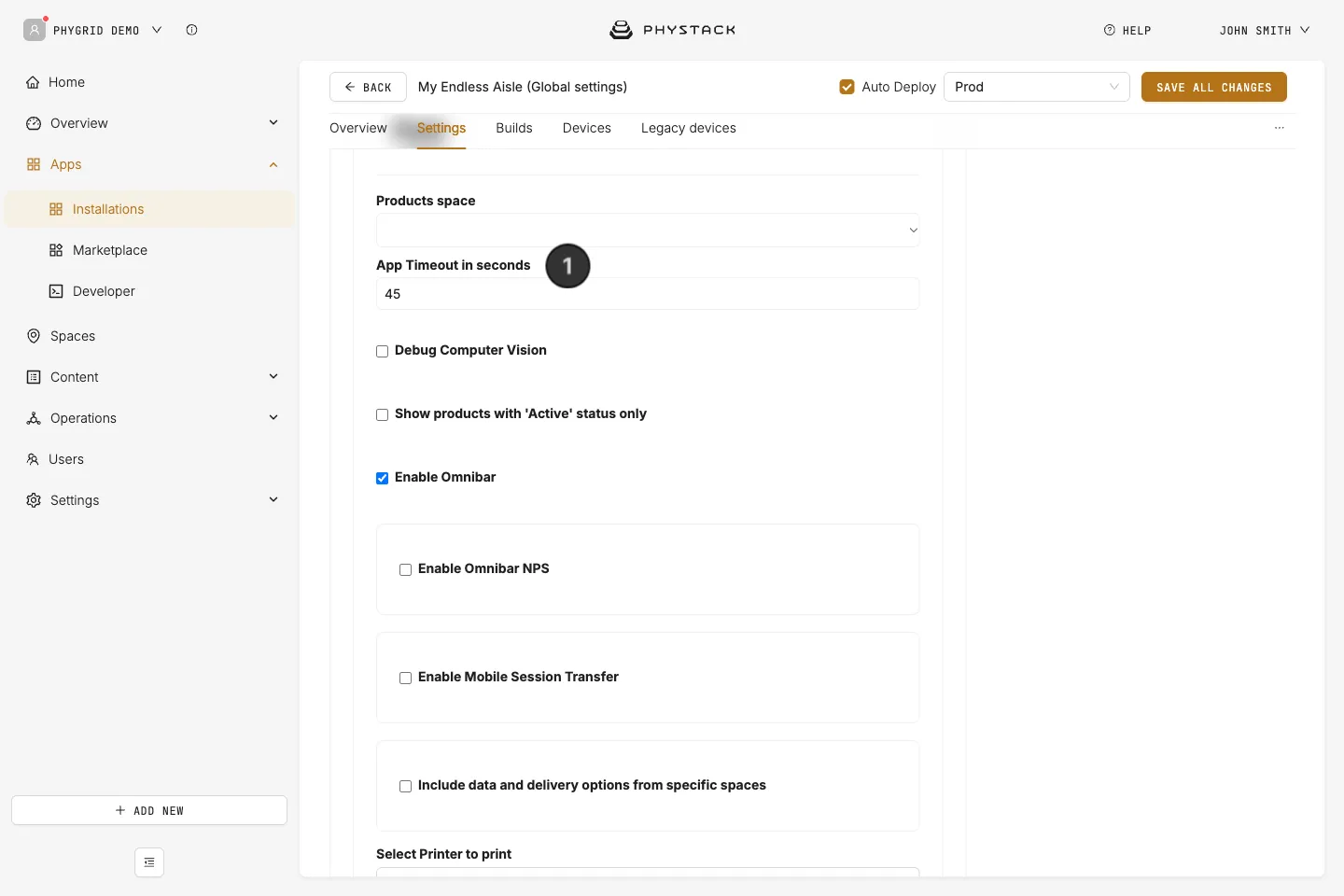
- Leave Products space empty to show the products of the space the device is assigned to. This suits most stores
- To show the products of another space, for example when several stores share one catalogue space, select that space in Products space
How to set the languages
The kiosk uses the languages of the installation. Product texts are shown in the kiosk’s language when your products have them, and in English otherwise.
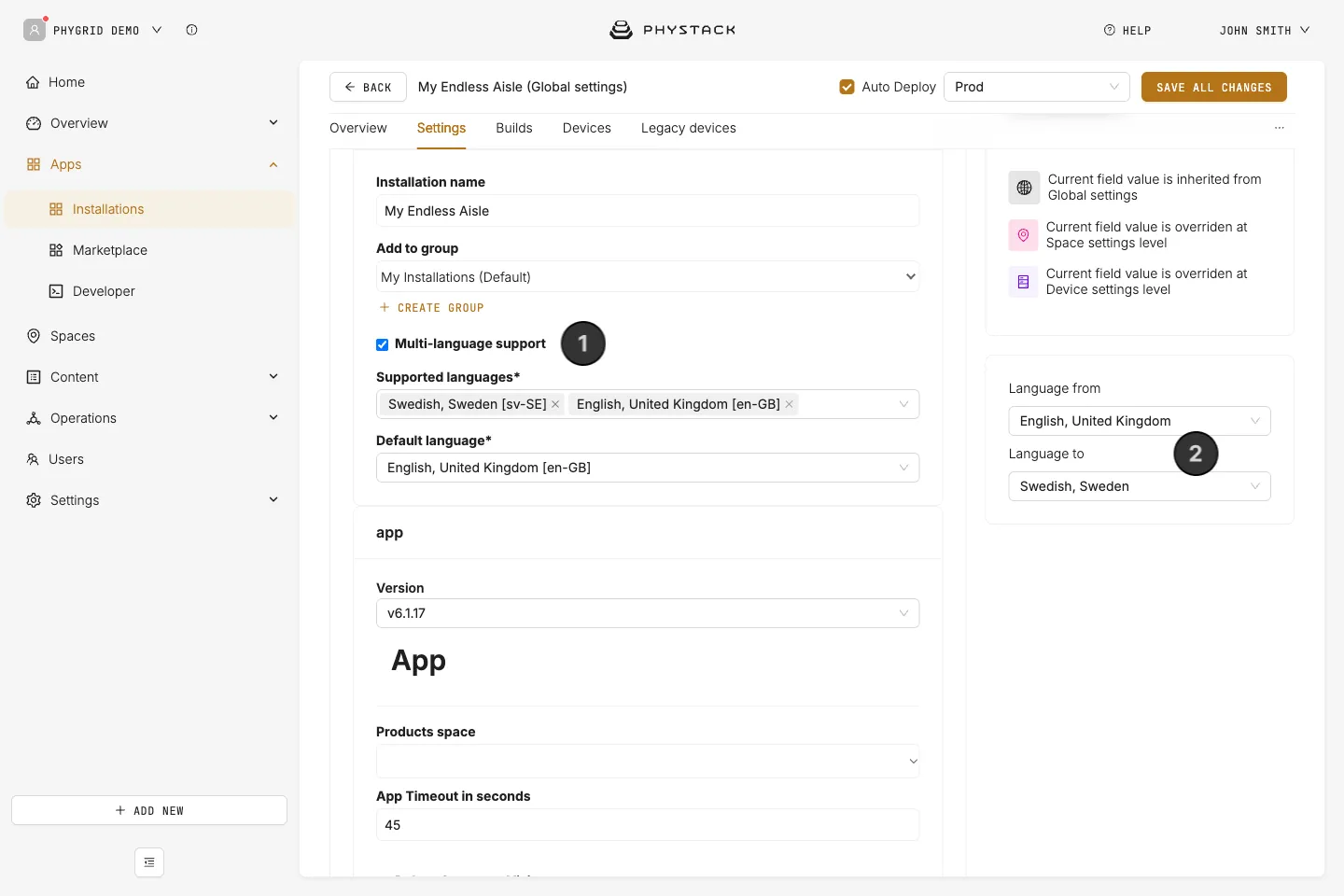
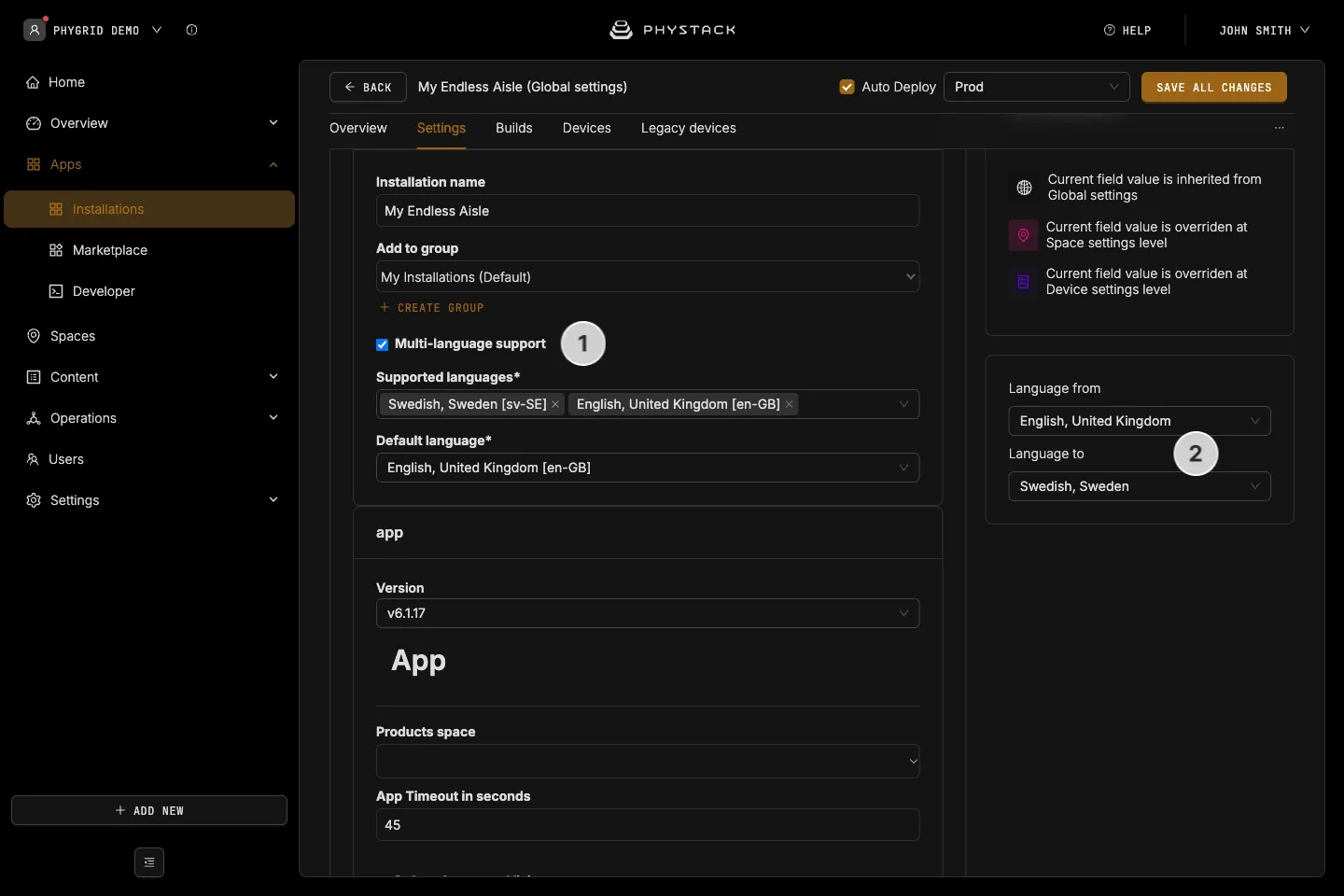
- In Multi-language support (see Glossary), enable the languages of your store and set the default language
- Fill in the texts in each language, such as banner titles and the home screen label. A text setting shows one field per language: choose the language you edit in Language to, on the right of the settings, and its fields become editable. Language from is shown next to it for reference
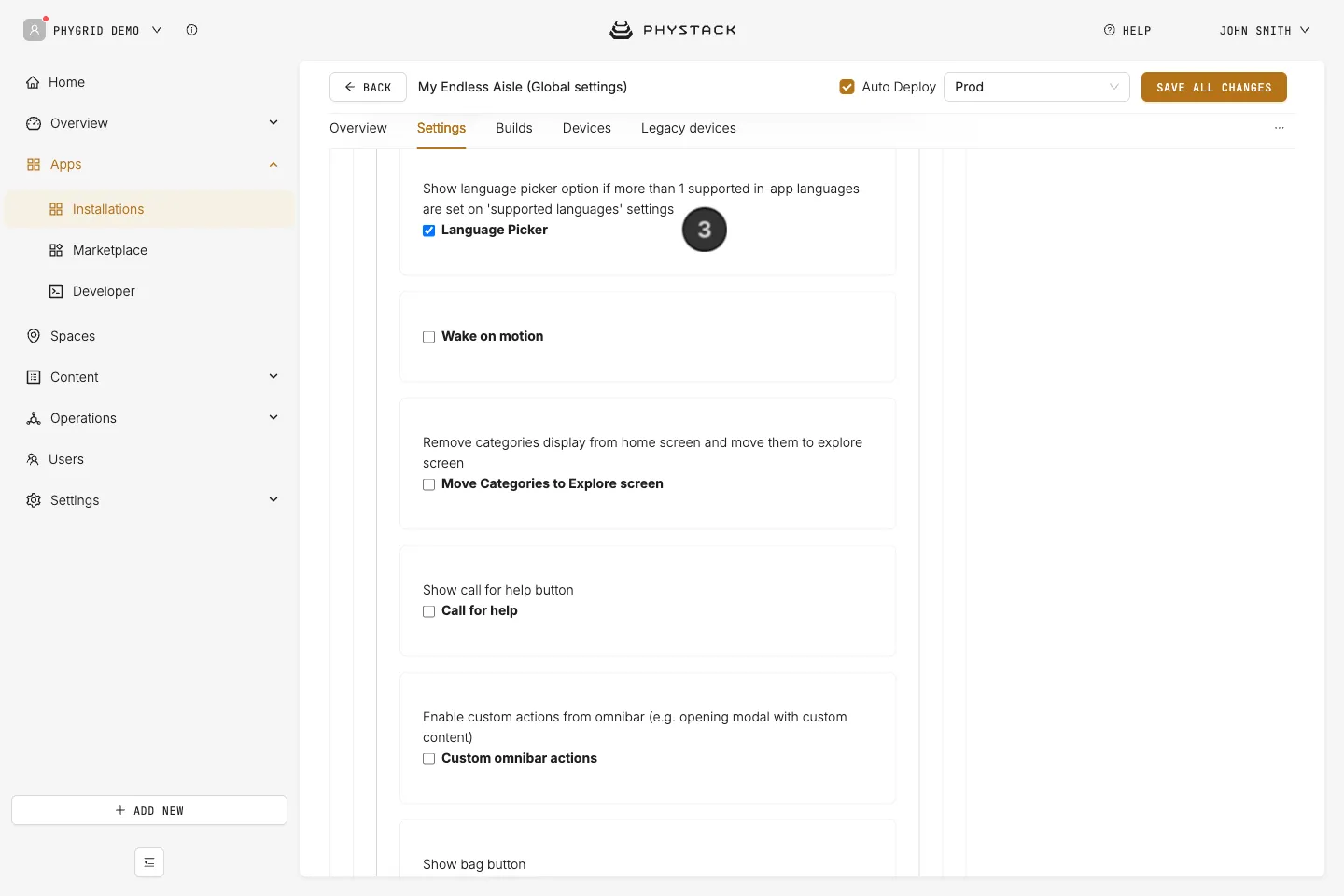
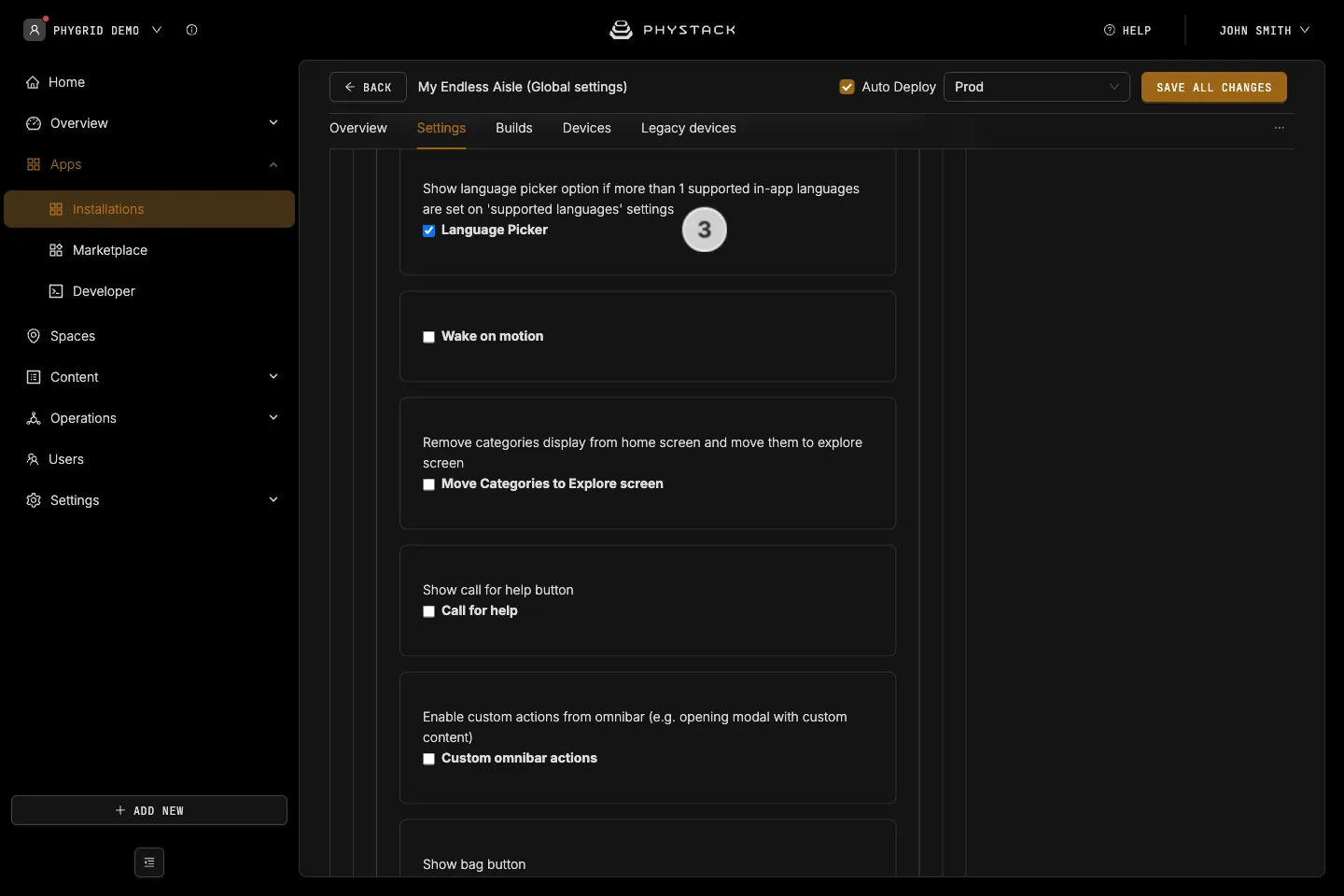
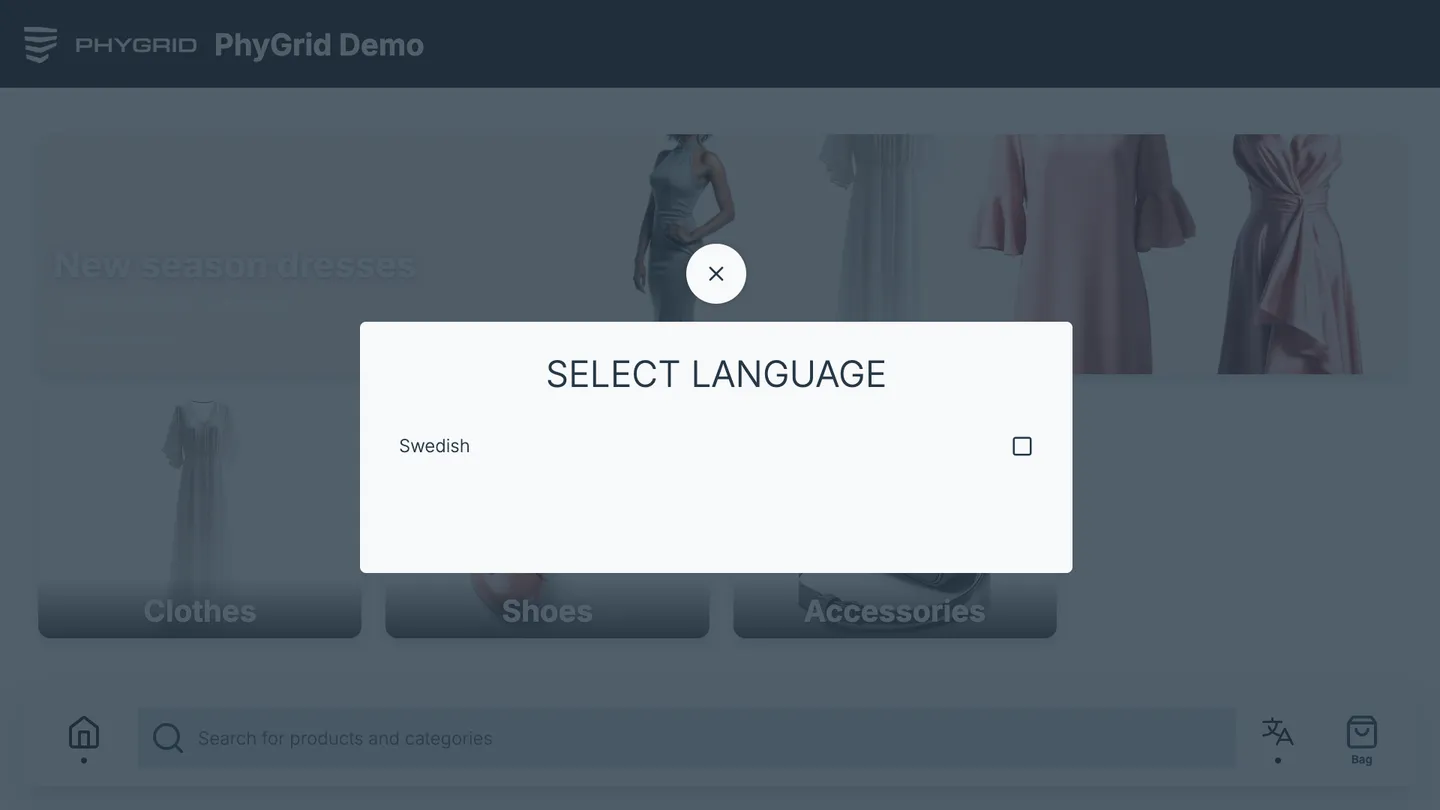
- To let customers switch language, turn on Features → Language Picker. It appears when two or more languages are enabled
The kiosk’s own texts, such as buttons and messages, are available in English, Swedish, German, Spanish, Italian, Norwegian, and Chinese. The kiosk returns to the default language when it goes back to the idle screen.
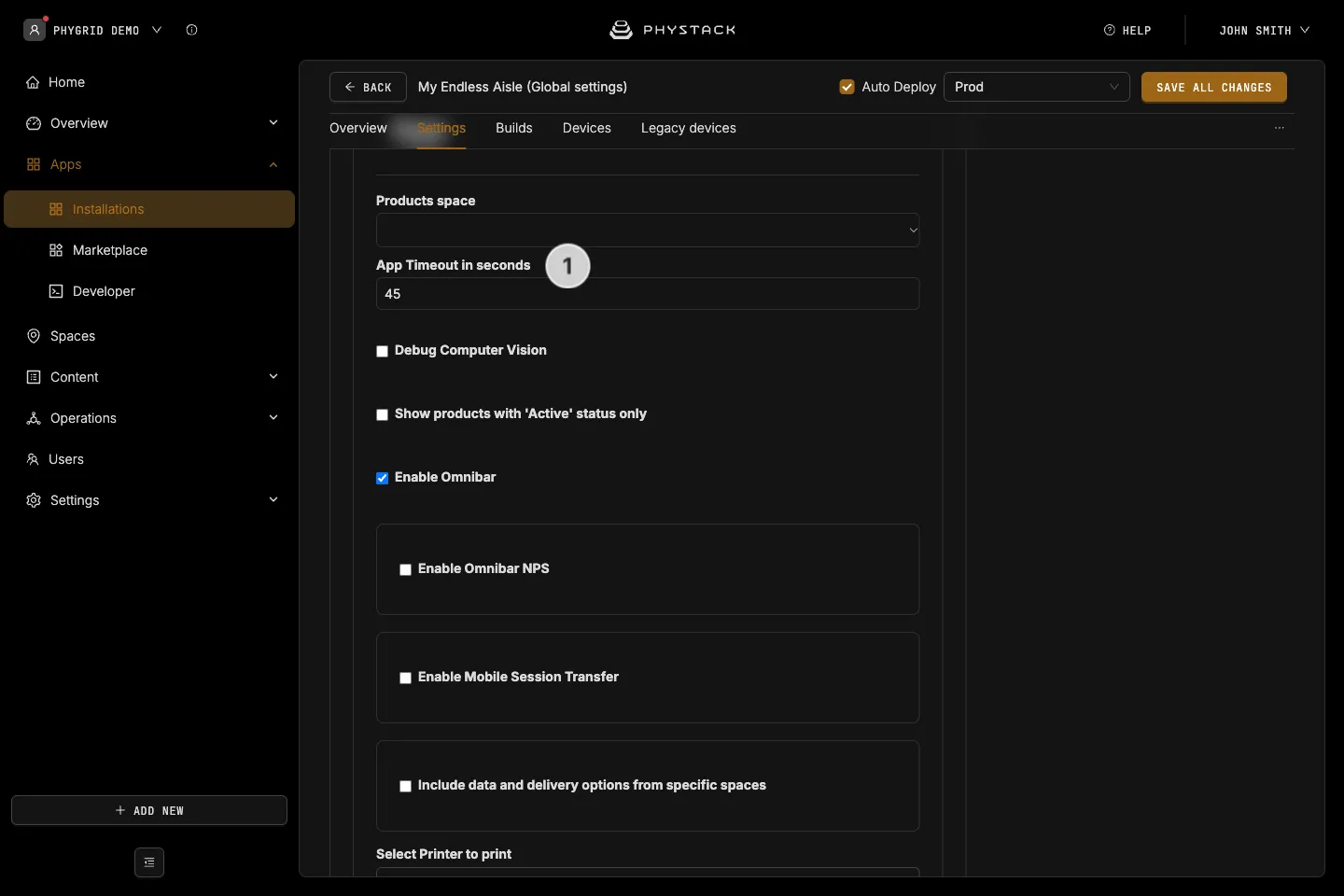
How to set the timeout
- Set App Timeout in seconds: how long the kiosk waits without a touch before it returns to the idle screen. Default: 45
- When it returns to the idle screen, the kiosk empties the bag, so the next customer starts fresh
How to set up the header and logo
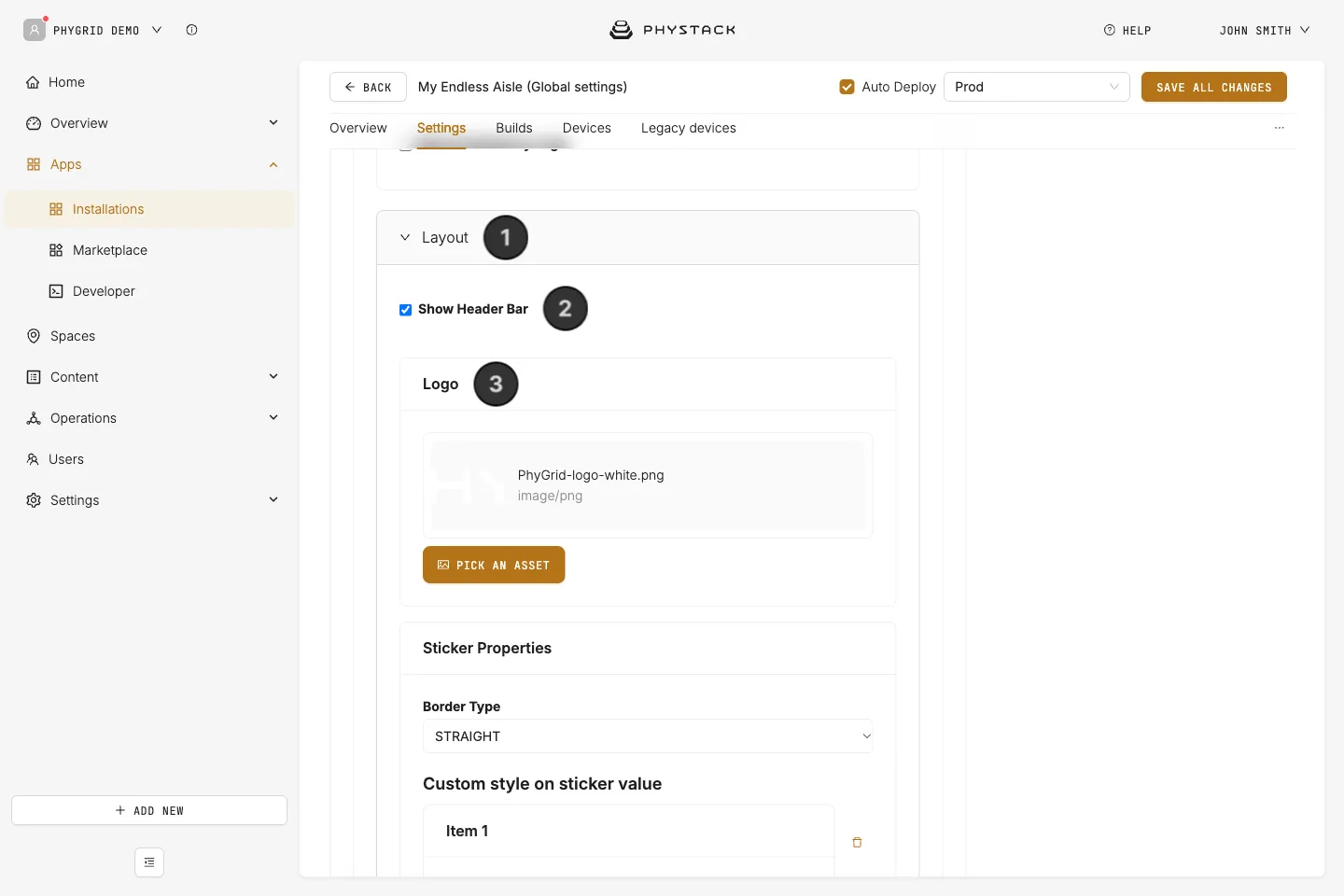
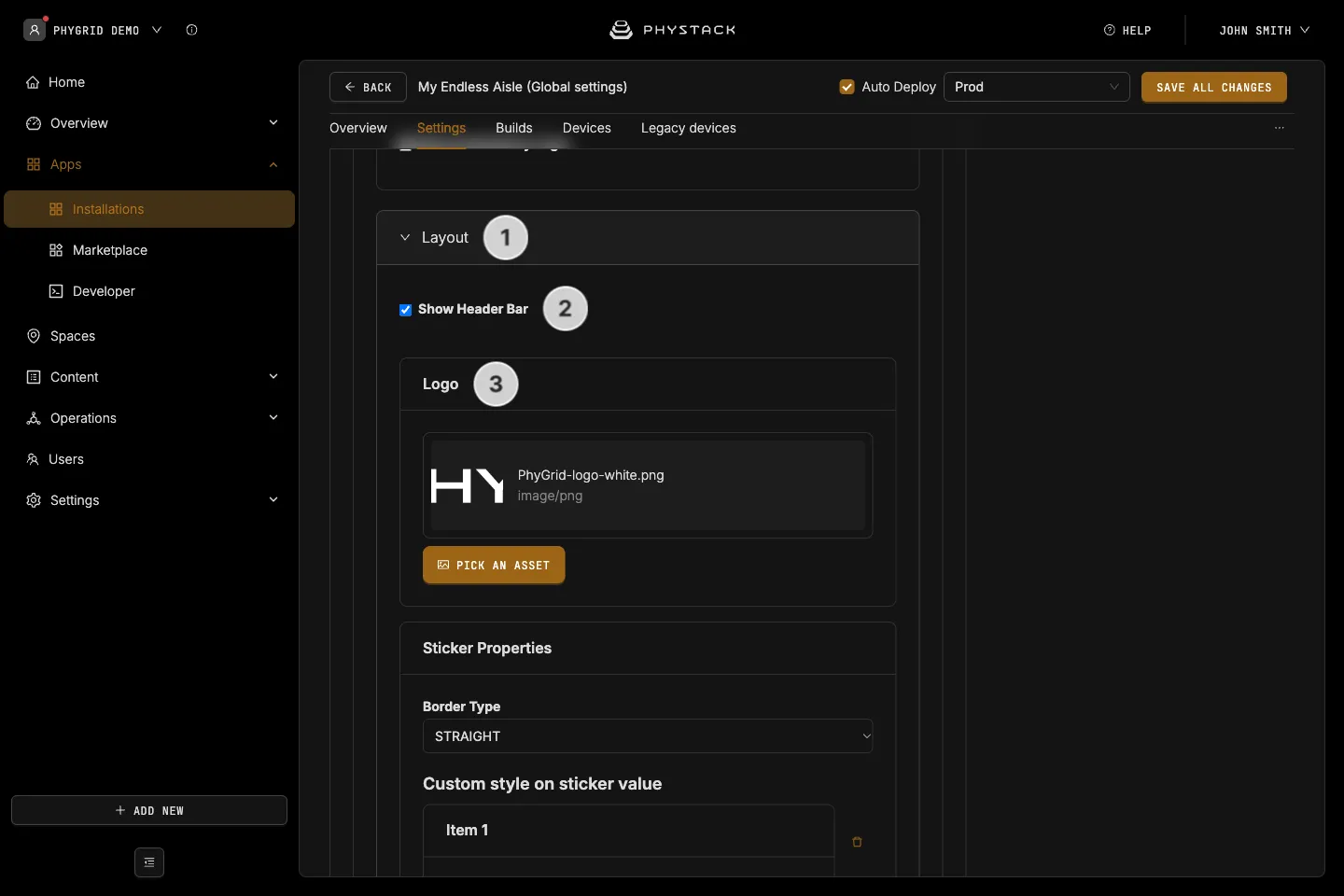
- Expand Layout
- Leave Show Header Bar on to show a coloured bar with the page title at the top of each screen
- Upload your Logo, shown on the home screen. Use a PNG or SVG with a transparent background
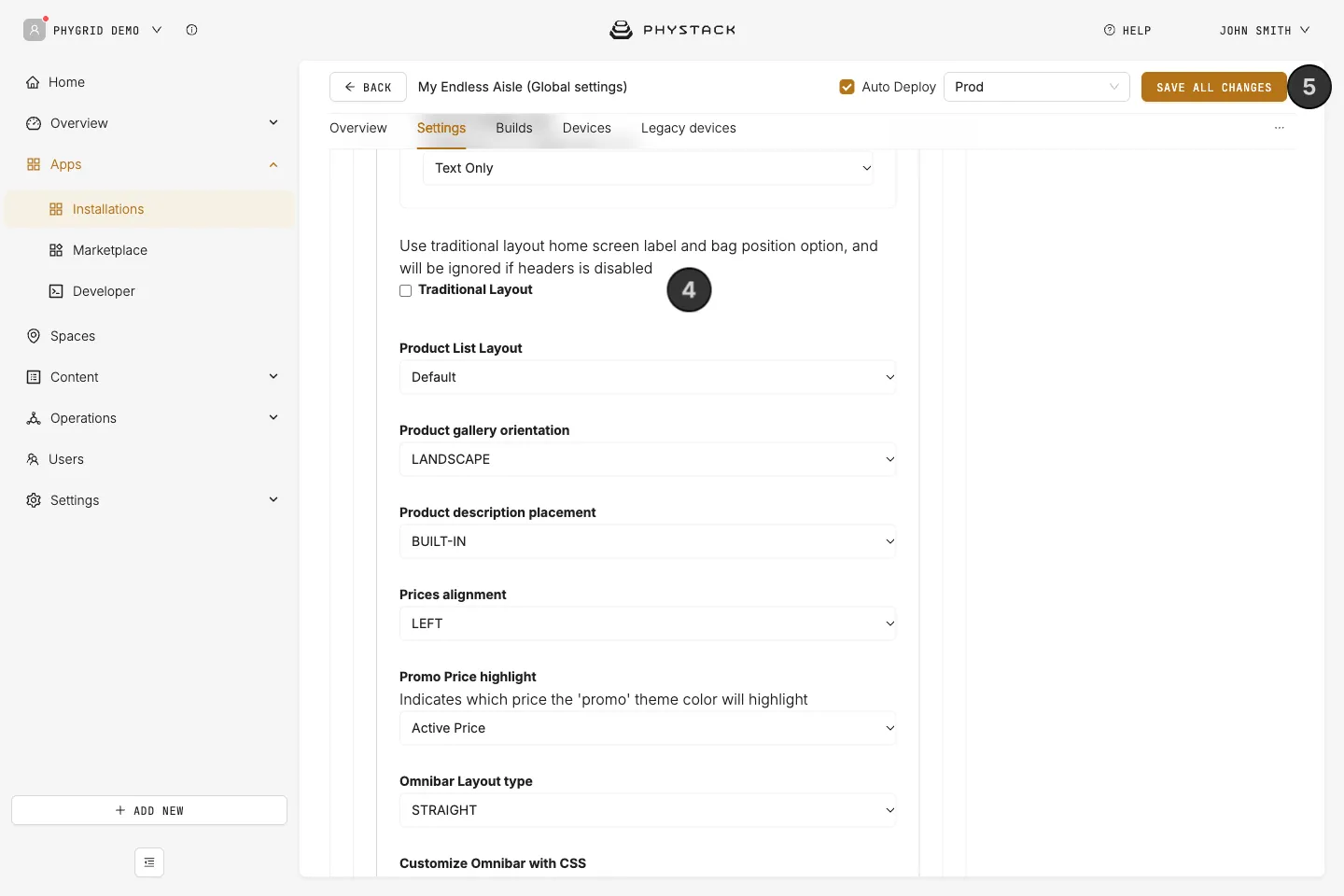
- Choose the home screen style:
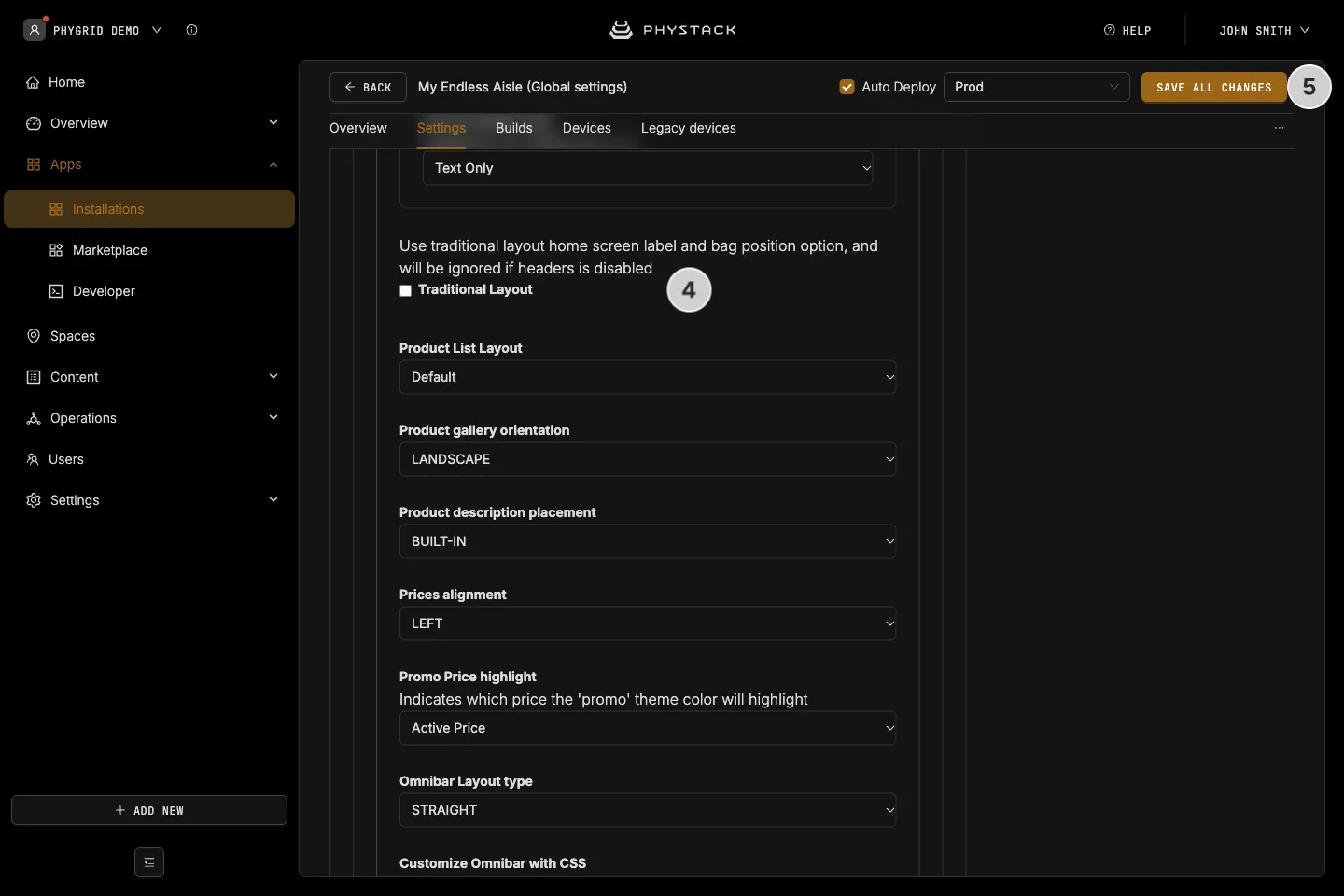
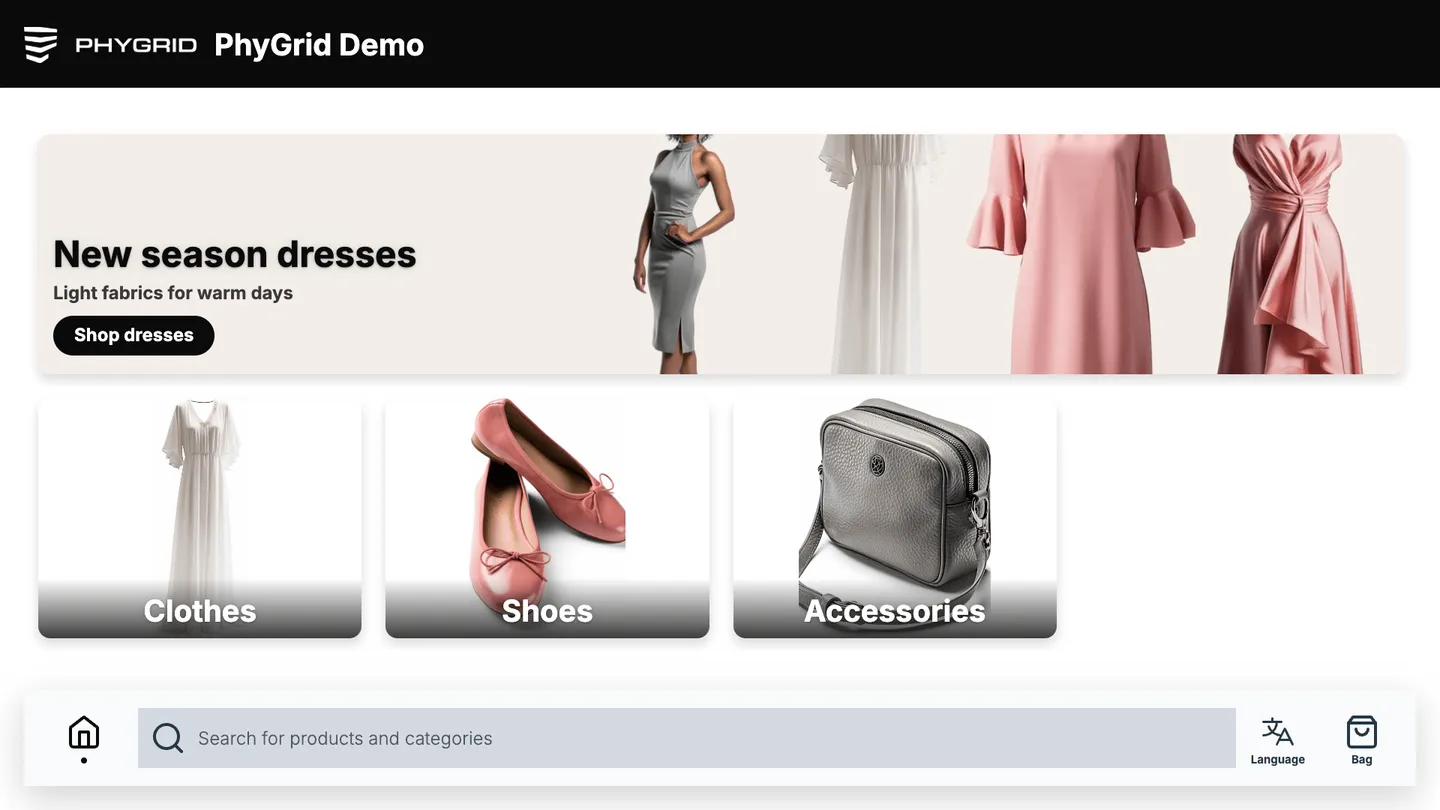
- Leave Traditional Layout off to show the logo in the header bar, next to the Home Screen Label. Enter the label in each language, for example your store name
- Turn Traditional Layout on to show the logo centred above the content. Optionally, turn on Show background color to fill the page with your primary colour
- Click Save all changes
How to save and deploy the settings
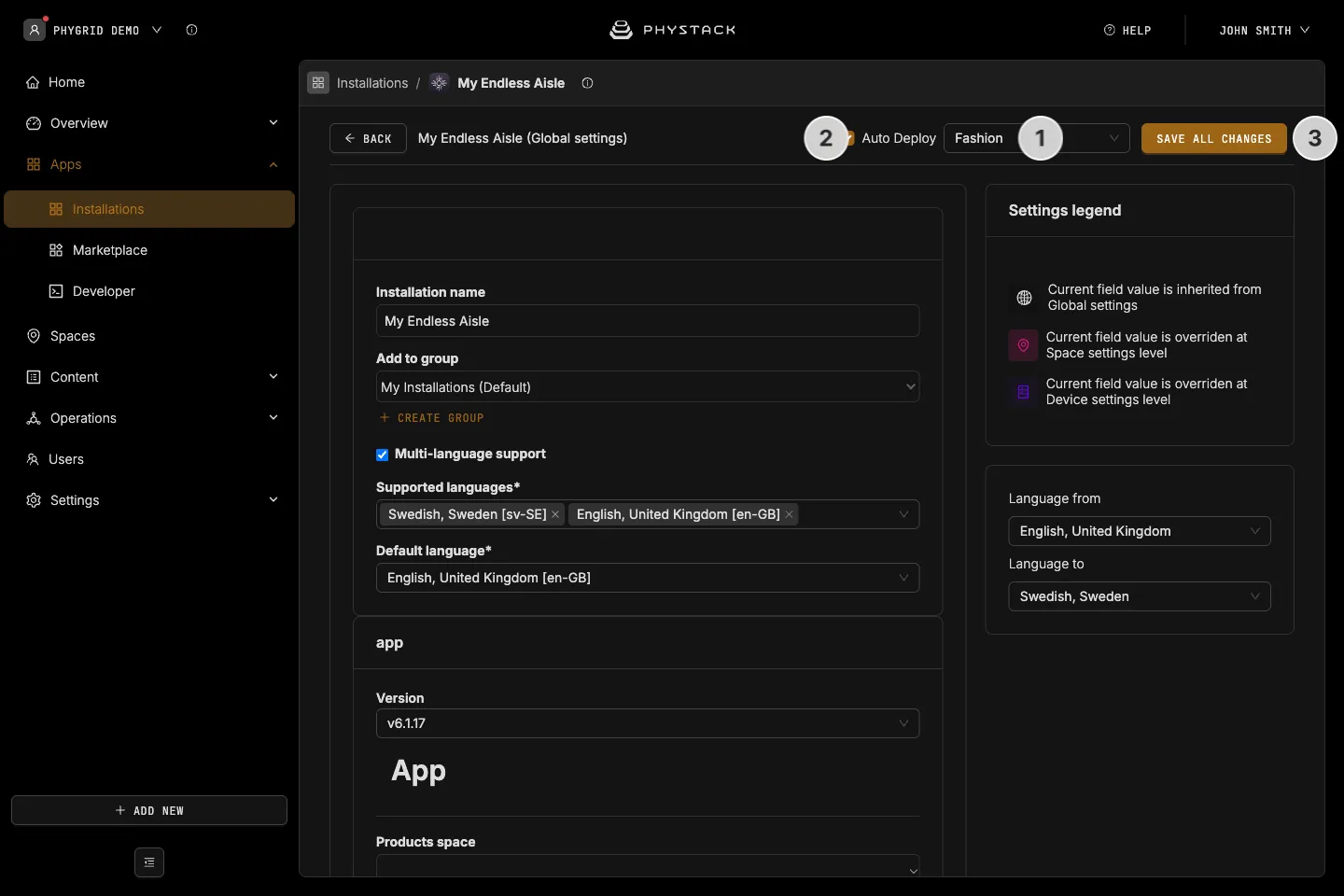
- Select the Environment to deploy to. It resets to Prod each time you open the settings, so check it before every save. See Environment
- Select Auto Deploy to create a build and send it to the connected devices when you save
- Click Save all changes