

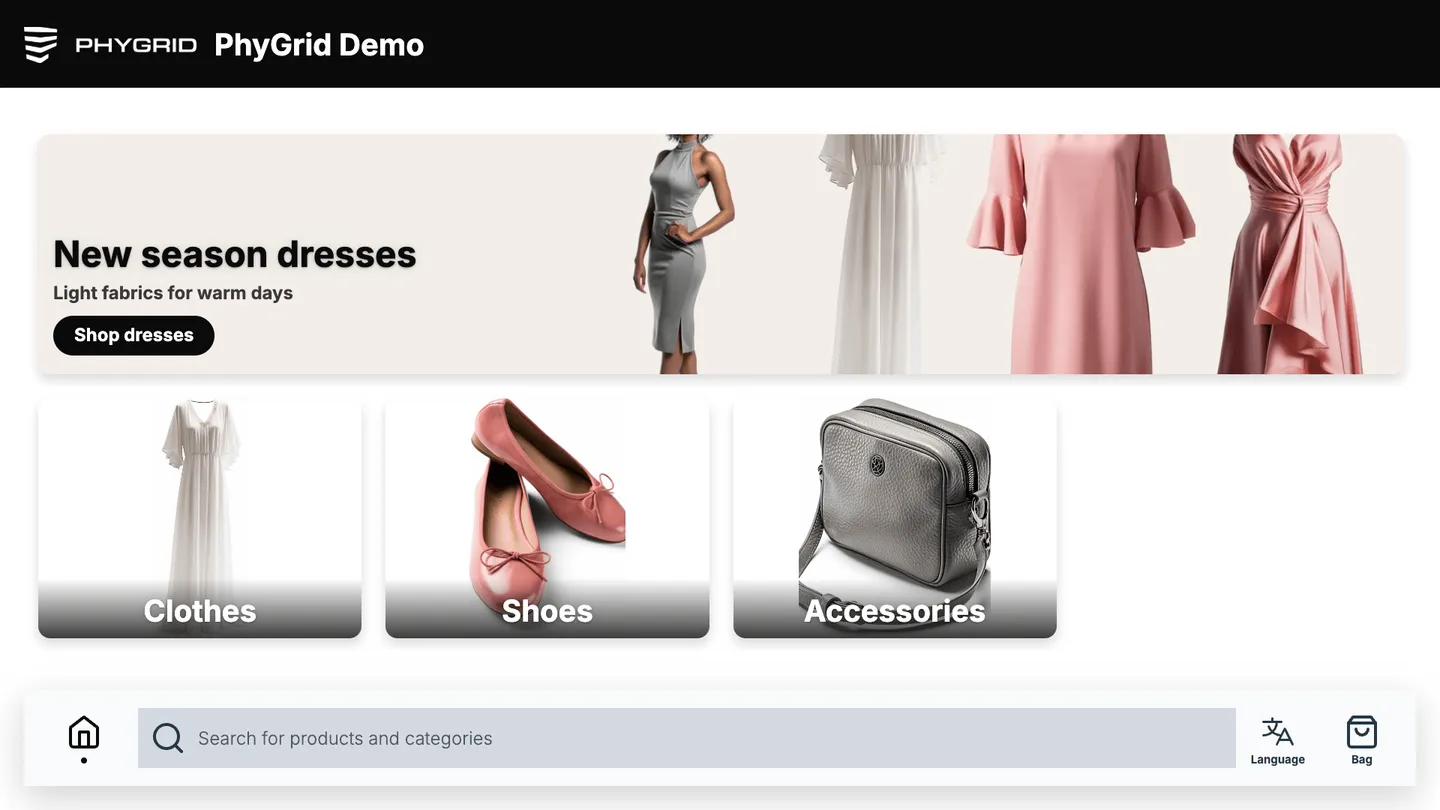
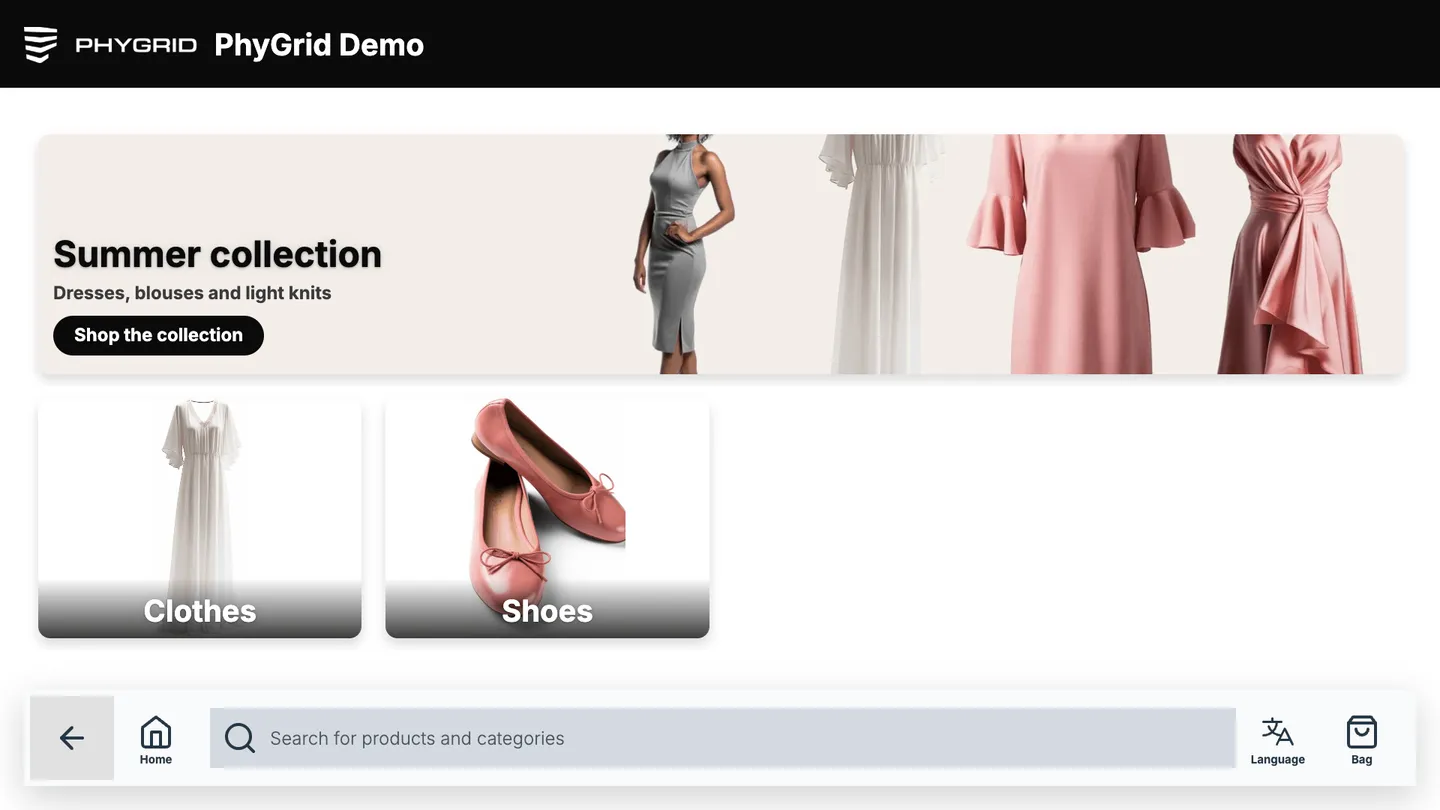
The home screen shows a row of Banners at the top and Categories tiles below them. Customers tap a banner or a category to start browsing. Both are set up under Active → Home in the Endless Aisle settings.
How to add categories
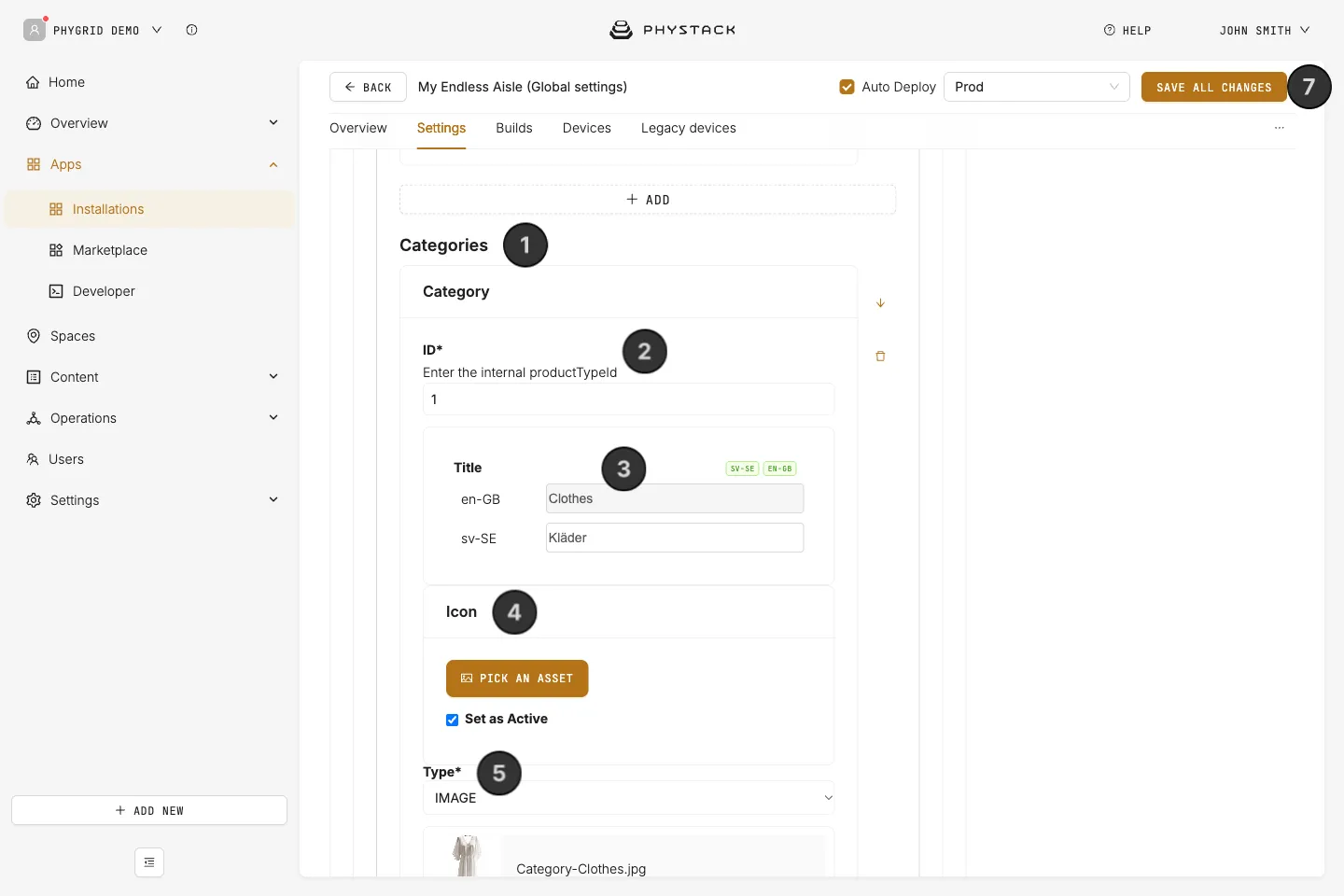
Each category tile opens one of your product categories, including its subcategories. Add at least one: the kiosk can’t start without categories.
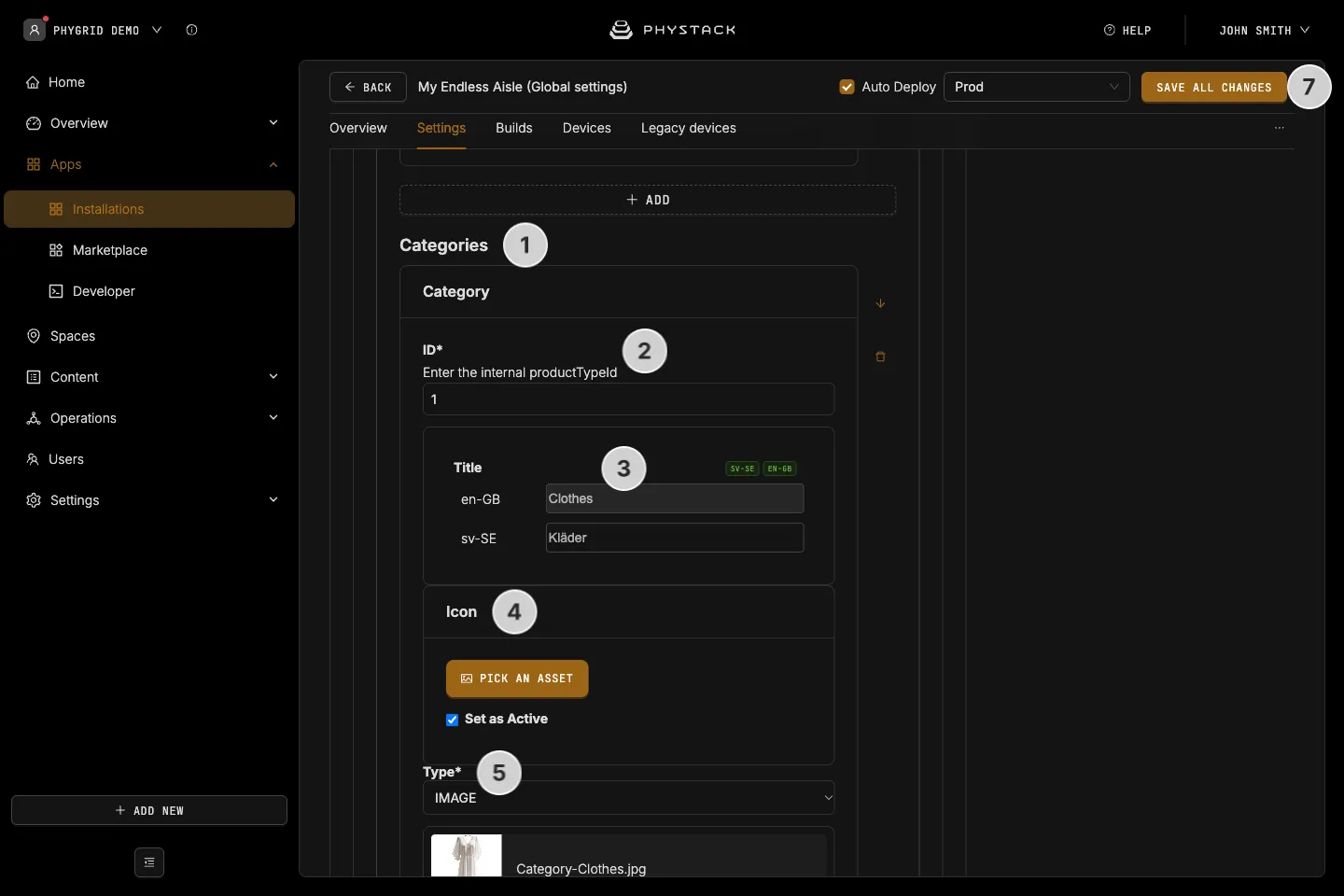
- Expand Active → Home → Categories and add a category
- In ID, enter the category’s Identifier from Content → Products → Category
- Enter the Title in each language
- Optionally, add an Icon shown next to the title
- Optionally, add a Background image or video. Videos play muted and loop
- Repeat for each category, in the order you want them on the screen
- Click Save all changes
To show the categories on a separate screen instead of the home screen, turn on Features → Move Categories to Explore screen. An Explore button then opens them from the bar at the bottom of the screen.
How to add banners
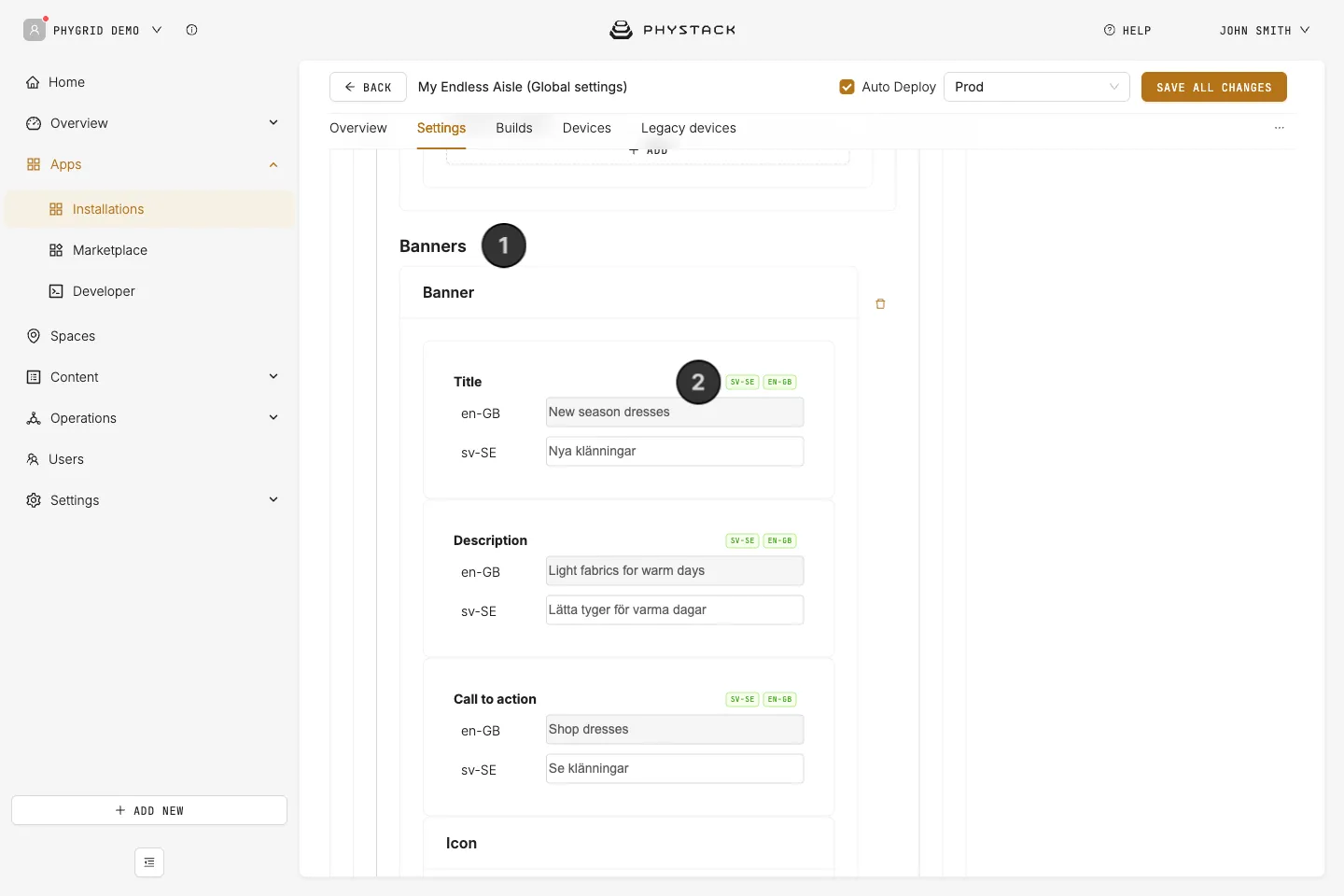
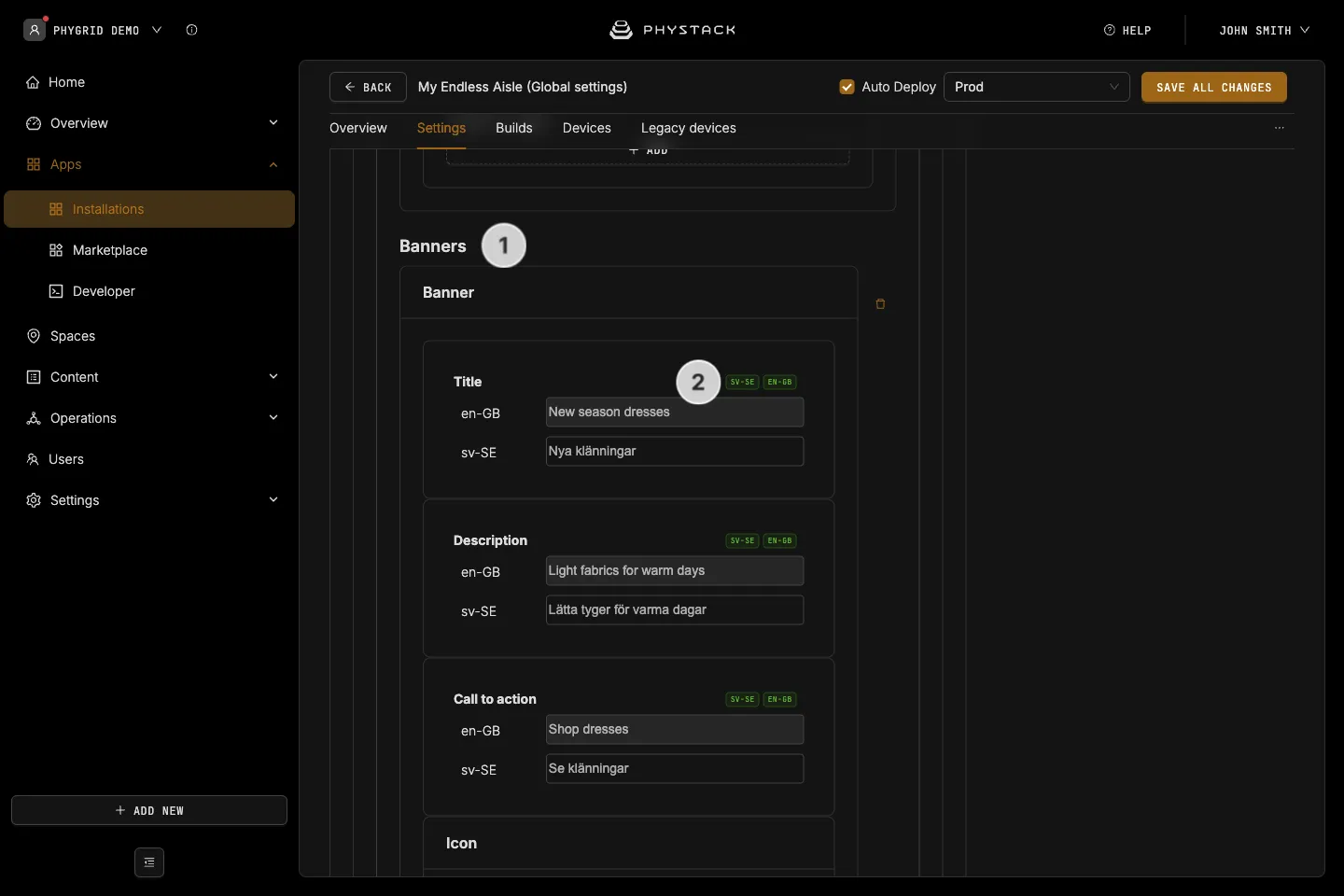
- Expand Active → Home → Banners and add a banner
- Enter the Title, Description, and Call to action in each language
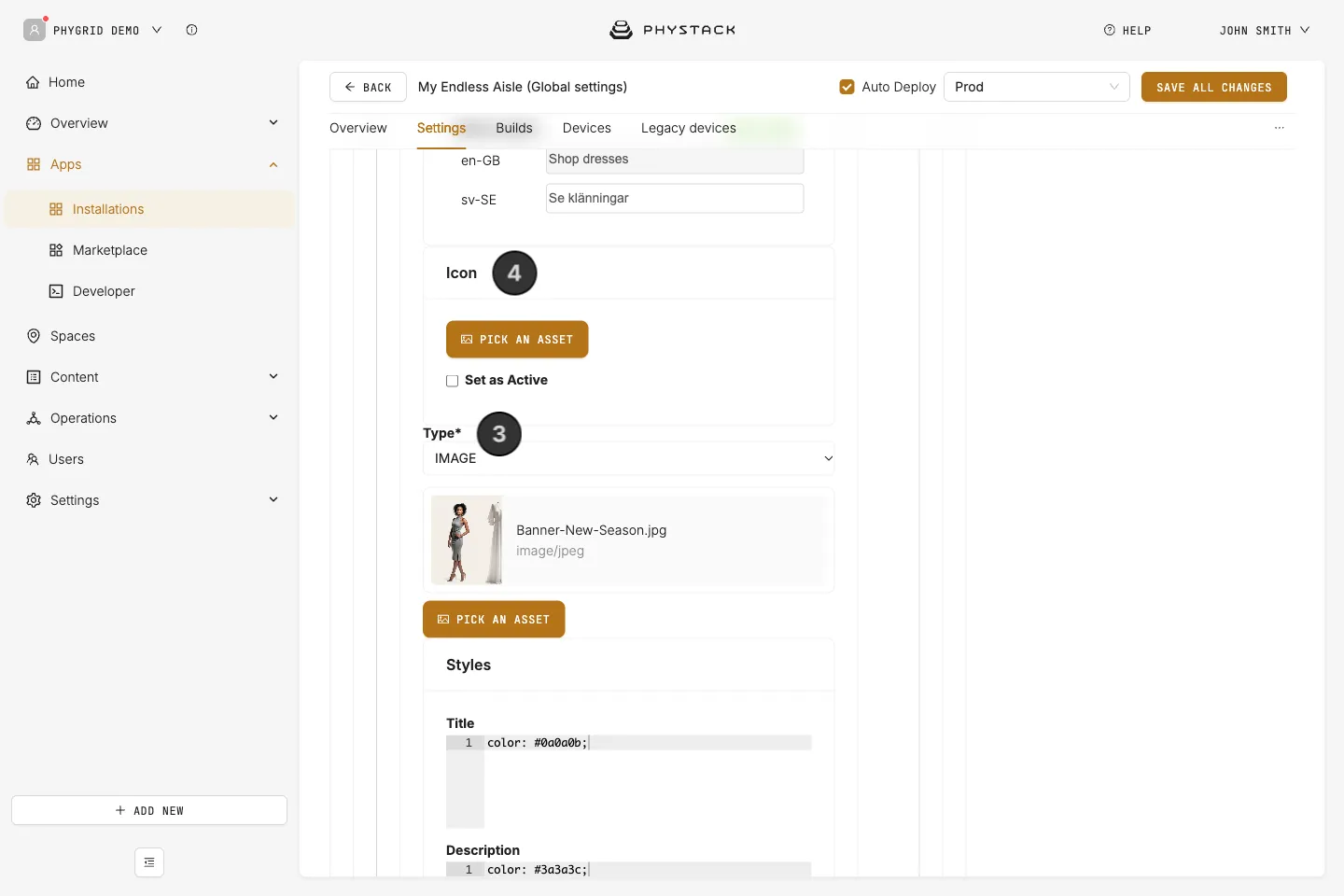
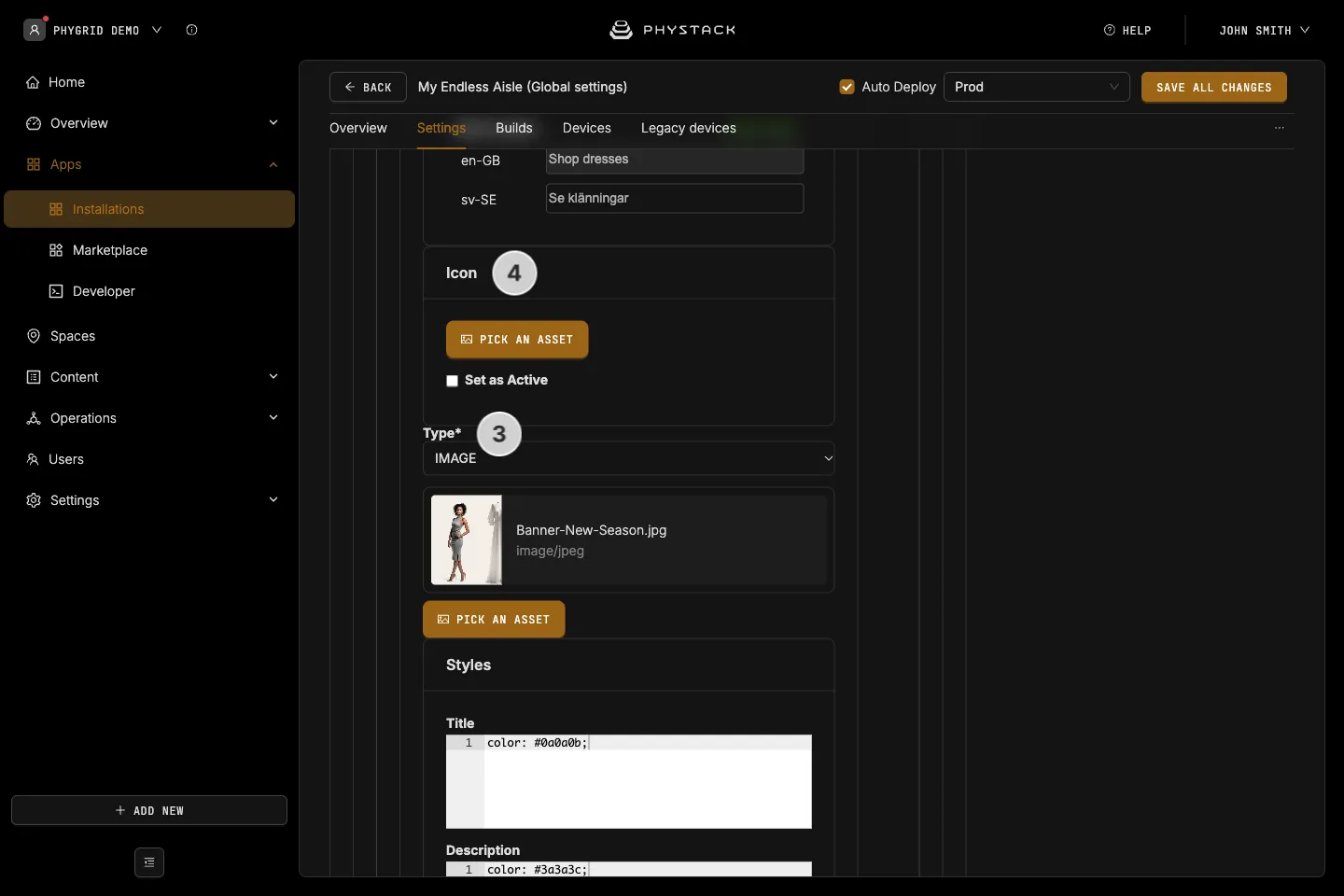
- Add a Background image or video
- Optionally, add an Icon shown after the call to action
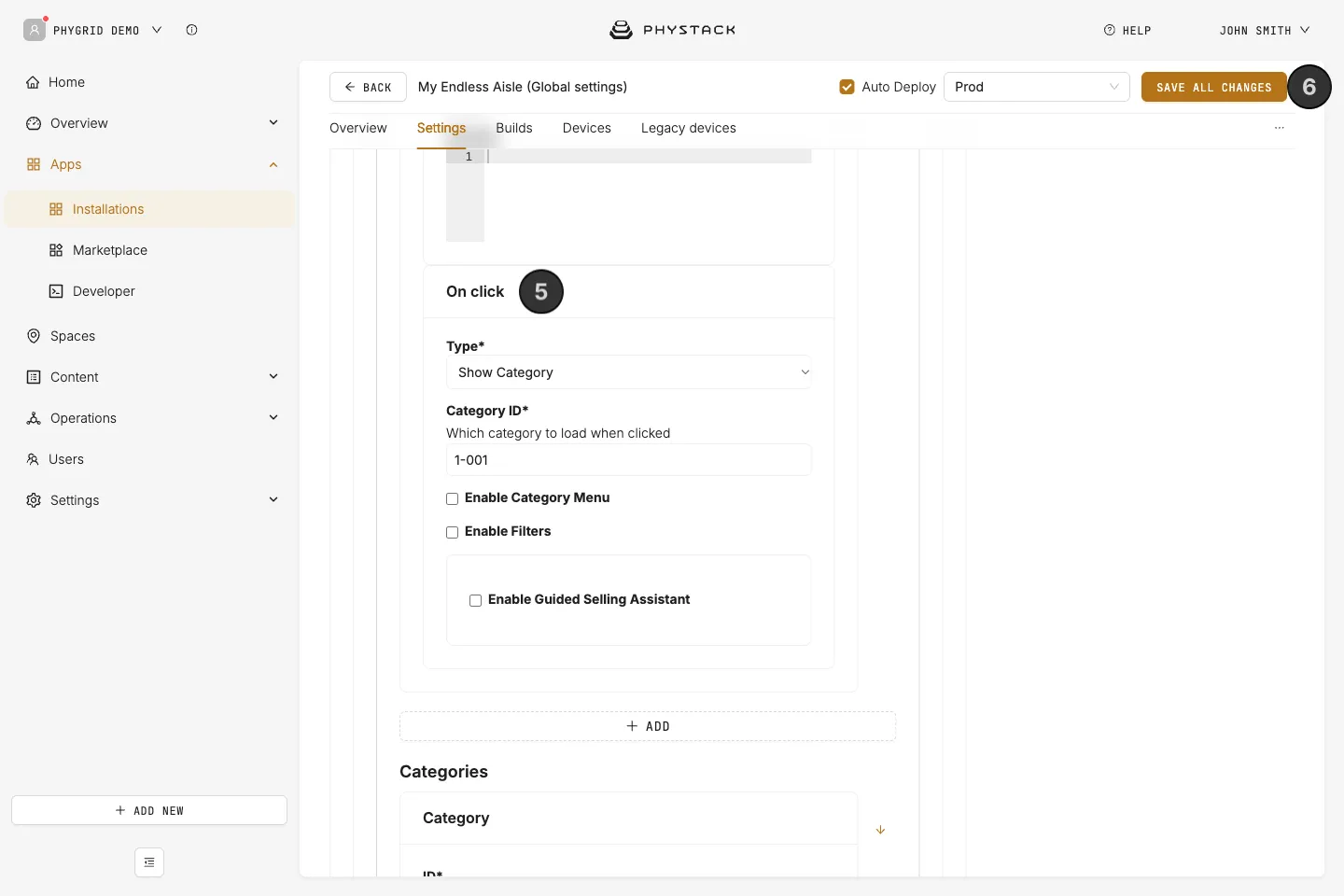
- Under On click, choose what the banner opens, as described below
- Click Save all changes
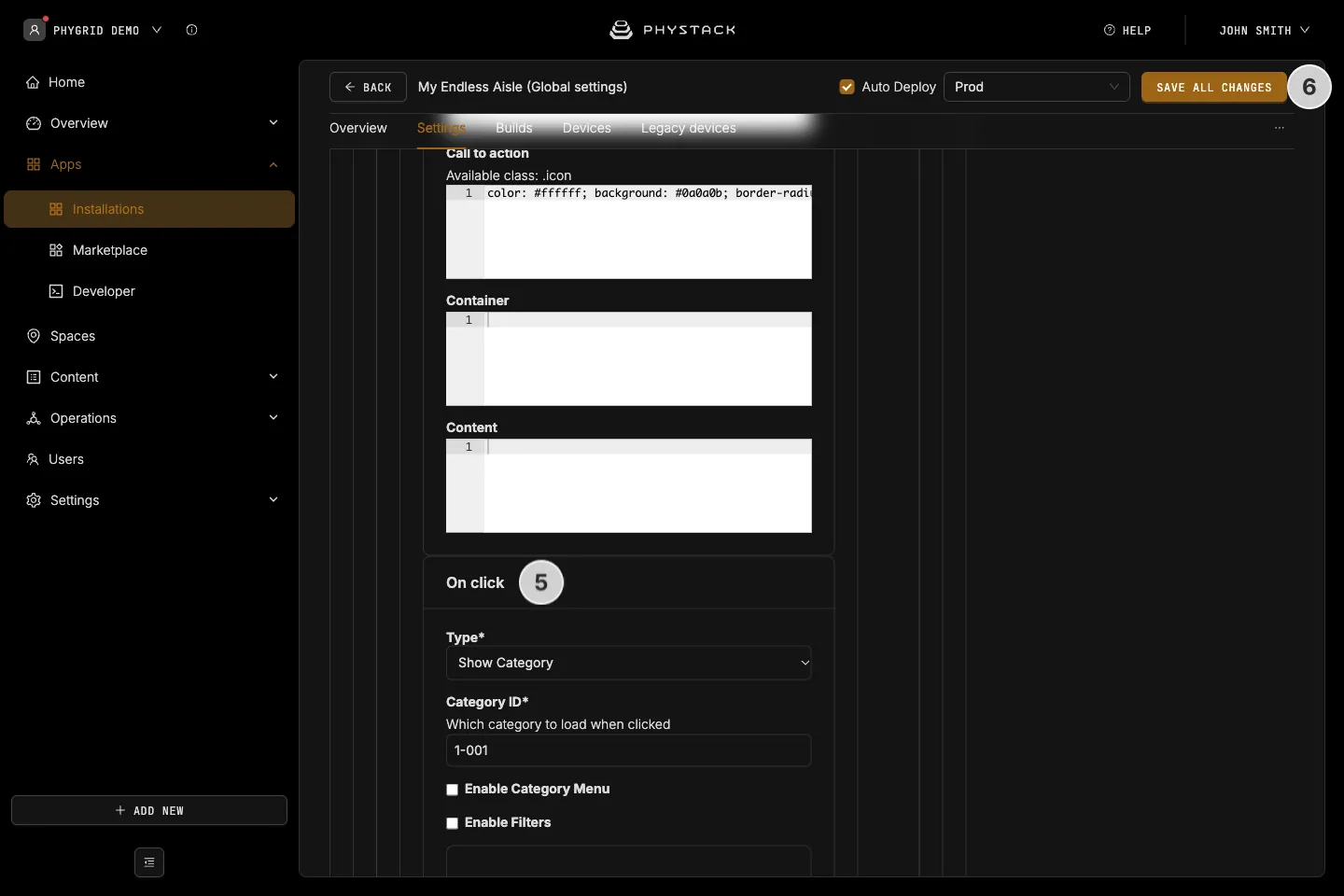
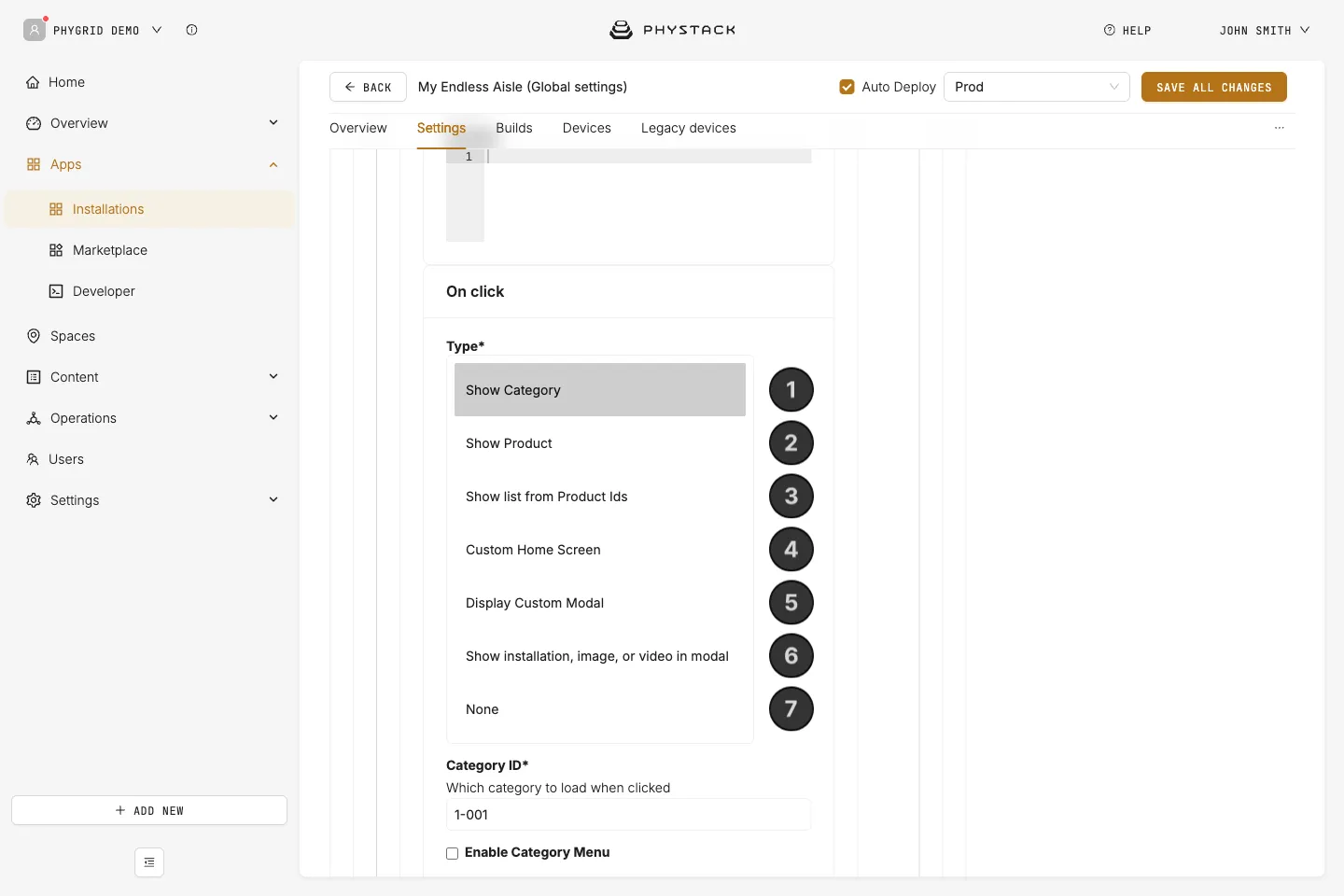
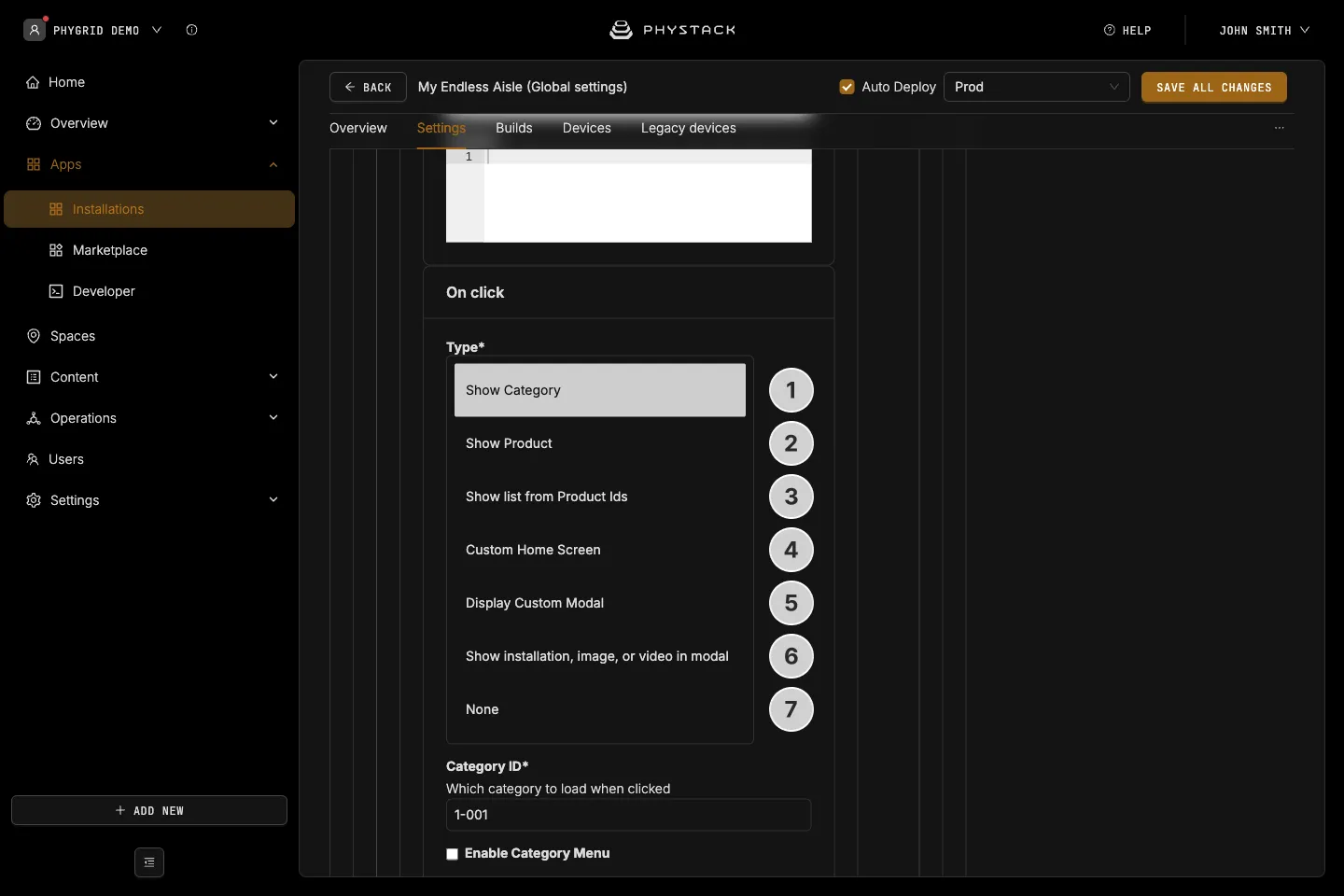
What a banner can open
- Show Category: a category’s product list. Enter the category Identifier in Category ID. You can also turn the category menu and filters on or off for this banner, and add a guided selling assistant
- Show Product: a single product. Enter its Product ID: the Product Group ID shown on the product in Content → Products
- Show list from Product Ids: a hand-picked list of products. Upload an Excel file with the columns
bannerId,spaceId, andproductId, and enter the Banner ID to use from it. Only rows for the kiosk’s space are used - Custom Home Screen: a secondary home screen with its own banners and categories, described below
- Display Custom Modal: a pop-up window with your own content, written in HTML
- Show installation, image, or video in modal: a pop-up window that plays an image, a video, or another installation
- None: the banner isn’t clickable
How to add a secondary home screen
A secondary home screen groups banners and categories for a campaign or a department, for example “Summer collection”.
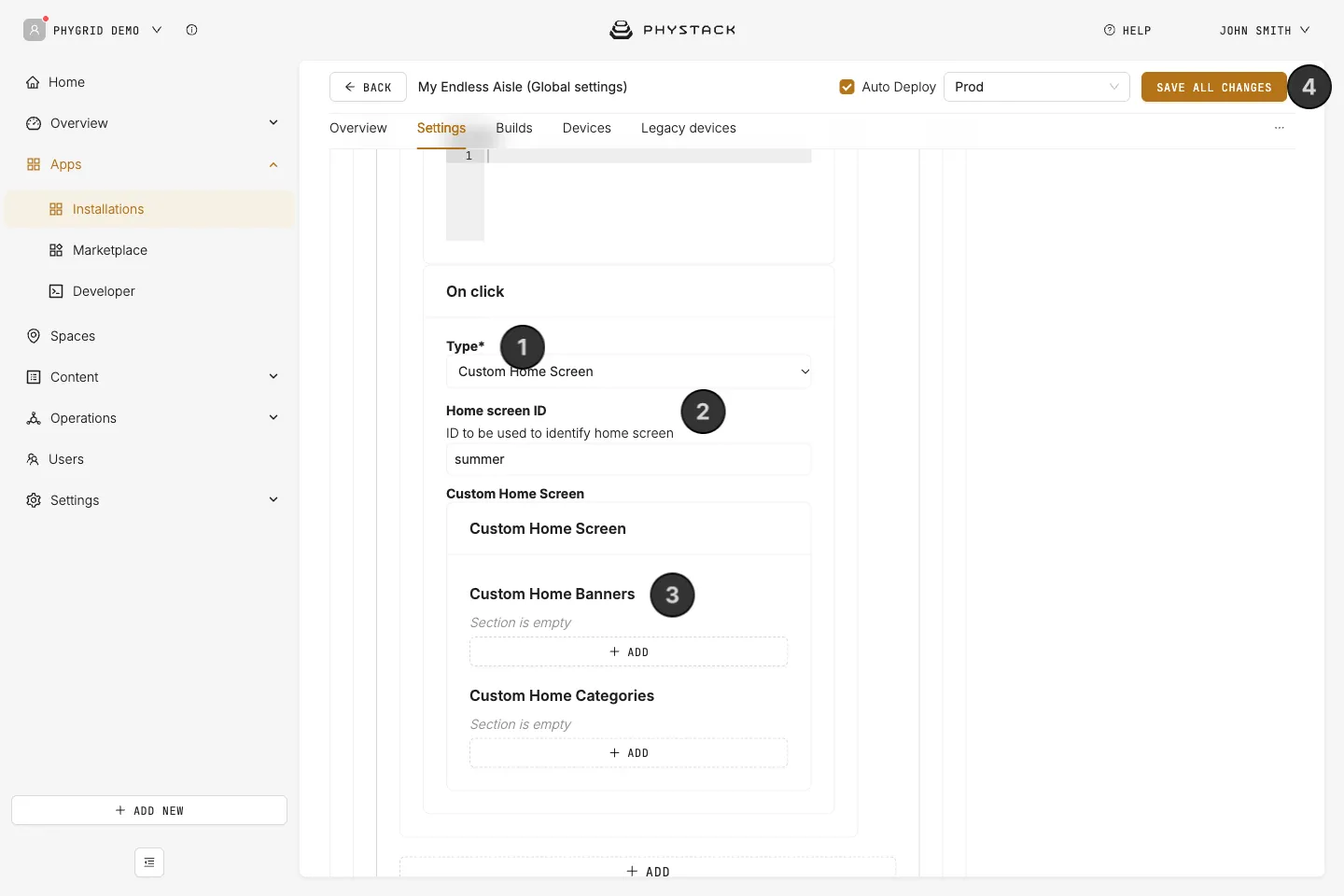
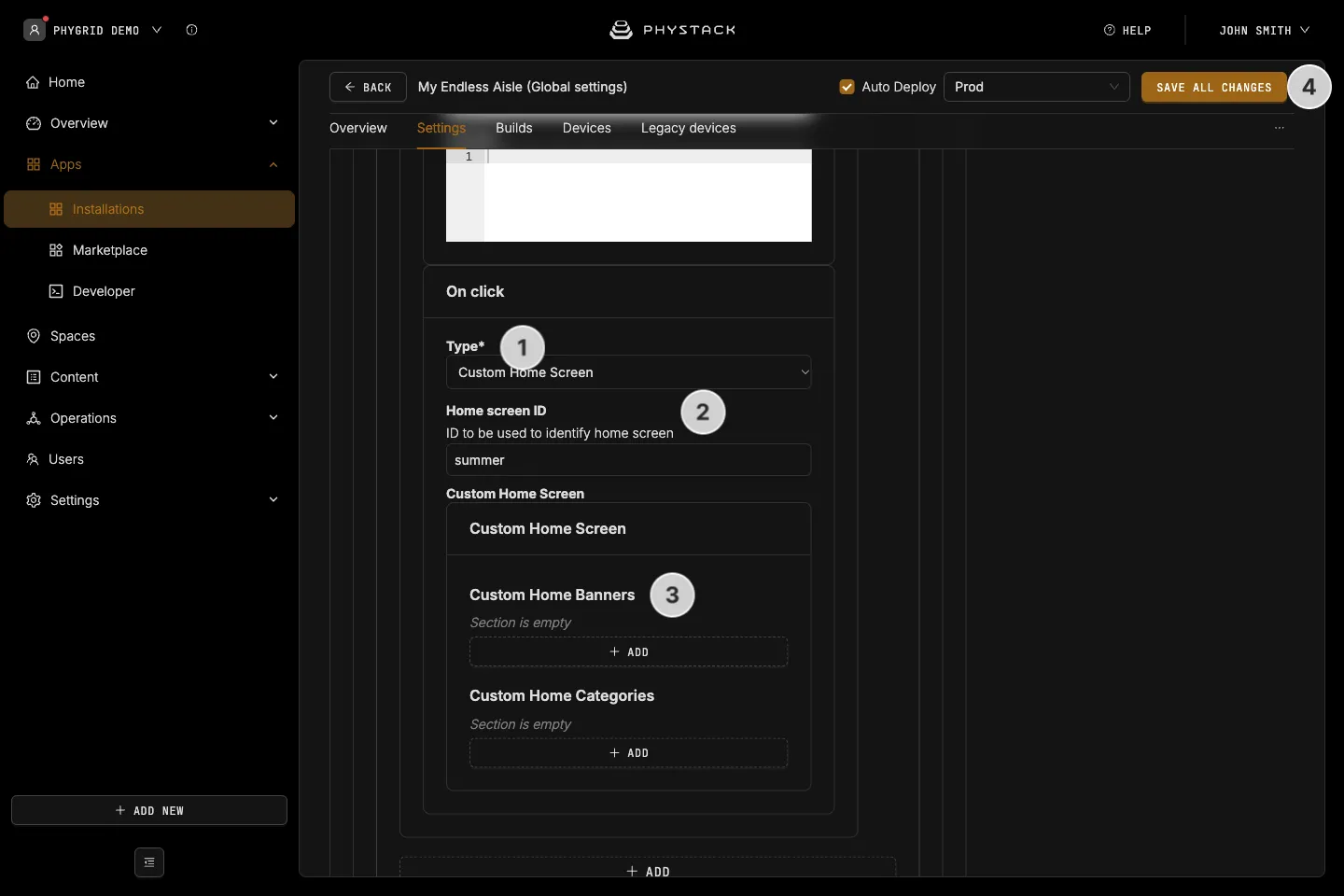
- Add a banner and set On click to Custom Home Screen
- Enter a Home screen ID, for example
summer - Under Custom Home Screen, add its Custom Home Banners and Custom Home Categories, the same way as on the main home screen
- Click Save all changes
How to style banners and categories
Each banner and category has Styles fields for custom CSS, for example to change the text size or colour on one tile. See Customise Endless Aisle with CSS.