Two checkout methods send orders to Tasks:
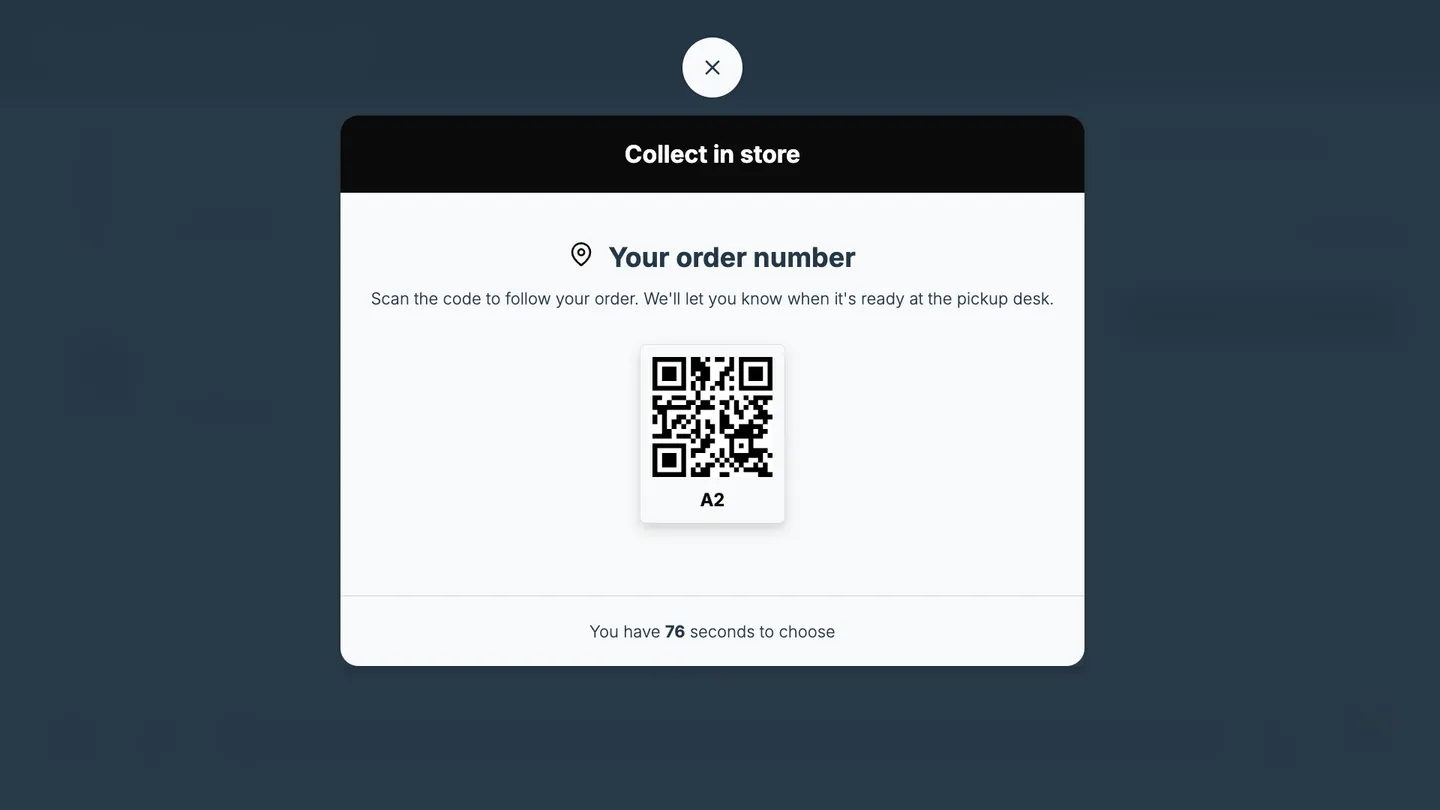
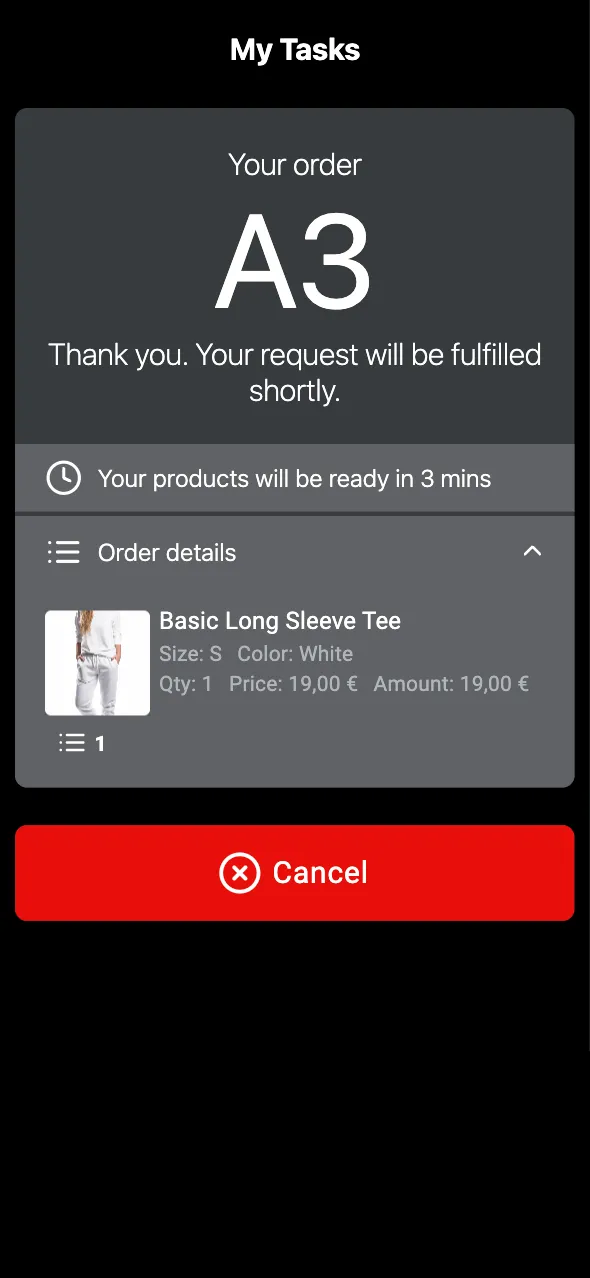
- Tasks App: the customer gets an order number and a QR code to follow the order. Staff prepare the items and bring them to a pickup point
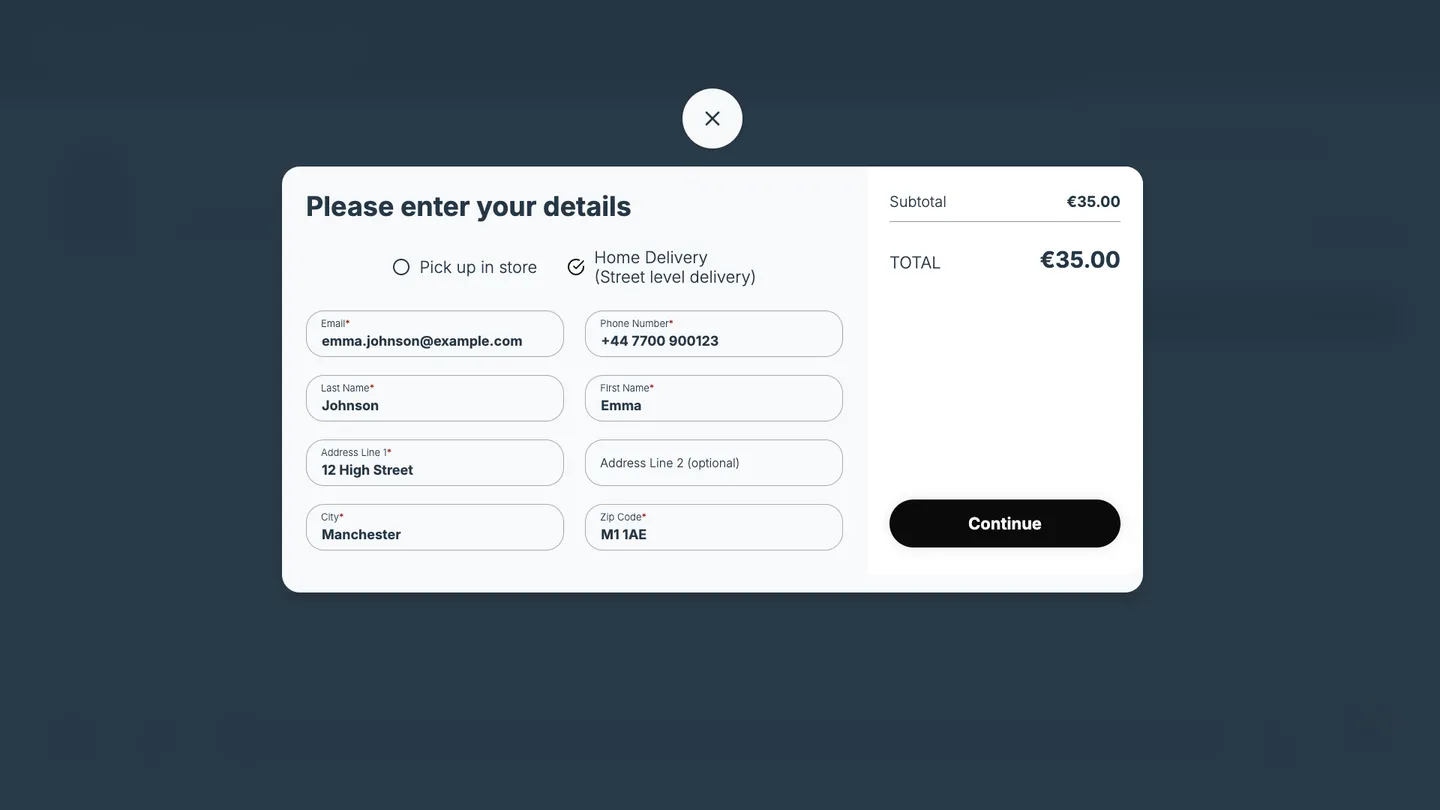
- Print Barcode with Customer Info, and Tasks App: the customer enters their details and chooses store pickup or home delivery. The kiosk creates the order and prints a receipt the customer takes to the till
How to set up Tasks
Tasks is a separate PhyGrid solution that receives the orders. Set it up first:
- Install and configure Tasks. Turn on Show serving tab (Enable ticket check out), so orders stay on the board until they’re completed
- Open the Tasks queue. While it’s closed, the kiosk can’t create orders and shows “An error occurred while creating order”
How to set up Tasks App checkout on the kiosk
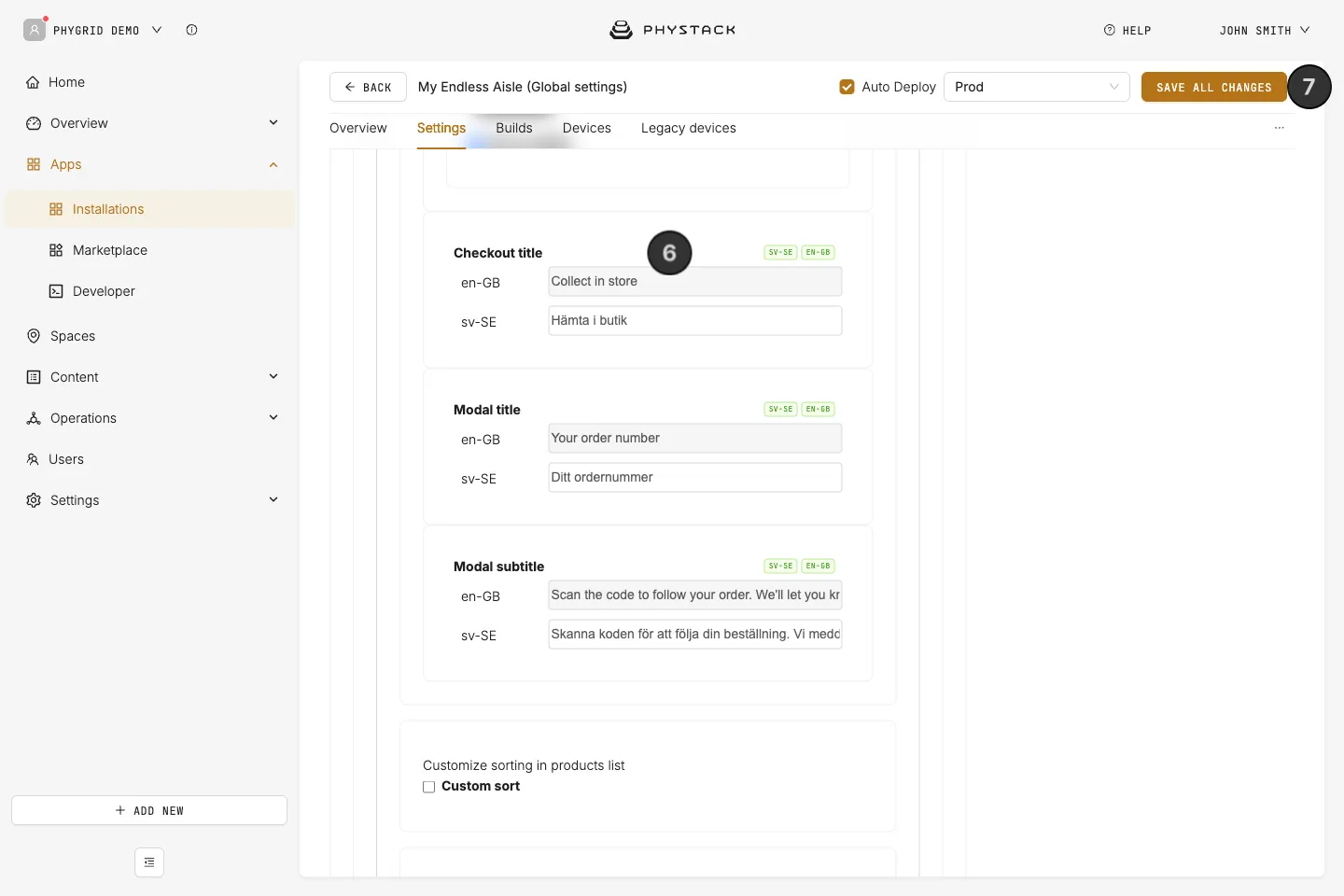
- Open the Endless Aisle installation and go to the Settings tab
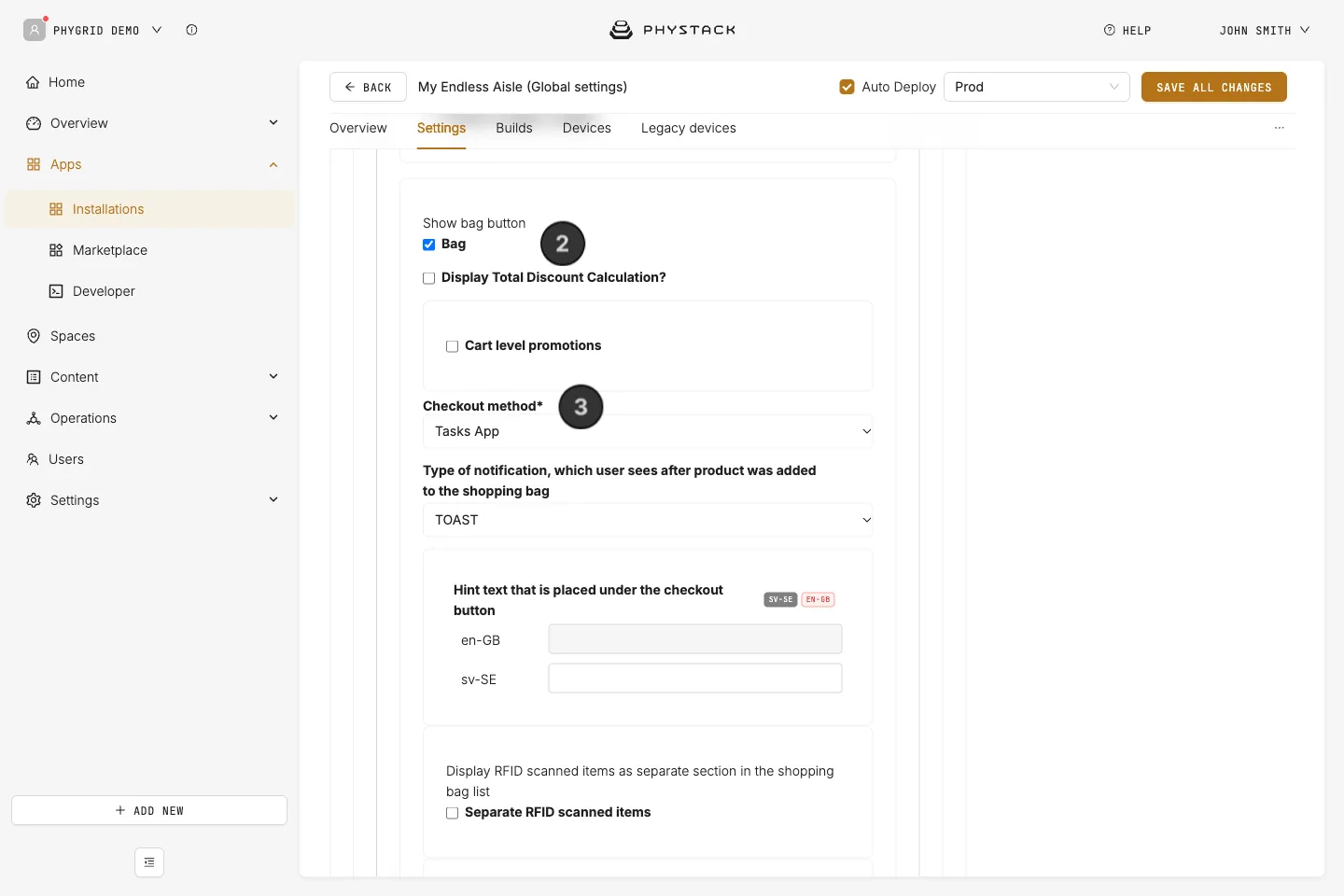
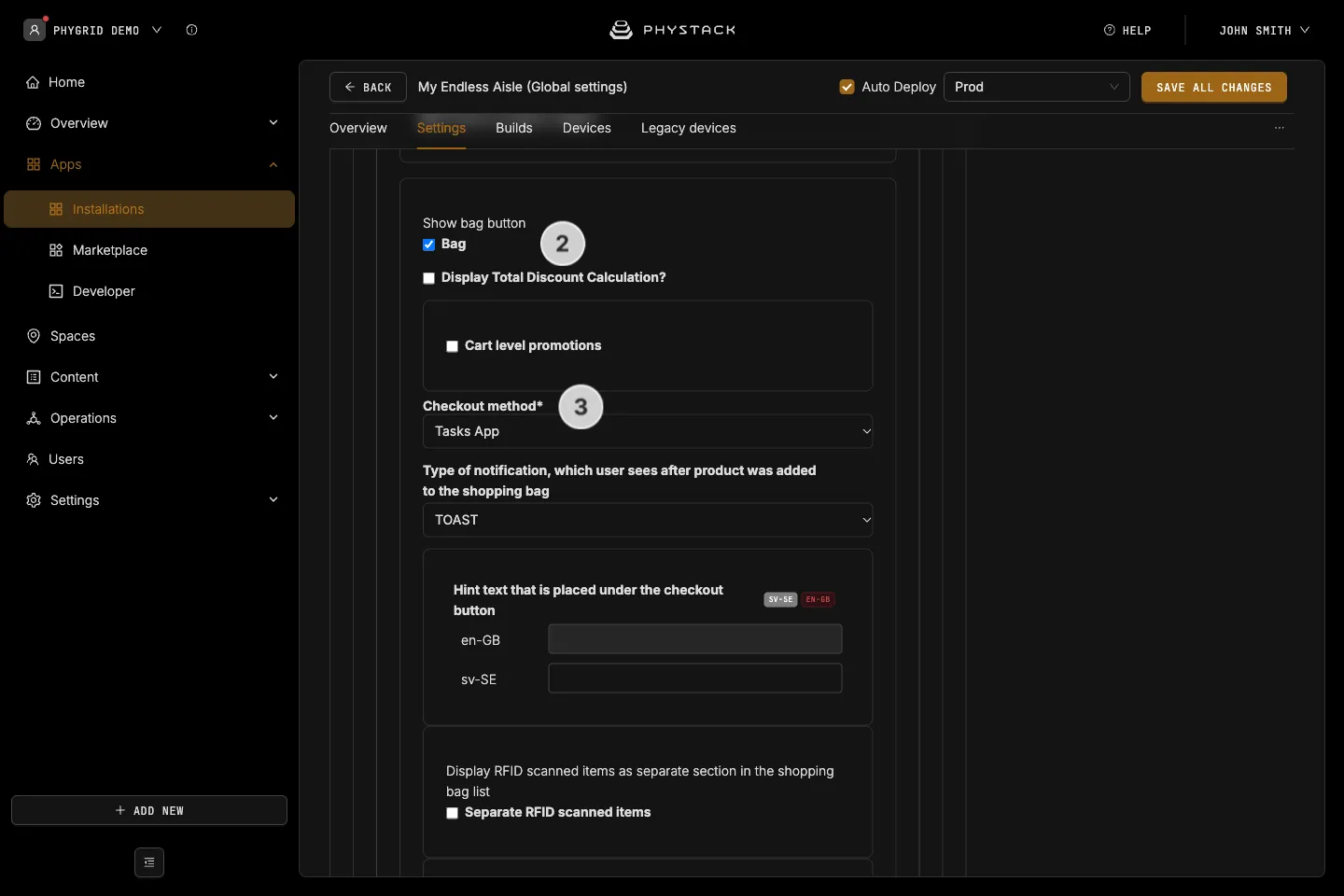
- Expand Features and turn on Bag
- Set Checkout method to Tasks App
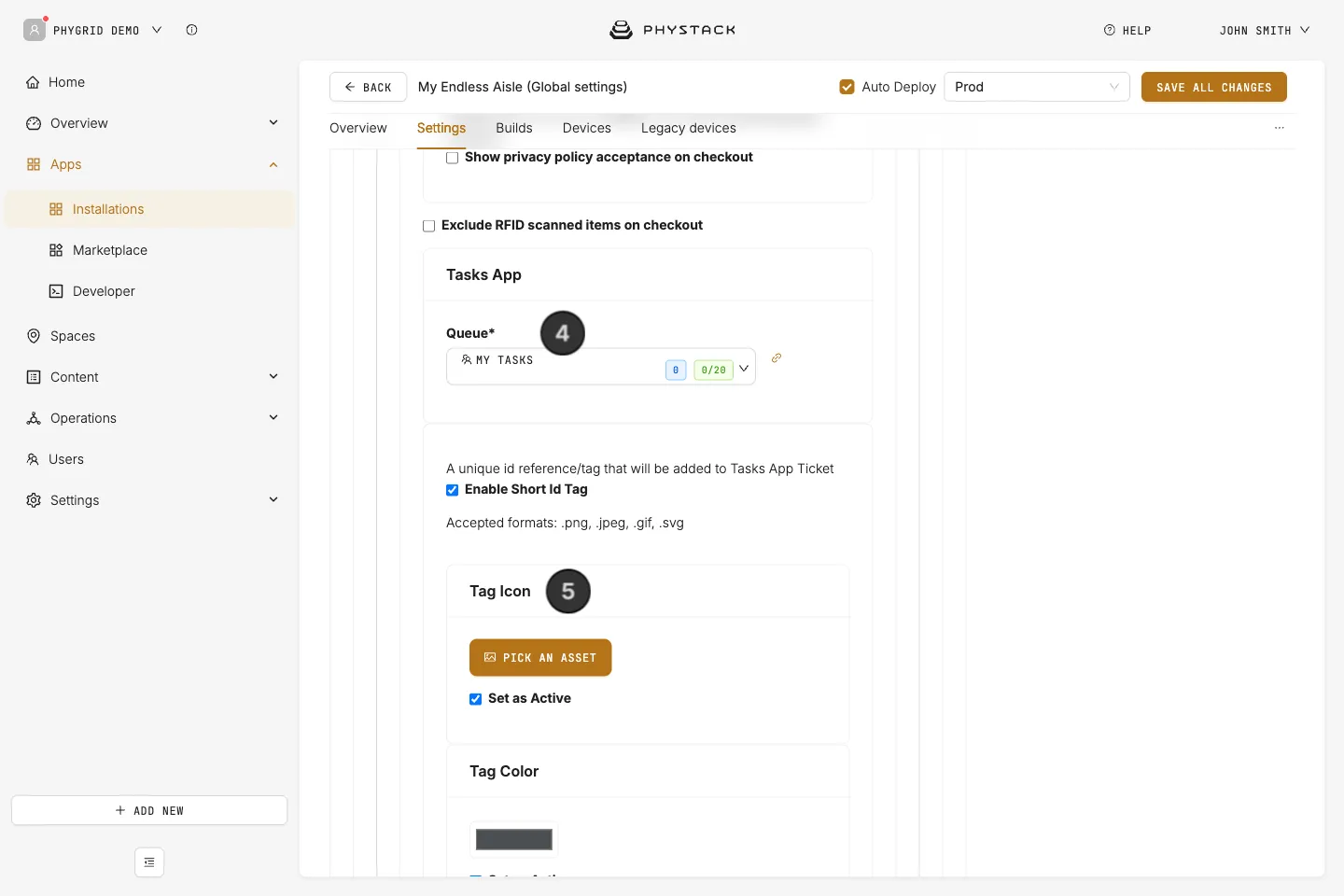
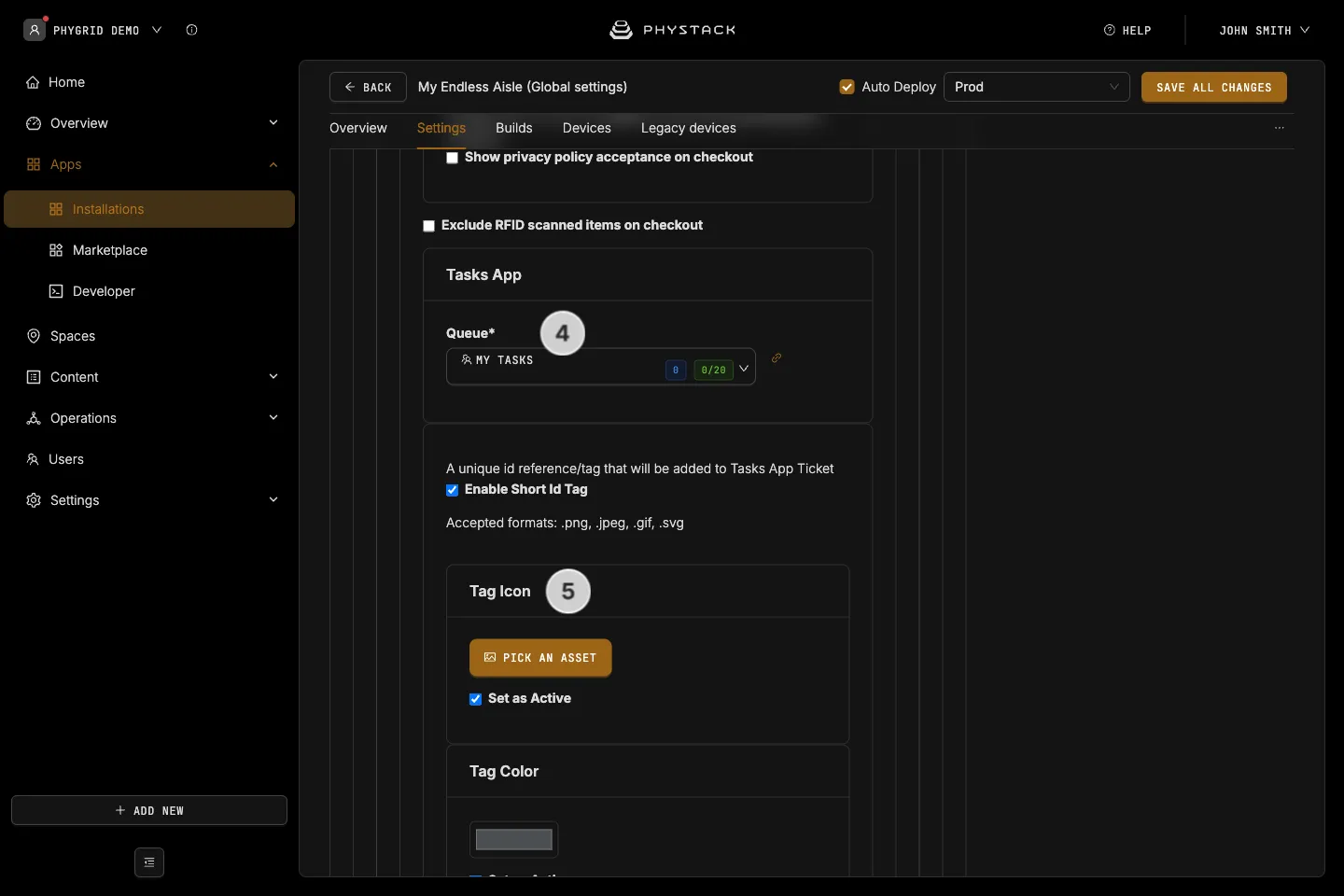
- In Tasks App, open Queue and select the queue of your Tasks installation. The list shows all queues in your tenant, Queue Management queues too, so check that you pick your Tasks queue
- Leave Enable Short Id Tag on to add a short order reference to each order. Optionally, set a Tag Icon and Tag Color to make kiosk orders stand out
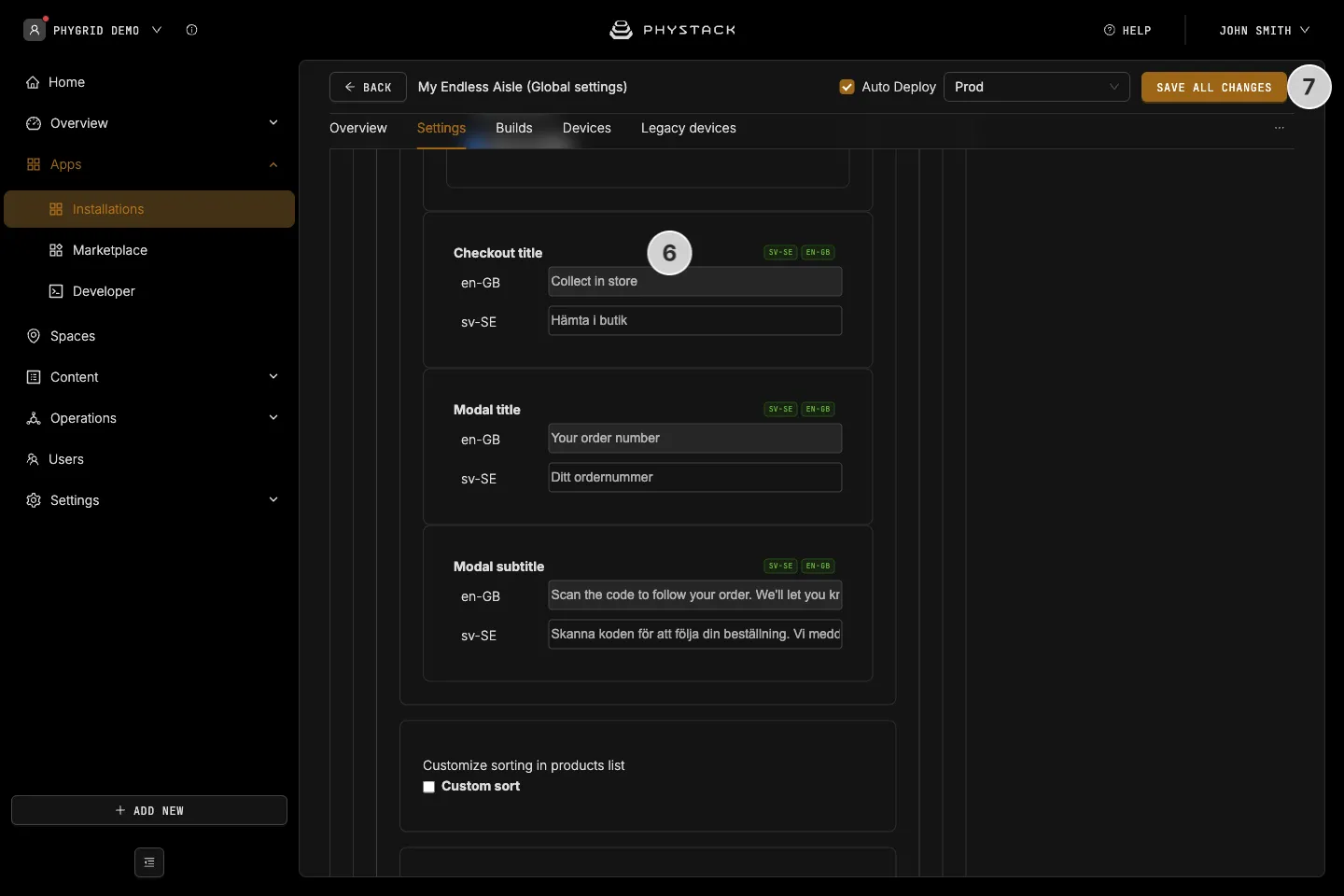
- Optionally, change the Checkout title, Modal title, and Modal subtitle the customer sees
- Click Save all changes
The customer sees a QR code and an order number. Scanning the QR code opens a page on their phone that shows the order status.
How to set up checkout with customer info and a receipt
This method also needs a receipt printer, see Set up receipt printing.
- Open the Endless Aisle installation and go to the Settings tab
- Expand Features and turn on Bag
- Set Checkout method to Print Barcode with Customer Info, and Tasks App
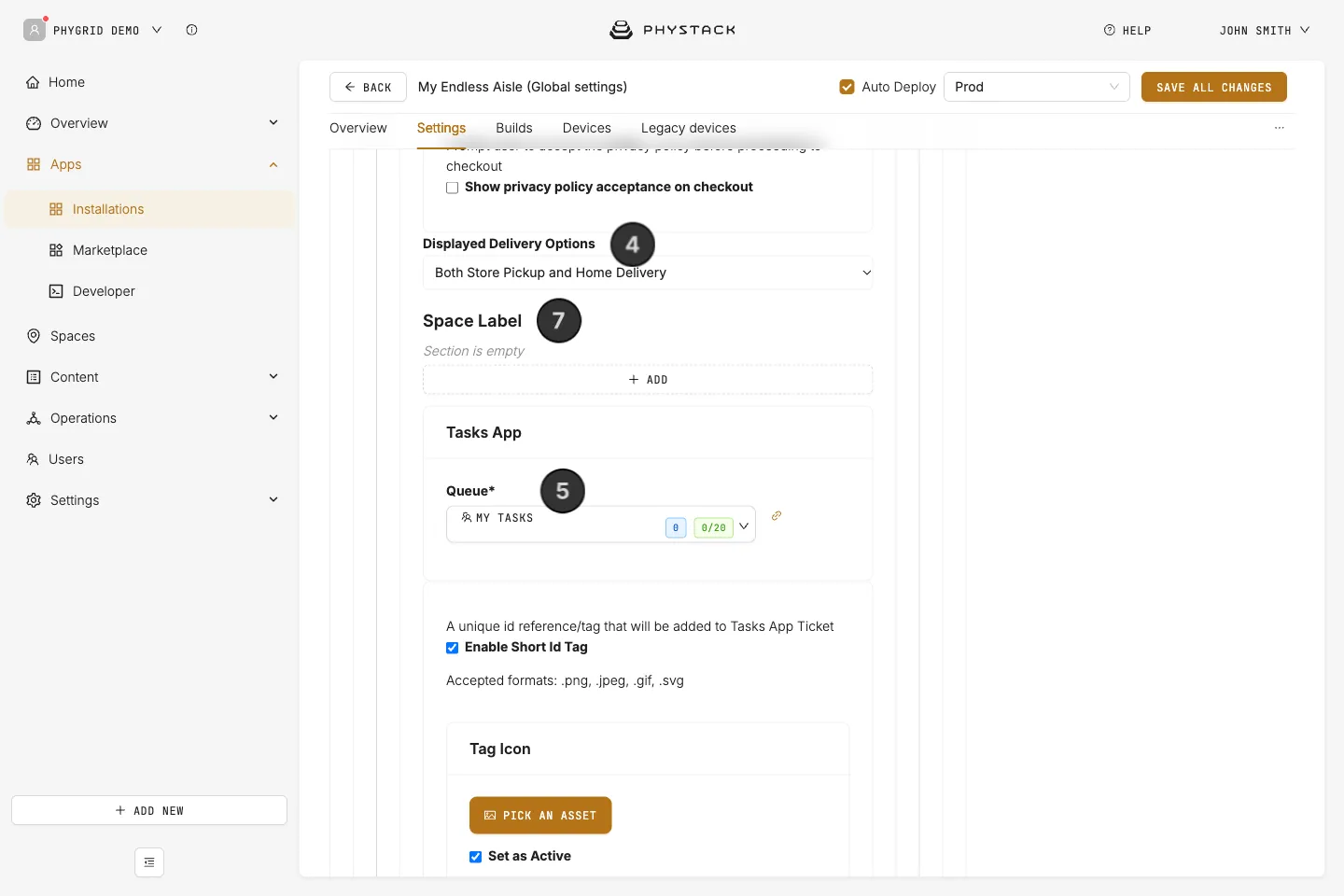
- In Displayed Delivery Options, choose whether customers can pick Store Pickup only, Home Delivery only, or both
- In Tasks App, open Queue and select the queue of your Tasks installation
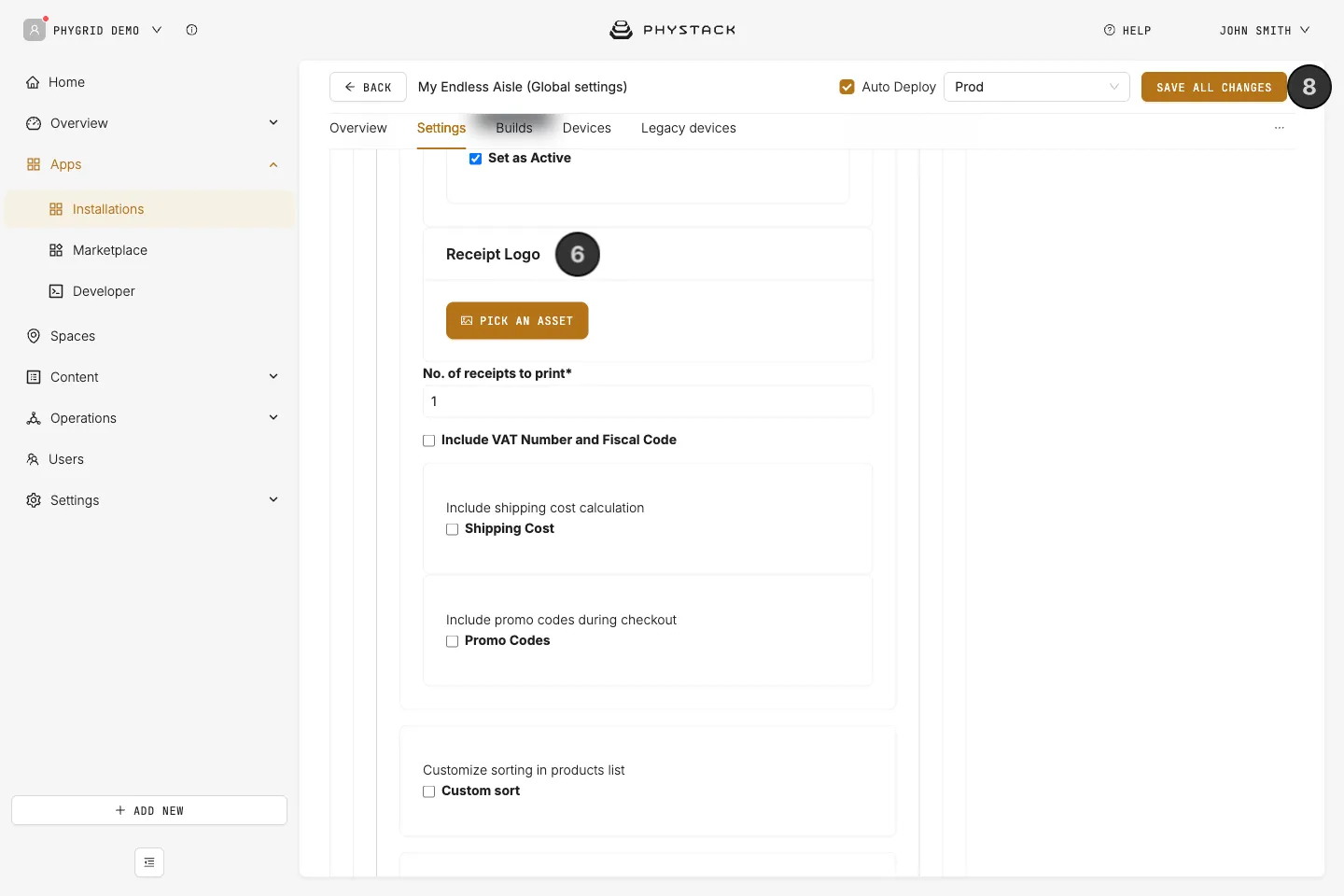
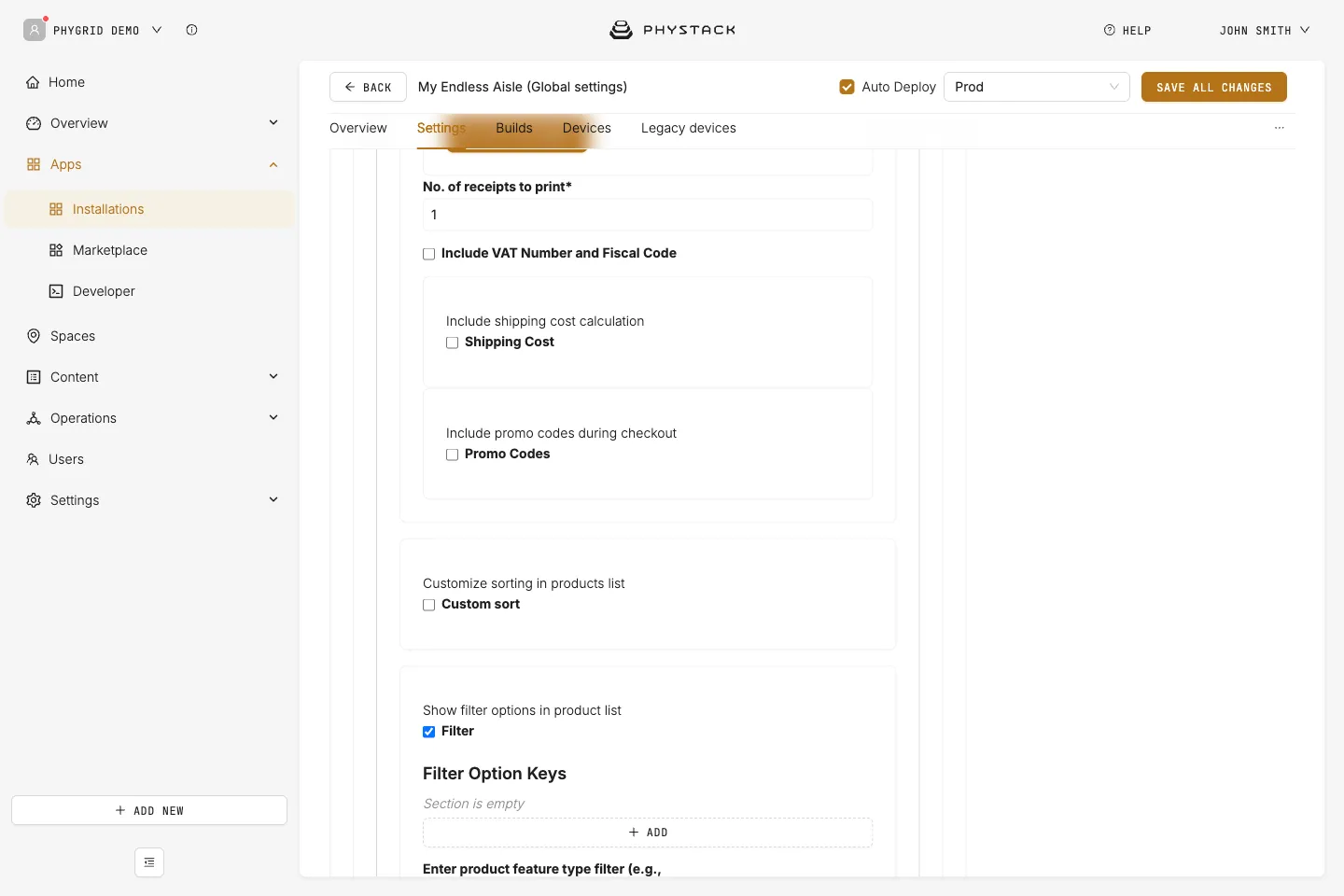
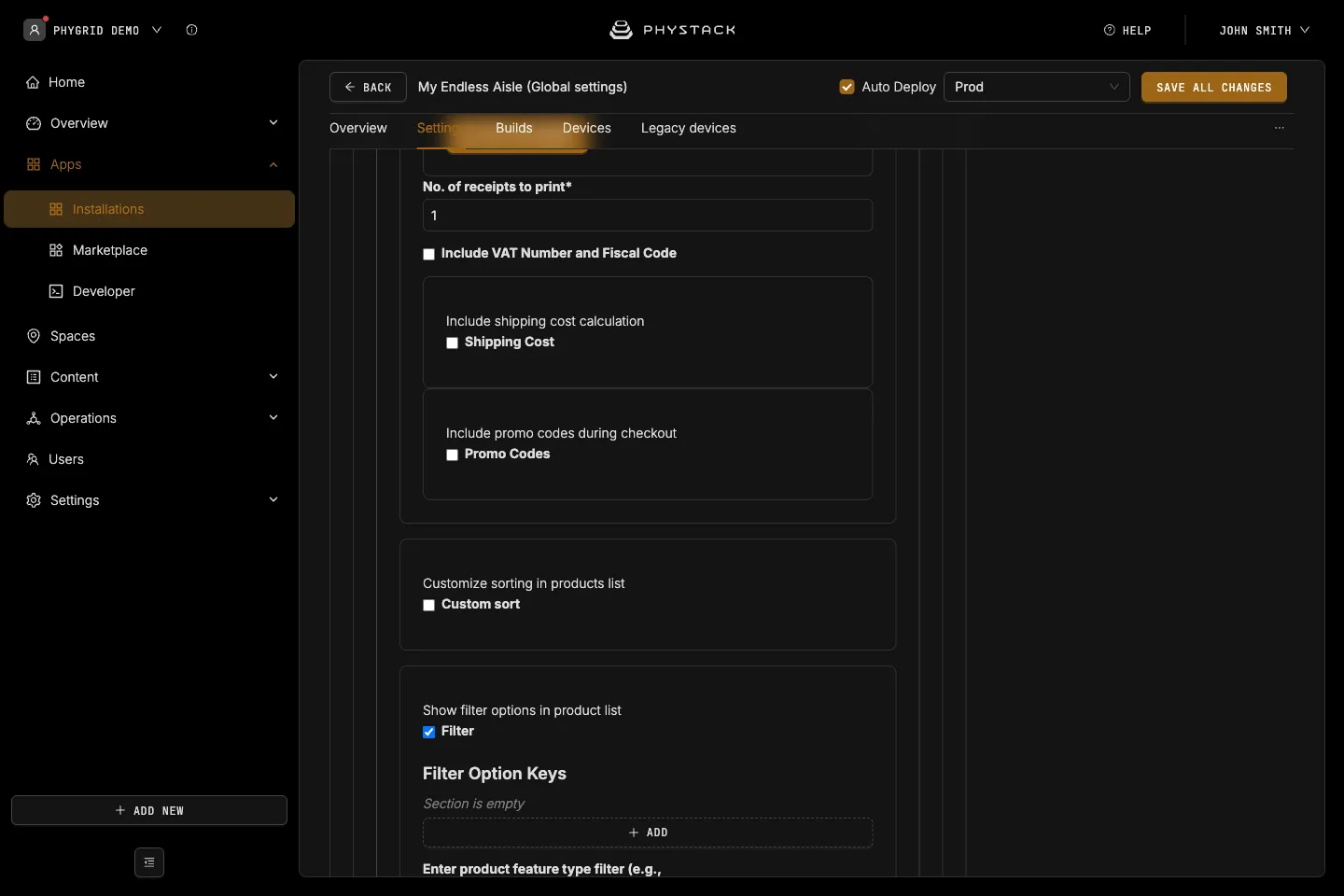
- Set the Receipt Logo and No. of receipts to print
- Optionally, add a Space Label to print the store name on the receipt
- Click Save all changes
Optional extras:
- Include VAT Number and Fiscal Code: adds both fields to the customer form and the receipt
- Shipping Cost: adds a shipping cost based on the order total. Up to three rules are checked in order, and the first that matches is used. The cost is added to store pickup orders too
- Promo Codes: lets customers enter a discount code. Promo Codes Source is a public web address that returns your codes as a list
- Show privacy policy acceptance on checkout: customers must accept your Privacy Policy text before entering their details
How staff handle Endless Aisle orders
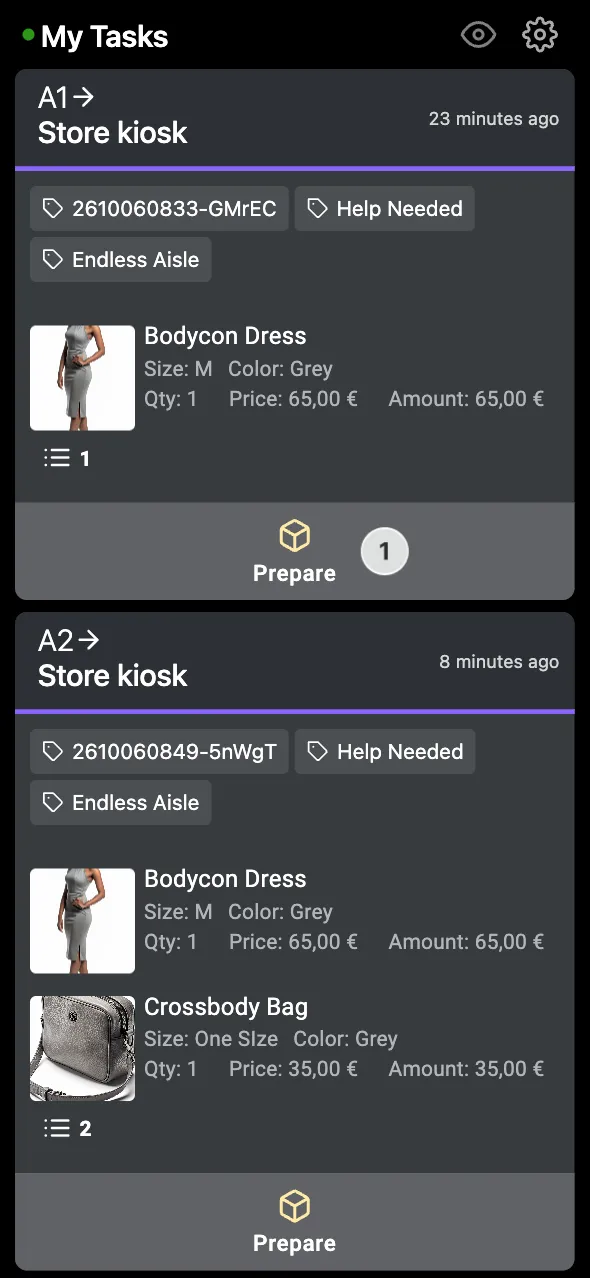
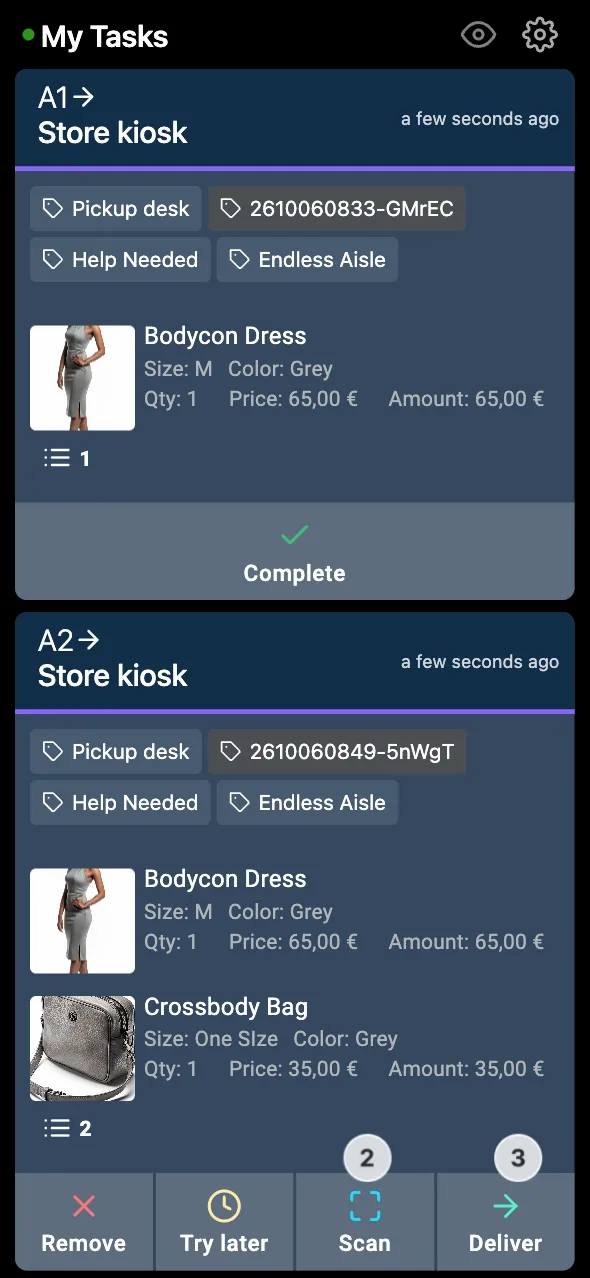
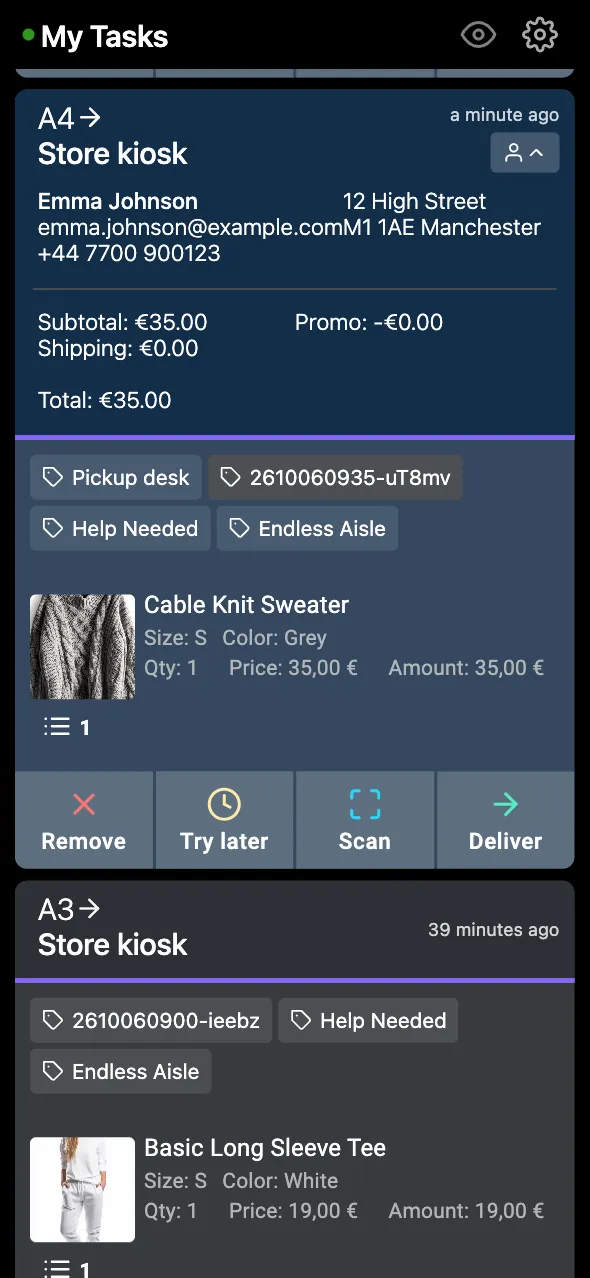
Orders appear on the Tasks staff board with an “Endless Aisle” tag, the order number the customer sees, the products with their barcodes and prices, and, with customer info, the customer’s details and order totals. The delivery option isn’t shown in Tasks, but home delivery orders include an address and it’s printed on the receipt.
A typical flow for staff:
- Prepare: start picking the order
- Scan: scan each item’s barcode to confirm it
- Deliver: the items are at the pickup point or handed to the customer
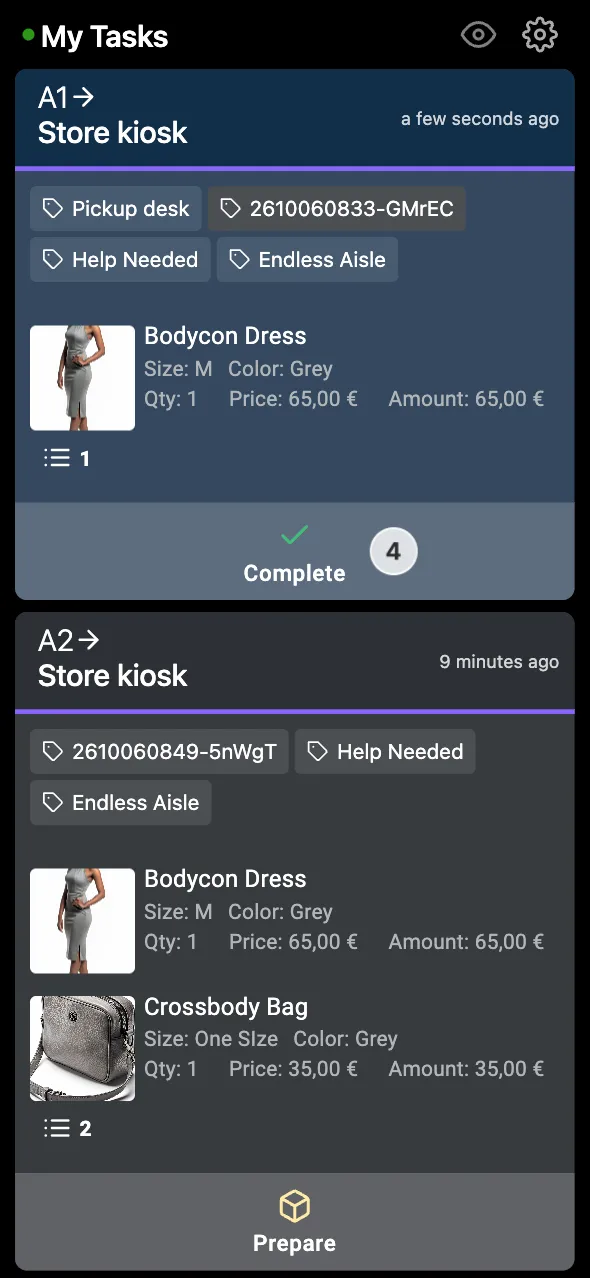
- Complete: the customer has paid at the till. Match the order by the number on the customer’s phone or receipt
See Manage requests in Tasks for the staff board.