

How to access the Queue Manager
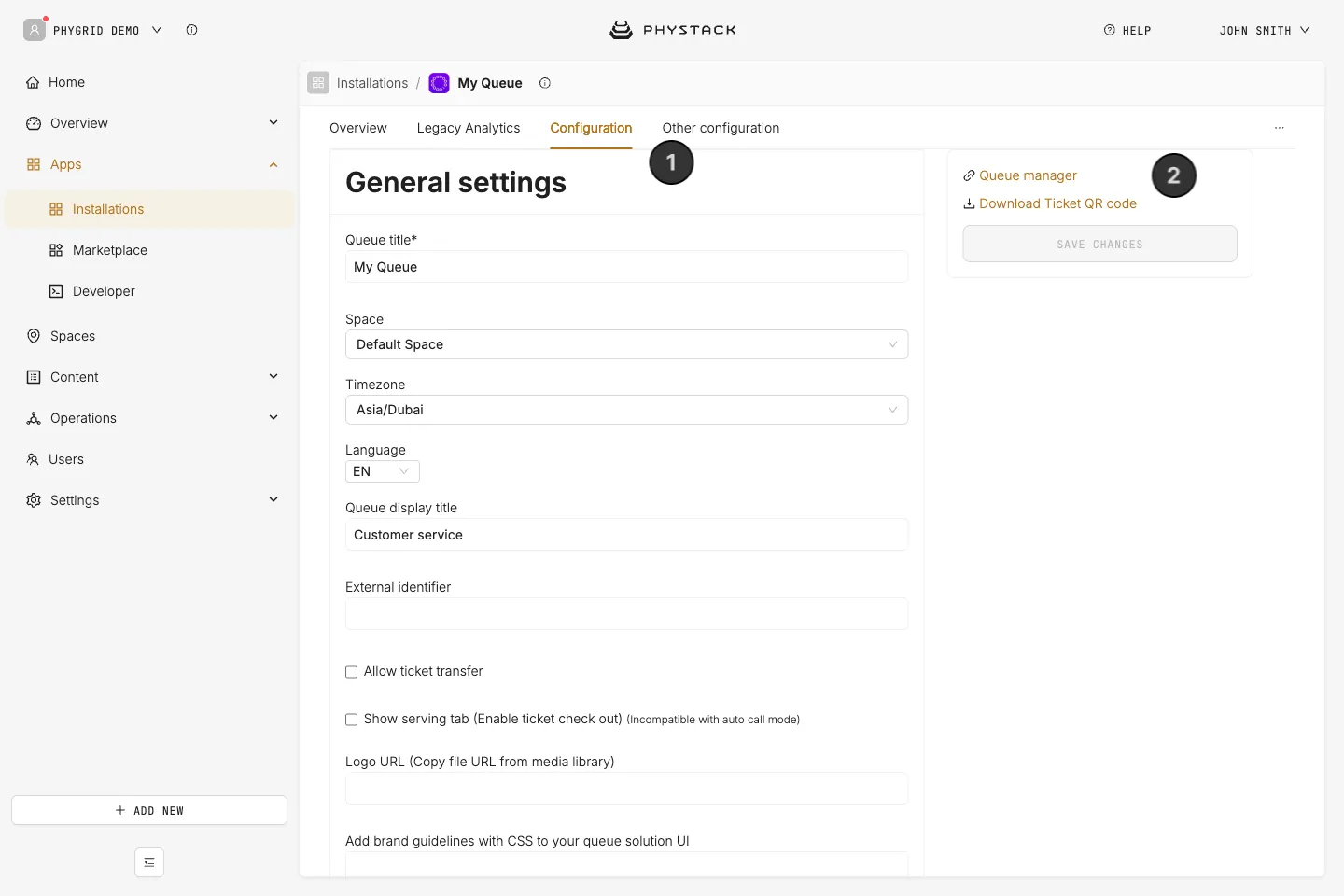
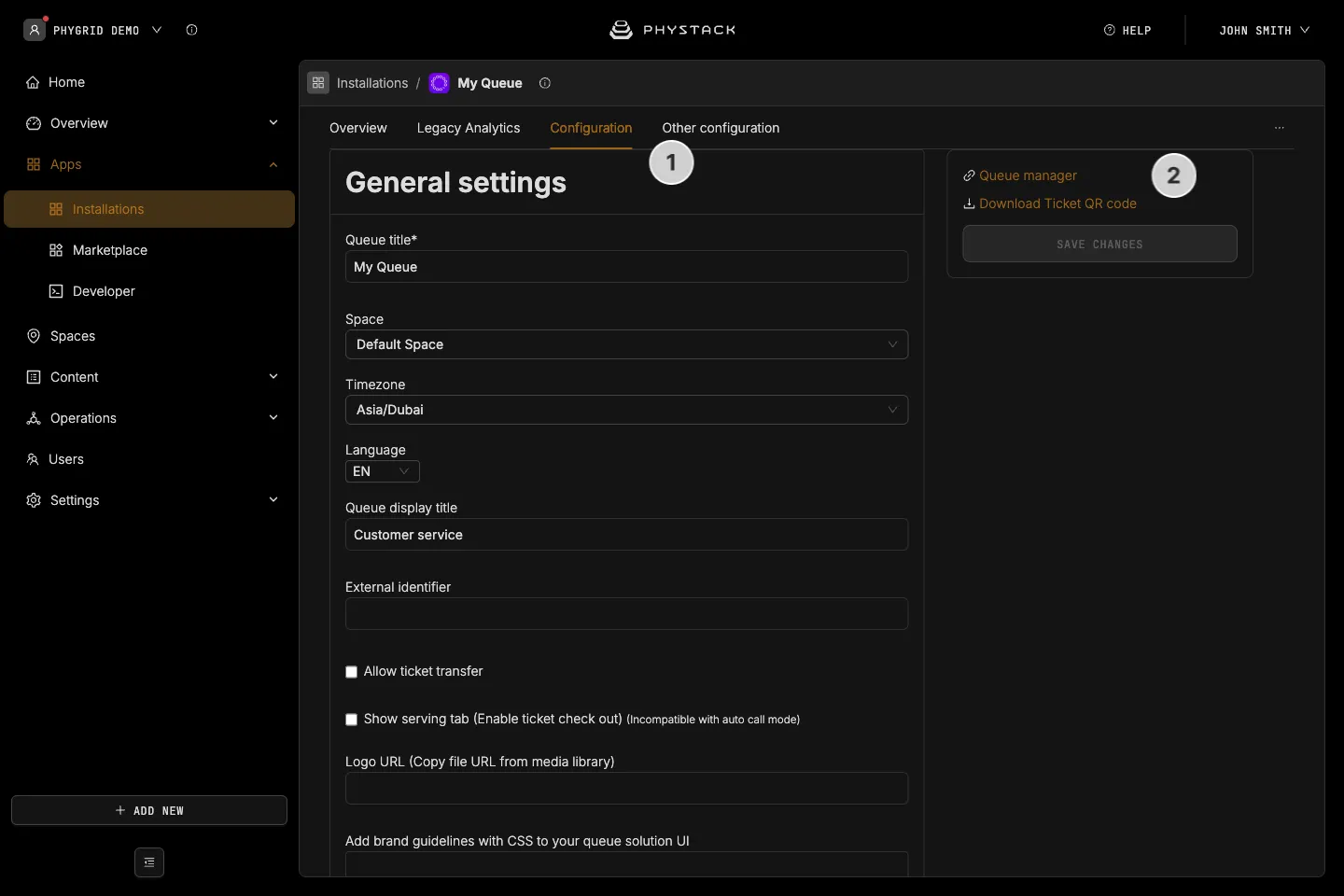
- In the Console, open your Queue Management installation and go to the Configuration tab
- Copy the link for Queue manager from the right-hand panel and share it with staff responsible for queue management and visitor flow
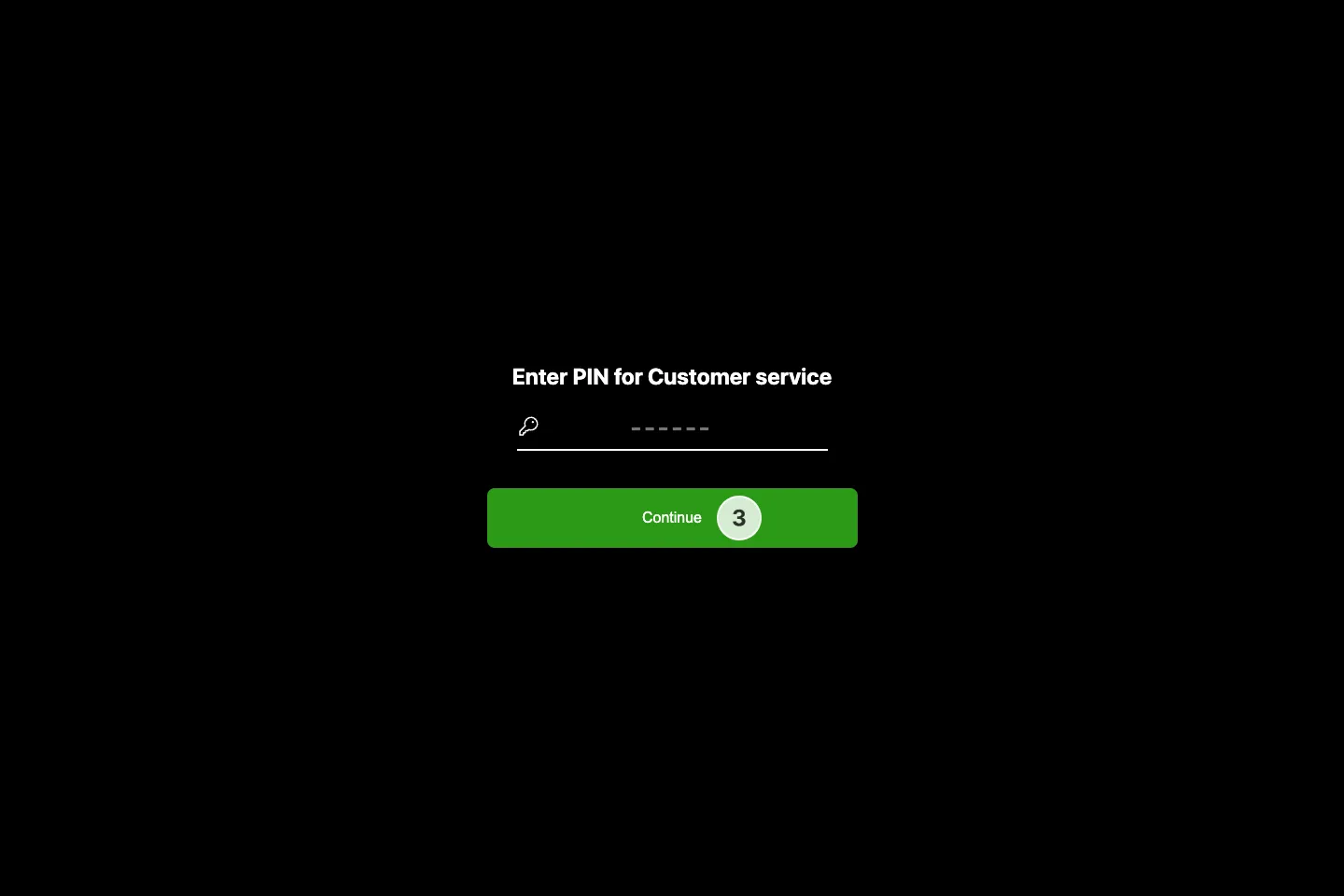
- Depending on the configured login method, you might also need to share the access pin number
- On the staff side, open the link you just received, and enter the pin or log in using your email
How to set your station and category
This option is only relevant and will only be displayed if your queue is configured to use categories and stations.
Choosing categories needs email login. With PIN login, Settings only shows the station.
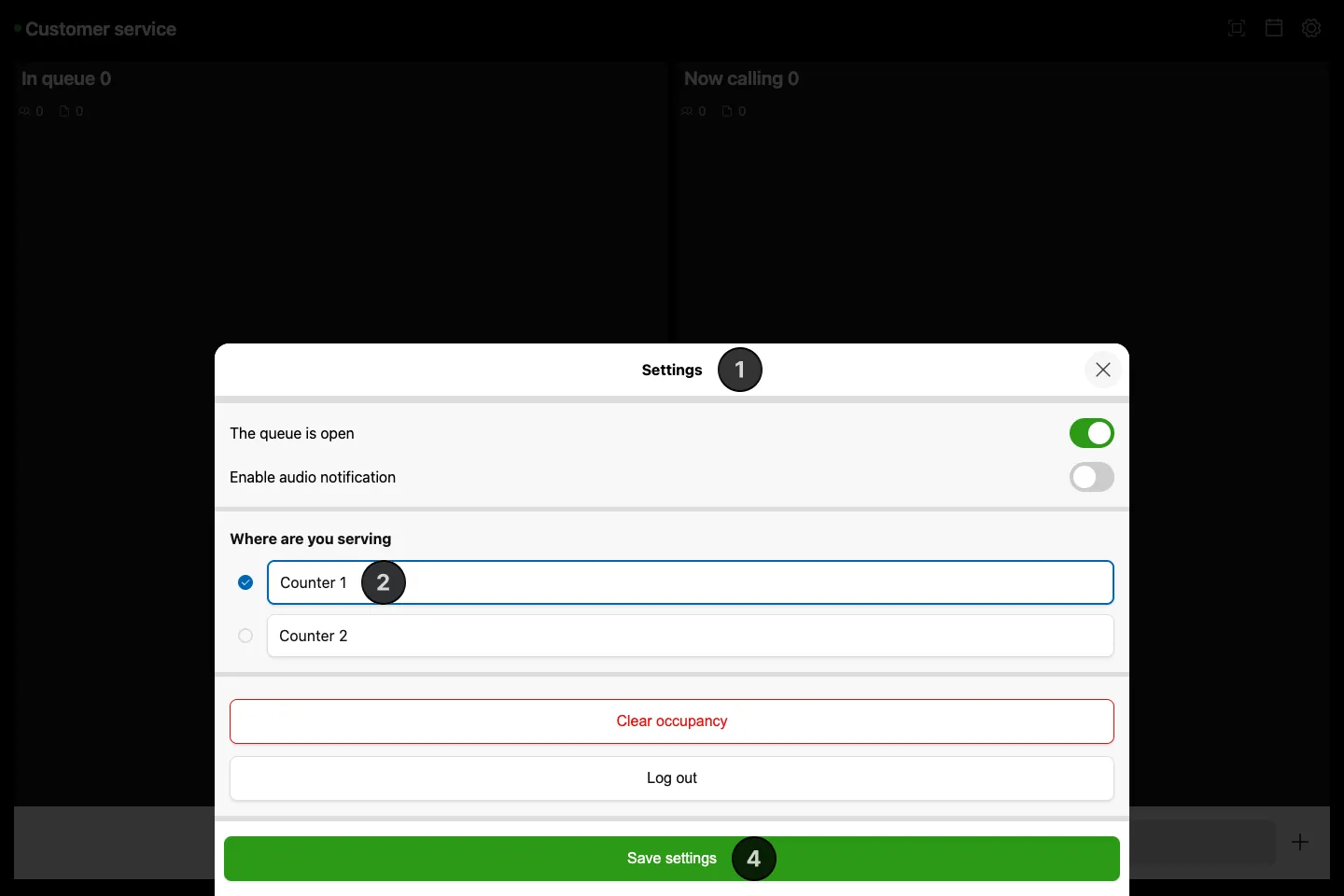
- Open Settings with the gear icon. If you log in with email, ticket transfer is allowed, and you haven’t selected a station or category yet, Settings opens automatically after login
- Select the station you are positioned at, such as your desk, counter, service area
- Select the categories you are serving. Items that are not selected will not have their tickets shown in your Queue Manager session
- Click on the Save settings button to save your settings
Queue Manager interface
Some items depend on email login: your initials, Transfer and Filter are only shown when staff log in with email, not with a PIN.
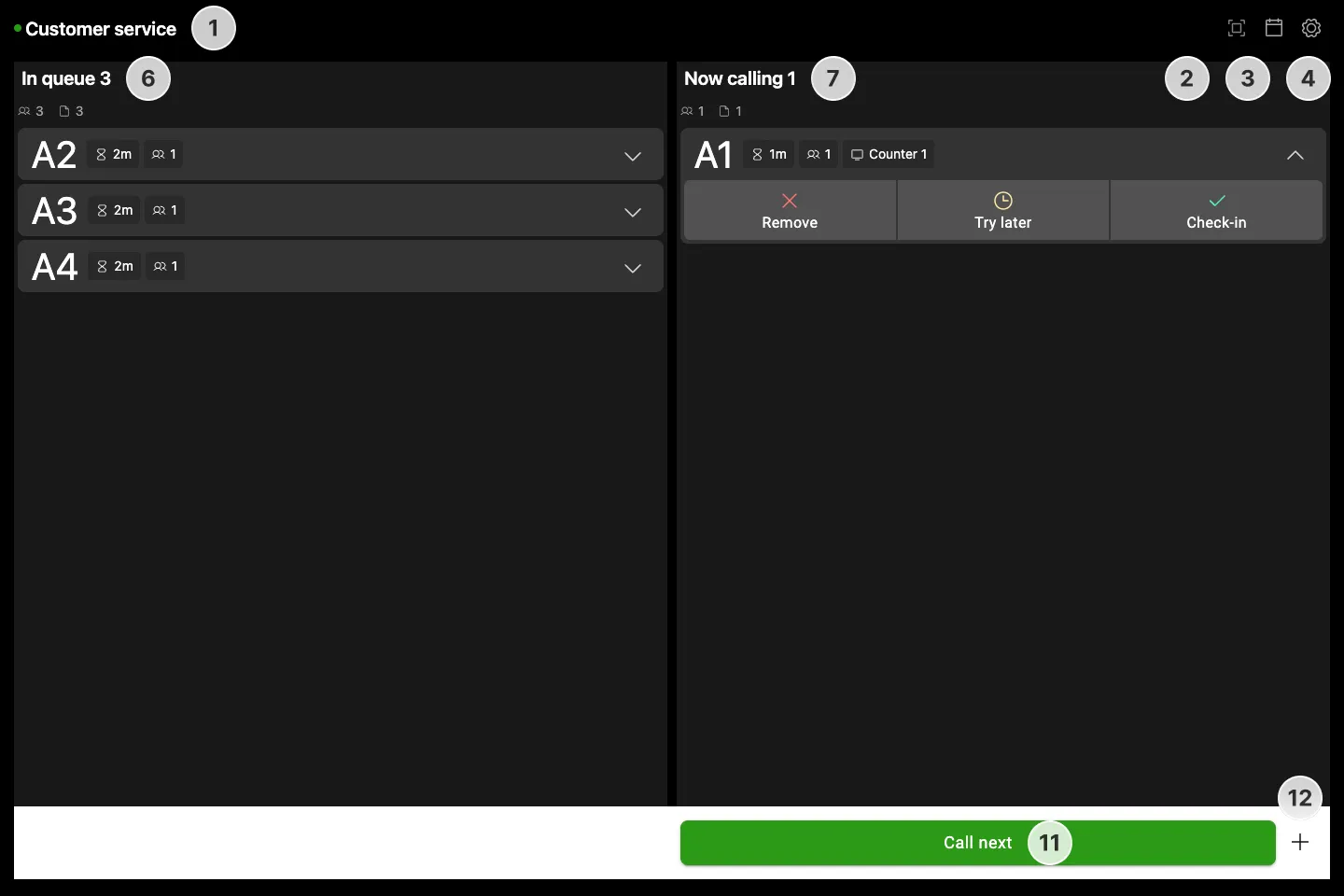
- Queue title and status indicator. Green means the queue is open
- Scanner button lets you scan the QR code on the visitor’s ticket to check them in. This option can be enabled/disabled in queue settings
- Calendar view is used if you have bookings enabled
- Settings lets you customise options for the queue
- Your initials If you are using email login, your initials are displayed to indicate current user session. Click the initials to open Settings, where you can Log out
- In queue list showing incoming visitors - people who have created a ticket by scanning the QR code or using the kiosk
- Now calling tab shows the tickets that you have called to approach your station
- Serving tab shows the visitor that is being served at the moment. Serving tab can be disabled in queue settings
- Transfer button lets you select then transfer ticket(s) to a different queue, counter, or category. It is only shown when Allow ticket transfer and email login are both enabled
- Filter button will hide tickets in Now calling and Serving tabs that are managed by other staff members. It is only shown when Show serving tab and email login are both enabled
- Call next button will call the next ticket in line in order of time joined, or based on category priority option
- Create manual ticket lets you create a ticket for people who aren’t able to scan the QR code
How to manage visitor flow
How to view incoming visitors
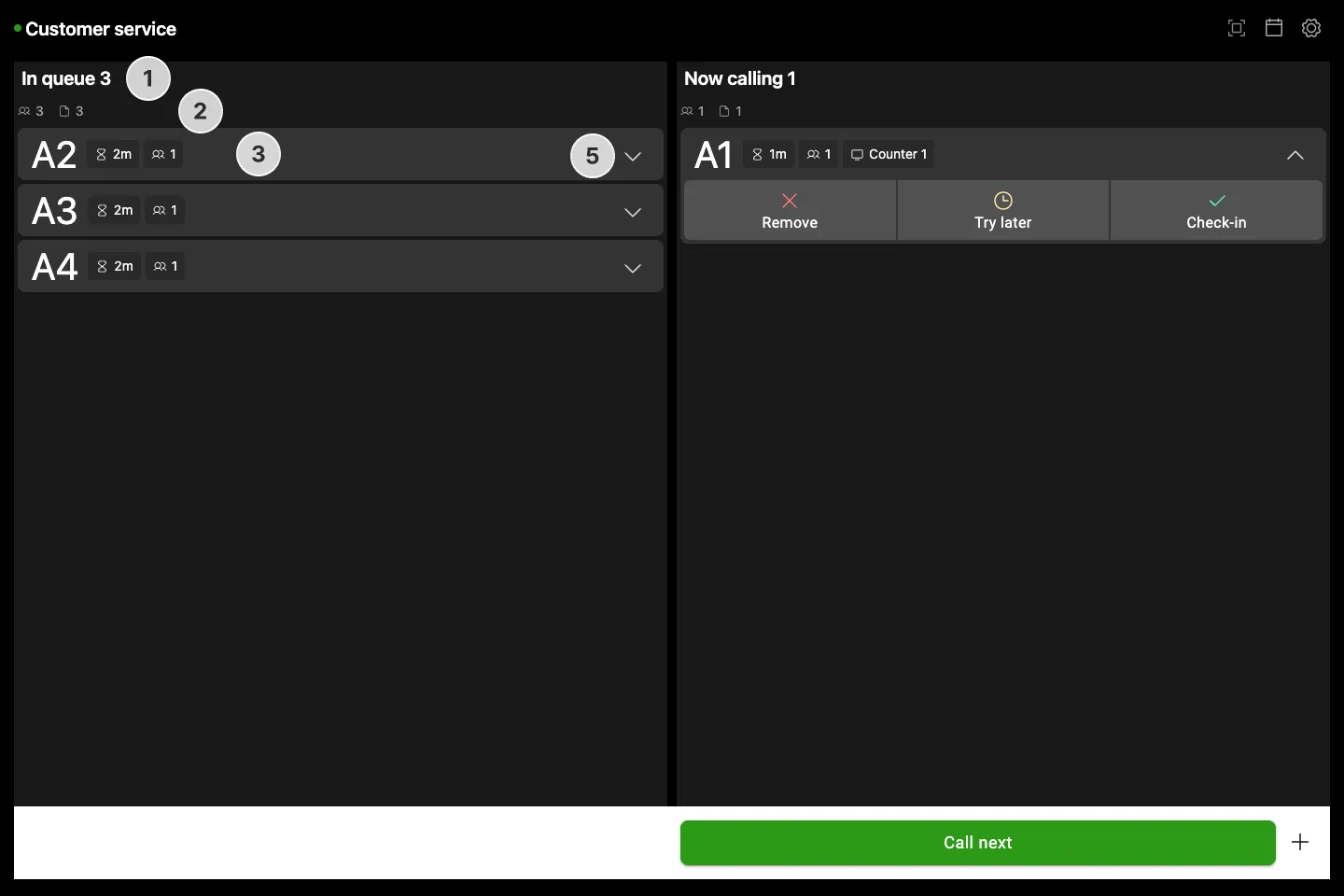
- Visitors who join the queue automatically appear in the In queue list, with the oldest ticket (first in line) at the top
- Column indicators give you a quick overview of the number of tickets and number of people waiting in that particular column
- Each ticket displays ticket details such as ticket number, number of visitors, time of creation, as well as user registration details, such as selected category. Other user registration details can be set up by adjusting queue settings in Console
- The category color indicator helps differentiate ticket types when you serve more than one category
- Click the expand arrow to reveal the option to transfer a ticket, or call that specific ticket out of order
How to call a visitor to your station
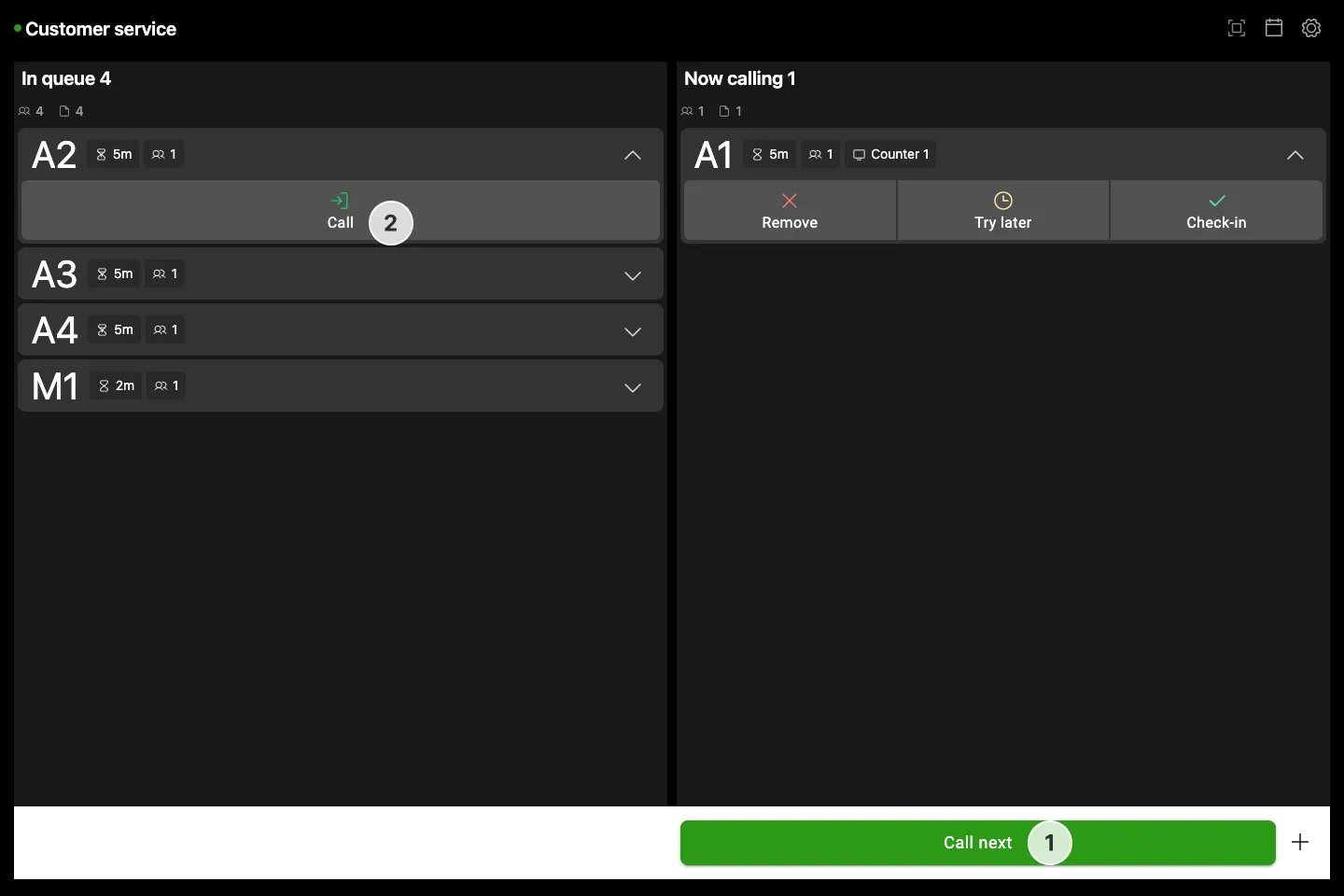
- Click the Call next button to call the next visitor in line based on time joined or category priority
- To call a specific visitor, expand their ticket in the In queue list and click Call
How to check a visitor in
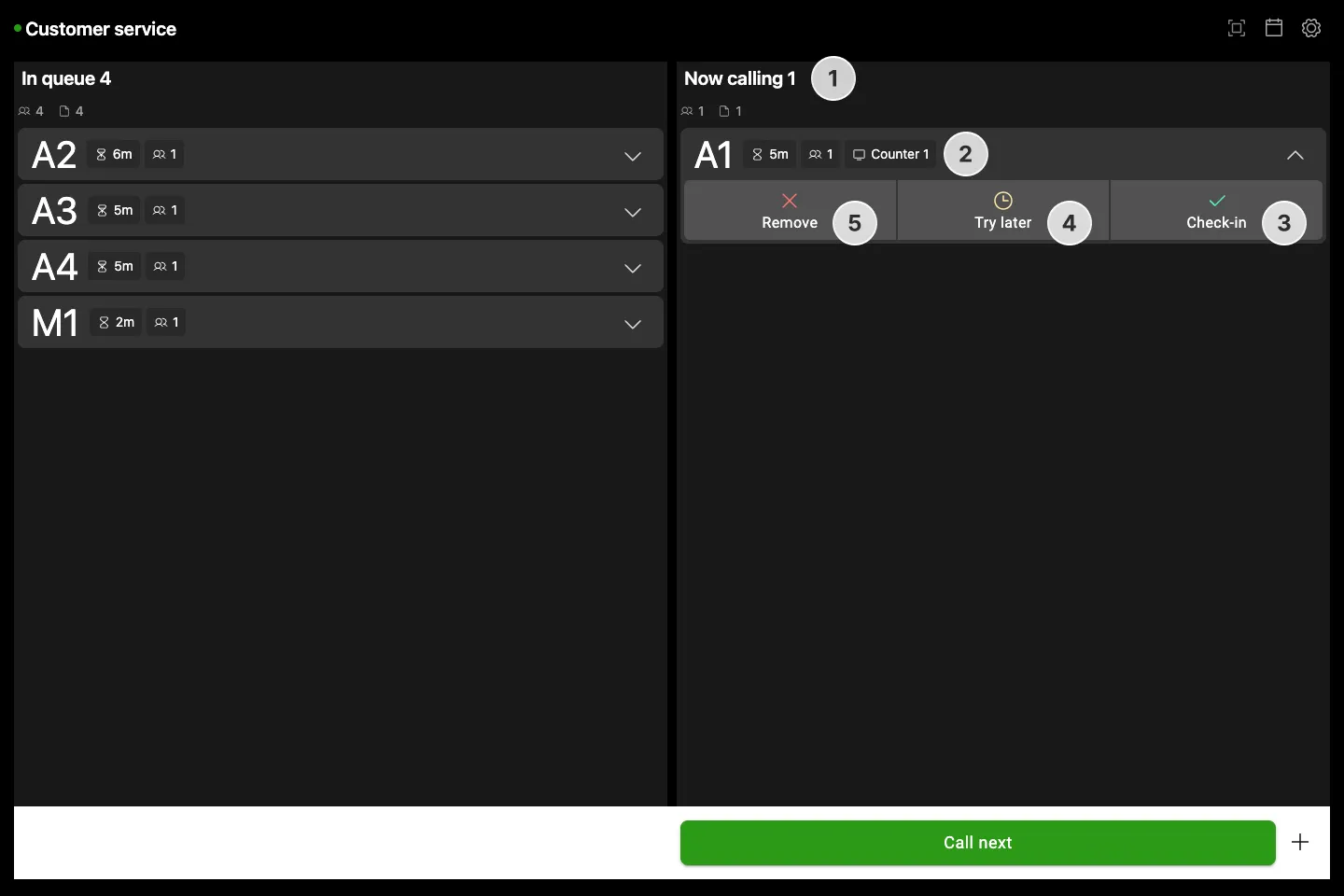
- Once called, the ticket moves to the Now calling tab and the visitor is notified via signage, digital ticket, or if configured, SMS and email
- The ticket now shows your station and initials
- When the visitor arrives at your station, click Check-in to move them to the Serving tab
- If the visitor does not respond, click Try later to move the ticket back to the queue
- To remove a no-show, click Remove to cancel the ticket
How to check a visitor out after serving them
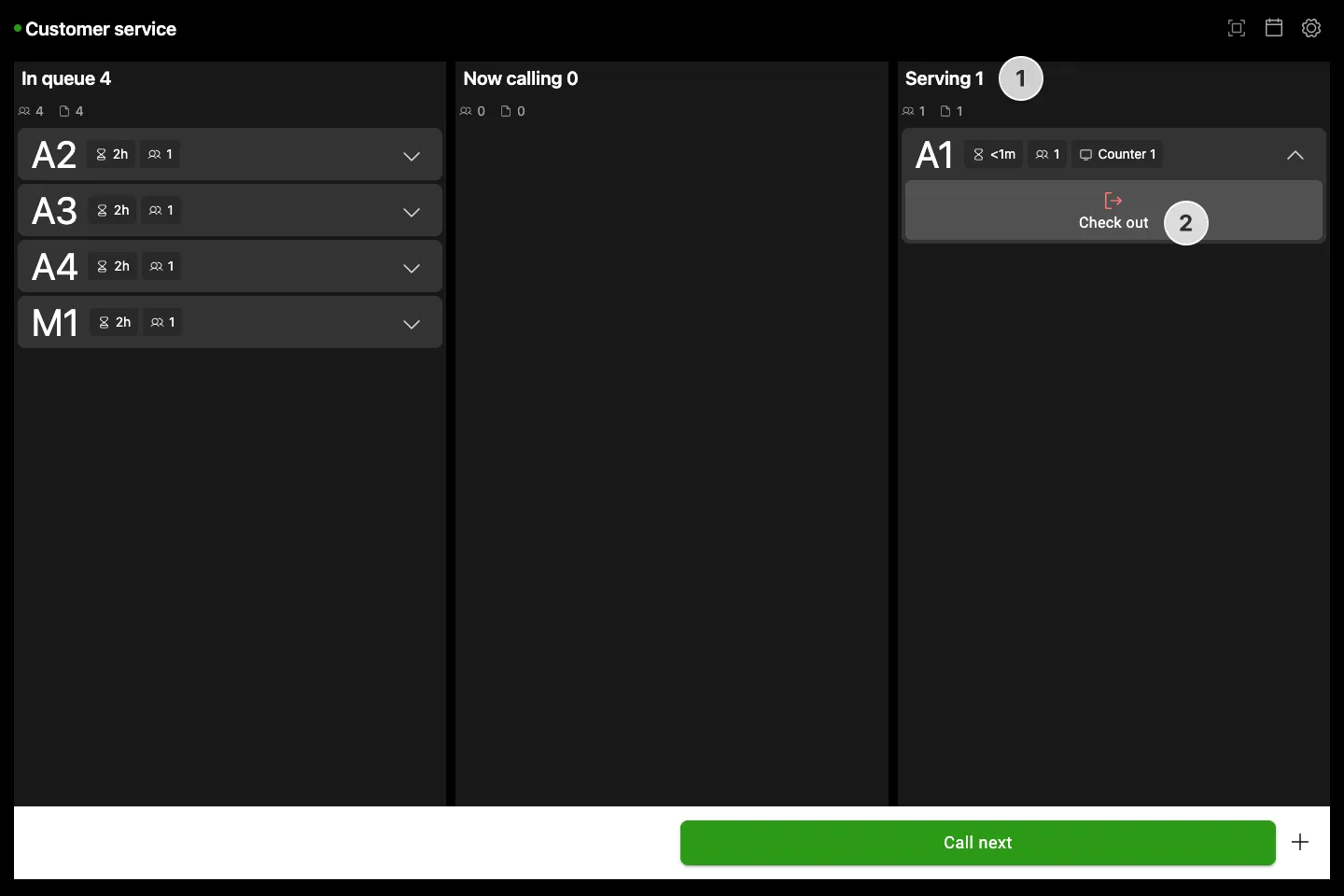
- Once checked in, the ticket will be moved to the Serving tab. Keep the ticket in the serving tab as long as you are providing service for the visitor
- Click Check out on their ticket to mark the visit as complete and remove the ticket from the queue
How to create a ticket for a visitor
If the visitor cannot create a digital ticket due to phone or internet issues, you can create a manual ticket for them. If you have SMS notifications enabled, you can also enter the visitors phone number.
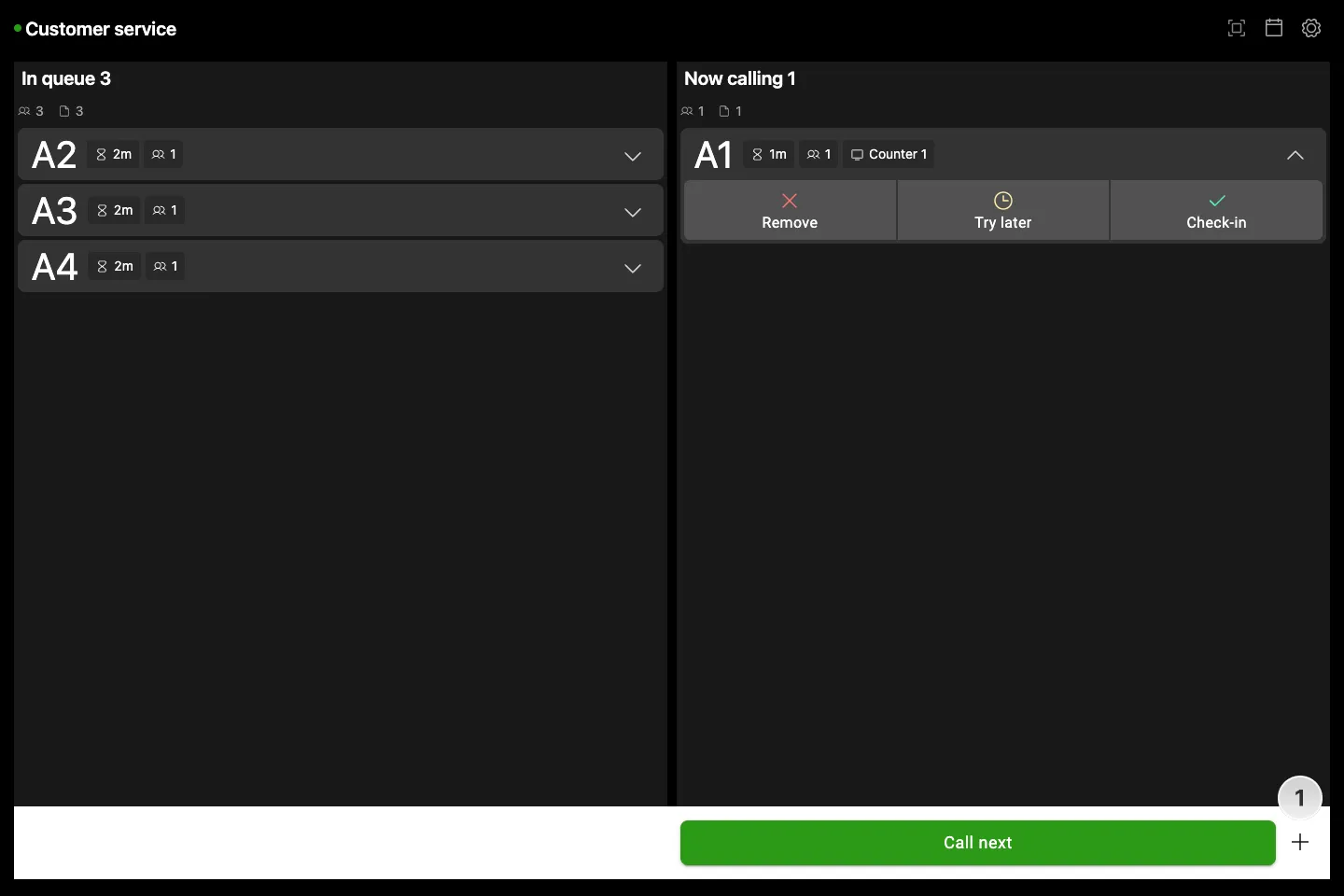
- Click the plus button on the right side of the bottom bar
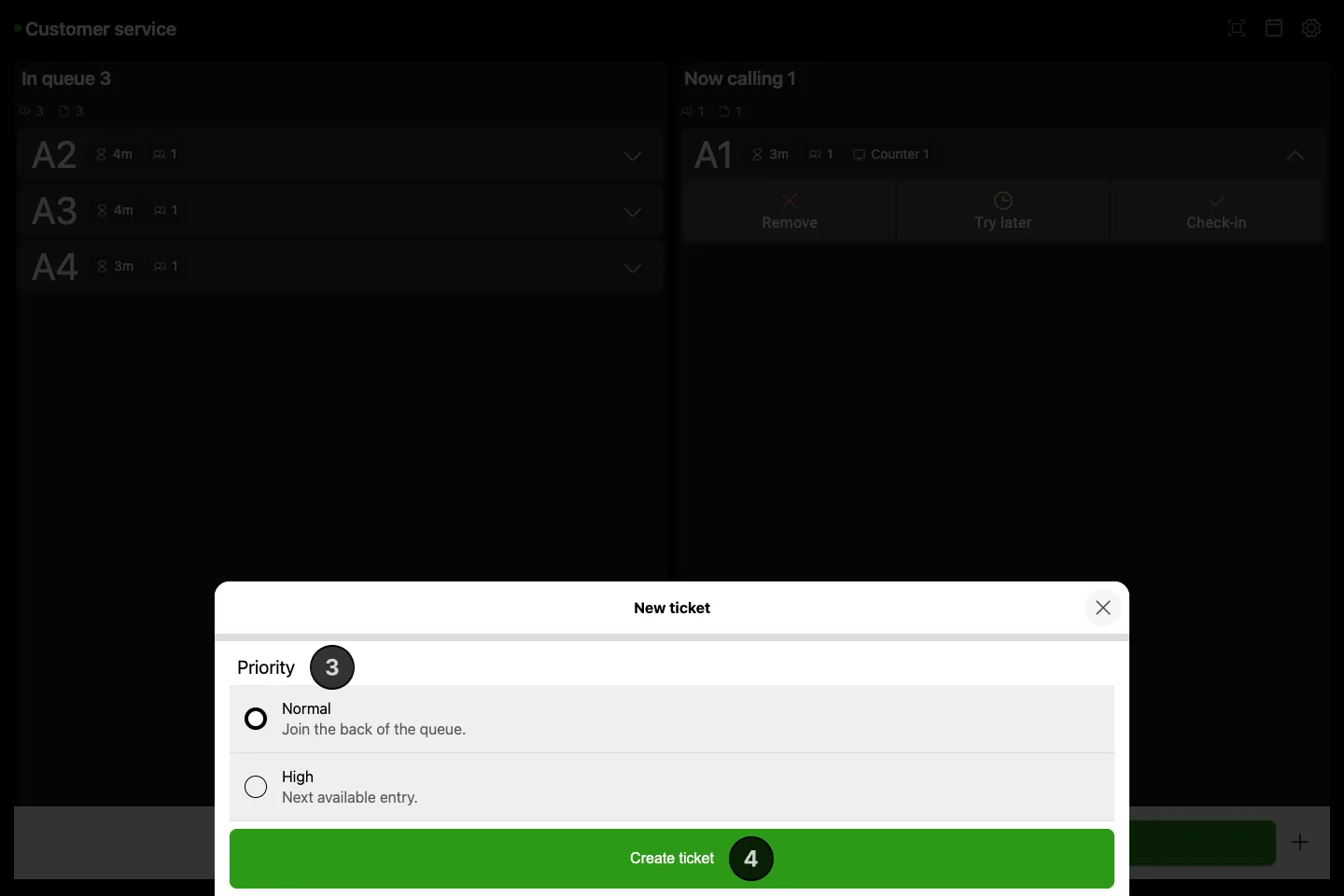
- Optionally enter the visitor’s phone number if SMS notifications are enabled
- Select the priority level: Normal to join the back of the queue, or High for next available entry
- Click Create ticket and ticket will be created and shown in the In queue list
How to customise Queue Manager settings
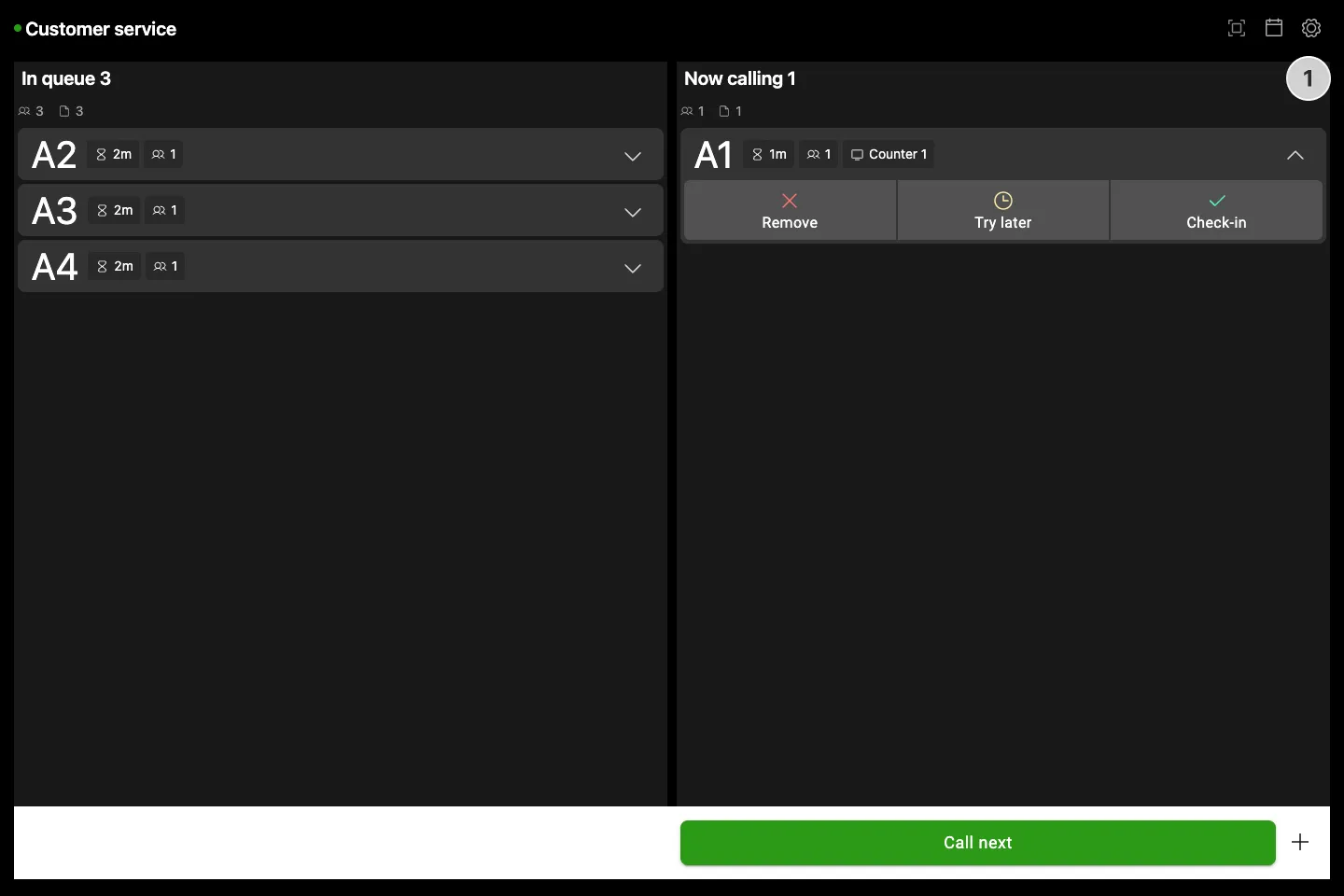
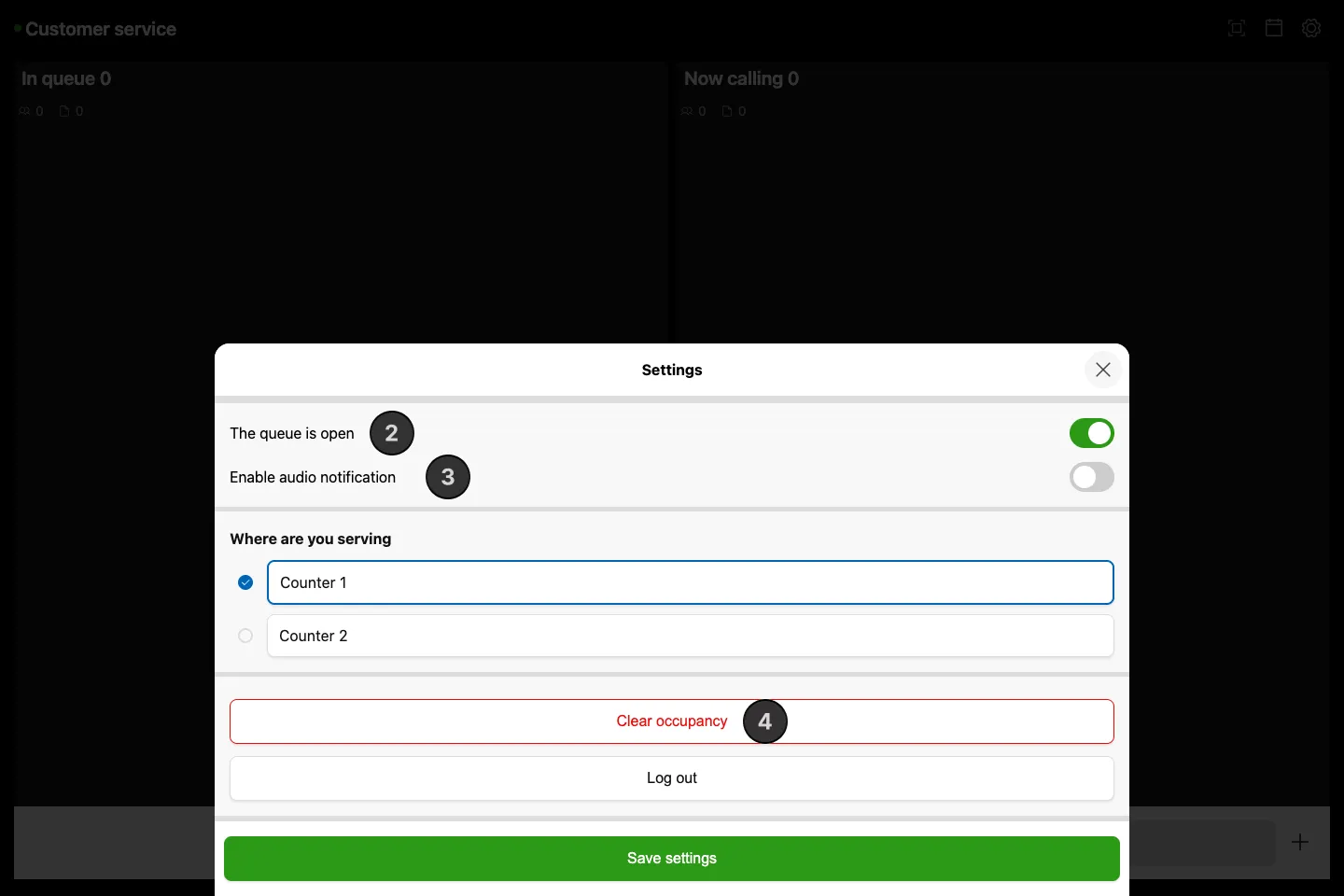
- Open Settings by clicking the gear icon in the top bar
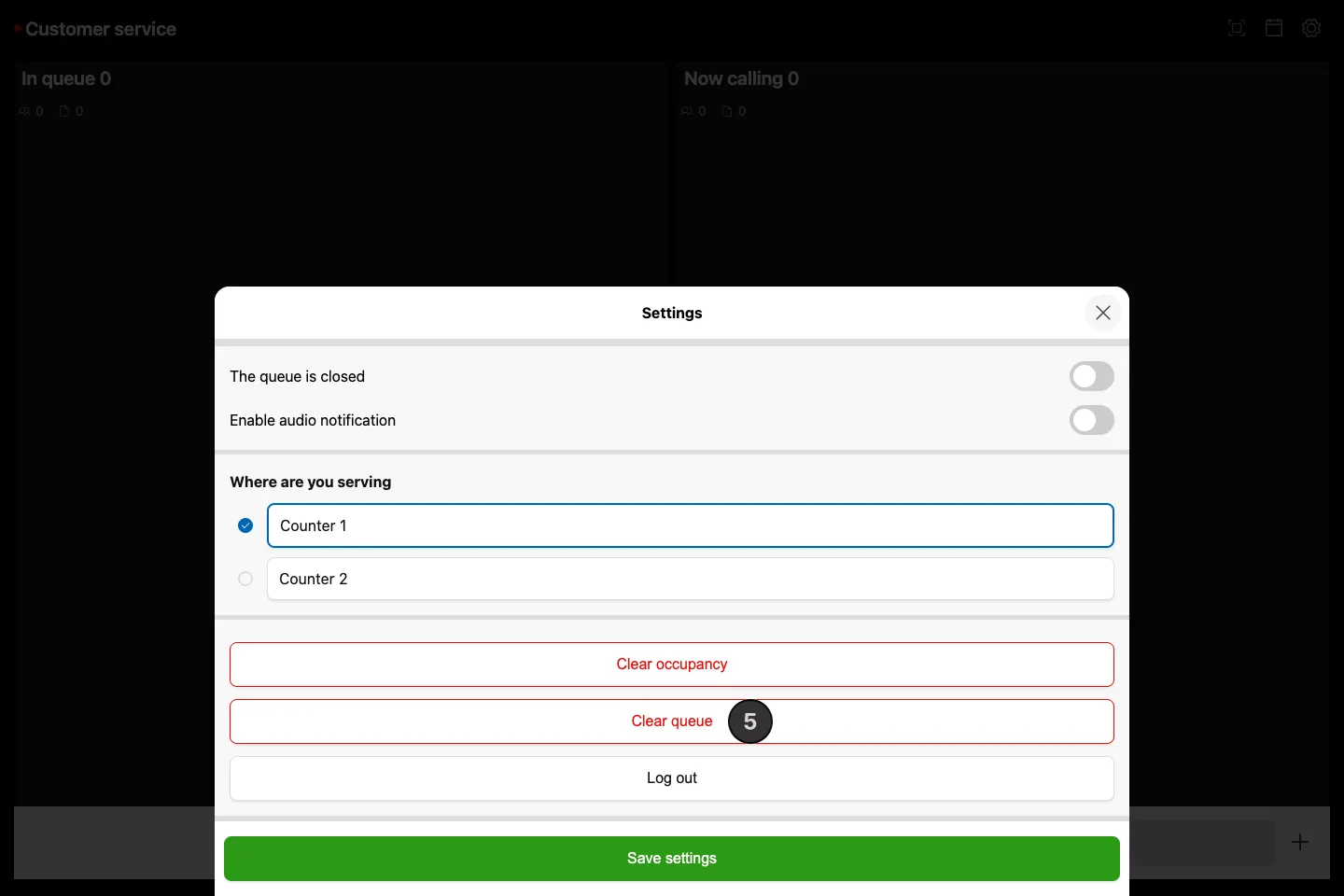
- Toggle The queue is open/closed to control whether new tickets can be created. Existing tickets can still be managed when the queue is closed
- Toggle Enable audio notification to play a sound when a new ticket enters the queue
- Click Clear occupancy to reset the occupancy count
- When the queue is closed, a Clear queue button appears. Use it to cancel all existing tickets and clear the queue completely
How to install Queue Manager as an app
Install Queue Manager on a computer, tablet or phone to open it in its own window, without the browser’s address bar and tabs. Each queue installs as a separate app, so staff who work several queues can install one for each.
- Open the Queue Manager link for your queue and log in. See How to access the Queue Manager
- Install the app from your browser:
- Computer (Chrome or Edge): Click the install icon at the right of the address bar, then click Install
- Android (Chrome): Open the browser menu (⋮) and tap Install app or Add to Home screen, then confirm
- iPhone or iPad (Safari): Tap Share, then Add to Home Screen. Edit the name if you like, then tap Add
- Open Queue Manager from the new icon on your desktop, Start menu, dock or home screen. It opens straight into your queue
The installed app is called Queue Manager · queue title, for example Queue Manager · Customer Service. On iPhone and iPad, Safari suggests the name Queue Manager.
The Occupancy Manager link installs the same way, as a separate app called Occupancy Manager · queue title. See View and edit occupancy with Occupancy Manager.