

How to connect Endless Aisle Kiosk to a device
Use this guide to connect your Endless Aisle Kiosk installation to a device:
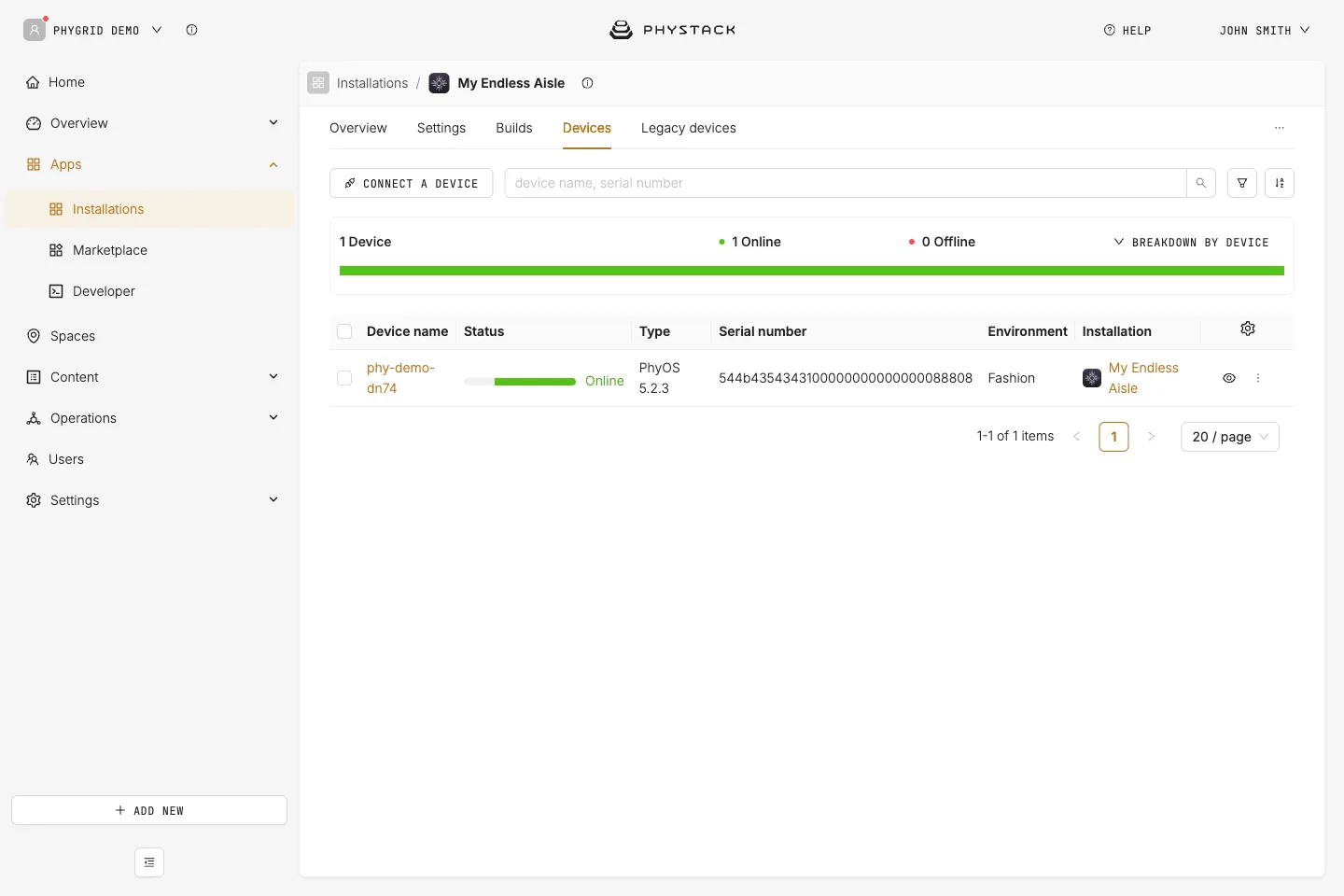
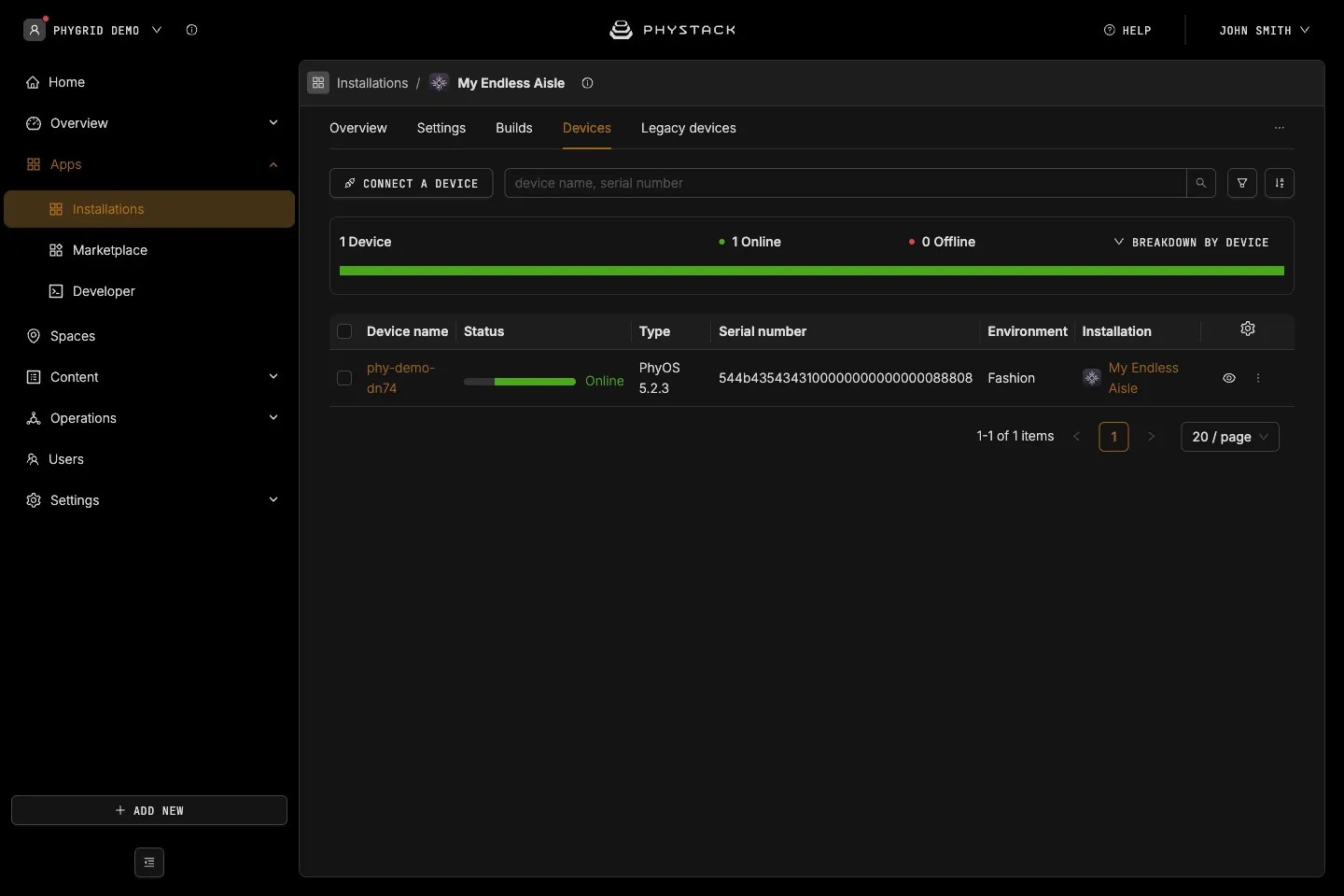
How to check the device’s space and environment
The kiosk shows the products of its device’s environment and space. Unless you set Products space in the Endless Aisle settings, the space is the one the device is assigned to.
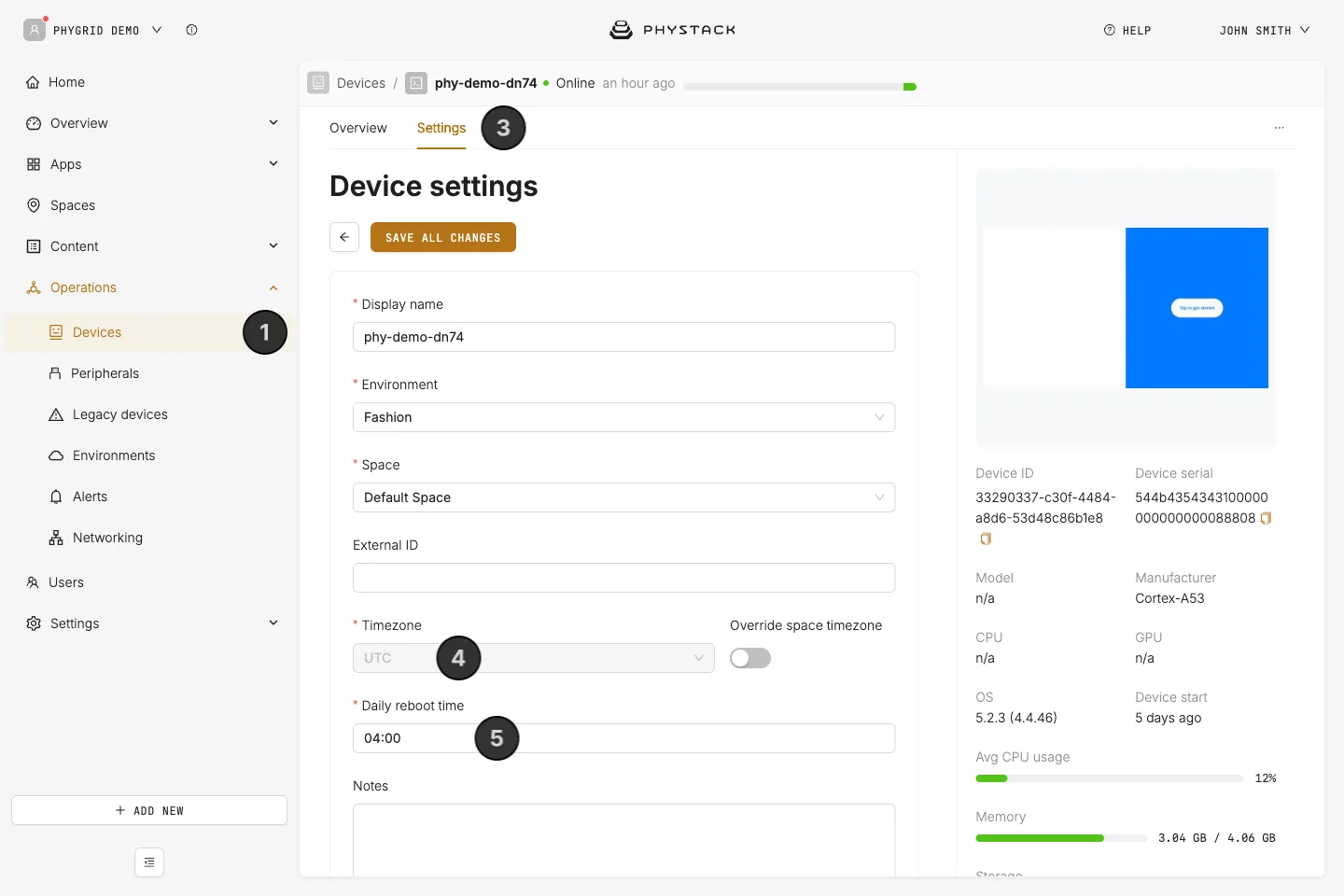
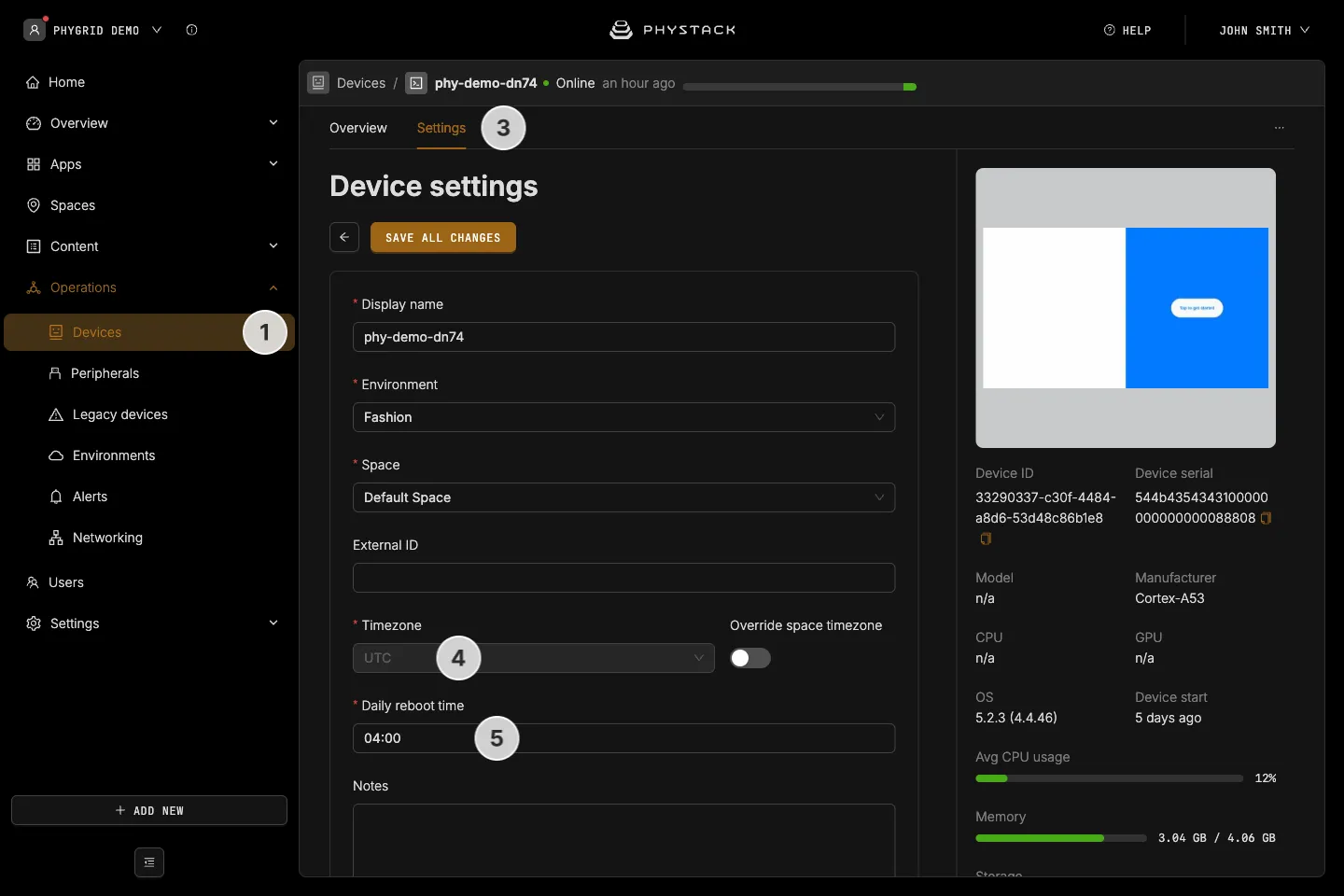
- Navigate to Operations → Devices and open the device
- Check that Space is the store’s space
- Check that Environment is the environment your products are in
- Check that your products are assigned to the same space. See Make products show on the kiosk
A device can only move to an environment where its installation is deployed. If saving shows “No deployed build found”, open the installation’s Builds tab and click the environment on the latest build to deploy it there, then save the device again.
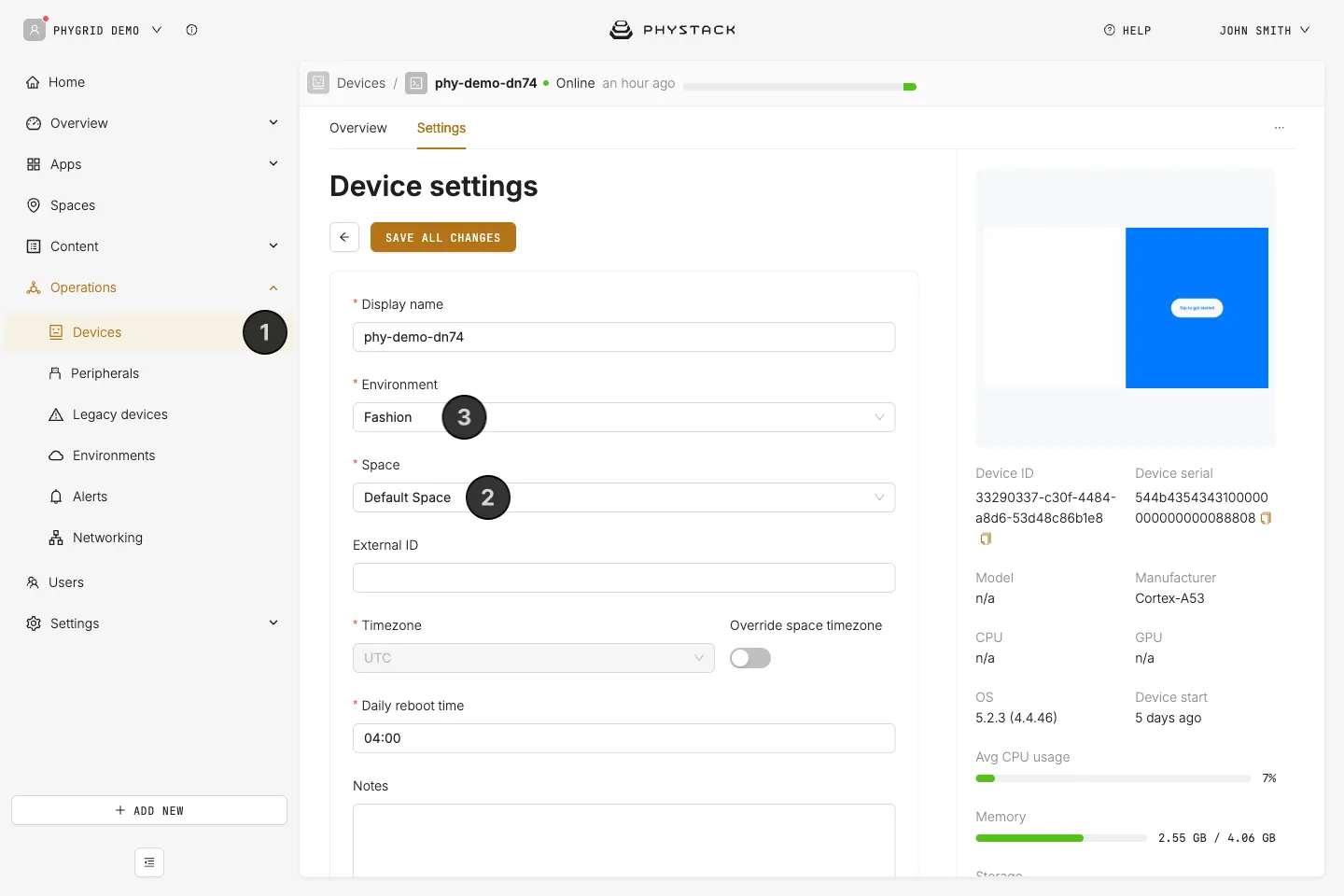
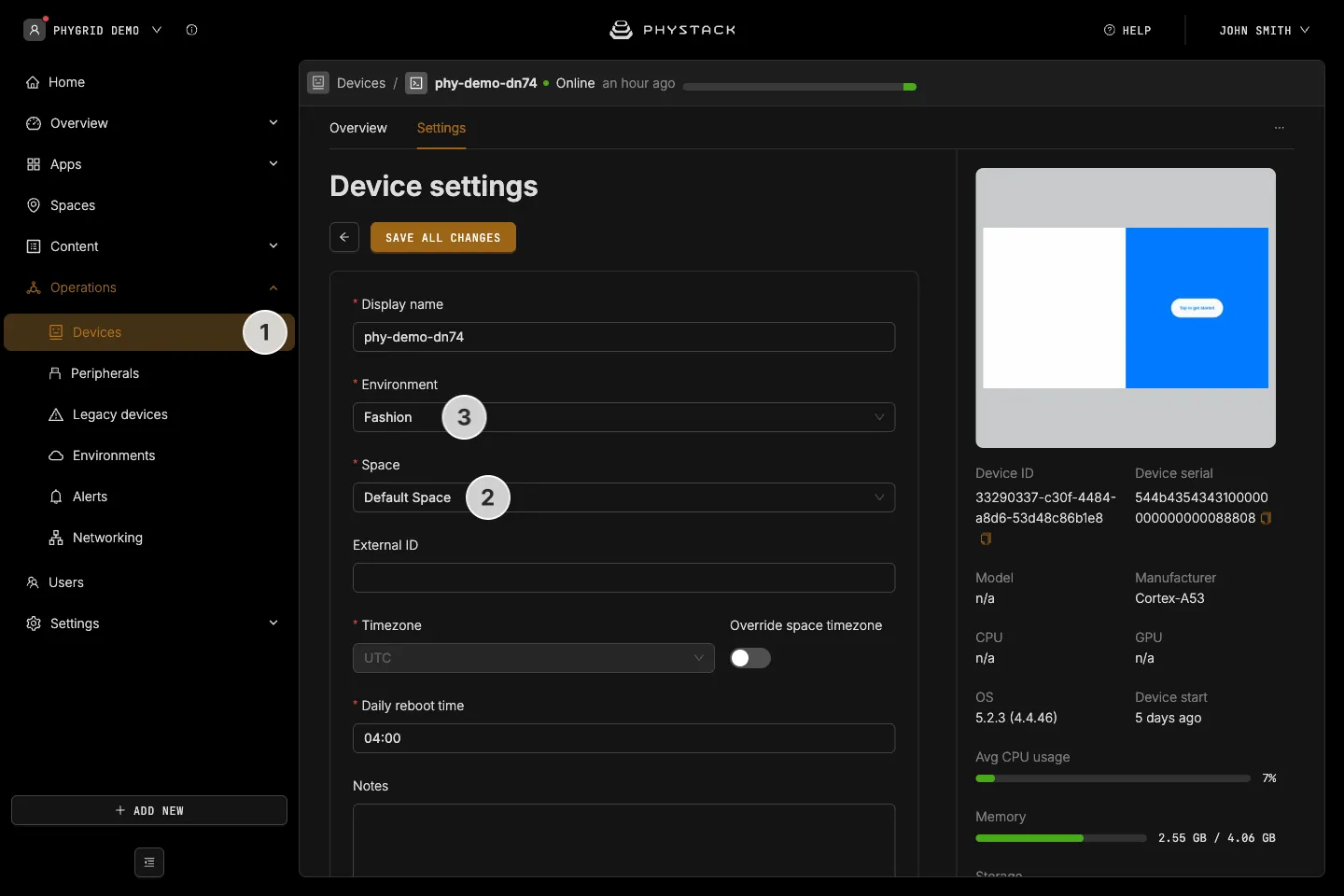
How to configure device settings
- Navigate to Operations → Devices
- Find your device and select it
- Go to the device’s Settings tab
- Set the proper timezone for the device. It follows the space’s timezone unless you turn on Override space timezone
- Set the daily reboot time
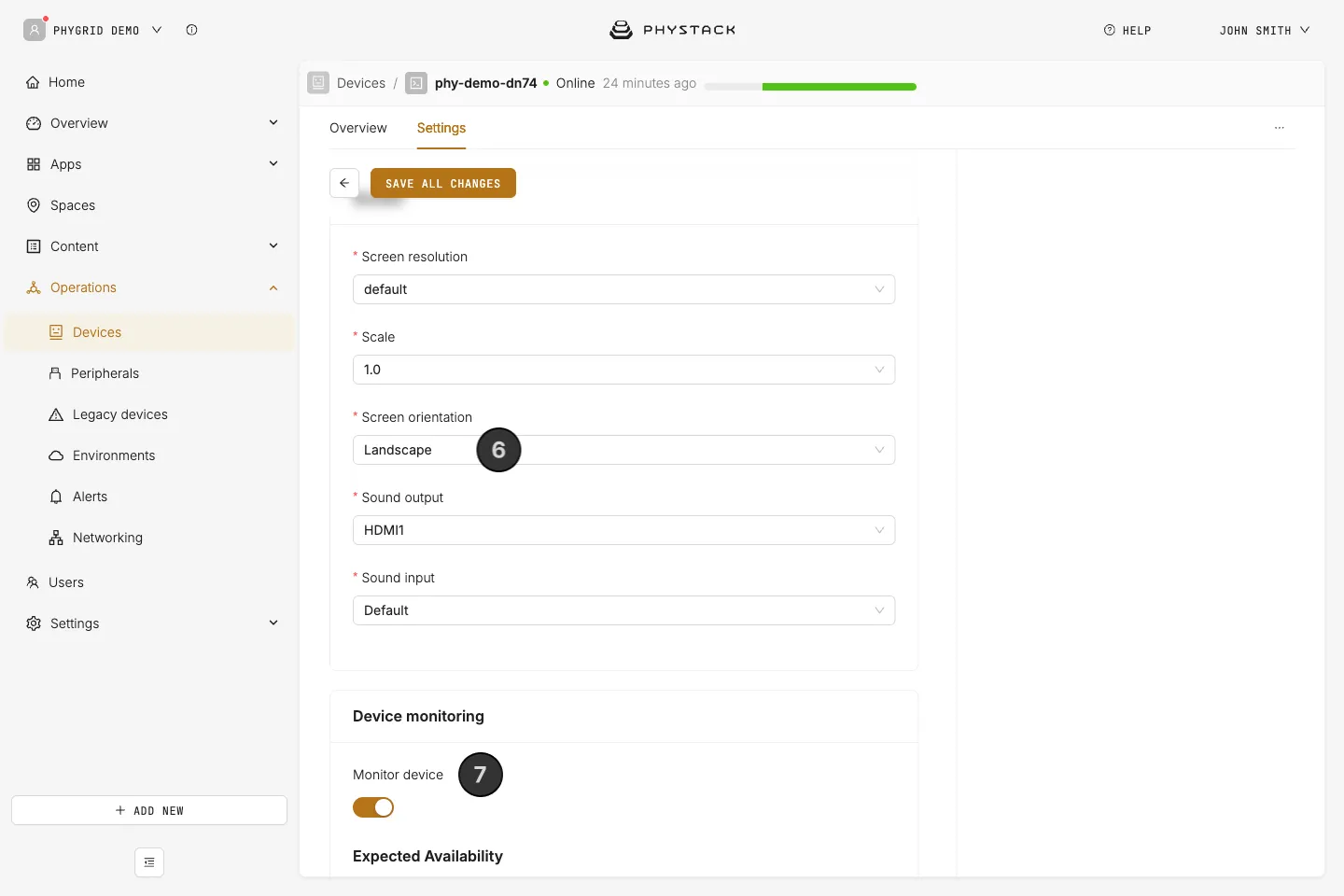
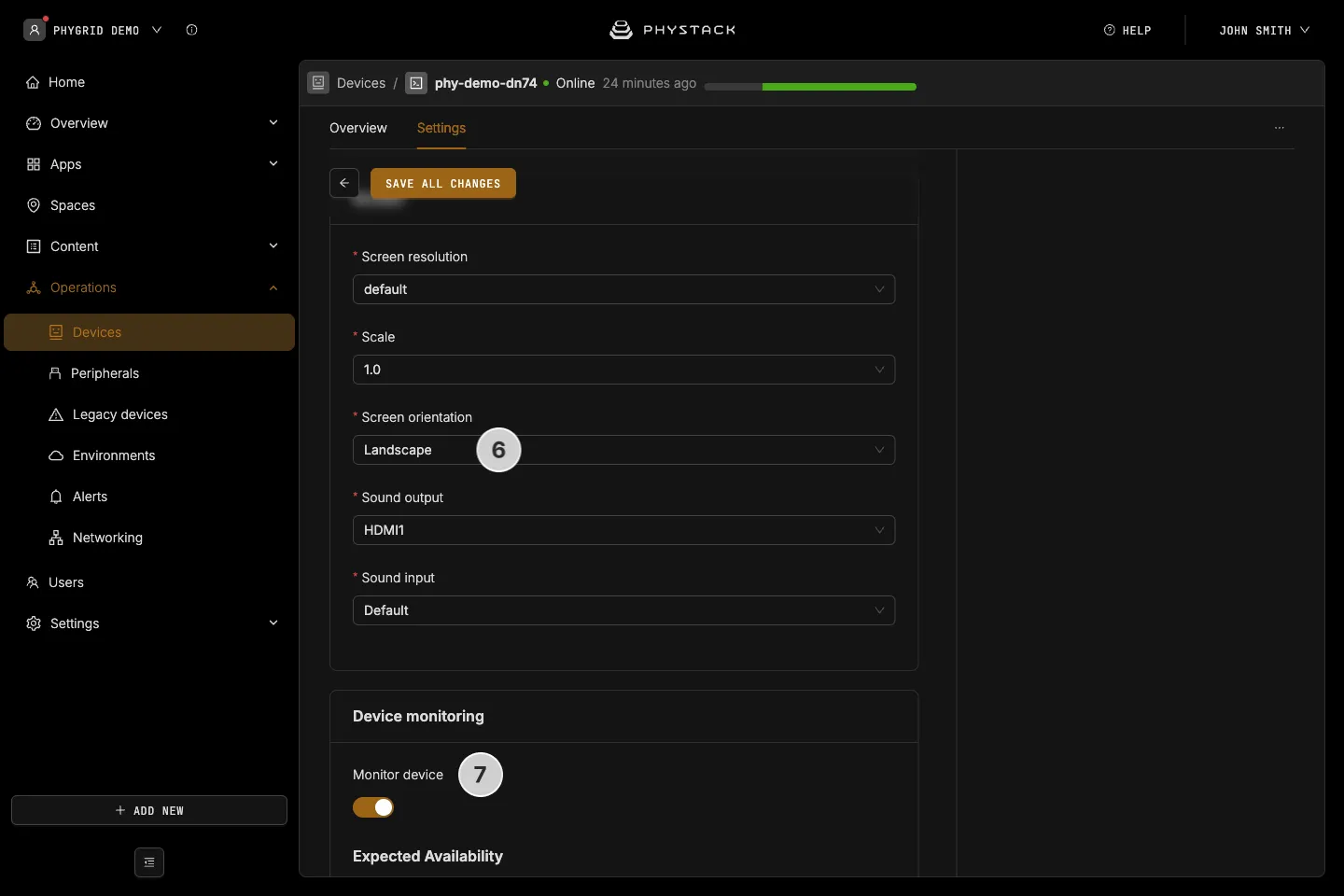
- Adjust screen settings, such as screen orientation, to match the kiosk. The kiosk layout adapts to portrait and landscape screens
- Enable device monitoring so you can set up and receive device alerts
How to connect a barcode scanner or receipt printer
Both are optional. Connect them to the kiosk device by USB, then select them in the Endless Aisle settings:
- Barcode scanner: lets customers scan a product’s barcode to open it. Select it in Select Barcode Scanner to scan from. See Configure in-store features
- Receipt printer: needed for the print checkout methods. See Set up receipt printing