Set up Smart Fitting Room
How to access Smart Fitting Room settings
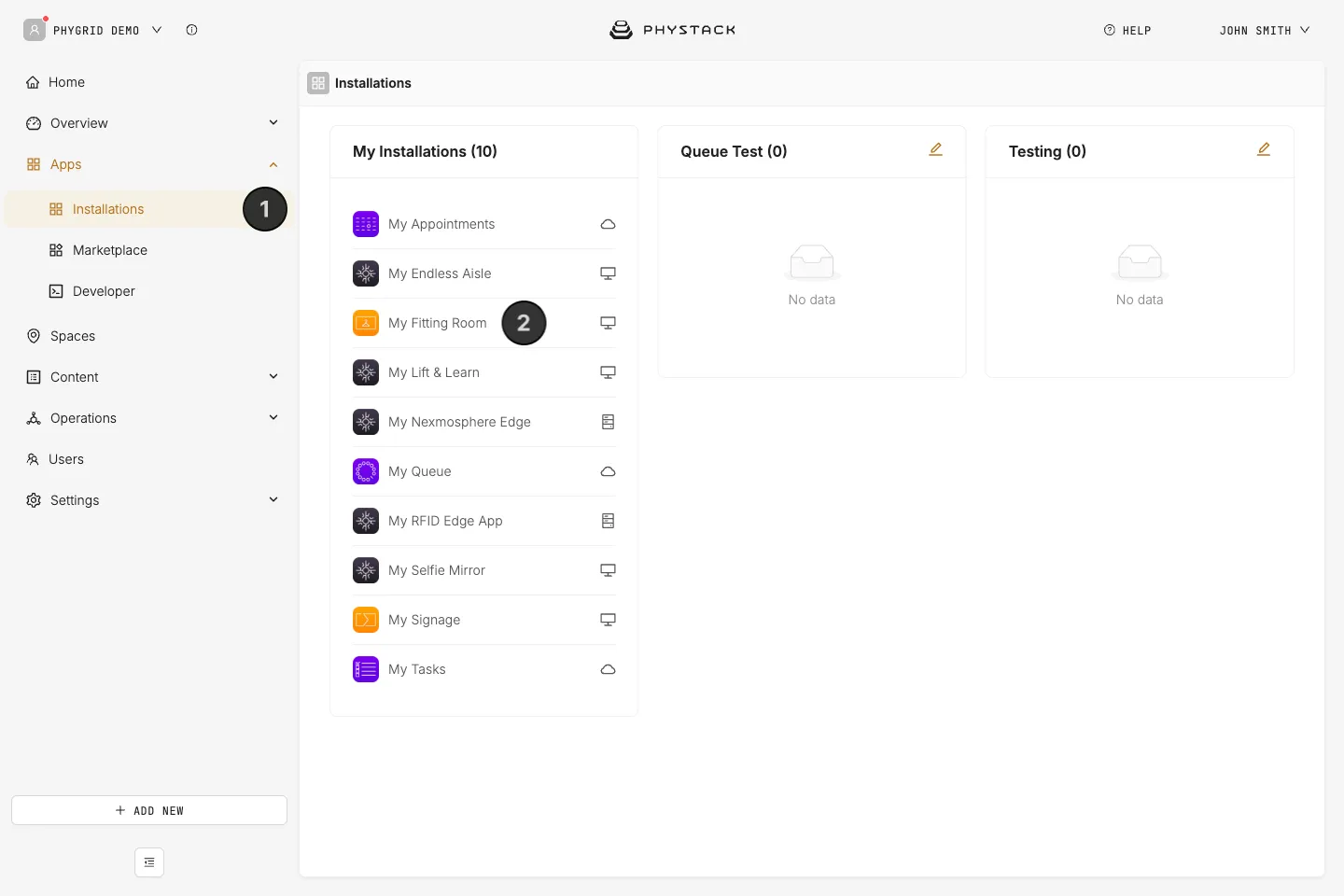
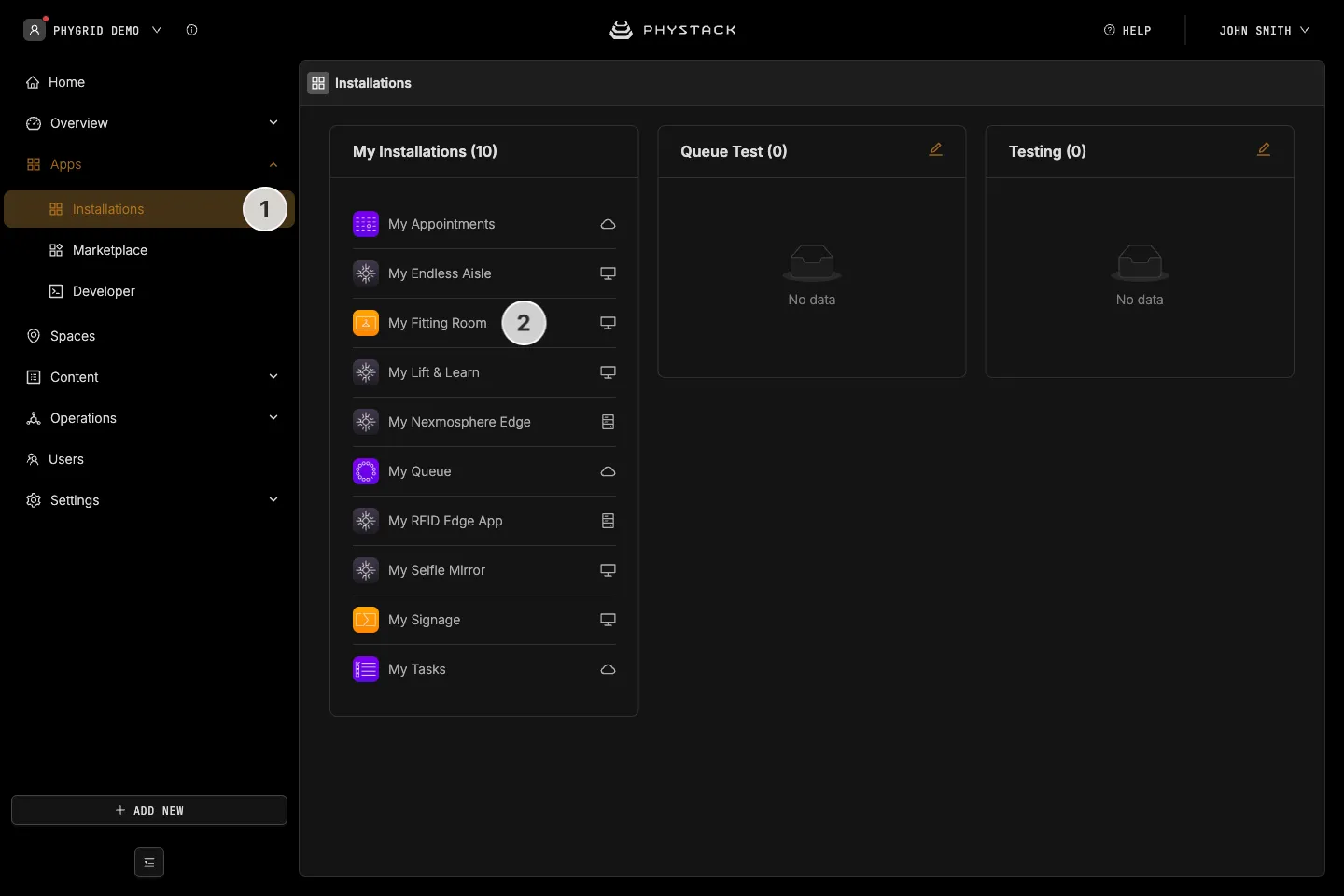
- Your new installation will be available in the sidebar under Apps → Installations
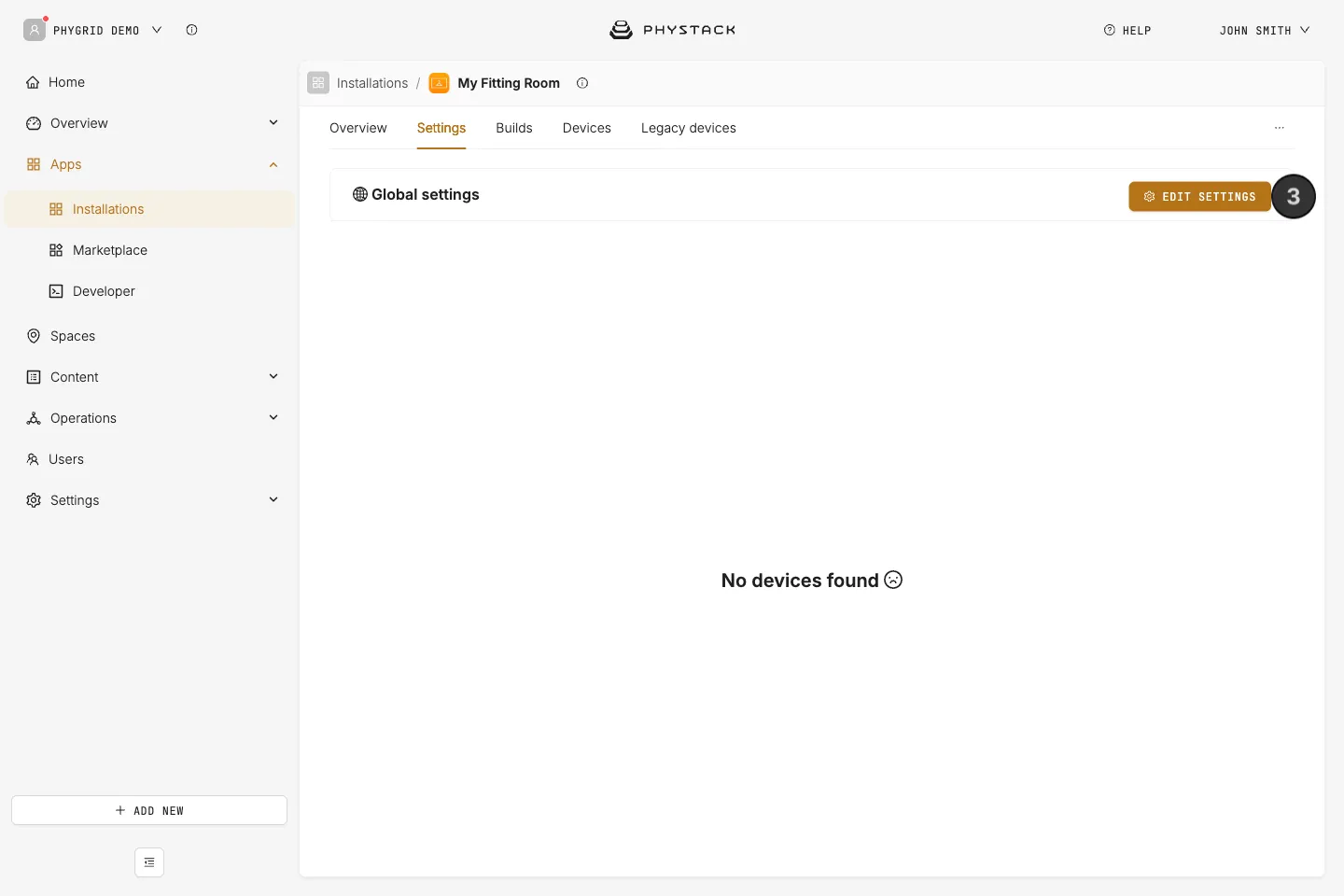
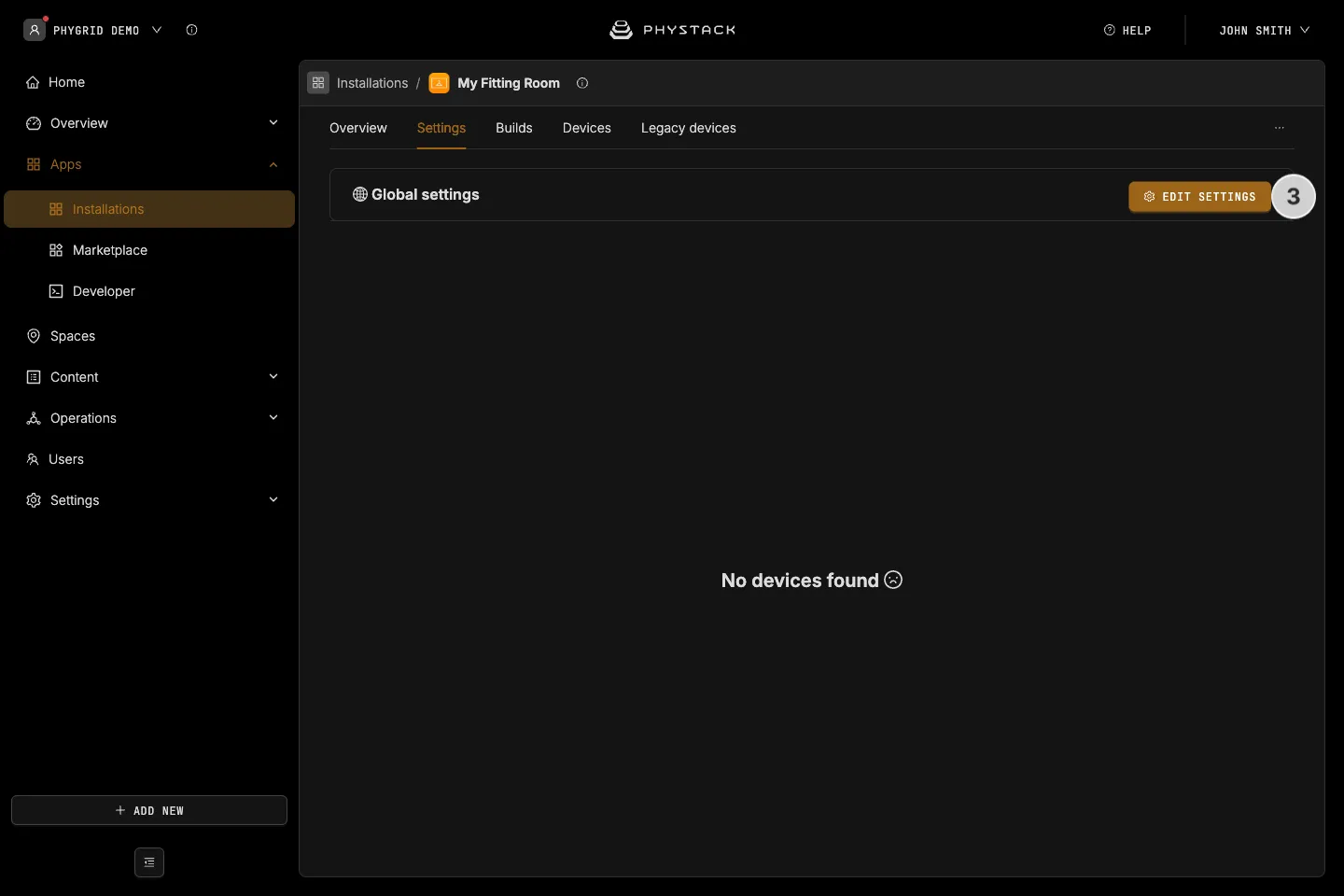
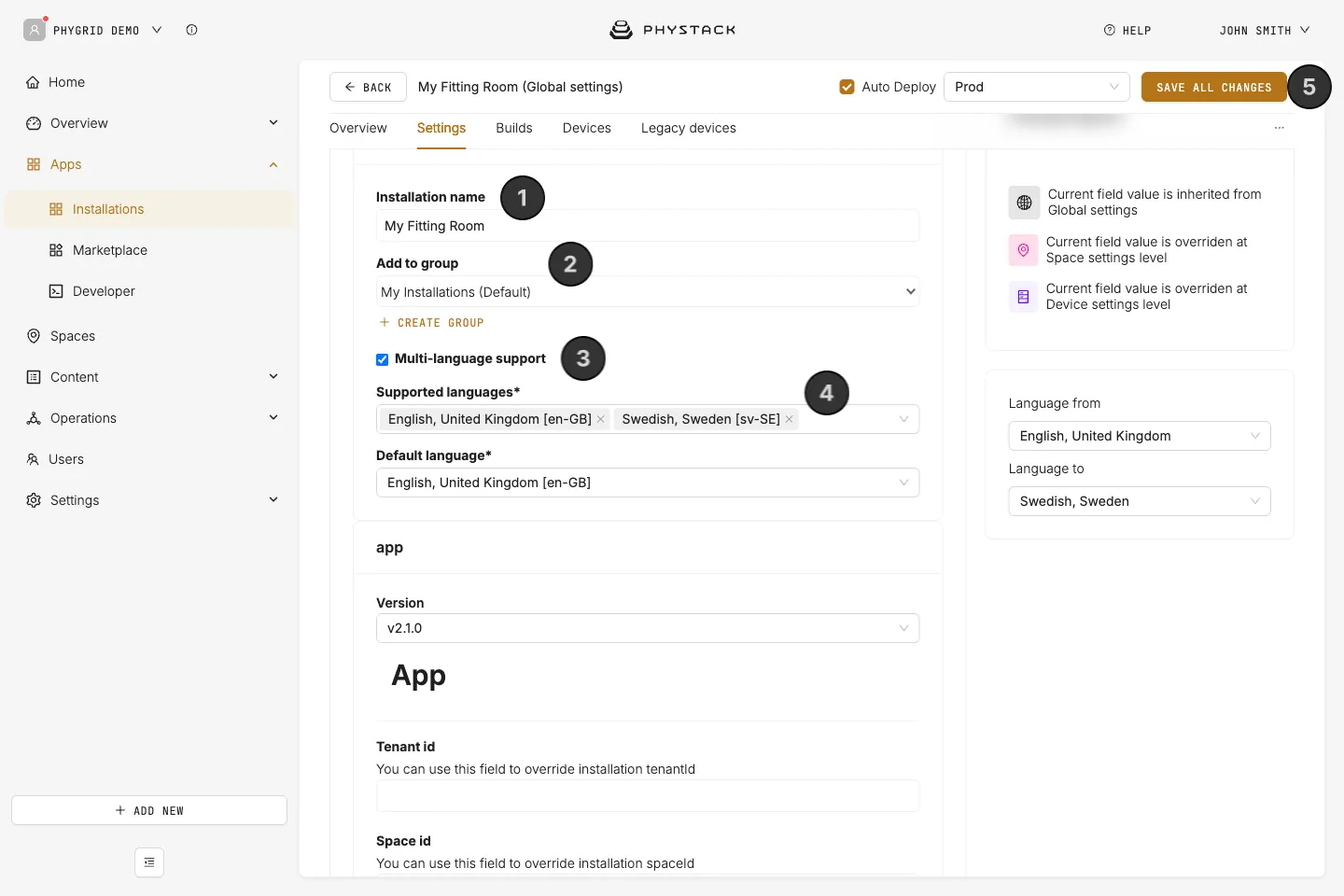
- Open the installation and select the Settings tab to access Smart Fitting Room options
- For the initial setup, go to the Global settings section and click Edit settings. You will be able to provide space and device overrides after you add devices to the installation.
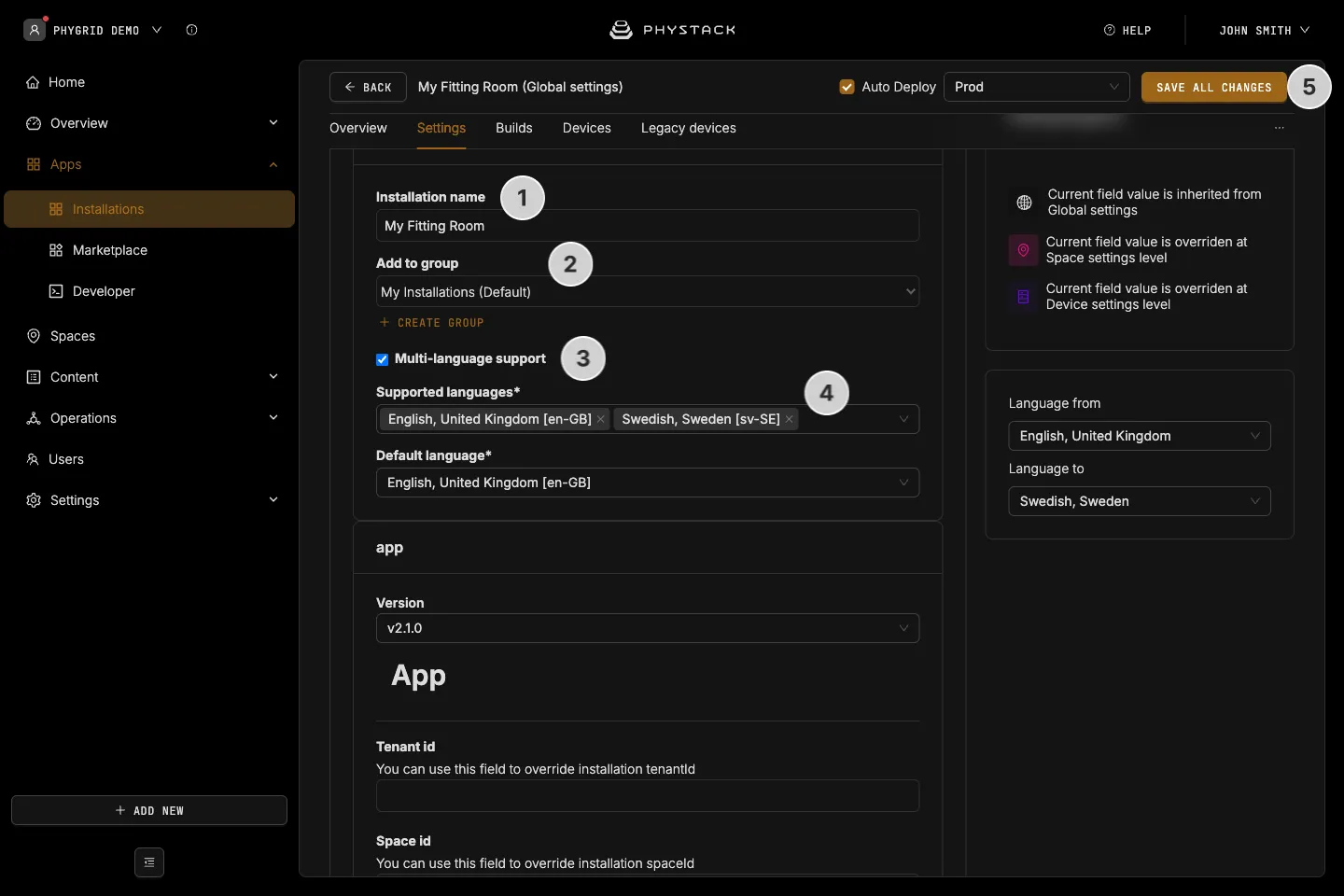
- Set or change the installation name. This is the title visible in Apps → Installations
- Pick an existing or create a new installation group that this installation belongs to. This is also visible in Apps → Installations
- Enable at least one language for the app by clicking on Multi-language support (see Glossary)
- Select the app’s Supported languages and its Default language. The app also uses the default language for product data, so make sure your products have texts in it
- Save the changes and refresh the page to properly enable language support
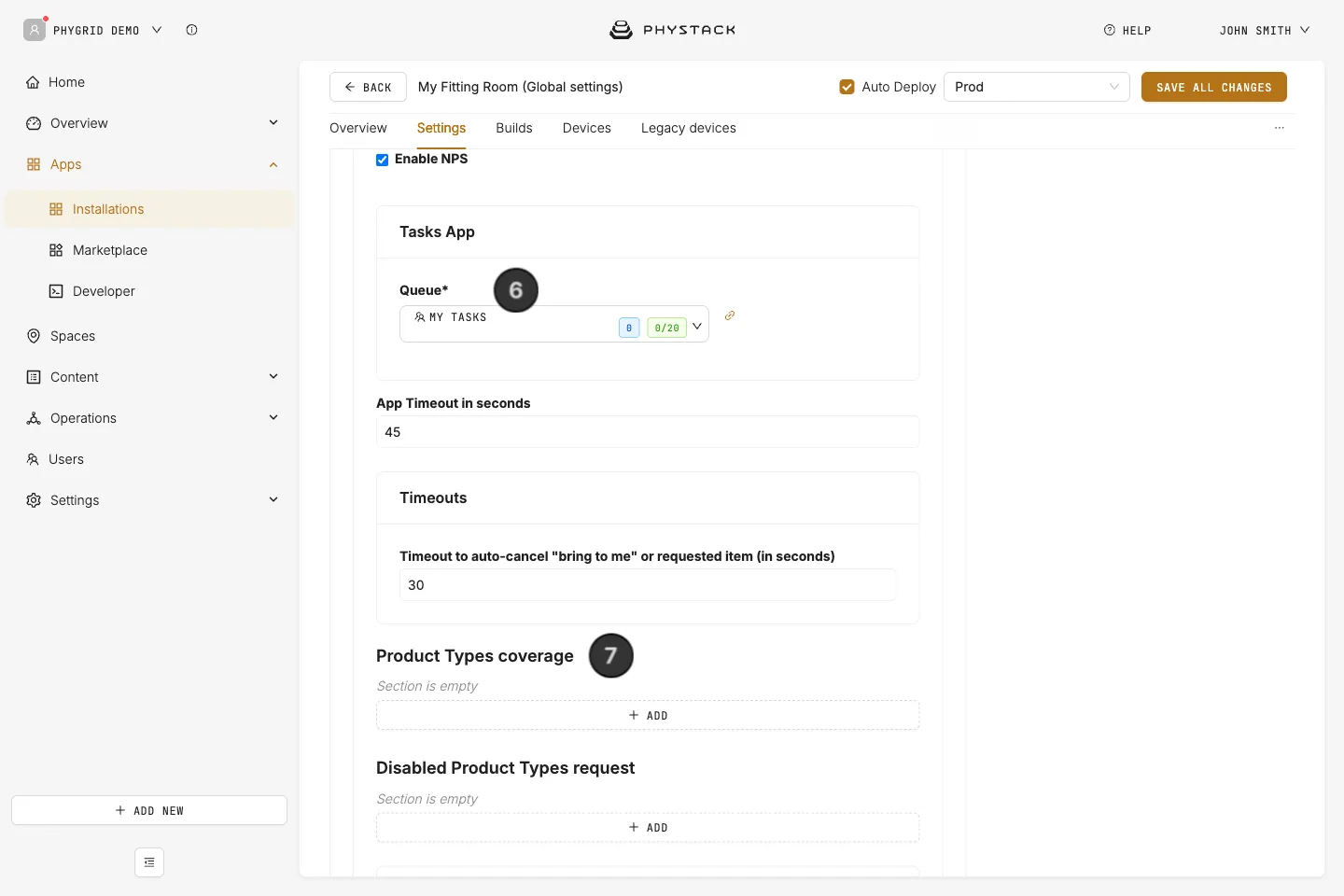
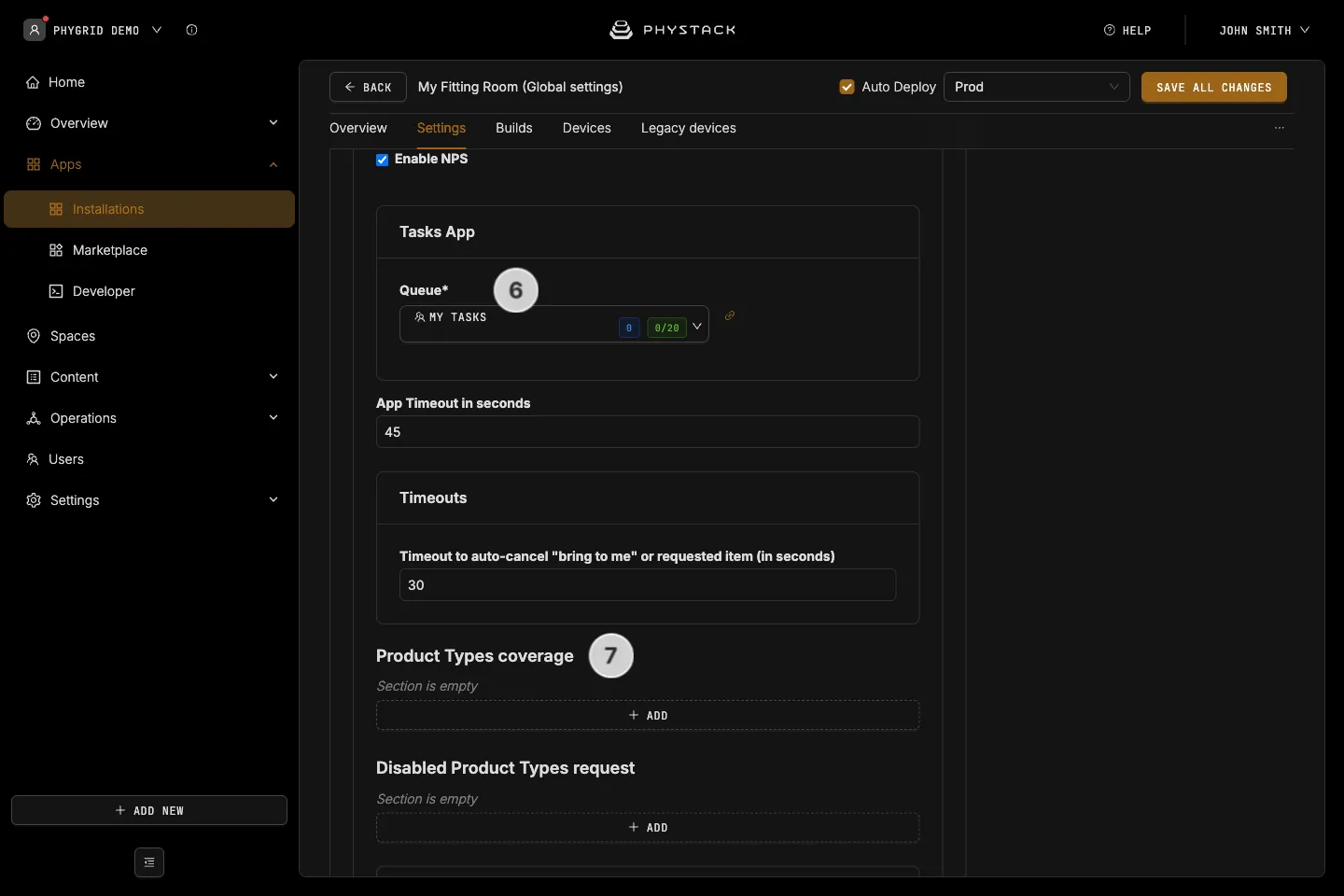
- Tasks App → Queue: Select the queue of the Tasks installation you set up in the previous step. Staff requests are sent there
- Product Types coverage: Optionally, click Add and enter product type IDs to limit the products to a subset of your Grid Products inventory
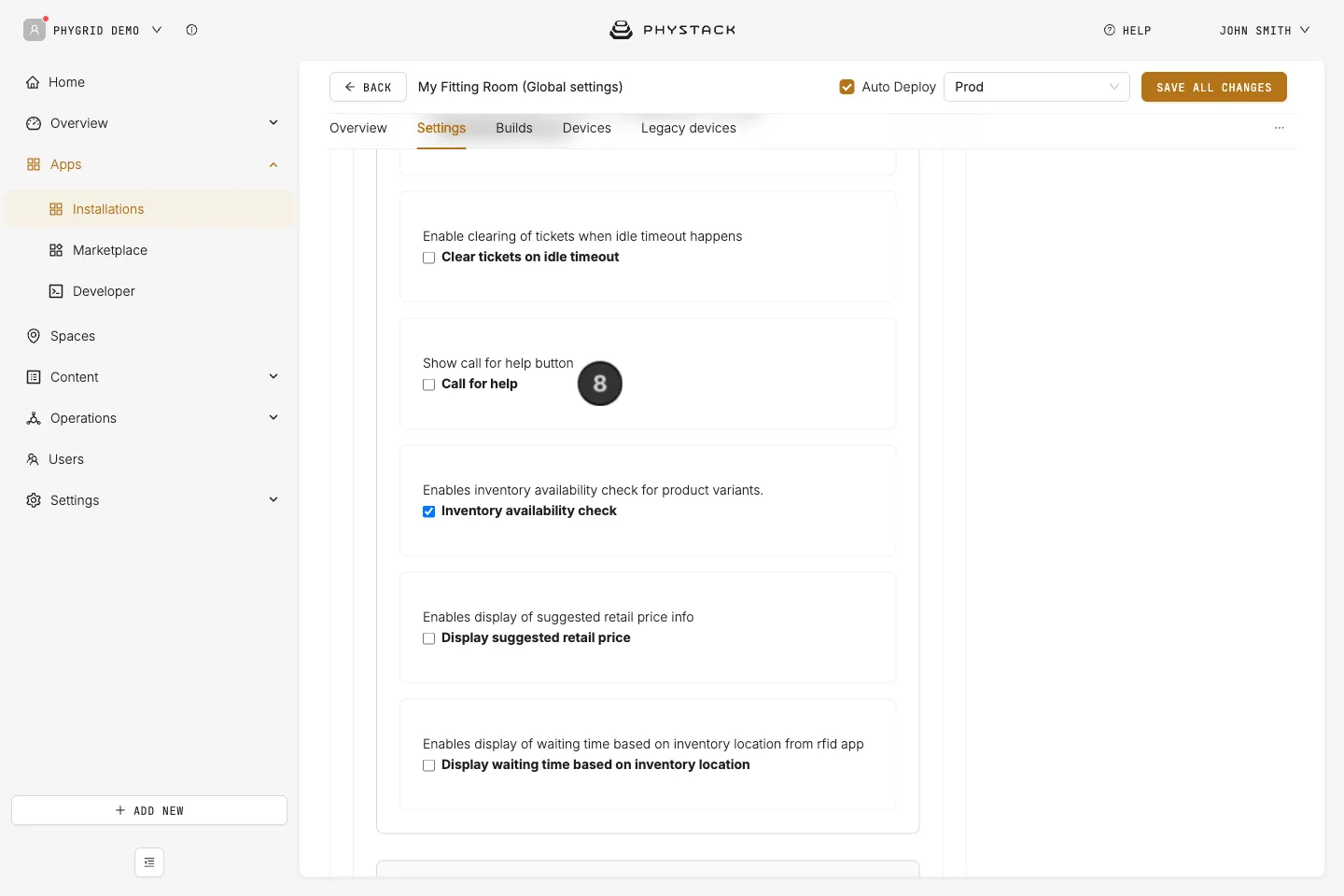
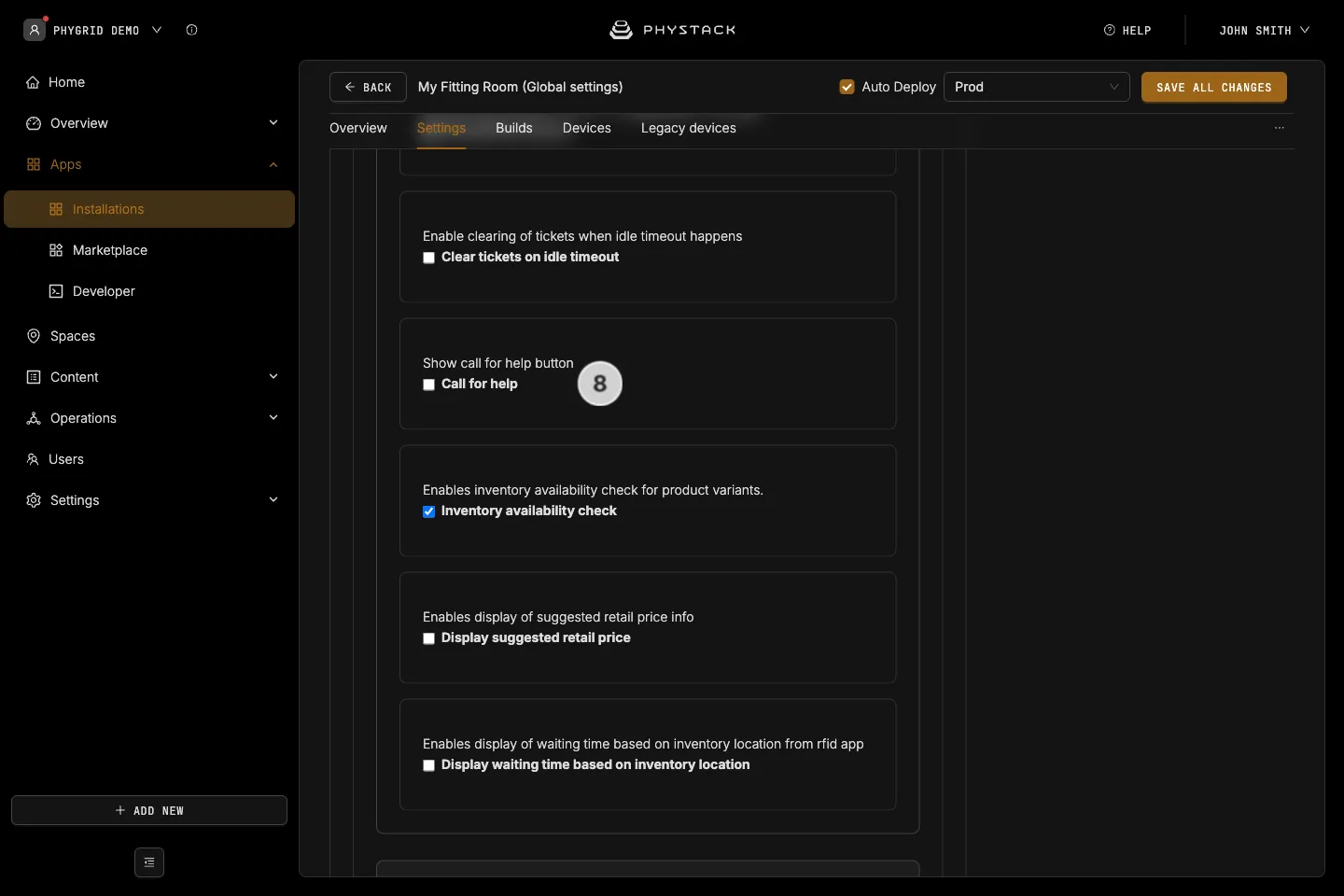
- Features → Call for help: Show a button that lets customers request assistance without choosing an item
How to customise Smart Fitting Room appearance
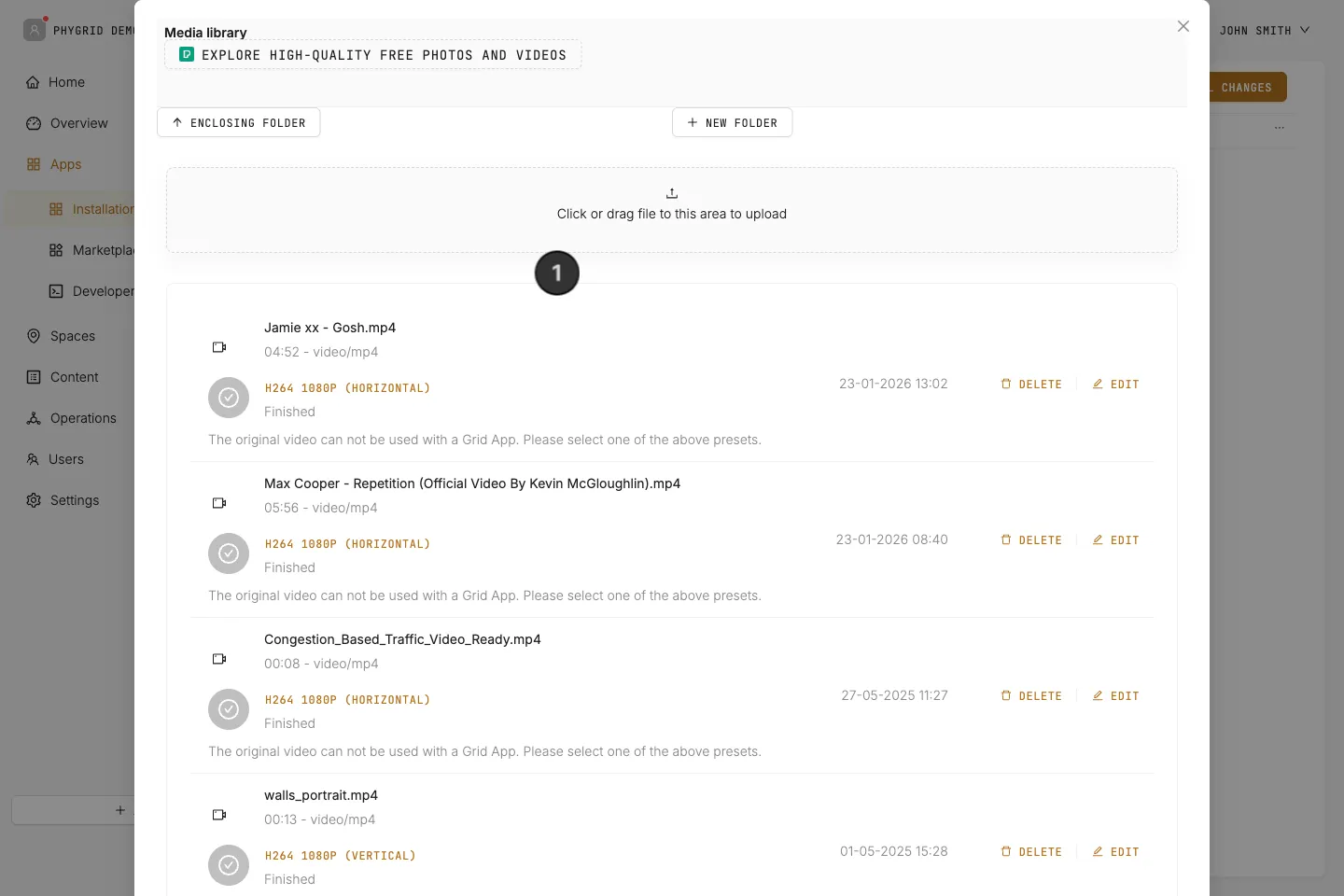
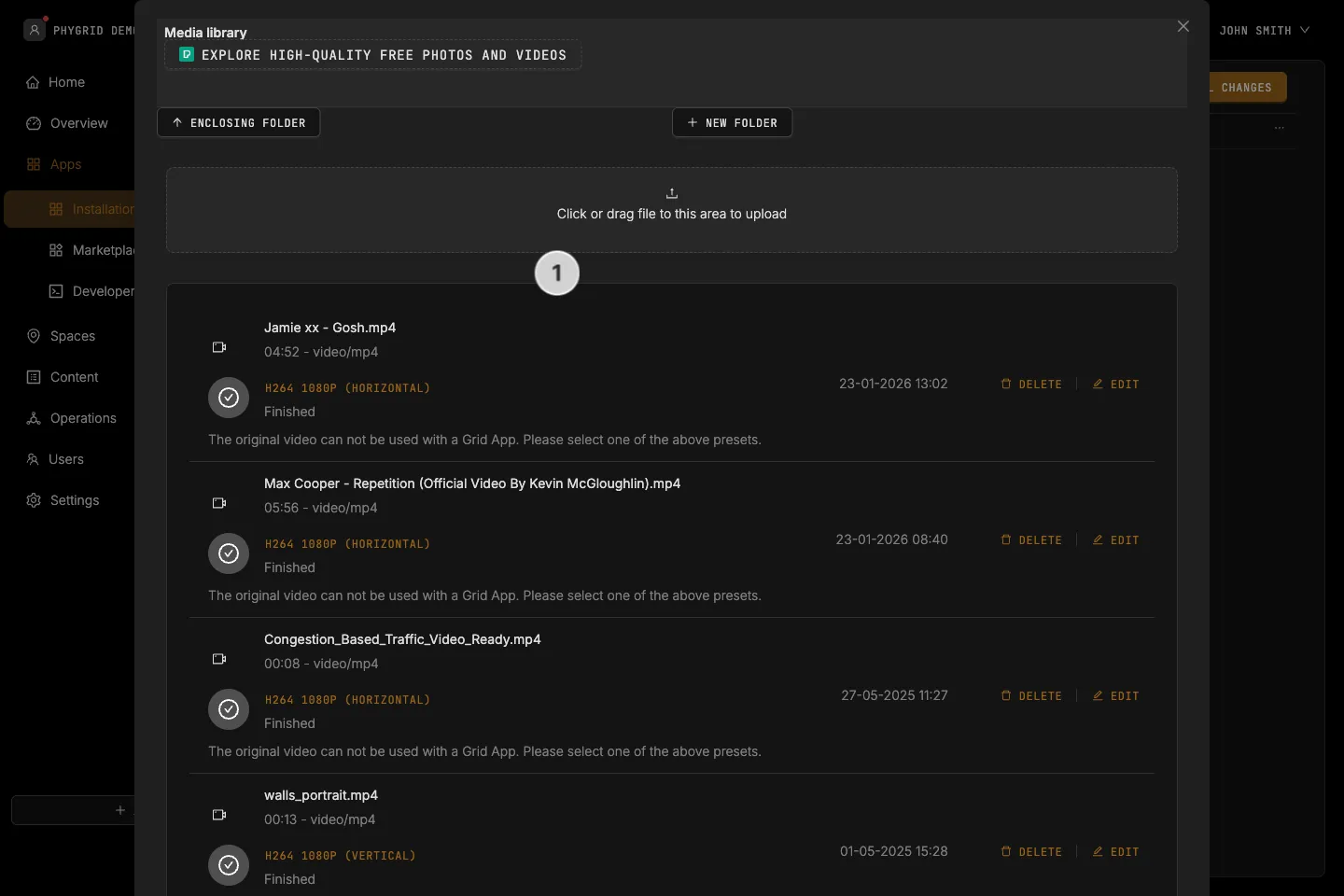
- Idle → Splash Media: Show an image or video when the device is not used (when no active RFID tags have been read)
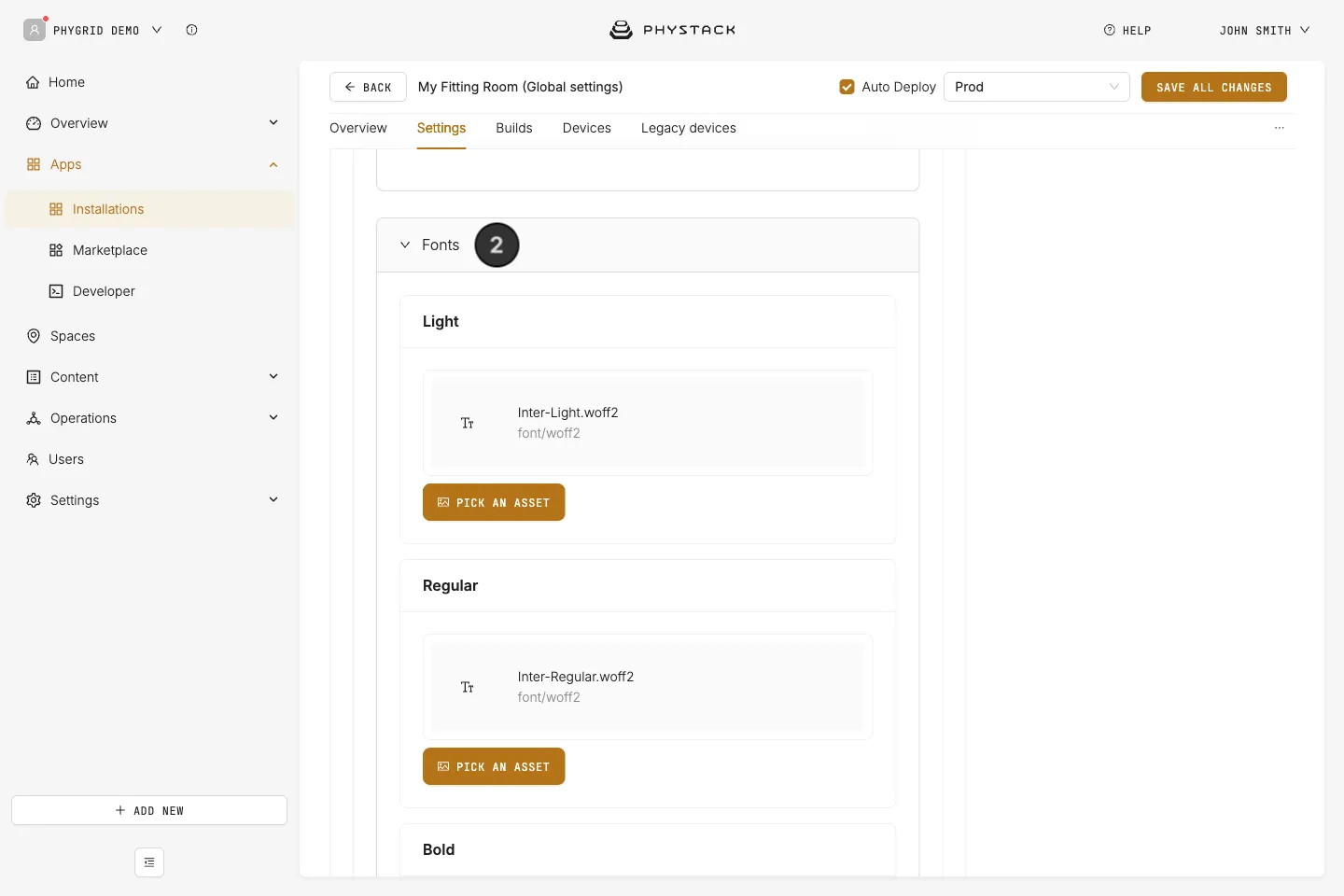
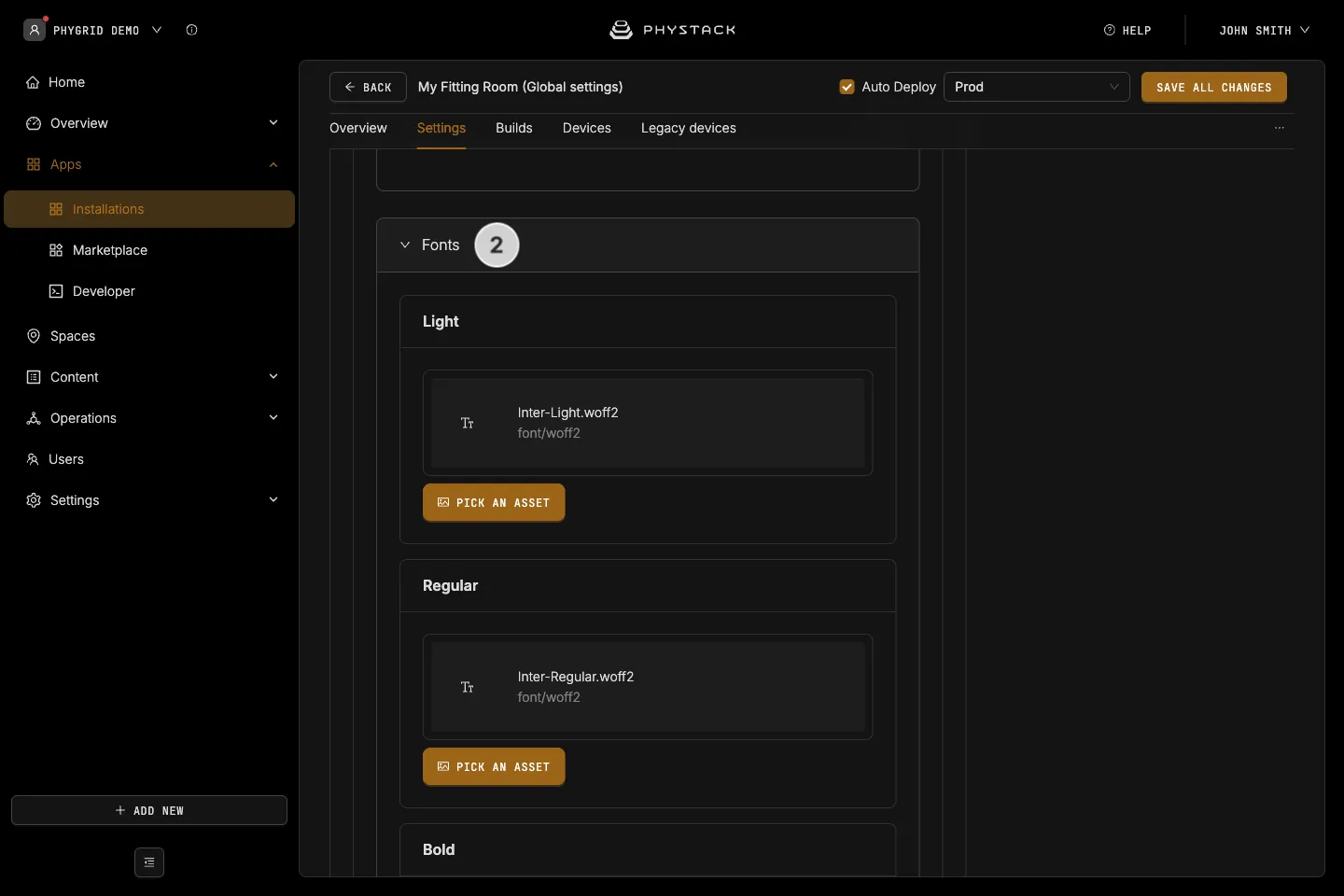
- Upload custom fonts for the app
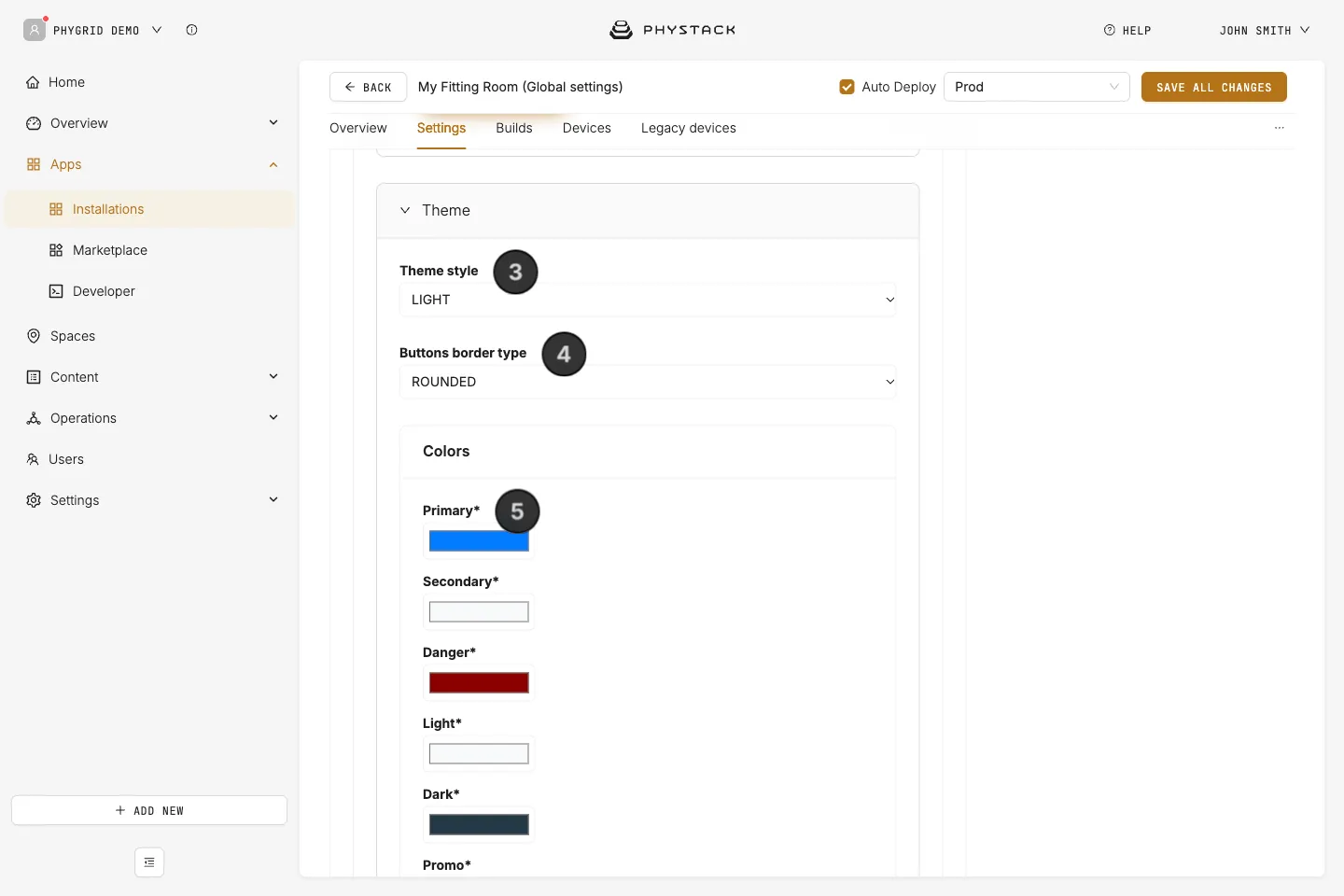
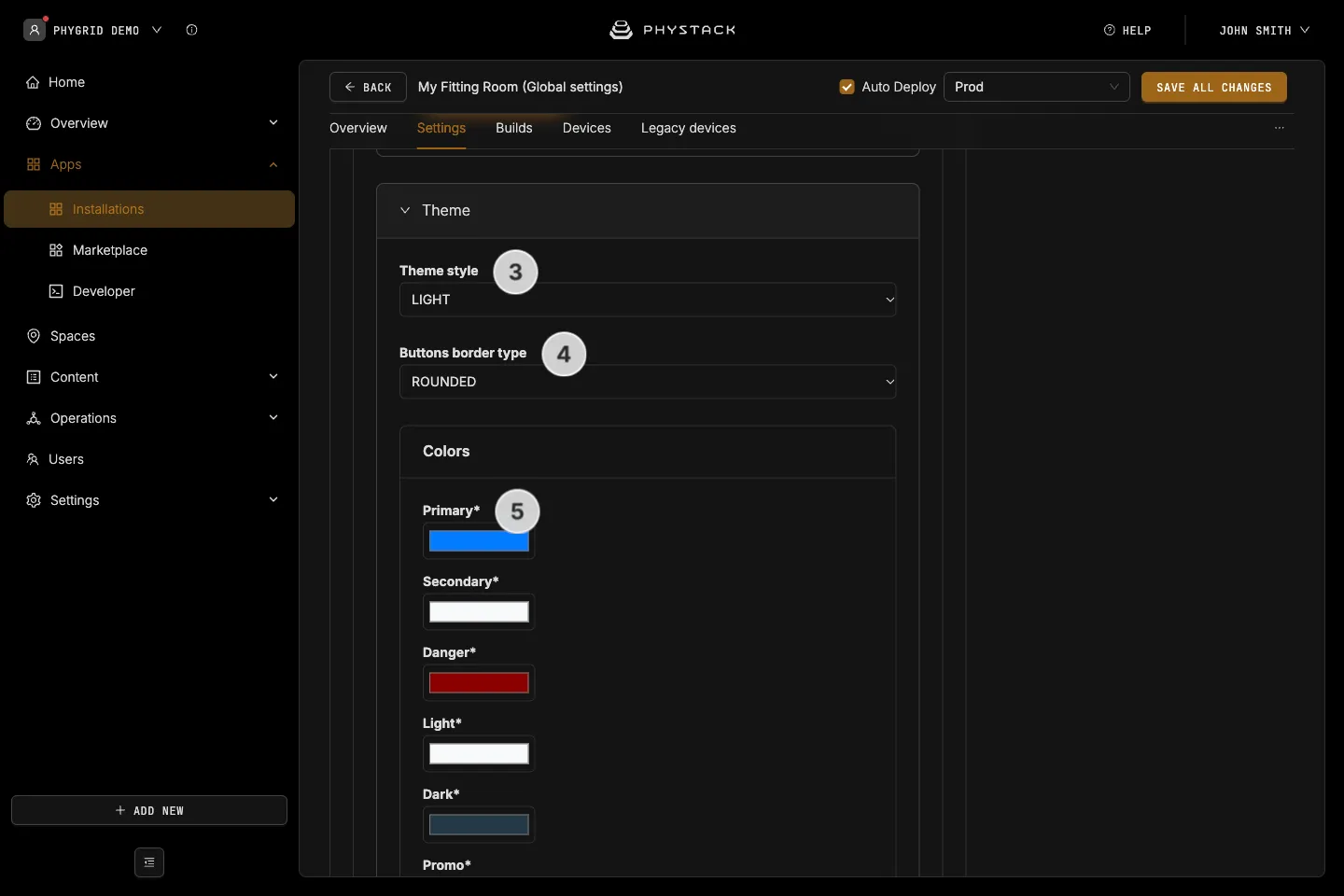
- Choose a theme style - light or dark
- Choose a button style - rounded or straight corners
- Set custom colors for the app