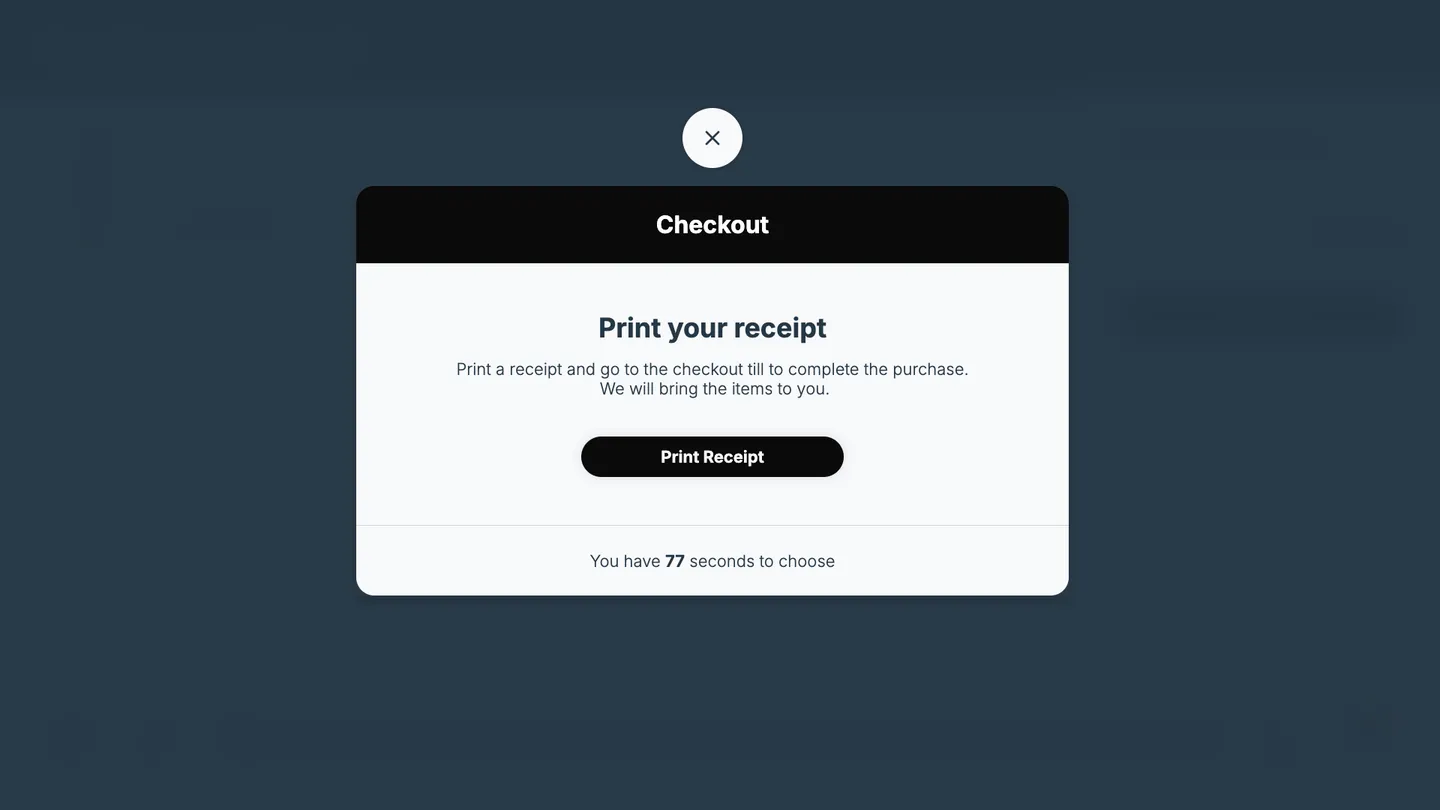
With Print Barcode, the customer prints a receipt that lists each product with its barcode, then pays at the till, where staff scan the barcodes. The same printer is used by Print Barcode with Customer Info, and Tasks App.
Before you start
- A USB thermal receipt printer for 80 mm paper, from Epson, Star, Posiflex, Seiko, or CITAQ, connected to the kiosk device
- The thermal printer peripheral app installed and connected to the same device, so the printer appears as a peripheral of the device. See View peripherals connected to a device
- An EAN barcode on every product variant. Without it, the product prints without a barcode
- A price for every product. Products without a price are left off the receipt
How to set up Print Barcode checkout
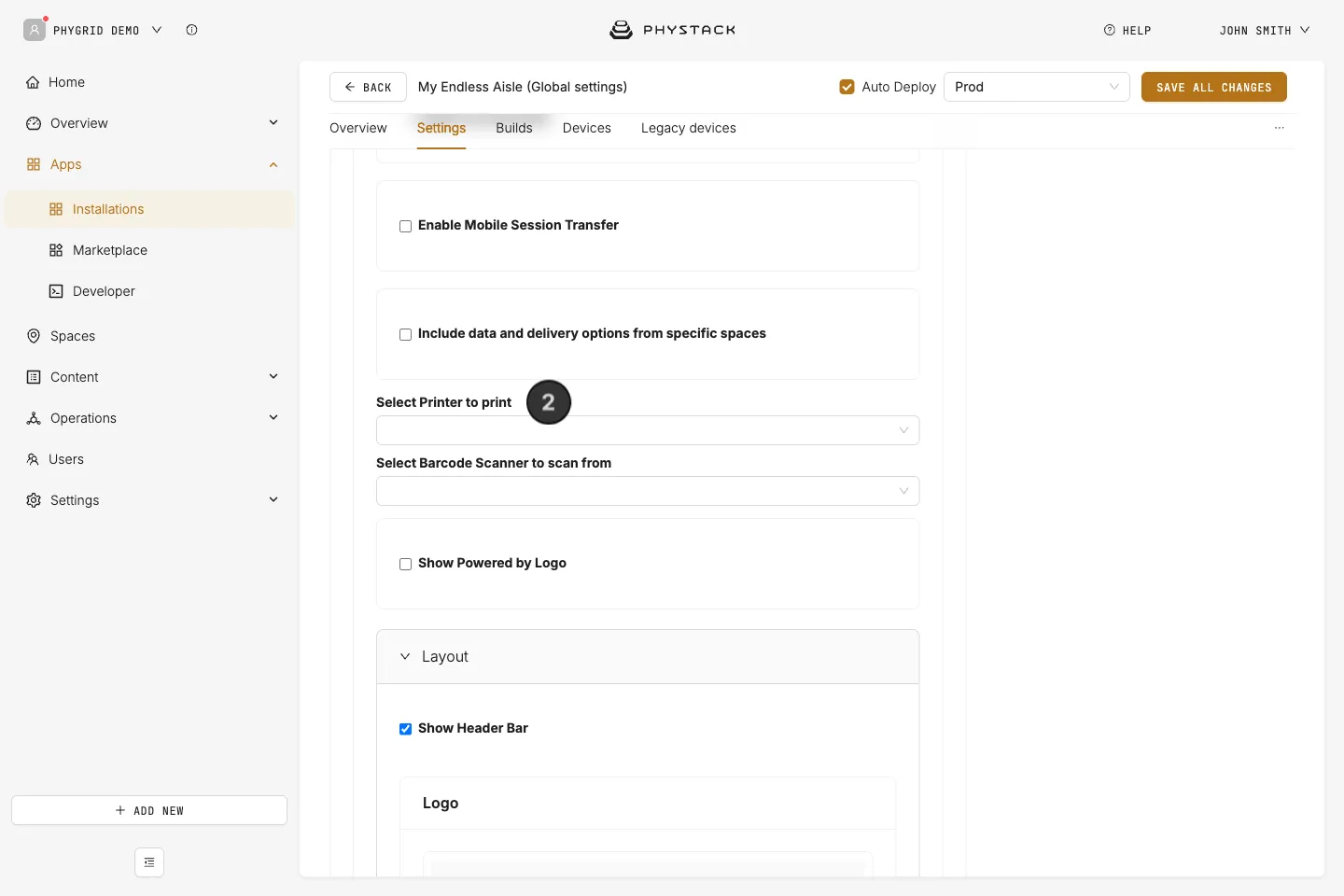
- Open the Endless Aisle installation and go to the Settings tab
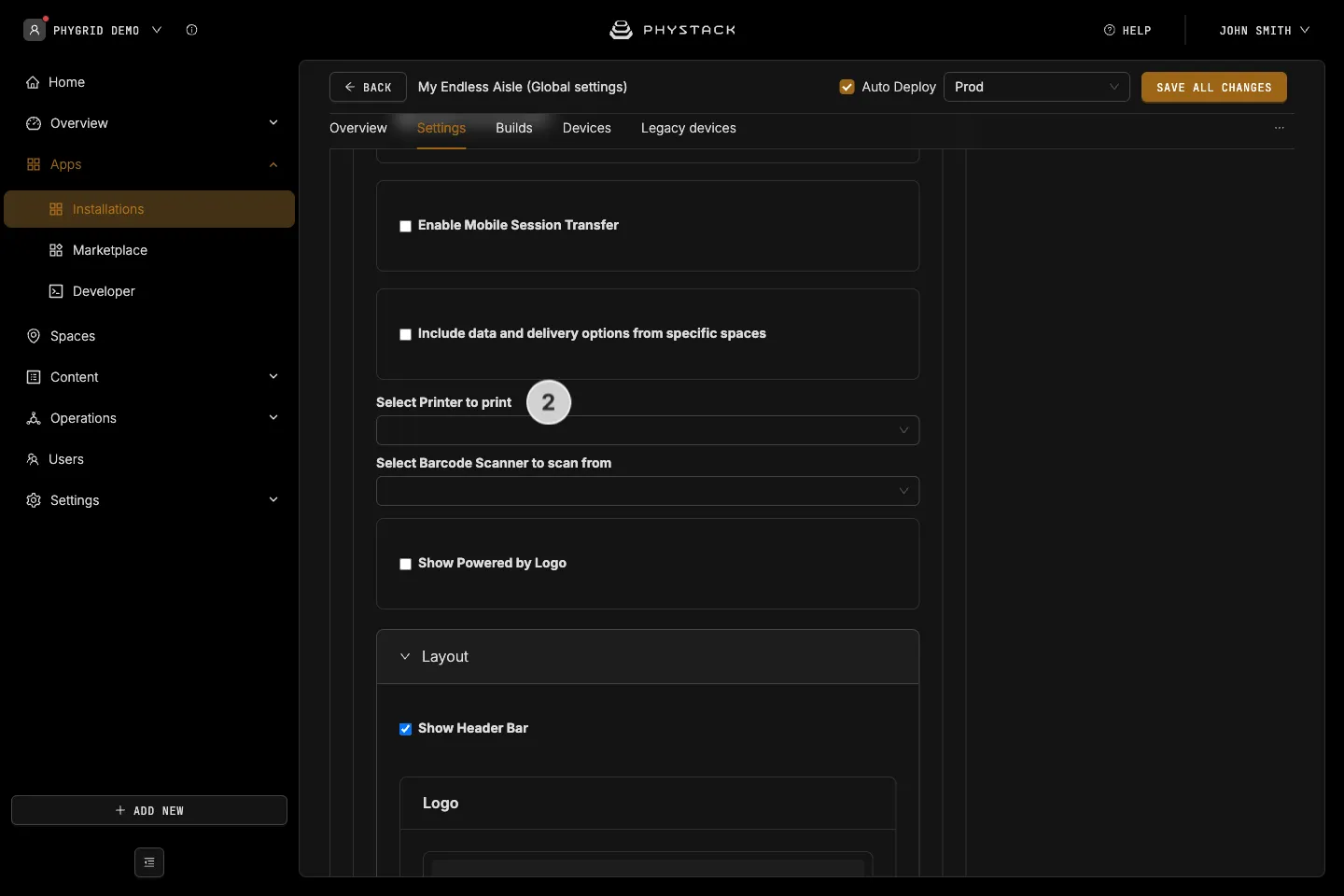
- In Select Printer to print, select the printer connected to this kiosk. The list shows printers from all devices in your tenant
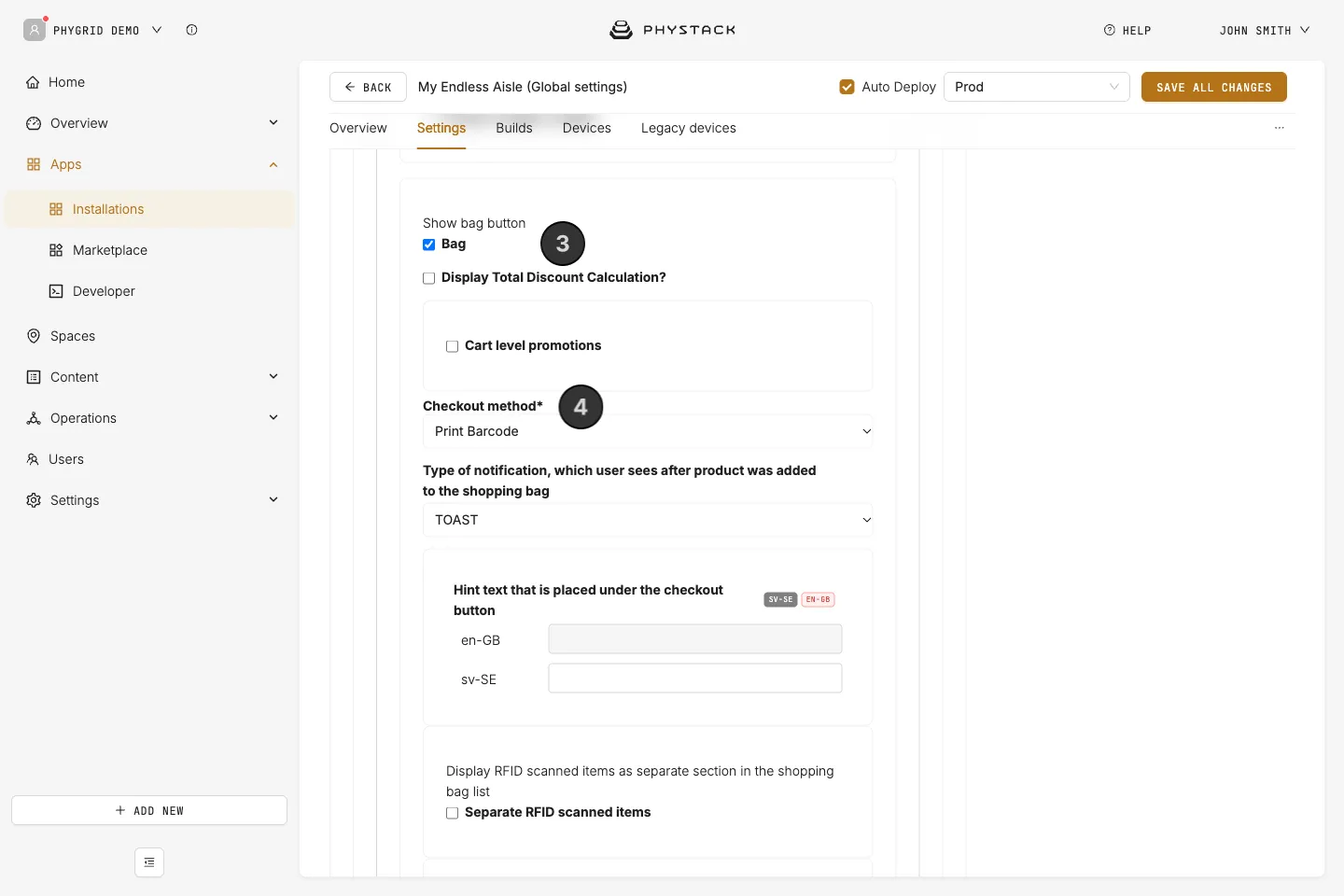
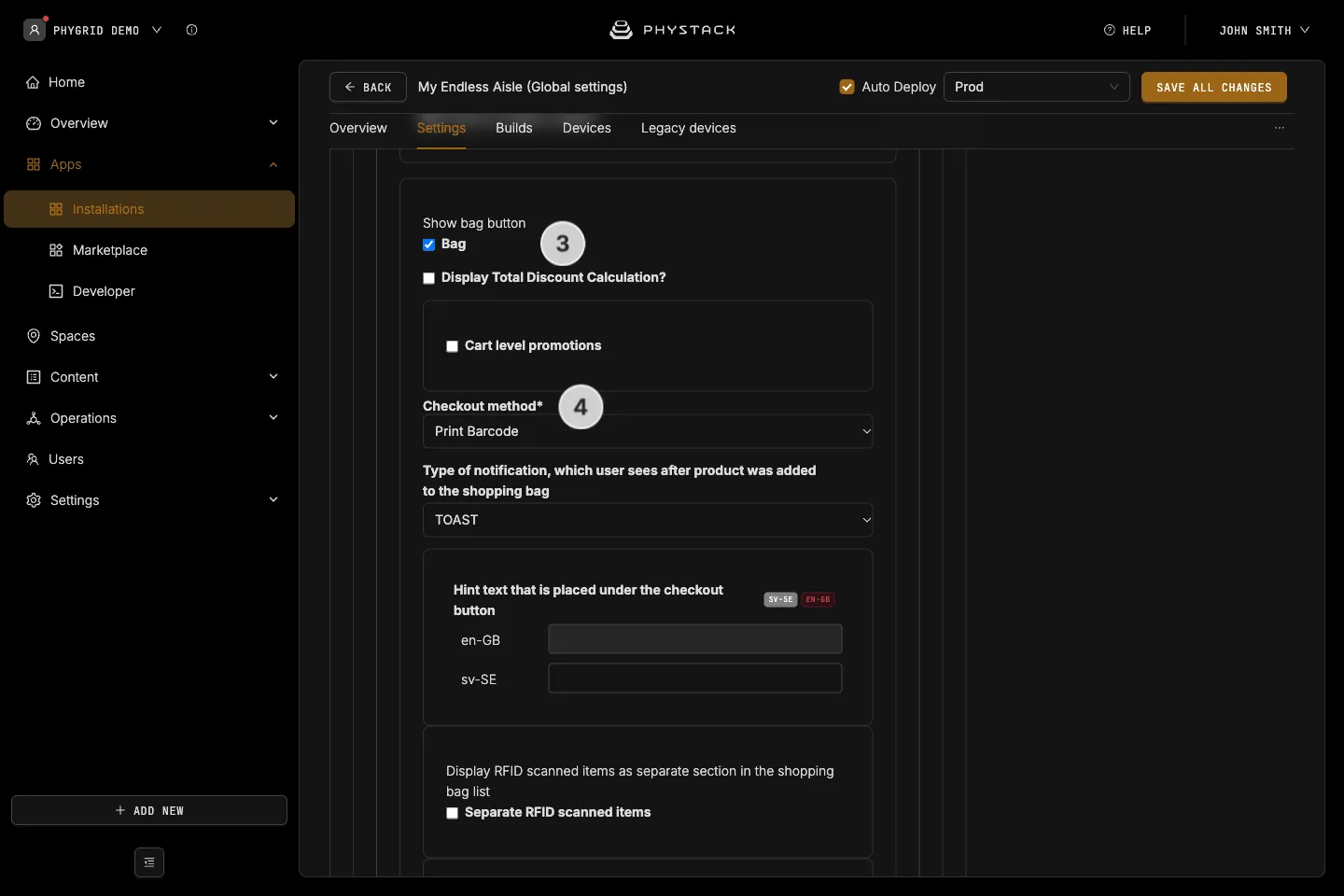
- Expand Features and turn on Bag
- Set Checkout method to Print Barcode
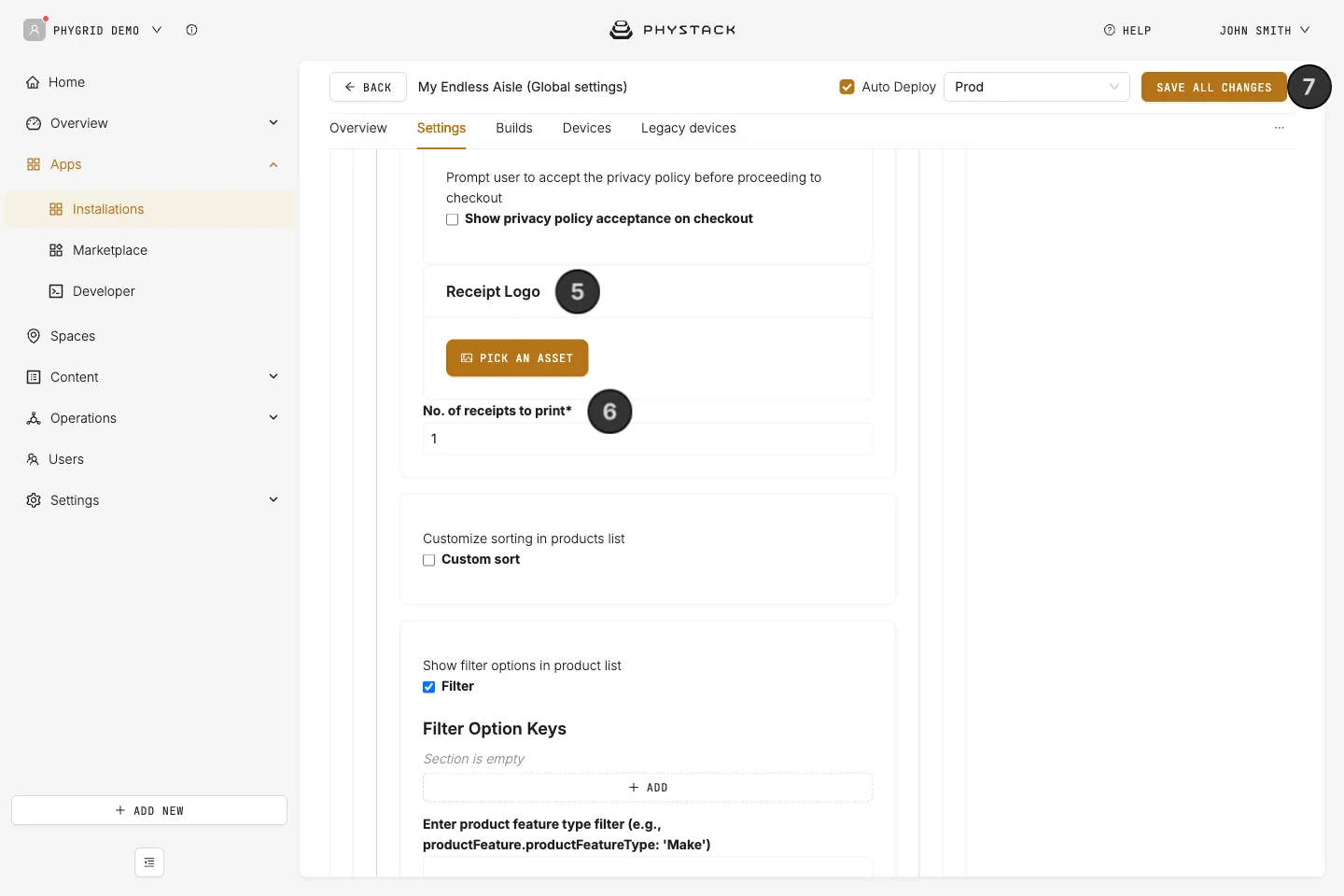
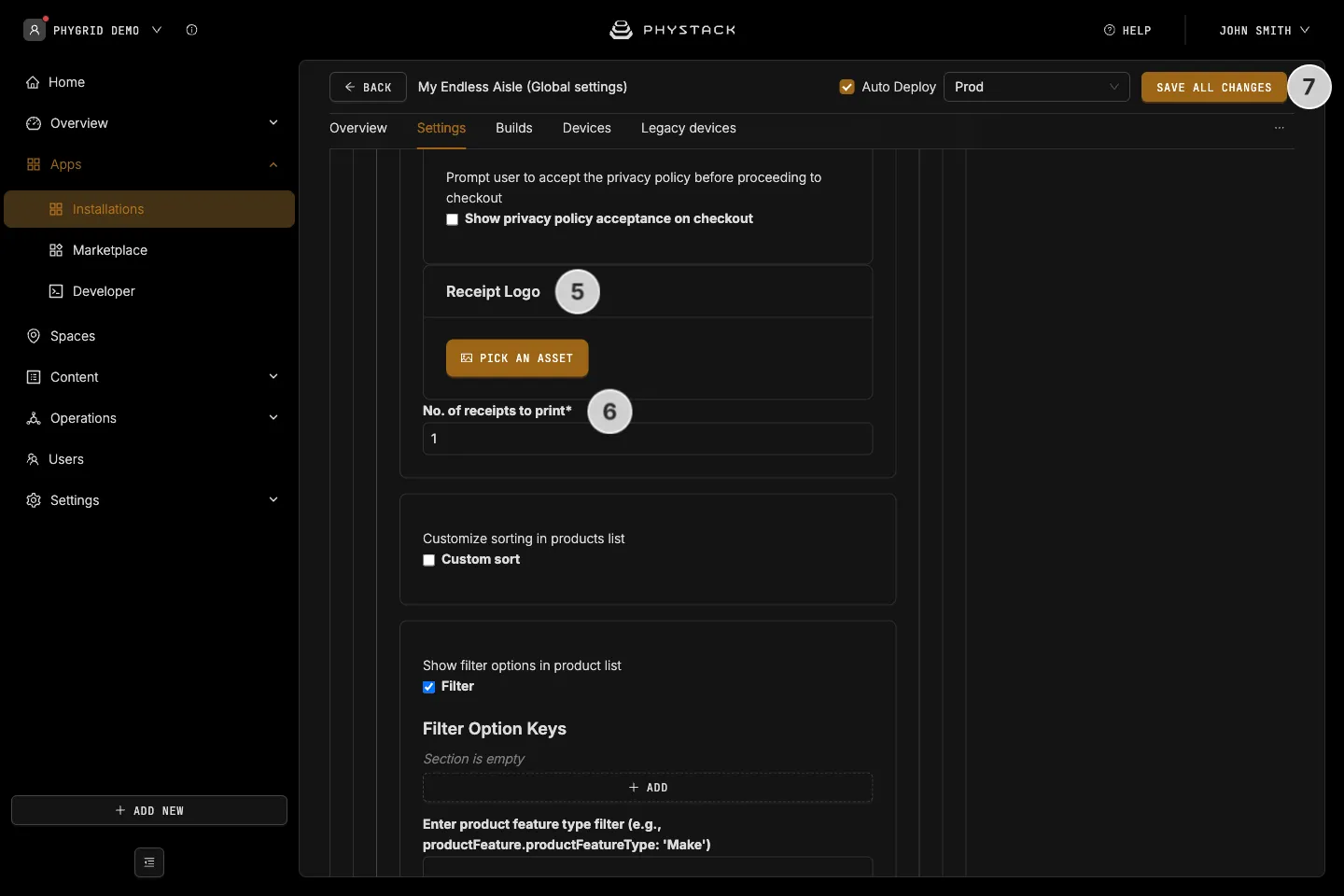
- Optionally, upload a Receipt Logo. Use a simple dark logo on a white background: the receipt prints in black and white
- Set No. of receipts to print
- Click Save all changes
What the receipt contains
- Your receipt logo, the date, and the time
- A line asking the customer to take the receipt to the till
- One block per item, with its name, product ID, price, and barcode. An item with quantity 3 prints three blocks
- The subtotal, any discounts and shipping, and the total
With customer info and Tasks, the receipt also shows the order number, the store name, and the customer’s details.
How to test printing
The kiosk doesn’t show printer errors. It shows the success message even when nothing prints, so always test after setting up.
- On the kiosk, add a product to the bag and tap Continue
- Tap Print Receipt
- Check that the receipt prints with the logo and barcodes
- Scan a barcode from the receipt at your till
- If nothing prints, check the printer’s paper and power, check that Select Printer to print points to this kiosk’s printer, and restart the device after reconnecting the printer