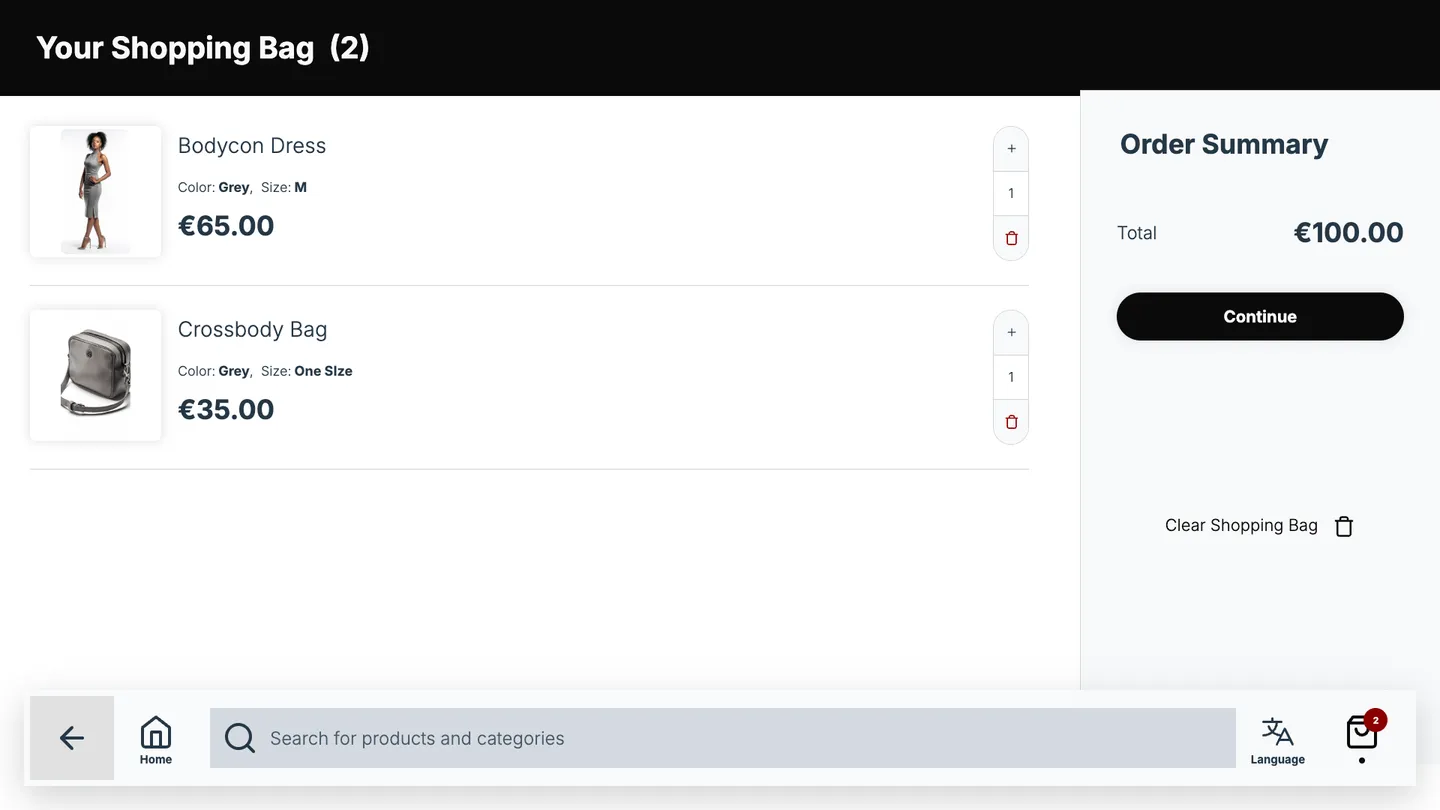
Customers add products to the bag on the kiosk and tap Continue to check out. What happens next depends on the Checkout method you choose. The bag and checkout only appear when Features → Bag is turned on in the Endless Aisle settings.
Checkout methods compared
| Checkout method | What the customer does | Where the order goes | What you need |
|---|---|---|---|
| Grid Checkout (default) | Scans a QR code and pays on their phone | Paid online through Stripe | A Stripe account |
| External | Scans a QR code that opens your web shop with the bag filled in | Your web shop | A web shop that can read the bag from the link |
| Print Barcode | Takes a printed receipt to the till and pays there | Your till system, by scanning the receipt | A receipt printer |
| Tasks App | Gets an order number and a QR code to follow the order | Tasks, where staff prepare it | Tasks |
| Print Barcode with Customer Info, and Tasks App | Enters their details, chooses pickup or delivery, and takes a printed receipt to the till | Tasks, plus a printed receipt | Tasks and a receipt printer |
Which method fits your store
- Customers pay on the spot without staff: Grid Checkout
- You already sell online and want orders in your web shop: External
- Customers pay at the till, nothing else to set up: Print Barcode
- Staff fetch the items and bring them to a pickup point: Tasks App
- Staff fetch the items, and customers choose store pickup or home delivery: Print Barcode with Customer Info, and Tasks App
About Tasks
Tasks is a separate PhyGrid solution where store staff receive and handle customer requests. Smart Fitting Room uses it too. Endless Aisle can send its orders there, so staff see each order with its products, prepare it, and hand it over. See the Tasks section.
Settings for every method
These settings under Features → Bag apply whichever method you choose:
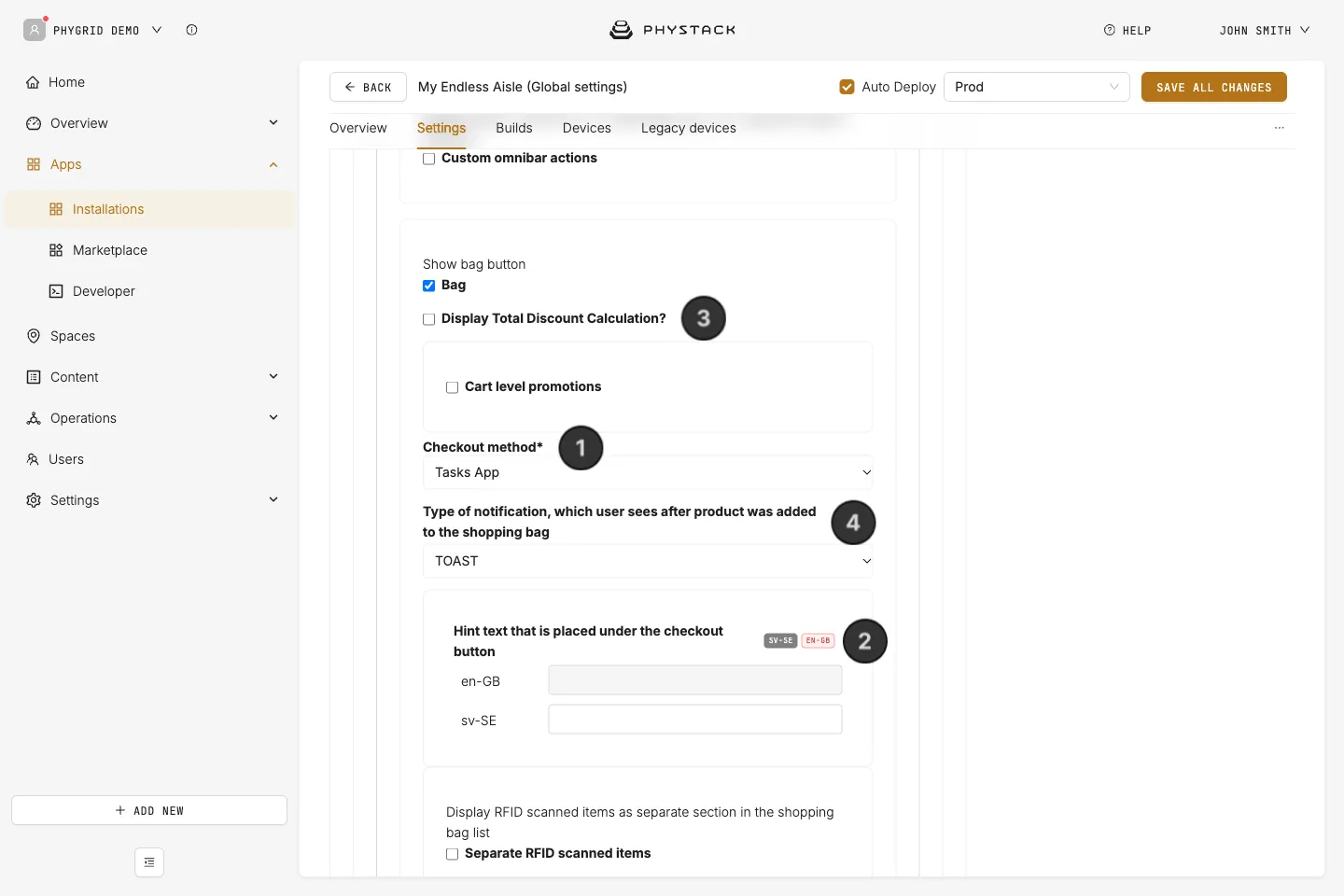
- Checkout method: the method, as described above
- Hint text that is placed under the checkout button: a short note in the bag, for example about delivery times
- Display Total Discount Calculation?: shows the subtotal and discounts in the order summary
- Type of notification, which user sees after product was added to the shopping bag: a pop-up message, or a note in the search bar at the bottom of the screen
After checkout, the kiosk empties the bag and returns to the idle screen.