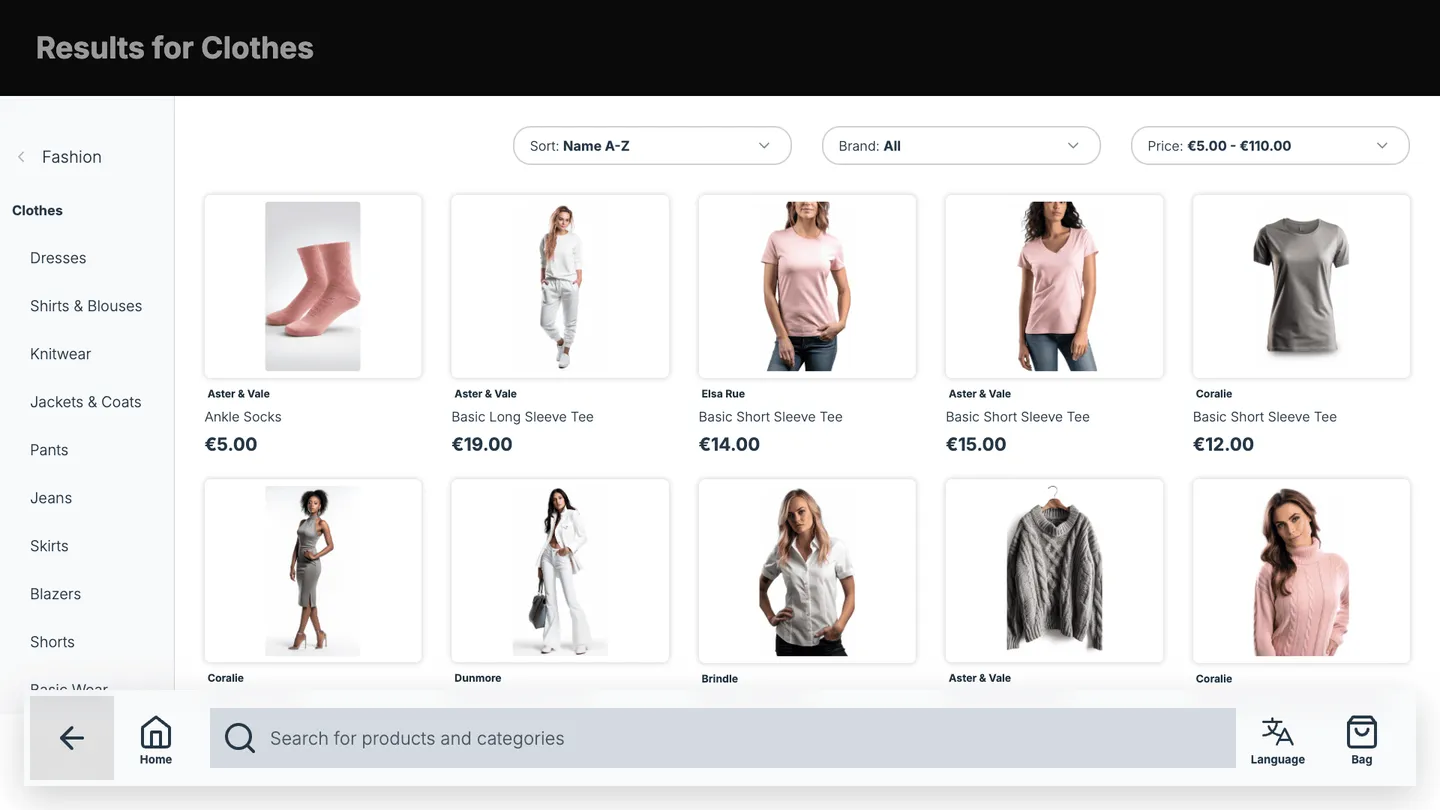
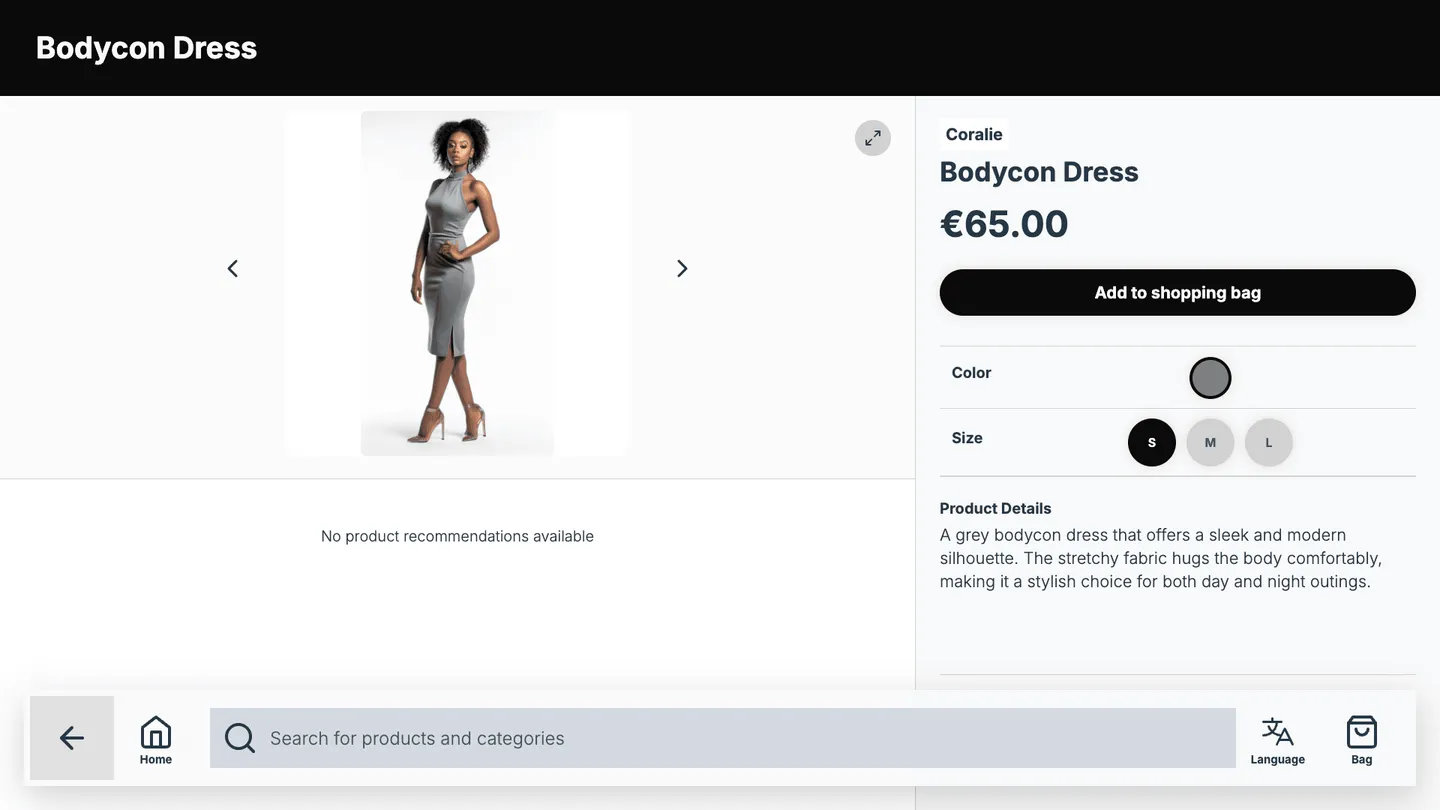
With the default settings, a product appears on the kiosk when all of these are true:
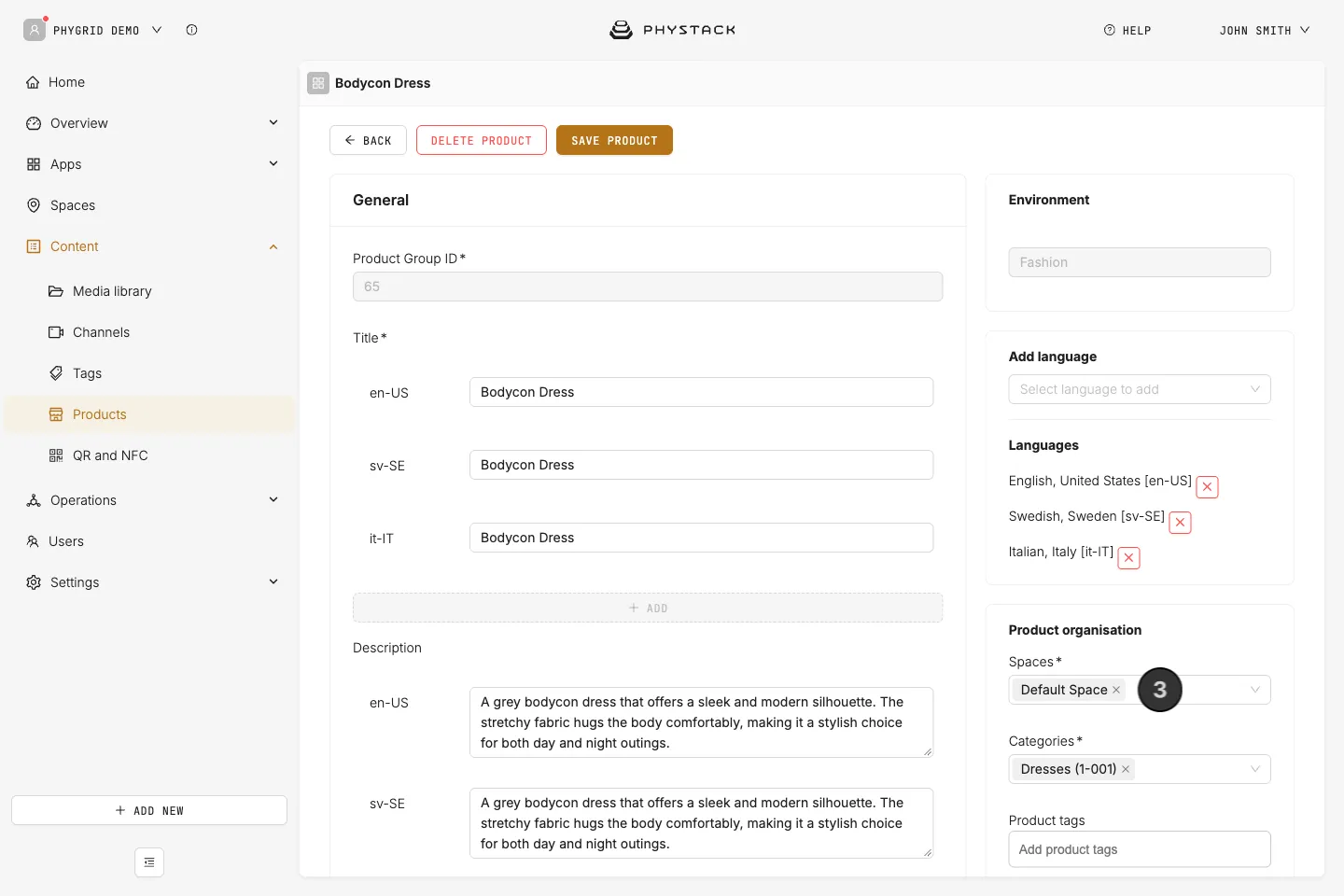
- It’s in the environment of the kiosk’s device, and assigned to the kiosk’s space
- Its category is one of the kiosk’s home screen categories, or a subcategory of one
- It has stock in that space
- If Show products with ‘Active’ status only is on, its status for that space is Active
How to check the kiosk’s space
The kiosk’s space is Products space in the Endless Aisle settings. If it’s empty, the kiosk uses the space its device is assigned to. The kiosk only shows products from its device’s environment, so check that too, see Connect Endless Aisle Kiosk to a device.
- Open the Endless Aisle installation and go to the Settings tab
- Check Products space, or check the device’s space in Operations → Devices
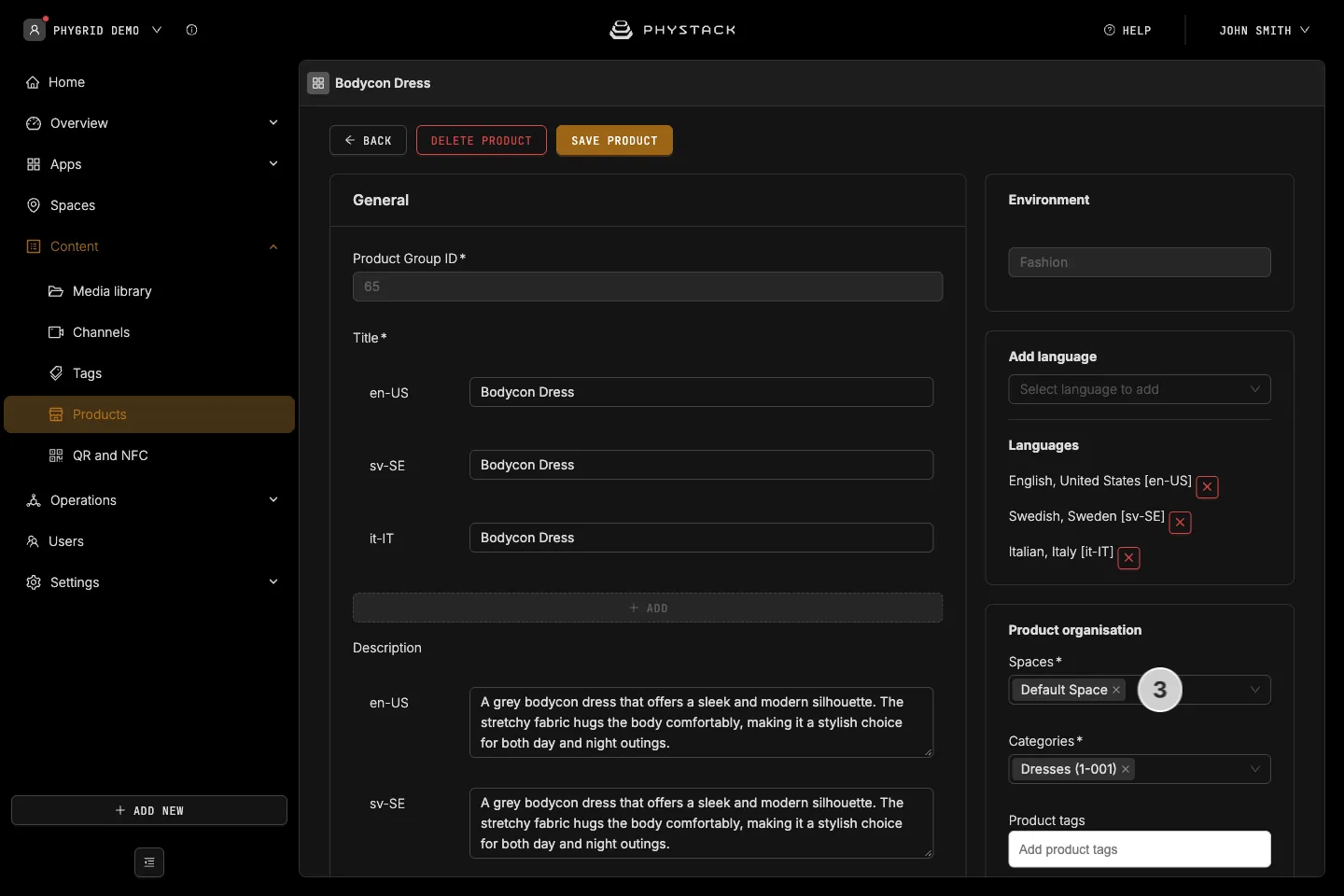
- In Content → Products, open a product and check that this space is selected under Product organisation → Spaces
To also show products from other spaces, such as an online warehouse, see Configure product browsing.
How to link kiosk categories to your product categories
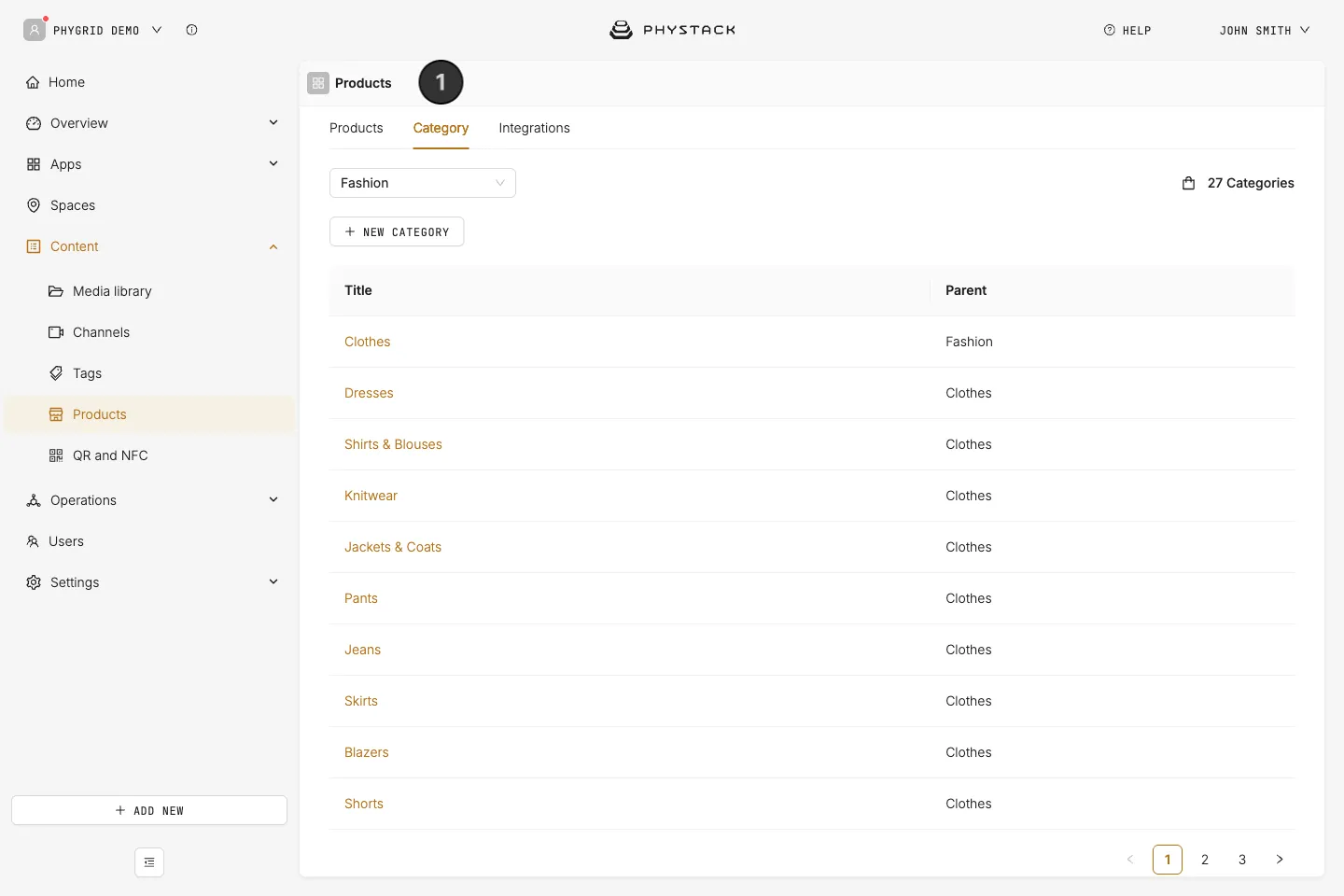
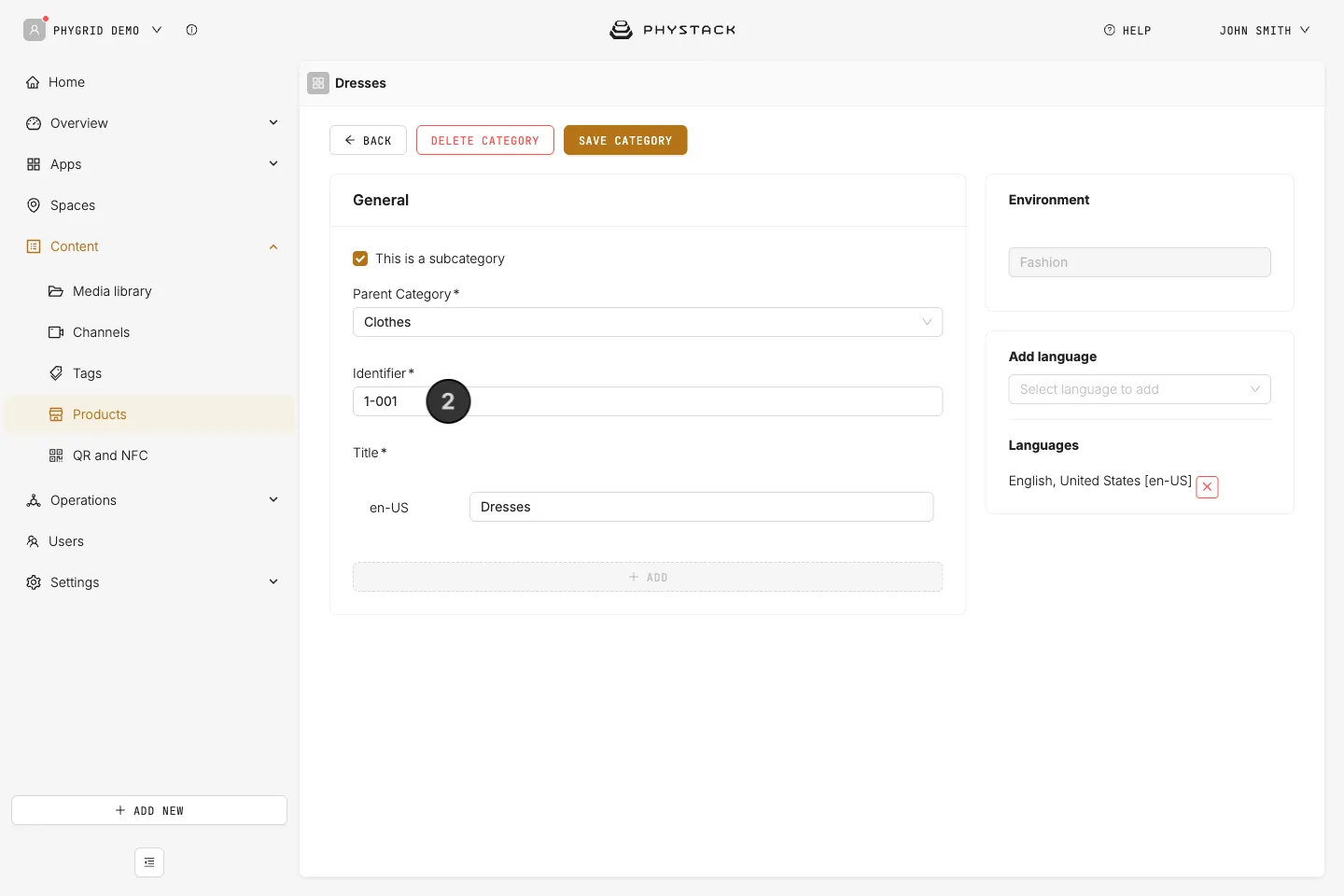
Each category tile on the kiosk’s home screen points to one of your product categories by its identifier. Products in subcategories are included automatically, so a tile for “Shoes” also shows products in “Sneakers”.
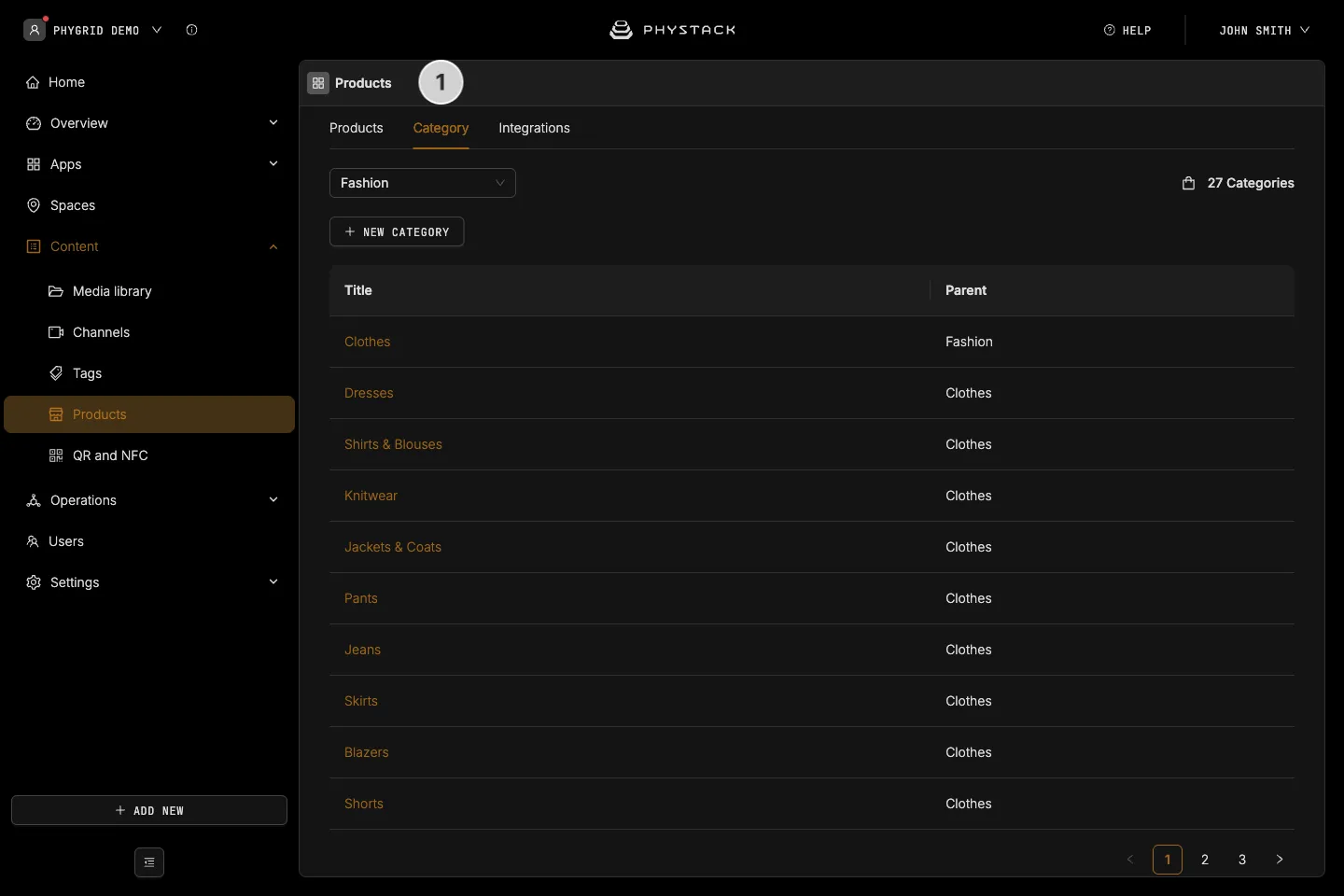
- In Content → Products, open the Category tab
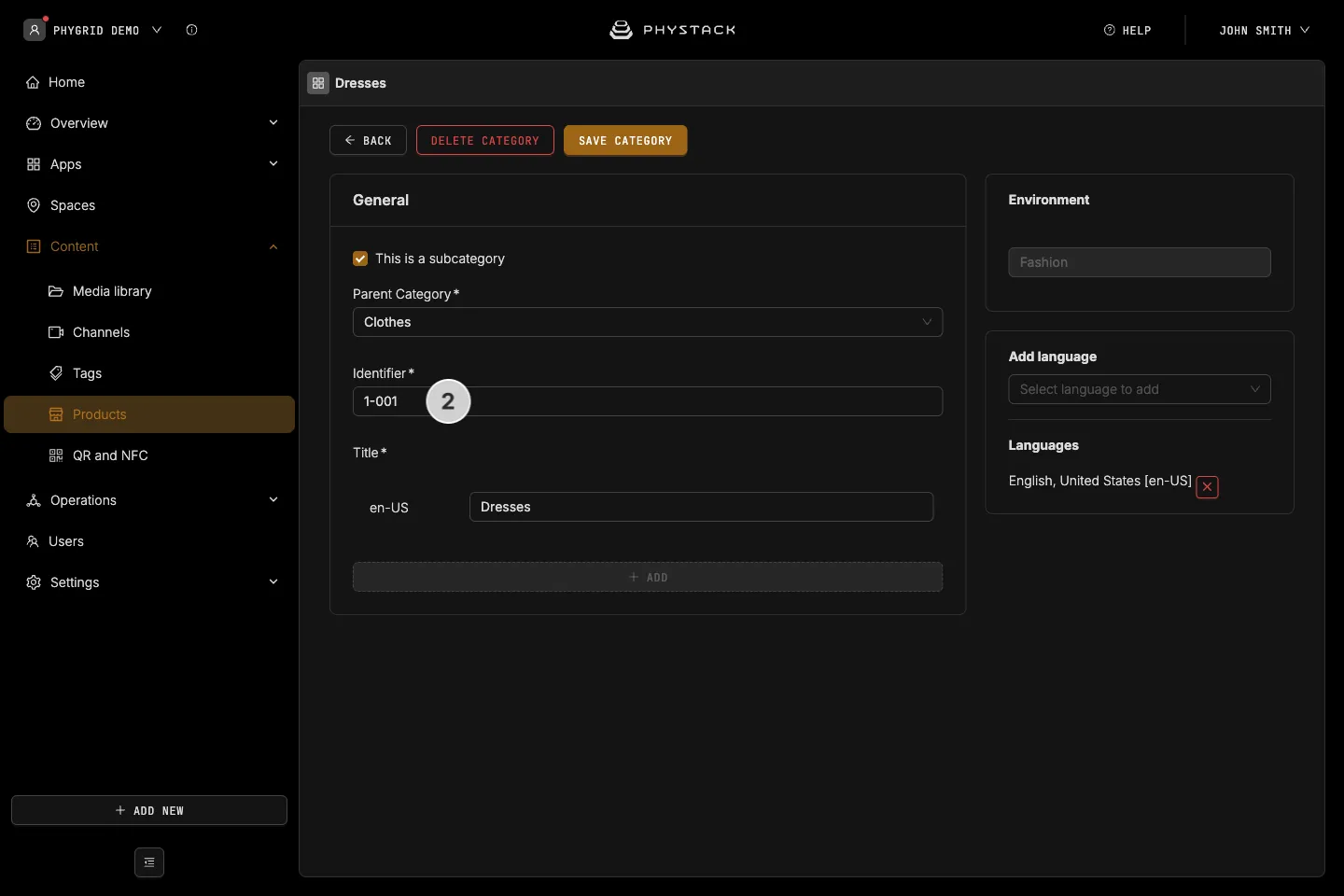
- Open the category you want on the home screen and copy its Identifier
- Open the Endless Aisle installation and go to the Settings tab
- Expand Active → Home → Categories and add a category
- Paste the identifier into ID and enter a Title
- Click Save all changes
See Set up the home screen for icons, backgrounds, and banners.
How to check stock
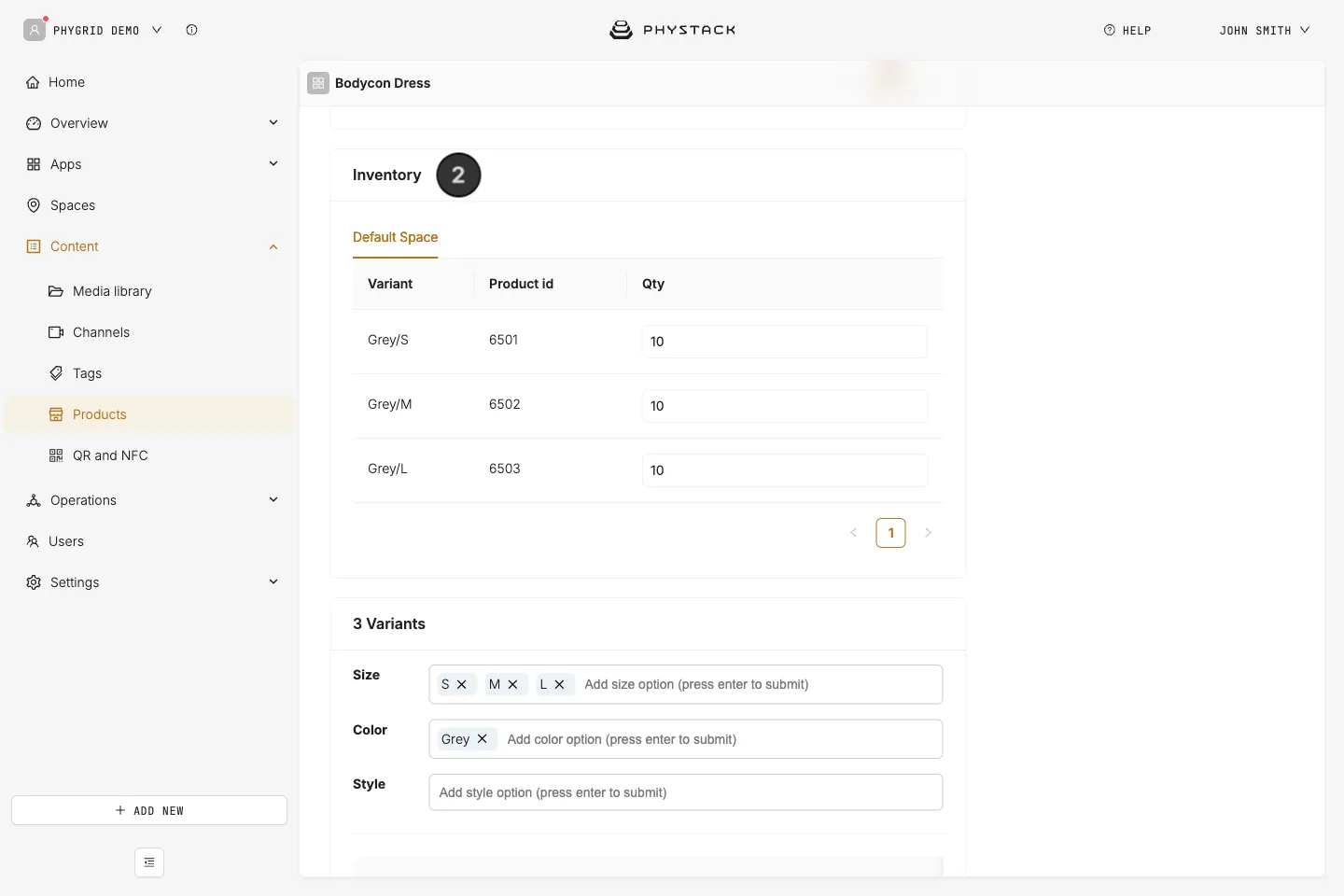
Hide unavailable products is on by default, so the kiosk hides products that have no stock in its space. Products without any inventory data are hidden too.
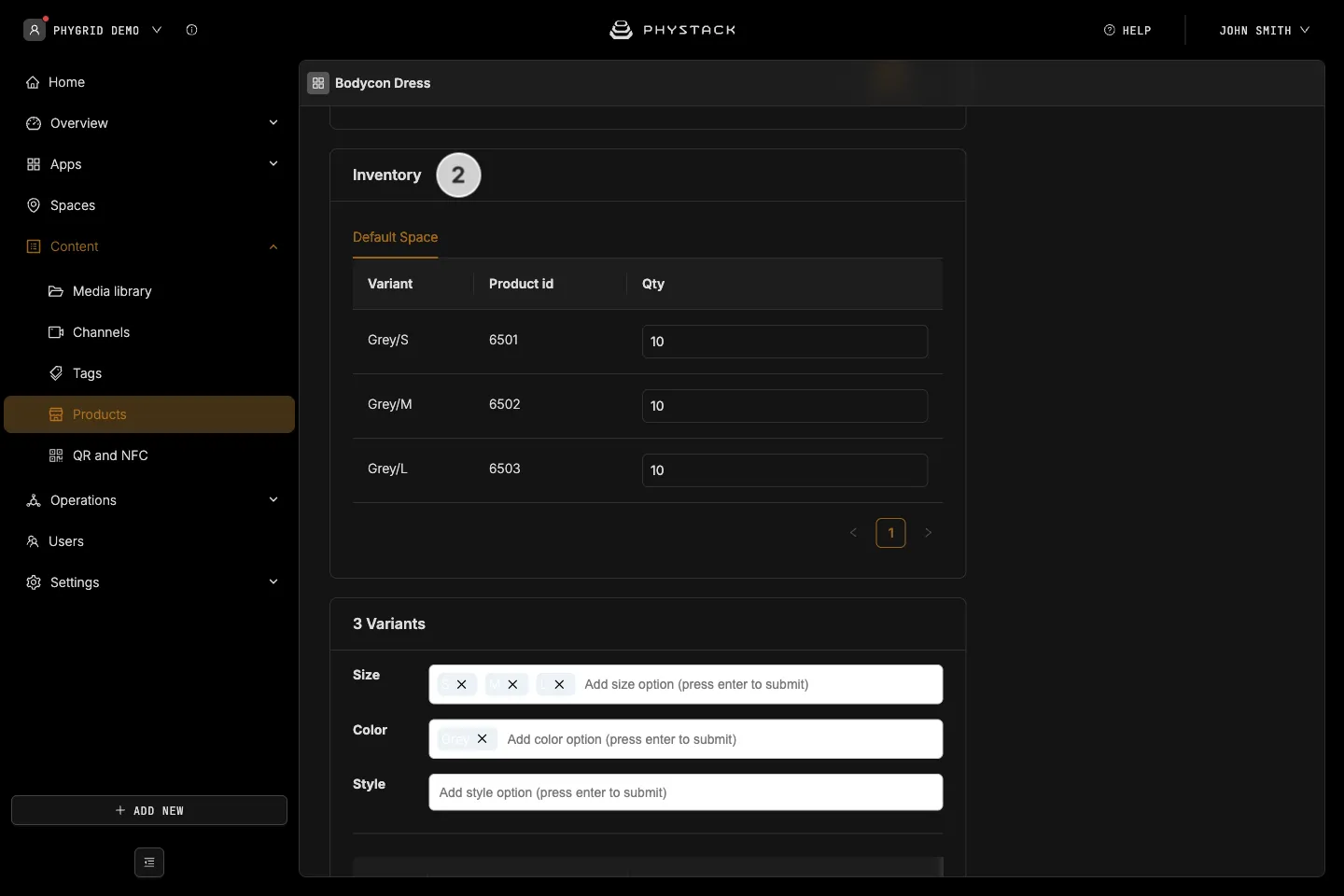
- Open the product in Content → Products
- Under Inventory, check that at least one variant has a quantity above 0 in the kiosk’s space
- If you don’t import stock levels at all, turn off Features → Hide unavailable products and Inventory availability check in the Endless Aisle settings. Otherwise no product shows, or none can be added to the bag
How to check the product status
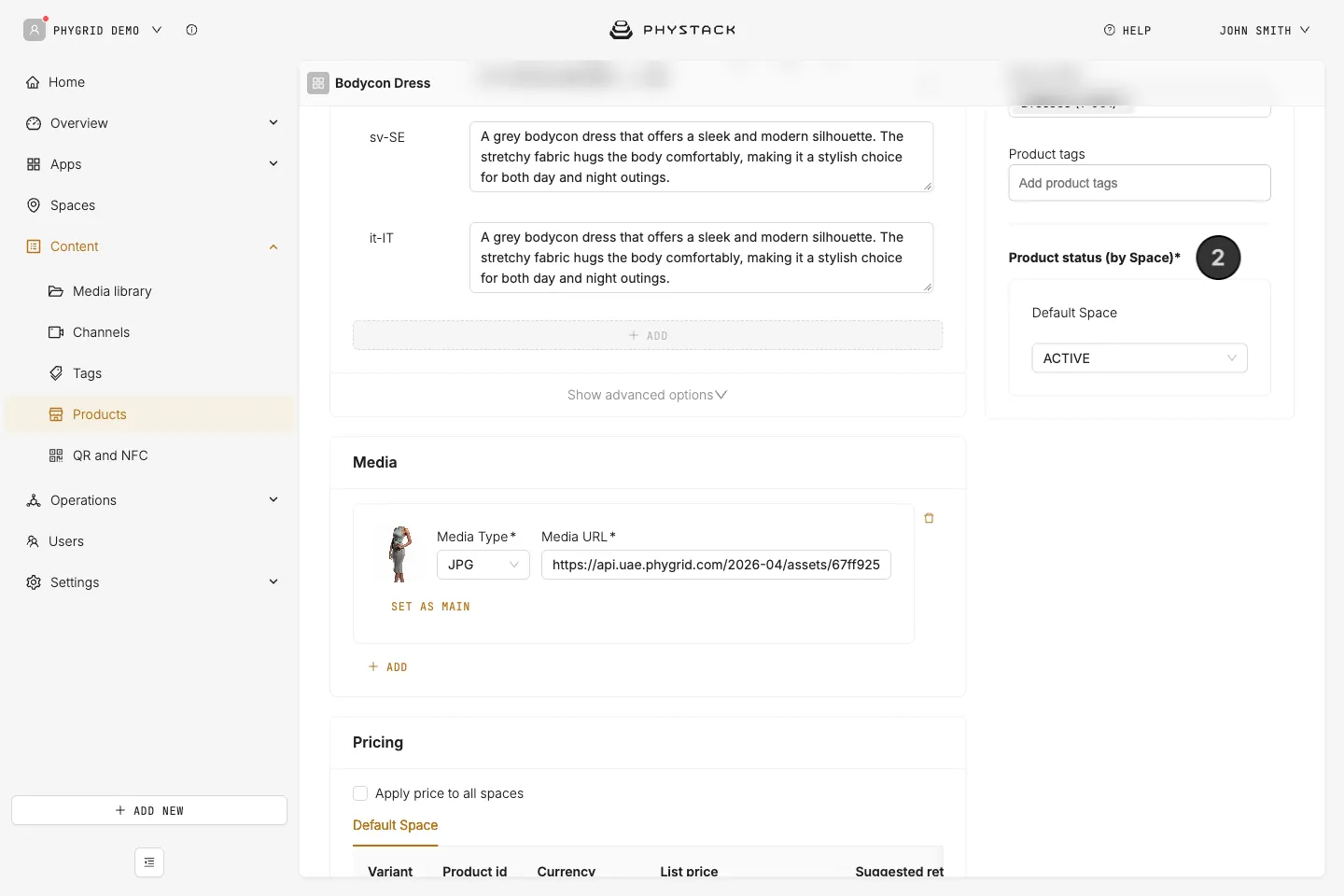
Only needed if Show products with ‘Active’ status only is on in the Endless Aisle settings.
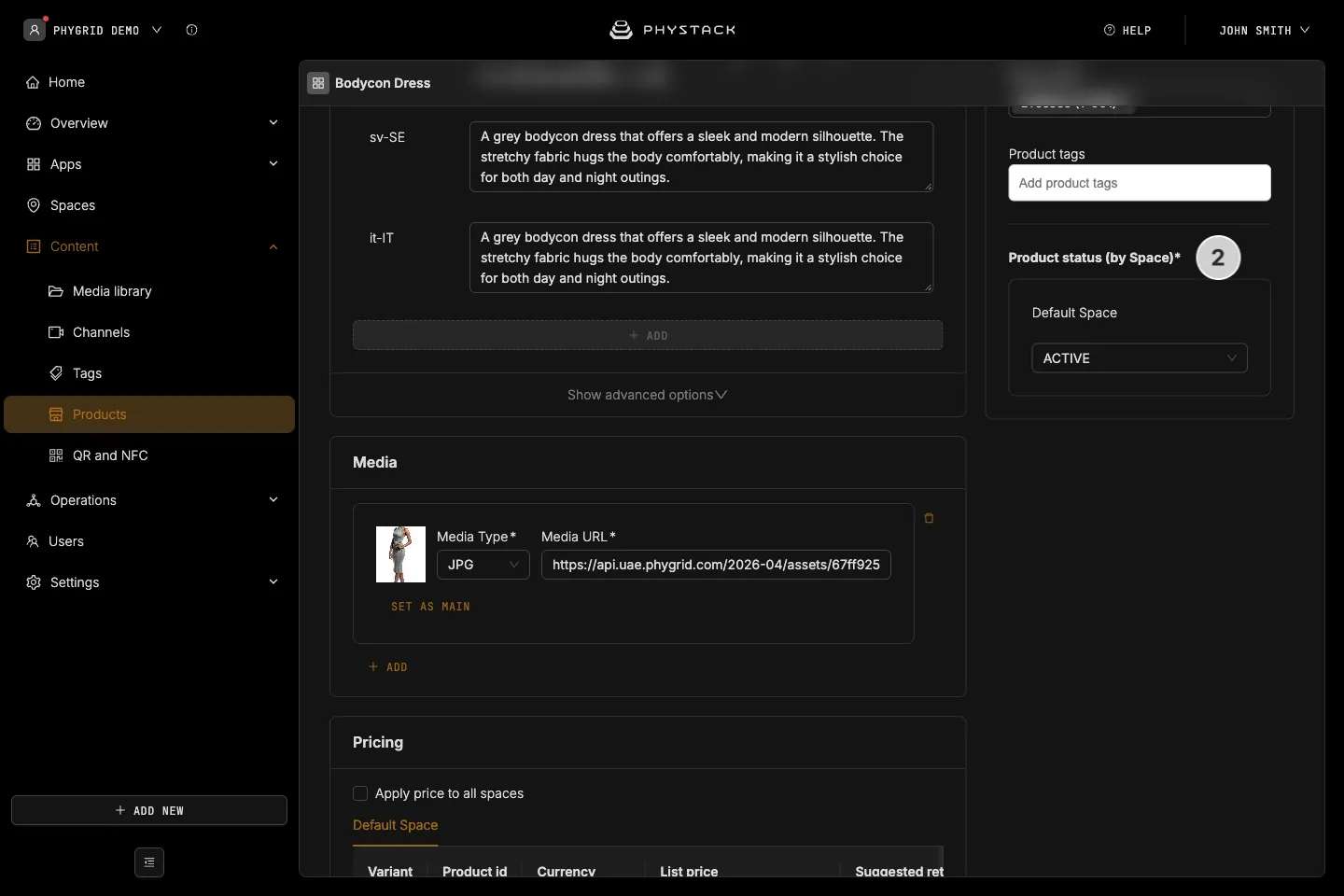
- Open the product in Content → Products
- Under Product status (by Space), check that the status for the kiosk’s space is Active
How to check the result on the kiosk
- On the kiosk, open the category from the home screen and check that the product appears with its image and price
- Open the product and check its variants and availability
- If you have a barcode scanner, scan the product’s barcode
- If recent changes don’t show, restart the device. The kiosk keeps product lists it has already loaded