

A cover is the finished image a visitor takes home: their cut-out selfie placed into a scene you design. Each Selfie Mirror installation has up to three covers. In the PhyGrid Console, covers are the Reference Backgrounds under Capture in the installation settings.
How covers are made
Selfie Mirror stacks three layers into each cover:
- Background image: Your scene. It sets the size of the cover
- Person: The visitor, cut out of the photo. By default, the person fills the scene’s height, centred at the bottom edge. Move and resize them with Person Placement
- Overlay (optional): Your frame or graphic, on top of the person and stretched to the whole scene
- Combined: The finished cover, with all three layers merged
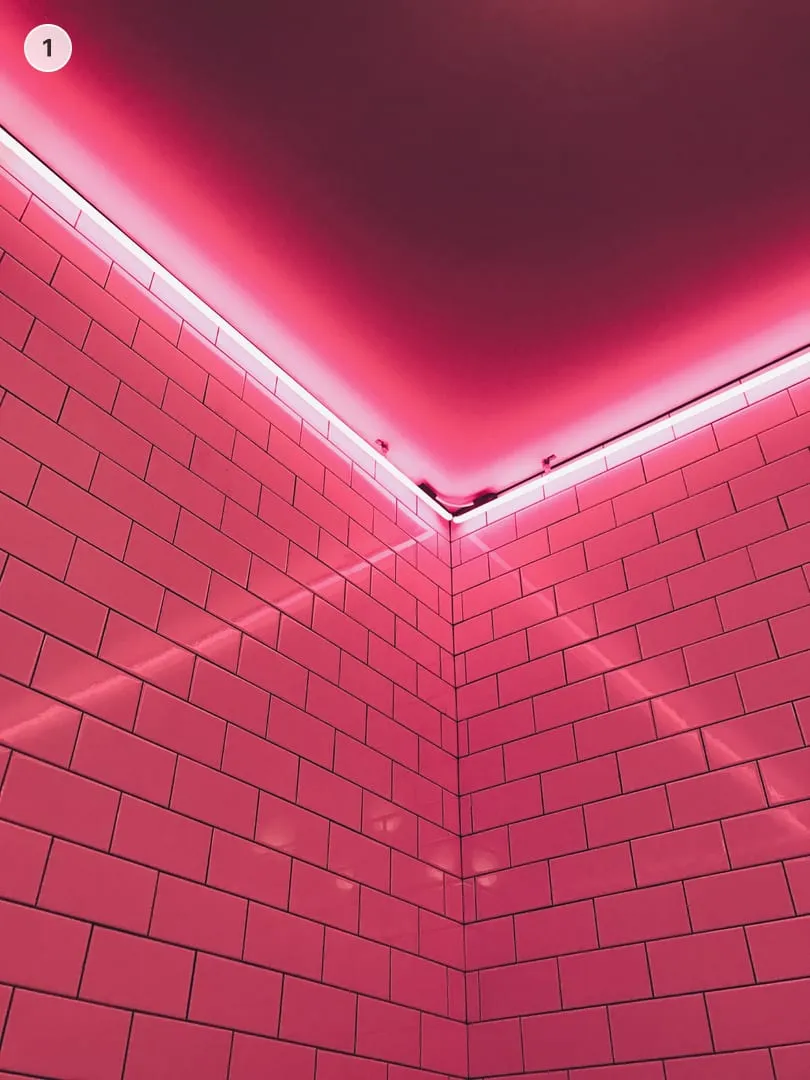
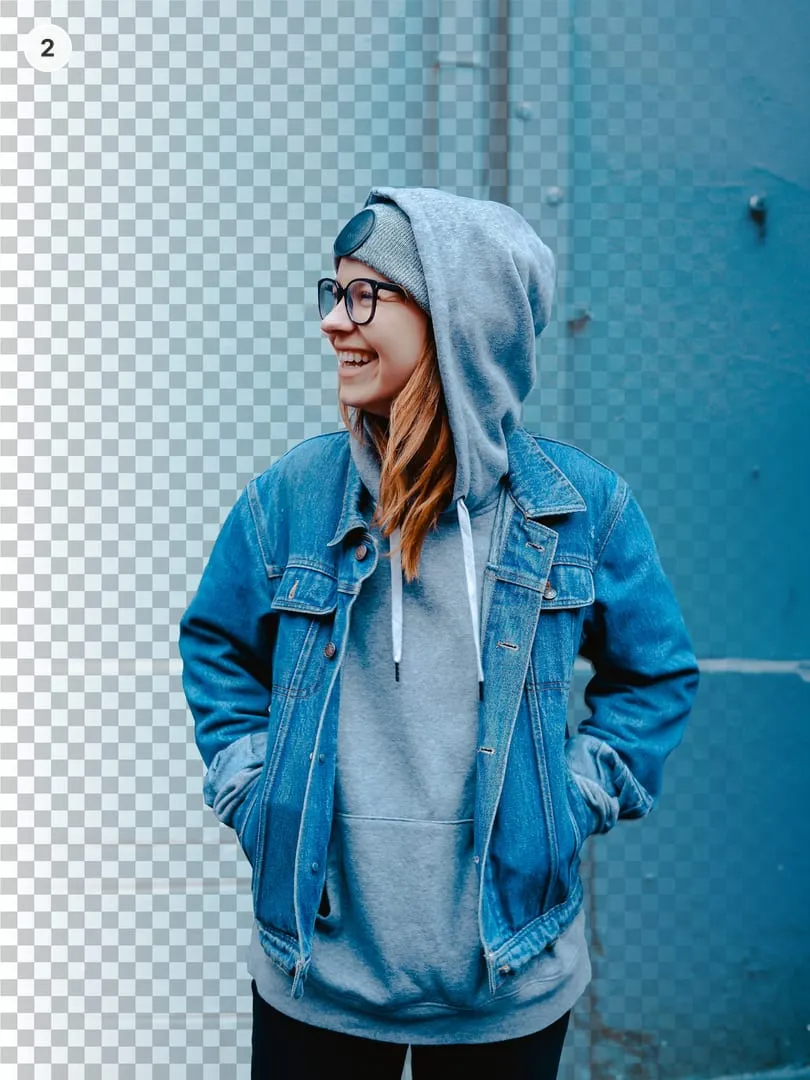
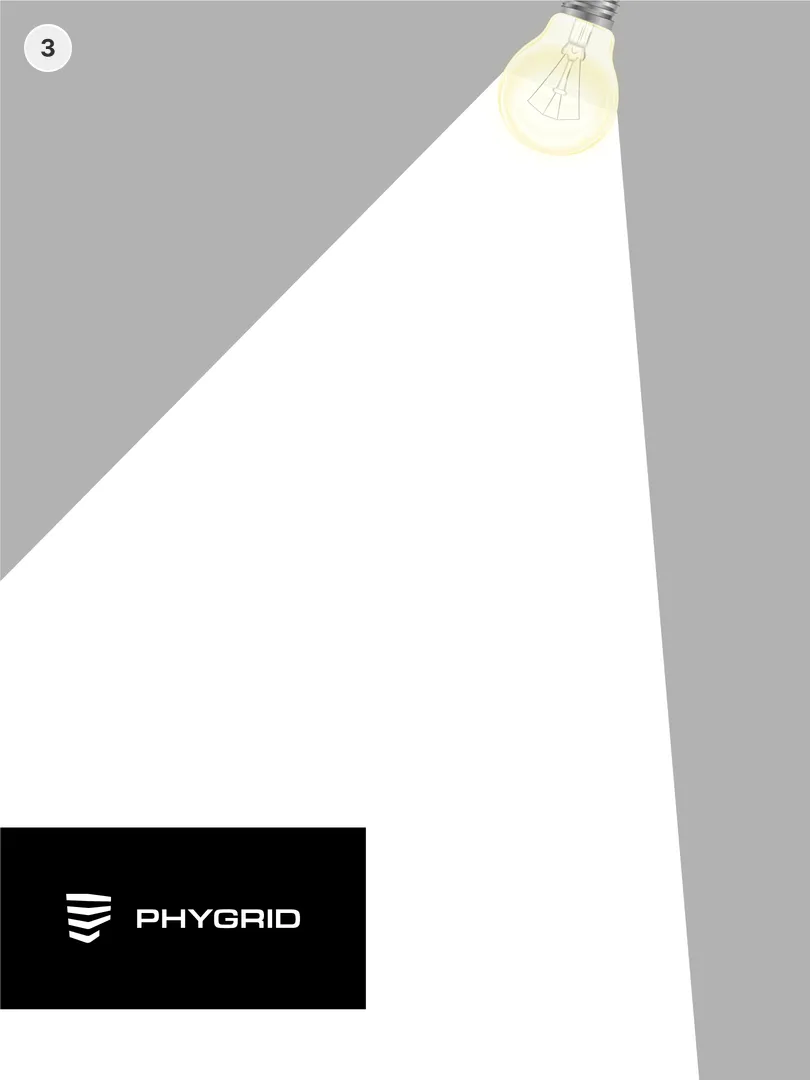
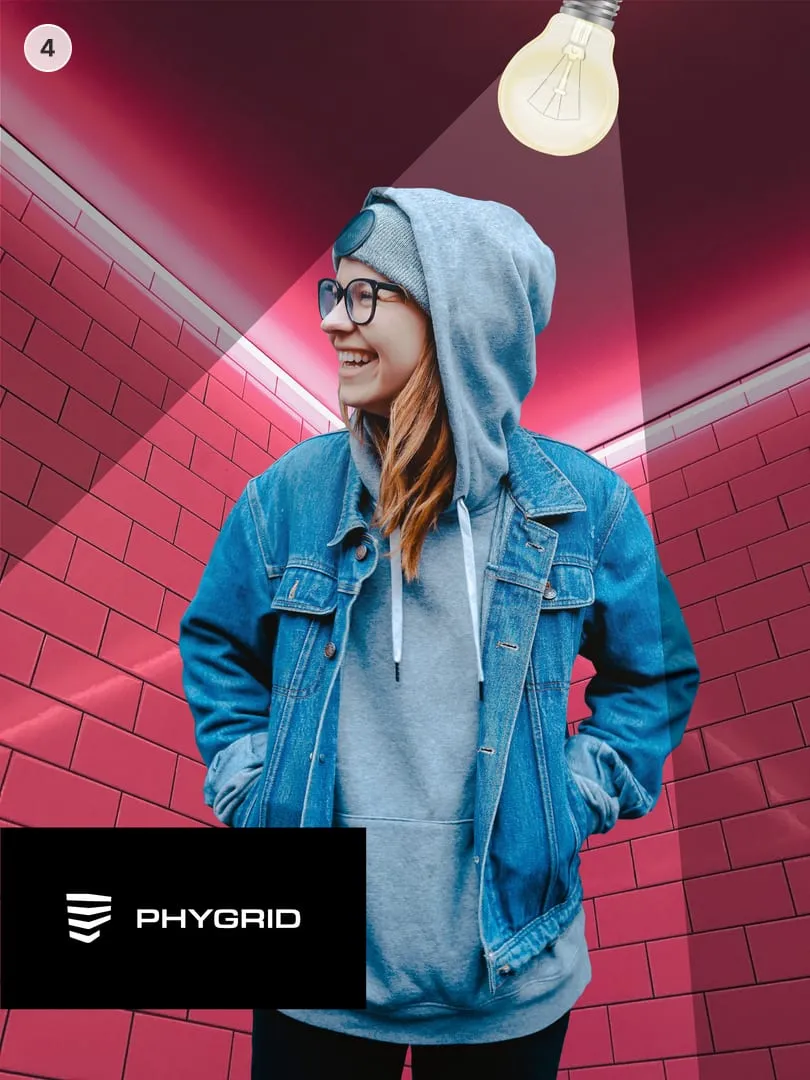
Cover image specifications
Background image
- Formats: PNG, JPEG, WebP, SVG, or GIF (only the first frame is used)
- Size: The cover keeps the background’s exact pixel size. We recommend 1620x2160px
- Orientation: We recommend portrait. Visitors view the cover on their phone
Overlay
- Format: PNG with transparency
- Size: Exactly the same width and height as the background image. An overlay with a different aspect ratio looks distorted
- Content: Frames, titles, logos, or graphics that sit in front of the person. Leave the area where the person stands transparent
Number of covers
- At least one and at most three per installation. The visitor sees one option per cover on the selection screen
How to prepare a good-looking cover
- Start with the background: choose the scene for your cover
- Design the overlay at the same size as the background. Keep the area where the person stands transparent
- Place the overlay’s graphics so they line up with the background scene
- Try different designs until the layers look right with a person in the scene
- Export the images at the recommended size and orientation
- Upload the files in the Selfie Mirror settings: Set up Selfie Mirror
- Take a test selfie and adjust Person Placement until the person sits naturally in the scene
Tips
- Light the area in front of the mirror well. Poor light lowers photo quality
- If needed, place a floor marker to show visitors where to stand, at the right distance from the screen