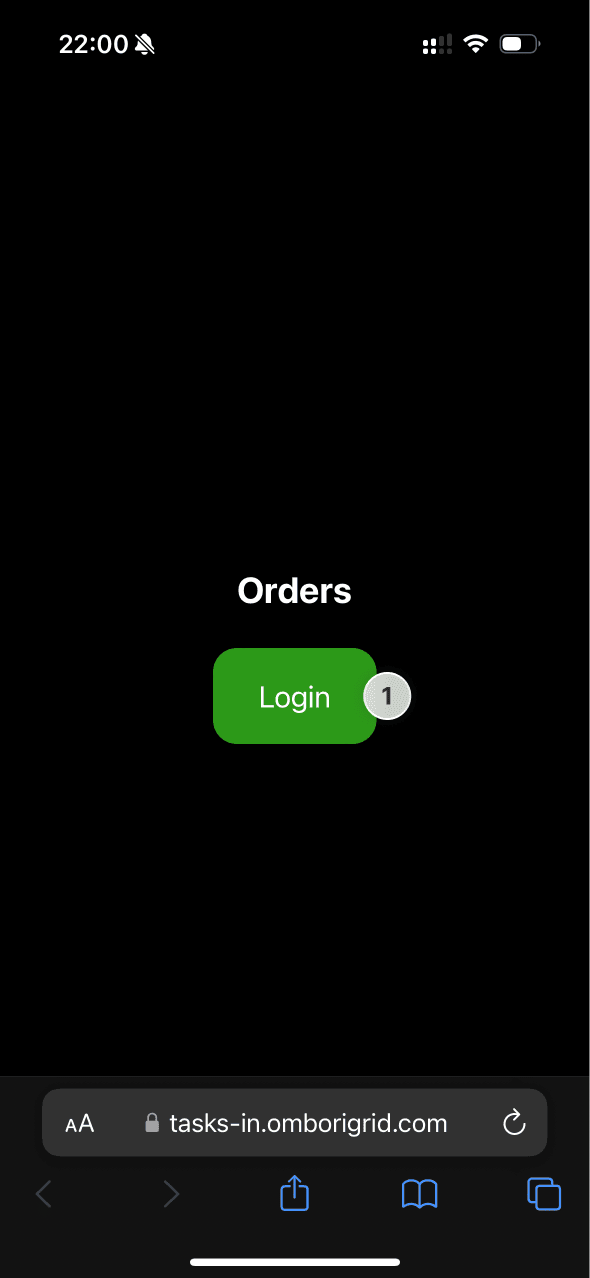
Open the URL that was copied from the Tasks app installation and log in using your pin or credentials
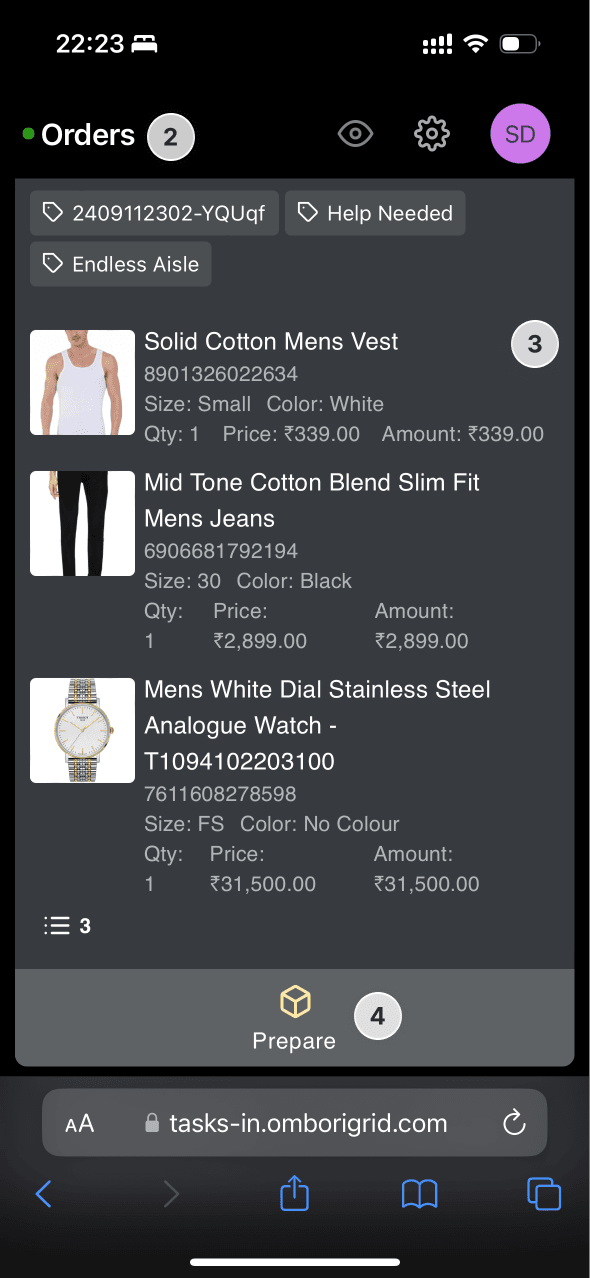
Incoming orders from Smart Fitting Room screens are shown in a list, with the oldest order at the top
Each order contains item details such as size, color, and quantity
When you are ready to start picking up items for delivery in the fitting room area, press Prepare. The screen in the fitting room updates to let the customer know the items are being prepared
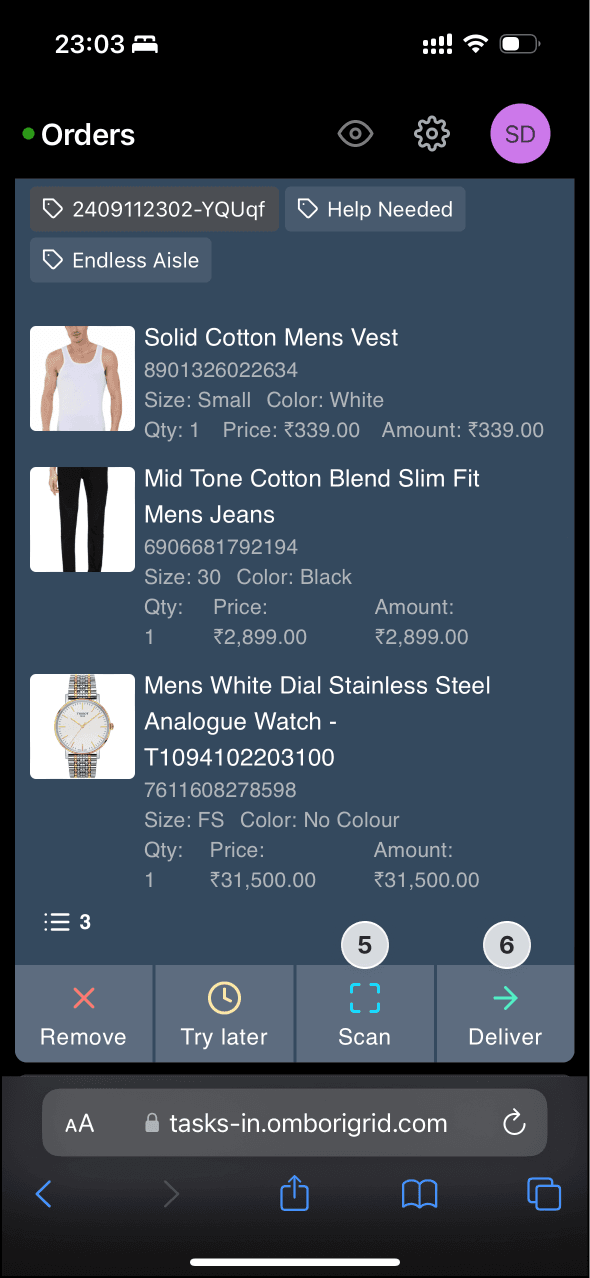
Use the Scan button to scan product barcodes with your device's camera, marking them as collected for order delivery
Once you have collected all the items, head to the handover area and notify the customer that the items are ready. The screen content updates again